
How to Find the MAC Address of Your Tapo Device
The MAC address is a unique identifier assigned to your Tapo device and may be required for network management, feature configuration, or troubleshooting. This guide explains two easy ways to find your device's MAC address: directly on the device label or through the Tapo app.
Key Takeaways
- The MAC address can be found on the label attached to the Tapo device.
- You can also view the MAC address in the Tapo app after completing device setup.
- In the Tapo app, go to Device Settings > Device Info to find the MAC address.
- The location of Device Info varies depending on the device type.
Two Methods to Find the MAC Address
Method 1: Check the Device Label
The MAC address is printed on the product label attached to the device.
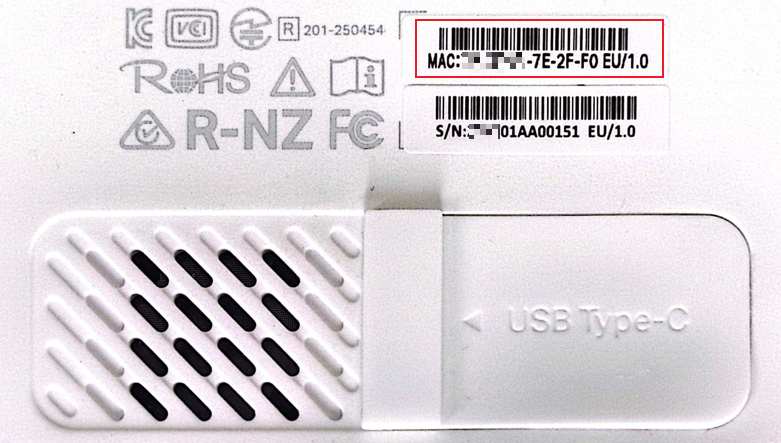
Method 2: Check in the Tapo App
After your Tapo device is successfully set up, it will appear on the Tapo app Home page.
Step 1. On the Tapo app Home page, tap the device card to open the Live View or Status page. Then tap the gear icon in the upper-right corner to access Device Settings.
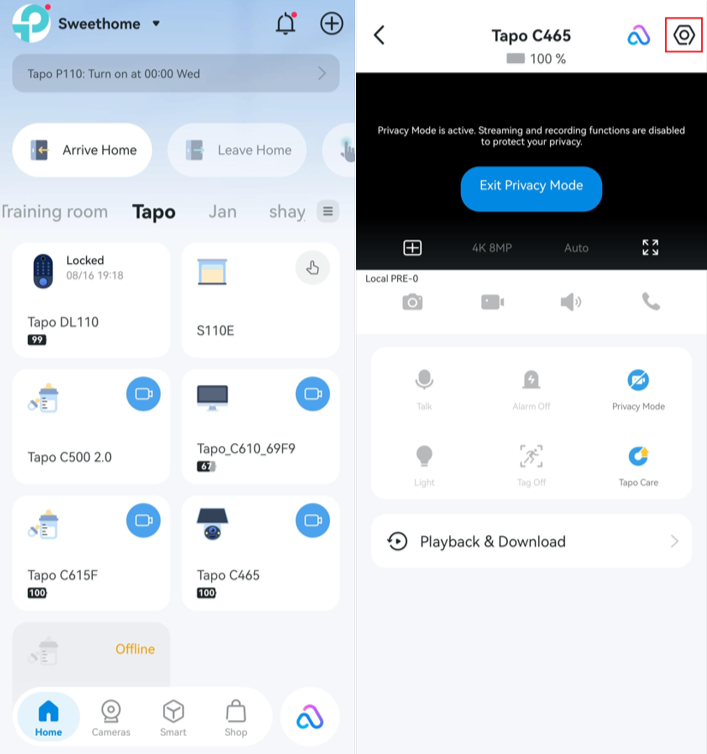
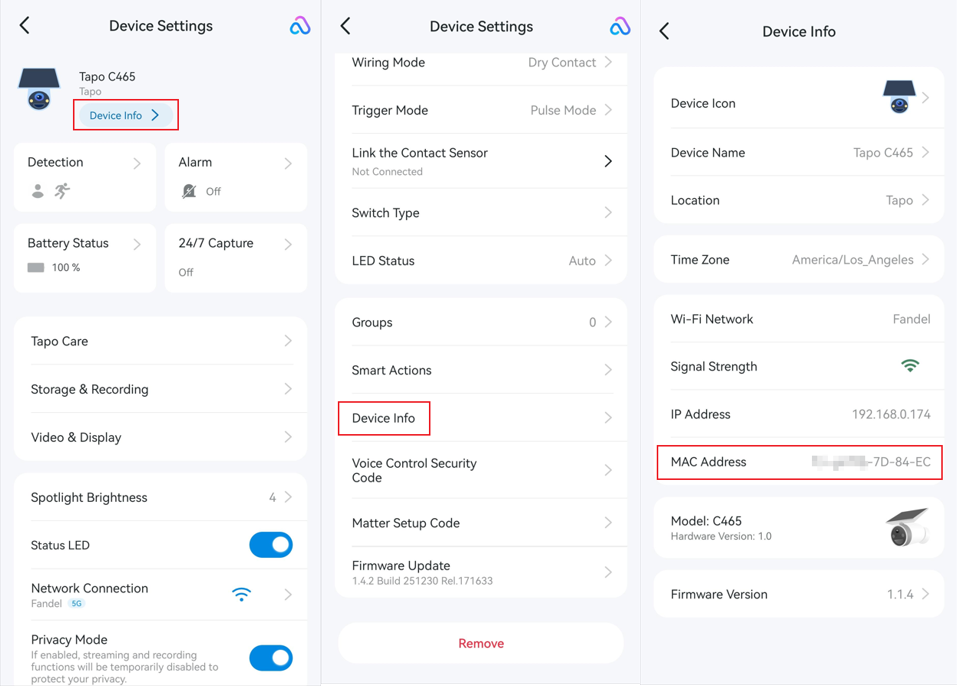
Step 2. Tap Device Info to view the MAC address of your Tapo device. You can also tap the MAC Address field to copy it to the clipboard.
Note: The location of Device Info varies by device type. For cameras, doorbells, and door locks, it is located near the top of the Device Settings page. For hubs, plugs, lightings, switches, and sensors, it is located near the bottom of the Device Settings page.
Buscando mas
¿Es útil esta pregunta frecuente?
Sus comentarios nos ayudan a mejorar este sitio.



TP-Link Community
Still need help? Search for answers, ask questions, and get help from TP-Link experts and other users around the world.