
TL-MR100-Outdoor Setup Guide
Welcome! Let’s get your router up and running together.
This guide makes setup simple for everyone, covering helpful accessibility resources, what’s in the box, how it looks, and where to begin.
Our Tether app and web management page also offer accessibility features, such as increasing page contrast, switching to landscape mode and increasing font size. You can enable them during router setup for an easier and more enjoyable experience! For more accessibility guidance, refer to Accessibility Support.
Note: For some models, Accessibility features will be supported by subsequent firmware upgrades.
Now, ready to explore your router and get connected?
Step 1. Learn About Your Router
1. Unbox Your Router
The package includes a 4G outdoor/indoor router, a pair antennas, an Ethernet cable, a AC power cord, a PoE adapter, mounting kits for the outdoor router, and user guides.
- Antenna
The antenna has a tapered design, widening at the base and slightly narrowing towards the top. The top is slightly rounded, and the base features a connector that is threaded for easy attachment to a device.
- Ethernet Cable
The Ethernet cable is a 10-meter flat, smooth cord with a slightly soft feel. It has a rectangular plastic connector at each end, with a small lever-like clip on top. To use it, align the connector with the Ethernet port on your device and push it in until you hear or feel a click. The clip helps secure the connection; you can press it down to remove the cable when needed.
- AC Power Cord
The power cord is usually a 1-meter-long cable with plugs on both ends. One end is for connecting to the wall outlet, and the other is for inserting into the PoE adapter's power slot to power it up.
- PoE Adapter
The PoE adapter has a cuboid shape and detachable mounting bracket. One end has a power slot, and the other end has a PoE port and a data port. Facing the end with the two ports, keep the power slot to the right of the other end. Now, the PoE port is on the left, and the Data port is on the right.
- Mounting Kits
The mounting kits include a pole/wall mounting bracket, two pole-mounting straps, plastic wall anchors and self-tapping screws:
The pole/wall mounting bracket is a rectangular plate designed for secure installation. Two holes are provided on its top and bottom ends for screws or anchors to attach the bracket to a wall or surface.
The pole-mounting straps are adjustable straps that securely attach your outdoor router to poles by wrapping around them.
Plastic wall anchors are cylindrical, hollow plastic inserts designed to be embedded in a wall to provide a secure base for screws or bolts.
Self-tapping screws are threaded screws used to drive into the wall for mounting your outdoor routers.
2. Appearance
The outdoor router is rectangular and has rounded edge, resembling a brick. Seven square LED indicators are located vertically on the right side of the router, in the middle. It has two external antenna ports at the top and its bottom panel is water-proofed with a tab.
Install the provided antennas to the router, and keep the antennas vertical for optimal LTE performance.
Place your outdoor router on a flat surface with the bottom panel facing you and the LEDs to the right. Now the outdoor router is facing up.
Gently lift the tab on the waterproof cover with your thumb, while holding the waterproof cover with your hand. Pull outward to detach the waterproof cover. Below the bottom panel, from left to right, you will find a reset hole, an Ethernet port, a DC Power port, and a Nano SIM card slot.
- Reset Hole
A small round hole. To reset the router to factory default settings, use a pin to press and hold for at least 5 seconds and release. Then wait about 2 minutes for it to restart.
- Ethernet Port
The square WAN/LAN PoE In port is located to the right of the reset hole. Connect the square Ethernet port to the PoE port on the PoE adapter via an RJ45 cable to power the router.
The port is rounded, and located next to the Ethernet port. An input port for connecting the device to a power supply.
Note: The power adapter is not provided by TP-Link.
- SIM Card Slot
An oval card slot, for inserting the Nano SIM Card. Put the golden contacts down and the notched corner towards the upper left corner. Then insert the card until you hear or feel a click.
- Product Label
The product label is on the back of the outdoor router. The default network name(SSID), wireless password, MAC address, IMEI code of your router and a QR code for quick connection are provided on the label.
- LED Light
From top to bottom, the LEDs on the right sides are as follows. They will change colors according to the router's status. You can check your network status from the Tether app. More lit signal LEDs indicate better wireless signal strength.
| LED | Status | Indication |
|---|---|---|
| Signal | 3 LEDs On | The signal strength is above 75%. |
| 2 LEDs On | The signal strength is between 50% and 75%. | |
| 1 LED On | The signal strength is below 50%. | |
| All Off | No mobile network signal. | |
| LAN | On | The LAN port is connected. |
| Off | No LAN port is connected or LAN port is not connected properly. | |
| Wi-Fi | On | The Wi-Fi is enbaled. |
| Off | The Wi-Fi is disabled. | |
| Internet | On | Internet service is available. |
| Off | Internet service is unavailable. | |
| Power | Green | The device is powered on and working properly. |
| Flashing | The device is initializing, RESET or upgrading. | |
| Off | The device is powered off. |
Step 2. Set Up Your Router
1. Position your router. Make sure that the router is within reach of an AC power outlet and near Ethernet cables for wired devices. If possible, try moving it closer to a window for better signal.
2. Scan the QR code below to download and install the Tether app. Then follow the app instructions to set up your router.
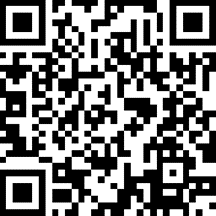
Alternatively, you can click the button below to download and install the Tether app for iOS or Android.
Note: Please remain online (Wi-Fi or mobile data) throughout the app download and login steps.


Tip: You can also cable and set up your router with a web browser by visiting http://tplinkmodem.net or http://192.168.1.1. For detailed information, please refer to the router’s quick installation guide or user guide.
Support
For technical support, replacement services, user guides, and other information about your product model, please visit https://www.tp-link.com/support/
*TP-Link hereby declares that the device is in compliance with the essential requirements and other relevant provisions of directive 2019/882/EU. The original EU Declaration of Conformity may be found at https://www.tp-link.com/en/support/ce/