How to Find the IP Address of My VIGI Device
Contents
Method 3: Via VIGI VMS & VIGI Cloud VMS
Method 4: Via VIGI Config Tool
Method 6: Via the Web Management Page of Your Router
Introduction
In many scenarios, you may need to know the IP address of your VIGI camera or NVR, such as accessing the device's web management page, troubleshooting network issues, or configuring advanced settings. This article introduces several methods to help you quickly find your VIGI device's IP address.
Requirements
- VIGI Camera
- VIGI NVR
- VIGI App / VIGI PC Client / VIGI VMS / VIGI Cloud VMS / VIGI Config Tool
Configuration
Method 1: Via VIGI App
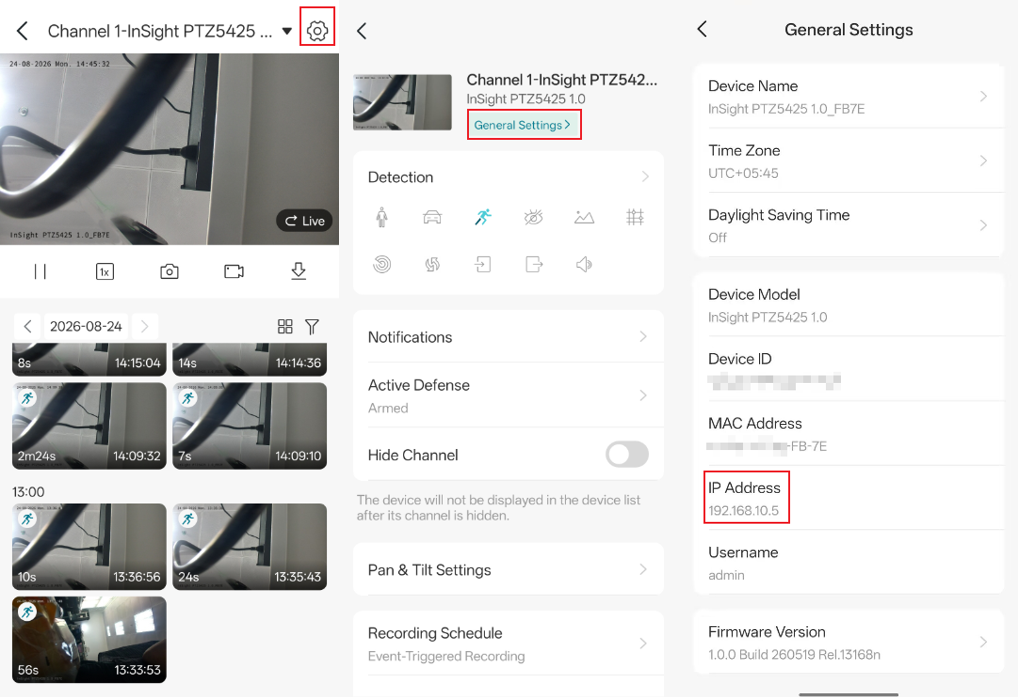
In the VIGI App, please go to the device Settings page > General Settings. You can find the VIGI device IP address here.
Method 2: Via VIGI PC Client
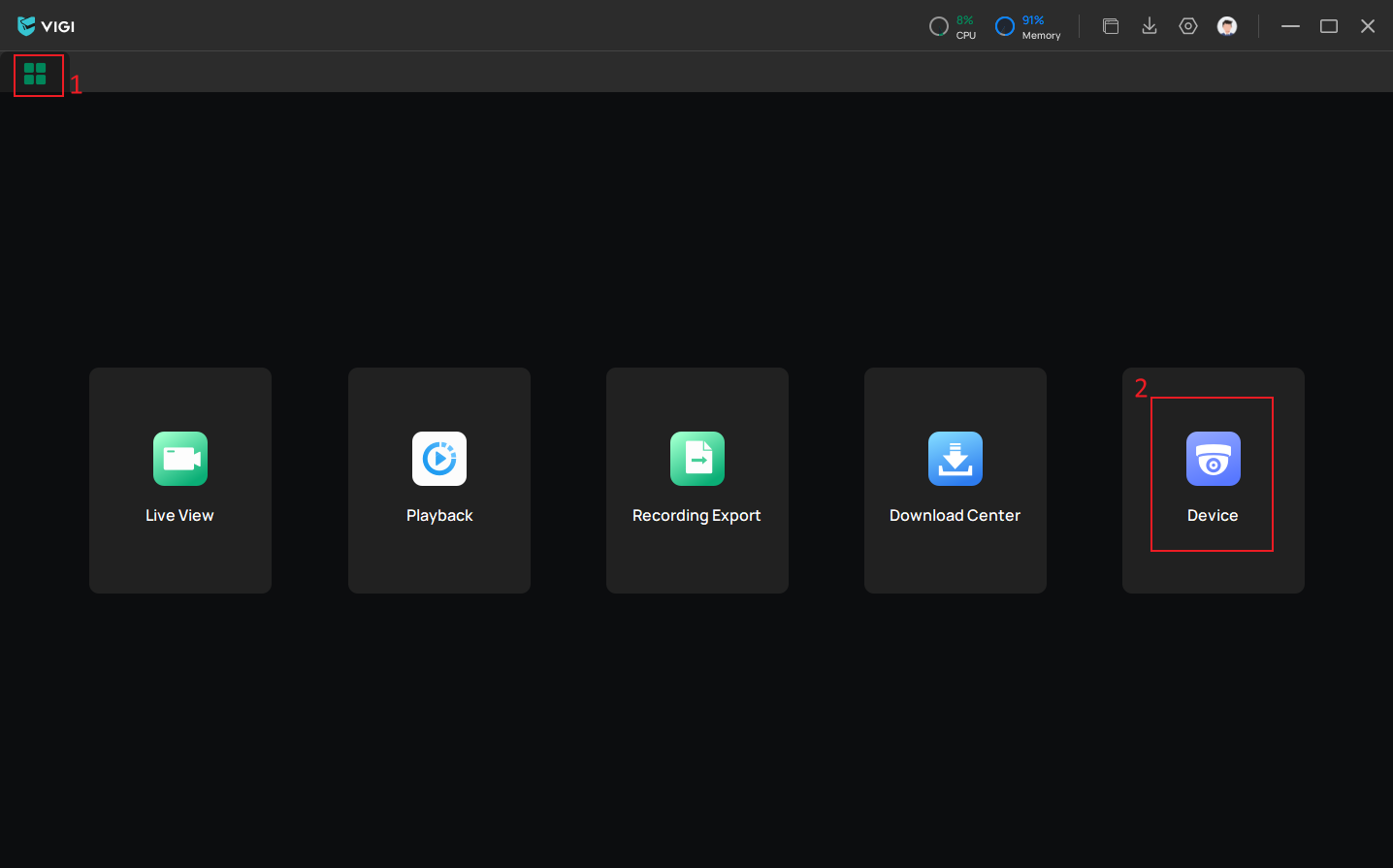
You can find your VIGI device's IP address under the Device List. Please navigate to Home > Device to locate it.
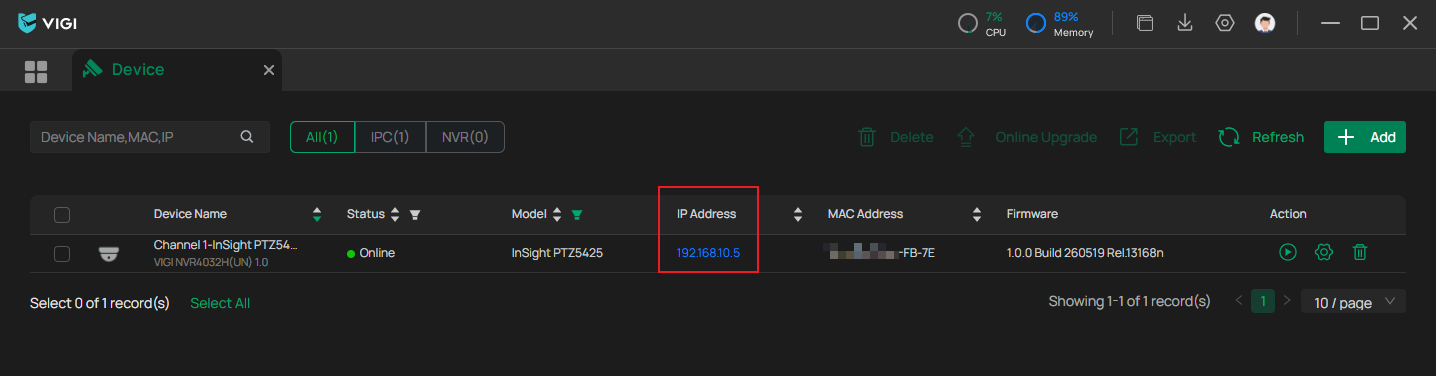
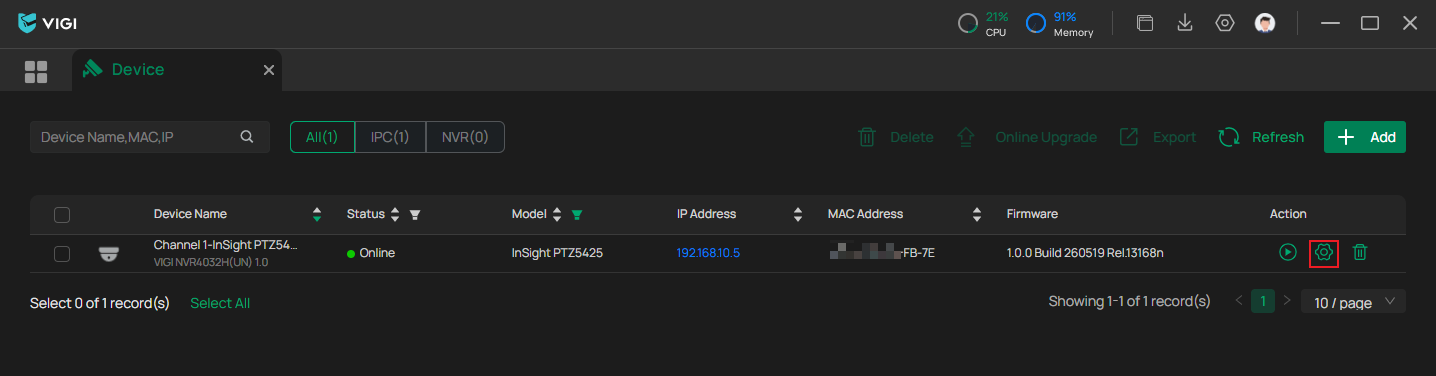
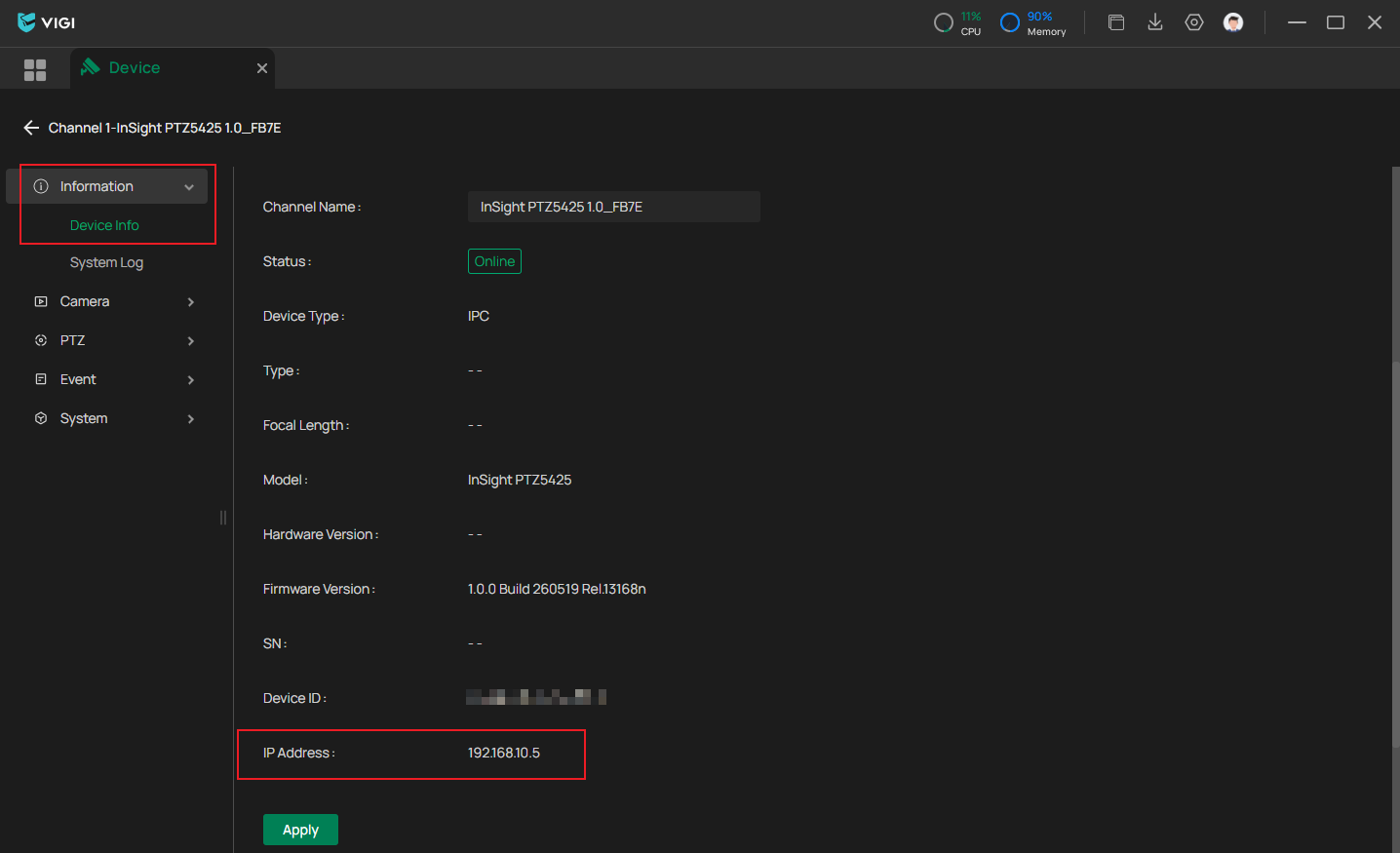
You can also go to Device Settings > Information > Device Info, then scroll down to find the IP address of the VIGI device.
Method 3: Via VIGI VMS & VIGI Cloud VMS
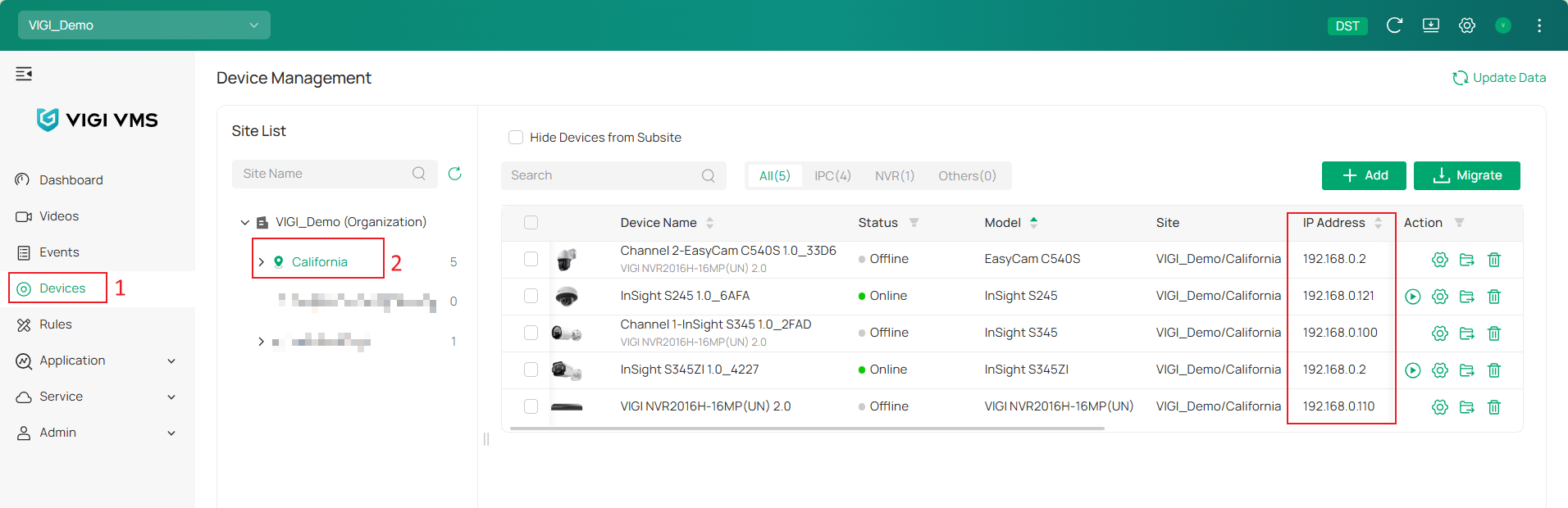
Please navigate to Device, select the Site where the device is located, and the device IP address will be displayed in the device table.
Method 4: Via VIGI Config Tool
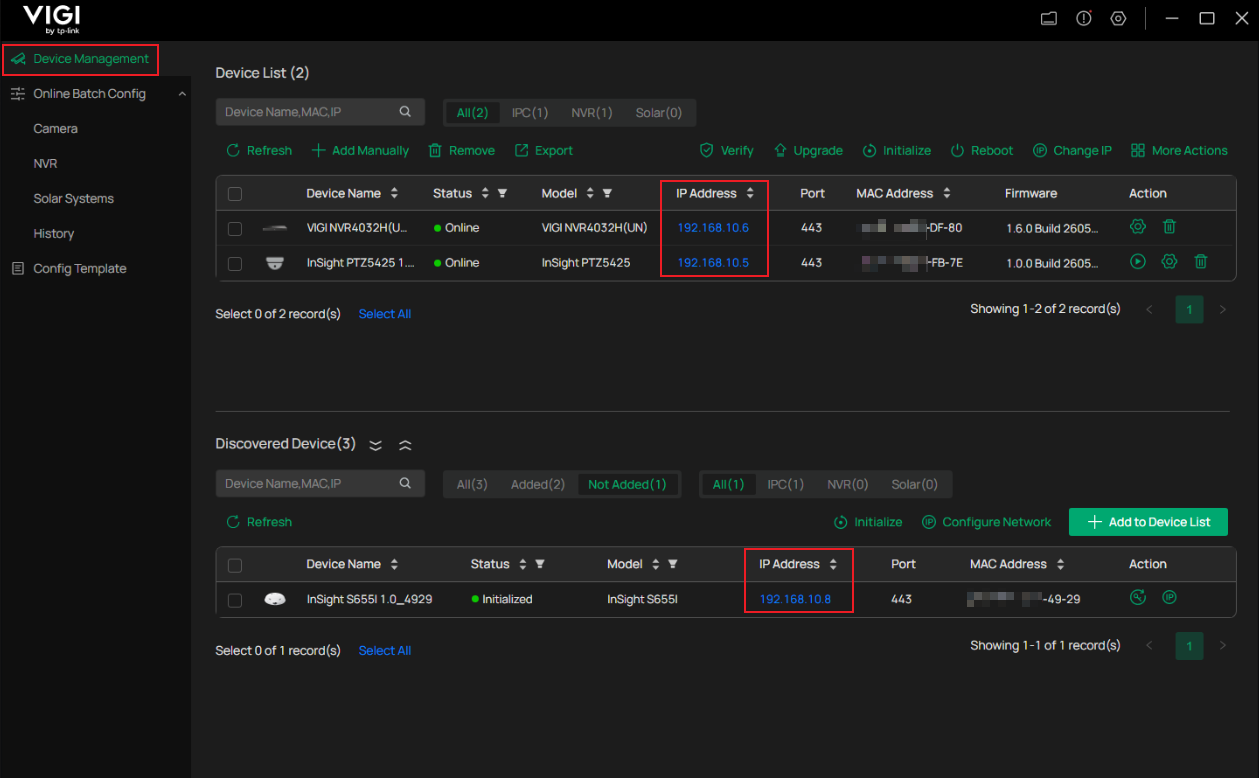
You can view the IP addresses of both discovered and added devices on the same network in Device Management.
Method 5: Via VIGI NVR
If your cameras are managed by a VIGI NVR, you can obtain their IP addresses directly from the NVR's Web UI or GUI. This approach is especially recommended when the cameras are connected directly to the NVR's PoE ports.
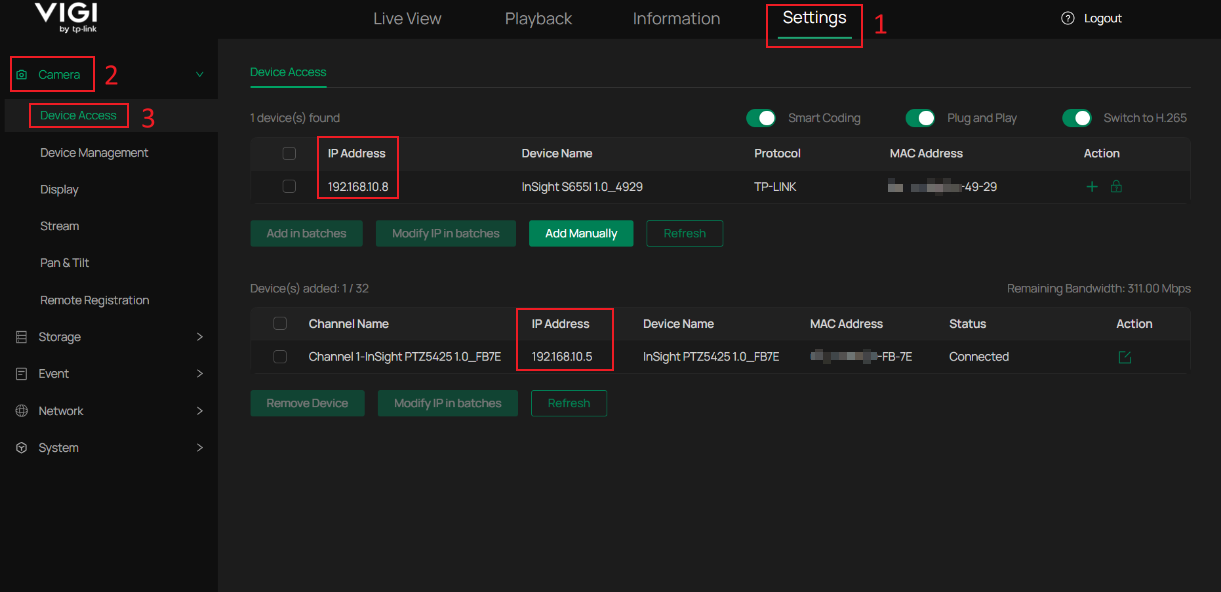
To check the camera IP addresses, go to Settings > Camera > Device Access, where the IP information of both discovered and added cameras on the same network will be displayed.
For the NVR's IP address, please go to Settings > Network > Connect to find it.
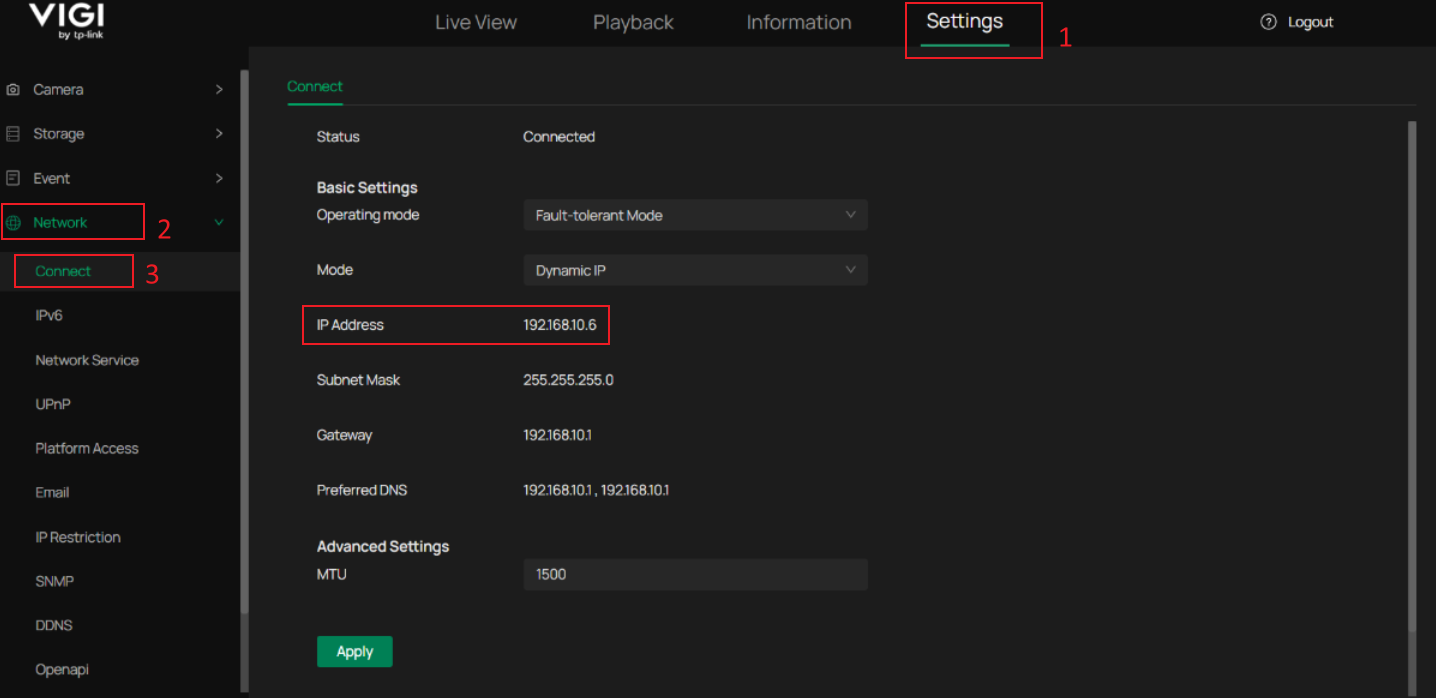
Method 6: Via the Web Management Page of Your Router
Here we use the Omada Gateway ER605 as an example. If you're using a different router, please reach out to your router support team for further assistance.
Step 1. Log in to the management page of your main router.
Step 2. Go to Network > LAN > DHCP Client List to find the IP address of your VIGI Devices.
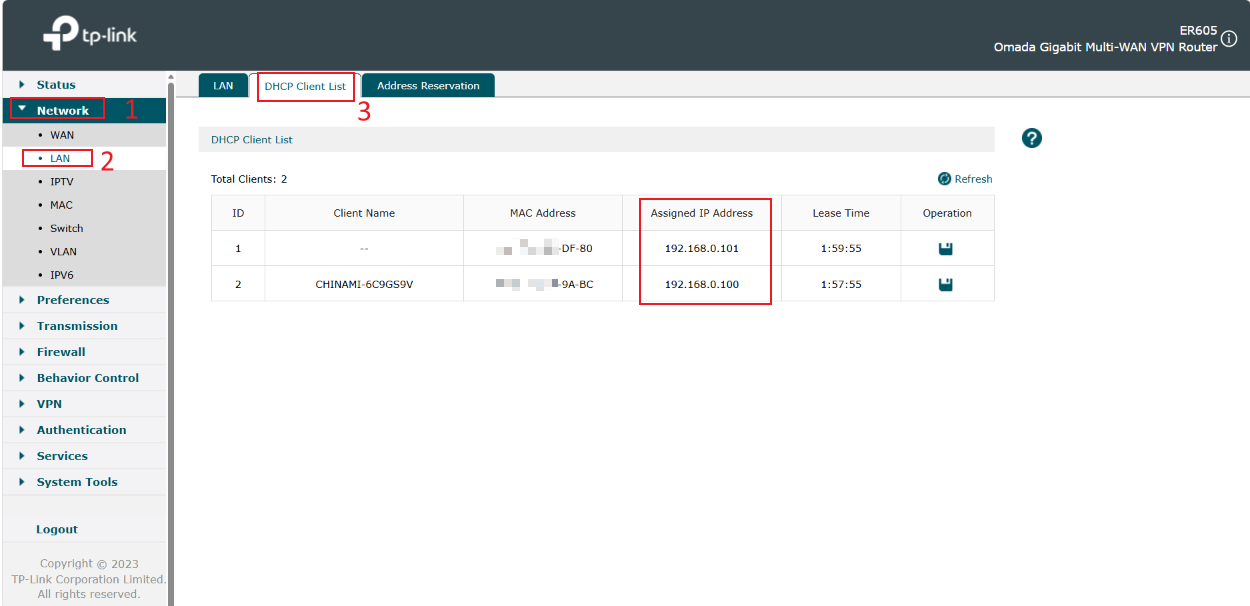
Note: This method is only applicable when the VIGI device is configured to obtain its IP address automatically via DHCP (Dynamic IP). Devices configured with a Static IP address cannot be located using this method.
Conclusion
You have now learned how to find the IP address of your VIGI device across different platforms.
To learn more about each function and configuration, please visit Support Home to download or check the manual for your product.
Looking For More
Is this faq useful?
Your feedback helps improve this site.

TP-Link Community
Still need help? Search for answers, ask questions, and get help from TP-Link experts and other users around the world.