How to Change the Password of a VIGI Camera
Contents
Introduction
Changing your VIGI camera password regularly helps maintain device security and prevent unauthorized access. This guide explains how to change the password of a VIGI camera using a VIGI NVR, VIGI VMS Cloud, or the VIGI App.
Requirements
- VIGI App
- VIGI NVR
Configuration
This section describes how to change the password of a VIGI camera using a VIGI NVR, VIGI VMS Cloud, or the VIGI App. Follow the method corresponding to your current management platform.
Configuration for VIGI NVR
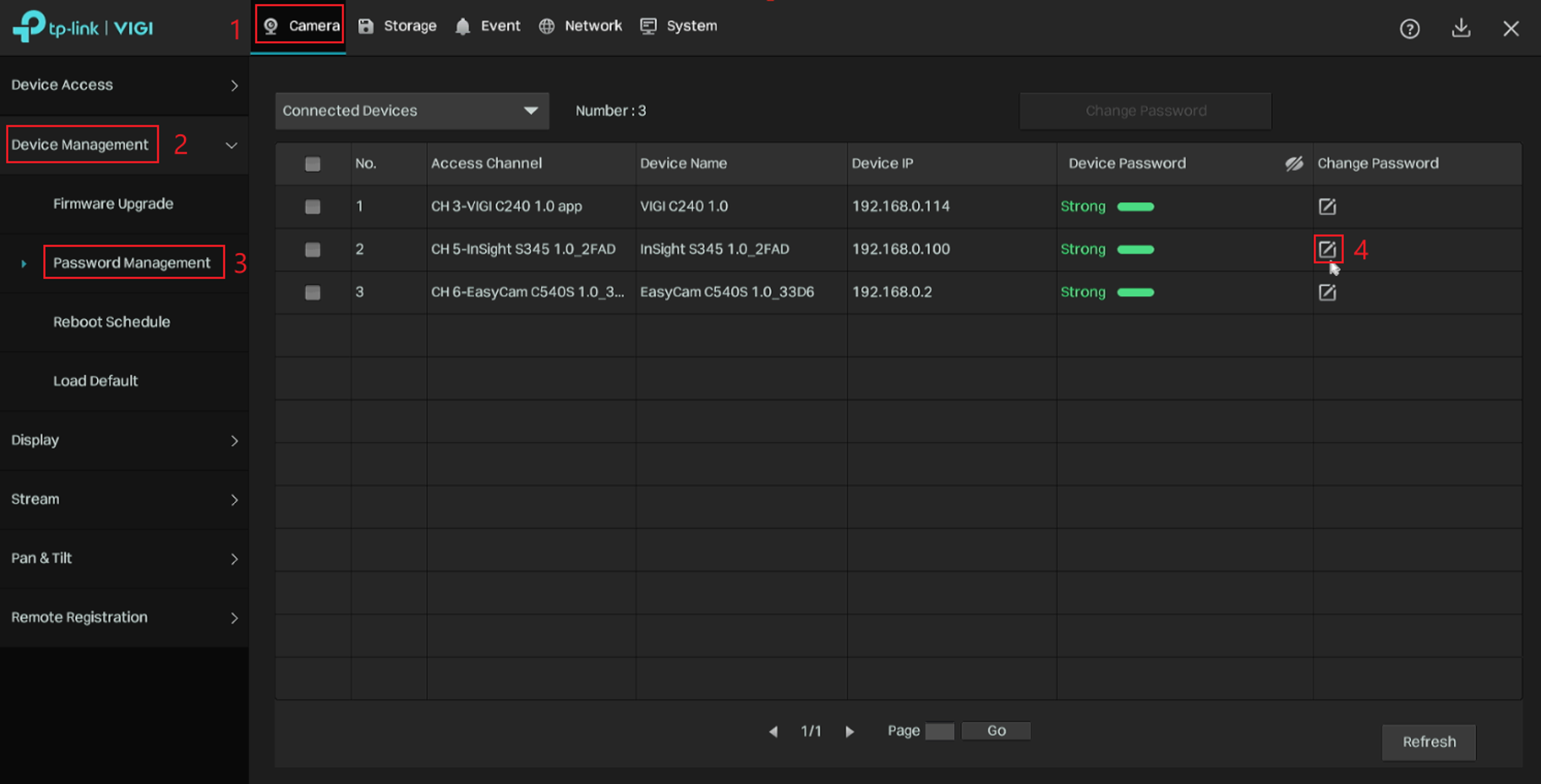
Step 1. Right click to open Main Menu, go to Settings on your NVR > Camera > Device Management > Password Management, select the camera and click edit icon.
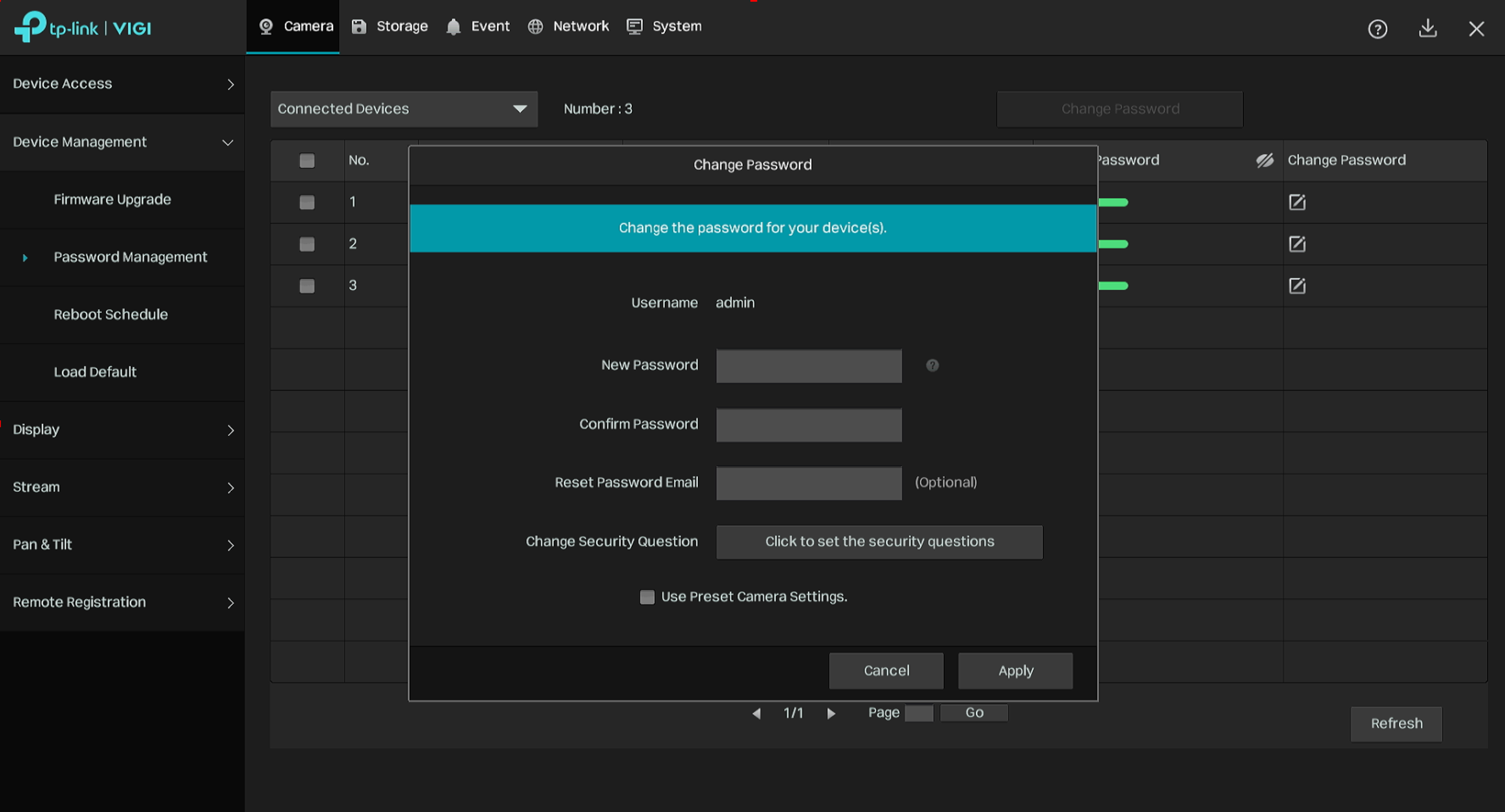
Step 2. Enter your new password and Reset Password Email, click Apply. You can also use Preset Camera Settings which you set on the VIGI NVR. If you want to change the preset NVR settings, you can refer to How to Change the Password and Password Reset Email on a VIGI NVR.
Configuration for VMS Cloud
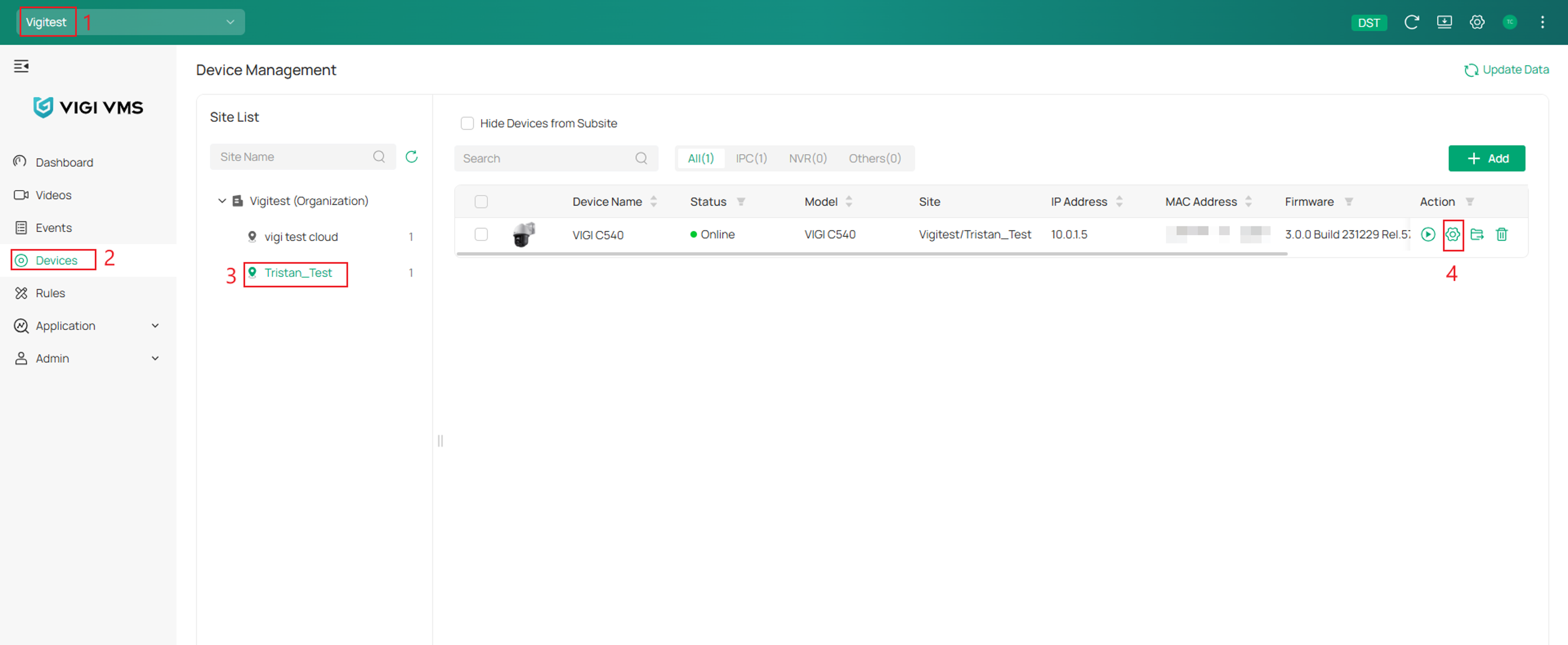
Step 1. Log in to your VMS Cloud and navigate to Organization > Devices > Site > and select Edit.
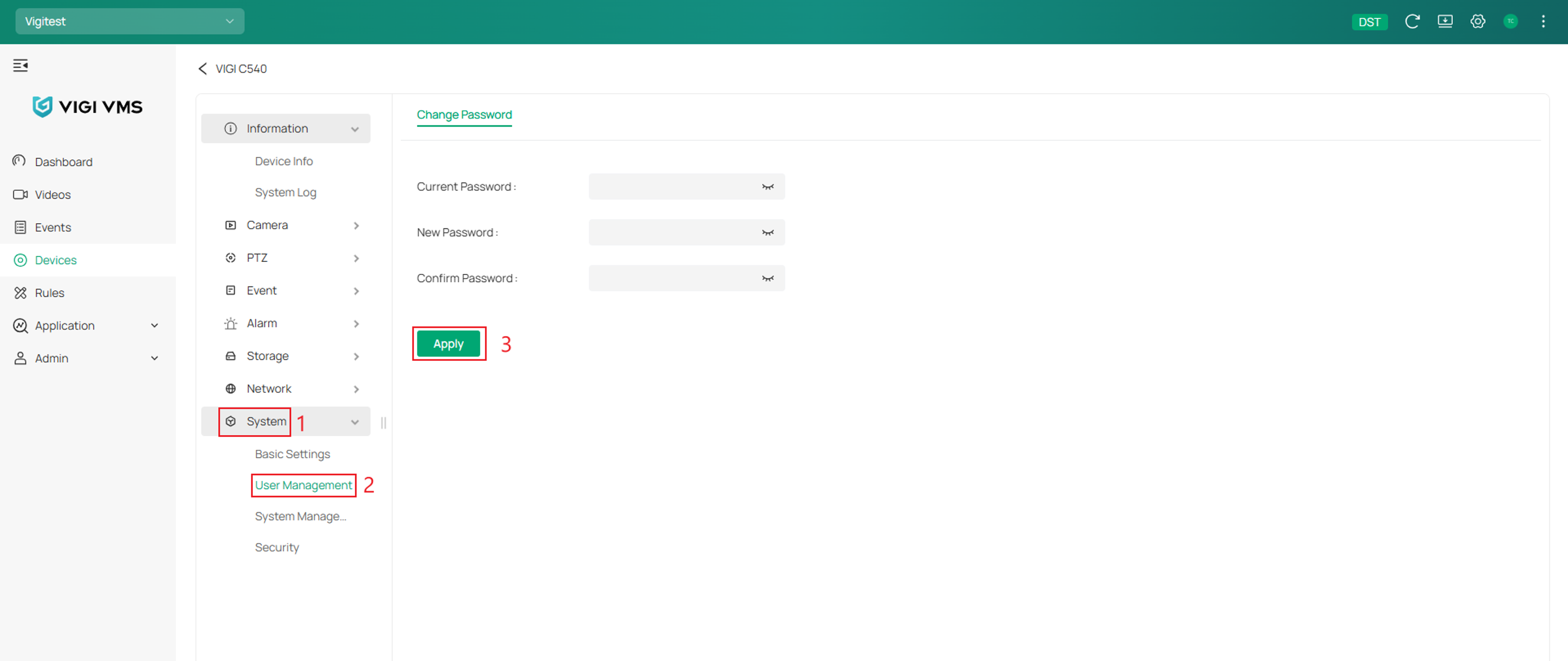
Step 2. Next, go to System > User Management > and fill in the parameters.
Click Apply once complete.
Configuration for VIGI App
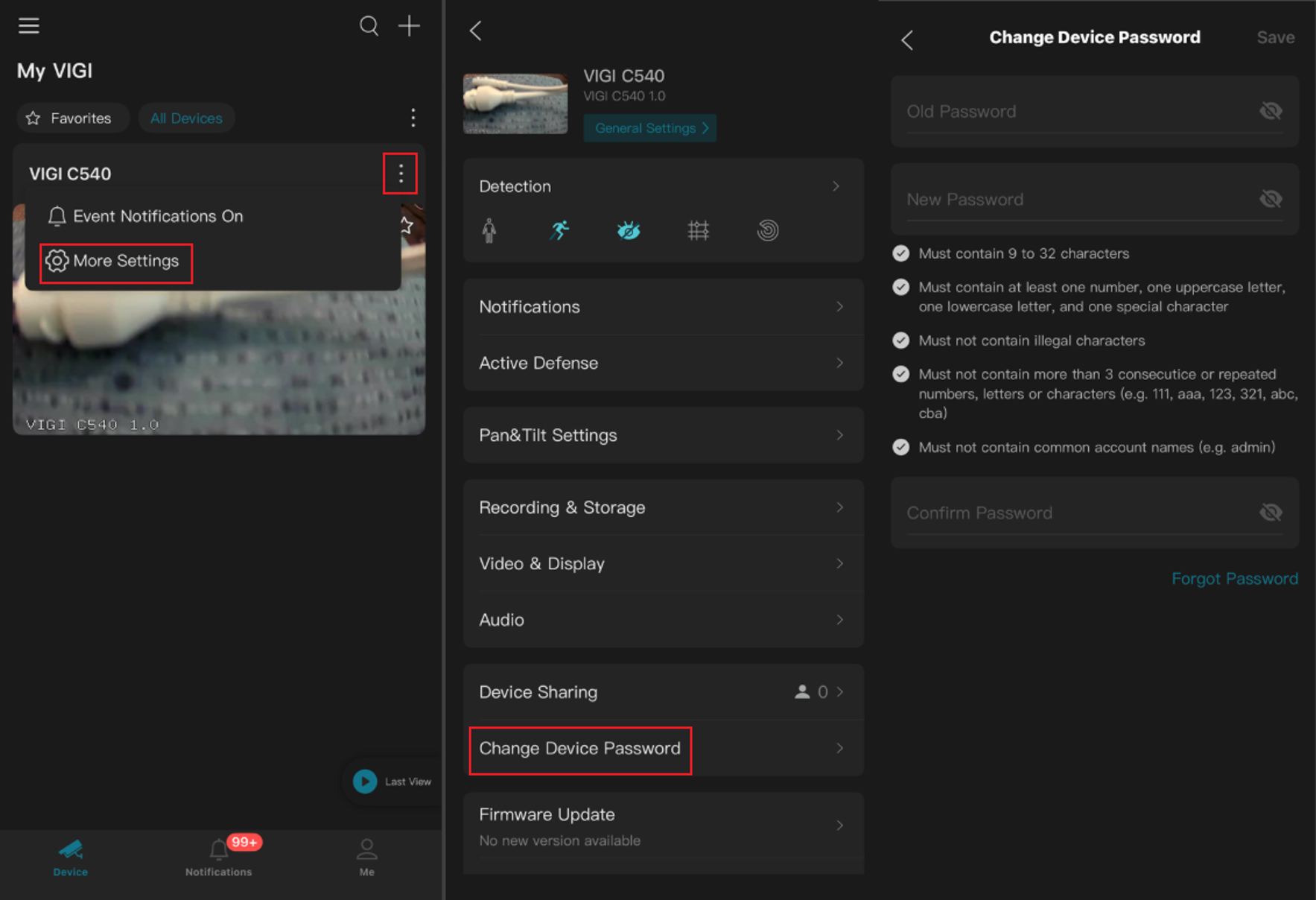
Step 1. Open your VIGI App and tap the three-dot icon in the upper-right corner > select More Settings > Change Device Password > and fill in the parameters.
If you forget the old password, please refer to the How to Reset the Password of the VIGI Camera to reset the password.
Conclusion
You have now successfully changed the password of your VIGI camera using the available management platform. Be sure to store the new password securely and update any connected devices or services that use the camera’s previous credentials.
To learn more about each function and configuration, please visit Support Home to download or check the manual for your product.
QA
Q1: What should I do if I forgot the current password of my VIGI camera?
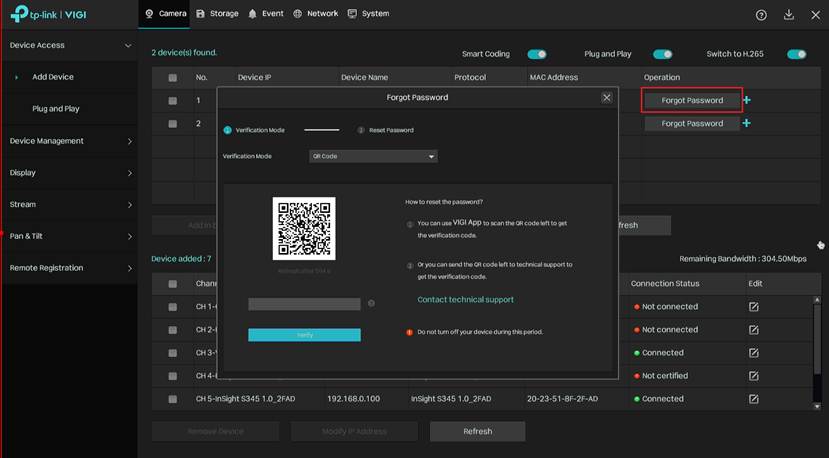
A1: Use the Forgot Password option to reset the camera password. If this option is unavailable, reset the camera to factory defaults and configure it again. The figure below shows the Forgot Password option on a VIGI NVR.
Looking For More
Is this faq useful?
Your feedback helps improve this site.



TP-Link Community
Still need help? Search for answers, ask questions, and get help from TP-Link experts and other users around the world.