
Why TP-Link's HTTPS Local Management Shows "Not Secure"
If you see a "Not Secure" or "Your connection is not private" warning when accessing TP-Link local management via HTTPS at addresses like 192.168.0.1 or tplinkwifi.net, you are not alone. This warning is common and can be alarming, but it does not mean your connection is actually insecure. This page explains why the warning appears and what it means for the safety of your connection.
Key Takeaways
- TP-Link's local management interface uses a self-signed certificate, which most browsers do not recognize as being from a trusted certificate authority (CA). This is why browsers display the "Not Secure" or "Your connection is not private" warning.
- A certificate's only purpose is to verify an unknown server's identity. It is entirely separate from whether the connection is encrypted.
- The connection between your browser and TP-Link's local management interface is still encrypted. Data transmitted cannot be read by anyone else.
- TP-Link local management uses TLS v1.2, a widely recognized secure connection protocol, to protect data in transit.
- You can confirm the connection is secure in Chrome by pressing F12, navigating to Privacy and Security, then Security, and verifying that TLS v1.2 is active.
Why Browsers Show the "Not Secure" Warning
TP-Link's local management uses a self-signed certificate — one not issued by a recognized certificate authority (CA). Browsers flag this automatically, regardless of whether the connection is actually safe. The warning reflects the certificate's origin, not the security of your data.
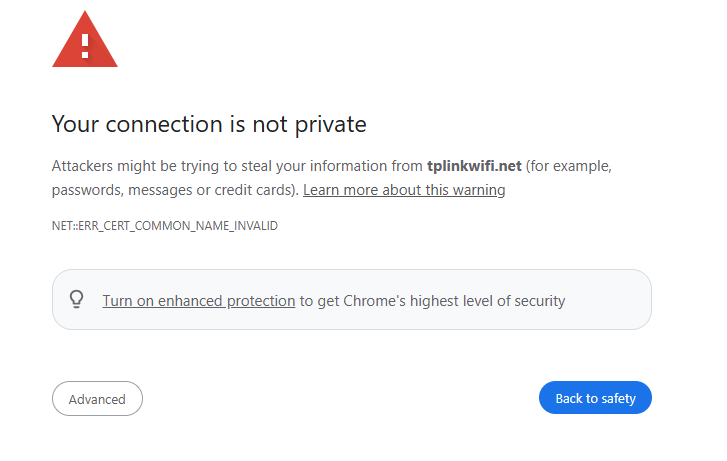
Your Connection Is Still Encrypted
A certificate's purpose is only to allow a client to verify an unknown server's identity. It has no bearing on whether the connection data is encrypted. Even if your browser does not trust the self-signed certificate, the data transmitted between your browser and TP-Link's local management interface remains encrypted. No one else can read that data in transit. TP-Link local management uses TLS v1.2 as its secure connection protocol — a widely recognized standard for protecting data in transit. The connection between your browser and TP-Link's local management interface is encrypted and secure.
How to Verify the Connection Is Secure in Chrome
To confirm that TLS v1.2 is active on your TP-Link local management connection:
- Go to tplinkwifi.net or 192.168.0.1 in Chrome.
- Press F12 to open Developer Tools.
- Navigate to the Privacy and Security, then the Security tab.
- Confirm TLS v1.2 is shown as the connection protocol.
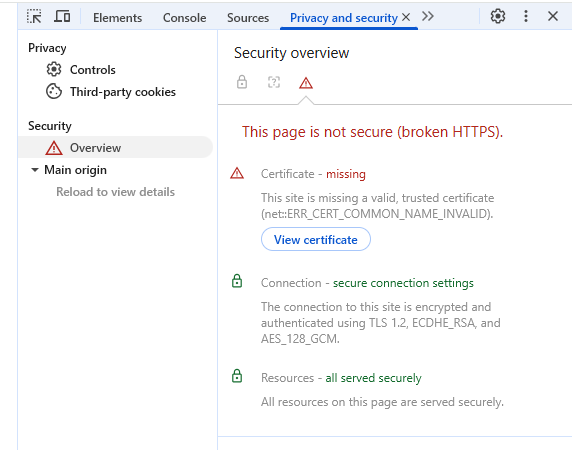
From Chrome's security report, it is obvious that tplinkwifi.net is using TLS v1.2, and the connection is secure. The connection between your browser and TP-Link's local management interface is encrypted and secure.
Note: Finding more about CA and how CA works.
Looking For More
Is this faq useful?
Your feedback helps improve this site.

TP-Link Community
Still need help? Search for answers, ask questions, and get help from TP-Link experts and other users around the world.