
How to Fix TP-Link Device Domain Name Login Issues
Different TP-Link devices have different domain name:
- Archer/Aginet routers: https://tplinkwifi.net/
- Deco: https://tplinkdeco.net/
- DSL/4G/5G modem routers: https://tplinkmodem.net/
- Mobile Wi-Fi products: https://tplinkmifi.net
- Range Extenders: https://tplinkrepeater.net
- Access Points: https://tplinkap.net/
- Powerline Adapters: https://tplinkplc.net/
If the domain name isn't loading, you're likely seeing an error message or a blank screen instead of your router's login page. The good news is that this is usually a simple fix. Common solutions include making sure you're connected to the router, clearing your browser cache, rebooting the router, or temporarily disabling your firewall. More context and advanced troubleshooting steps for logging in to your TP-Link router are explained below.
Key Takeaways
- Domain name is your TP-Link product's built-in management system, accessible only from devices connected to the product's network.
- There are several reasons why the domain name doesn’t work, including connection issues, cached data, conflicting network connections, and local software blocking access.
- Basic troubleshooting often fixes the problem before a factory reset is needed. Start with simple checks like your connection, browser cache, and alternate IP addresses, then try rebooting your devices. A factory reset should be a last resort, as it erases all your settings.
- Because the domain name simply points to your device's gateway, you can usually reach the management page directly using IP addresses:
-Archer/Aginet routers/Mobile Wi-Fi: https://192.168.0.1/
-Deco: https://192.168.68.1/
-DSL/4G/5G modem routers: https://192.168.1.1/
-Range Extenders/Access Points/Powerline Adapters: http://192.168.0.254/
- Local software such as firewalls, antivirus programs, VPNs, and multiple active network connections can all block access to tplinkwifi.net.
Note: For illustration purposes, tplinkwifi.net is used as an example domain name in the following sections of this document.
Troubleshooting Solutions for tplinkwifi.net Access Issues
Connect to Your Router's Network First
tplinkwifi.net is an internal management tool and can only be accessed from a device connected to your TP-Link router's network. Connect via a wired Ethernet cable or wirelessly, then try loading tplinkwifi.net again. If you need a refresher on how to log in to your TP-Link router, see how to log in to the web management page of your TP-Link router
Clear Your Browser Cache
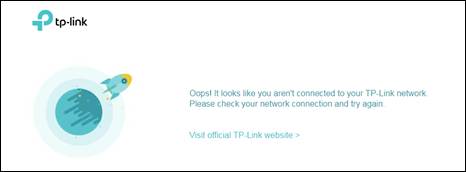
If you see the error message shown below, your browser has likely saved a public IP address for tplinkwifi.net. You will need to clear your browser cache (cookies) and history to resolve this. Instructions for clearing browser data are available for:
You can also try switching to a different browser or device. For example, if Chrome isn't working, try Mozilla Firefox to access tplinkwifi.net.
Use the Router's Gateway IP Address Instead
tplinkwifi.net resolves to your router's gateway IP address. If the URL isn't loading, you can try entering the IP address directly in your browser's address bar. The default gateway address is typically 192.168.0.1.
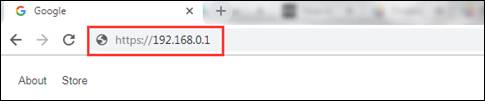
Note: The default address may not apply to every router. If neither works, see how to find your TP-Link router's IP address for step-by-step instructions by operating system.
Disconnect Other Network Connections
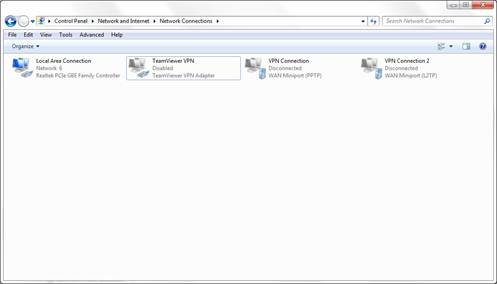
Having multiple network connections active at the same time, such as a wired connection, a wireless connection, and a virtual private network (VPN), can prevent access to the management utility. Disable or disconnect all Internet and VPN connections except the one you are using to connect to the router, then try accessing tplinkwifi.net again.
Disable Secure DNS in your browser
Some browsers use Secure DNS (DNS over HTTPS) by default.
When Secure DNS is enabled, the browser may bypass the router’s local DNS, which can prevent domain names such as tplinkwifi.net or tplinkmodem.net from resolving correctly.
Please follow the steps below to disable Secure DNS based on your browser:
-
Google Chrome
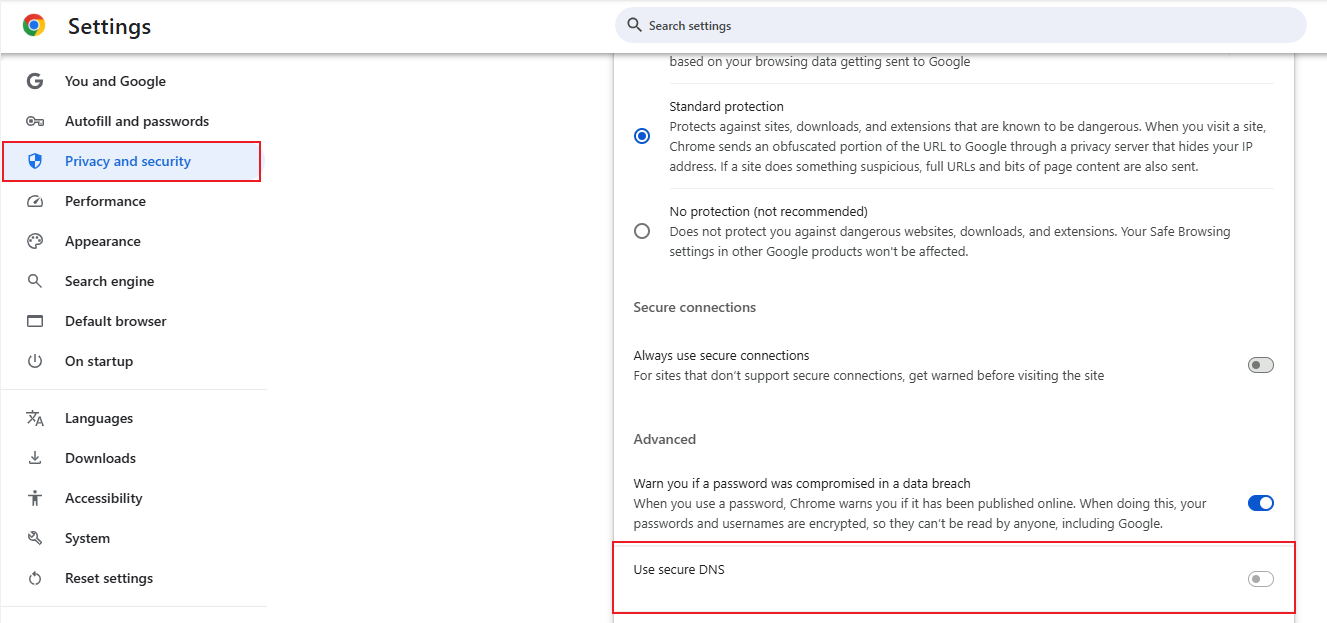
1. Open a new tab and enter chrome://settings/security in the address bar.
2. Under the Security section of the Privacy and Security page, find Use Secure DNS.
3. Turn off Use Secure DNS.
4. Close the browser completely, reopen it, and try accessing the router again.
-
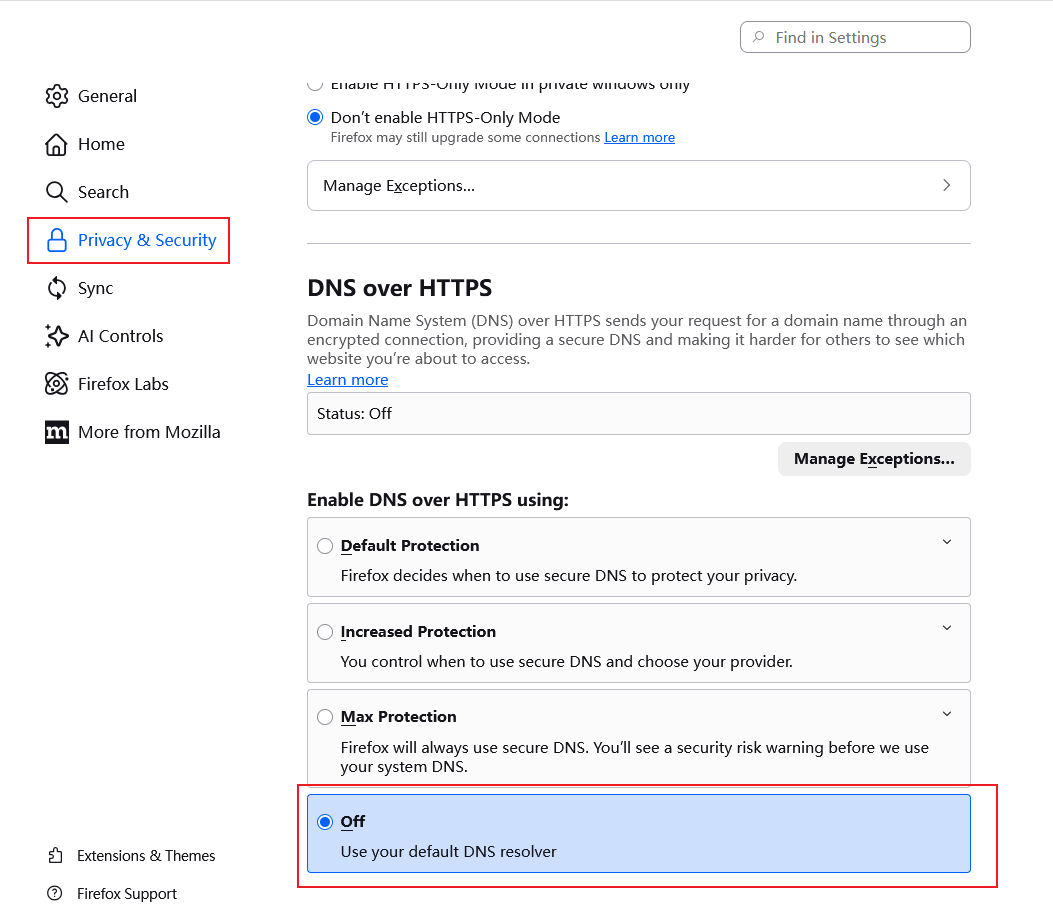
Mozilla Firefox
1. Open a new tab and enter about:preferences#privacy in the address bar.
2. Under Privacy and Security page, find DNS over HTTPS.
3. Select off.
4. Restart Firefox and try accessing the router using the domain name again.
-
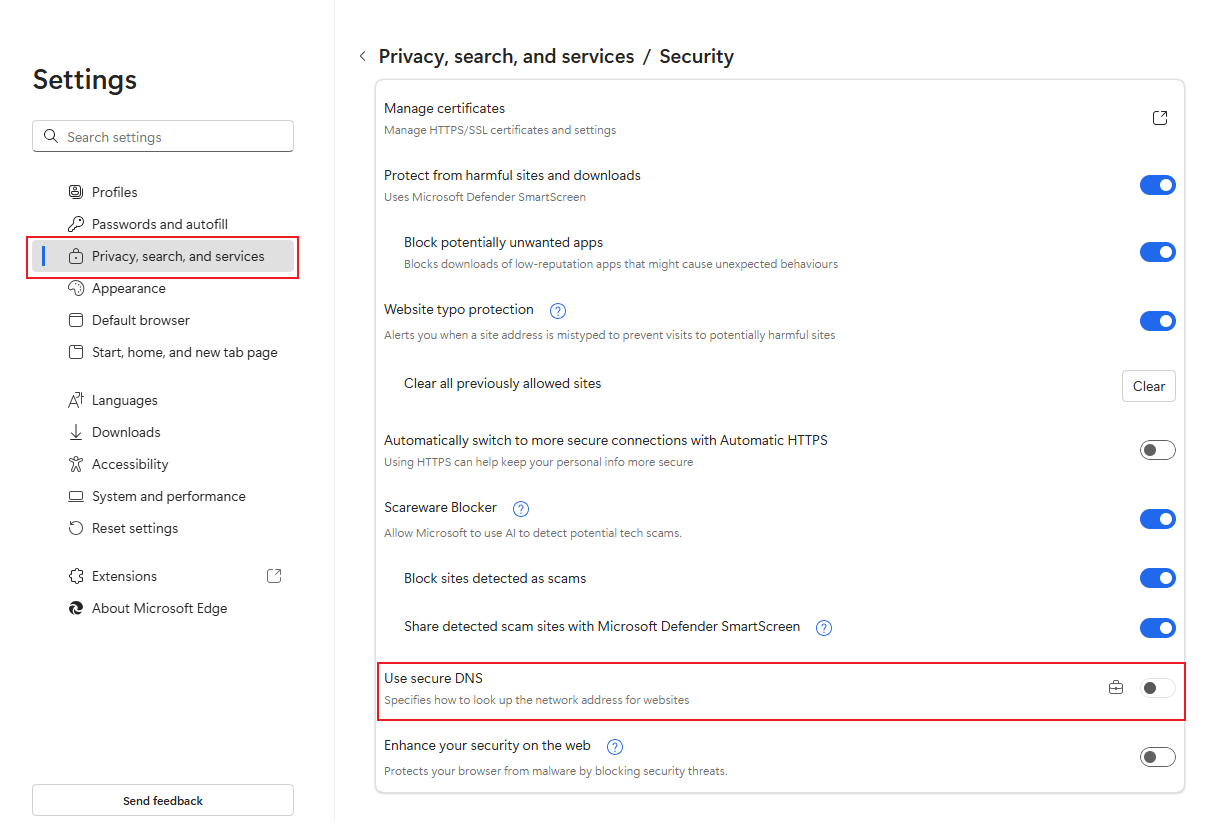
Microsoft Edge
Go to edge://settings/privacy/security, then in the Security section of the Privacy, search, and services page, turn off Use Secure DNS.
1. Open a new tab and enter edge://settings/privacy/security in the address bar.
2. Under Security section of the Privacy, search, and services page, find Use Secure DNS.
3. Turn off Use Secure DNS.
4. Restart Microsoft Edge and try accessing the router using the domain name again.
Reboot the Router
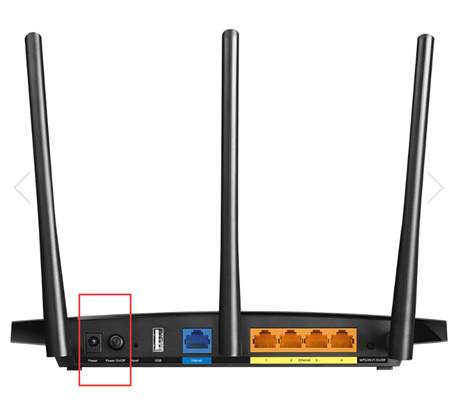
Rebooting your router and modem can resolve many access issues, including problems reaching the management page. To reboot your TP-Link router, unplug the power cable and plug it back in, or press the power button off and then on again.
Note: It is also a good idea to reboot your computer or other device at the same time.
Temporarily Disable Your Firewall or Antivirus Software
Firewall and antivirus software may block access to tplinkwifi.net because they do not recognize the address or flag it as unsecured. Try temporarily disabling your firewall or antivirus program, then reload the page.
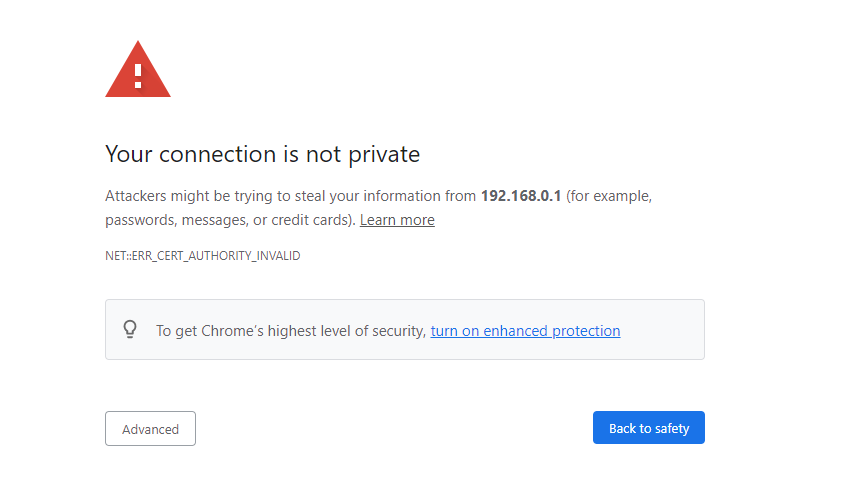
You Receive a "Your Connection Is Not Private" Warning
If your browser shows a "Your connection is not private" warning when accessing tplinkwifi.net, this is expected behavior. The TP-Link web interface uses a self-signed certificate rather than one issued by a trusted certificate authority. Your connection is still secure.
To proceed, click Advanced, then select Proceed to tplinkwifi.net (unsafe) or Proceed to 192.168.0.1 (unsafe). For more details on why this warning appears, see the FAQ on logging in to the TP-Link router's web management page when HTTPS is enabled.
When All Else Fails
If you have tried all the solutions above and still cannot access the router's login page, a factory reset may be necessary. You can refer to the FAQs for detailed instructions:
How to Factory Reset Your TP-Link Router
How to Reset Deco or Reboot Your TP-Link Deco System
How to reset TP-Link Wireless 4G LTE Router to factory defaults
How to Reset TP-Link Mobile Wi-Fi Devices to Factory Defaults
How to Factory Reset Your TP-Link Range Extender or Access Point
How to Reset the Powerline Adapter to Factory Default
Note: A factory reset will erase all custom settings and restore the router to its original factory configuration. You will need to set up your router again after the reset.
If a factory reset does not resolve the issue, contact TP-Link Support for further assistance.
Looking For More
Is this faq useful?
Your feedback helps improve this site.


6.0-package_normal_1578295057780i.jpg)

TP-Link Community
Still need help? Search for answers, ask questions, and get help from TP-Link experts and other users around the world.