
TP-Link Network Adapter Driver Not Installing on Windows: Troubleshooting Guide
This page covers step-by-step fixes for six common scenarios where a TP-Link network adapter driver fails to install on Windows. Whether you're dealing with a TP-Link driver error, an adapter that won't work, or a setup wizard that won't run, the fix depends on your specific symptom. The six scenarios covered are: setup wizard failure, adapter not detected, driver installation failure, Device Manager error codes, blue screen, and other devices stopping after installation. Find your scenario below to get started.
Key Takeaways
- Before installing a new driver, remove any old or existing drivers first to avoid conflicts.
- If the adapter is not detected by Windows, try a different USB port or PCI slot, or test on another computer to rule out hardware failure.
- Temporarily disabling antivirus software and the firewall can resolve driver installation failures in some cases.
- If a driver error code appears in Device Manager after installation, uninstalling the old driver and downloading the latest version from the TP-Link website usually resolves it.
- For error code 31, specific troubleshooting steps are available on the TP-Link support site.
- If Bluetooth or other devices stop working after installing the adapter, re-pairing the affected devices usually resolves the issue.
Note: Old or unused drivers may interfere with the installation of the new driver; it is recommended to remove the old driver first.
Troubleshooting TP-Link Network Adapter Driver Installation on Windows
Case 1: Unable to run the setup wizard
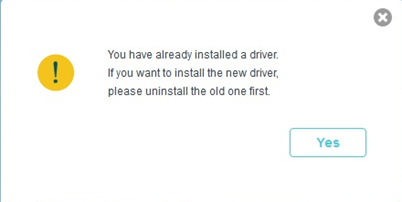
If you see a TP-Link driver error stating that a driver is already installed, uninstall the old driver first, then reinstall it.
Case 2: Adapter Not Detected by Windows
Step 1. Go to Computer Management > Device Manager > Network Adapter.
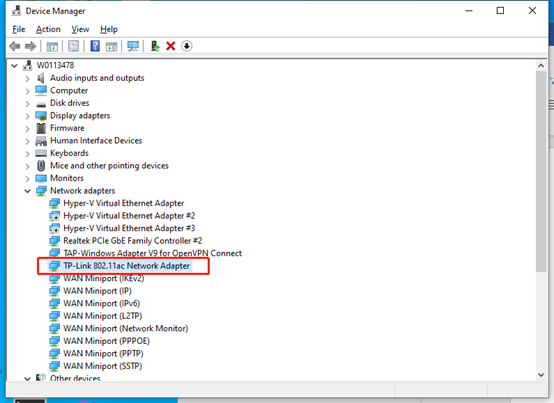
- If the adapter shows up, install the driver.
- If the adapter is not there, plug the adapter into another USB port/PCI slot.
Step 2. Install the adapter on another computer to see if it can be detected.
Step 3. For each USB Root Hub, uncheck 'Allow the computer to turn off this device to save power', click OK, then restart the computer. This helps USB devices maintain a stable connection.
Step 4. Right-click on My Computer > Properties > Hardware > Device Manager and double-click on "Universal Serial Bus Controller" to go to several "USB Root Hubs" and double-click on any one to open the Properties dialog and switch to the "Power Management" tab.
Case 3: Driver Installation Fails
If your TP-Link Wi-Fi adapter is not working and the driver fails to install, try the following steps.
Step 1. Make sure your computer's operating system is compatible with the adapter. You can refer to whether my Network adapter is compatible with my computer
Step 2. Make sure the adapter appears in Device Manager.
Step 3. Uninstall anti-virus software and disable the firewall if any.
Step 4. Try installing it in safe mode.
Step 5. Install it on another computer if possible.
Step 6. Try to manually install the adapter.
Case 4: Error Code Appears in Device Manager After Installation
If an error code appears in Device Manager after installation, uninstall the old driver via Control Panel > Uninstall a Program, then download and install the latest driver from the TP-Link website.
- Troubleshoot for error code 31: "This device is not working properly because Windows cannot load the drivers required for this device. (Code 31)"
- It's recommended to enter the safe mode to install the driver
For more information about error codes, refer to Error codes in Device Manager in Windows
Case 5: Blue Screen After Driver Installation
Please refer to How to troubleshoot if your computer goes to a blue screen when installing TP-Link wireless adapter
Case 6: Other Devices Stop Working After Installation
Try re-pairing your Bluetooth device — refer to the linked guide for detailed steps.
If the pairing fails, please refer to the following suggestions:
- Try different USB ports/PCI slots.
- Check the driver version of the adapter and computer motherboard info, and Contact TP-Link support with the corresponding screenshots.
To get to know more details of each function and configuration, please go to the Download Center to download the manual of your product.
Looking For More
Is this faq useful?
Your feedback helps improve this site.

TP-Link Community
Still need help? Search for answers, ask questions, and get help from TP-Link experts and other users around the world.