How to cast TP-Link Camera/Doorbell to TV via Tapo Smart HomeBase
 27239
27239Introduction
Tapo H500 is equipped with an HDMI port that allows you to connect it to your TV or monitor via an HDMI cable. This enables streaming videos from your cameras/doorbells to connect to the HomeBase on a larger screen, such as a TV or monitor, enhancing your smart home experience.
This FAQ article provides step-by-step instructions for configuring the Screen Mirror feature to stream their cameras/doorbells to the TV via the Tapo H500 Smart HomeBase.
Requirements
- Prepare the HDMI cable, which is included in the package.
- Download the Tapo app by visiting the Google Play Store, the App Store, or by scanning the QR code.
Configuration
You can follow the steps below to configure the HomeBase, which are the same as those in the app guide.
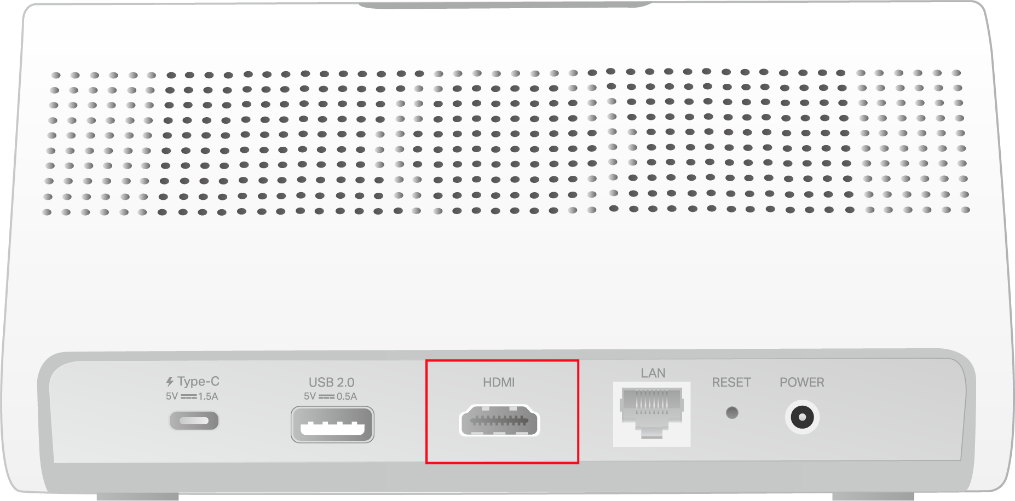
Step 1. Use the included HDMI cable to connect the HomeBase to your TV or monitor.
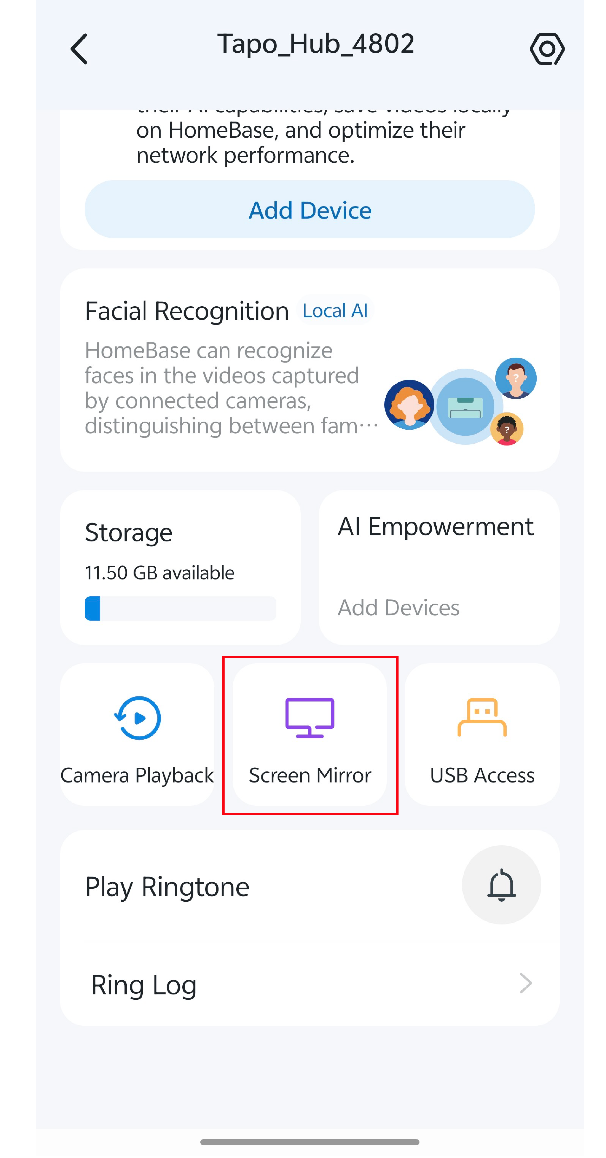
Step 2. Open the Tapo app. Tap your HomeBase card on the Home page to enter the Status page, and then tap Screen Mirror.
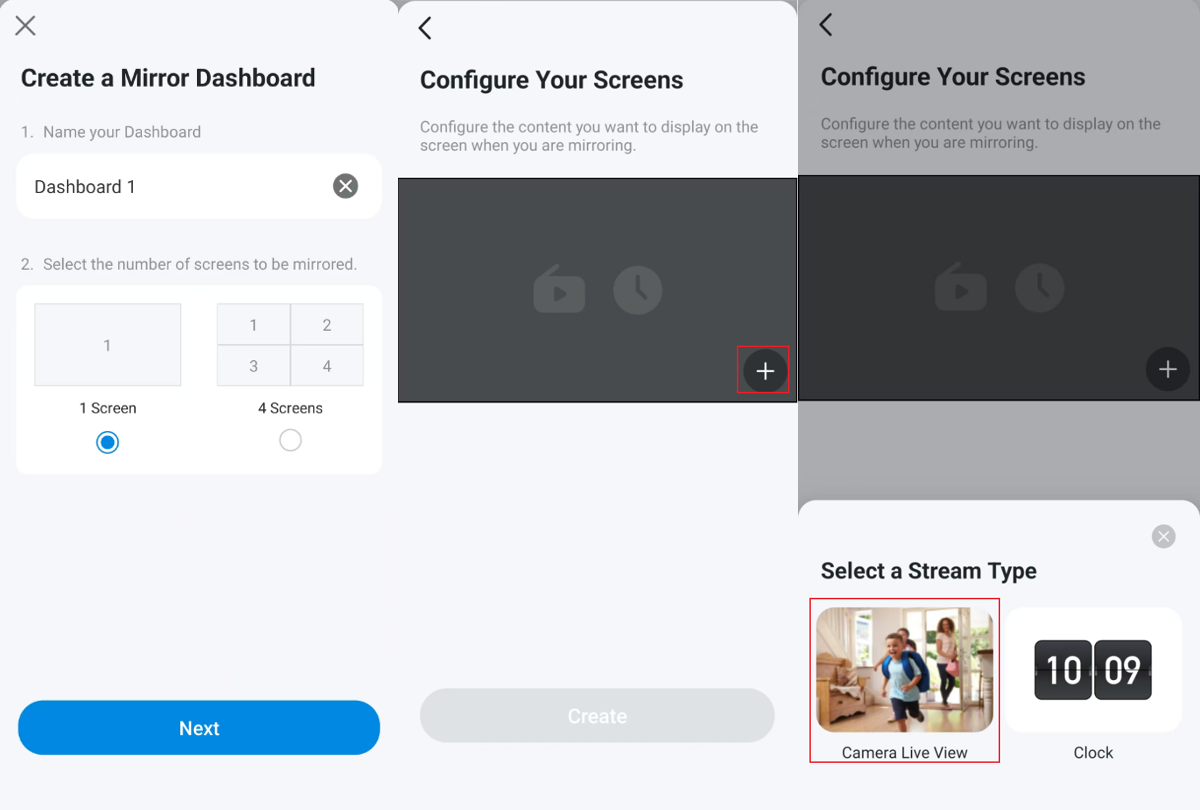
Step 3. Create a mirror dashboard and select the number of screens to be mirrored. Tap + and select a stream type. Here, we choose Camera Live View.
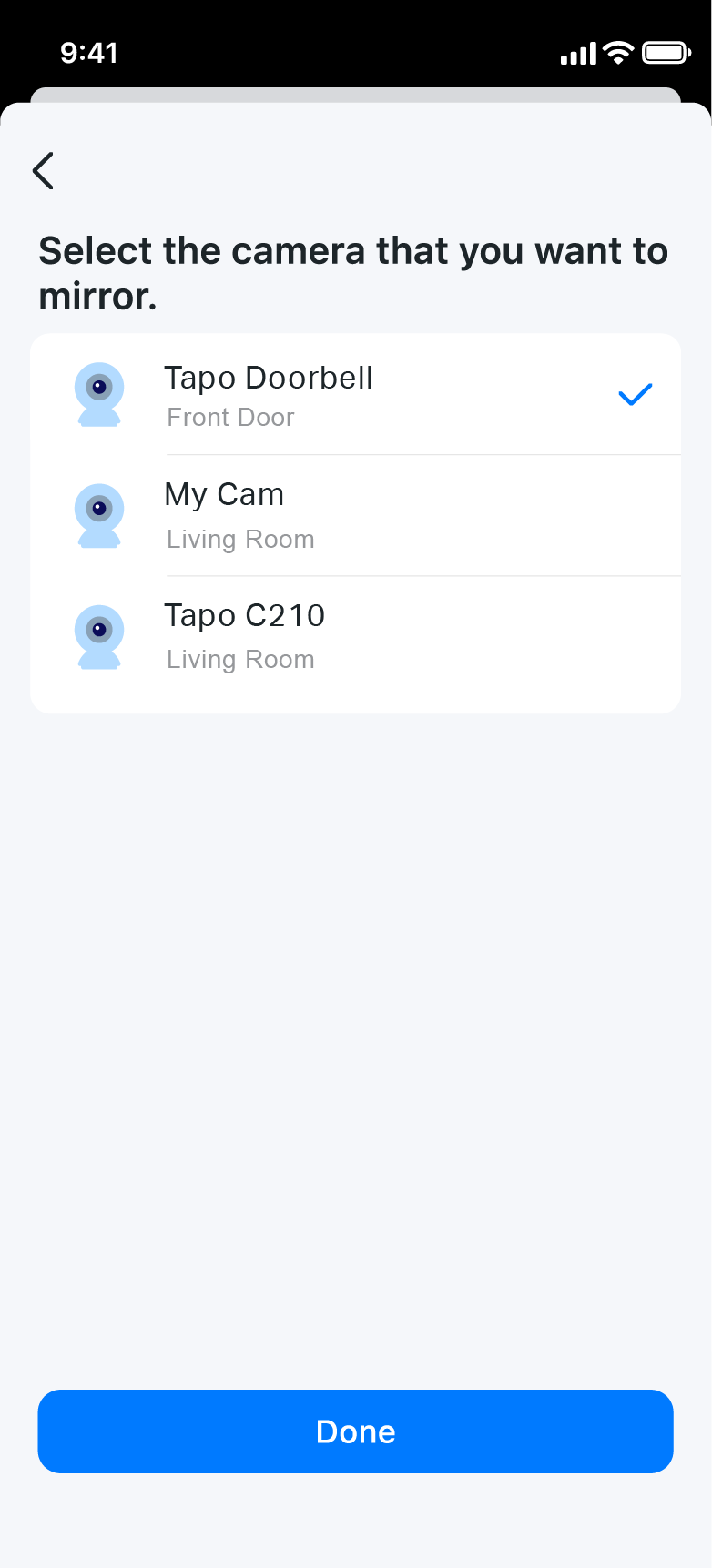
Step 4. Select the camera you want to mirror and start mirroring. You can watch your camera’s Live View on your TV or monitor.
Find the camera list that supports screen mirroring at Tapo Smart Hub Compatible Camera List.
Είναι χρήσιμο αυτό το FAQ;
Τα σχόλιά σας συμβάλλουν στη βελτίωση αυτού του ιστότοπου.