
How to change administrative password on TP-Link ISP-customized Router
 9487
9487Introduction
This article provides step-by-step instructions for changing the administrative password on an ISP-customized router.
Configuration
Scenario 1: Via web UI
Step 1. Log in to the web management interface.
Step 2. Go to Advanced > System > Administration > Account Management. Enter the Old Password and the New Password. Then click Save.
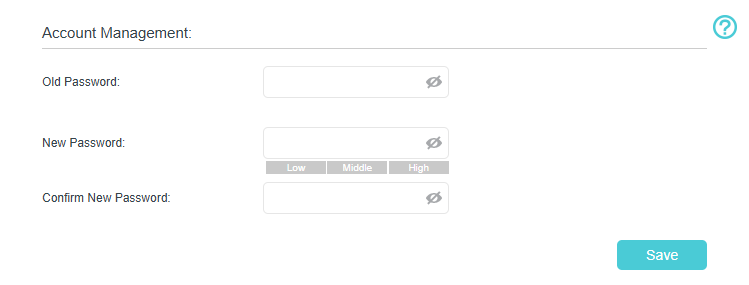
Step 3. After changing your password, use the new password to log in to your DSL modem router.
Scenario 2: Via Aginet app
Step 1. Download Aginet app by visiting the Google Play Store, the App Store, or by scanning the QR code.

Step 2. Connect to the router via Wi-Fi and open the Aginet app. Tap Manage This Network.
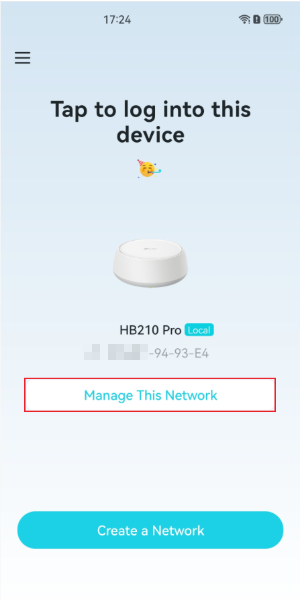
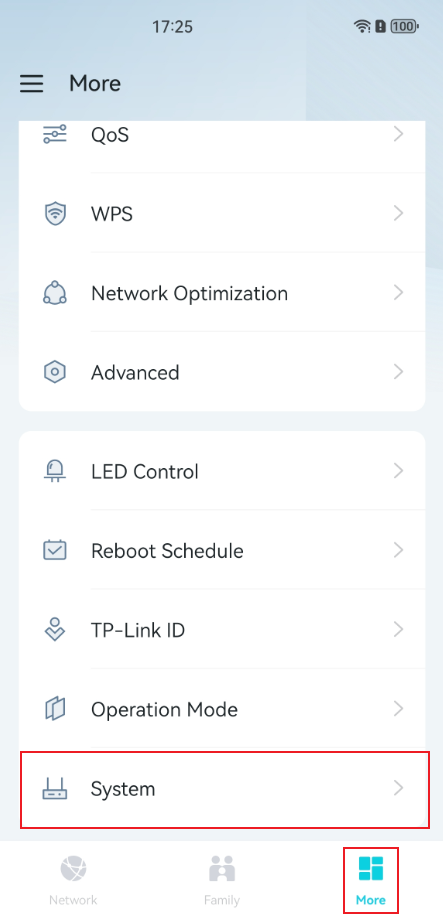
Step 3. Tap More to manage your device. Then tap System in the More page.
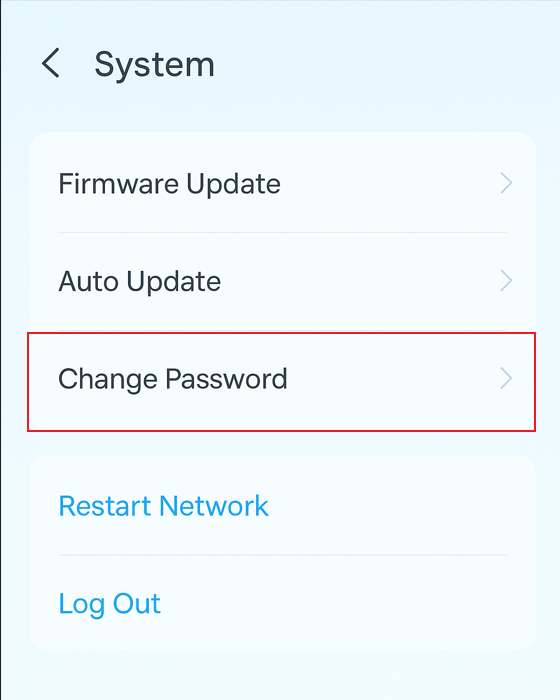
Step 4. Tap Change Password to manage the login password.
QA
Q1: What should I do if I have forgotten administrator password?
A1: Please refer to the FAQ, What can I do if I forget the login username/password of my DSL modem/router?
Get to know more details of each function and configuration please go to Download Center to download the manual of your product.
¿Es útil este artículo?
Tus comentarios nos ayudan a mejorar esta web.

_1.0-R-package_normal_20240530021753z.png)
