
How to Install Your Tapo Smart Wi-Fi Door Lock (Tapo DL100 / DLW10 V2)
If you need detailed instructions on installing your Smart Wi-Fi Door Lock (Tapo DL100 / DLW10 V2), follow the steps below.
Key Takeaways
- Make sure the existing lock meets the dimensions before installation.
- Do NOT use an electric drill to secure the screws when required.
- You can also find the installation guide in the Tapo app.
Installation Guide
Step 1. Check door lock compatibility.
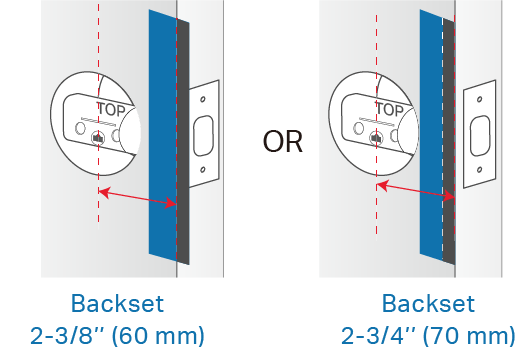
Your existing lock should be a single cylinder and meet the requirements of the following dimensions. You can use the provided template to measure your door.
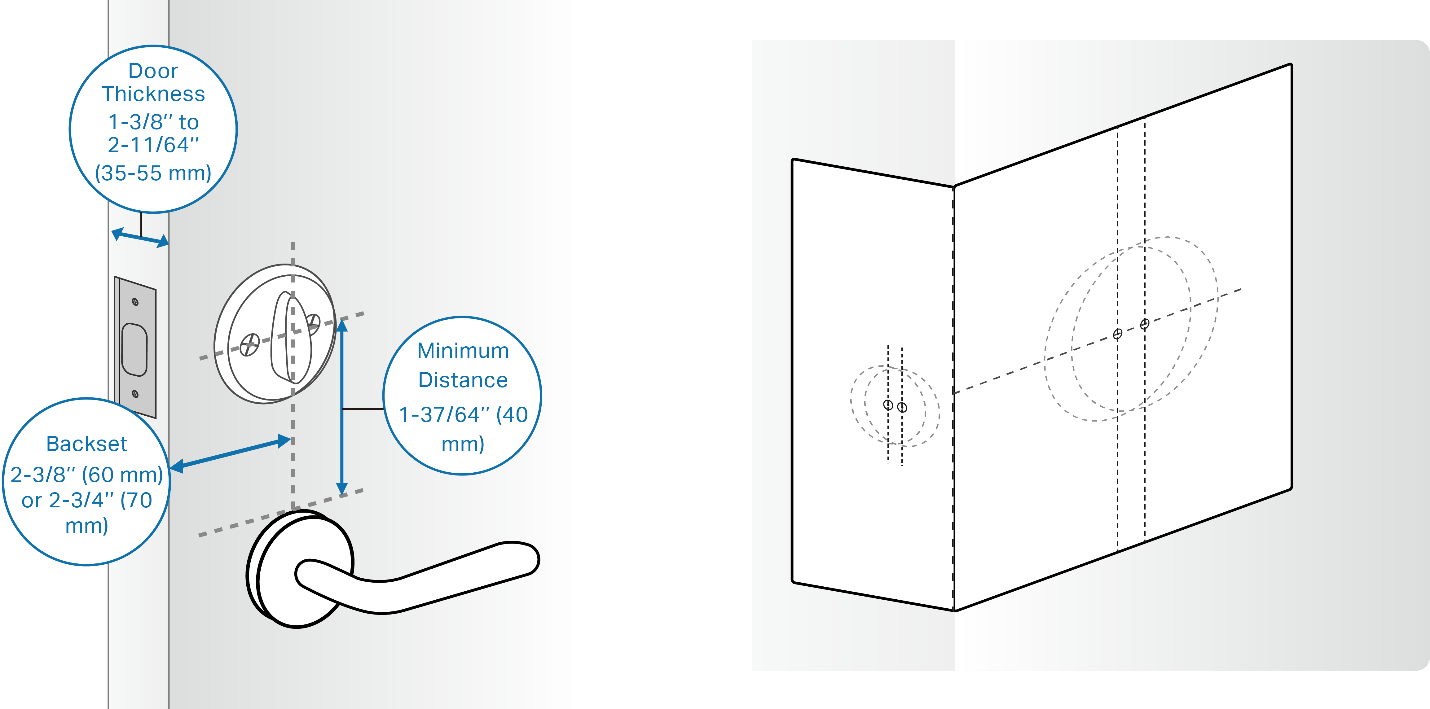
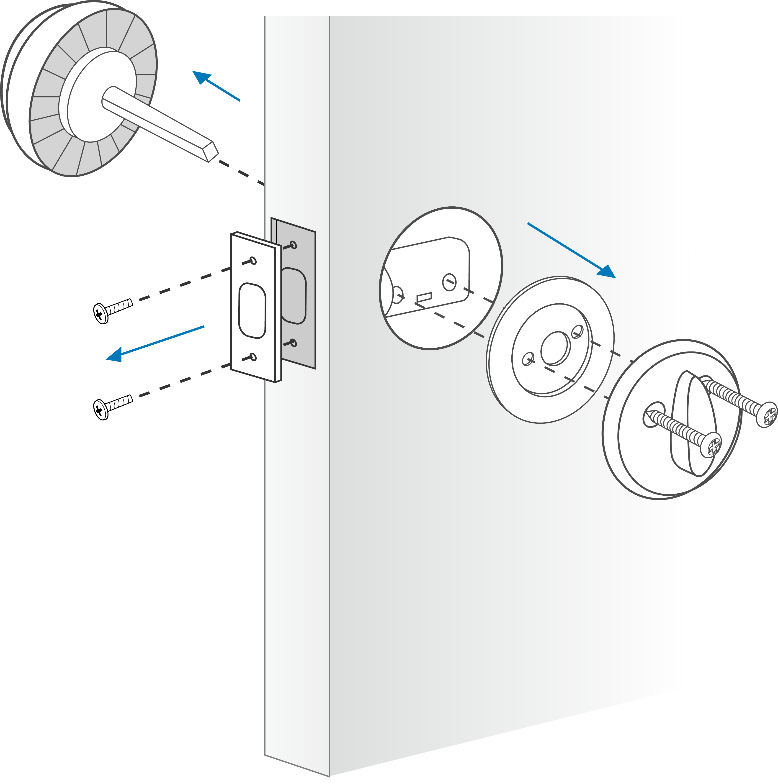
Step 2. Remove your existing lock and bolt.
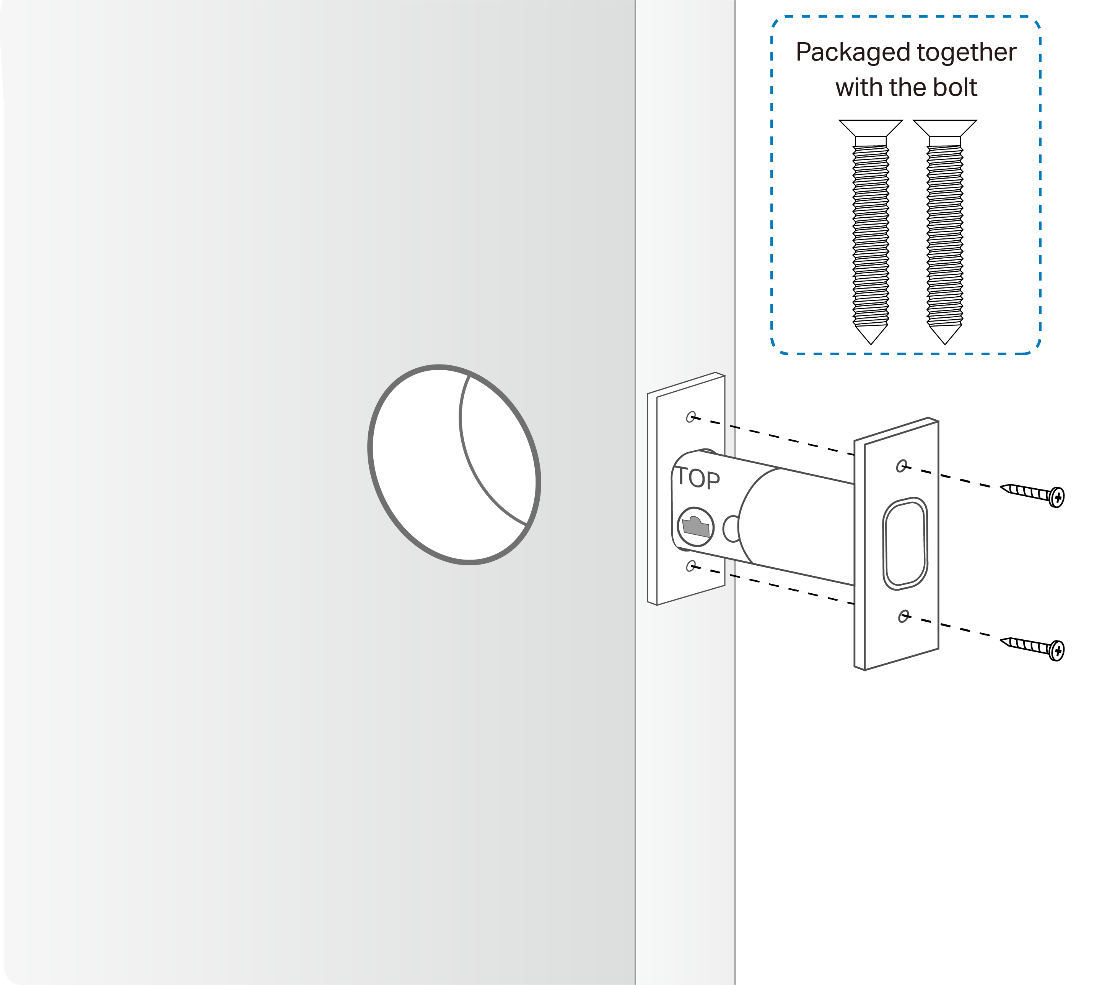
Step 3. Install the bolt.
1) Ensure the word TOP is facing up.
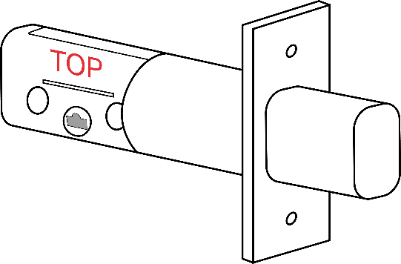
2) If the backset of your door is 2-3/8’’ (60 mm), install the bolt directly.
If the backset of your door is 2-3/4’’ (70 mm), rotate the bolt to extend it before installation.
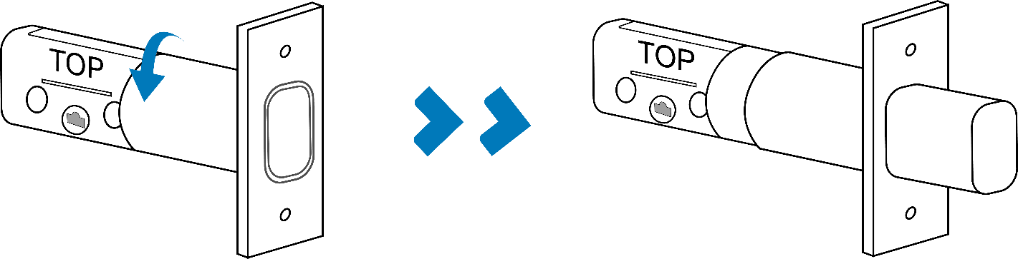
3) Insert the bolt into the door hole and use two mounting screws to affix it. The bolt mounting screws are packaged together with the bolt.
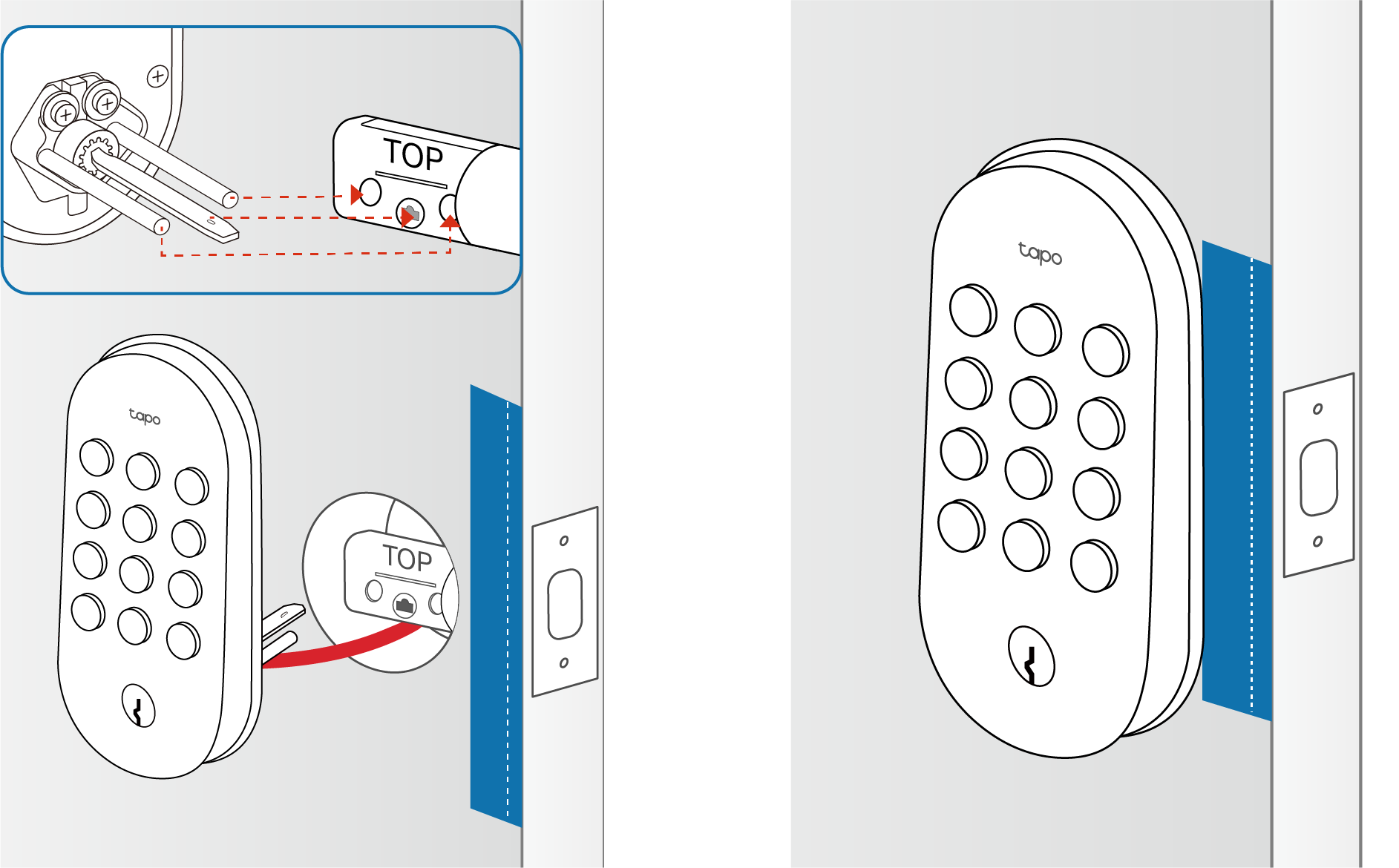
Step 4. Install the exterior assembly.
1) Place the exterior assembly sticker on the outside door by aligning its door edge line with your door edge. Use the correct door edge line based on your backset distance.
2) Route the cable under the bolt. Insert the tailpiece and two prongs into the corresponding holes on the bolt and align the exterior assembly with the sticker.
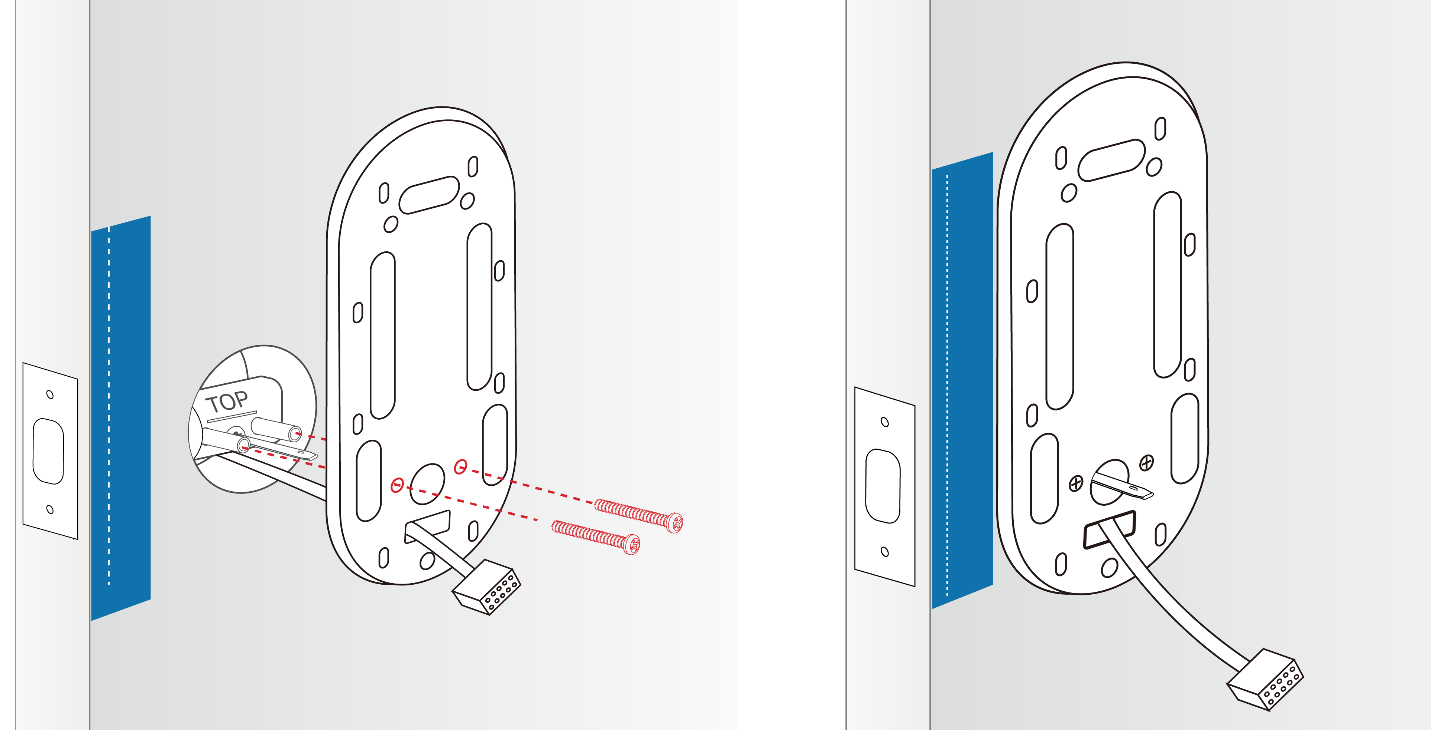
Step 5. Install the mounting plate.
1) Place the interior assembly sticker on the inside door by aligning its door edge line with your door edge. Ensure you use the correct door edge line based on your backset distance.
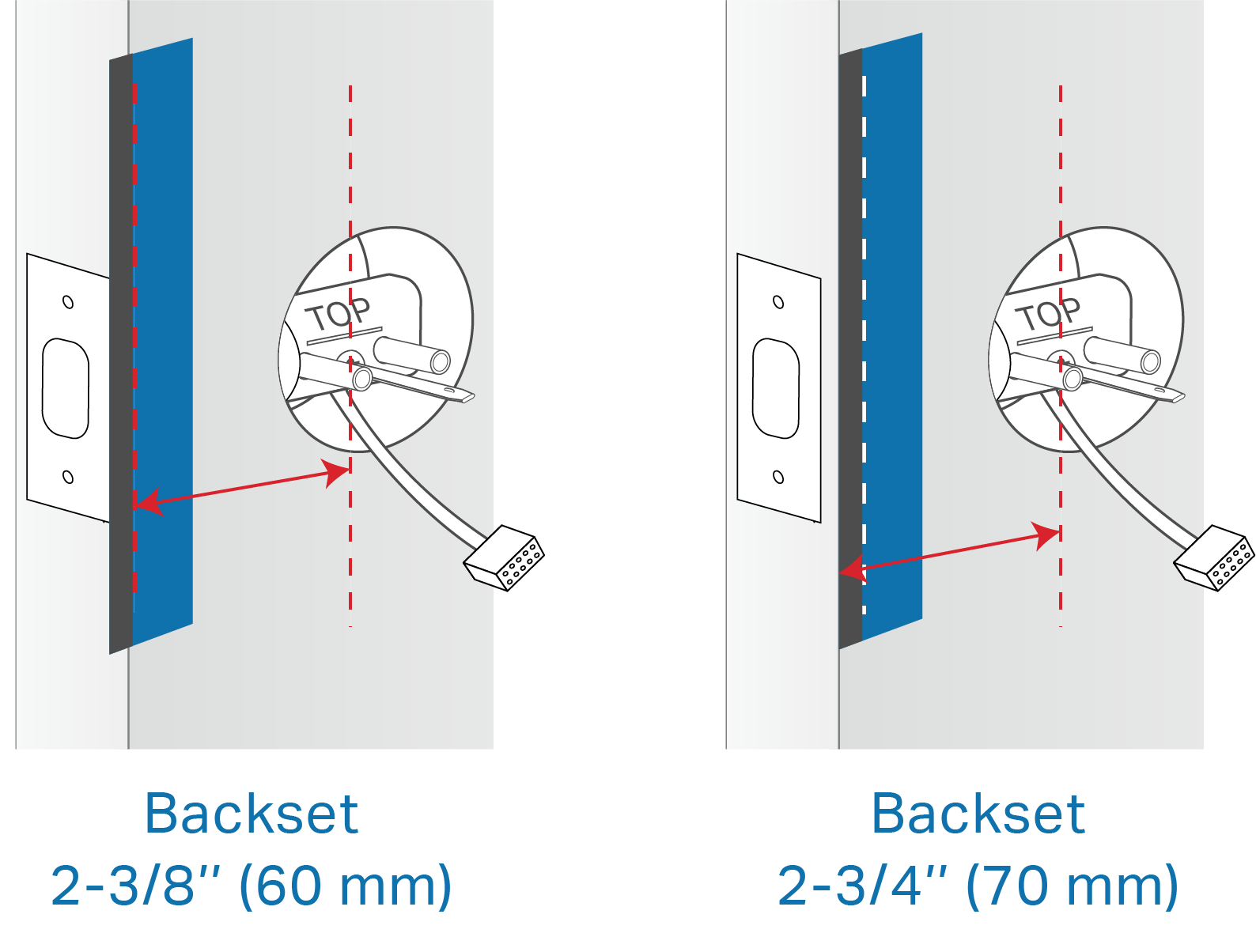
2) Route the cable through the mounting plate’s rectangular hole and insert the tailpiece into the center round hole. Align the mounting plate with the sticker, ensuring the two prongs of the exterior assembly match the two holes next to the center round hole. Secure it with the screws.
Note: Do NOT use an electric drill to secure the screws.
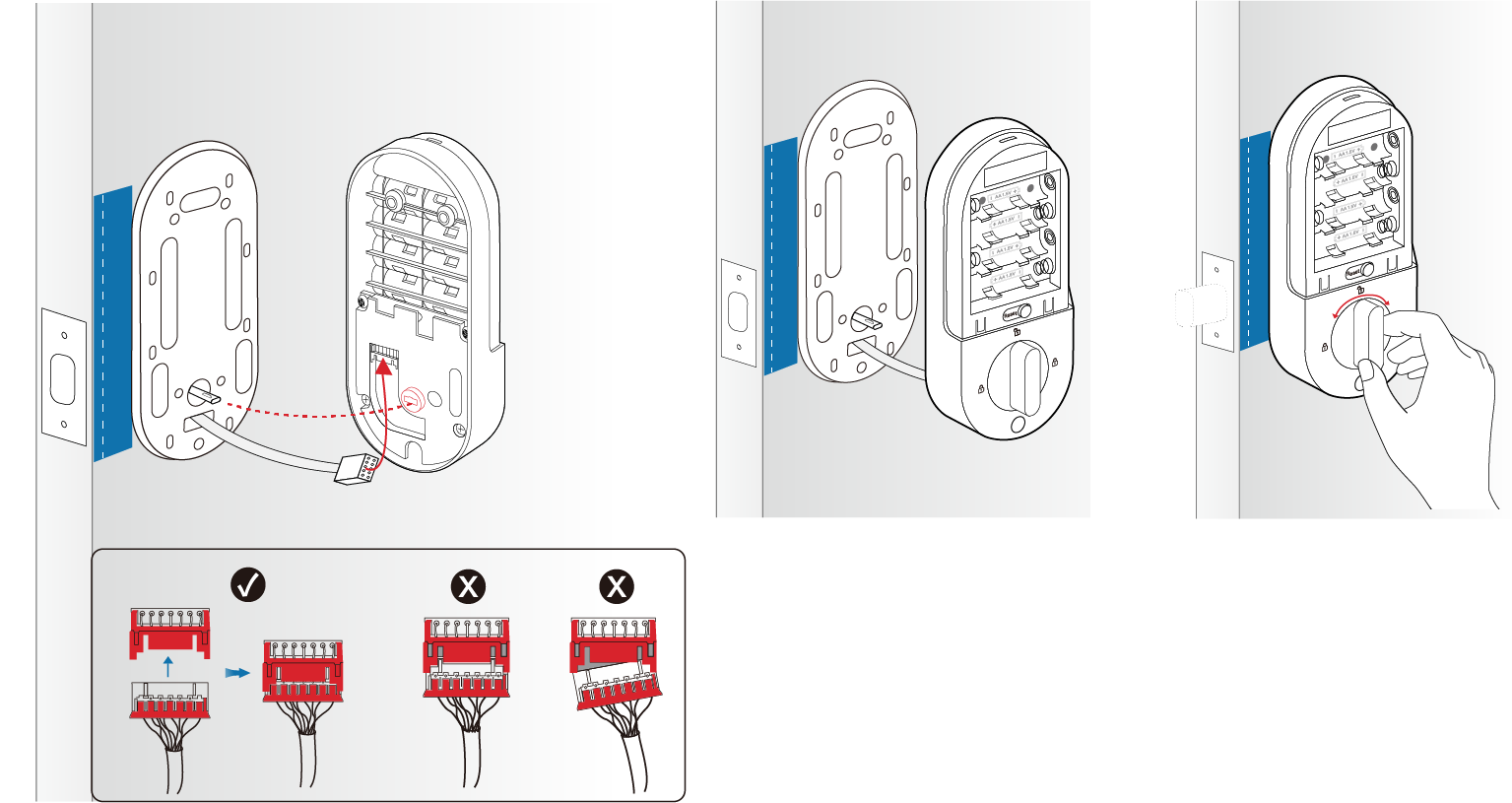
Step 6. Install the interior assembly.
1) Remove the battery cover.
2) Connect the cable tightly. Ensure the color side faces up.
3) Align the tailpiece with the thumb-latch slot. You can rotate the thumb latch to adjust the slot. Attach the interior assembly to the mounting plate. Rotate the thumb latch to ensure the latch retracts normally.
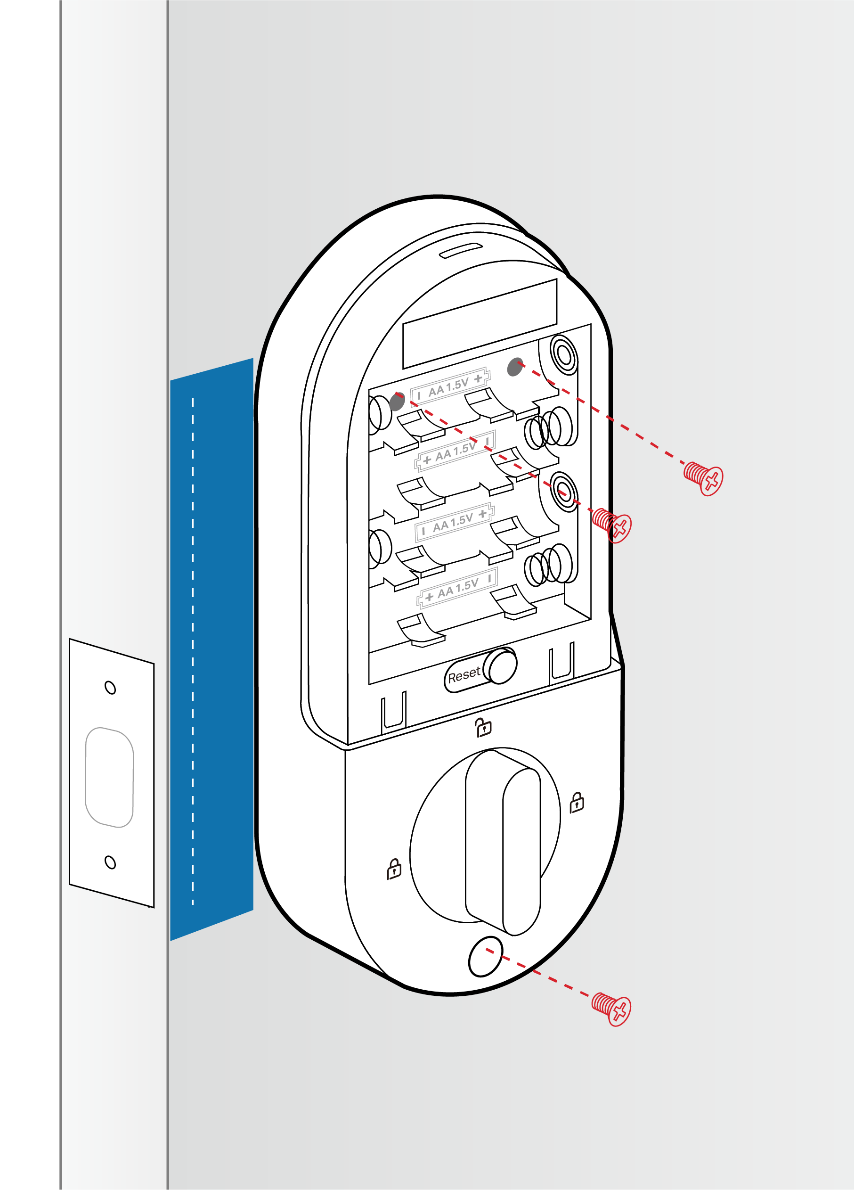
4) Make sure the interior assembly is aligned with the sticker. Use the three provided M4*7.5 screws to affix the interior assembly.
Note: Do NOT use an electric drill to secure the screws.
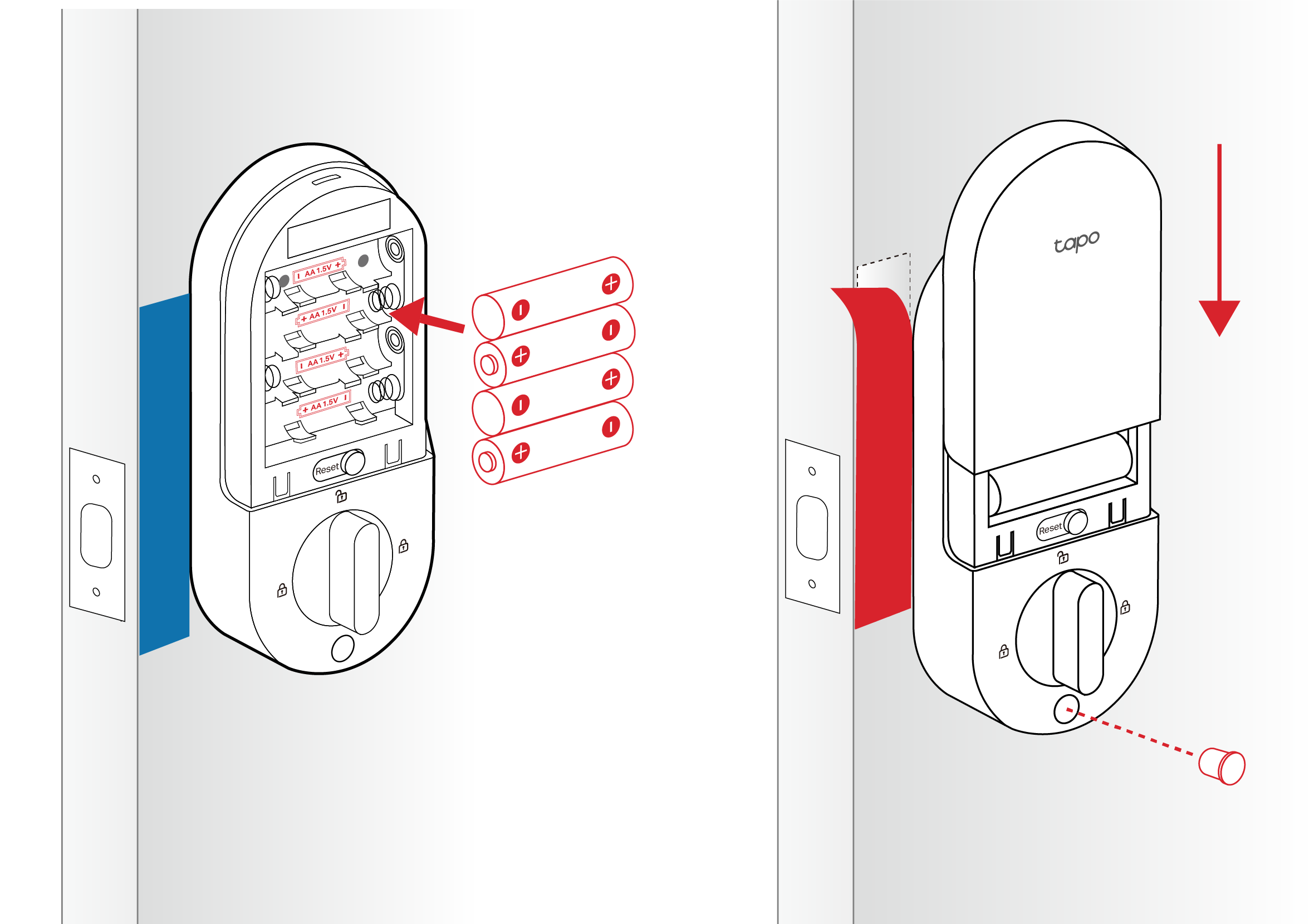
Step 7. Install the battery.
1) Insert the batteries into the interior assembly, ensuring the positive and negative terminals are oriented correctly. Replace the cover by sliding it down.
2) Insert the silicone cover into the bottom hole. Remove the stickers.
Step 8. Install the strike plate.
Insert the dust box and strike plate into the strike hole on the door frame. Ensure the depth of the strike hole is at least 1’’ (25.4 mm).
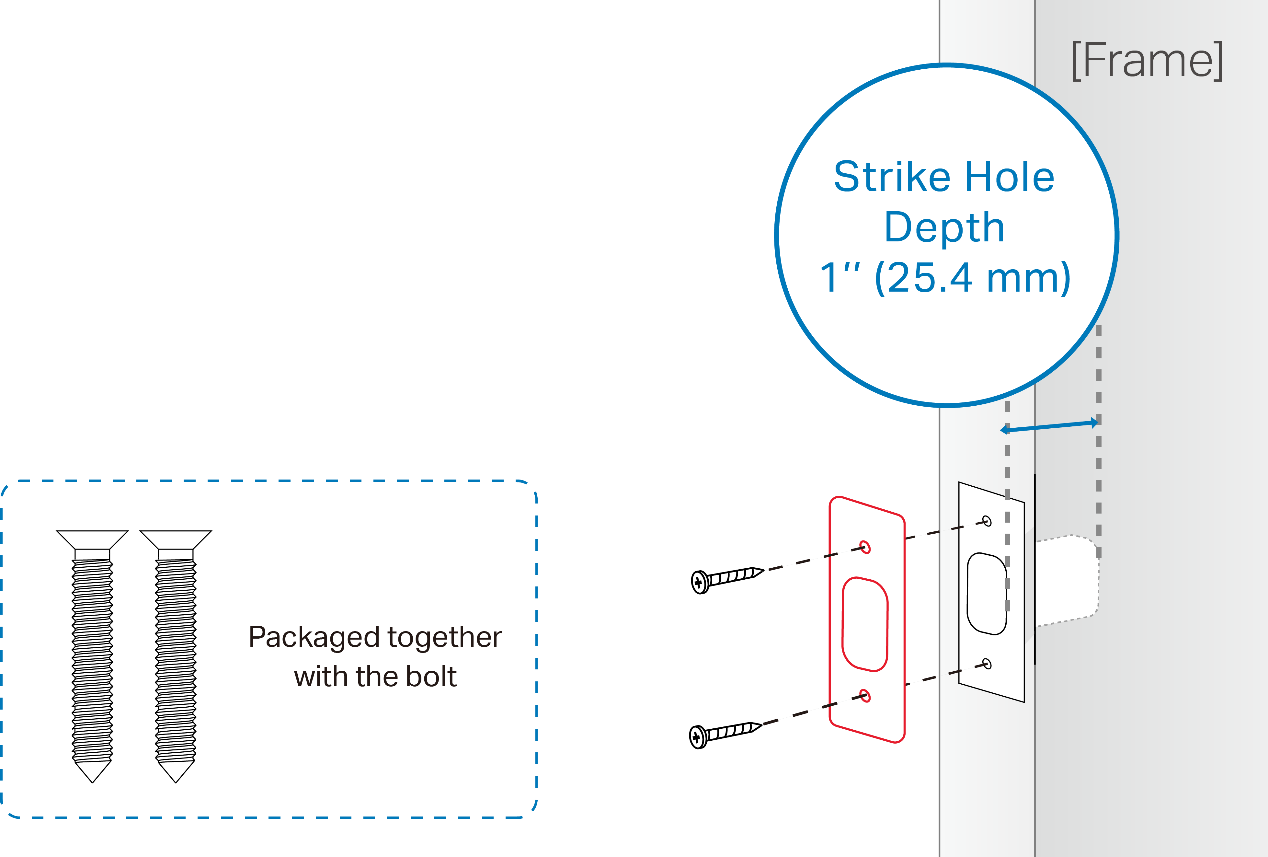
Notes:
1. If the bolt operates smoothly without pushing or pulling the door, you can use your original strike plate.
2. If you need to push or pull the door for smooth operation, adjust the strike plate's position on the door frame.
To learn more about each function and configuration, please visit the Download Center to download the manual for your product.
Looking for More
Is this faq useful?
Your feedback helps improve this site.

TP-Link Community
Still need help? Search for answers, ask questions, and get help from TP-Link experts and other users around the world.