
How to choose the encryption method for my IoT devices on an ISP-Customized Wi-Fi7 Router
 47150
47150Introduction
This FAQ article aims to show the difference between WAP2-PSK/WPA3-Personal and WPA2-PSK encryption methods. And guide users to choose the appropriate encryption method for a WiFi 7 router to connect IoT devices.
- WPA2-PSK: Second-generation Wi-Fi security protocol launched in 2004, PSK means Pre-shared key.
- WPA3-SAE: Third-generation Wi-Fi security protocol launched in 2018, SAE means Simultaneous Authentication of Equals, it is based on passwords with greatly enhanced security.
Compared with WPA2-PSK, WPA3-SAE has advantages such as being difficult to crack, management frame protection, and support for Forward Secrecy. However, some older client models cannot support WPA3-SAE. Therefore, a hybrid encryption method that supports both WPA2-PSK and WPA3-SAE was introduced as a transitional measure. Devices that only support WPA2-PSK are allowed to connect to the SSID.

ISP-Customized Wi-Fi 7 Router uses WPA2-PSK + WPA3-Personal encryption by default. It can accommodate clients that only support WPA2-PSK connections and also ensure Wi-Fi 7 clients negotiate 11be rates with the AP (under the Wi-Fi 7 protocol, the AP needs to use WPA3 encryption to negotiate 11be rates).
Under this encryption method, most clients experience no issues. However, the Wi-Fi Alliance finds that some older devices (especially certain IoT devices) cannot associate properly when faced with two encryption options because they cannot interpret the encryption correctly. To address the issue, it needs to temporarily adjust the encryption method to WPA2-PSK only.
Configuration
Scenario 1. Via the Web Management Page
Step 1. Log in to the router's web interface. Ensure your device is connected to the router via Wi-Fi or an Ethernet port. Open a web browser and enter one of these addresses in the browser bar to access the web interface:
For models starting with E/H: http://tplinkwifi.net
For models starting with V/N/M: http://tplinkmodem.net
Step 2. Go to Advanced > Wireless > Wireless Settings. For the 2.4/5GHz Band, change the Security type from the default WPA2-PSK[AES]+WPA3-Personal to WPA2-PSK[AES]. If your IoT devices only support 2.4 GHz Wi-Fi, you should disable Band Steering and set the Security type to WPA2-PSK[AES] for 2.4 GHz.
![Change the Security type to WPA2-PSK[AES] for 2.4/5 GHz in WebGUI.](https://static.tp-link.com/upload/faq/image-20260416145901-4_20260416065859d.png)
![Disable the Band Steering and change the Security type to WPA2-PSK[AES] for 2.4 GHz.](https://static.tp-link.com/upload/faq/image-20260416145901-5_20260416065859e.png)
Scenario 2. Via Aginet App
Step 1. In your mobile devices, log in to the Aginet app to open the router’s network.
Step 2. Go to More > WiFi Settings > 2.4 GHz & 5 GHz Network > Security, for 2.4/5GHz Band, change the Security type from WPA2/WPA3 in the default to WPA2. Likely, if your IoT devices only support connecting to the 2.4G WiFi, you should disable the Band Steering and change the Security type to WPA2 for 2.4 GHz.
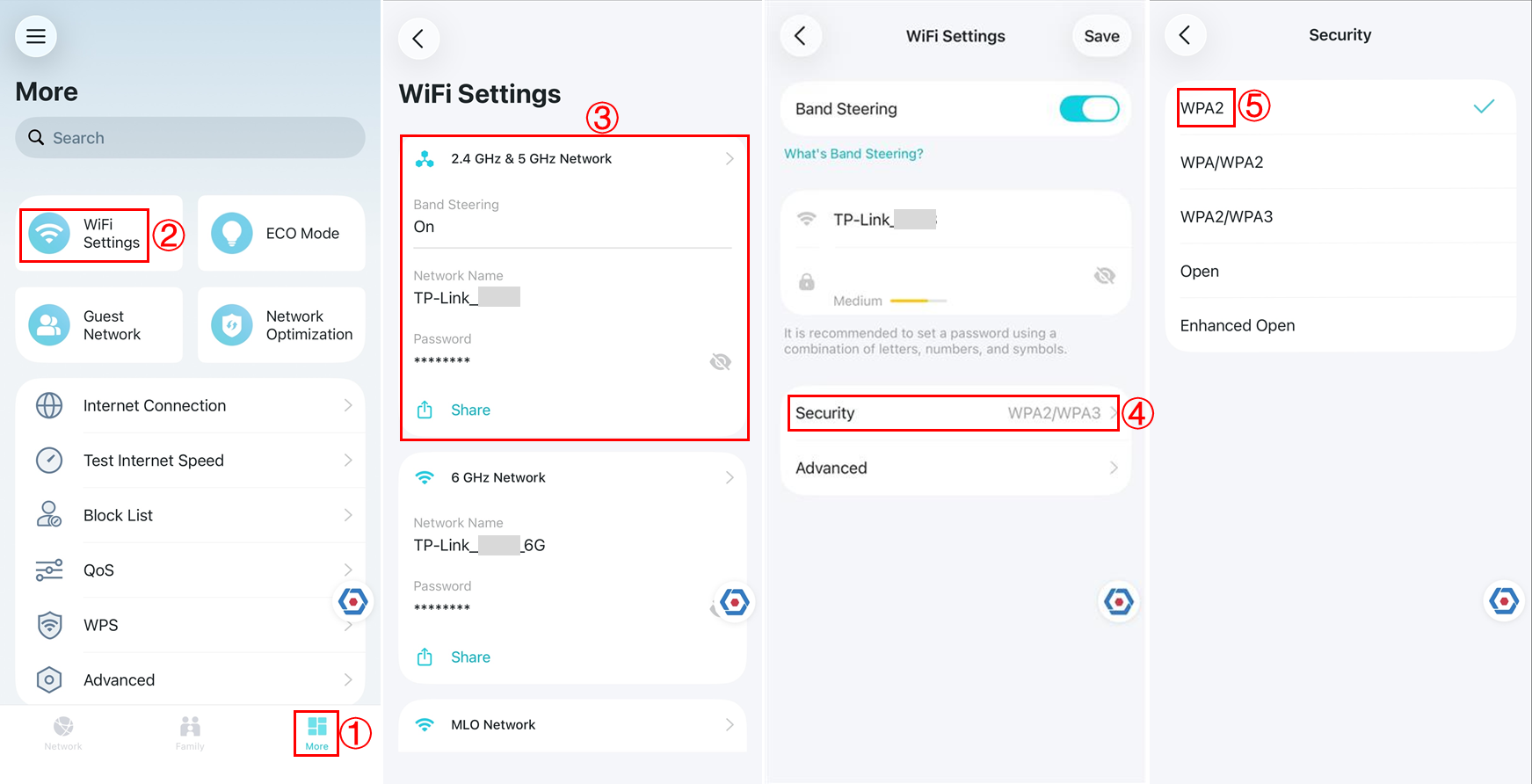
Please note that adjusting the AP encryption method to WPA2-PSK can resolve client association issues, but some Wi-Fi 7 clients may be unable to negotiate to 11be rates.
Is this faq useful?
Your feedback helps improve this site.

_1.20_overview_normal_20260429023111k.png)

TP-Link Community
Still need help? Search for answers, ask questions, and get help from TP-Link experts and other users around the world.