
What If Tapo DL130 Cannot Unlock via Palm Vein
 18
18Introduction
The palm vein scanner on your Tapo DL130 uses advanced biometric technology to provide secure, touchless unlocking. However, environmental factors (such as dirt, oil, or moisture on your hand or the scanner surface) or incorrect settings can sometimes prevent successful recognition. This guide walks you through step-by-step troubleshooting to restore reliable palm vein unlocking functionality.
Requirements
- Download the Tapo App by visiting the Google Play Store, the App Store, or by scanning the QR code.

- Make sure your door lock has enough battery life.
Troubleshooting
Scenario 1: LED Lights Up When Approaching/Touching the Keypad, But Cannot Unlock
If the LED indicator works but palm vein recognition fails, follow these steps in order.
1. Clean the Palm Vein Reader: Use a soft, damp cloth or wet wipe to clean the Palm Vein Reader area gently. Remove any oil, dirt, dust, or other contaminants. A clean surface is essential for accurate palm vein detection.
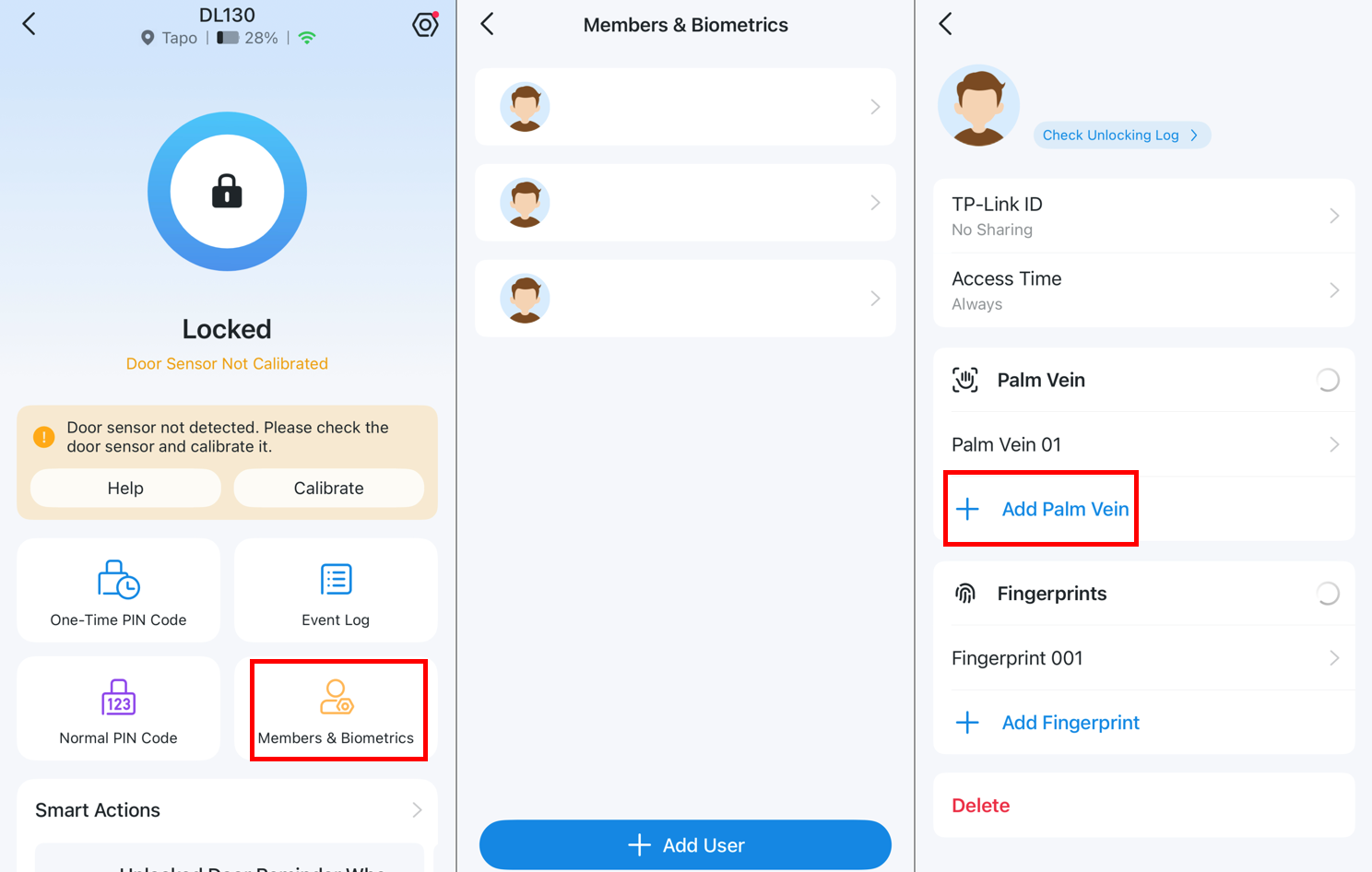
2. Re-Register Palm Vein Data: If cleaning doesn't resolve the issue, your registered palm vein data may be corrupted or incomplete. Re-register your Palm Vein again in Door Lock's main page > Members & Biometrics, select your user profile, and Add Palm Vein.
Scenario 2: LED Does Not Light Up When Approaching the Keypad, But Lights Up When Touched
If the LED responds only to direct touch, not when you approach the keypad, the Auto Wake-Up feature may be disabled or misconfigured. If needed, please enable in Device Settings > Palm Vein Settings > Auto Wake-Up and adjust Auto Wake-Up Distance.
Scenario 3: LED Does Not Light Up Even When Touching the Keypad
If the LED doesn't respond to touch at all, the issue may be hardware-related. Try these steps in order.
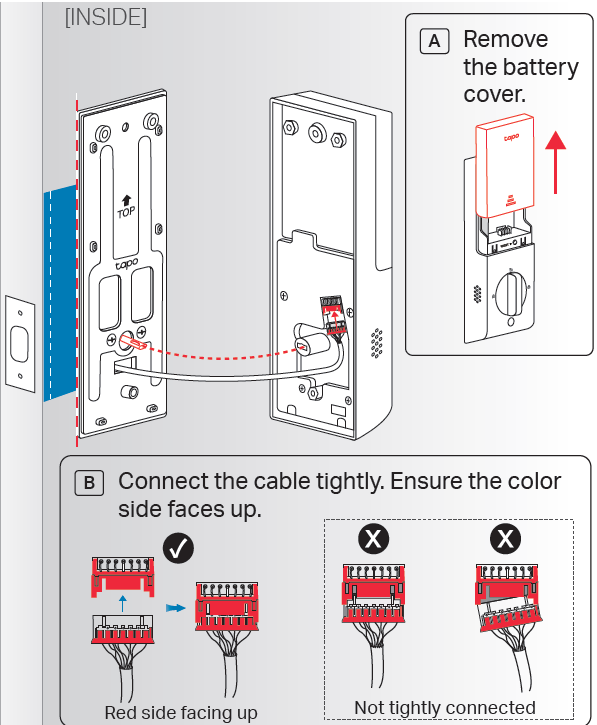
1. Remove the battery cover, long-press the reset button to reset the device, then reconfigure it again.
2. If the issue persists, please reinstall and make sure the cable is installed correctly.
Get to know more details of each function and configuration please go to Download Center to download the manual of your product.
Is this faq useful?
Your feedback helps improve this site.


TP-Link Community
Still need help? Search for answers, ask questions, and get help from TP-Link experts and other users around the world.