
How to change notification settings in Aginet app
 6532
6532Introduction
You can conveniently receive notifications for your devices through the Aginet app.
Requirement
Download the Aginet app by visiting the Google Play Store, App Store, or by scanning the QR code.
Configuration
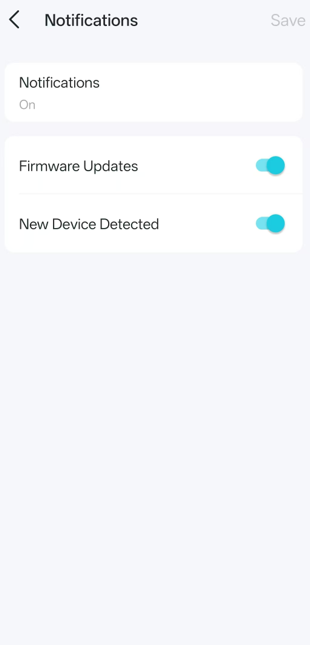
Step 1. Open the Aginet app. Tap the three-line button in the top left corner and select App Settings > Notifications.
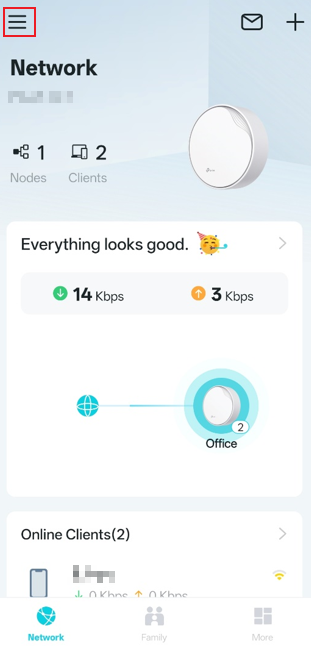
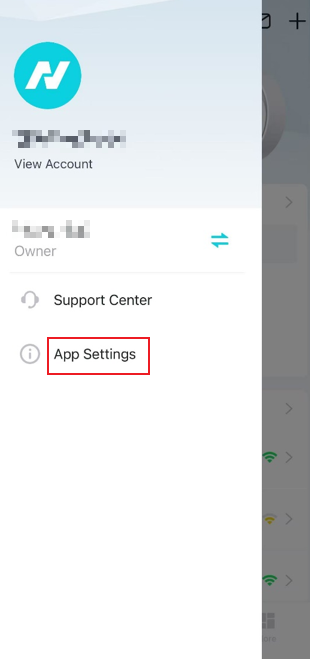
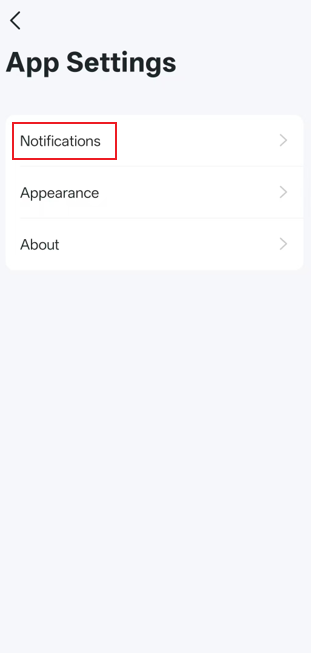
Step 2. Check the status of Notifications. Then you can enable or disable the notification types as desired, such as Firmware Updates and New Device Detected.
Note:
- If the Notifications is “Disabled”, please go to Settings > Notifications on your mobile device to enable it.
- The types of messages may vary slightly depending on the model due to different software versions.
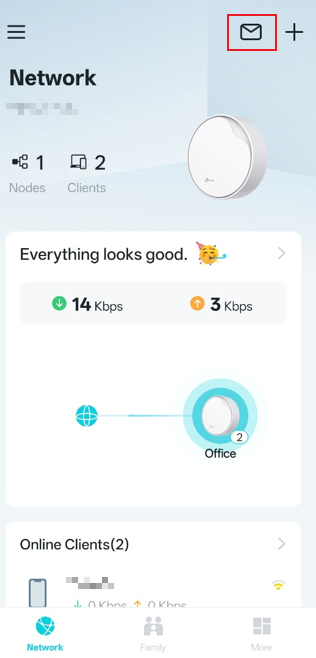
- The Message Center will allow you to view important messages at any time by tapping the Message Center button in the top right corner of the app.
QA
Q1: What should I do if I fail to receive notifications on my phone?
A1:
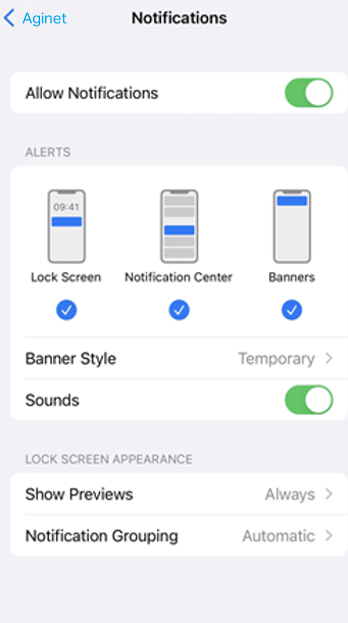
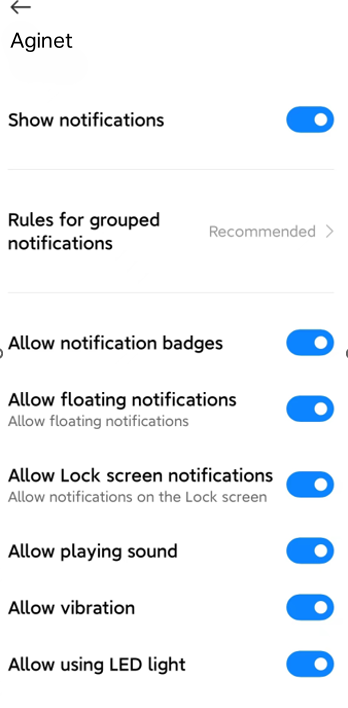
- Ensure the corresponding notification settings are enabled on the Aginet app, and the notification permission for the Aginet app is enabled on your phone.
For iOS: Launch Settings > Notifications, ensure Show Previews is on Always, and the Allow Notifications for the Aginet App is on.
For Android: Launch Settings -> Notifications & status bar -> App notifications, locate the Aginet App and ensure the Show notifications option is on.
- The notification related to the Automation feature can only be viewed in the Message Center.
Get to know more details of each function and configuration, please go to the Download Center to download the manual of your product.
Is this faq useful?
Your feedback helps improve this site.

TP-Link Community
Still need help? Search for answers, ask questions, and get help from TP-Link experts and other users around the world.