
What should I do if Wi-Fi calling does not work on TP-Link ISP-customized Wi-Fi Router?
 8206
8206Introduction
This article provides step-by-step instructions for resolving Wi-Fi Calling not working on TP-Link ISP-customized router.
Requirements
- Internet Service Provider (ISP) provides Wi-Fi calling service.
- Your smartphone has the Wi-Fi calling option available in settings
Configuration
Step 1. Ensure you are running the latest firmware on your TP-Link router.
If you’re unsure which firmware version you are running, please download the latest firmware from the TP-Link Website. For firmware upgrades, please refer to How to upgrade the firmware on the TP-Link Wi-Fi Routers. You can also contact your ISP to update to the latest firmware.
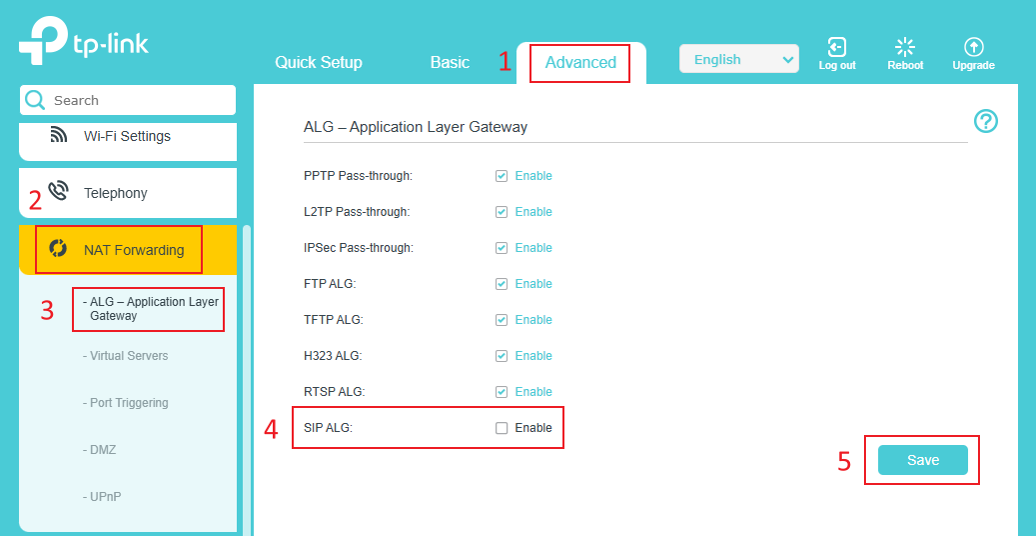
Step 2. Disable SIP ALG.
Log in to the router's web-based interface. Go to Advanced > NAT Forwarding > ALG, uncheck SIP ALG, and click Save.
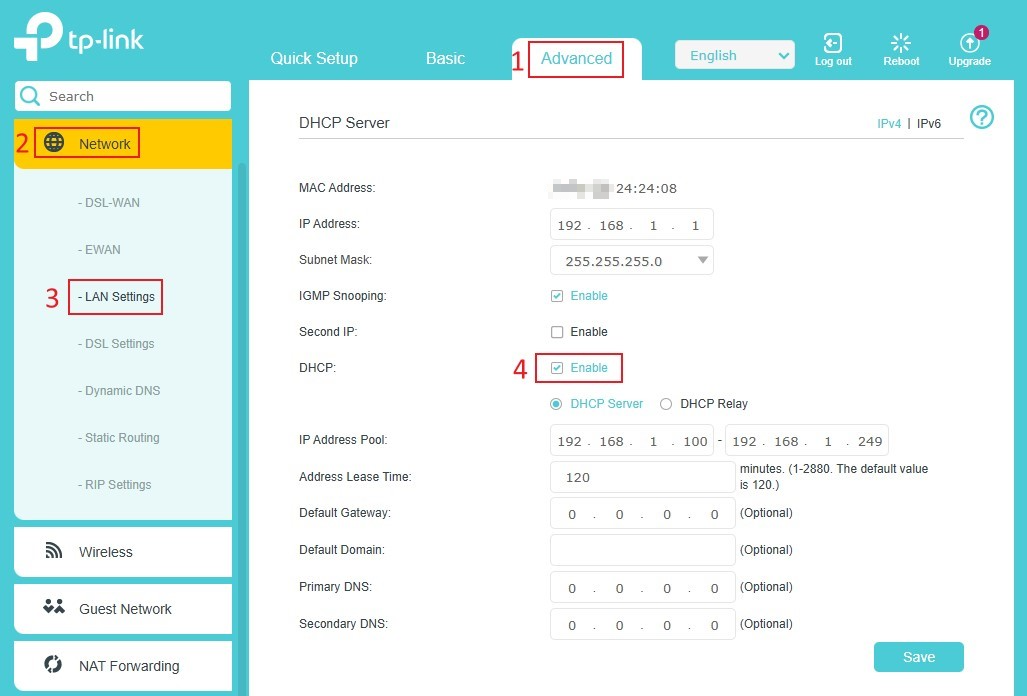
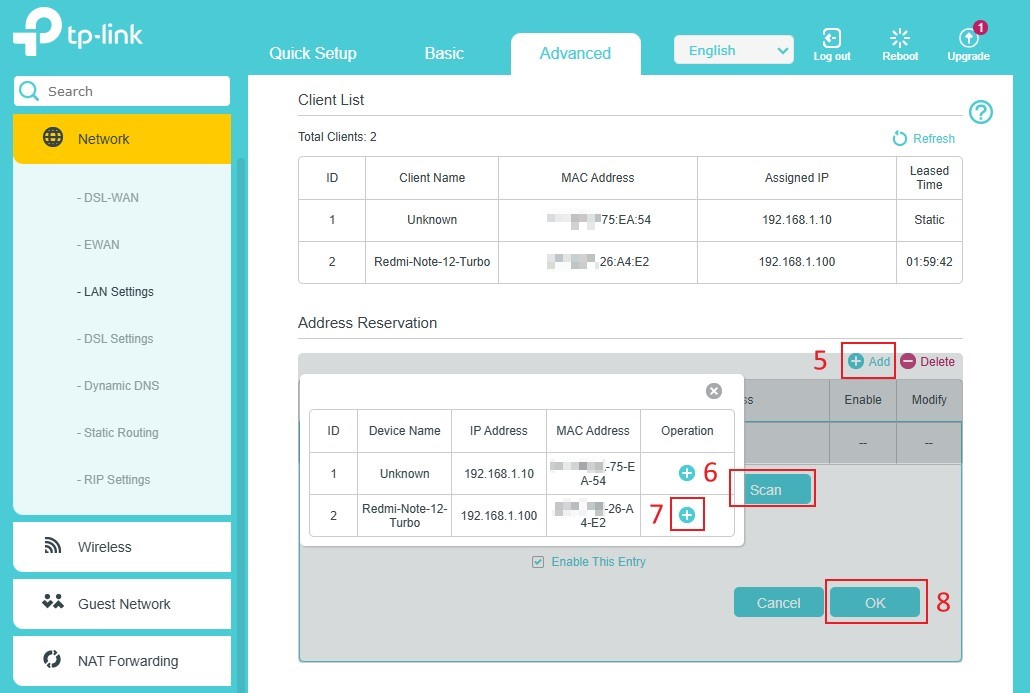
Step 3. Reserve the IP address for your smartphone on the TP-Link router.
Connect your smartphone to the router, verify that the DHCP Server is working, and then reserve the IP address for it.
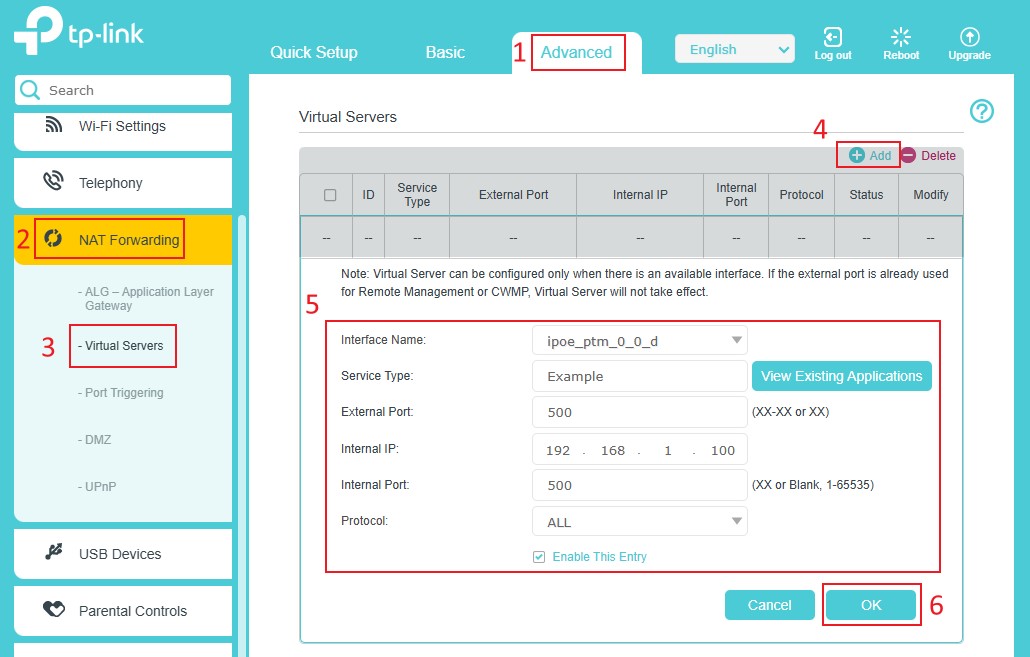
Step 4. Configure Virtual Servers for UDP port 500 (IKE2) and port 4500 (IPsec Nat Traversal).
For Example, to open port 500, please enter the details below.
Internal Port: 500
Internal IP: IP Address reserved for the smartphone
External Port: 500
Protocol: ALL
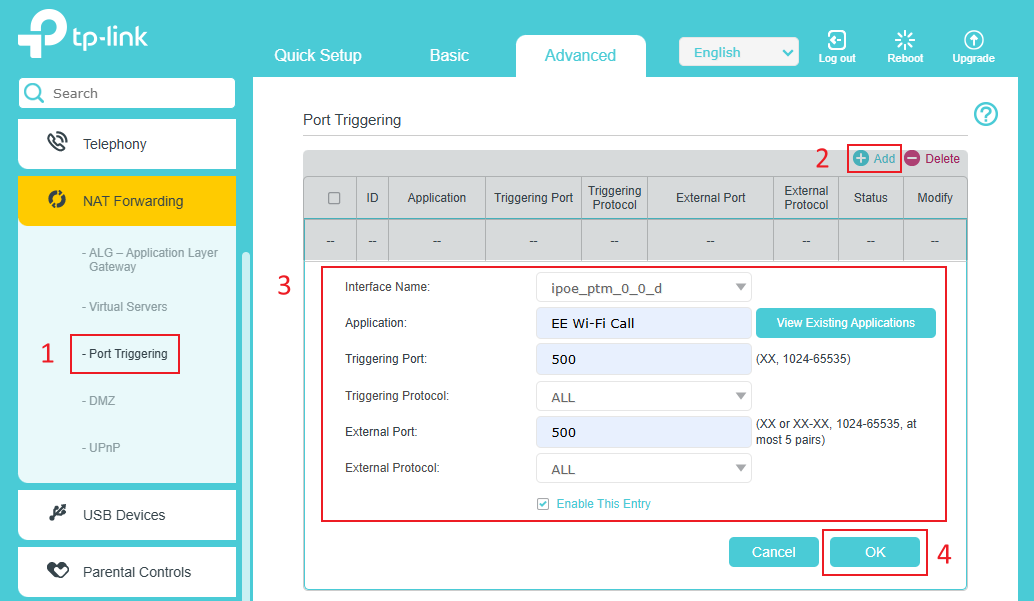
(Optional) Step 5. Enable Port Trigger entries for UDP port 500 (IKE2) and port 4500 (IPsec Nat Traversal).
Refer to the screenshot below to enable Port Trigger entries.
Step 6. Connect your smartphone to the TP-Link router's Wi-Fi and make calls over Wi-Fi.
If you still cannot use Wi-Fi calling after following the above instructions, please contact TP-Link technical support with the information below:
- Country and ISP that provides Wi-Fi calling.
- Screenshots of the above settings that you have set on the TP-Link router.
- Phone model and OS. (Test with Android and IOS phones if possible)
- Details of the problem. The Wi-Fi calling icon isn’t displayed. Or unable to dial over Wi-Fi?
- Hardware and firmware versions of the TP-Link router.
Get to know more details of each function and configuration please go to Download Center to download the manual of your product.
Is this faq useful?
Your feedback helps improve this site.



TP-Link Community
Still need help? Search for answers, ask questions, and get help from TP-Link experts and other users around the world.