
How to join the second TP-Link 11N router to TD-W8960N by WDS (Wireless Bridge)
 91593
91593A Wireless Distribution System (WDS) is a system that enables the wireless interconnection of access points in an IEEE 802.11 network. It allows a wireless network to be expanded using multiple access points without the need for a wired backbone to link them. The following is a simple SOHO solution guide about WDS.
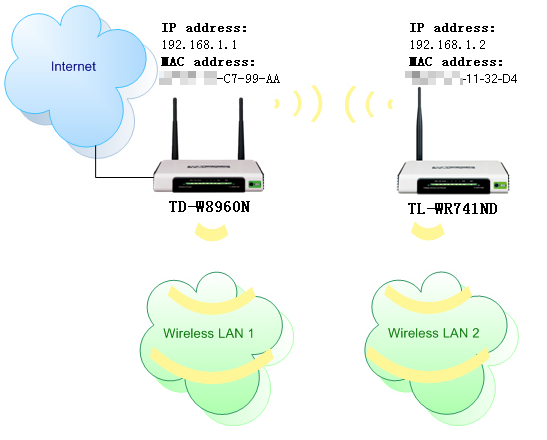
Please follow the instructions to configure the TD-W8960N and TP-Link 11N Wireless N Router.
Part 1: configure the TD-W8960N
Step 1 Log into TD-W8960N’s management page. If you are not sure about how to do this, please click here .
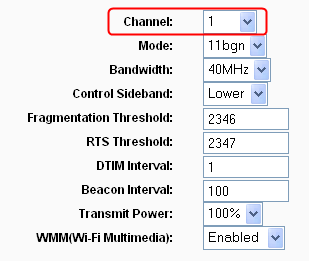
Step 2 On the left-side menu, click Wireless -> Advanced, and please change the channel of the wireless network. Remember Apply/Save the settings.
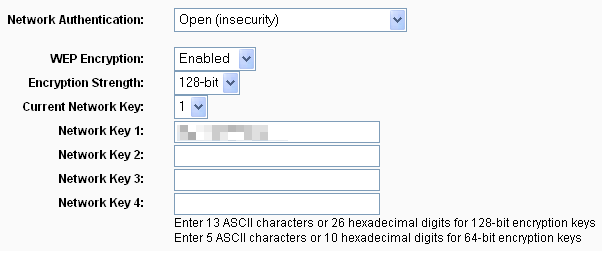
Step 3 please go to the Wireless -> Security page to double check the wireless security settings, for example:
Part 2: Configure the TP-Link 11N Wireless Router
Step 1 Log into 11n router’s management page.
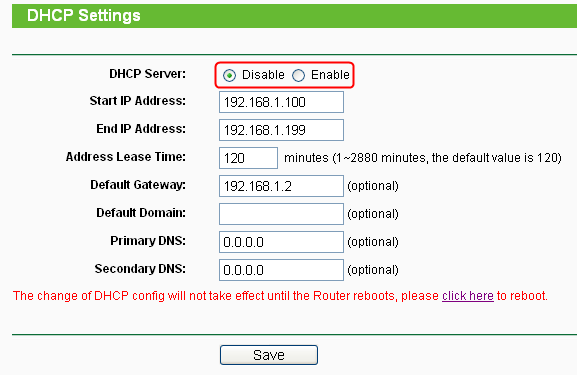
Step 2 On the left-side menu, Click DHCP, and then Disable the DHCP Server function. Just Save, you don’t need to reboot now.
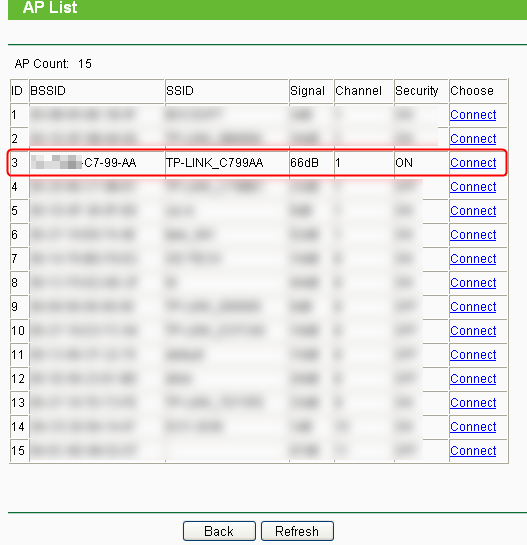
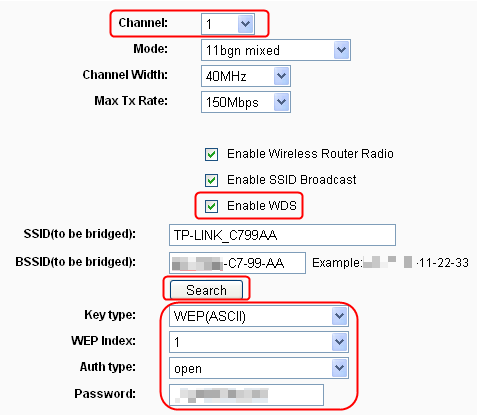
Step 3 On the left-side menu, Click Wireless -> Wireless Settings, tick Enable WDS and click Search to select the wireless network of the TD-W8960N and configure the channel, the security to the same settings on the TD-W8960N. In my example, the channel is 1, the security is WEP Open, 128bit. Suspend the reboot until the next step.
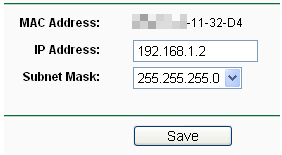
Step 4 On the left-side menu, click Network -> LAN, and change the LAN IP address of the router to avoid the IP address conflict with the TD-W8960N. You need to reboot the router to apply all the settings.
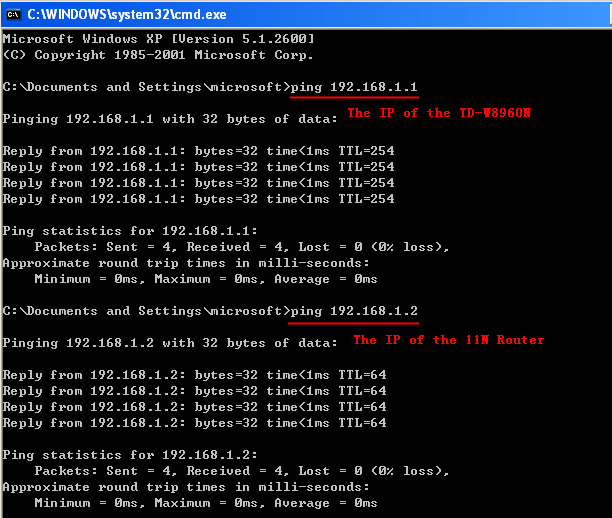
Here until, all settings required by WDS function is completed. You can make a simple check by the Ping utility. If the ping proceeds successfully (which means the WDS performs properly), you will see the similar screen as below:
Get to know more details of each function and configuration please go to Download Center to download the manual of your product.
Is this faq useful?
Your feedback helps improve this site.

TP-Link Community
Still need help? Search for answers, ask questions, and get help from TP-Link experts and other users around the world.