
Table of Contents
Archer VR400_V4_Product and Installation Guide
About This Guide
This guide is a complement of Quick Installation Guide. The Quick Installation Guide instructs you on quick internet setup, and this guide provides details of each function and shows you the way to configure these functions appropriate to your needs.
Note: Features available in the router may vary by model and software version. Router availability may also vary by region or ISP. All images, steps, and descriptions in this guide are only examples and may not reflect your actual Router experience.
Conventions
In this guide the following conventions are used:
|
Convention |
Description |
|
Underline |
Underlined words or phrases are hyperlinks. You can click to redirect to a website or a specific section. |
|
Bold |
Contents to be emphasized and texts on the web page are in bold, including the menus, items, buttons and so on. |
|
> |
The menu structures to show the path to load the corresponding page. For example, Settings > System Tools > Firmware Upgrade means the Firmware Upgrade page is under the System Tools menu that is located in the Settings tab. |
|
Note: |
Ignoring this type of note might result in a malfunction or damage to the device. |
|
Tips: |
Indicates important information that helps you make better use of your device. |
More Info
The latest software, management app and utility can be found at Download Center at https://www.tp-link.com/support/download/.
The Quick Installation Guide can be found where you find this guide or inside the package of the router.
Specifications can be found on the product page at https://www.tp-link.com.
TP-Link Community is provided for you to discuss our products and share knowledge at https://community.tp-link.com.
Our Technical Support contact information can be found at the Contact Technical Support page at https://www.tp-link.com/support/.
Disclaimer
Maximum wireless signal rates are the physical rates derived from IEEE Standard 802.11 specifications. Range, coverage, and maximum quantity of connected devices are based on test results under normal usage conditions. Actual wireless data throughput, wireless coverage, and quantity of connected devices are not guaranteed and will vary as a result of 1) environmental factors, including building materials, physical objects, and obstacles, 2) network conditions, including local interference, volume and density of traffic, product location, network complexity, and network overhead, and 3) client limitations, including rated performance, location, connection quality, and client condition.
*Use of MU-MIMO requires clients to also support MU-MIMO.
Power consumption in networked standby: 6.1 W
Power consumption in networked standby when all wired network ports are connected and all wireless network ports are activated: 6.9 W.
The default period of time after which the power management function switches the equipment automatically into a condition providing networked standby: 20 minutes
How to activate and deactivate wireless network: Enter the webpage of product through wired connecting. The wireless function can be turn on/off via ‘Advanced ->Wireless -> Wireless Settings -> Enable Wireless Radio’.
1. Get to Know About Your Modem Router
1.1 Product Overview
TP-Link’s Router is a combined wired/wireless network connection device with integrated WAN router, reducing hassle of configuration and saving space.
With Ethernet ports and antennas, the router provides wired and wireless access for multiple computers and mobile devices.
Ethernet ports and adjustable antennas enable the modem router to provide wired and wireless access for multiple computers and mobile devices.
With an array of additional features, the modem router is the perfect hub for your home or business network.
1.2 Appearance
1.2.1 LED
_UG_REV4.0_20260325062606m.jpg)
The modem router’s LEDs are located on the front panel. You can check the modem router’s working status by following the LED Explanation table.
|
Name |
Status |
Indication |
|---|---|---|
|
(Power) |
On |
The system has started up successfully. |
|
Flashing |
The system is starting up or firmware is being upgraded. Do not disconnect or power off your modem router. | |
| Off | Power is off. Please ensure that the power adapter is connected correctly. | |
|
(DSL) |
On |
DSL synchronization is complete. |
| Flashing | DSL synchronization is in progress. | |
|
Off |
DSL synchronization failed. Please refer to 1 for troubleshooting. | |
|
(Internet) |
On |
Internet service is available. |
| Off | Internet connection is incorrect or the modem router is operating in Bridge mode. Please refer to 2 for troubleshooting. | |
|
(Wi-Fi) |
On | The wireless 2.4GHz/5GHz band is working properly. |
| Off | The wireless 2.4GHz/5GHz band is disabled. | |
|
(LAN) |
On | At least one LAN port is connected to a powered-on device. |
| Off | No LAN port is connected to a powered-on device. | |
|
(USB) |
On |
The USB device is ready to use. |
| Off | No USB device is plugged into the USB port. |


2. If the Internet LED is off, please check your DSL LED first. If your DSL LED is also off, please refer to 1. If your DSL LED is ON, reconnect your modem router correctly by referring to related guide.
3. Turn on or off the LEDs by pressing the LED On/Off button on the top panel.
1.2.2 Ports and Antennas
4.0_B_20260325062942t.png)
The modem router’s back panel shows the connection ports, buttons and antennas. Refer to the following for detailed instructions.
|
Item |
Description |
|---|---|
| RESET | For connecting the modem router to power socket via the provided power adapter. |
| WPS/Wi-Fi | Press and immediately release the button, and within 2 minutes press the WPS button on your client to start the WPS process. Press and hold the button for about 2 seconds, then release the button to turn on or off the wireless function of your router. |
| RESET | Press and hold for at least 5 seconds until all LEDs turn on momentarily to reset the modem router to factory default settings. |
| USB Port | For connecting to USB modems. |
| LAN1, LAN2, LAN3 and LAN4/WAN Ports |
For connecting to your PCs or other Ethernet network devices. In wireless router mode, the LAN4/WAN port is used for connecting to a Cable/FTTH/VDSL/ADSL device. |
| DSL Port | For connecting the modem router to the Internet. Connect the port to the splitter or directly connect the port to the phone jack via a phone cable. For details, please refer to Connect Your Modem Router. |
| Antennas | Used for wireless operation and data transmission. |
2. Connect the Hardware
2.1 Position Your Router
-
With the modem router, you can access your network from anywhere within the wireless network coverage. However, the wireless signal strength and coverage varies depending on the environment your modem router is in. Obstacles may limit the range of the wireless signal, for example, concrete structures, thick walls.
-
For best Wi-Fi performance, and to keep your network secure:
-
Do not locate the modem router in a place where it will be exposed to moisture or excessive heat.
-
Keep the product away from strong electromagnetic radiation and devices that emit electromagnetic waves.
-
Place the modem router in a location where it can be connected to the various devices as well as to a power source.
-
Make sure the cables and power cord are safely placed out of the way so they do not create a tripping hazard.
Generally, the router is placed on a horizontal surface, such as on a shelf or desktop. The device also can be mounted on the wall as shown in the following figure.
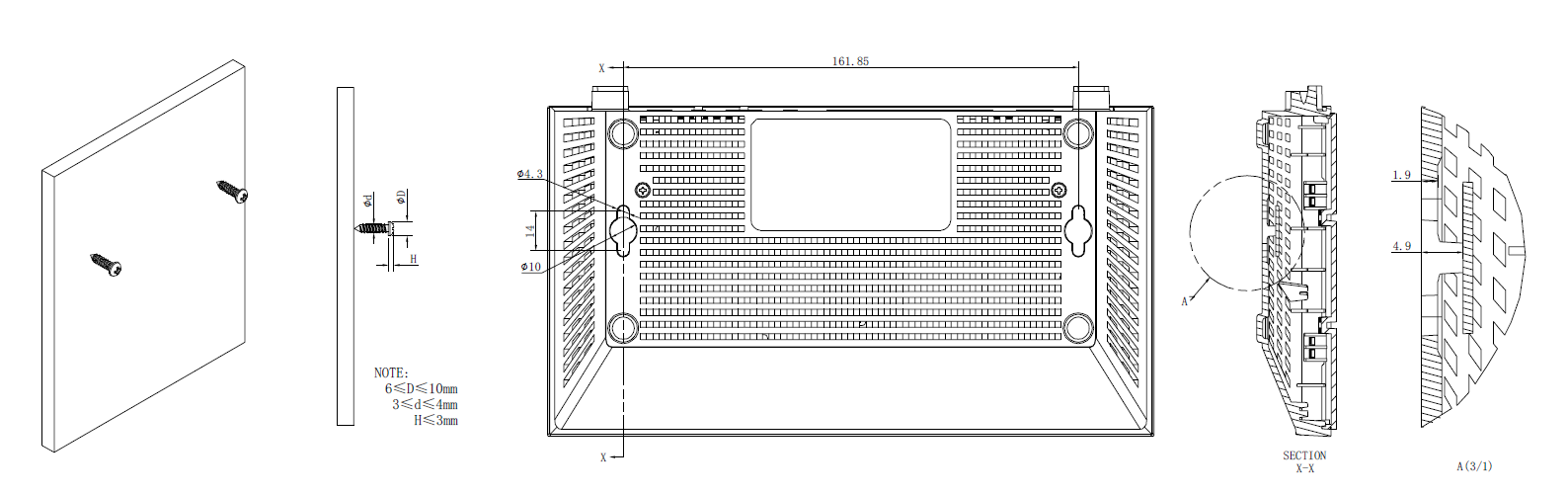
Note: The diameter of the screw, 6mm<D<10mm, and the distance of two screws is 161.85mm. The screw that project from the wall need around 4mm based, and the length of the screw need to be at least 20mm to withstand the weight of the product.
2.2 Connect Your Router
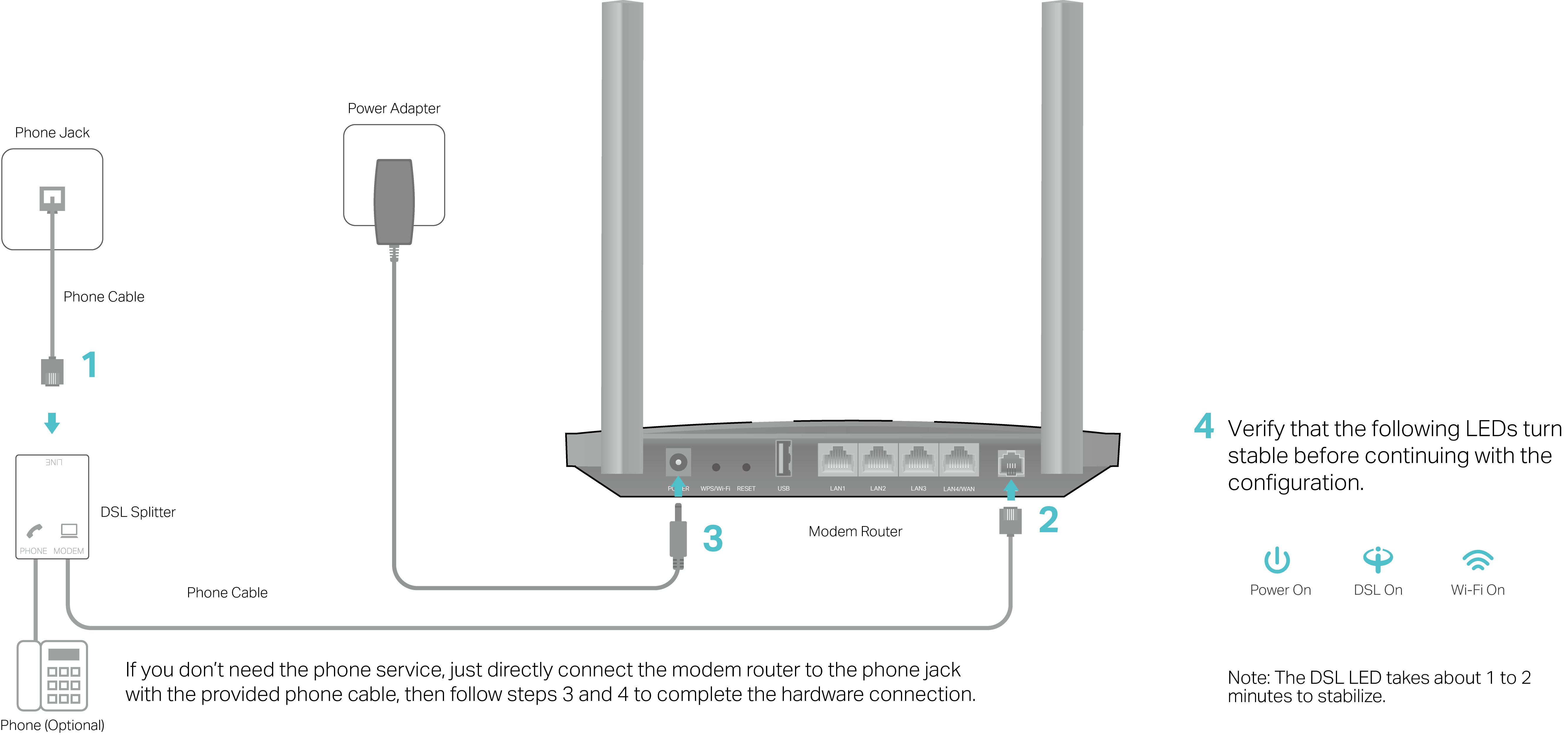
Follow the steps below to connect your modem router.
1. Connect the DSL line and power adapter. The electrical outlet shall be installed near the device and shall be easily accessible.
2. Connect your computer to the modem router.
Method 1: Wired
Connect your computer’s Ethernet port to the LAN port on the modem router via the Ethernet cable.
Method 2: Wirelessly
Use the default SSID (Wireless Network Name) and Wireless Password printed on the product label of the modem router to connect wirelessly.
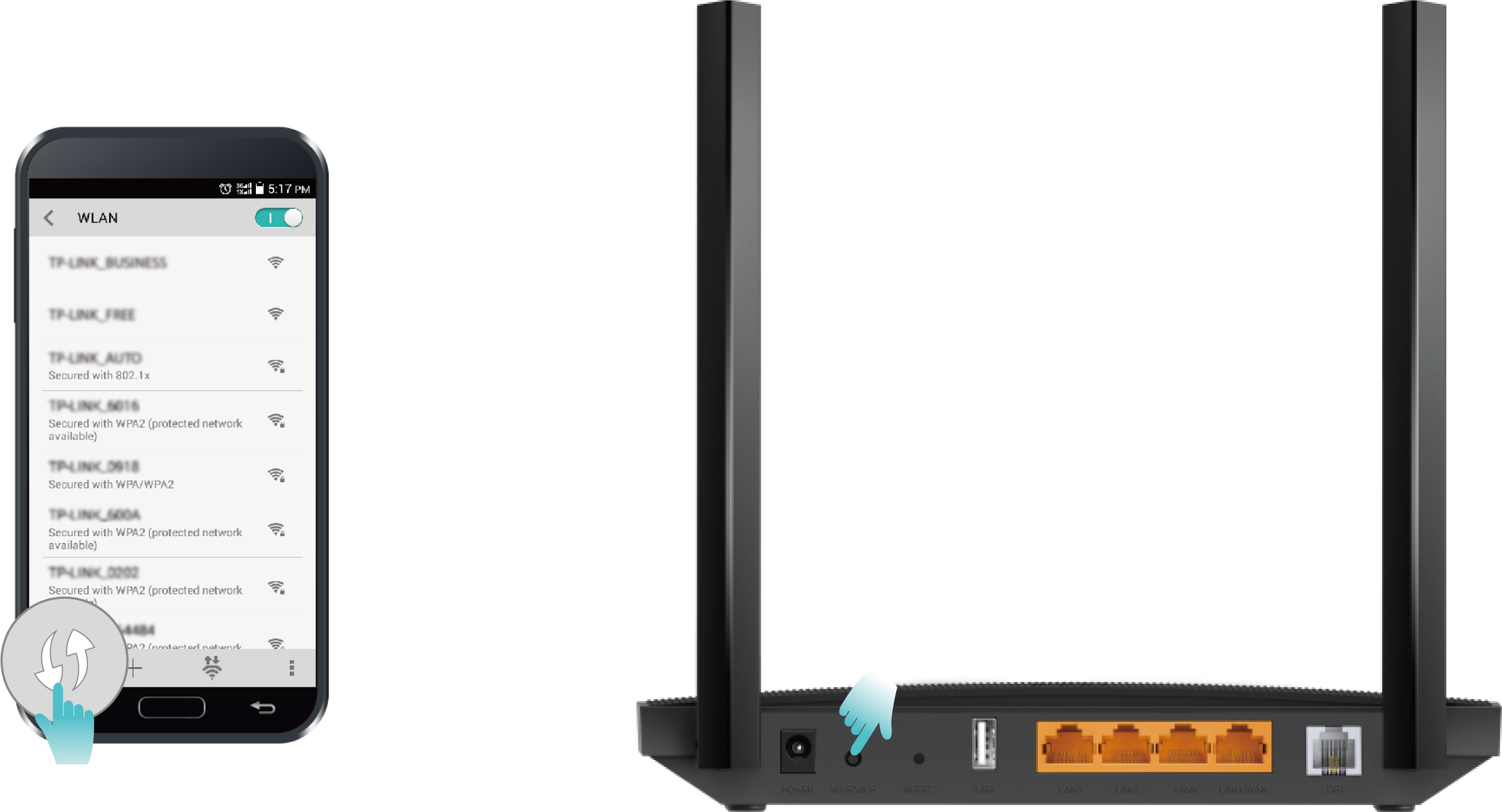
Method 3: Use the WPS button
Wireless devices that support WPS, including Android phones, tablets, most USB network cards, can be connected to your router through this method. (WPS is not supported by iOS devices.)
Note: The WPS function cannot be configured if the wireless function of the router is disabled. Also, the WPS function will be disabled if your wireless encryption is WEP. Please make sure the wireless function is enabled and is configured with the appropriate encryption before configuring the WPS.
1) Tap the WPS icon on the device’s screen.
2) Immediately press the WPS button on your modem router.
3) The WPS LED flashes for about two minutes during the WPS process.
When the WPS LED stabilizes and remains on, the client device has successfully connected to the modem router.
3. Setup Your Modem Router
Method 1: Via the TP-Link Tether App
1. Launch the Apple App Store or Google Play Store and search TP-Link Tether or simply click the button below to download and install the app.


2. Launch the Tether app and log in with your TP-Link ID.
Note: If you don’t have a TP-Link ID, create one first.
3. Tap the + icon on the upper-right corner and select Add a Router. Follow app instructions to set up and connect to the internet.
Note: Due to Tether app updates, your actual user interface and pathway may differ from those depcited here.
Method 2: Via the Web Browser
With the web management page, it is easy to configure and manage the modem router. The web management page can be used on any Windows, Macintosh or UNIX OS with a Web browser, such as Microsoft Internet Explorer, Mozilla Firefox or Apple Safari.
Follow the steps below to log in to your modem router.
1. Make sure your computer is connected to the router (wired or wireless).
2. Launch a web browser and type in http://tplinkmodem.net or http://192.168.1.1. Create a new password for future logins.
Note: If the login page does not appear, please refer to Q1 of FAQ in this guide.
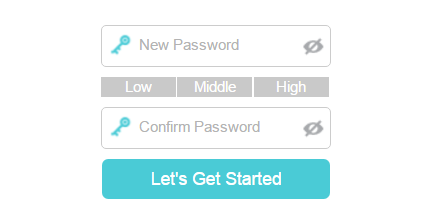
3. Follow the step-by-step instructions of the Quick Setup to complete the initial configuration.
Note: If you have registered a TP-Link ID and bind your cloud router to it, the login password you created here should be ineffective. Please log in to the cloud router using your TP-Link ID.
FAQ
Q1. What should I do if I cannot access the web management page?
A1. Reboot your modem router and try again.
A2. If the computer is set to a static IP address, change its settings to obtain an IP address automatically.
A3. Make sure http://tplinkmodem.net or http://192.168.1.1 is correctly entered in the web browser.
A4. Use another web browser and try again.
A5. Disable then enable the network adapter in use.
Q2. What should I do if the DSL LED does not turn solid on?
A1. Check your cables and make sure they are all plugged in correctly, including the telephone lines and power adapter.
A2. Refer to Q5 to restore your modem router to its factory default settings.
A3. Remove the DSL splitter, directly connect the modem router to the phone jack and follow this guide to reconfigure the modem router.
A4. Contact your ISP (internet service provider) to check the status of your DSL line.
A5. If the problem persists, contact our Technical Support.
Q3. What should I do if I cannot access the internet?
A1. Make sure all telephone and Ethernet cables are correctly and securely connected to the modem router.
A2. Try to log in to the web management page of the modem router using the default address at http://tplinkmodem.net or http://192.168.1.1. If you cannot, change your computer settings to obtain an IP address automatically from the modem router. If you can, try the steps below.
A3. Ask your internet service provider for the VPI/VCI (or VLAN ID), Connection Type, internet service username and password, and make sure all are correctly entered into your router's management page.
A4. Refer to Q5 to restore the modem router to its factory default settings and reconfigure it by following the instructions in this guide.
A5. If the problem persists, contact our Technical Support.
Q4. What should I do if I forget my password?
• For the web management page:
A1. If you are using a TP-Link ID to log in, click Forgot password on the login page and then follow the instructions to reset it.
A2. Alternatively, refer to Q5 to restore the modem router to its factory default settings and then set a new password.
• For the Wi-Fi network:
A1. The default Wi-Fi Password/PIN can be found on the product label at the bottom of the modem router.
A2. If the default wireless password has been changed, log in to the web management page and go to Basic > Wireless to retrieve or reset your password.
Q5. How do I restore the modem router to its factory default settings?
A1. With the modem router powered on, press and hold the RESET button on the back panel of the modem router until all LEDs turn off momentarily, then release the button.
A2. Log in to the web management page of the modem router. Go to Advanced > System Tools > Backup & Restore and click Factory Restore. The modem router will restore and reboot automatically.
Authentication
CE Mark Warning

Power Adapter
| Manufacturer | Spec | Model |
|---|---|---|
| TP-Link | CE | T120100-2C1 |
| TP-Link | UK | T120100-2D1 |
| TP-Link | AU | T120100-2E1 |
OPERATING FREQUENCY(the maximum transmitted power)
2412MHz—2472MHz (20dBm)
5150MHz—5250MHz (23dBm)
EU Declaration of Conformity
TP-Link hereby declares that the device is in compliance with the essential requirements and other relevant provisions of directives 2014/53/EU, 2009/125/EC, 2011/65/EU and (EU)2015/863.
The original EU Declaration of Conformity may be found at https://www.tp-link.com/en/support/ce/
RF Exposure Information
This device meets the EU requirements (2014/53/EU Article 3.1a) on the limitation of exposure of the general public to electromagnetic fields by way of health protection.
The device complies with RF specifications when the device used at 20 cm from your body.
National Restrictions
Frequency band: 5150 - 5250 MHz:
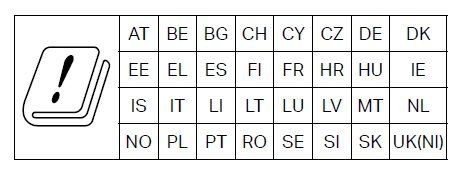
Indoor use: Inside buildings only. Installations and use inside road vehicles and train carriages are not permitted. Limited outdoor use: If used outdoors, equipment shall not be attached to a fixed installation or to the external body of road vehicles, a fixed infrastructure or a fixed outdoor antenna. Use by unmanned aircraft systems (UAS) is limited to within the 5170 - 5250 MHz band.
Attention: This device may only be used indoors in all EU member states and EFTA countries.
Canadian Compliance Statement
This device contains licence-exempt transmitter(s)/receiver(s) that comply with Innovation, Science and Economic Development Canada’s licence-exempt RSS(s). Operation is subject to the following two conditions:
(1) This device may not cause interference.
(2) This device must accept any interference, including interference that may cause undesired operation of the device.
L’émetteur/récepteur exempt de licence contenu dans le présent appareil est conforme aux CNR d’Innovation, Sciences et Développement économique Canada applicables aux appareils radio exempts de licence. L’exploitation est autorisée aux deux conditions suivantes :
1) L’appareil ne doit pas produire de brouillage;
2) L’appareil doit accepter tout brouillage radioélectrique subi, même si le brouillage est susceptible d’en compromettre le fonctionnement.
Radiation Exposure Statement:
This equipment complies with IC radiation exposure limits set forth for an uncontrolled environment. This equipment should be installed and operated with minimum distance 20cm between the radiator & your body.
Déclaration d’exposition aux radiations:
Cet équipement est conforme aux limites d’exposition aux rayonnements IC établies pour un environnement non contrôlé. Cet équipement doit être installé et utilisé avec un minimum de 20 cm de distance entre la source de rayonnement et votre corps.
UKCA Mark

UK Declaration of Conformity
TP-Link hereby declares that the device is in compliance with the essential requirements and other relevant provisions of the Radio Equipment Regulations 2017.
The original UK Declaration of Conformity may be found at https://www.tp-link.com/support/ukca/
Korea Warning Statements:
당해 무선설비는 운용중 전파혼신 가능성이 있음.

NCC Notice & BSMI Notice
注意!
取得審驗證明之低功率射頻器材,非經核准,公司、商號或使用者均不得擅自變更頻率、加大功率或變更原設計之特性及功能。
低功率射頻器材之使用不得影響飛航安全及干擾合法通信;經發現有干擾現象時,應立即停用,並改善至無干擾時方得繼續使用。
前述合法通信,指依電信管理法規定作業之無線電通信。
低功率射頻器材須忍受合法通信或工業、科學及醫療用電波輻射性電機設備之干擾。
應避免影響附近雷達系統之操作。
高增益指向性天線只得應用於固定式點對點系統。
安全諮詢及注意事項
-
請使用原裝電源供應器或只能按照本產品注明的電源類型使用本產品。
-
清潔本產品之前請先拔掉電源線。請勿使用液體、噴霧清潔劑或濕布進行清潔。
-
注意防潮,請勿將水或其他液體潑灑到本產品上。
-
插槽與開口供通風使用,以確保本產品的操作可靠並防止過熱,請勿堵塞或覆蓋開口。
-
請勿將本產品置放於靠近熱源的地方。除非有正常的通風,否則不可放在密閉位置中。
-
不要私自拆開機殼或自行維修,如產品有故障請與原廠或代理商聯繫。
限用物質含有情況標示聲明書
| 設備名稱:AC1200 Wireless MU-MIMO VDSL/ADSL Modem Router 型號(型式):Archer VR400 Equipment name Type designation (Type) |
||||||
|---|---|---|---|---|---|---|
| 單元 Unit |
限用物質及其化學符號 Restricted substances and its chemical symbols |
|||||
| 鉛 Lead (Pb) |
汞 Mercury (Hg) |
鎘 Cadmium (Cd) |
六價鉻 Hexavalent chromium (Cr+6) |
多溴聯苯 Polybrominated biphenyls (PBB) |
多溴二苯醚 Polybrominated diphenyl ethers (PBDE) |
|
| PCB | ○ | ○ | ○ | ○ | ○ | ○ |
| 外殼 | ○ | ○ | ○ | ○ | ○ | ○ |
| 電源供應器 | − | ○ | ○ | ○ | ○ | ○ |
| 其他及其配件 | − | ○ | ○ | ○ | ○ | ○ |
| 備考1.〝超出0.1 wt %〞及〝超出0.01 wt %〞係指限用物質之百分比含量超出百分比含量基準值 Note 1:“Exceeding 0.1 wt %” and “exceeding 0.01 wt %” indicate that the percentage content of the restricted substance exceeds the reference percentage value of presence condition. 備考2.〝○〞係指該項限用物質之百分比含量未超出百分比含量基準值。 Note 2:“○” indicates that the percentage content of the restricted substance does not exceed the percentage of reference value of presence. 備考3.〝-〞係指該項限用物質為排除項目。 Note 3:The “−” indicates that the restricted substance corresponds to the exemption. |
||||||

Продукт сертифіковано згідно с правилами системи УкрСЕПРО на відповідність вимогам нормативних документів та вимогам, що передбачені чинними законодавчими актами України.

Safety Information
-
Keep the device away from water, fire, humidity or hot environments.
-
Do not attempt to disassemble, repair, or modify the device. If you need service, please contact us.
-
Do not use damaged charger or USB cable to charge the device.
-
Do not use any other chargers than those recommended.
-
Do not use the device where wireless devices are not allowed.
-
Adapter shall be installed near the equipment and shall be easily accessible.
-
Use only power supplies which are provided by manufacturer and in the original packing of this product. If you have any questions, please don’t hesitate to contact us.
-
Operating Temperature: 0℃~40℃
-
請勿使用損壞的充電器或USB線來供應設備充電。
-
請勿使用推薦充電器以外的任何其他充電器。
-
變壓器應安裝在設備附近且易於操作。
-
運作溫度: 0°C~40°C (32°F~104°F)
This product uses radios and other components that emit electromagnetic fields. Electromagnetic fields and magnets may interfere with pacemakers and other implanted medical devices. Always keep the product and its power adapter more than 15 cm (6 inches) away from any pacemakers or other implanted medical devices. If you suspect your product is interfering with your pacemaker or any other implanted medical device, turn off your product and consult your physician for information specific to your medical device.
Please read and follow the above safety information when operating the device. We cannot guarantee that no accidents or damage will occur due to improper use of the device. Please use this product with care and operate at your own risk.
Explanation of the symbols on the product label
Note: The product label is on the bottom of the product and its I.T.E. power supply. Symbols may vary from products.
符號可能因產品而異 注意:產品標籤可以在產品底部和其I.T.E.電源供應器上找到。
| Symbol 符號解釋 |
Explanation 解釋 |
|---|---|
 |
Class II equipment Class II 設備 |
 |
Class II equipment with functional earthing 具有功能接地的Class II 設備 |
 |
Alternating current 交流電 |
 |
DC voltage 直流電壓 |
 |
Polarity of output terminals 輸出端子極性 |
 |
Indoor use only 僅限室內使用 |
 |
Dangerous voltage 危險電壓 |
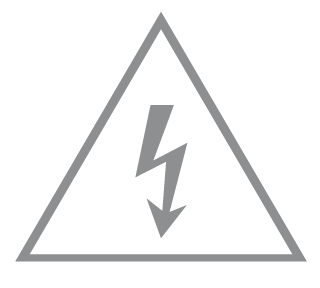 |
Caution, risk of electric shock 注意,有觸電危險 |
 |
Energy efficiency Marking 能源效率標示 |
 |
Protective earth 保護地線 |
 |
Earth 地線 |
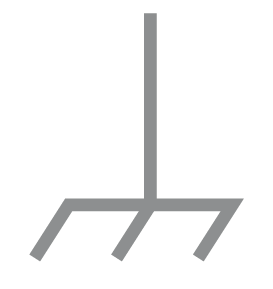 |
Frame or chassis 機架接地 |
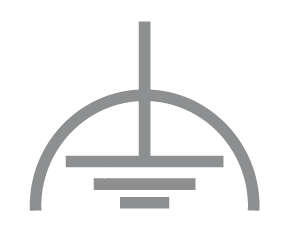 |
Functional earthing 功能地線 |
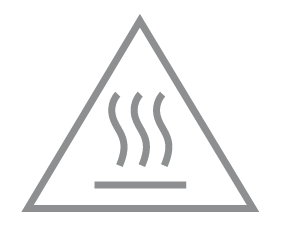 |
Caution, hot surface 警告,表面高溫 |
 |
Caution 警告 |
 |
Operator’s manual 操作手冊 |
 |
Stand-by 待機 |
 |
“ON”/”OFF” (push-push) 「開」/「關」 ( 按壓式) |
 |
Fuse 保險絲 |
 |
Fuse is used in neutral N 保險絲用於中性線N |
 |
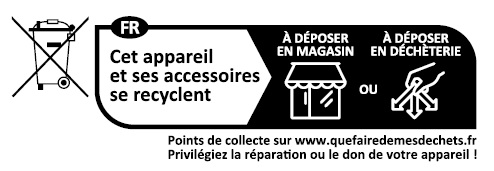
RECYCLING This means that this product must be handled pursuant to European directive 2012/19/EU in order to be recycled or dismantled to minimize its impact on the environment. |
| m | Switch of mini-gap construction 微間隙結構的開關 |
| µ | Switch of micro-gap construction (for US version) Switch of micro-gap / micro-disconnection construction (for other versions except US) 微小間隙結構開關(適用於美國版) 微小間隙 / 微小斷開結構開關(適用於美國以外的其他版本) |
| ε | Switch without contact gap (Semiconductor switching device) 無接點間隙開關(半導體開關裝置) |