Table of Contents
Tapo Doorbell_App Guide
About This Guide
This guide provides a brief introduction to Tapo video doorbells and the Tapo app, as well as regulatory information. Please note that features available in Tapo may vary by model and software version. Tapo availability may also vary by region. All images, steps, and descriptions in this guide are only examples and may not reflect your actual Tapo Doorbell experience.
Conventions
In this guide, the following convention is used:
| Convention | Description |
|---|---|
| Blue | Key information appears in blue, including management page text such as menus, items, buttons and so on. |
| Underline | Hyperlinks are in blue and underlined. You can click to redirect to a website. |
| Note |
Ignoring this type of note might result in a malfunction or damage to the device. |
More Info
Specifications can be found on the product page at https://www.tapo.com.
Our Technical Support and troubleshooting information can be found at https://www.tapo.com/support/.
Introduction
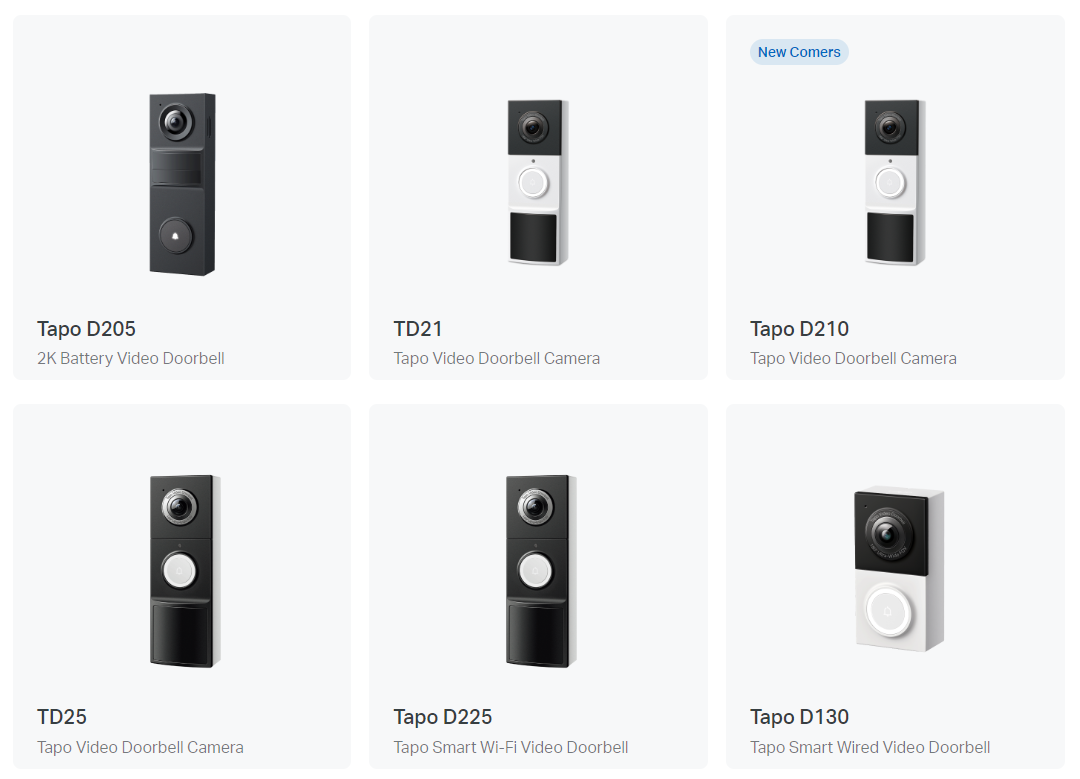
This guide displays the app features of Tapo doorbells. Features may vary between different models. You can find all the Tapo doorbell models on the website at Tapo Video Doorbells.
The webpage is subject to change without notice.
Set Up Your Doorbell
Follow the steps below to get started with your new door lock.
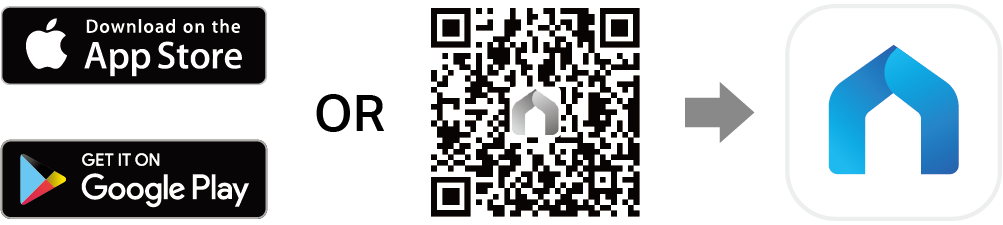
Step 1. Download Tapo App
Get the Tapo app from the App Store or Google Play, or by scanning the QR code below.
Step 2. Log In
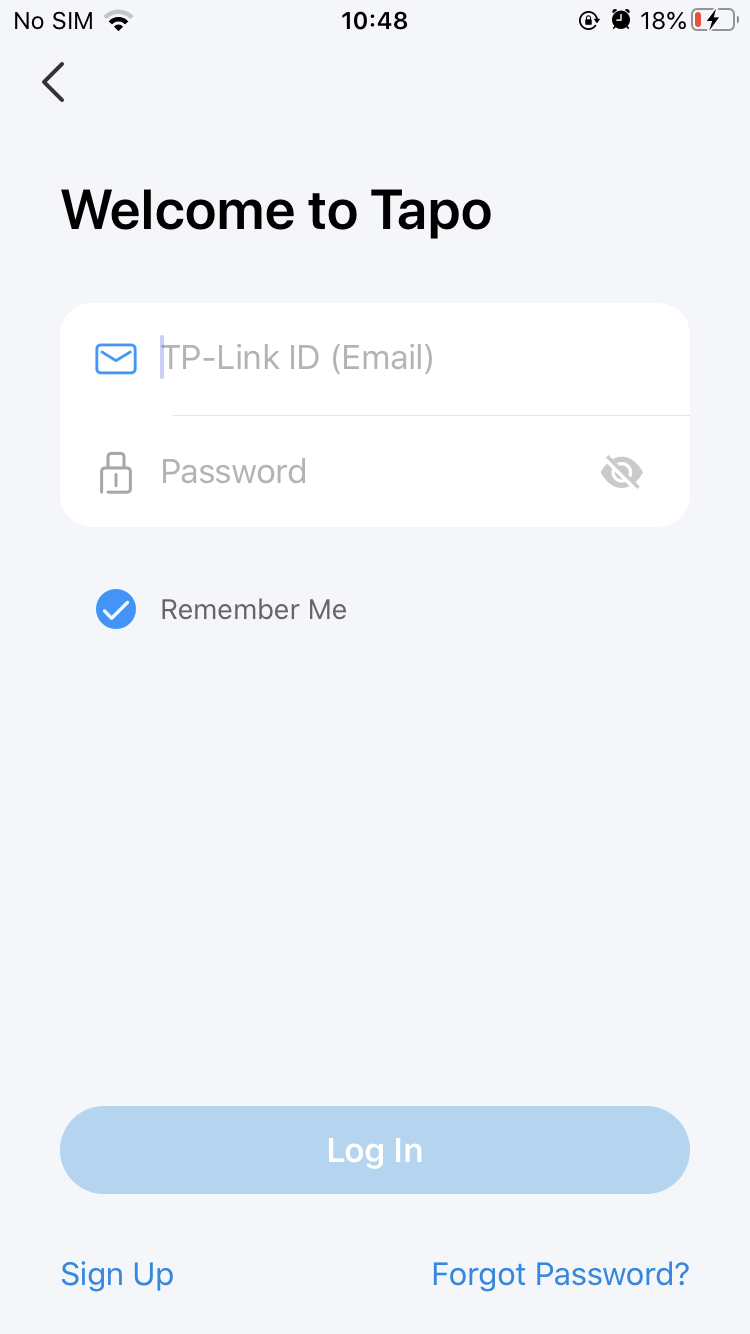
Open the app, and log in with your TP-Link ID. If you don't have an account, create one first.
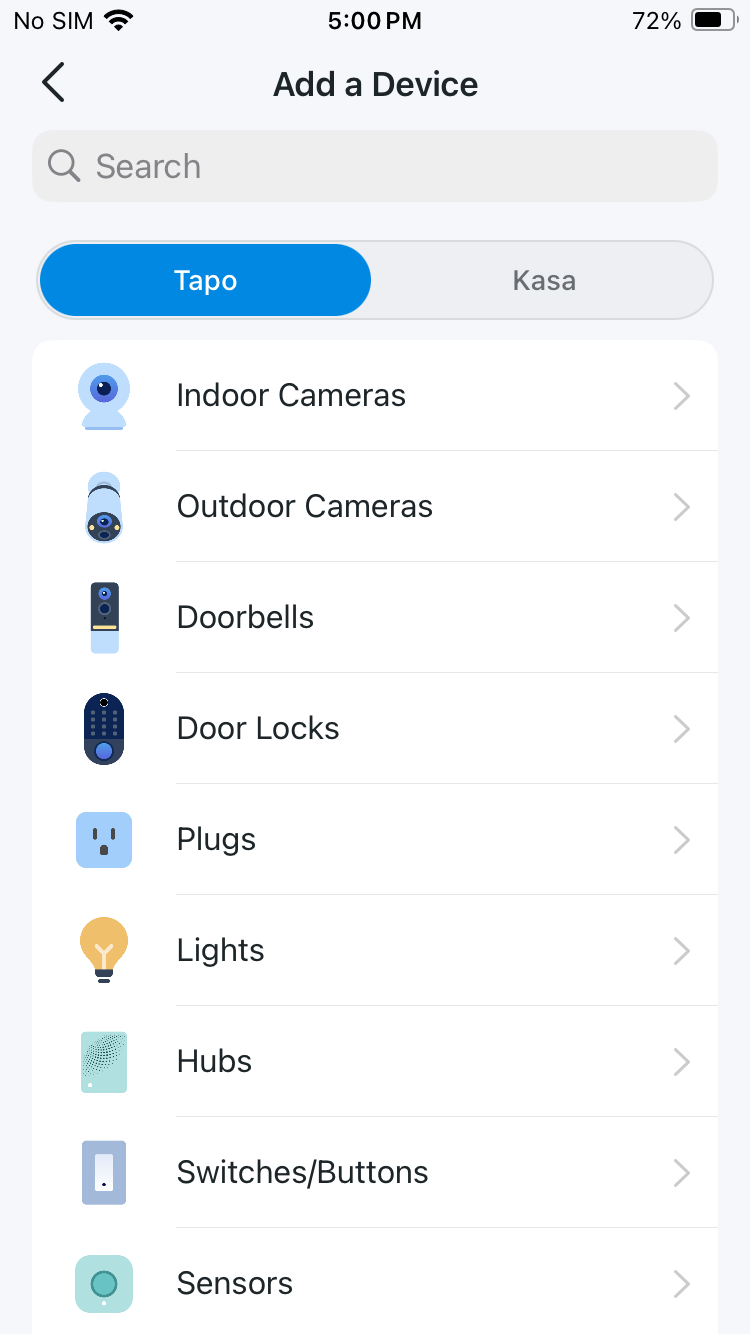
Step 3. Add Your Device
Tap the + button in the app and search for your model. Follow the app instructions to complete setup.
Doorbell Live View
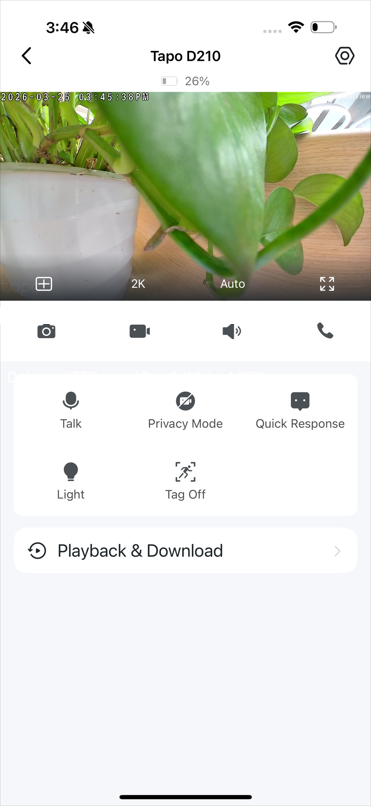
Tap your device card on the Home page to enter the live view page.
Live View
Here is a brief introduction to icons and features on the doorbell live view page. The icons on the live screen will appear after you tap the screen once.
Note: Here we take Tapo D210 V2 as an example. Icons and features on the live view page may vary from different models.
Explanations of Icons on the Live Screen
| Icons | Functionality | Screen Performance |
|---|---|---|
|
Multi-Screen |
View live videos from multiple doorbells/cameras at the same time. | 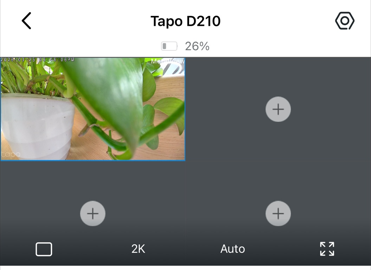 |
|
2K Resolution |
Tap to switch the video quality. | 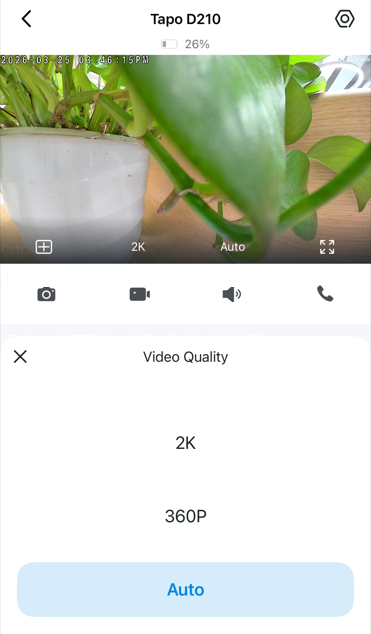 |
|
Auto Video Mode |
Tap to switch the video mode to Day Mode, Night Mode, or Auto. | 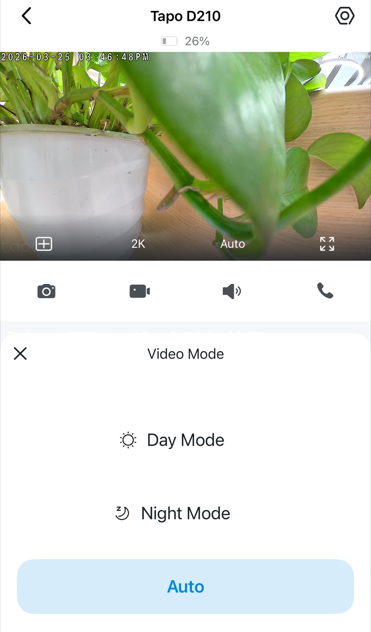 |
|
Full Screen |
Tap for a full-screen display. | 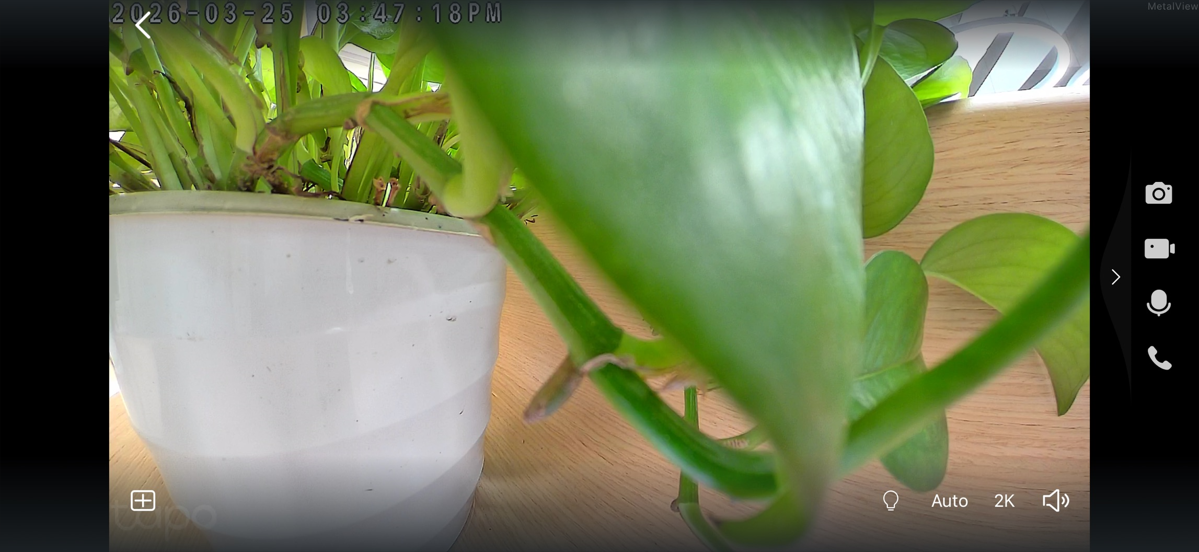 |
|
Screenshot |
Take a screenshot and save captures to Download. | 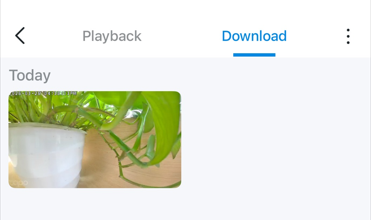 |
|
Record |
Record the live view and save recordings to Download. | 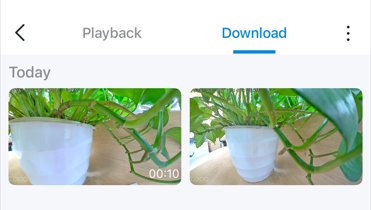 |
|
Volume |
Tap to adjust the video volume. | 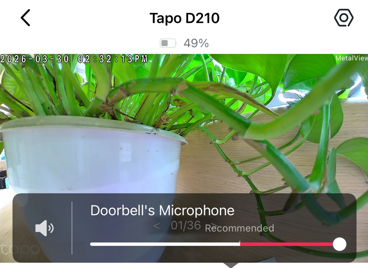 |
|
Voice Call |
Communicate with your visitor. | 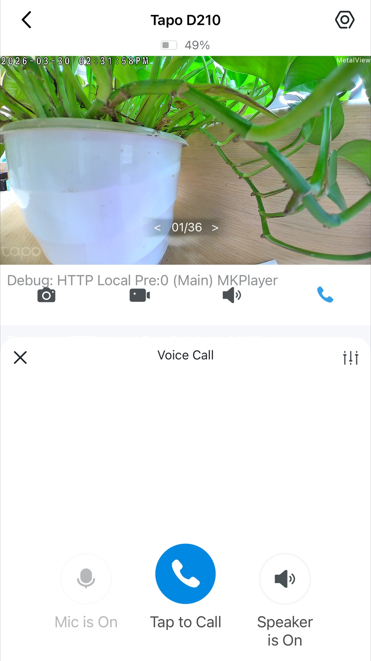 |






Talk to Your Visitor
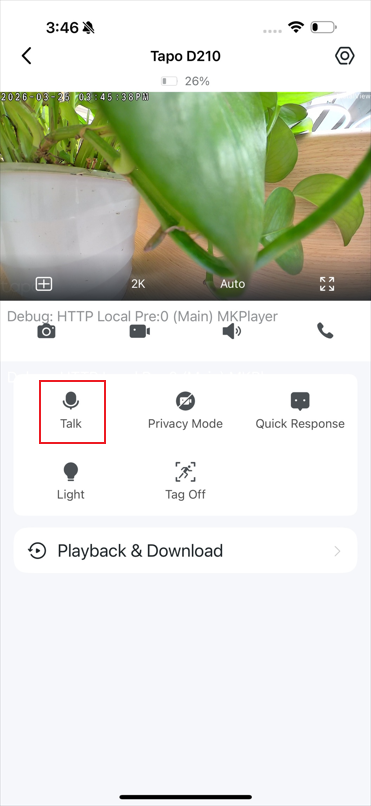
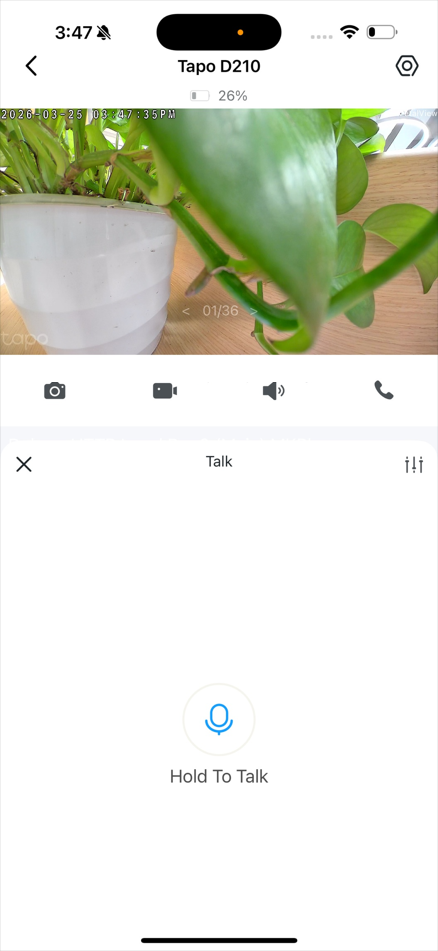
Have a real-time conversation with guests and delivery couriers at your door with crystal-clear two-way audio. Tap the Talk icon and hold to talk to the visitor.
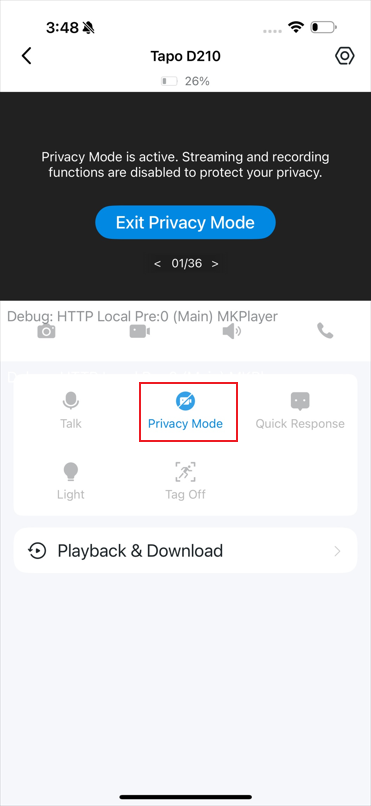
Privacy Mode
Enable to shut down the surveillance for privacy protection.
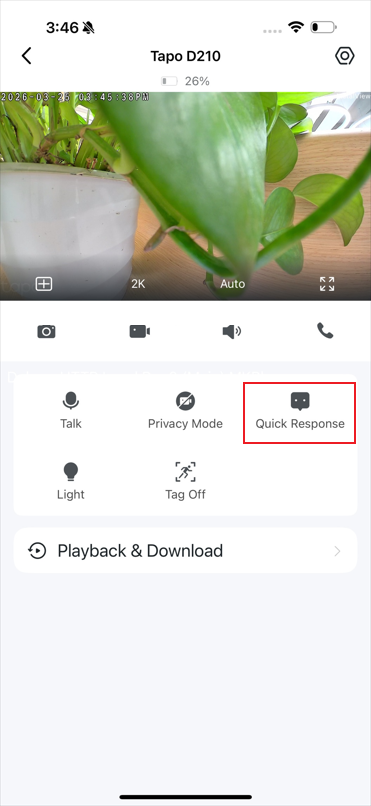
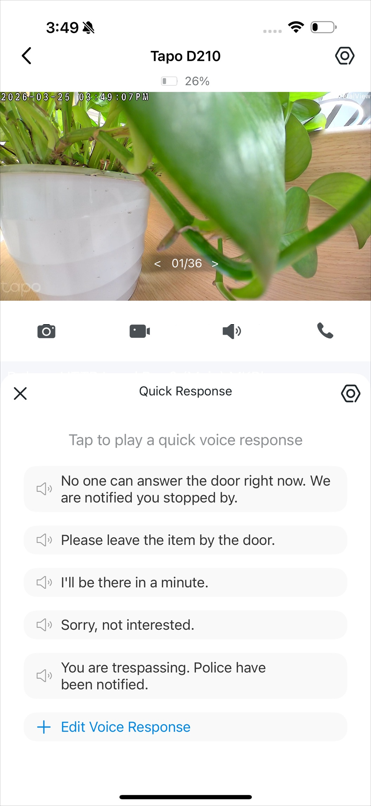
Quick Response
When you're busy, send a preset and prerecorded Quick Response to answer the door without missing a beat.
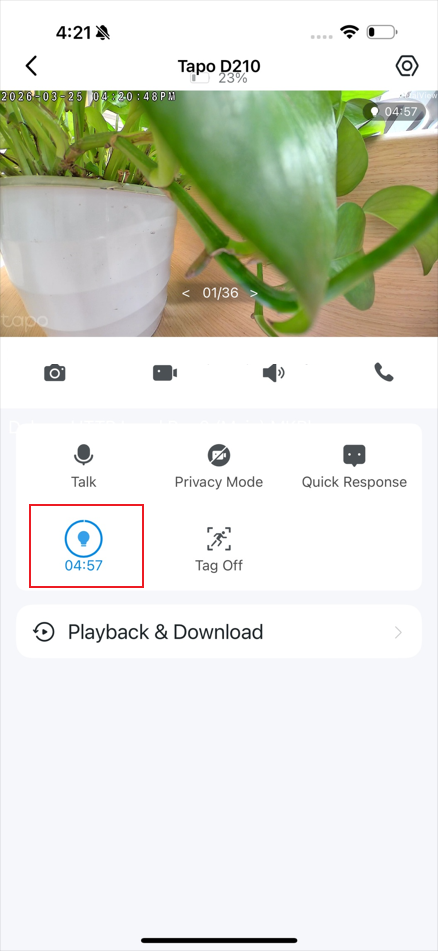
Light
Turn on spotlight to have multicolor night vision. It will automatically turn off after 5 minutes.
Tag On
Display the person/pet/vehicle tag on the Live View of your camera.
Note: Only some specific models have this feature.
Tapo Care
Subscribe to Tapo Care to enjoy unlimited cloud storage.

Playback & Download
You can find the screenshots and locally recorded videos here.
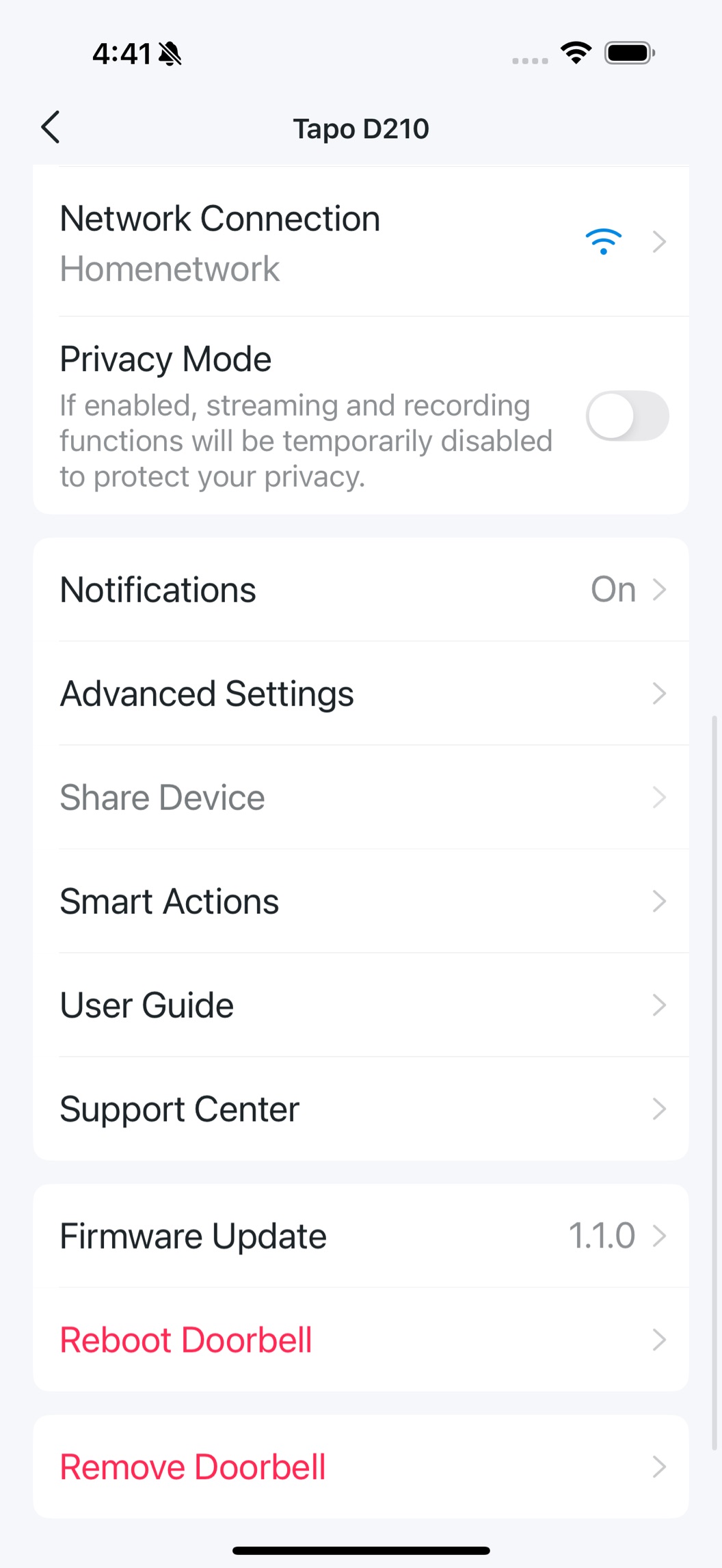
Manage Device Settings
Tap the icon in the upper right corner on the Status page to enter the Device Settings page.
Tapo has three types of doorbells: battery-powered, hardwired, and dual-power doorbells. Battery-powered doorbells get power from the rechargeable battery, hardwired doorbells get a constant power source from the home circuit, while dual-power doorbells support both power sources. This leads to different settings for detection, recording, and power source.
Note: Features may vary between different models.
_20260525022008p.jpg)
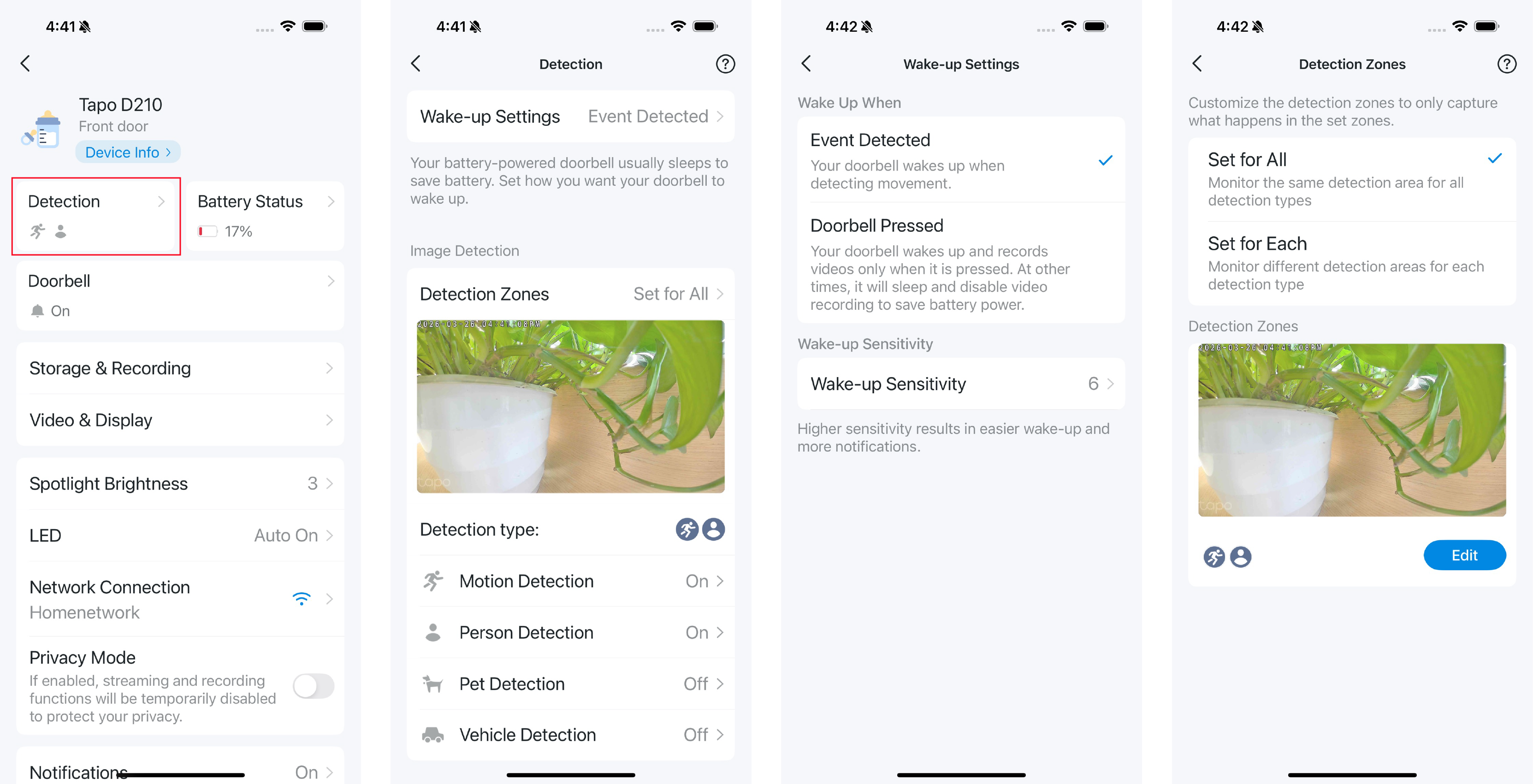
1. Detection Settings
You can set how to wake up the doorbell and set detection zones for each detection type.
Wake-up Settings is only available for battery-powered and dual-power doorbells.
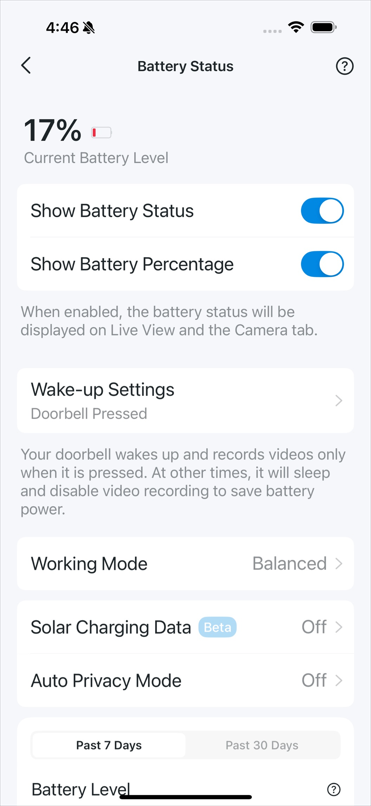
2. Battery Status
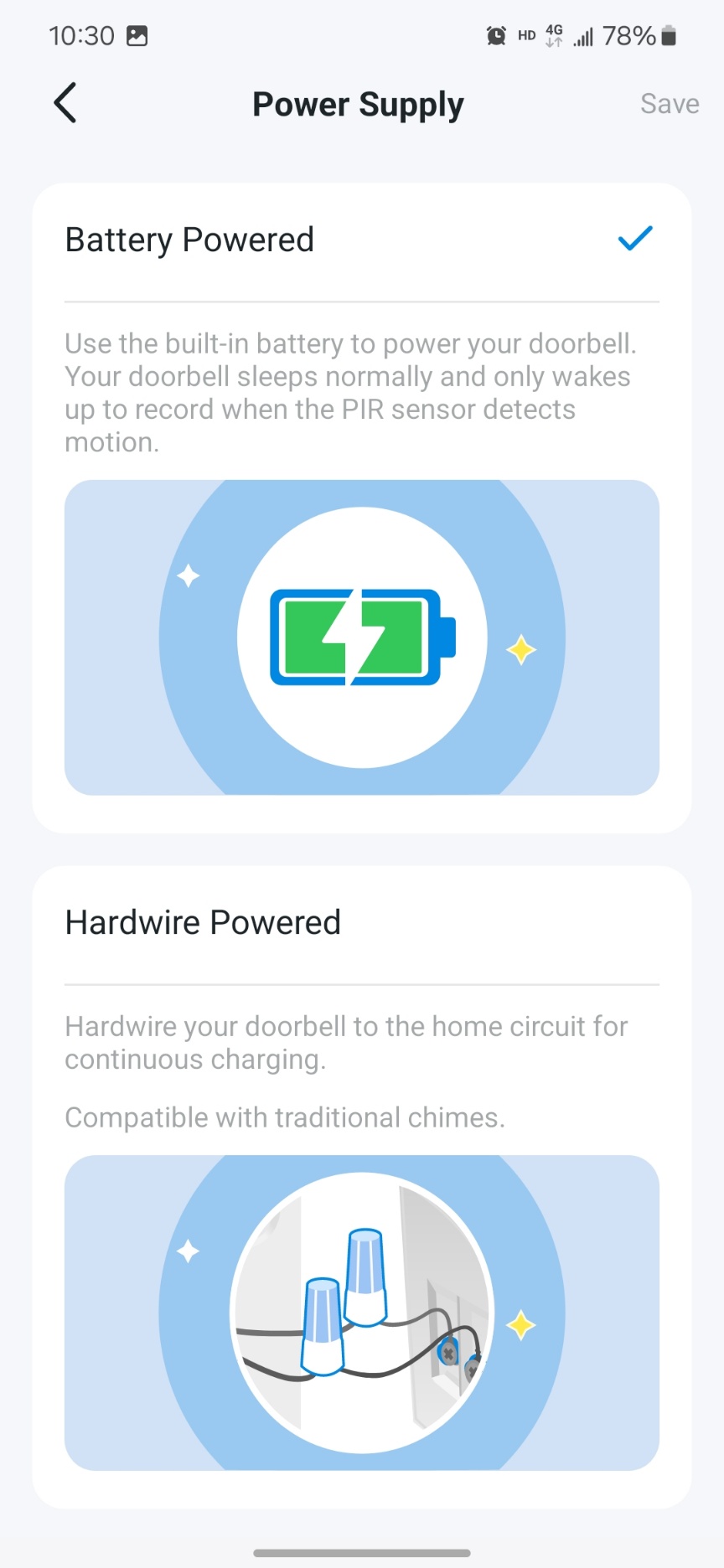
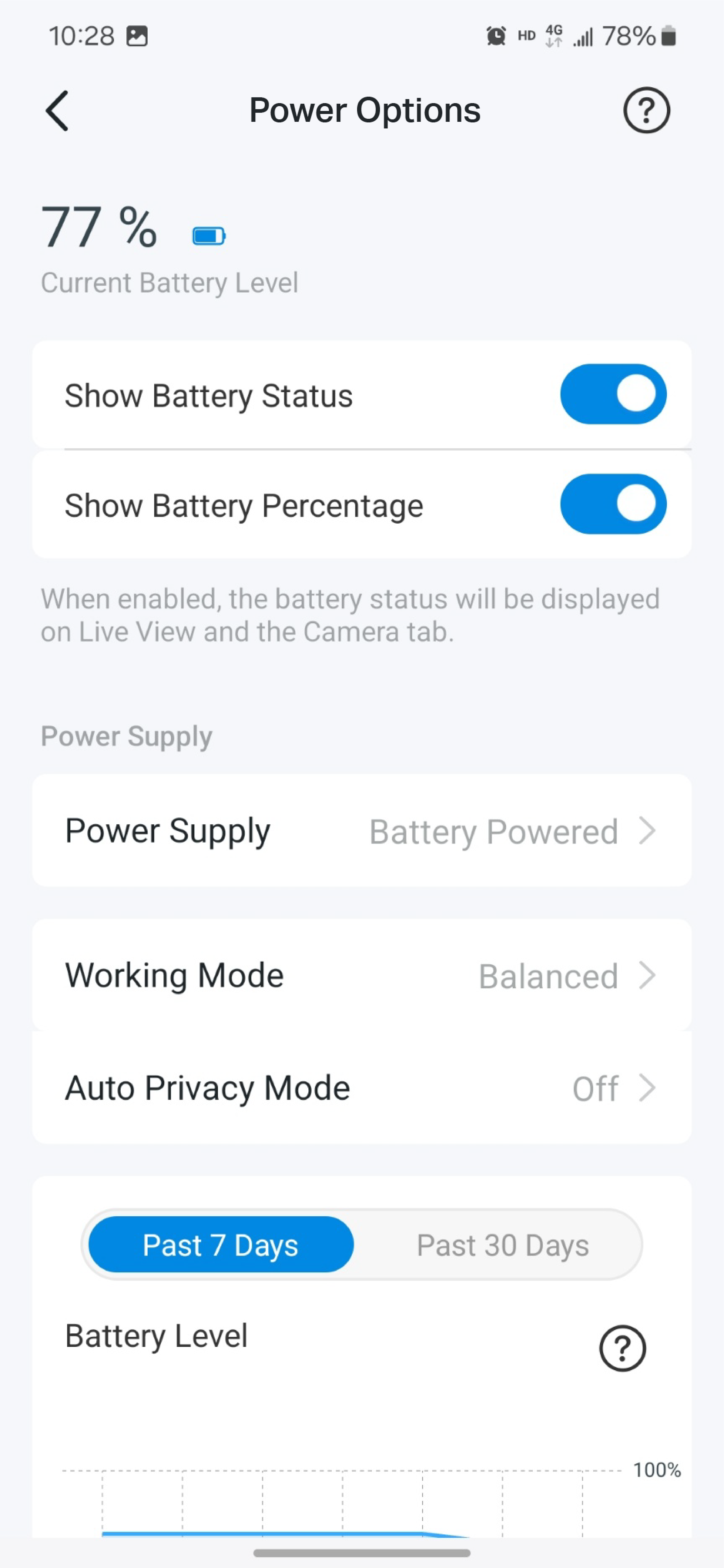
Only available for battery-powered and dual-power doorbells. You can check the battery level and the battery usage for the past 7 or 30 days, and set whether to show the battery status and battery percentage on Live View and the Camera tab.
You can also set when to wake up the doorbell, choose the working mode for the doorbell, and set whether to work with a Tapo solar panel (beta feature) and whether to automatically enable Privacy Mode when charging.
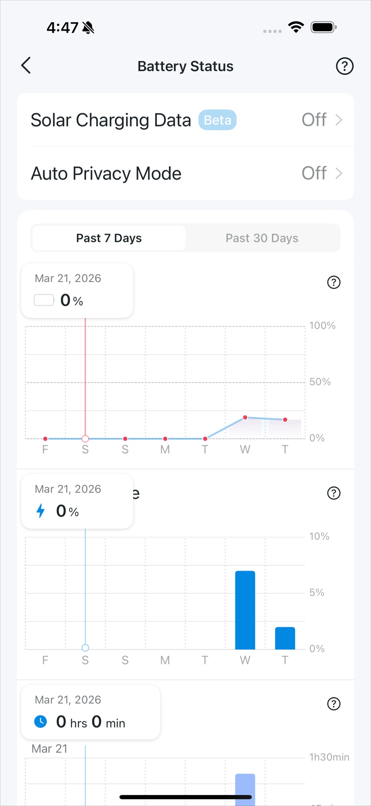
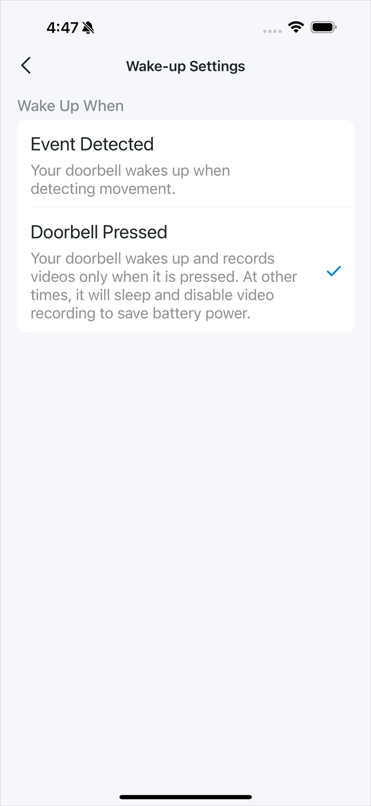
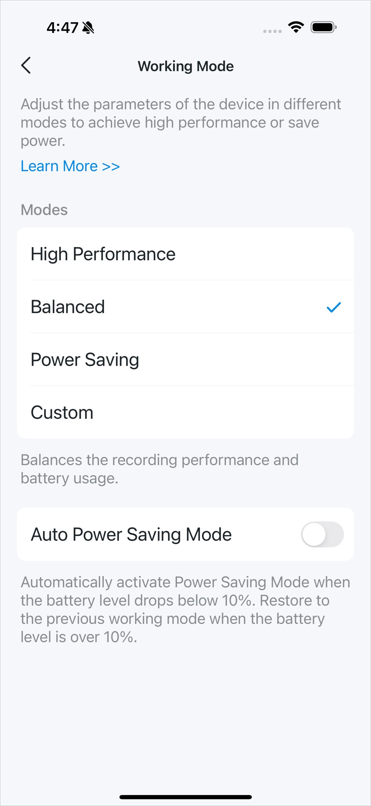
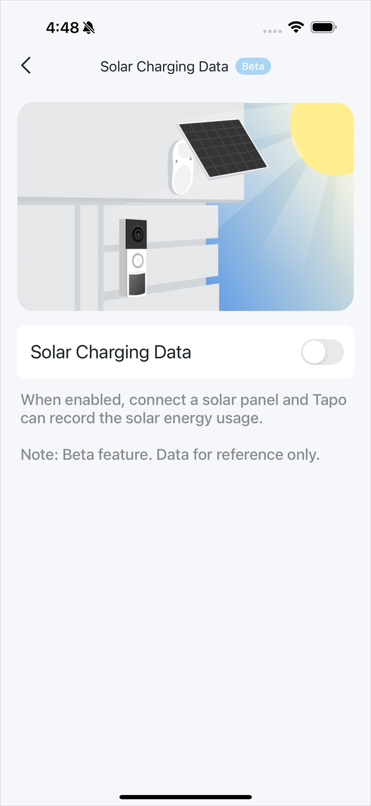
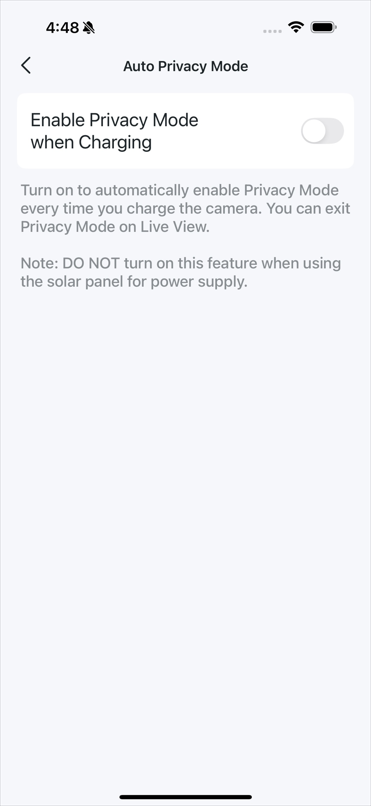
For dual-power doorbells, you can choose the power source.
3. Doorbell Settings
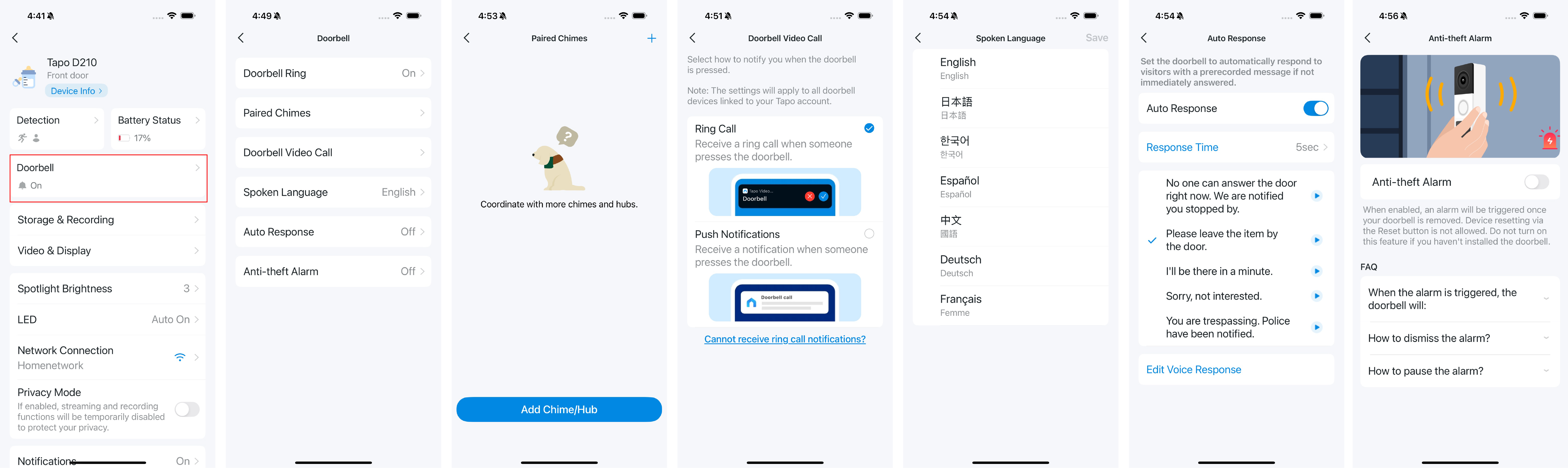
Set whether to ring your doorbell when it is pressed. You can also pair chimes or hubs to the doorbell so they also ring when the doorbell is pressed. Set how to answer the doorbell call. You can choose the spoken language of your doorbell, and set auto response and anti-theft alarm.
4. Storage and Recording
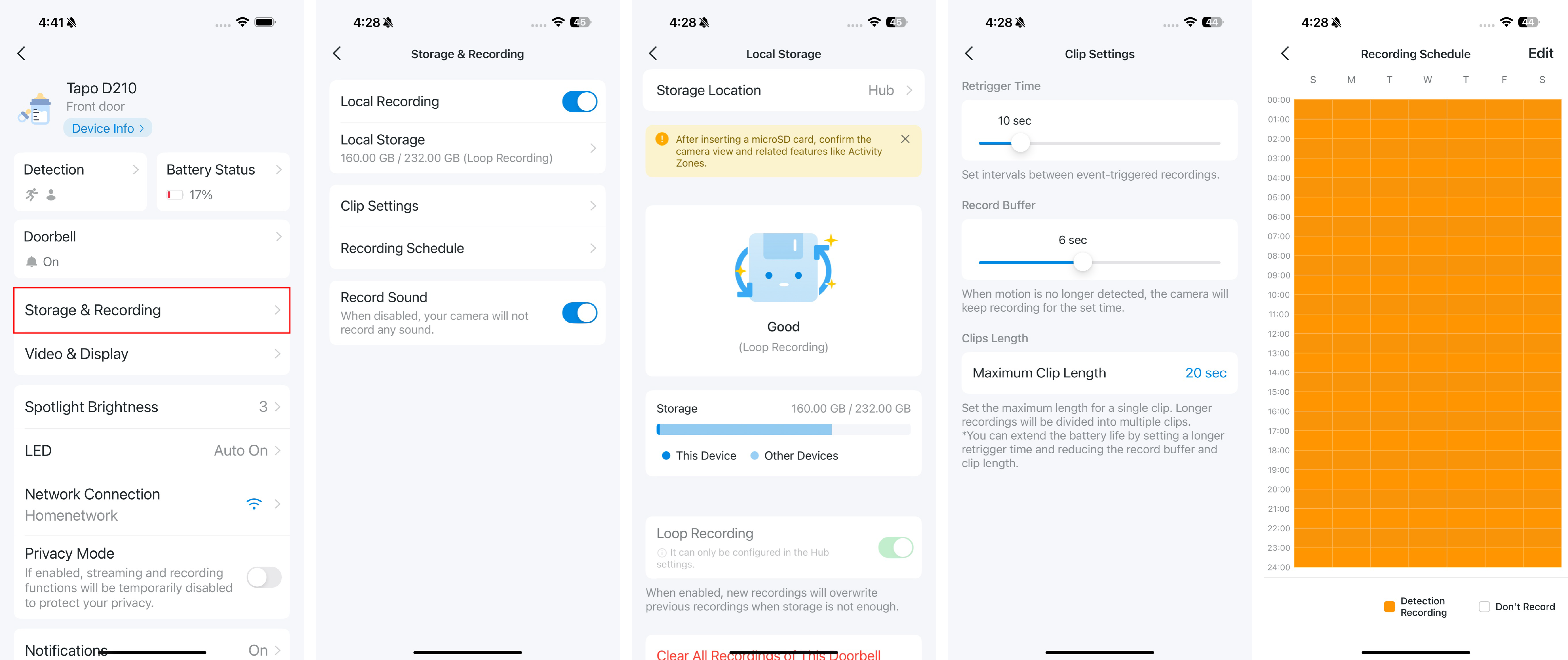
Enable Local Recording if you have inserted a microSD card or set the doorbell to save videos to a compatible hub. You can also subscribe to Tapo Care for unlimited cloud storage.
Clips Settings: Set the Retrigger Time, Record Buffer, and Clips Length according to your needs.
Recording Schedule: Set the time for Detection Recording and time that no recording is needed. Hardwired doorbells support 24/7 Recording, and therefore have no Recording Schedule option.
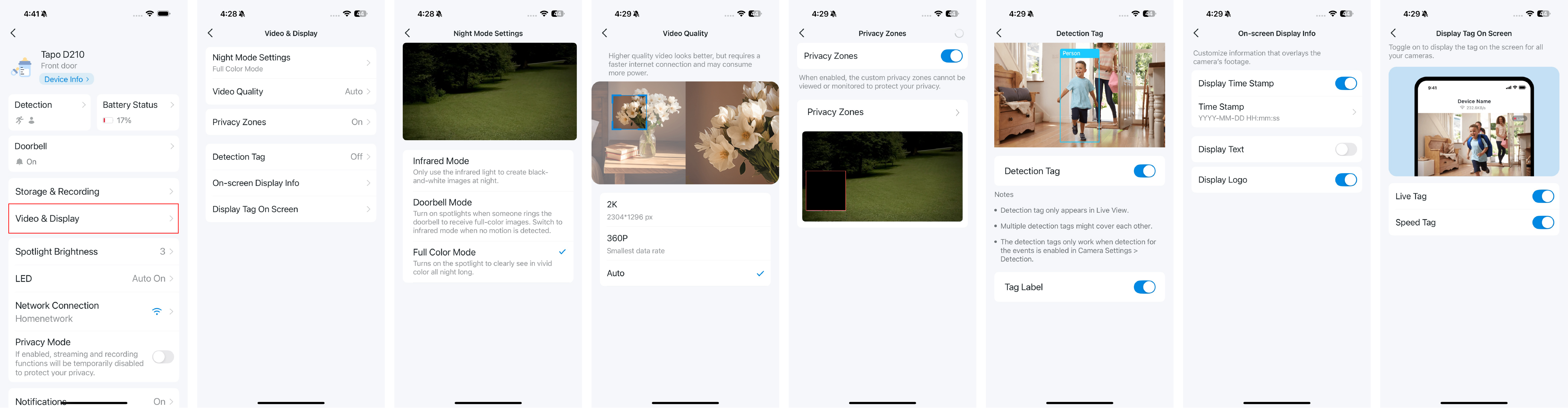
5. Video & Display
Night Mode Settings: Choose whether to turn on the spotlight at night.
Video Quality: Set the video quality. Different models support different resolutions.
Privacy Zones: Customize an area that cannot be viewed or monitored to protect your privacy.
Detection Tag: When enabled, a tag will appear on Live View to mark the detected object.
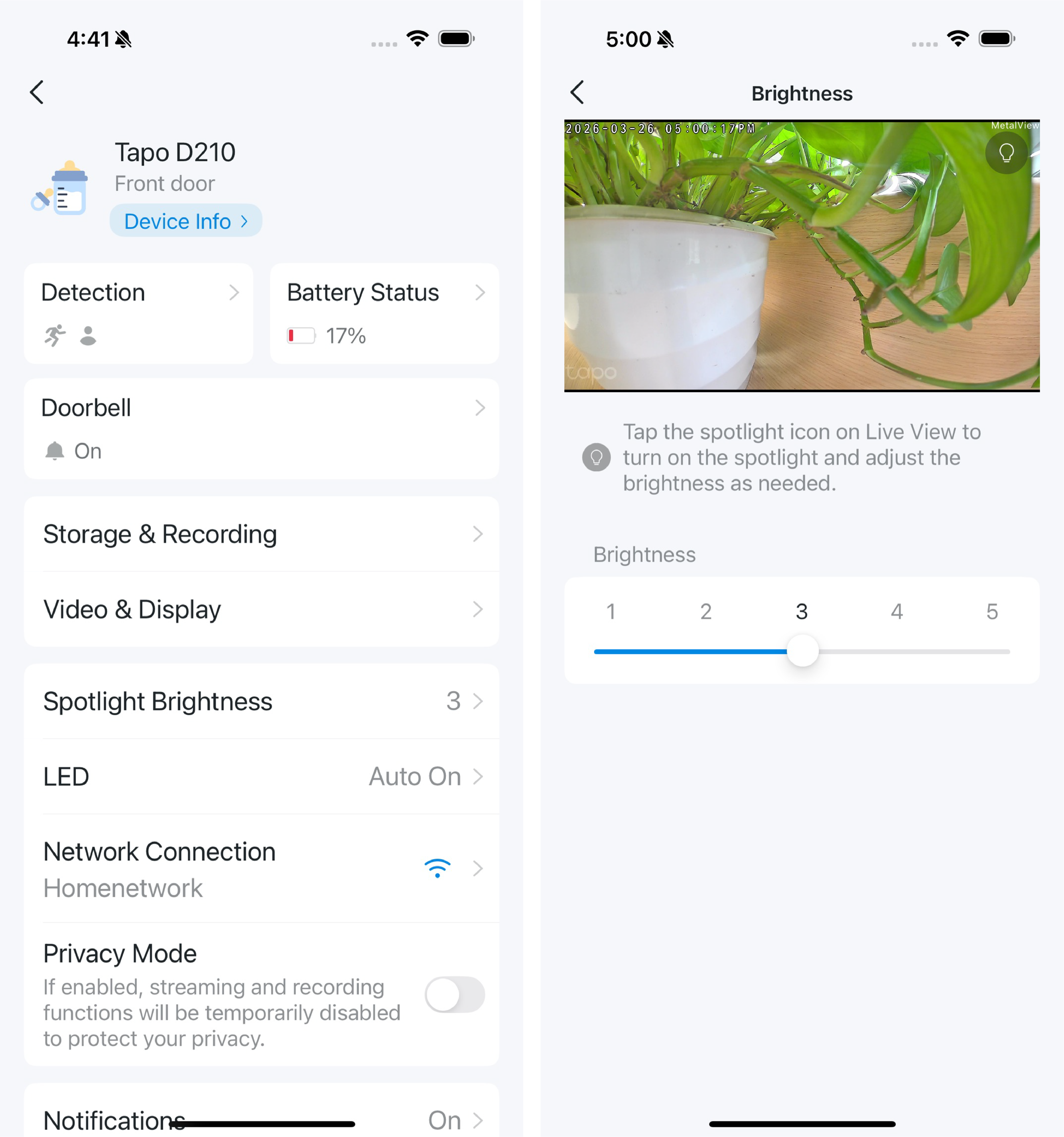
6. Spotlight Brightness
Turn on the spotlight icon on Live View and then adjust the brightness as needed.
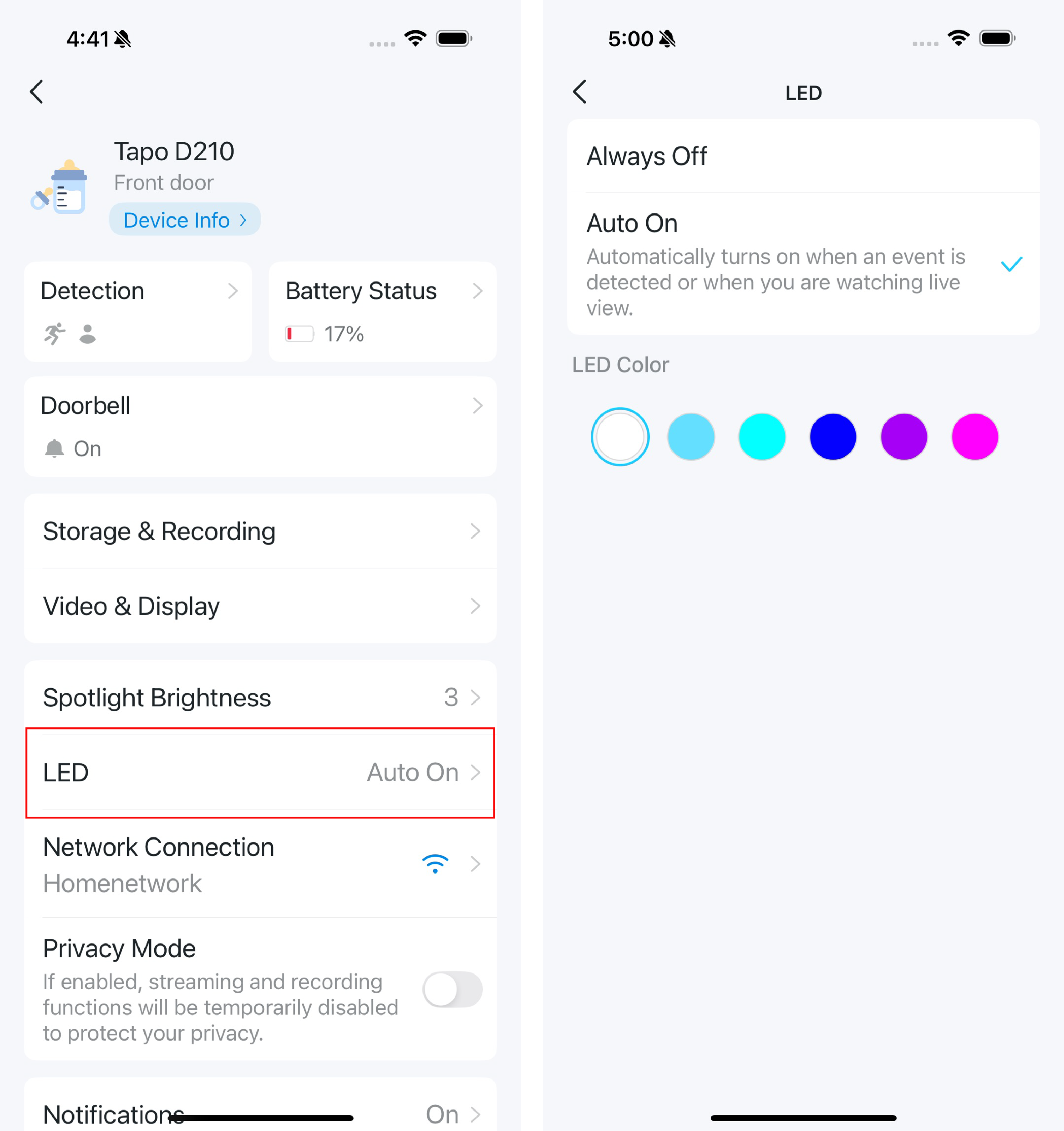
7. LED
Set how to turn on the LED and with what color.
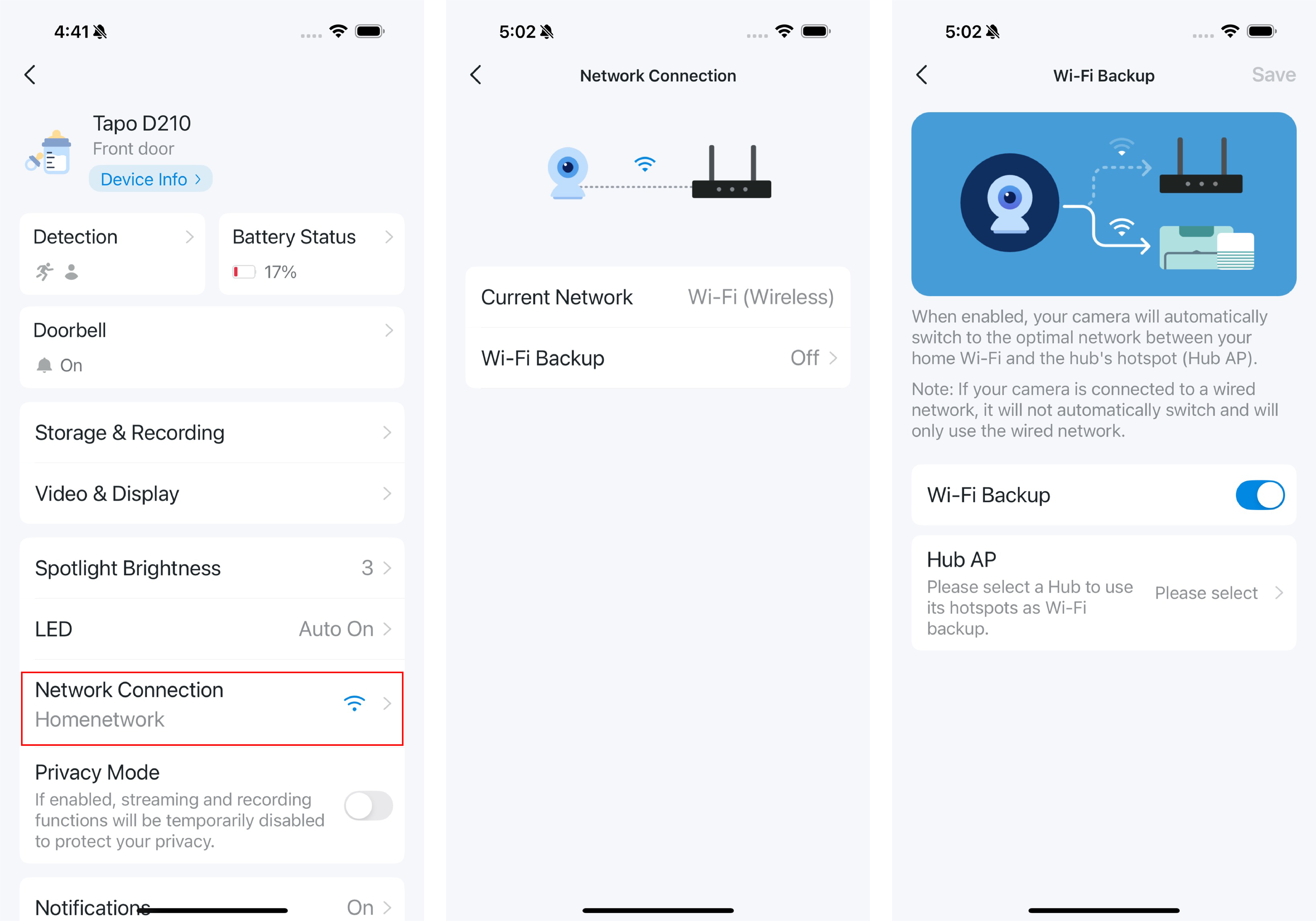
8. Network Connection
Check your lock's Wi-Fi connection status. You can also set a backup Wi-Fi for your doorbell.
9. Privacy Mode
When Privacy Mode is enabled, when doorbell will not monitor.
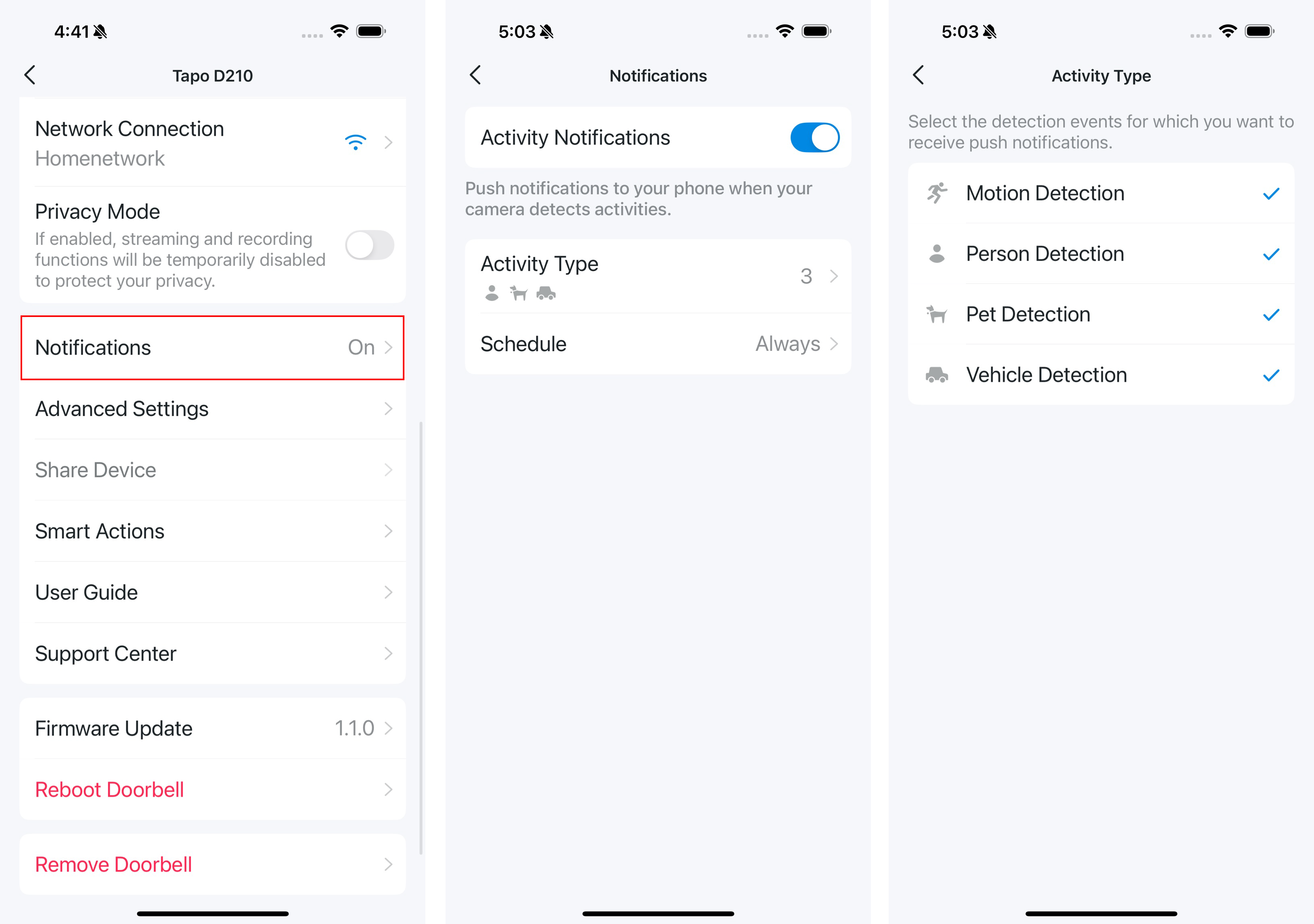
10. Notifications
Choose whether to receive relevant notifications.
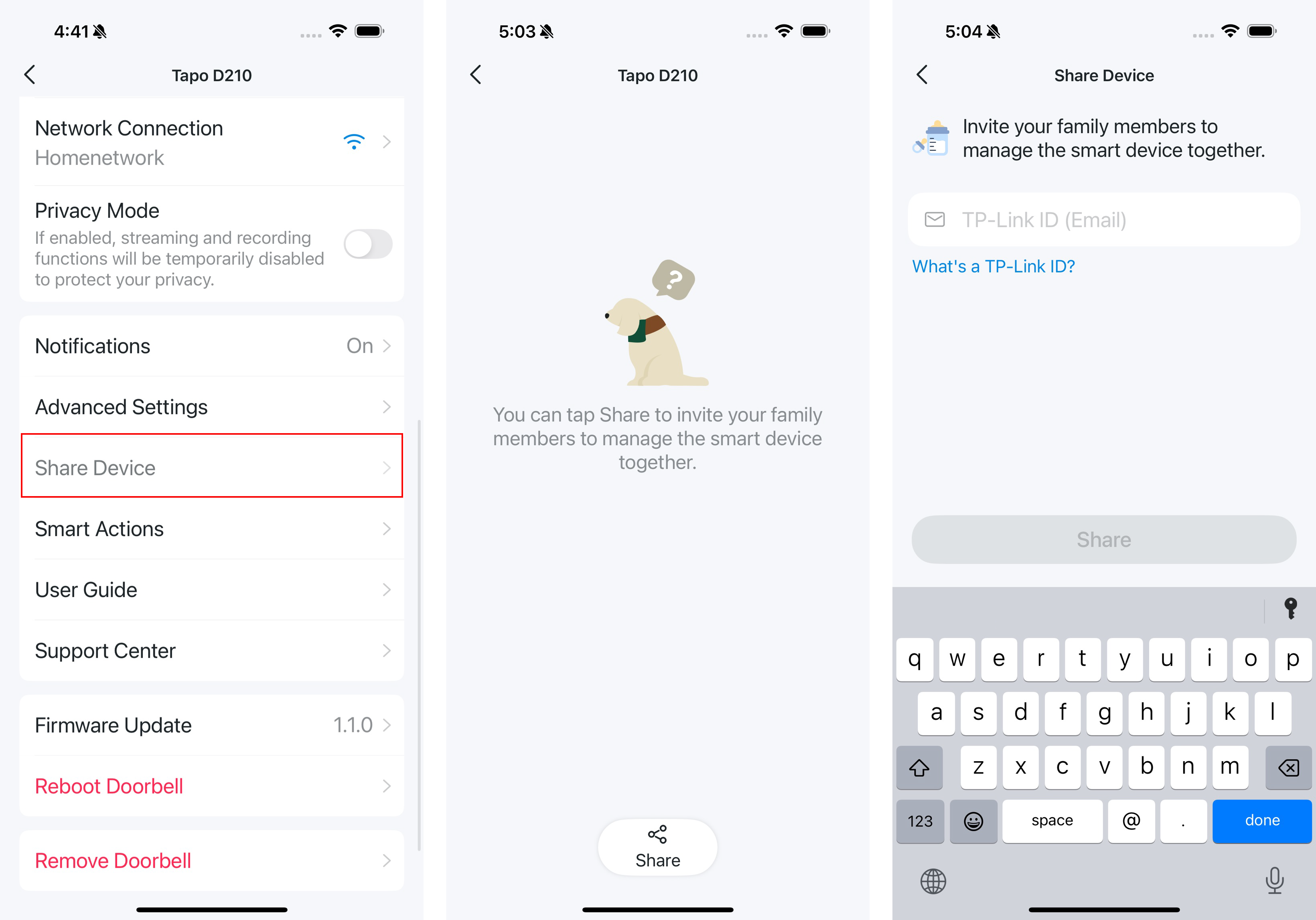
11. Share Device
Share your device with your family members.
Support
For technical support, the user guide, FAQs, warranty and more, please visit https://www.tapo.com/support/