
Table of Contents
M7350 9.0 10.0 & M7352 1.0 Installation and User Guide
About This Guide
This guide is a complement to Quick Installation Guide.
Note: Features available in the Mobile Wi-Fi may vary by model and software version. Mobile Wi-Fi availability may also vary by region or ISP. All images, steps, and descriptions in this guide are only examples and may not reflect your actual Mobile Wi-Fi experience.
Conventions
In this guide the following conventions are used:
|
Convention |
Description |
|---|---|
|
Underline |
Underlined words or phrases are hyperlinks. You can click to redirect to a website or a specific section. |
|
Bold |
Contents to be emphasized and texts on the web page are in bold, including the menus, items, buttons and so on. |
|
> |
The menu structures to show the path to load the corresponding page. For example, Settings > System Tools > Firmware Upgrade means the Firmware Upgrade page is under the System Tools menu that is located in the Settings tab. |
|
Note: |
Ignoring this type of note might result in a malfunction or damage to the device. |
|
Tip: |
Indicates important information that helps you make better use of your device. |
More Info
The latest software, management app and utility are available from Download Center at https://www.tp-link.com/support
The Quick Installation Guide can be found where you find this guide or inside the package of the extender.
Operating temperature, storage temperature, and other specifications can be found on the product page at https://www.tp-link.com
TP-Link Community is provided for you to discuss our products and share knowledge at https://community.tp-link.com/
Our Technical Support contact information can be found at the Contact Technical Support page at https://www.tp-link.com/support
Get to Know About Your Mobile Wi-Fi
This chapter introduces what the Mobile Wi-Fi can do and its appearance.
Note: This chapter uses M7350 9.0 as an example for illustration. Your actual user interface and pathway may differ.
Product Overview
The Faster Connections, The More You Can Do
Just insert a 4G SIM card to create your reliable personal Wi-Fi hotspot and share instant 4G/3G connectivity with friends. The Mobile Wi-Fi, supporting the latest generation 4G LTE network, can reach a faster download speed so that users can enjoy HD movies without interruption, download files in seconds, and hold a video chat without dropouts.
Artful Little Gadget and Built-in Battery for Life on the Go
The TP-Link Mobile Wi-Fi features a compact, elegant design and built-in powerful battery very suitable for travel, business trips and outdoor activities. With added flexibility, the device can be charged via a micro USB cable connected to an adapter, laptop or portable charger for endless hours of 4G sharing.
Easy Management with the tpMiFi App
With the tpMiFi App, you can conveniently access and manage the Mobile Wi-Fi right on your iOS/Android devices. The tpMiFi app allows you to set data limits, control which devices can access your Wi-Fi, send messages, and share media files to/from a removable micro SD card.
*Actual battery time may vary due to different user environments.
†Maximum wireless signal rates are the physical rates derived from IEEE Standard 802.11 specifications. Actual wireless data throughput and wireless coverage, and number of connected devices are not guaranteed and will vary as a result of network conditions, client limitations, and environmental factors, including building materials, obstacles, volume and density of traffic, and client location.
Physical Description
The Exterior
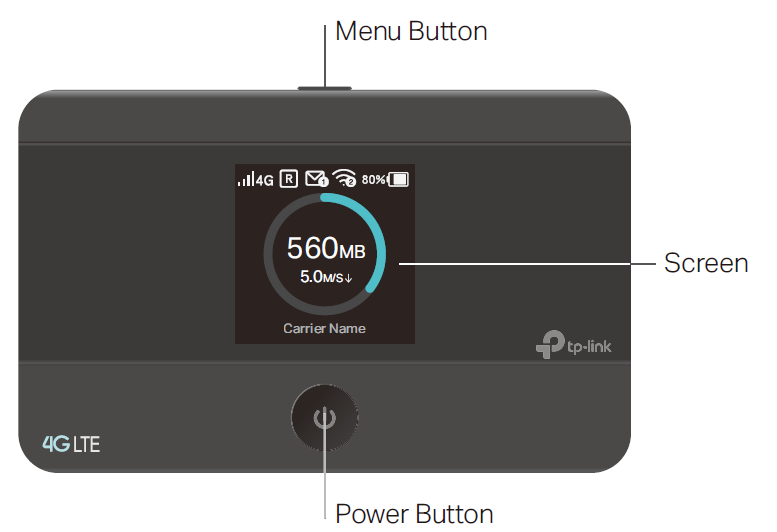
Note: The default theme color of the screen display is white, which can be changed to black as needed.
Physical Buttons
|
Button |
Description |
|---|---|
| Menu Button | • Press this button to enter the Menu Screen from the Home Screen. • Press this button to switch the icons or options. • Press this button to light on the screen. |
| Power Button | • Press and hold this button to power on or off the Mobile Wi-Fi. • Press this button to light on or off the screen. • Press this button to select the icon or option. |
Screen Display
|
Home Screen |
Displayed Item |
Indication |
|
|
|
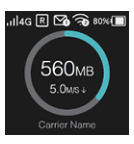
Indicates the signal strength of the current network. |
|
4G/3G |
Indicates successful network connection and the current network type: 4G or 3G. |
|
|
|
Indicates you are in roaming service. |
|
|
|
Indicates that there is un-read message(s) and the number of un-read messages. |
|
|
|
Displays the Wi-Fi status and the number of current wireless clients. |
|
|
|
Displays the remaining battery power. |
|
|
560MB |
Indicates the total data used. It will be cleared after the Mobile Wi-Fi is reset. |
|
|
5.0 M/S ↓ |
Indicates the download speed of current data transmission. |



|
Menu Screen |
Menu |
Description |
|
|
|
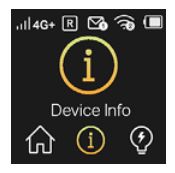
Displays the information of data, signal strength, battery life and so on. |
|
|
Displays the SSID (network name), password and login address of the Mobile Wi-Fi. |
|
|
Power Saving |
To turn on or off the power saving mode. If enabled, the Wi-Fi will be shut down if no clients are connected to the Mobile Wi-Fi for a period of time (10 minutes by default). You can also save power by changing the Wi-Fi range on Advanced > Power Saving of the web management page. |
|
|
|
To enable the WPS function. Enable this function and immediately press the WPS button on your client device. A success message will appear on the screen, indicating successful WPS connection. |
|
|
|
To change the network mode to 4G preferred, 4G only or 3G only as needed. |
|
|
Data Roaming |
To enable or disable the Data Roaming function as needed. We recommend you to enable it on when you are out of the carrier service area. |
|
|
App Download |
Displays the QR code of the TP-Link tpMiFi app that helps you manage your Mobile Wi-Fi. Scan it to download the app. |


 Home
Home
 Device Info


 WPS
WPS
 Network Mode


The Interior
|
Item |
Description |
|
SIM Card Slot |
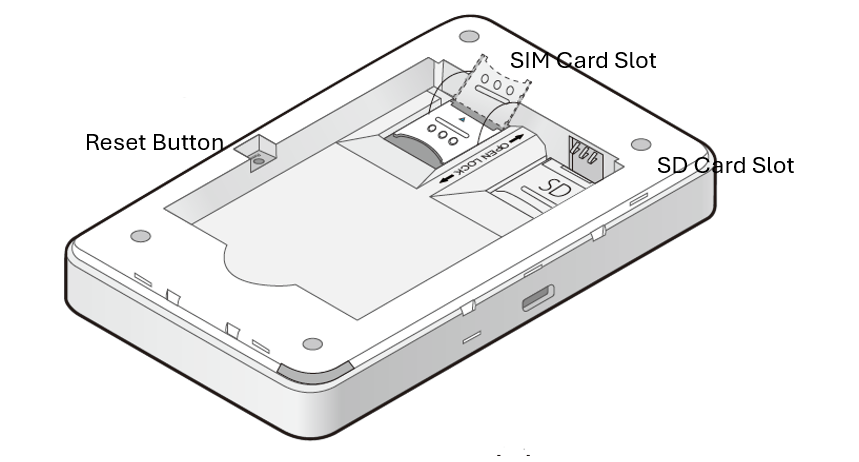
Insert a Nano SIM card into the slot. |
|
Micro SD Card Slot |
Slide and lift up the slot cover, insert the SD card and slide the cover back to lock. The inserted SD card can be used for storage and media sharing. |
|
USB-C Input Port |
Plug in the USB cable to this port to charge your Mobile Wi-Fi or share SD card contents. |
|
Reset Button (Hole) |
With the Mobile Wi-Fi powered on, use a pin to press and hold this button (hole) until “Power Off” appears on the screen to reset the Mobile Wi-Fi. |
Set Up Internet Connection
This chapter introduces how to install the hardware and set up the internet connection of your Mobile Wi-Fi.
Note: This chapter uses M8550 as an example for illustration. Your actual user interface and pathway may differ.
Install the SIM Card and Battery
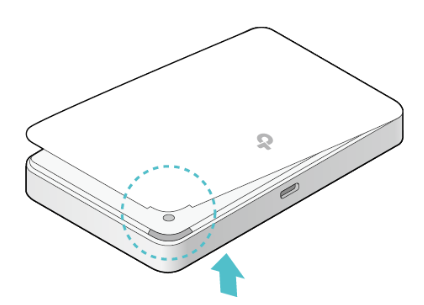
1.Remove the back cover
2. Insert the SIM card. Slide and lift up the slot cover, insert the SIM card and slide the cover back to lock.
Note:
please use a Nano SIM card.
The SIM card is not provided by TP-Link.
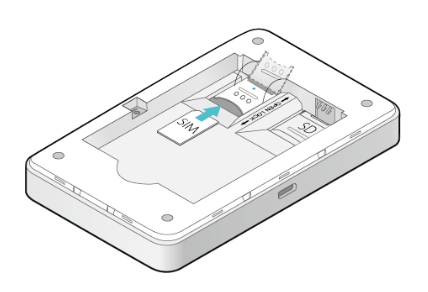
3. (Optional) Slide and lift up the SD card slot cover and insert a micro SD card. The inserted SD card can be used for storage and media sharing.
Note: The SD card is not provided by TP-Link.
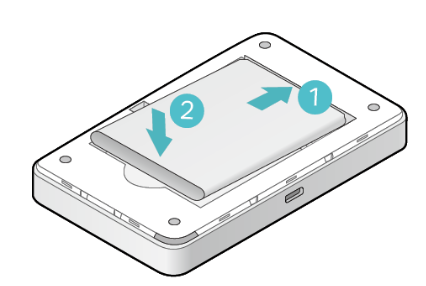
4. Install the provided battery
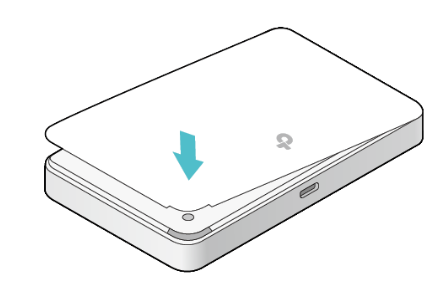
5. Replace the cover
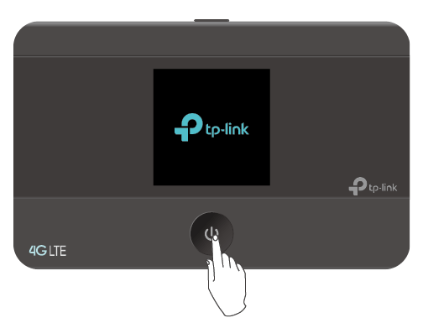
6. Press and hold the Power button to power on the Mobile Wi-Fi until the welcome screen appears. Follow the instructions to complete the quick setup.
Note:
If other messages appear on the screen, please refer to FAQ > Q2.
To power off, press and hold  (power button) until “Power Off” appears on the screen.
Connect to the Mobile Wi-Fi
Method One: Using the SSID and Wireless Password
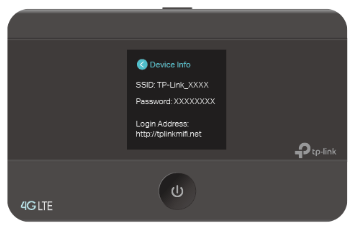
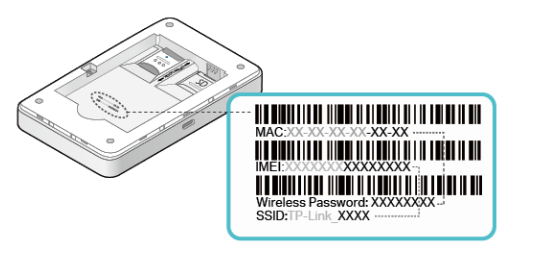
1. Find the default SSID (network name) and wireless password from the screen or on the Wi-Fi info label.
a. On the screen:
Press  the menu button to enter the menu page and switch to the Device Info menu.
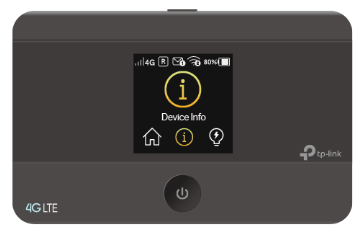
Press the power button to enter the Device Info page.
b. On the Product label:
Remove the cover and battery, note down the default SSID and password, then replace the cover.
On your device, select the SSID and enter the wireless password.
Note: If you use a computer to connect to the Mobile Wi-Fi, please set it to obtain an IP address automatically.
Method Two: Via WPS (Wi-Fi Protected Setup)
If you have a WPS-supported device (such as Android phones or tablets), you can connect to the Mobile Wi-Fi more easily using WPS button or PIN.
Note: The WPS function takes effect only when the SSID Broadcast function and wireless function are enabled
a. Via the WPS button
Press the menu button to enter the menu page and switch to the WPS menu.
Note: Due to Tether app updates, your actual user interface and pathway may differ from those depicted here.
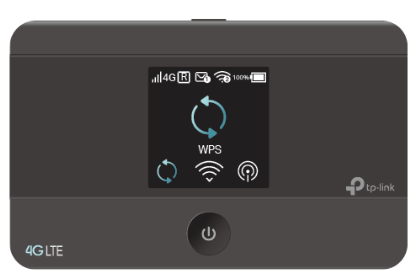
Press  the power button to enter the WPS page.
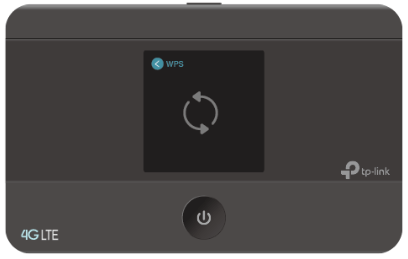
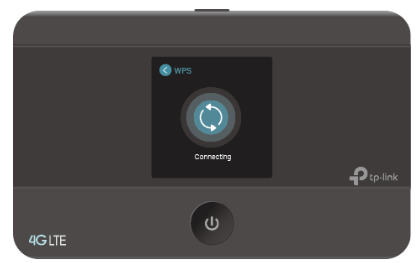
Press the menu button and  the power button to enable the WPS function, and then the Mobile Wi-Fi starts to scan WPS-supported devices.
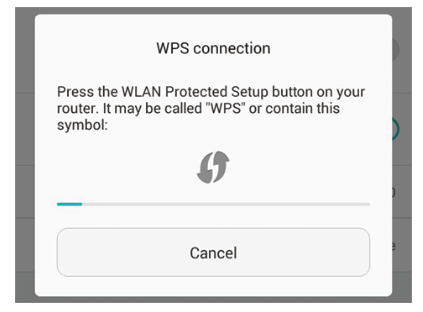
On your WPS-supported device, go to Settings, turn on Wi-Fi, and enable WPS within 2 minutes.
Note: The entry to the WPS function may differ form the example below and has different names on different devices.
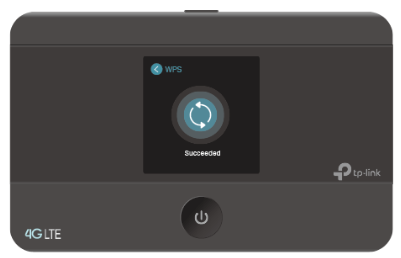
The status of WPS will change from Connecting to Succeeded after your WPS-supported device is successfully connected to the Mobile Wi-Fi.
b. Via the PIN
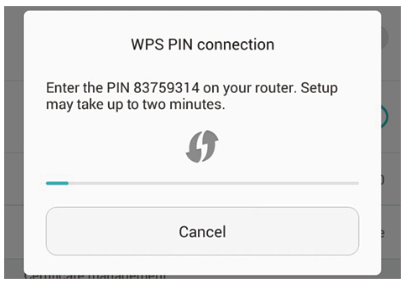
On your WPS-supported device, go to Settings, turn on Wi-Fi, enable WPS PIN connection and get the PIN.
Note: The entry to the WPS function may differ from the example below and has different names on different devices.
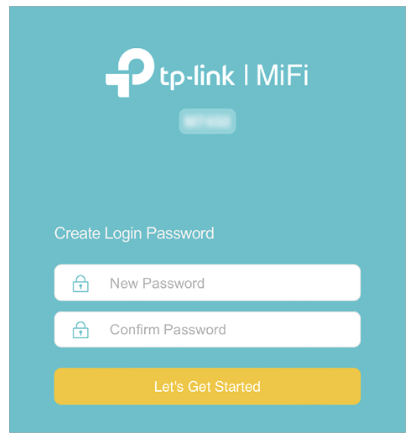
On another device already connected to the Mobile Wi-Fi, visit http://tplinkmifi.net, and create a password to log in.
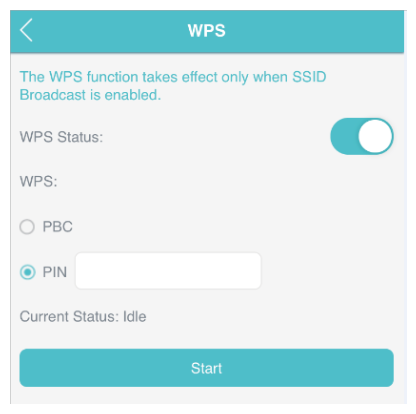
Go to Device > Advanced > WPS, check the PIN box and enter the PIN of your WPS-supported device in the field. Click Start to start the WPS process, and the Current Status will change from Idle to Succeed after your WPS-supported device is successfully connected to the Mobile Wi-Fi.
FAQ
- What can I do if I cannot log in to the web management page?
- Verify that your device is connected to the Mobile Wi-Fi.
- Verify that you have entered http://tplinkmifi.net or http://192.168.0.1 correctly.
- Verify that your computer is set to obtain an IP address automatically.
- What can I do when one of the following messages appears on the screen or I cannot access the internet?
- PIN Required
- Log in to the web management page http://tplinkmifi.net. Enter the PIN provided by your carrier and tap Done.
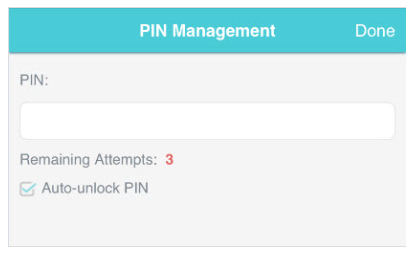
- Log in to the web management page http://tplinkmifi.net. Enter the PIN provided by your carrier and tap Done.
- PIN Required
- No SIM Card
- Power off the Mobile Wi-Fi and reinsert the SIM card.
- No Service
- Verify that your SIM card is an LTE or WCDMA SIM card.
- Verify that your SIM card is in your mobile carrier’ s service area and has sufficient credit.
- Verify that your mobile carrier parameters are correct: Log in to the web management page, go to Dial-up and tap View profile details to check if APN, Username and Password are correct. If not, return to the Dial-up page and create a new profile with the correct information. Then tap Done and confirm on the pop-up.
 icon
icon
- Log in to the web management page, and go to Dial-up to enable Data Roaming.
- What can I do if my internet speed is slow?
- From the menu screen, go to Network Mode and try a different network.
- How to reset the Mobile Wi-Fi to its factory default settings?
- With the Mobile Wi-Fi powered on, remove the cover. Use a pin to press and hold the RESET button until Power Off appears on the screen and then release the button.
- Log in to the Mobile Wi-Fi’s web management page via the PC login entry. Go to Advanced > Device > Factory Defaults and click Restore.
Authentication
CE Mark Warning

OPERATING FREQUENCY (the maximum transmitted power)
2400 MHz -2483.5 MHz(20dBm)
WCDMA: B1/B5/B8 (24dBm+1.7/-3.7dB)
FDD-LTE: B1/B3/B5/B7/B8/B20/B28 (23dBm+2.7/-2.7dB)
TDD-LTE: B38/B40/B41 (23dBm+2.7/-2.7dB)
EU Declaration of Conformity
TP-Link hereby declares that the device is in compliance with the essential requirements and other relevant provisions of directives 2014/53/EU, 2009/125/EC, 2011 /65/EU and (EU) 2015/863.
The original EU Declaration of Conformity may be found at https://www.tp-link.com/en/support/ce/
RF Exposure Information
This device meets the EU requirements (2014/53/EU Article 3.1a) on the limitation of exposure of the general public to electromagnetic fields by way of health protection.
This device has been tested and meets the ICNIRP exposure guidelines and the European Standard EN 62209-2. SAR is measured with this device at a separation of 0.5 cm to the body, while transmitting at the highest certified output power level in all frequency bands of this device. Carry this device at least 0.5 cm away from your body to ensure exposure levels remain at or below the as-tested levels.
UKCA Mark

UK Declaration of Conformity
TP-Link hereby declares that the device is in compliance with the essential requirements and other relevant provisions of the Radio Equipment Regulations 2017.
The original UK Declaration of Conformity may be found at https://www.tp-link.com/support/ukca
Korea Warning Statements:
당해 무선설비는 운용중 전파혼신 가능성이 있음.
NCC Notice & BSMI Notice
注意!
取得審驗證明之低功率射頻器材,非經核准,公司、商號或使用者均不得擅自變更頻率、加大功率或變更原設計之特性及功能。
低功率射頻器材之使用不得影響飛航安全及干擾合法通信;經發現有干擾現象時,應立即停用,並改善至無干擾時方得繼續使用。
前述合法通信,指依電信管理法規定作業之無線電通信。
低功率射頻器材須忍受合法通信或工業、科學及醫療用電波輻射性電機設備之干擾。
減少電磁波影響,請妥適使用。
電波功率密度MPE 標準值:1 mW/cm²,送測產品實測值:0.1584 mW/cm²,建議使用時設備天線至少距離人體20 公分。
安全諮詢及注意事項
- 請使用原裝電源供應器或只能按照本產品注明的電源類型使用本產品。
- 清潔本產品之前請先拔掉電源線。請勿使用液體、噴霧清潔劑或濕布進行清潔。
- 注意防潮,請勿將水或其他液體潑灑到本產品上。
- 插槽與開口供通風使用,以確保本產品的操作可靠並防止過熱,請勿堵塞或覆蓋開口。
- 請勿將本產品置放於靠近熱源的地方。除非有正常的通風,否則不可放在密閉位置中。
- 不要私自拆開機殼或自行維修,如產品有故障請與原廠或代理商聯繫。
限用物質含有情況標示聲明書
| 設備名稱:4G LTE 行動 Wi-Fi 分享器 型號(型式):M7350/M7352 Equipment name Type designation (Type) |
||||||
|---|---|---|---|---|---|---|
| 單元 Unit |
限用物質及其化學符號 Restricted substances and its chemical symbols |
|||||
| 鉛 Lead (Pb) |
汞 Mercury (Hg) |
鎘 Cadmium (Cd) |
六價鉻 Hexavalent chromium (Cr+6) |
多溴聯苯 Polybrominated biphenyls (PBB) |
多溴二苯醚 Polybrominated diphenyl ethers (PBDE) |
|
| PCB | ○ | ○ | ○ | ○ | ○ | ○ |
| 外殼 | ○ | ○ | ○ | ○ | ○ | ○ |
| USB線 | ○ | ○ | ○ | ○ | ○ | ○ |
| 其他及其配件 | − | ○ | ○ | ○ | ○ | ○ |
| 備考1.〝超出0.1 wt %〞及〝超出0.01 wt %〞係指限用物質之百分比含量超出百分比含量基準值 Note 1:“Exceeding 0.1 wt %” and “exceeding 0.01 wt %” indicate that the percentage content of the restricted substance exceeds the reference percentage value of presence condition. 備考2.〝○〞係指該項限用物質之百分比含量未超出百分比含量基準值。 Note 2:“○” indicates that the percentage content of the restricted substance does not exceed the percentage of reference value of presence. 備考3.〝-〞係指該項限用物質為排除項目。 Note 3:The “−” indicates that the restricted substance corresponds to the exemption. |
||||||

Продукт сертифіковано згідно с правилами системи УкрСЕПРО на відповідність вимогам нормативних документів та вимогам, що передбачені чинними законодавчими актами України.

Safety Information
- Keep the device away from water, fire, humidity or hot environments.
- Do not attempt to disassemble, repair, or modify the device. If you need service, please contact us.
- Do not use any other chargers than those recommended
- Do not use the device where wireless devices are not allowed.
- This equipment can be powered only by equipments that comply with Power Source Class 2 (PS2) or Limited Power Source (LPS) defined in the standard of IEC 62368-1.
|
CAUTION! |
|
|
CAUTION! Risk of explosion if the battery is replaced by an incorrect type. |
• Operating Temperature: 0℃ ~ 35°C (32°F ~ 95°F)
• This product uses radios and other components that emit electromagnetic fields. Electromagnetic fields and magnets may interfere with pacemakers and other implanted medical devices. Always keep the product and its power adapter more than 15 cm (6 inches) away from any pacemakers or other implanted medical devices. If you suspect your product is interfering with you pacemaker or any other implanted medical device, turn off your product and consult your physician for information specific to your medical device.
Warnings
• Operating Temperature: 0℃ ~ 35°C (32°F ~ 95°F)
• Operating Humidity: 0~75%RH, Non-condensing
Handling Instructions for Lithium Ion Rechargeable Battery
Handling Instructions for Lithium Ion Rechargeable Battery
Please read and follow the handling instructions for the battery before use. Improper use of the battery may cause heat, fire explosion, damage or capacity deterioration of the battery.
• Do not place or leave the battery and equipment in the reach of infants so that they are not able to swallow or mistreat the battery by mistake.
In case of ingestion, consult with a doctor immediately.
• Do not let leaked electrolyte come into contact with eyes or skin.
In such a case, immediately wash the area of contact with clean water and seek help from a doctor.
If not treated soon, prolonged contact may cause serious injury.
• Do not put the battery into a fire. Do not use it or leave it in a place near fire, heaters, or high temperature sources.
In such a case, the insulator in the battery may be melted, the safety vent and structure may be damaged, or the electrolyte may catch fire, all of which may cause heat generation, explosion, or fire.
• Do not submerge the battery in water, or wet the battery.
If the protecting device assembled in the battery is damaged, the battery may be charged with an abnormal current and voltage and may cause a chemical reaction within the battery, which may result in the cause of heat generation, explosion, or fire of the battery.
• Do not use any battery charger not specified by the manufacture, also follow the charge conditions specified by the manufacture.
If the battery is charged under other conditions (a high temperature, a high voltage / current, or an altered charger) not specified by the manufacture, the battery may become over-charged with an excessive current and cause heat, explosion, or fire with abnormal chemical reactions.
• Do not use, charge, or leave the battery near fire or in a car under the blazing sun. Such a high temperature may cause damage of the protecting device in the battery, which may result in an abnormal reaction, and then heat generation, explosion, or fire.
• Do not connect the battery reversed in positive (+) and negative (-) terminals in the charger or equipment.
In case the battery is connected and charged reversely, it may cause heat generation, explosion, or fire due to an abnormal chemical reaction.
• Do not let the battery terminals (+ and -) contact a wire or any metal (like a metal necklace or a hairpin) with which it carried or stored together.
In such a case, the battery will be shorted and cause an excessive current, which may result in heat generation, explosion, or fire.
• Do not connect the battery directly to an electric outlet or cigarette heater socket in car.
With a high voltage applied, the battery may overheat, explode, or cause fire.
• Do not throw or drop the battery.
Strong impact may damage the protecting device, which may cause an abnormal chemical reaction during charging and result in heat generation, explosion, or fire of the battery.
• Do not drive a nail in, hit with a hammer, or stamp on the battery.
In such a case, the battery may be deformed and shorted, which may cause heat generation, explosion, or fire of the battery.
• Do not solder the battery directly.
Heat applied during soldering may damage the insulator of the safety vent and mechanism, which may result in heat generation, explosion, or fire of the battery.
• Do not disassemble or alter the battery.
The battery employs a safety mechanism and a protecting device in order to avoid any danger.
If these are damaged, heat, explosion or fire may be caused.
CAUTION
• Do not put the battery in a microwave or a pressure cooker.
Sudden heat may damage the seal of the battery and may cause heat generation, explosion, or fire of the battery.
• Do not use the battery with other maker’s batteries, different types and / or models of batteries such as dry batteries, nickel-metal hydride batteries, or nickel-cadmium batteries, or new and old lithium ion batteries together.
In such a case, over-discharge during use, or over-charge during charge may occur abnormal chemical reactions and may cause heat generation, explosion, or fire of the battery.
• Do not leave the battery in a charger or equipment if it generates an odor and /or heat, changes color and / or shape, leaks electrolyte, or causes any other abnormality.
In such a case, immediately take the battery out of the charge or equipment and keep it away from fire, otherwise, the battery might overheat, explode, or cause fire.
• Discontinue charging after specified charging time even if the charge is not complete, otherwise, the battery might cause heat generation, explosion, or fire.
• Do not use the battery in the place where the static electricity (more than the limit of the manufacturer’s guarantee) occurs. Otherwise, the protecting device in the battery might be damaged and cause heat generation, explosion, or fire.
• Do not use the battery in other than the following conditions; otherwise, the battery might cause heat generation, damage, or deterioration of its performance.
Operating environment:
When the battery is charged: 0℃ ~ +45℃ (Humidity < 80%)
When stored 1 months: -20℃ ~ +50℃ (Humidity < 80%)
When stored 3 months: -20℃ ~ +45℃ (Humidity < 80%)
When stored 1 year: -20℃ ~ +20℃ (Humidity < 80%)
Please read and follow the above safety information when operating the device. We cannot guarantee that no accidents or damage will occur due to improper use of the device. Please use this product with care and operate at your own risk.
Please read and follow the above safety information when operating the device. We cannot guarantee that no accidents or damage will occur due to improper use of the device. Please use this product with care and operate at your own risk.
Explanation of the symbols on the product label
Note: The product label is on the bottom of the product and its power supply. Symbols may vary from products.
注意:產品標籤可以在產品底部和其I.T.E.電源供應器上找到。符號可能因產品而異。
| Symbol 符號解釋 |
Explanation 解釋 |
|---|---|
 |
Class II equipment Class II 設備 |
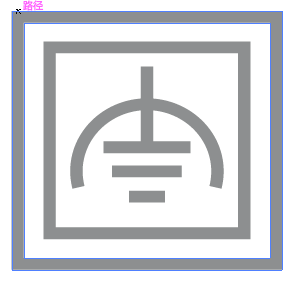 |
Class II equipment with functional earthing 具有功能接地的Class II 設備 |
 |
Alternating current 交流電 |
 |
DC voltage 直流電壓 |
 |
Polarity of output terminals 輸出端子極性 |
 |
Indoor use only 僅限室內使用 |
 |
Dangerous voltage 危險電壓 |
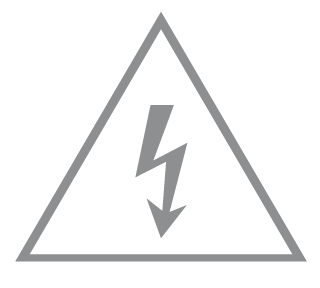 |
Caution, risk of electric shock 注意,有觸電危險 |
 |
Energy efficiency Marking 能源效率標示 |
 |
Protective earth 保護接地 |
 |
Earth 接地 |
 |
Frame or chassis 機架接地 |
 |
Functional earthing 功能接地 |
 |
Caution, hot surface 警告,表面高溫 |
 |
Caution 警告 |
 |
Operator’s manual 操作手冊 |
 |
Stand-by 待機 |
 |
“ON”/”OFF” (push-push) 「開」/「關」 ( 按壓式) |
 |
Fuse 保險絲 |
 |
Fuse is used in neutral N 保險絲用於中性線N |
 |
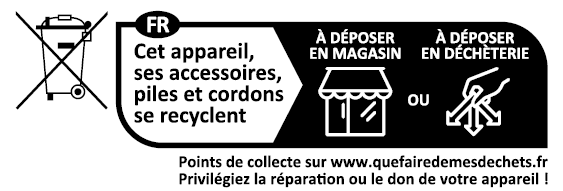
RECYCLING This product bears the selective sorting symbol for Waste electrical and electronic equipment (WEEE). This means that this product must be handled pursuant to European directive 2012/19/EU in order to be recycled or dismantled to minimize its impact on the environment. User has the choice to give his product to a competent recycling organization or to the retailer when he buys a new electrical or electronic equipment. 回收利用 本產品標示有「廢棄電氣電子設備(WEEE)」的分類回收標誌。這表示本產品必須依據歐盟指令 2012/19/EU 進行妥善回收或拆 解,以減少對環境的影響。 使用者可選擇將本產品交給合格的回收機構,或在購買新電器或電子設備時,交回給零售商進行回收處理。 |
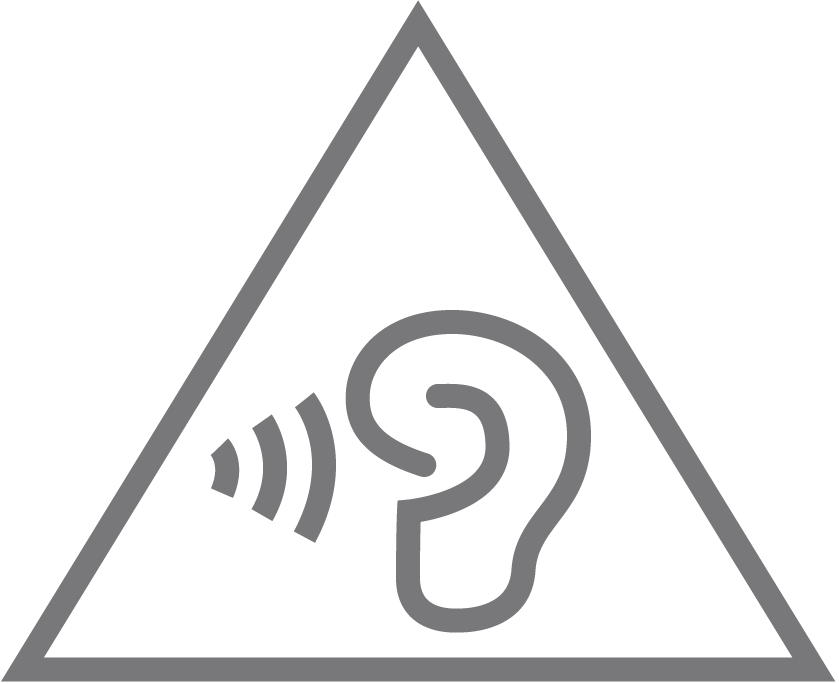 |
Caution, avoid listening at high volume levels for long periods 注意,避免長時間以高音量收聽 |
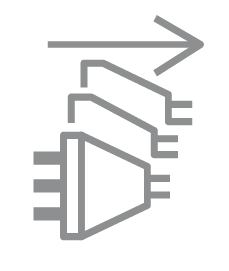 |
Disconnection, all power plugs 斷開所有電源插頭 |
| m | Switch of mini-gap construction 微間隙結構的開關 |
| µ | Switch of micro-gap construction (for US version) Switch of micro-gap / micro-disconnection construction (for other versions except US) 微小間隙結構開關(適用於美國版) 微小間隙 / 微小斷開結構開關(適用於美國以外的其他版本) |
| ε | Switch without contact gap (Semiconductor switching device) 無接點間隙開關(半導體開關裝置) |