
How to Change the Main Deco Unit
 713406
There are two reasons you might want to change your main Deco: you're upgrading to a newer model, or you want to swap which unit in your existing network serves as the main node. Both scenarios can be handled through the Deco app without resetting or reconfiguring your entire network.
Note: Features available in Deco may vary by model and software version. All steps and images described here are only examples and may not reflect your actual Deco experience.
Key Takeaways
- To promote an existing satellite to main Deco, open the Deco app, tap Network, tap the three-dot menu, and select Set Main Deco.
- To replace the main Deco with a new unit, use the Replace Main Deco option in the Deco app menu. The new unit will sync the previous network settings automatically.
- Your phone must be connected to the Deco's Wi-Fi network to see the Set Main Deco or Replace Main Deco options.
- Your Internet configuration and Wi-Fi settings remain unchanged after the swap.
- If the new main Deco has no Internet connection after the swap, power off the modem for five minutes and restart it to clear the old MAC address.
Promote a Satellite Deco to Main Deco
Use this method when you want to designate an existing satellite unit in your network as the new main Deco, without resetting anything.
Before you start: Your phone must be connected to the Deco's Wi-Fi network. If you are not connected, the Set Main Deco option will not appear in the app.
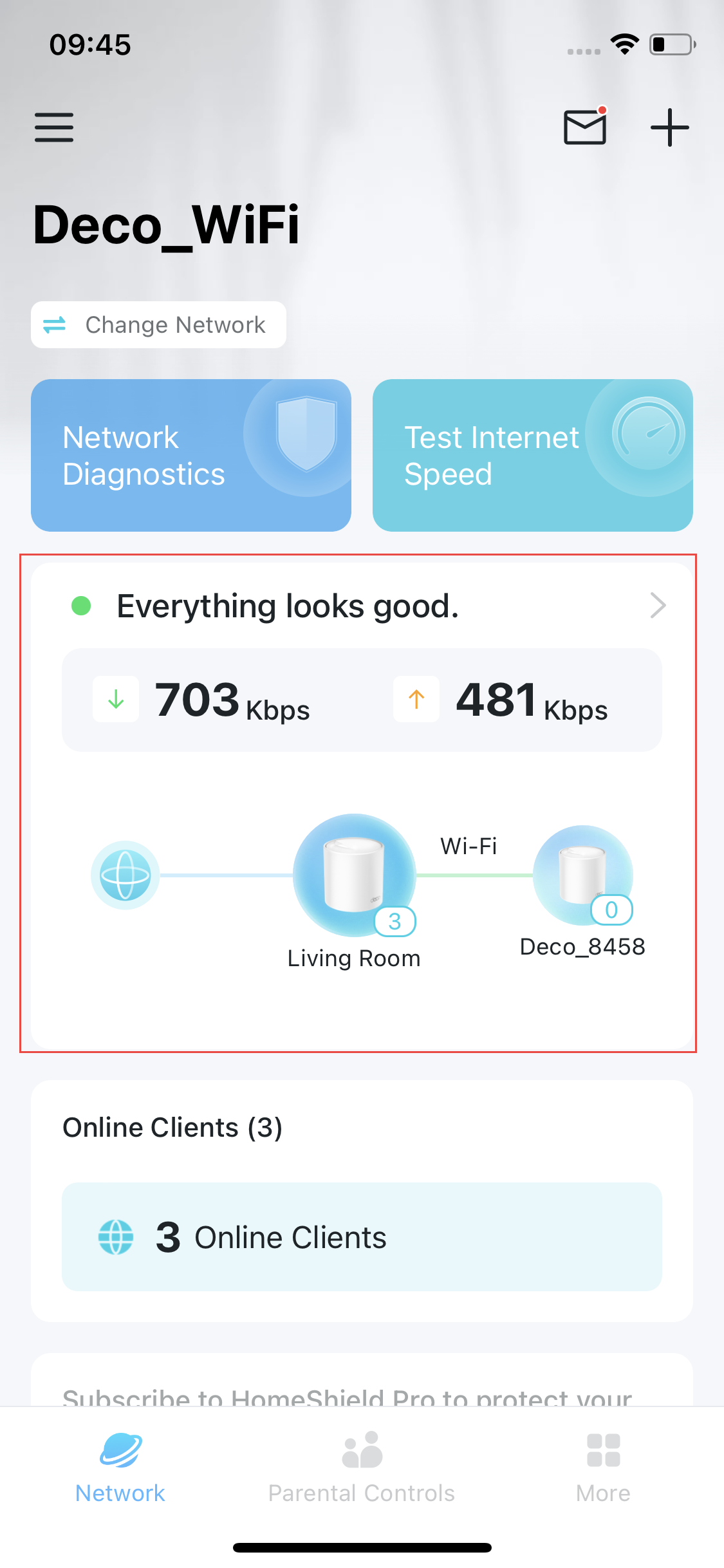
- Open the Deco app. Tap the Network module on the homepage.
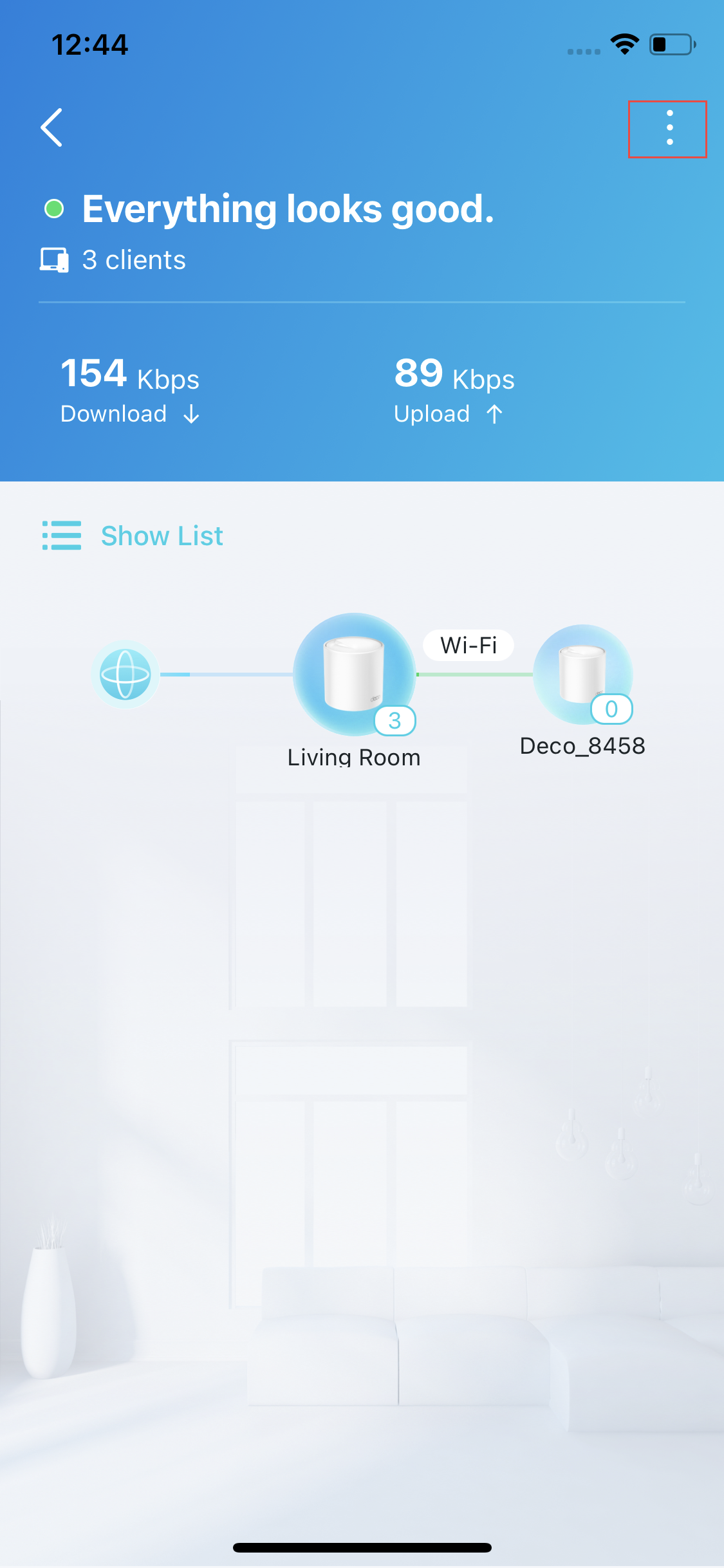
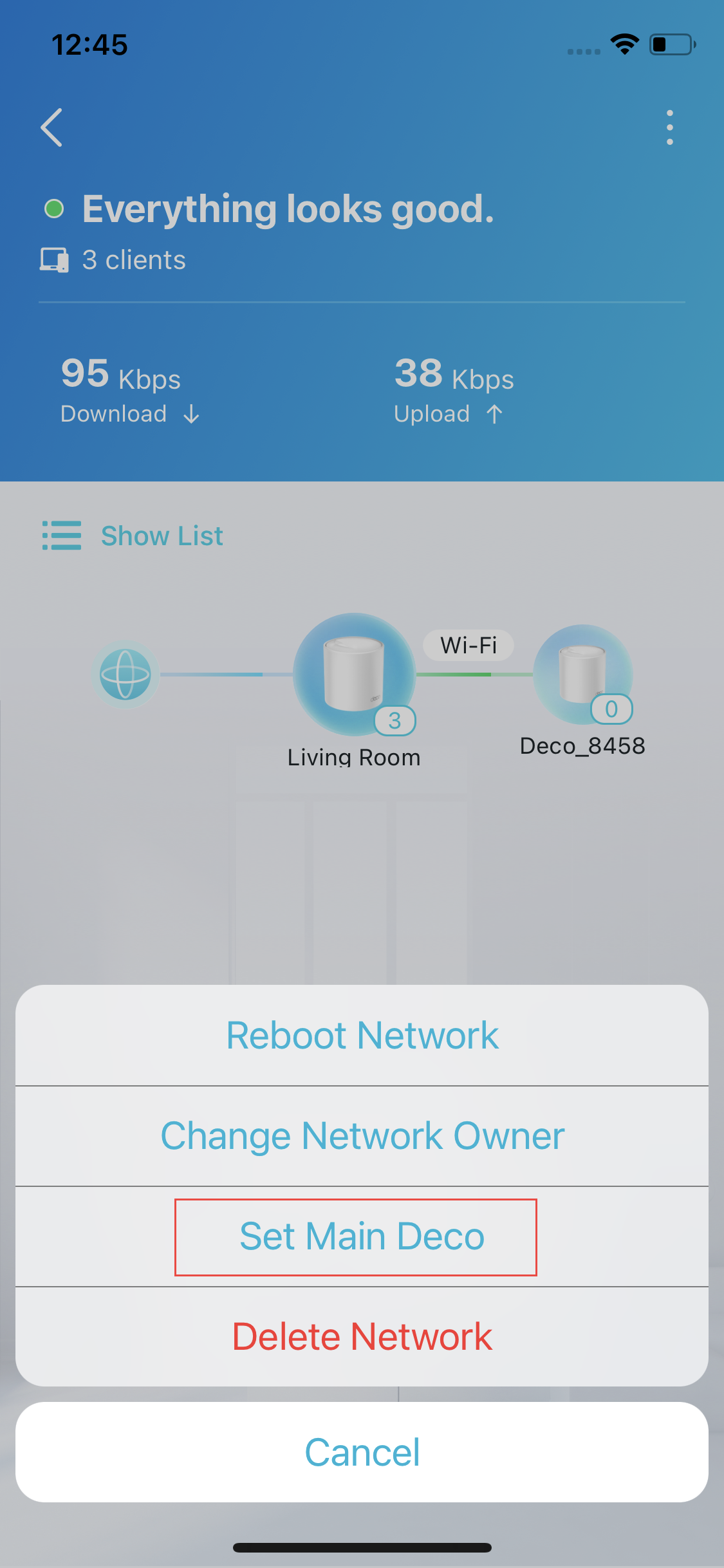
- Tap the three-dot menu icon and select Set Main Deco.
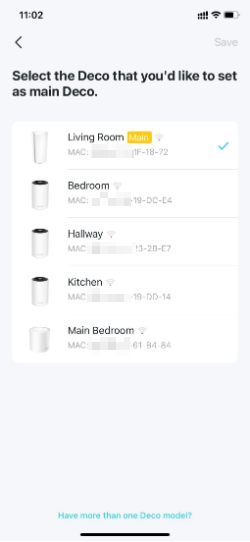
- Select the satellite Deco you want to use as the main unit, then follow the in-app instructions to complete the change.
Troubleshooting tips:
If your phone shows as connected to the Deco Wi-Fi name but the Set Main Deco option still does not appear, force-close the Deco app. Reopen it and go to More > Wi-Fi Settings to confirm your phone is on the Deco network, then try again.
If the new main Deco cannot get an Internet connection after the change, your modem may have the old unit's MAC address stored. Power off the modem completely for five minutes, then start it up again. If you need help with Deco setup issues, see what to do when the main Deco fails to complete setup.
Replace the Main Deco with a New Deco Unit
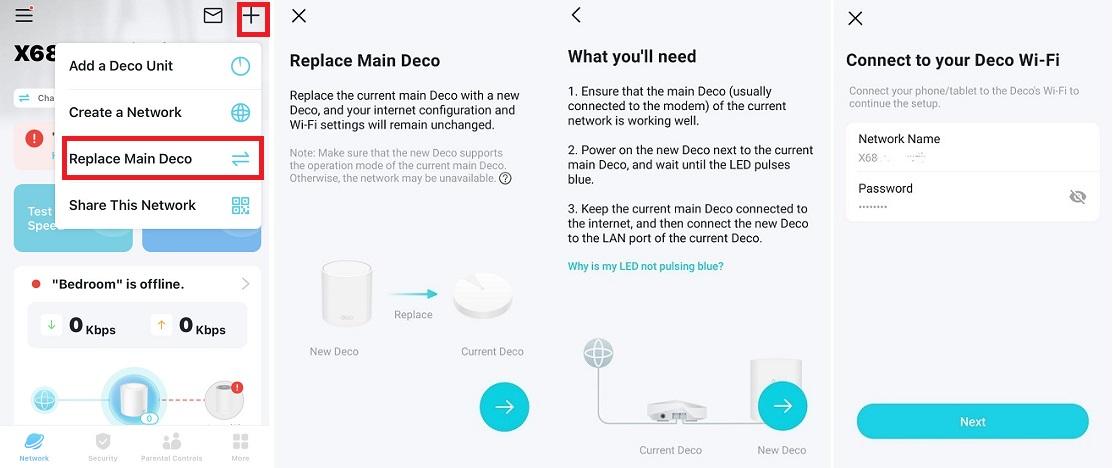
Use this method when you are swapping your current main Deco for a brand-new unit. After setup, your previous Internet configuration and Wi-Fi settings remain unchanged.
Before you start: Your phone must be connected to the current Deco Wi-Fi network to begin.
Note: The new Deco must support the operation mode of the current main Deco. If it does not, the network may become unavailable.
- In the Deco app, tap the menu and select Replace Main Deco.
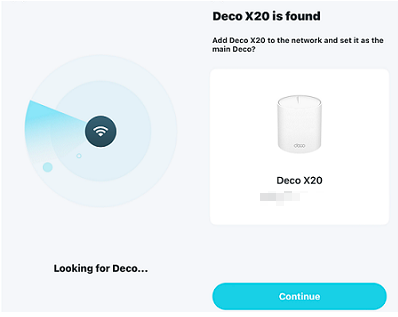
- The app will search for the new Deco unit.
- Once found, the new Deco will automatically sync the previous network settings from the old main unit.
After completing the replacement, keep the following in mind:
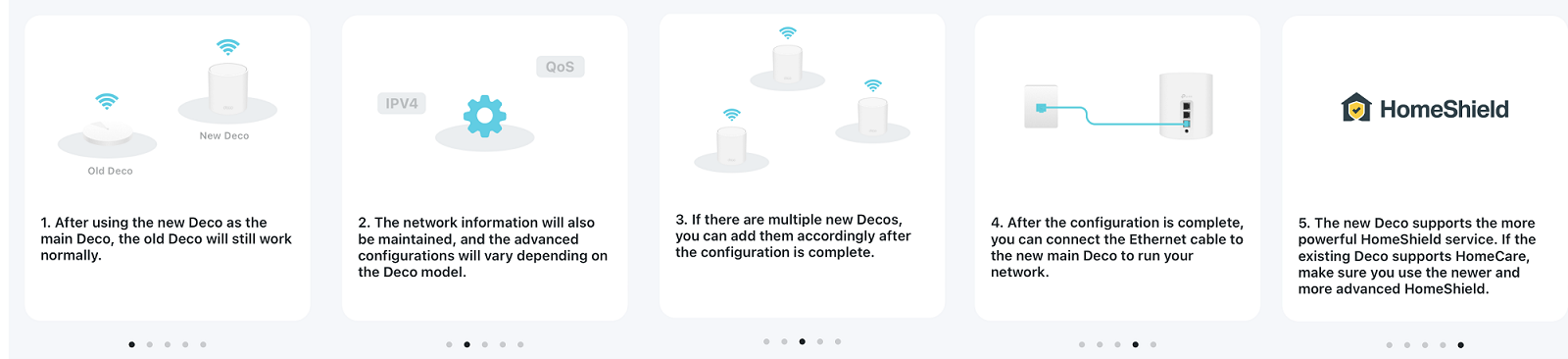
- The old Deco unit will continue to work normally as part of the network.
- Network information will be maintained. Advanced configurations may vary depending on the Deco model.
- If there are multiple new Deco units to add, you can add them to your network after the configuration is complete.
- After setup is complete, you can connect an Ethernet cable to the new main Deco to run your network.
- If the existing Deco supports HomeShield, make sure you use the newer and more advanced HomeShield features.
Troubleshooting tip:
If the new main Deco cannot get an Internet connection after the replacement, your modem may have the old unit's MAC address on record. Power off the modem completely for five minutes, then start it up again.
If you are working with multiple Deco models and are unsure which unit should serve as the main Deco, see whether different Deco models can work together for guidance on mixing models. You can also reset or reboot your Deco system if you need to start fresh.
¿Es útil esta pregunta frecuente?
Sus comentarios nos ayudan a mejorar este sitio.

_Overview_normal_20211225093343a.png)
