
How to Find Your Wi-Fi Password on Windows 7, 8, and 10 When Already Connected
If your computer is already connected to a wireless network and you need to find the Wi-Fi password — for example, to connect another device — this guide walks you through how to find the Wi-Fi password in your computer on Windows 7, 8, and 10. The steps use the Network and Sharing Center and Wireless Properties to reveal the network security key.
Key Takeaways
- To find the Wi-Fi password on a Windows 7, 8, or 10 computer, the computer must already be connected to the wireless network.
- The Wi-Fi password is accessible through the Network and Sharing Center within the Control Panel.
- On Windows 7, you can also find the password for a previously connected network within the Network and Sharing Center.
How to View Your Wi-Fi Password on Windows 7, 8, and 10
Step 1. Make sure your Windows 7 or Windows 8 computer is already connected to a wireless network.
Step 2. On the computer, go to Control Panel > Network and Internet > Network and Sharing Center > Change Adapter Settings.
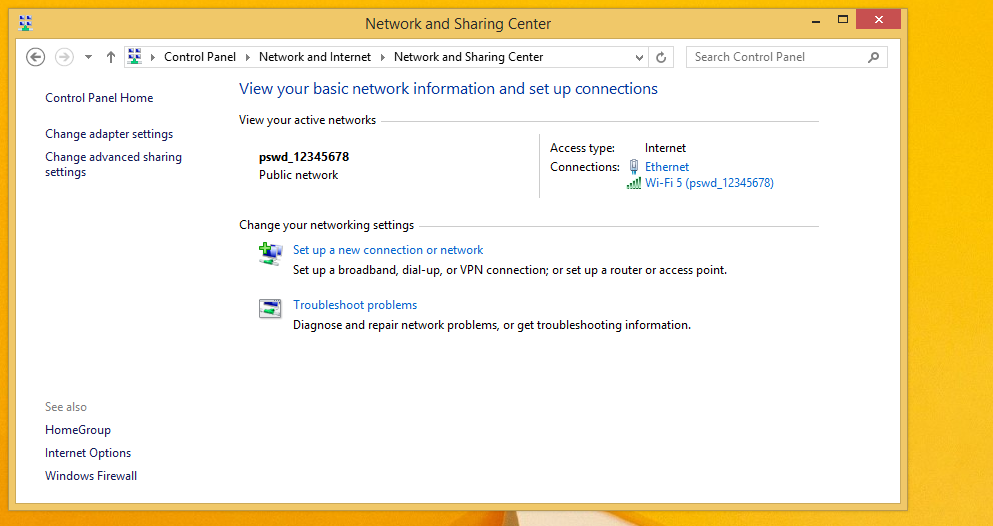
Step 3. Find the Wi-Fi icon in the taskbar, right-click it, and select Open Network and Sharing Center > Change Adapter Settings.

Step 4. Right-click Wireless Network Connection (Windows 7) or Wi-Fi (Windows 8/10) and select Status.
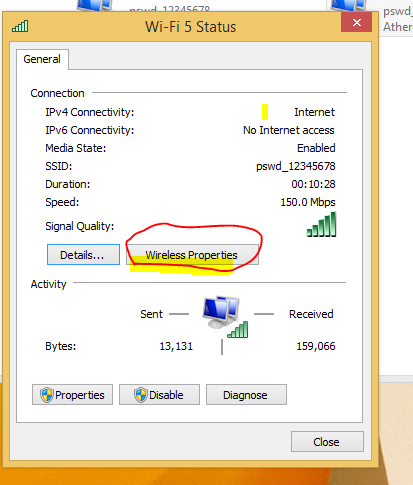
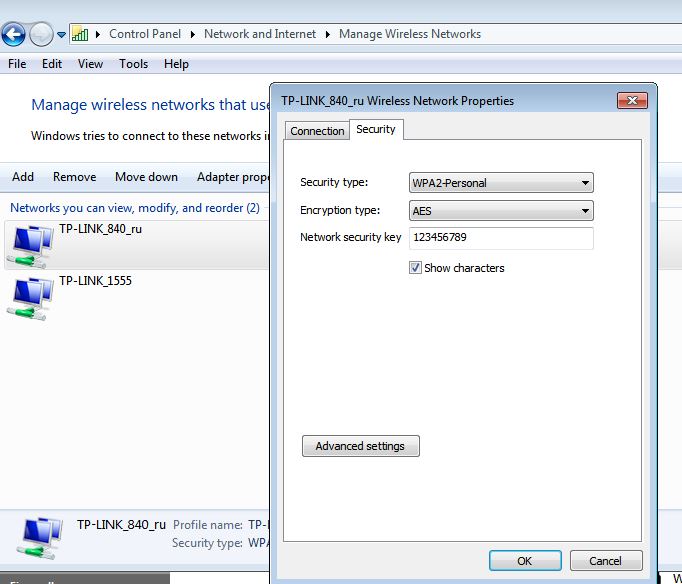
Step 5. Click Wireless Properties > Security and check Show Characters. The Network Security Key is your Wi-Fi password.
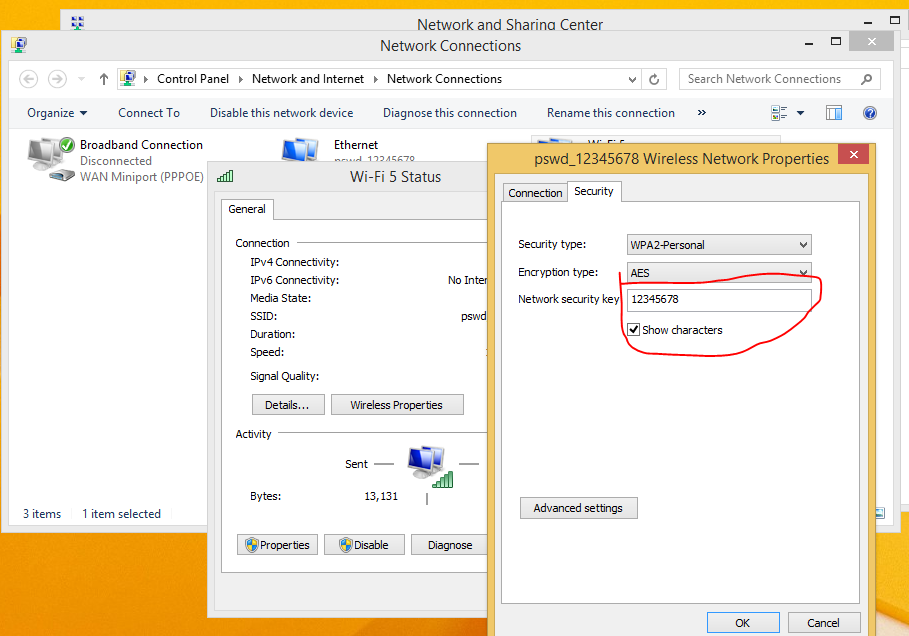
How to Find a Previously Connected Wi-Fi Password on Windows 7
Step 1. To find the password for a network you have previously connected to on Windows 7, go to Control Panel > Network and Sharing Center > Manage Wireless Networks. This page lists all previously connected networks.
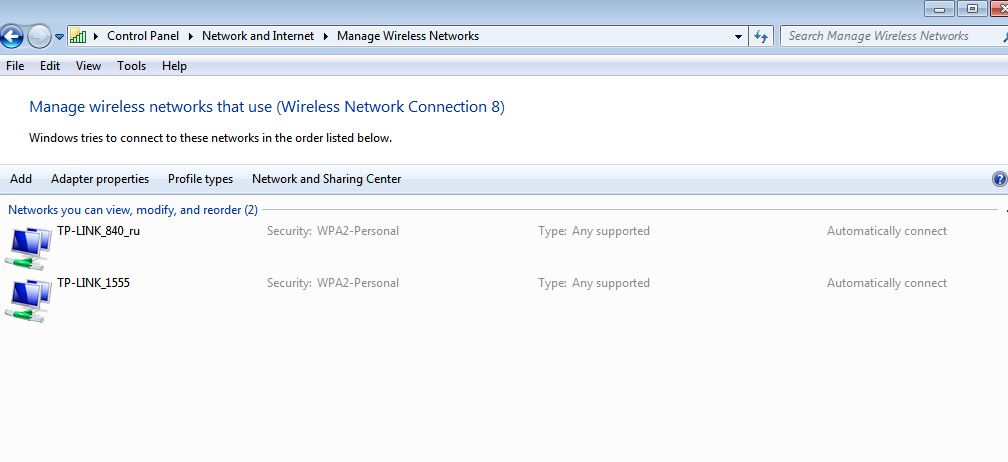
Step 2. Right-click the network, select Properties > Security, and check Show Characters.
Looking For More
Is this faq useful?
Your feedback helps improve this site.

TP-Link Community
Still need help? Search for answers, ask questions, and get help from TP-Link experts and other users around the world.