
How to View Kasa Camera Cloud and Local Recordings in the Kasa App
This page covers two Kasa camera recording methods: cloud recordings via Kasa Care and local 24/7 recordings via a microSD card (sold separately). If you subscribe to Kasa Care and add it to the camera, the clips uploaded to the cloud server are retained and stored according to your Kasa Care subscription plan. For local recordings to be available, the microSD card must first be inserted and formatted, and 24/7 recording must be enabled in the app.
Key Takeaways
- Kasa cameras support two recording methods: cloud recordings via Kasa Care and local 24/7 recordings via a microSD card (sold separately).
- Cloud recordings are accessible through the Activity tab in the Kasa app and can be downloaded, shared, or removed.
- Local 24/7 recordings require a microSD card to be inserted and formatted, and 24/7 recording must be enabled in the app.
- The camera will automatically overwrite the oldest files when the microSD card is full.
How to View Kasa Camera Cloud Recordings
If you subscribe to Kasa Care and link it to your camera, detection events will be recorded and uploaded to the cloud. Cloud video retention length depends on your Kasa Care subscription plan. To view the Kasa Care cloud recordings:
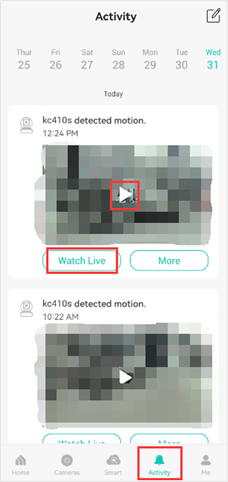
- Launch the Kasa App, tap Activity, and you can see the Kasa Care cloud video clips.
- Select the date and tap the Play icon on the clip you want to watch.
- You will be taken to the camera's Live View page when you tap the Watch Live button.
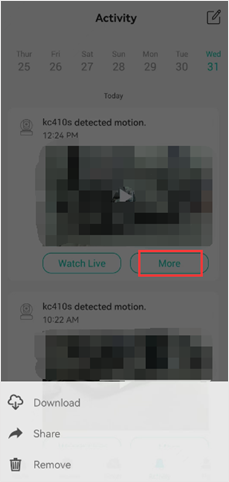
- If you tap the More button, you can select to either Download, Share, or Remove the video.
How to View Kasa Camera Local Recordings
If your camera has a microSD card slot, insert a separately purchased microSD card and enable 24/7 recording. The camera will continuously record to the card and automatically overwrite the oldest files when the storage is full. To view the SD card local recordings:
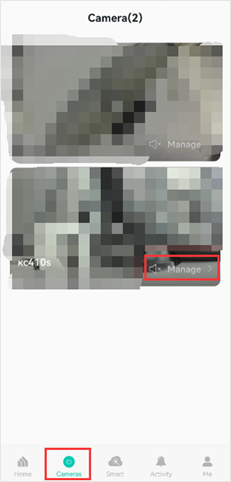
- Launch the Kasa app, tap Cameras, then select the camera you want to view the recordings.
- Tap Manage to enter the camera's live view.
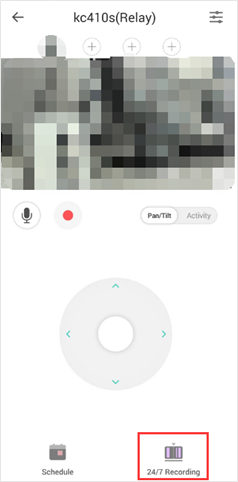
- Tap 24/7 Recording to watch the videos saved on the microSD card.
To learn more about each function and configuration, please visit the Download Center to download the manual for your product.
Looking For More
¿Es útil esta pregunta frecuente?
Sus comentarios nos ayudan a mejorar este sitio.

TP-Link Community
Still need help? Search for answers, ask questions, and get help from TP-Link experts and other users around the world.