How to Upgrade VIGI App, VIGI VMS, VIGI PC Client, and VIGI Config Tool
Contents
Introduction
TP-Link regularly releases software updates to improve performance, enhance security, and introduce new features. VIGI software applications support update notifications and manual upgrade methods, allowing users to keep their systems up to date. This article explains how to upgrade the VIGI App, VIGI VMS, VIGI PC Client, and VIGI Config Tool.
Requirements
- VIGI App
- VIGI VMS
- VIGI PC Client
- VIGI Config Tool
Configuration
Follow the corresponding steps below to upgrade each VIGI software application.
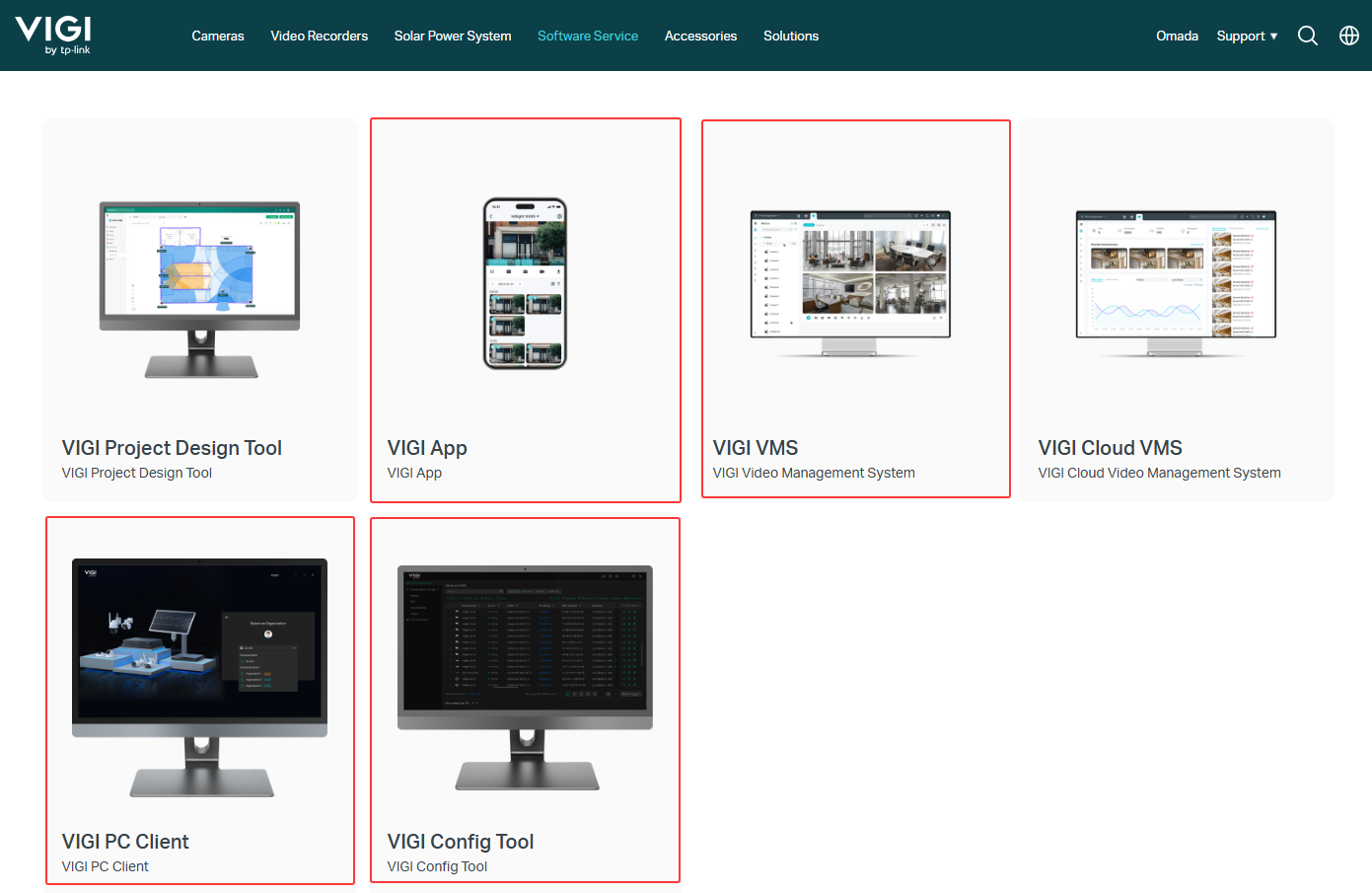
Upgrade VIGI App
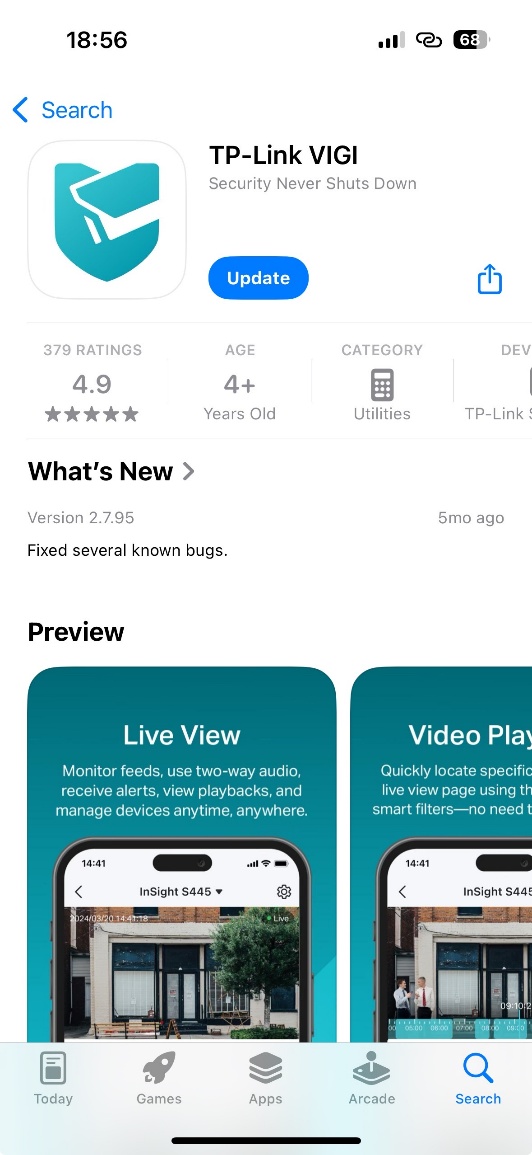
Step 1. Open the application store
For Android devices, open the Google Play Store.
For iOS devices, open the App Store.
Step 2. Search for VIGI App
Search for VIGI in the application store.
Step 3. Install the latest version
If an update is available, tap Update.
If the Update button is not displayed, the app is already running the latest version.
Upgrade VIGI VMS
VIGI VMS Software is a locally deployed video management system that provides centralized device management, live view, playback, event management, multi-user access, and remote management capabilities.
Method 1. Upgrade through update notifications
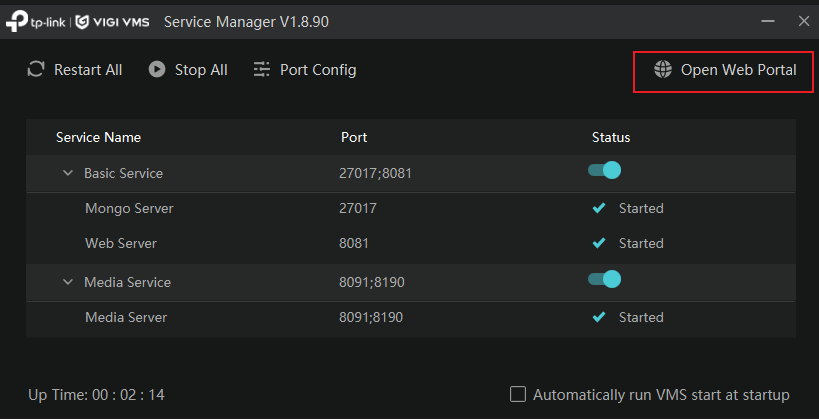
Step 1. Open the VIGI VMS Service Manager and ensure Basic Service and Media Service are running. Click Open Web Portal.
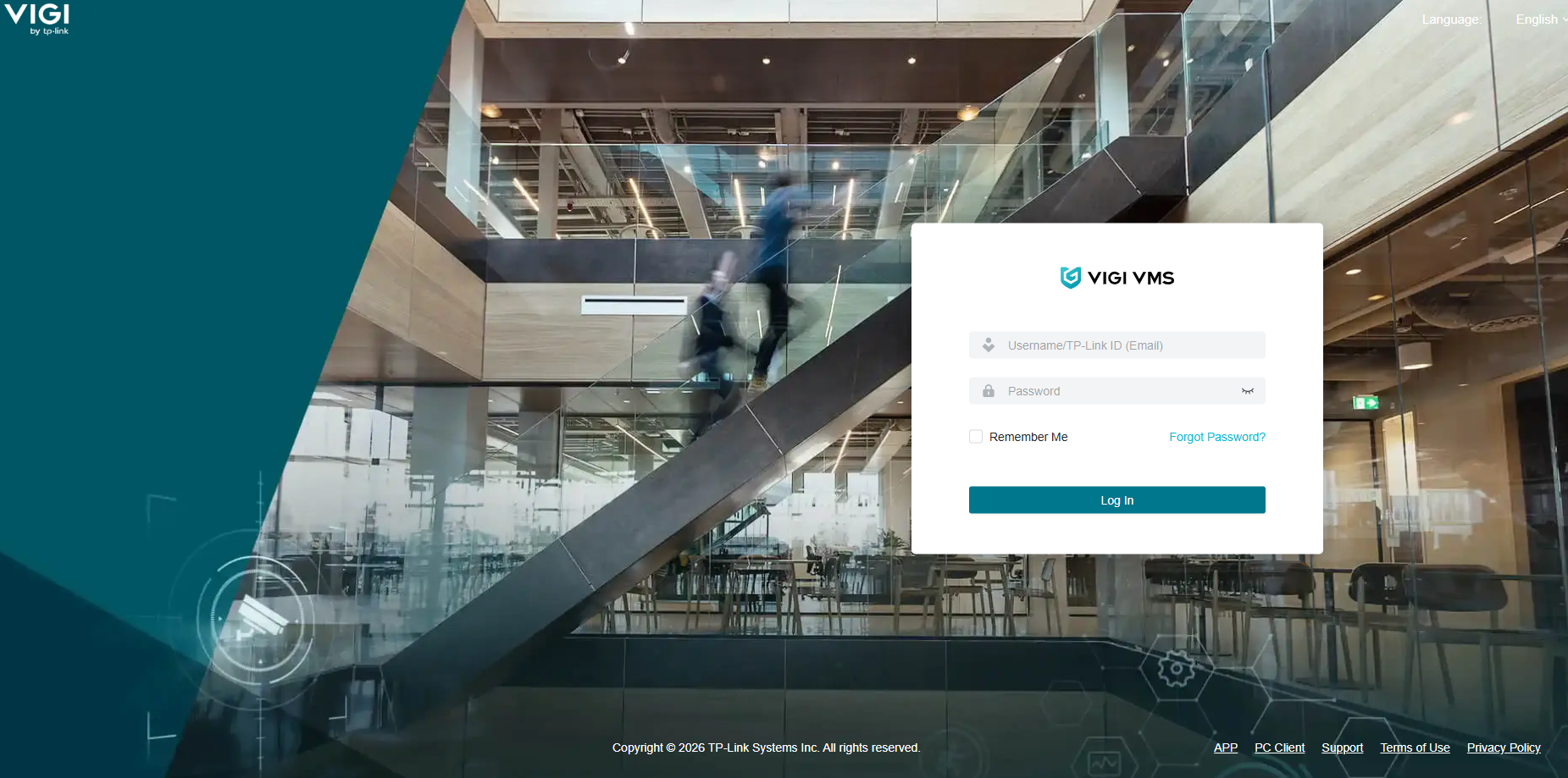
Step 2. Log in to VIGI VMS.
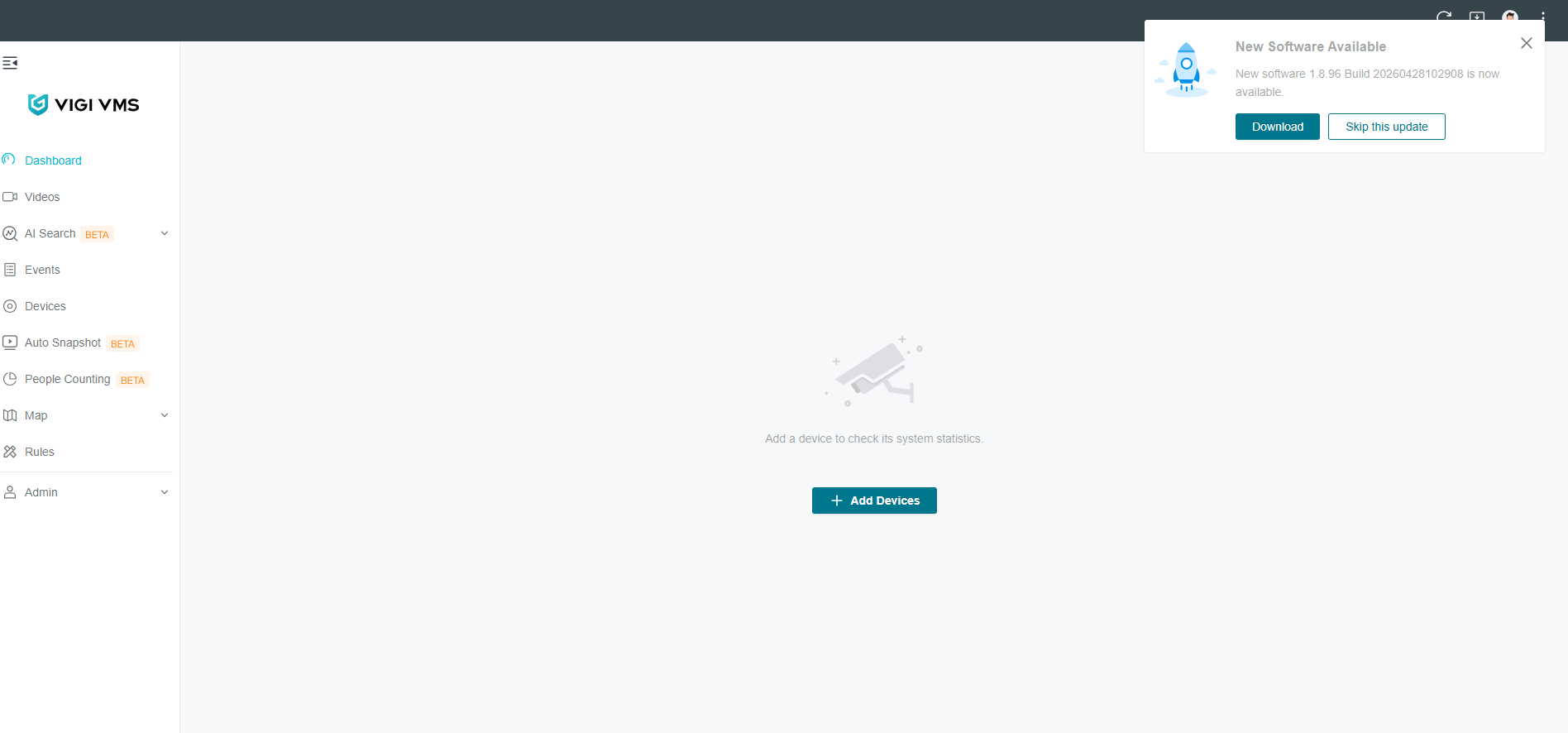
Step 3. Click Download.
A pop-up notification will appear in the upper-right corner when a new version is detected. Click Download.
Method 2. Check for updates manually
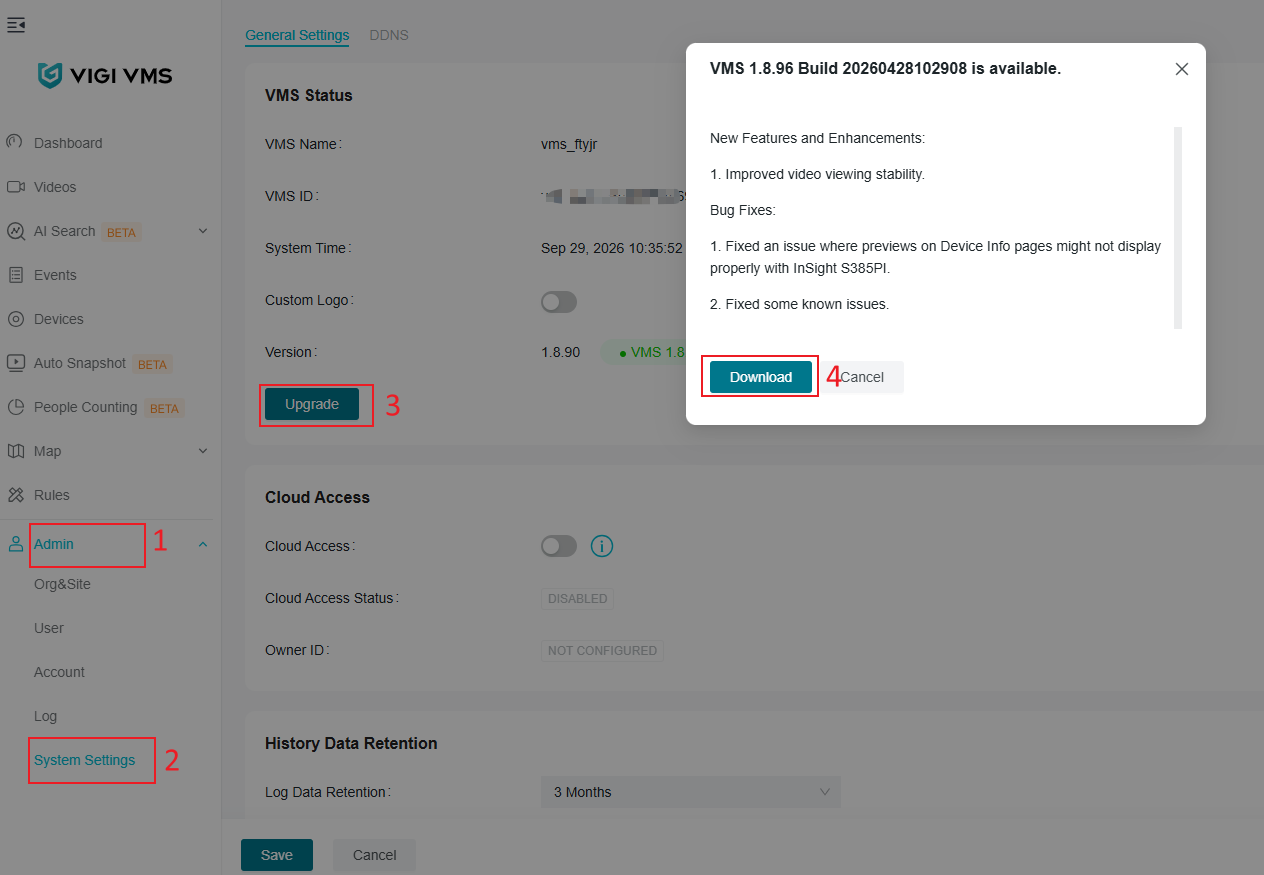
Step 1. Navigate to Admin > System Settings.
Step 2. Under VMS Status, click Update.
Step 3. Click Download if a newer version is available.
Method 3. Download manually
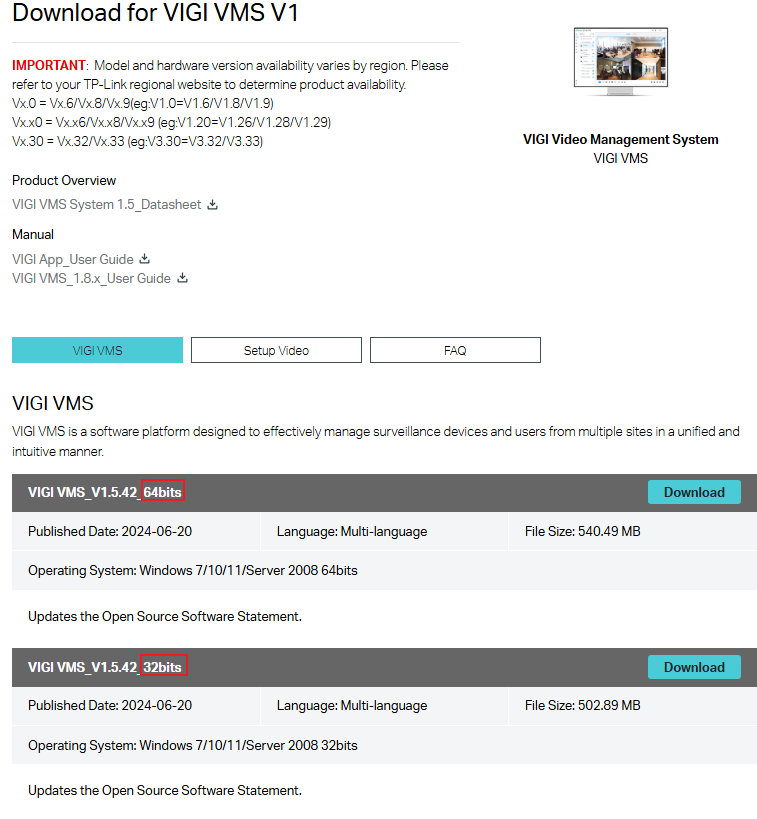
Step 1. Visit Download for VIGI VMS | TP-Link. Download the latest version of VIGI VMS Software.
Note: Select the installation package that matches your operating system type.
Step 2. Upgrade the VMS. In the pop-up window, click Next.
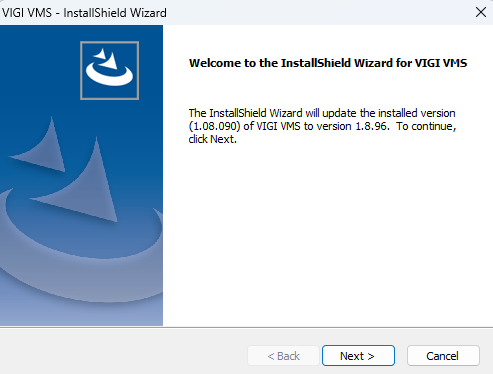
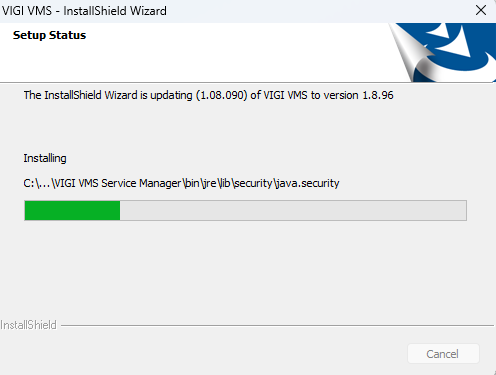
Step 3. The installation package will be applied.
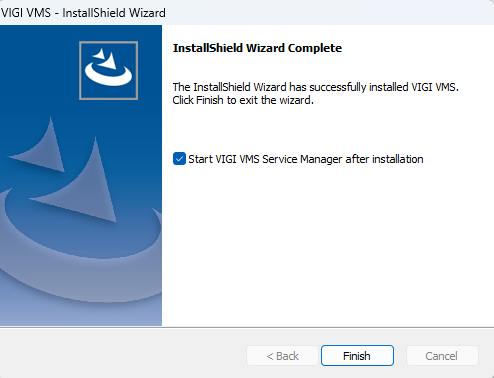
Step 4. Click Finish.
Upgrade VIGI PC Client
Method 1. Check for updates
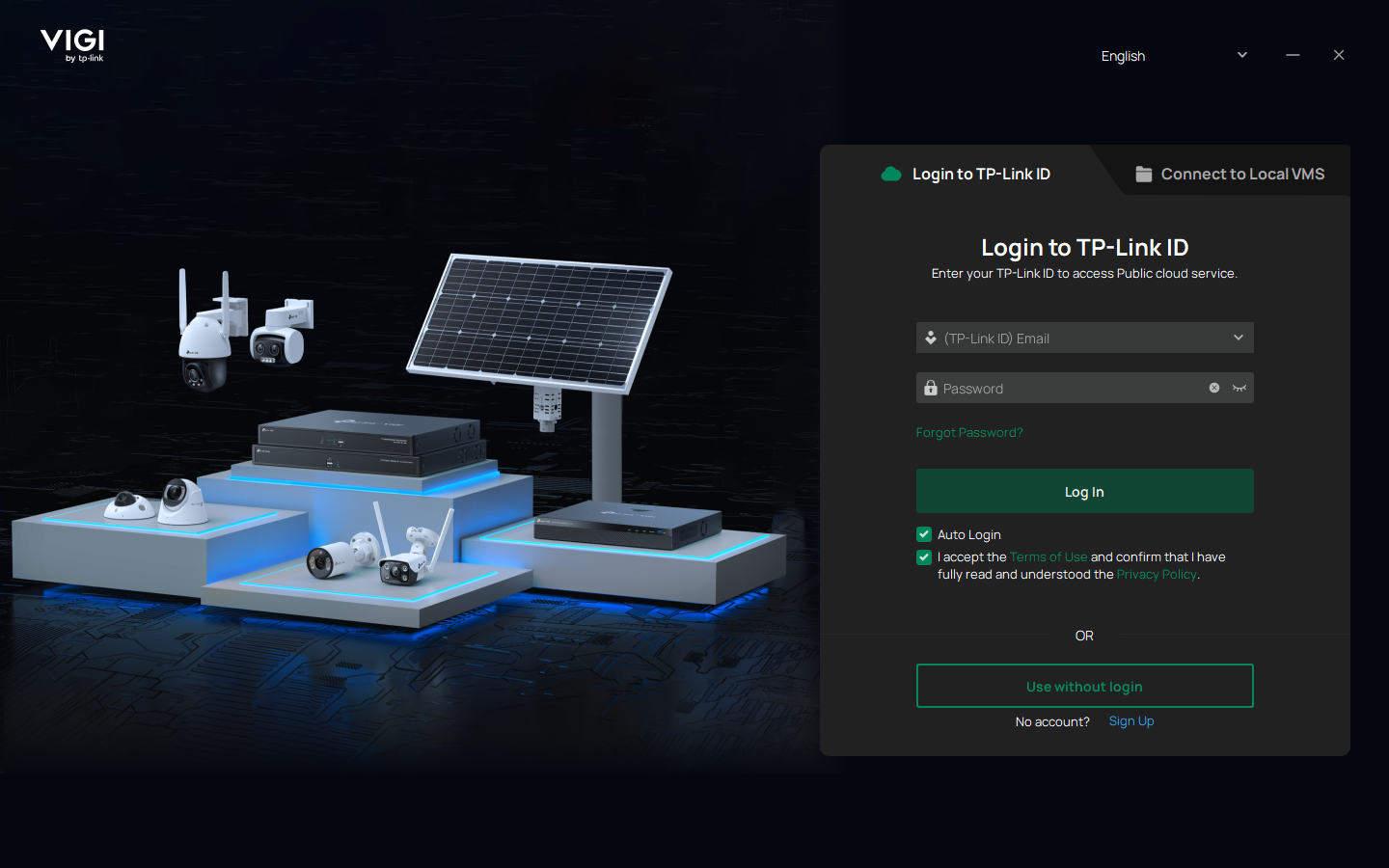
Step 1. Open the VIGI PC Client. You can either select Use without login or sign in with the same TP-Link ID used for the VMS Web Portal.
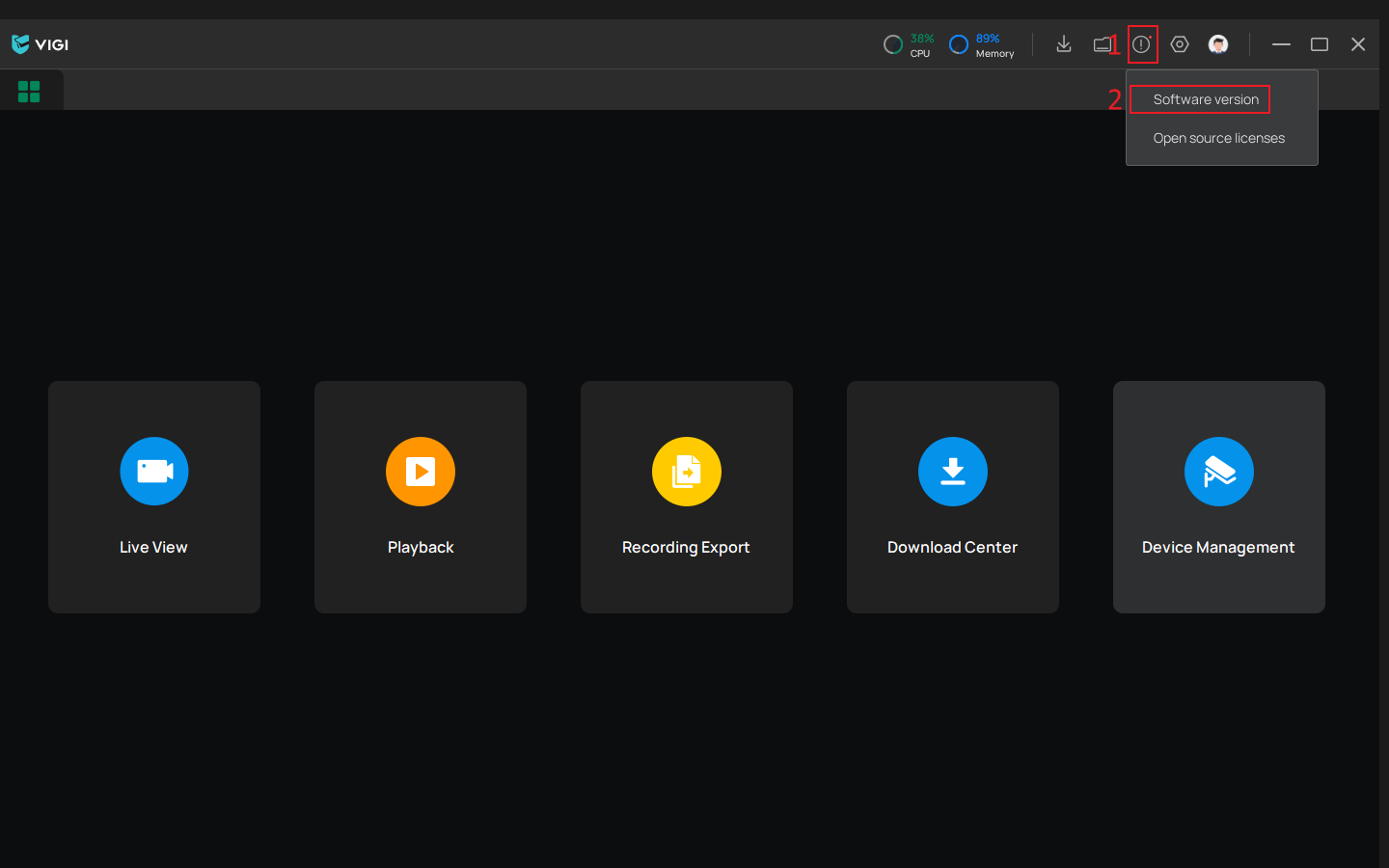
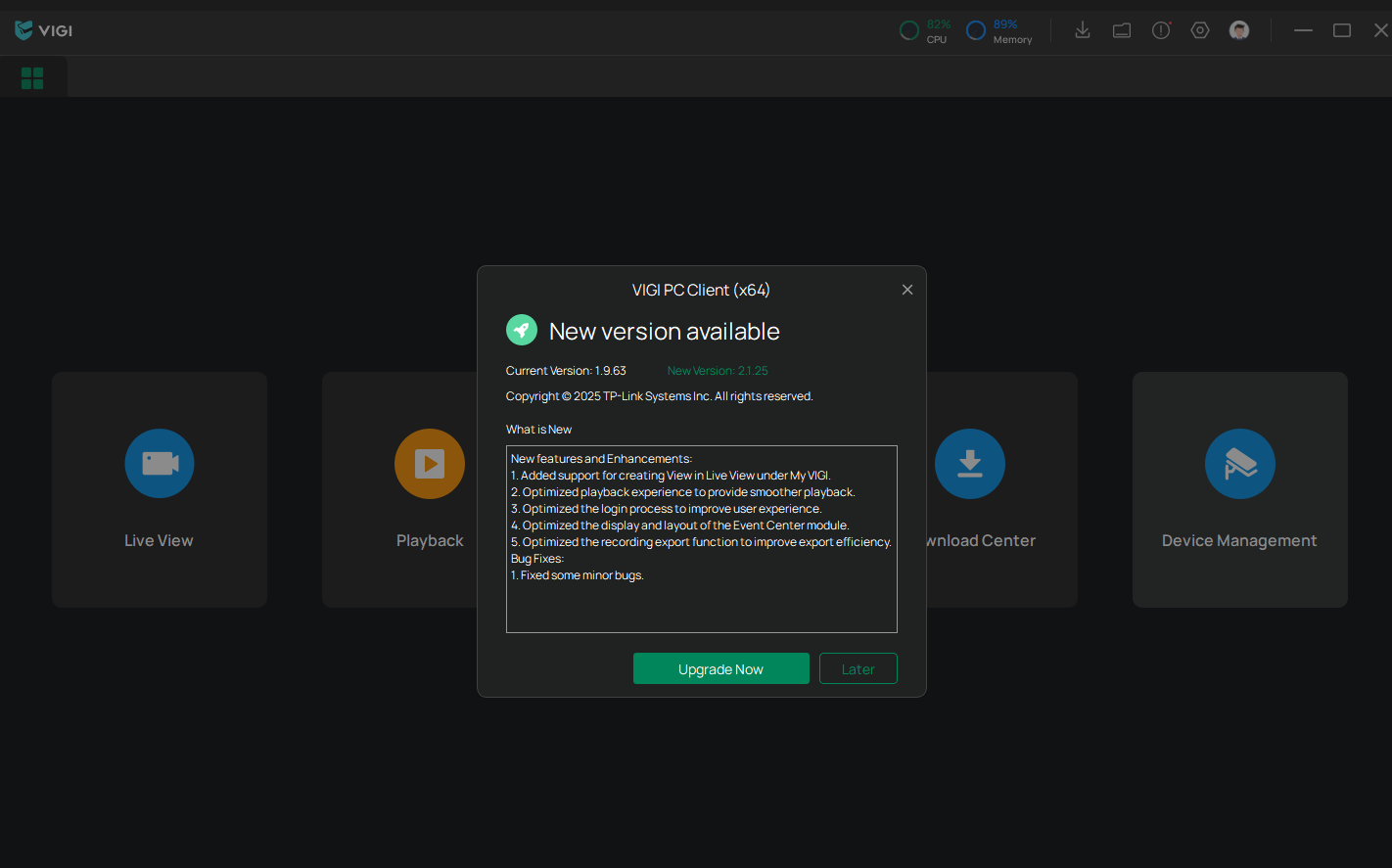
Step 2. Click the Software version to automatically check for updates. If a new version is available, click Upgrade Now in the pop-up window.
Method 2. Download manually
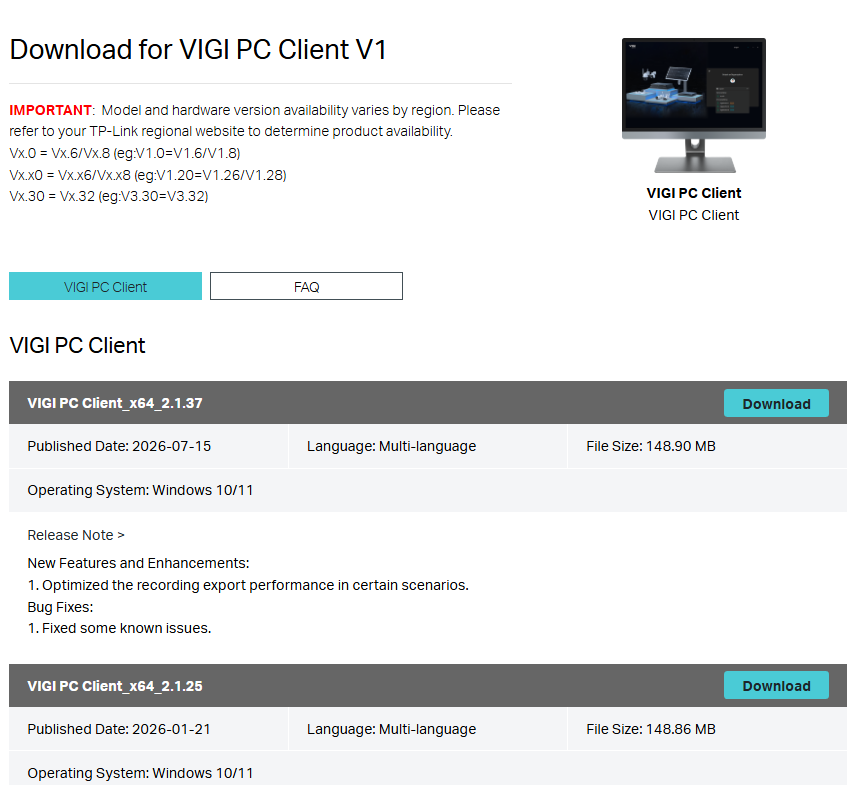
Step 1. Download the latest VIGI PC Client package from Download for VIGI PC Client | TP-Link.
Step 2. Run the installer.
Step 3. Complete the installation wizard.
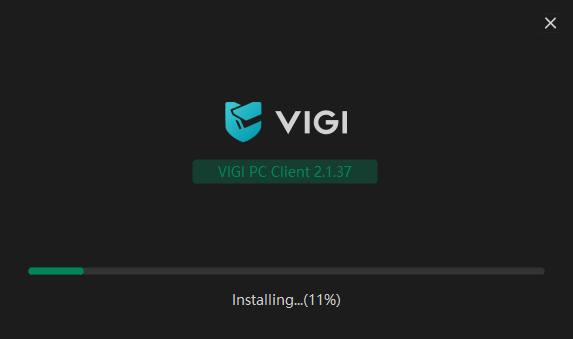
Step 4. Install the downloaded package. The tool will detect the installed package and prompt for an Upgrade.
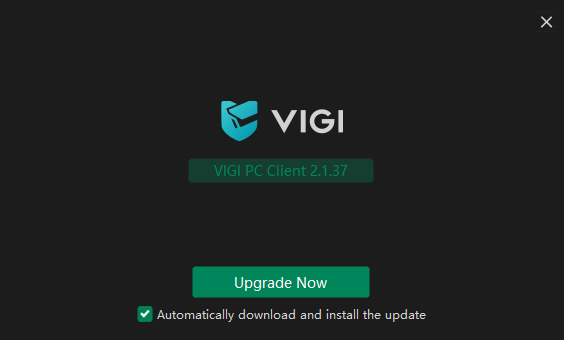
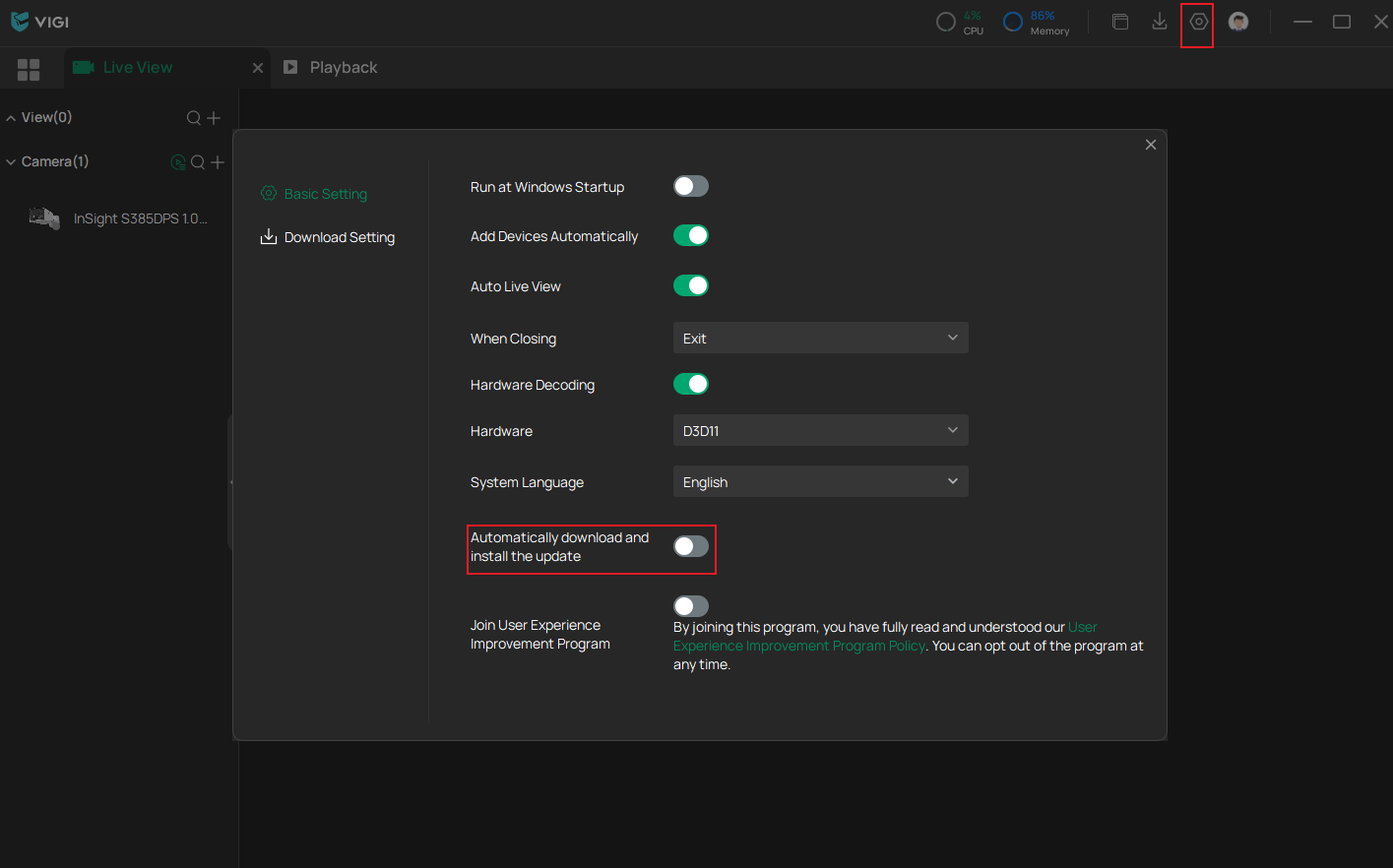
(Optional) You can also go to Settings > PC Setting > Basic Setting to enable Automatically download and install the update.
Upgrade VIGI Config Tool
Method 1. Check for updates
Step 1. Open VIGI Config Tool.
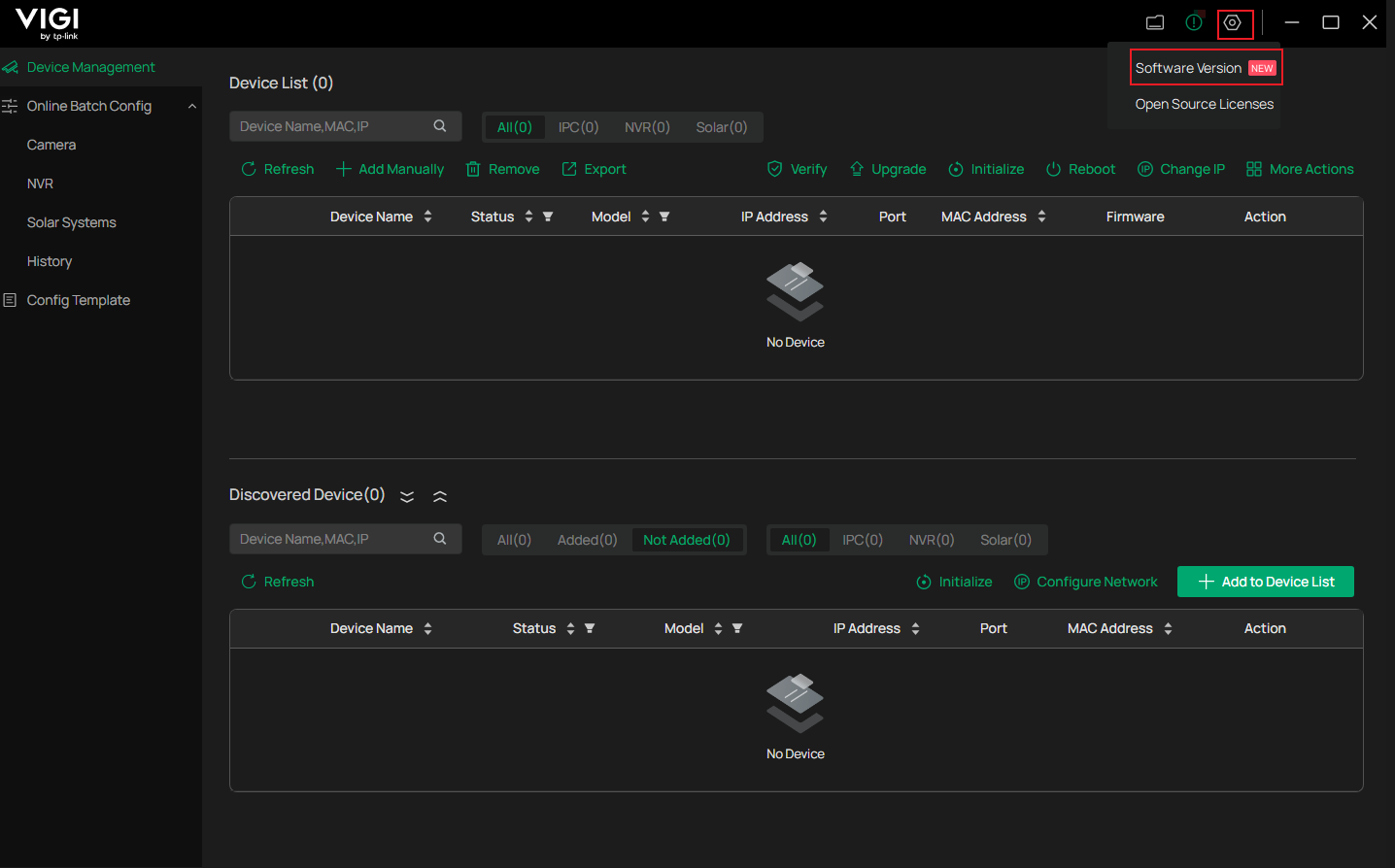
Step 2. Click Software Version.
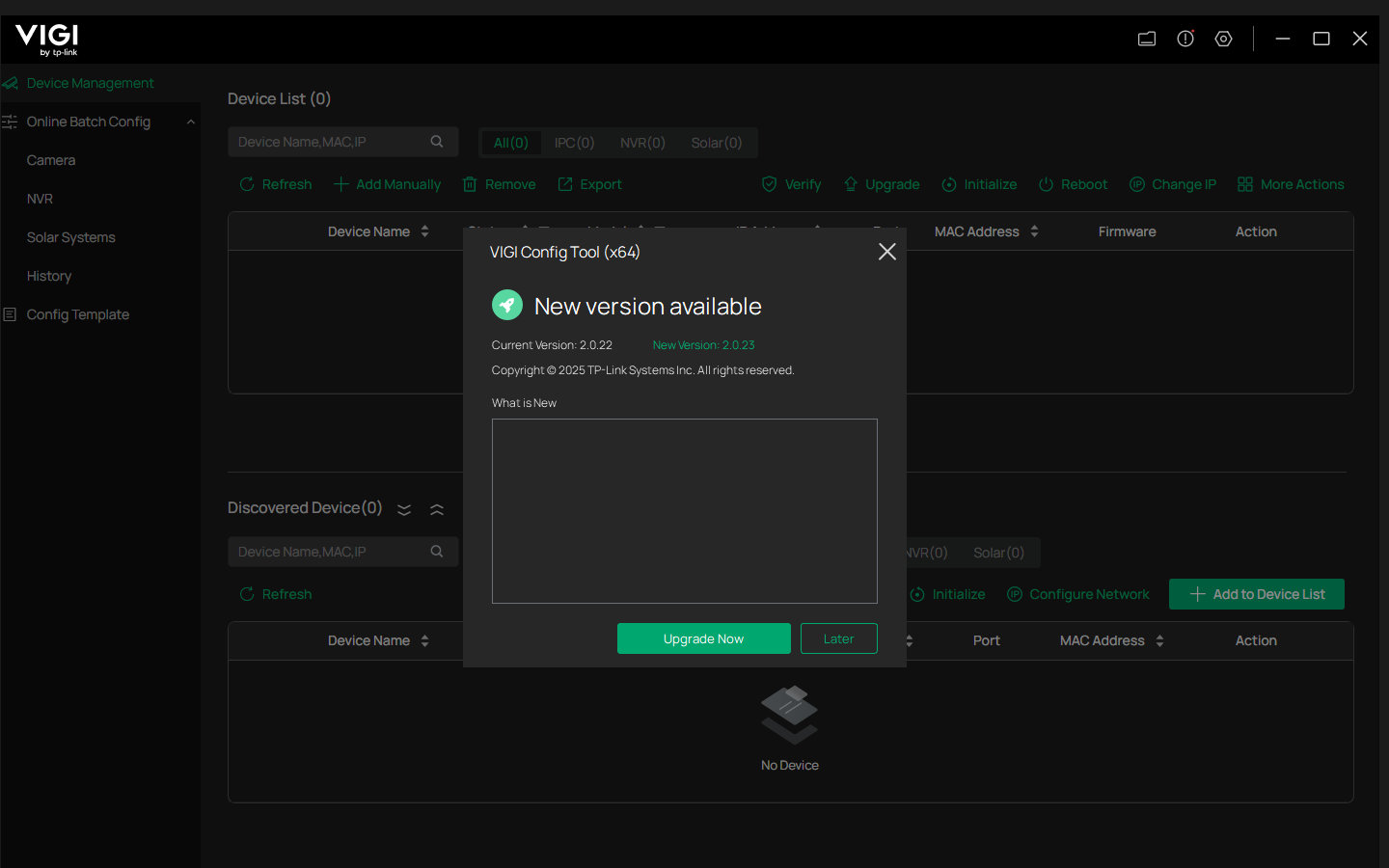
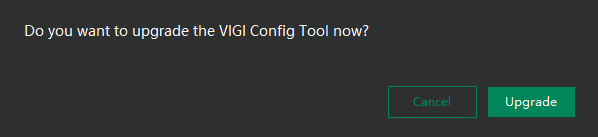
Step 3. If a newer version is available, click Upgrade Now.
Method 2. Download manually
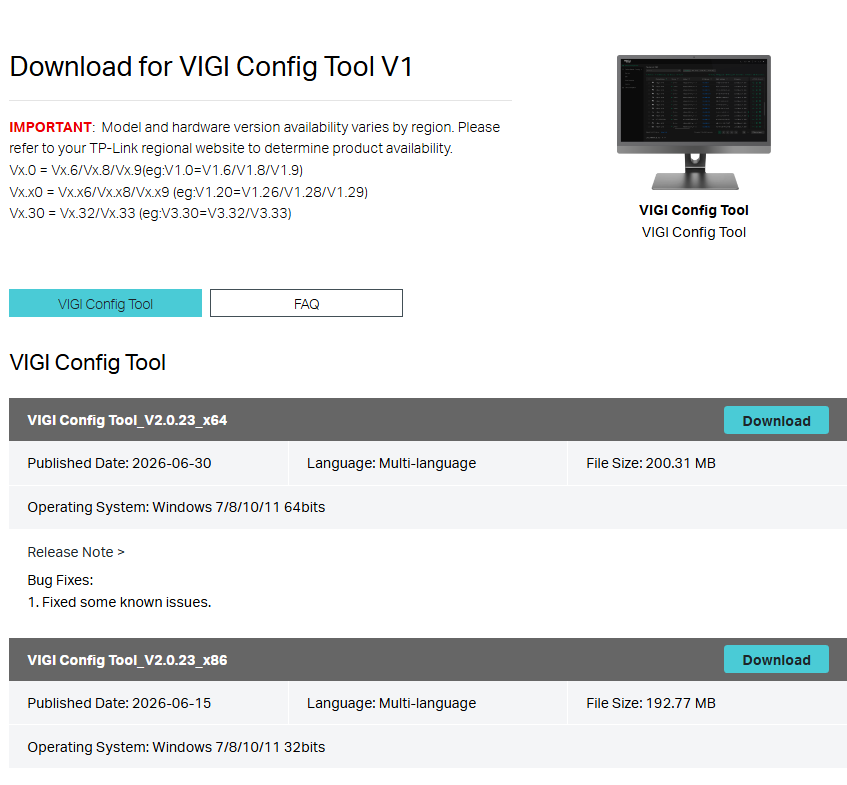
Step 1. Download the latest VIGI Config Tool package from Download for VIGI Config Tool | TP-Link.
Step 2. Run the installer.
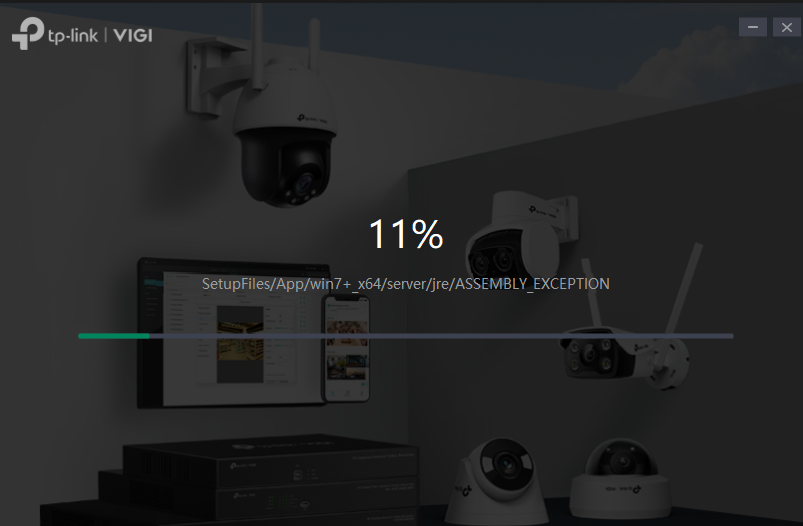
Step 3. The installer automatically detects the existing version and provides an upgrade option.
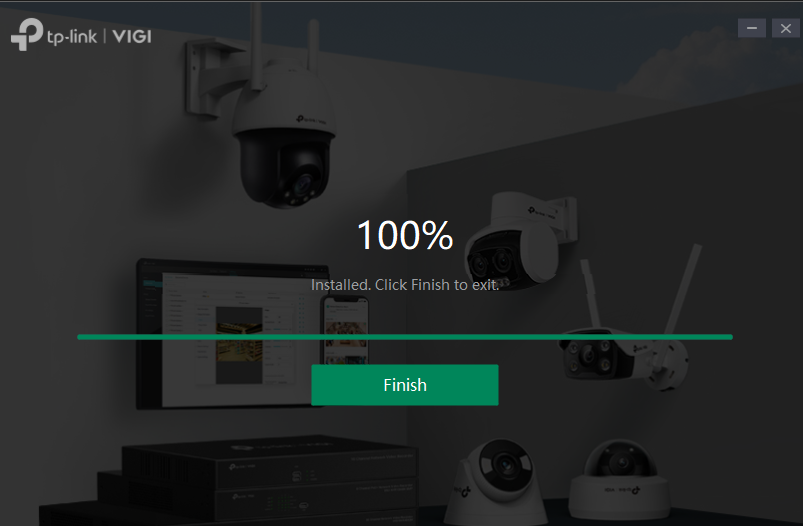
Step 4. Complete the installation wizard.
Verification
Verify VIGI App
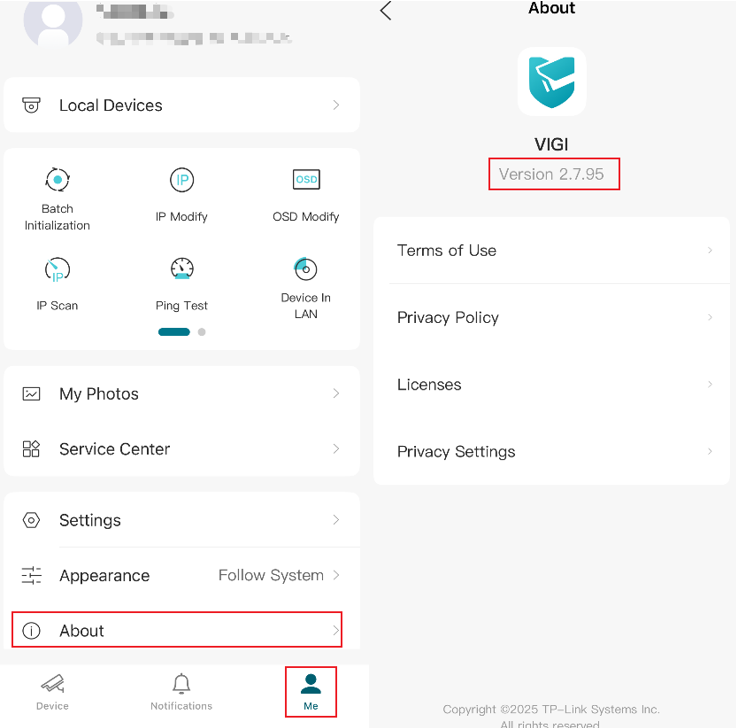
Log in to the VIGI App, navigate to Me > About, and verify that the current version is the latest available version.
Verify VIGI VMS
- Version Check
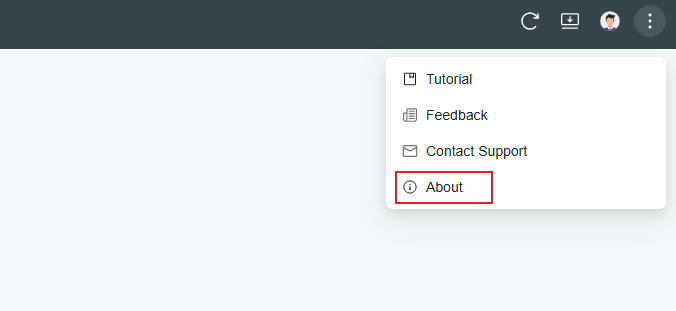
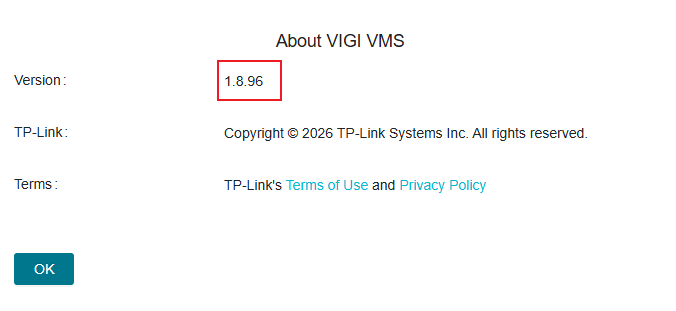
Click the icon at the top right corner and click About VIGI VMS to check the Version. If it matches the version you upgraded to, the upgrade is successful.
- Upgrade Detection
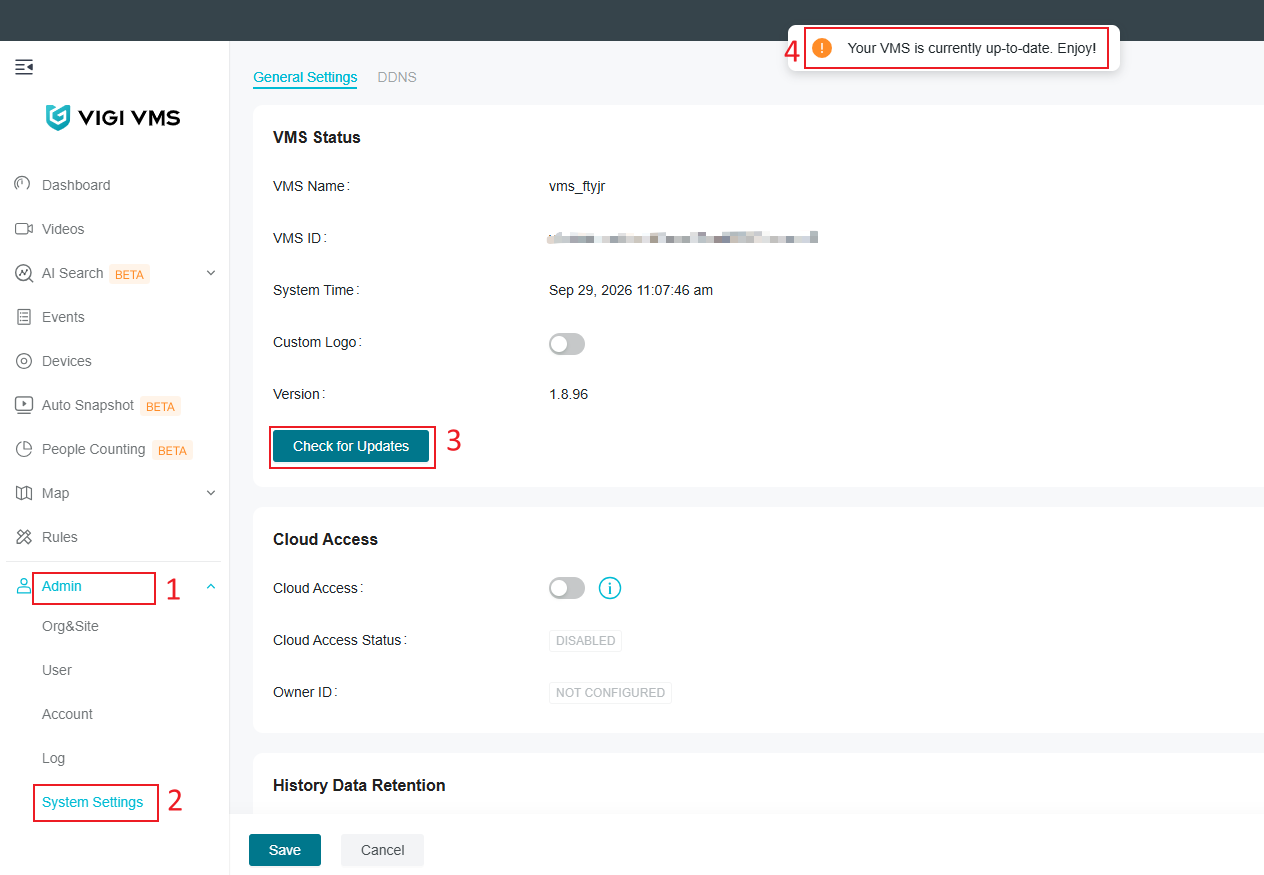
Go to Admin > System Settings and click Check for Updates. If the version is up-to-date, the upgrade is successful.
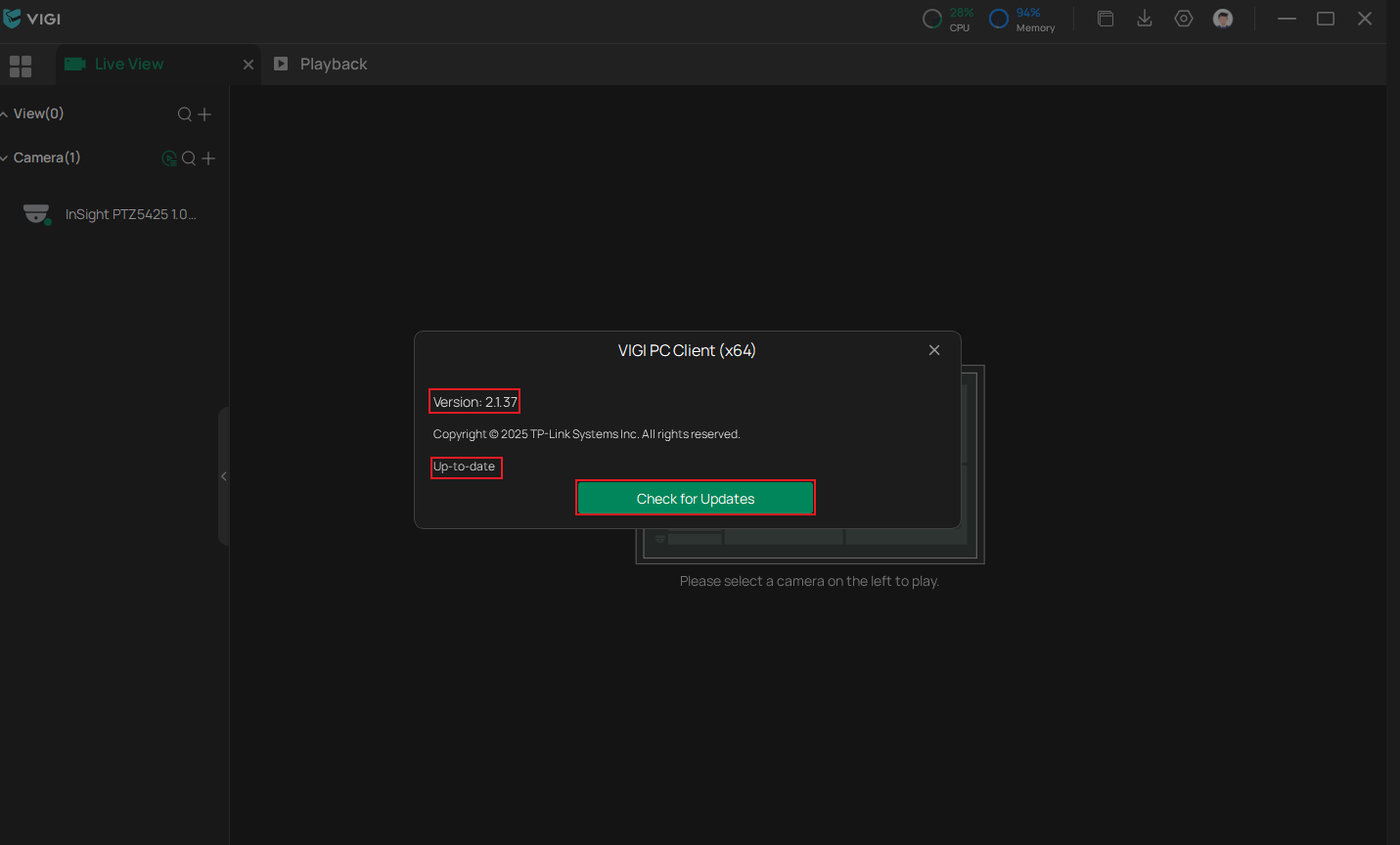
Verify VIGI PC Client
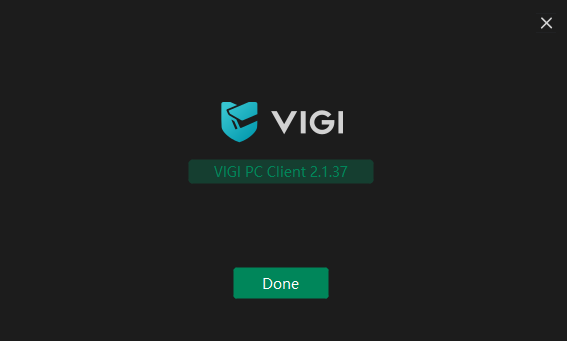
Click the icon in the top right corner and check the Version. If it matches the version you upgraded to, the upgrade is successful.
You can also click Check for Updates, and if the version is up-to-date, the upgrade is successful.
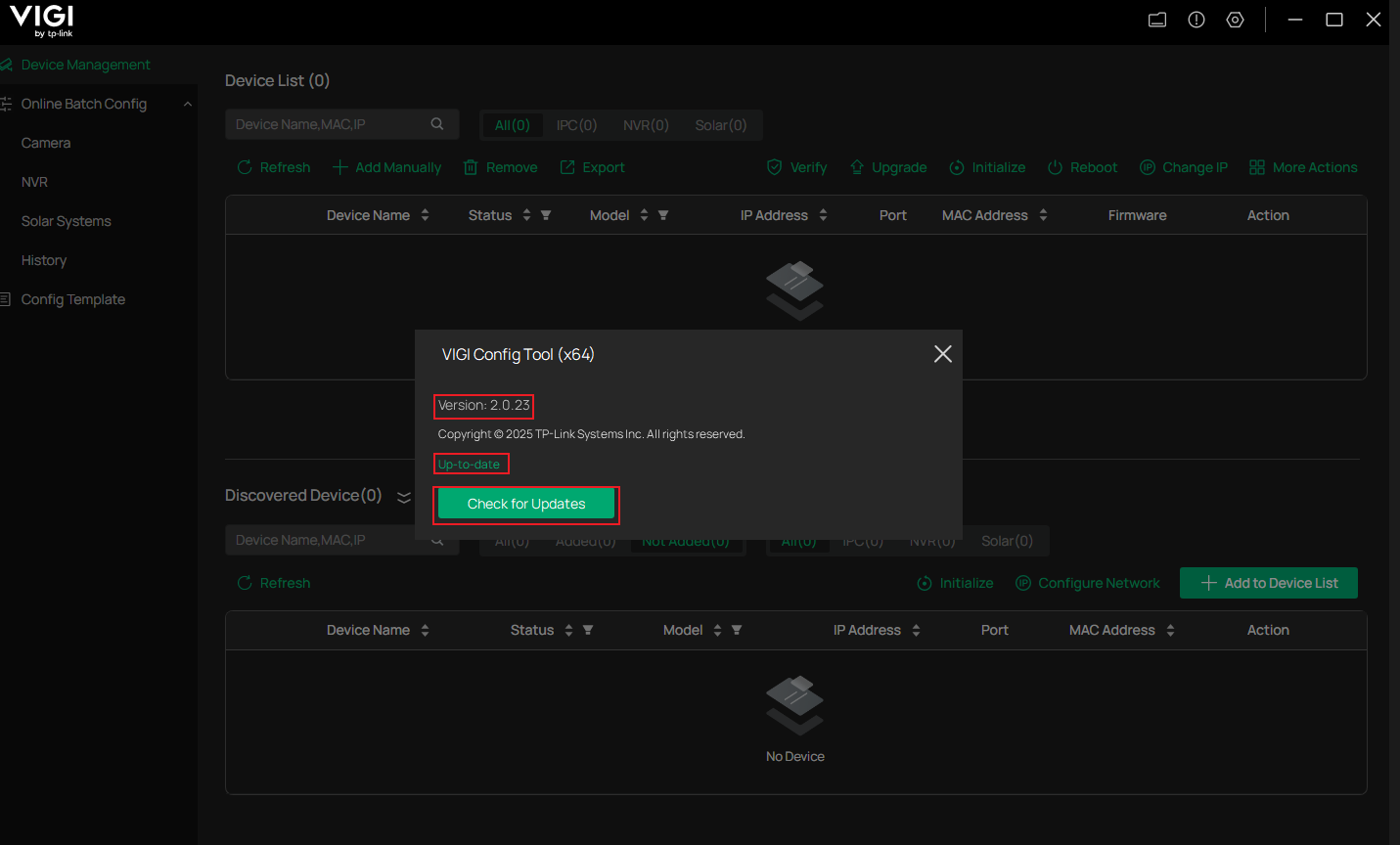
 Verify VIGI Config Tool
Click the icon at the top right corner and check the Version. If it matches the version you upgraded to, the upgrade is successful.
You can also click Check for Updates, and if the version is up-to-date, the upgrade is successful.
Conclusion
You have now successfully upgraded VIGI App, VIGI VMS, VIGI PC Client, and VIGI Config Tool. Keeping software up to date helps improve performance, enhance security, resolve known issues, and provide access to the latest features.
To learn more about each function and configuration, please visit Support Home to download or check the manual for your product.
QA
Q1: Do I need to uninstall the existing version before upgrading?
A1: No. Most VIGI software applications support direct upgrades and automatically preserve existing settings.
Q2: Will upgrading VIGI VMS Software affect managed devices?
A2: Managed devices and configurations are normally retained after an upgrade. However, backing up important configurations before upgrading is recommended.
Q3: Can I upgrade the VIGI App directly from the app?
A3: No. The VIGI App is upgraded through the Google Play Store or Apple App Store.
Q4: What should I do if Check for Updates cannot detect a newer version?
A4: Verify that the device has internet access. A newer version may not be available through Check for Updates immediately. Please visit the Download Center | TP-Link to check for and download the latest available version.
Looking For More
Is this faq useful?
Your feedback helps improve this site.



TP-Link Community
Still need help? Search for answers, ask questions, and get help from TP-Link experts and other users around the world.