
How to Configure Homes and Rooms in the Tapo App
The Tapo app allows you to organize devices into Homes and Rooms for easier management and control. This guide explains how to create and manage Homes and Rooms, move devices between locations, and understand the maximum number of Homes and Rooms supported.
Key Takeaways
- Create up to 8 Homes in the Tapo app.
- Create up to 32 Rooms within a single Home.
- Rename, modify, or delete Homes and Rooms from Home Settings.
- Move devices to another Home or Room using the Relocate feature.
- Move devices between rooms from Device Settings > Location for supported devices.
Create a Home
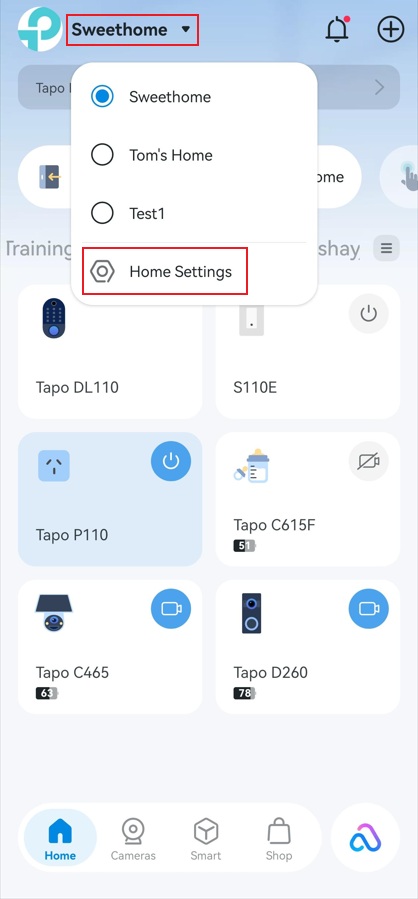
- Open the Tapo app Home page, tap the current Home Name in the top-left corner.
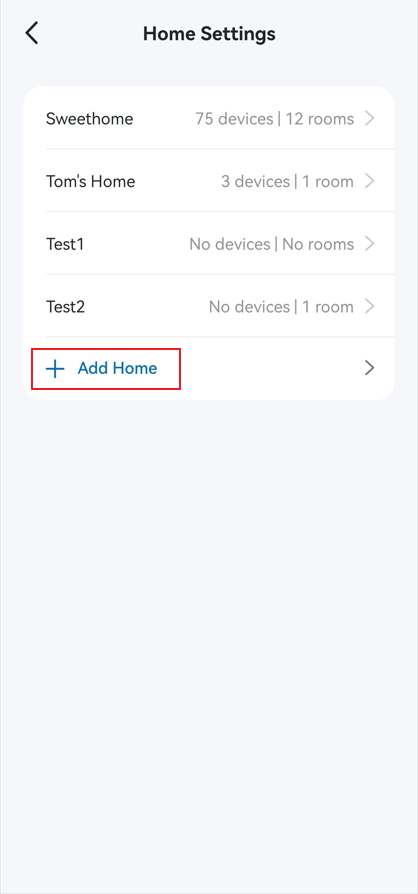
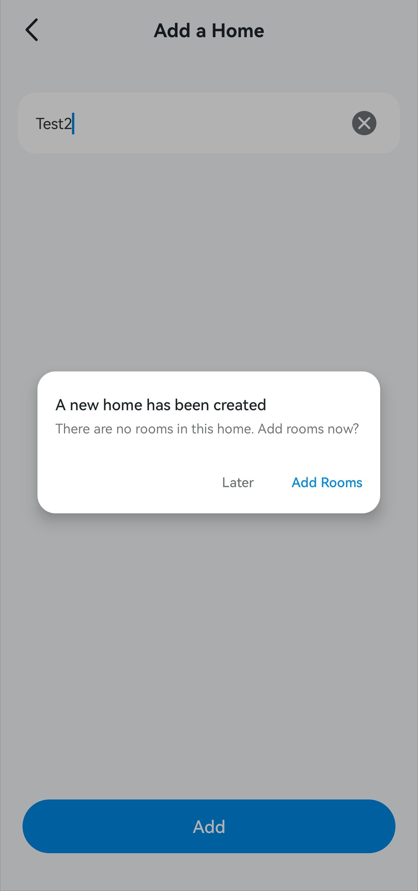
- Tap Home Settings > Add Home. Enter a Home Name, then tap Add.
- Add rooms now or later.
Create a Room
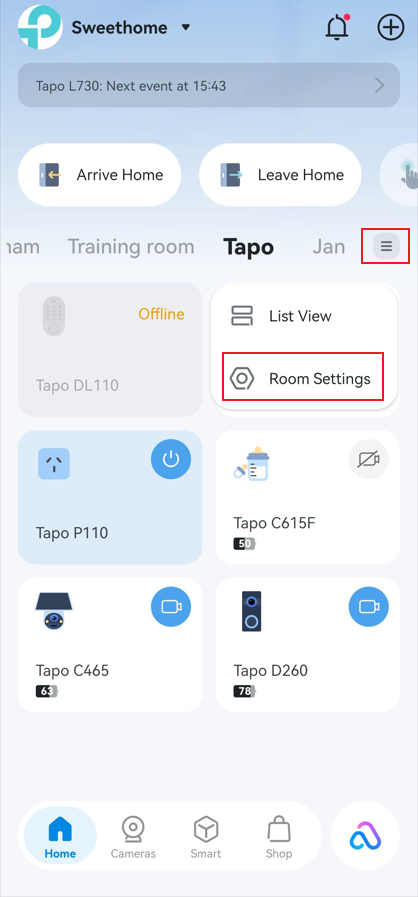
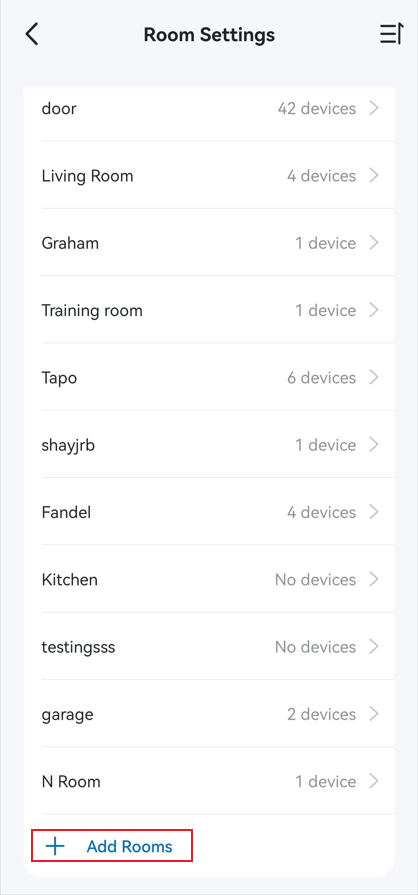
- On the Tapo app Home page, tap the menu icon and select Room Settings.
- Tap Add Rooms, select or enter a name, then tap Add.
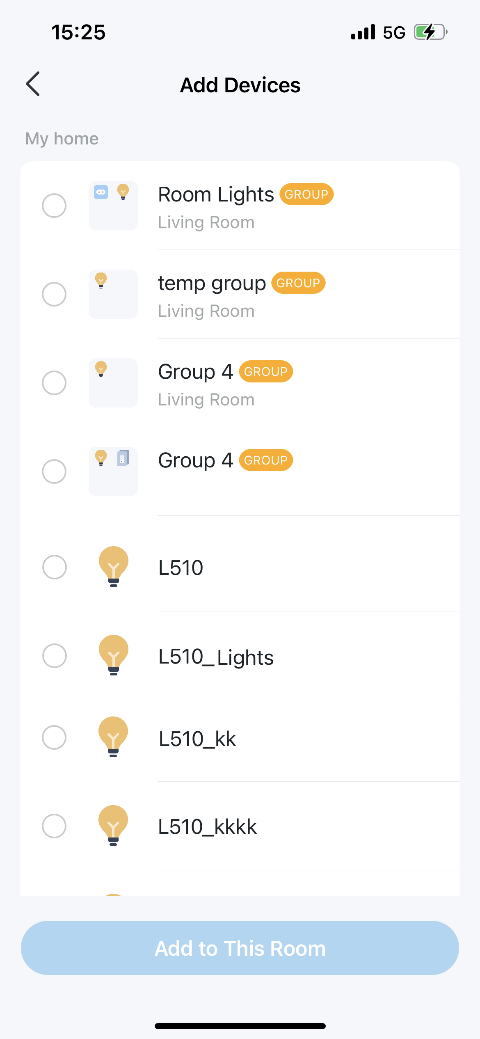
- Select the devices you want to assign to the room.
- Tap Add to This Room.
Modify Home and Room Settings
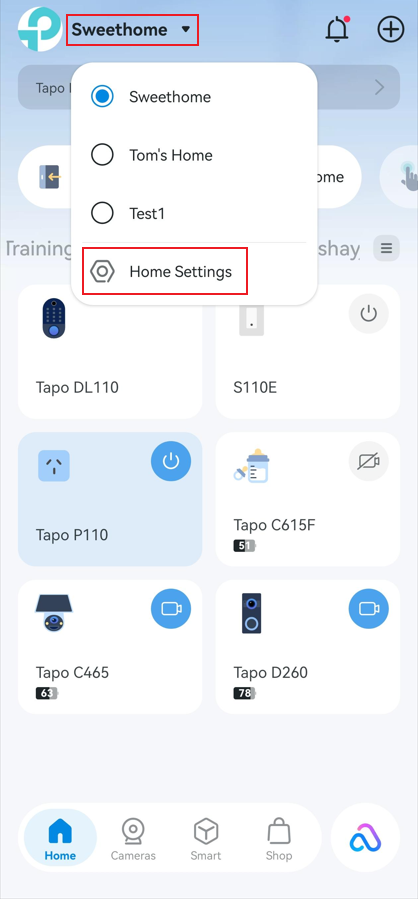
- Tap the current Home Name in the top-left corner, then tap Home Settings.
- Tap the desired Home. Tap Home Name to rename it. Tap Delete This Home to remove it.
Note: The default Home cannot be deleted.
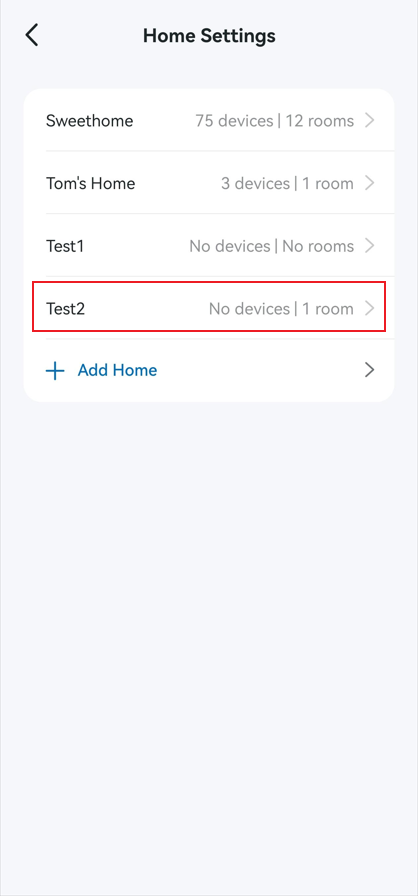
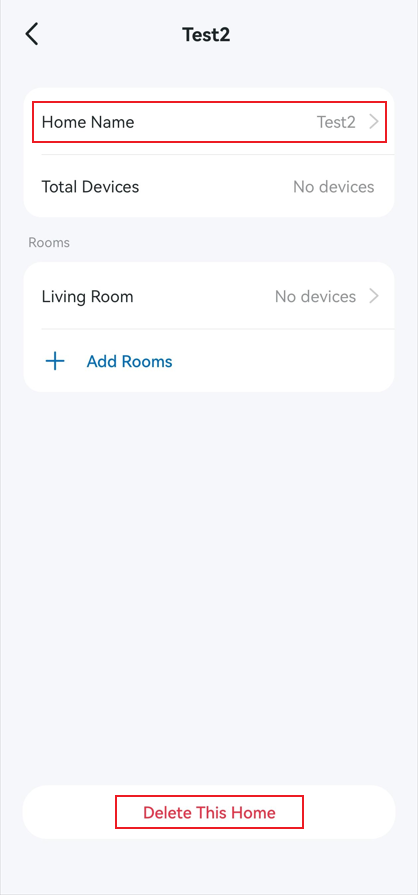
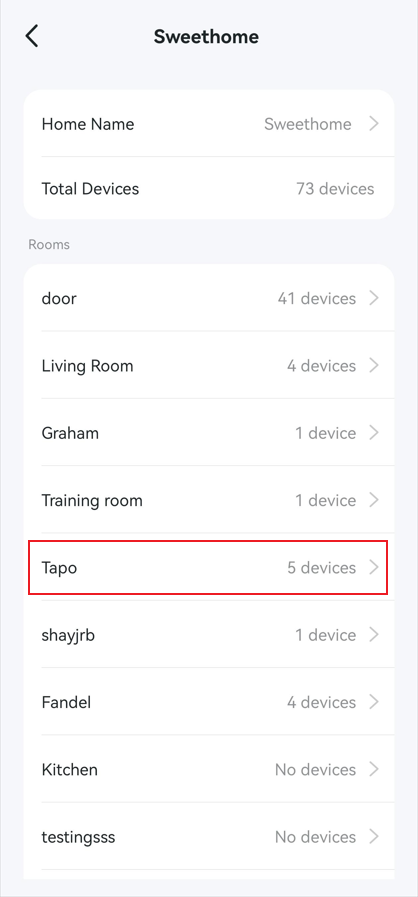
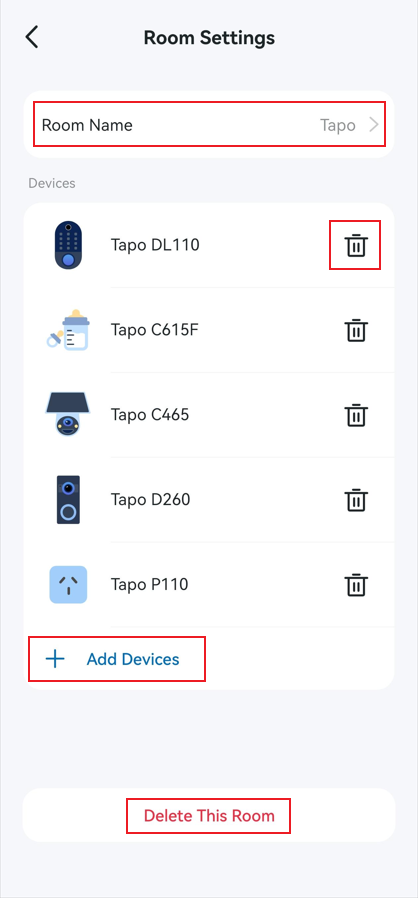
- Tap the desired room. Tap Room Name to rename it. Tap Add Devices to assign more devices. Tap the delete icon next to a device to remove it from the room. Tap Delete This Room to remove the room.
Move a Device to Another Home
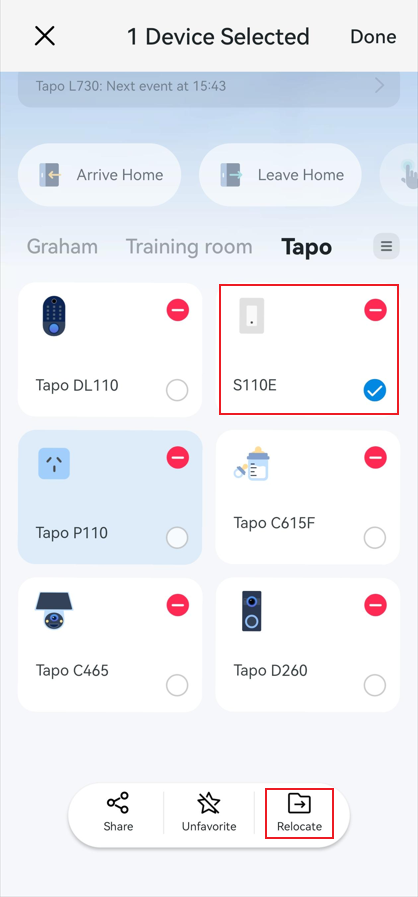
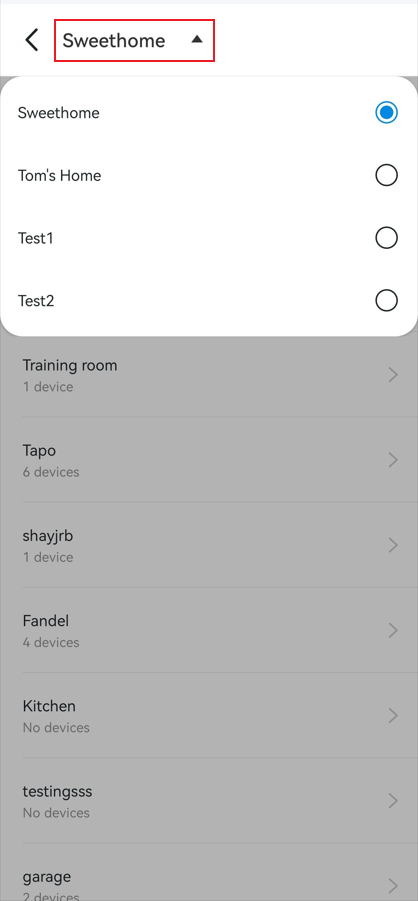
- On the Tapo app Home page, press and hold the device card, tap Relocate.
- Use the drop-down menu at the top to select a different Home and choose the target room.
Move a Device to Another Room
Note: This method allows you to move a device only between rooms within the same Home.
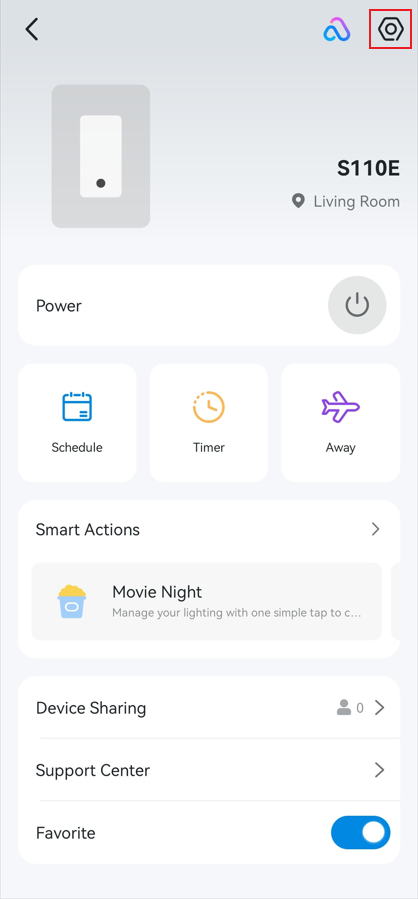
- Tap the device card on the Tapo app Home page.
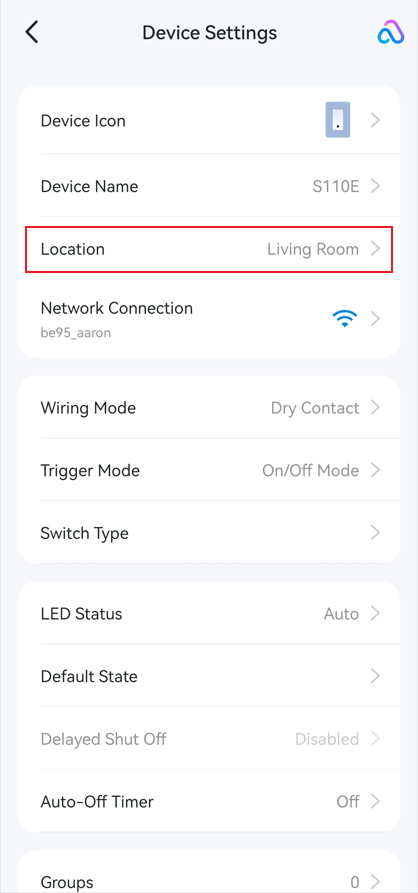
- Tap the gear icon in the upper-right corner to open Device Settings.
- Tap Device Info > Location, or tap Location directly (vary by device model).
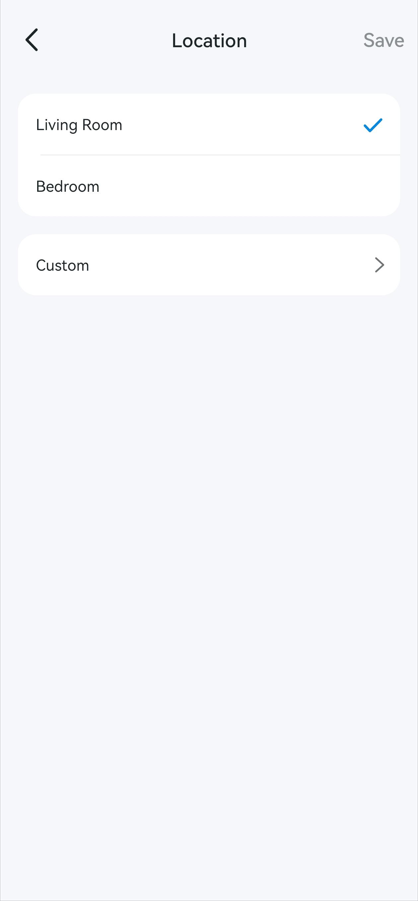
- Select a room, or tap Custom to create a new room.
- Tap Save.
Q&A
Q1: How many Homes can I create in the Tapo app?
You can create up to 8 Homes.
Q2: How many Rooms can I create in one Home?
You can create up to 32 Rooms in a single Home.
To learn more about each function and configuration, please visit the Download Center to download the manual for your product.
Daha Fazlasını Arıyorum
Bu SSS faydalı mı?
Your feedback helps improve this site.



TP-Link Community
Still need help? Search for answers, ask questions, and get help from TP-Link experts and other users around the world.