What Should I Do if There Is Audio Noise or Feedback on My VIGI Camera
Contents
Audio feedback in live view mode
Audio feedback in two-way audio mode
Introduction
Many VIGI cameras include built-in microphones and speakers for audio monitoring and two-way audio communication. During live view or two-way audio sessions, users may occasionally hear background noise or audio feedback. This article explains the common symptoms, causes, and solutions for environmental noise and audio feedback on VIGI cameras.
Requirements
- VIGI Camera with built-in microphone
- VIGI Camera Web Interface (Web UI) or VIGI App
Troubleshooting
Environmental noise
Symptom
During live view or two-way audio sessions, you may hear background sounds in addition to the target audio being monitored.
Examples include:
- Traffic noise
- Wind noise
- Air conditioning noise
- Conversations outside the target area
These sounds may affect overall listening quality or make target audio less clear.
Cause
A VIGI camera's built-in microphone is designed to capture audio over a wide area.
As a result, the microphone may capture background sounds and environmental interference in addition to the desired audio source.
The built-in noise reduction algorithm can reduce some environmental noise, but its ability to remove all background sounds is limited.
The amount of audible noise may vary depending on:
- The distance between the sound source and the camera
- Environmental noise levels
- Microphone volume settings
Solution
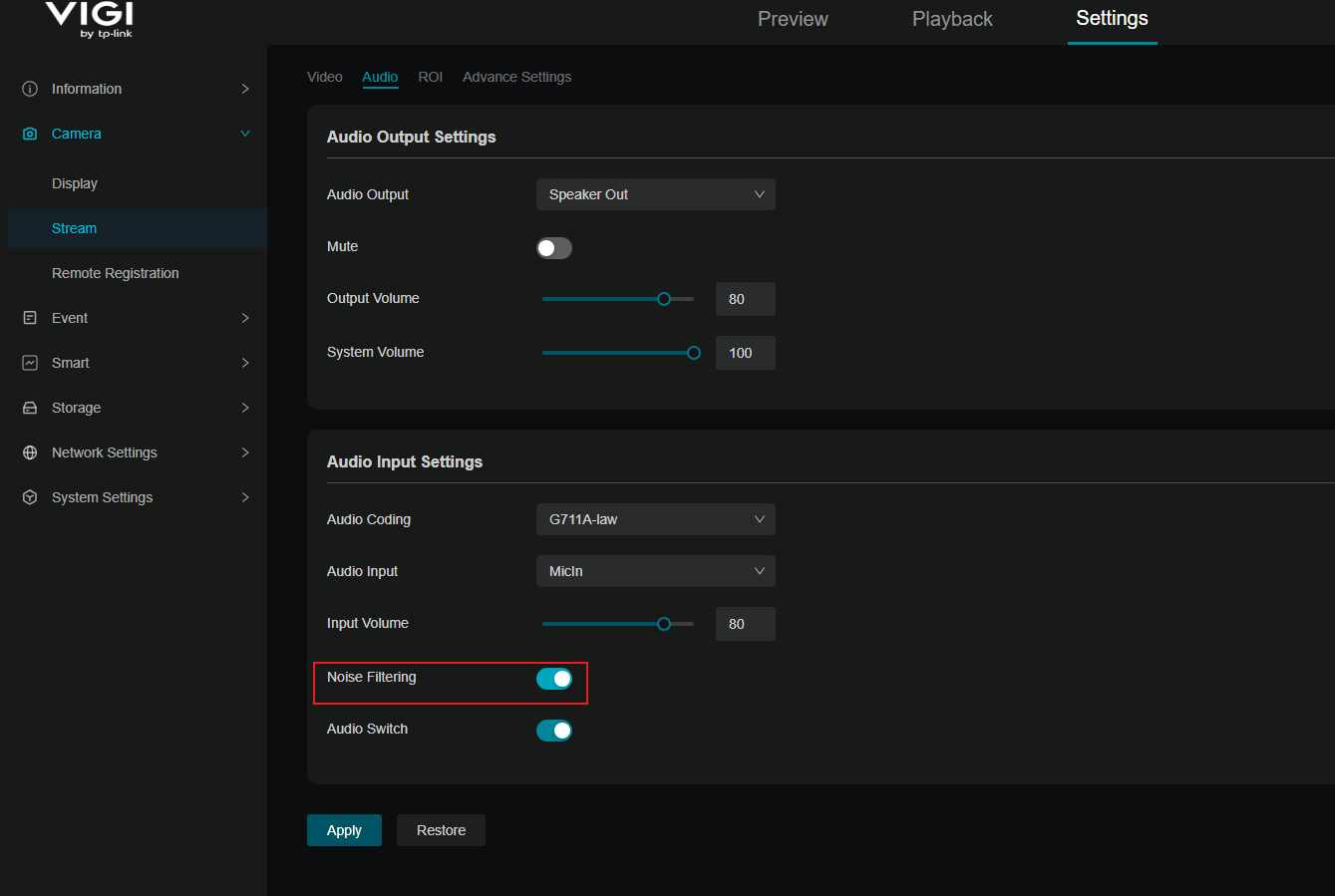
Step1. Enable Noise Filtering.
Enable Noise Filtering to reduce unwanted background sounds. Here, we take the VIGI Camera Web UI as an example.
Navigate to Settings > Camera > Stream > Audio > Audio Input Settings, then enable Noise Filtering.
Step2. Adjust microphone volume
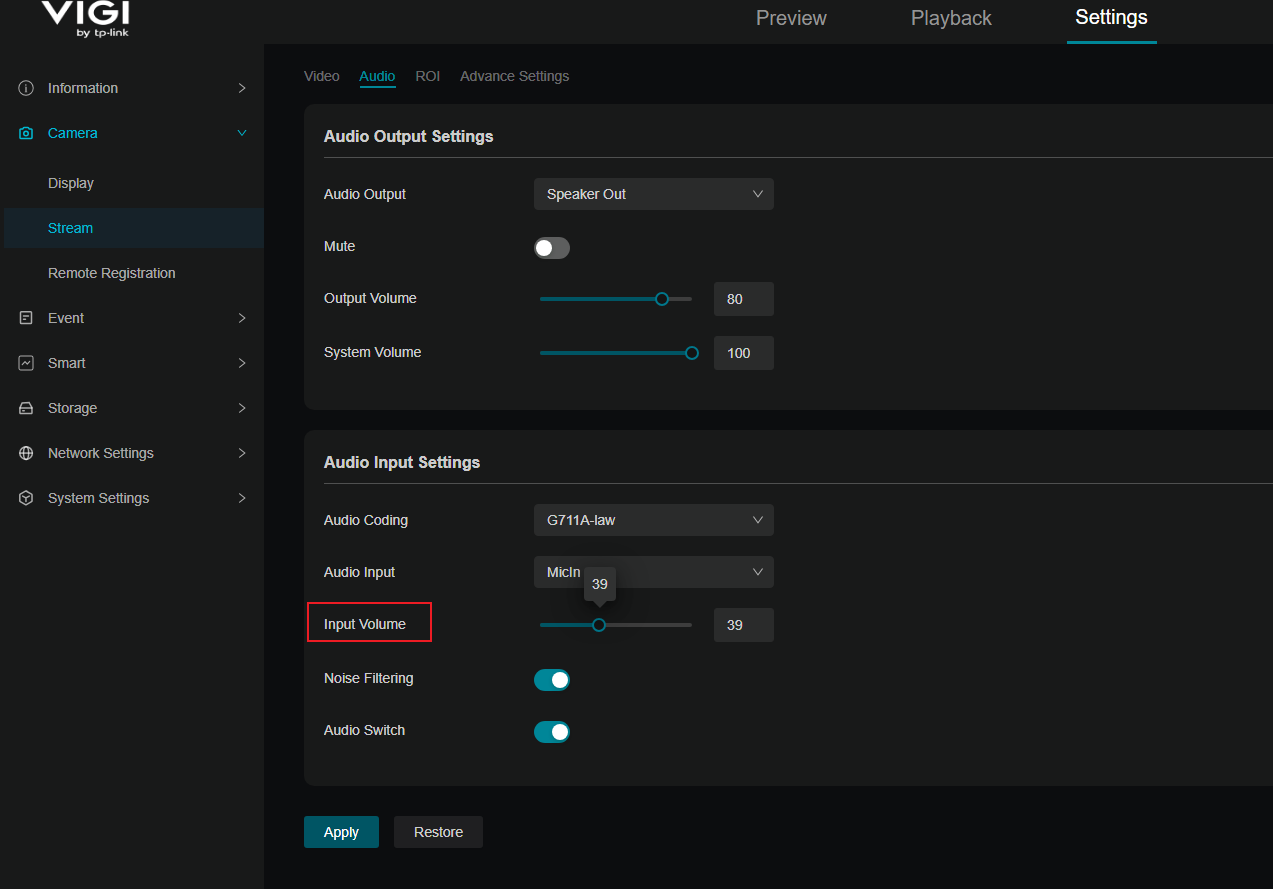
Reduce the microphone volume gradually until a balance between voice clarity and environmental noise is achieved.
Avoid using unnecessarily high microphone volume settings, as higher gain levels may amplify background sounds.
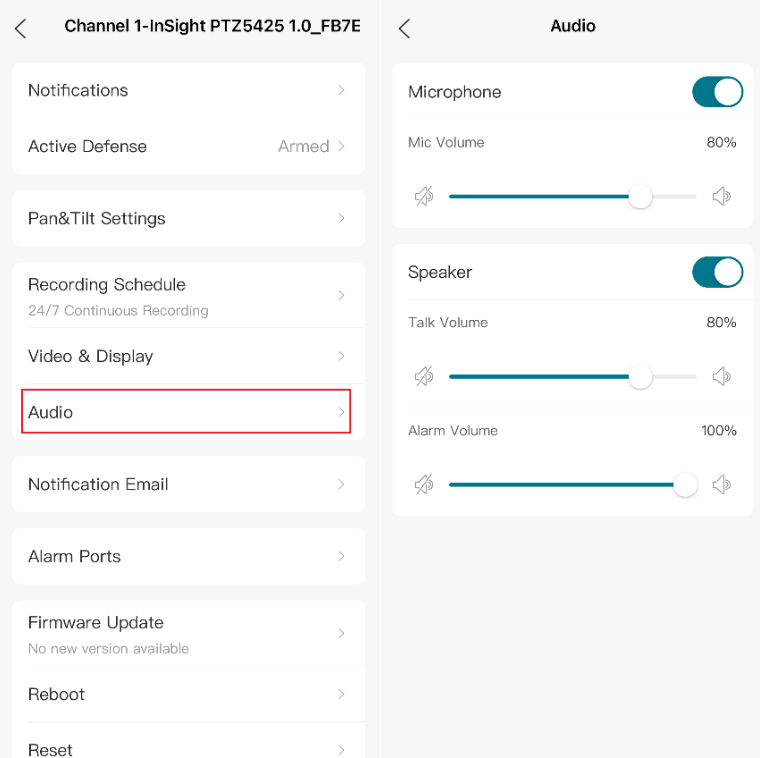
You can also adjust the volume via the VIGI App > Camera Settings > Audio:
Audio feedback in live view mode
Symptom
When you hear a sharp, high-pitched, continuous, or repetitive sound during live view.
Cause
Audio feedback usually does not occur when the camera and playback device are in different physical locations.
However, when the camera is close to the mobile phone or computer used for live view or playback, audio from its speaker may be picked up by the camera microphone. This creates an audio feedback loop and may cause audio feedback.
Solution
Step1. Ensure that Noise Filtering remains enabled.
Step2. Increase the distance between the camera and the mobile phone or computer.
Step3. Use headphones instead of the mobile device or computer speaker. This can prevent the speaker output from being fed back into the camera microphone.
Step4. Lower the speaker volume if necessary.
Audio feedback in two-way audio mode
Symptom
When you hear audio feedback, squealing, or echo-like sounds during two-way audio communication.
Cause
During two-way audio sessions, sound played through the client speaker may be captured again by the camera microphone, creating an audio feedback loop.
Solution
Step1. Ensure that Noise Filtering remains enabled.
Step2. Reduce the playback volume on the client device during two-way audio communication.
Step3. Use headphones on the client device instead of the built-in speaker whenever possible.
Step4. Adjust both microphone and speaker volume settings according to the installation environment and actual usage requirements.
Conclusion
You have now completed the recommended troubleshooting procedures for environmental noise and audio feedback on VIGI cameras. By enabling Noise Filtering, adjusting microphone and speaker volume levels, maintaining appropriate distance between devices, and using headphones, when necessary, most audio quality issues can be reduced or eliminated.
To learn more about each function and configuration, please visit Support Home to download or check the manual for your product.
QA
Q1: Why can I hear background sounds even when nobody is talking?
A1: The camera microphone is designed to capture audio across a wide monitoring area. Environmental sounds may be recorded together with the target audio source.
Q2: Why does audio feedback only occur when I am close to the camera?
A2: When the camera and playback device are in the same space, sound from the speaker may be picked up again by the camera microphone, creating an audio feedback loop.
Q3: Is Noise Filtering available in the VIGI App?
A3: Currently, Noise Filtering can be configured through the camera web interface. The feature is not yet available in the VIGI App.
Looking For More
Is this faq useful?
Your feedback helps improve this site.



TP-Link Community
Still need help? Search for answers, ask questions, and get help from TP-Link experts and other users around the world.