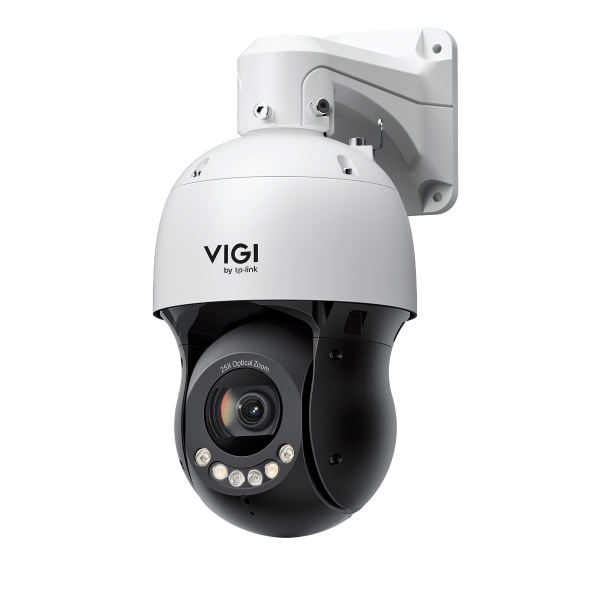
How to configure the PTZ Scheduled task
 35
35Contents
Introduction
The Speed Dome PTZ camera (InSight PTZ5425) supports different PTZ task modes, enabling highly flexible unattended surveillance operations.
Considering that different monitoring positions and tasks may be needed under varying conditions such as day/night or workdays/rest days, we have implemented the PTZ Scheduled task function on all 3 PTZ task modes to achieve a one-time configuration for long-term use. You can specify different PTZ tasks to be executed during different time periods, thereby simplifying configuration and visualizing PTZ plans.
This article describes how to configure and use the PTZ Scheduled task function.
Requirements
- InSight PTZ5425
- A PC
Configuration
Step 1. To schedule your PTZ tasks, you first need to configure the desired PTZ routes. You can set up your expected PTZ routes in three modes: Preset, Patrol, and Pattern Scan. If you need detailed guidance on how to configure these PTZ tasks, please refer to: How to use the Preset, Patrol and Pattern Scan.
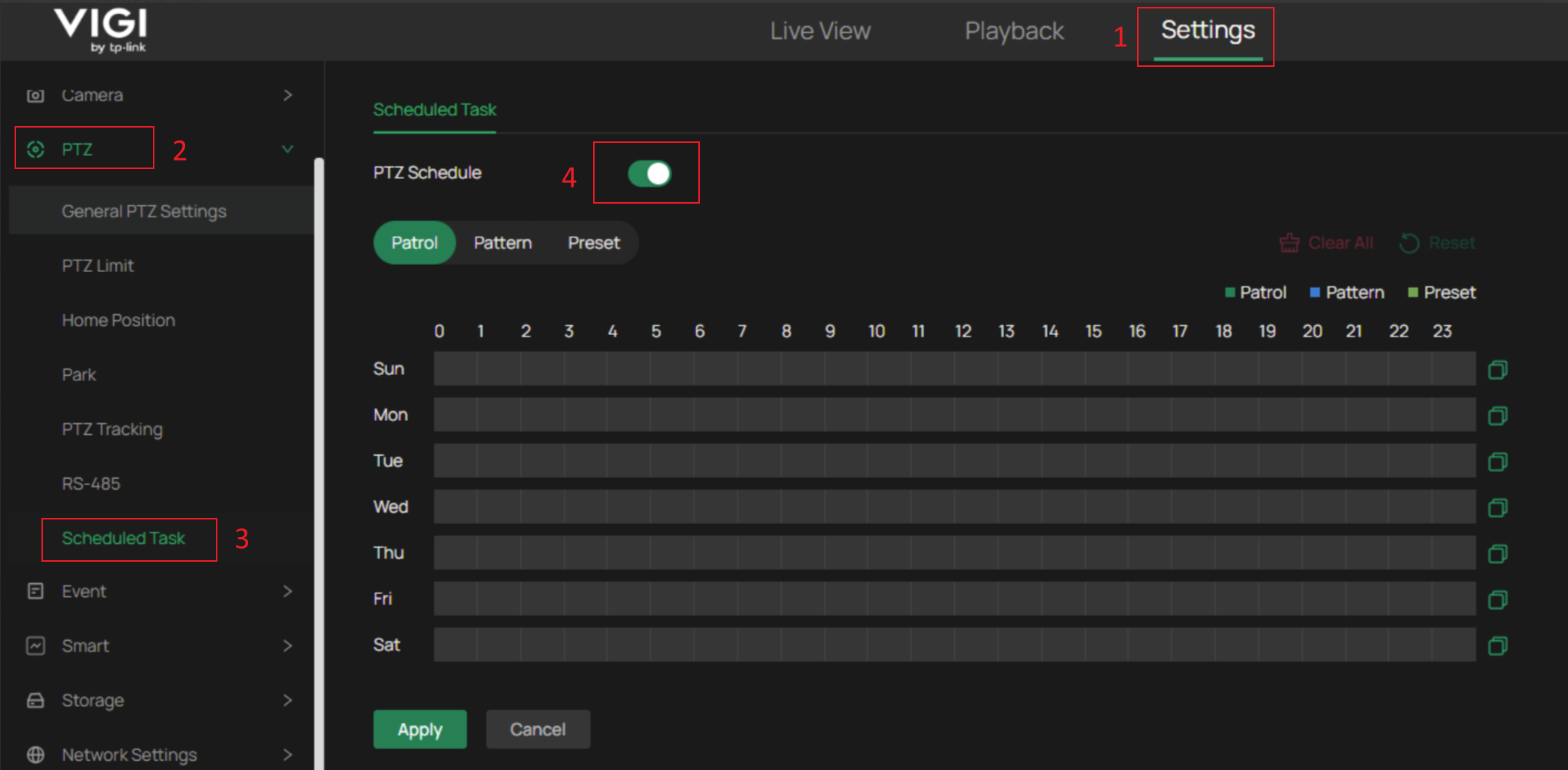
Step 2. After configuring the required PTZ tasks, please go to Settings > PTZ > Scheduled Task and enable the PTZ Schedule function.
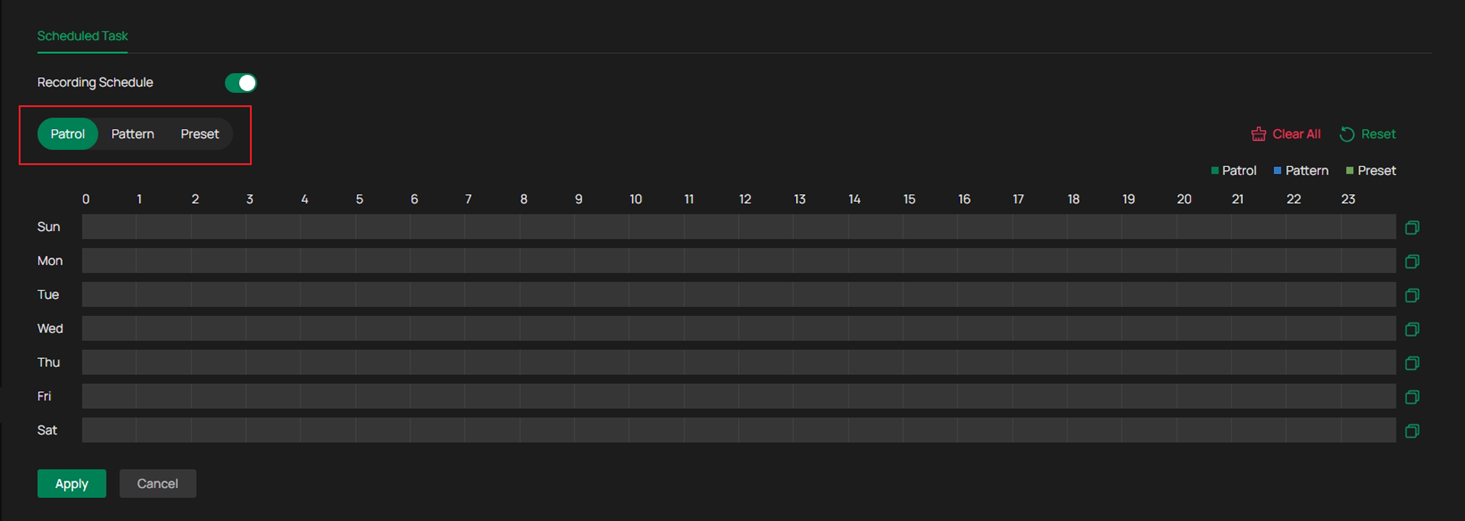
Step 3. After enabling this function, you can select the desired PTZ mode above the timeline bar.
After selecting the desired PTZ mode, drag the timeline bar below to choose the time when you want the PTZ task to be executed, then choose the mode and task ID to complete the initial configuration of the scheduled task. And please don’t forget to save it here. You can also click on an existing scheduled block in the timeline to modify it when the mode selected above is the same as the block, for example, by selecting a specific profile or adjusting the scheduled time.
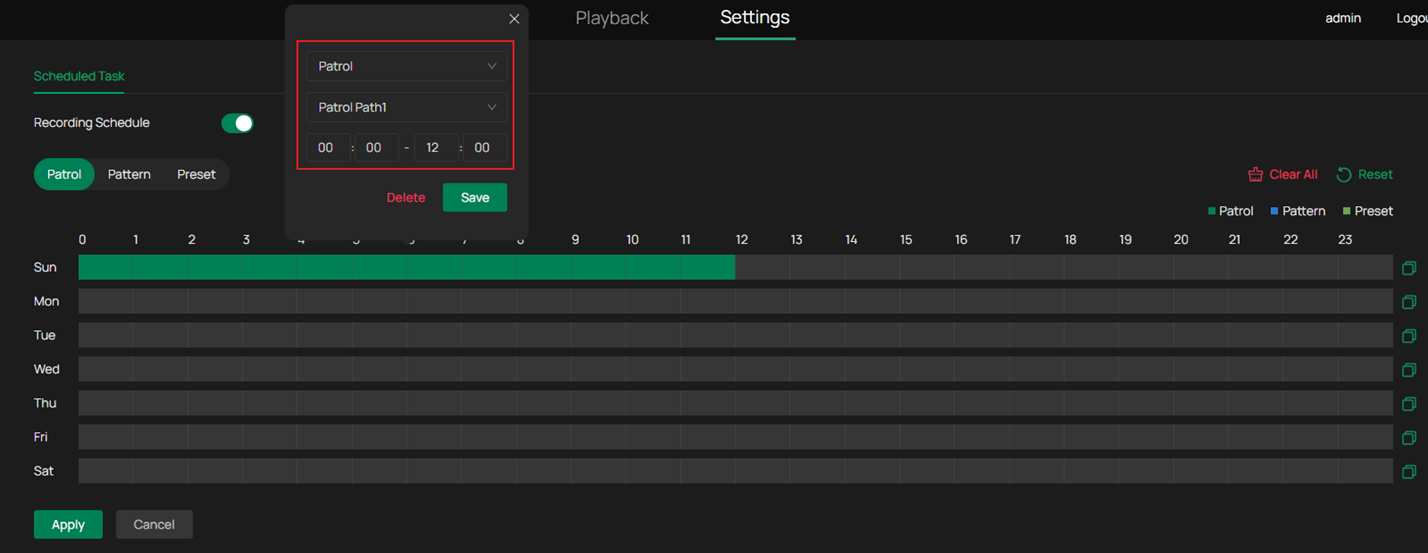
Step 4. (Optional) After completing the configuration for one day, you can copy the same PTZ schedule to other days of the week if they share the same monitoring requirements.
To copy a scheduled day, you can click the copy icon on the right side of that day's timeline bar, select the target days to copy the schedule to, and then click Save.
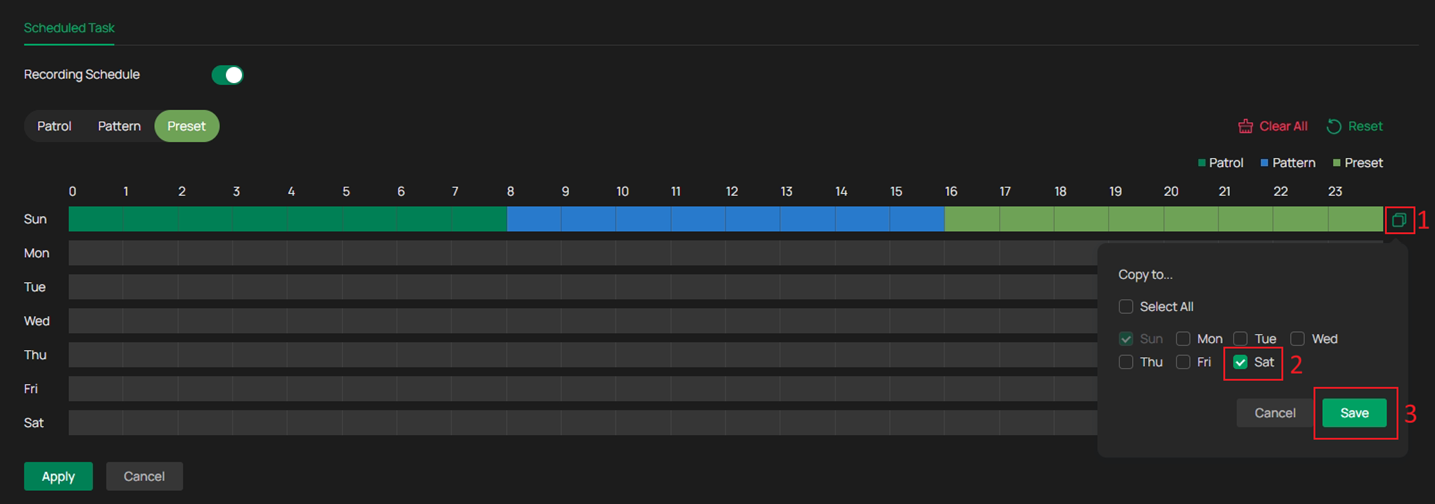
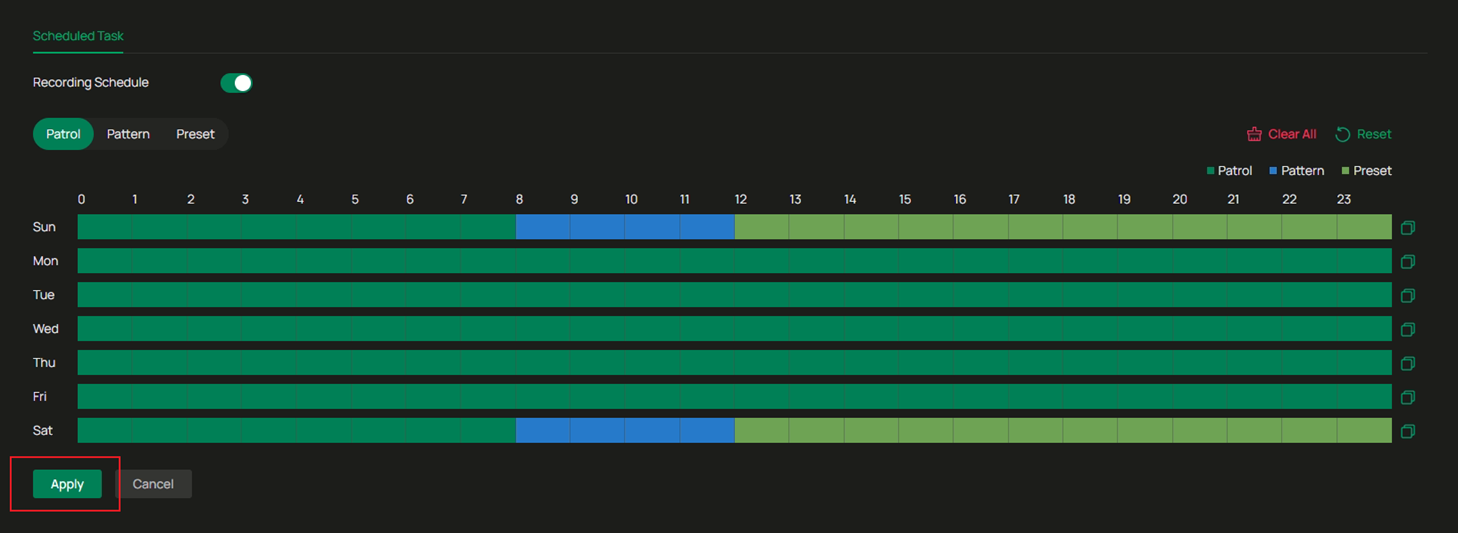
You can place the cursor over the timeline to review whether the schedule aligns with your expectations. Once confirmed, click Apply. Thereafter, the device will operate according to the configured PTZ scheduled tasks. Once a scheduled task has been executed, the IPC will automatically return to its initial position.
Notes: 1. A maximum of 24 different tasks can be scheduled per day.
2. If a scheduled task is interrupted during its execution due to certain reasons (e.g., manual adjustment on PTZ), the original task will automatically resume after a certain period.
Conclusion
Now, you have successfully configured the PTZ Scheduled task function.
Get to know more details of each function and configuration please go to Download Center to download the manual of your product.
Este guia foi útil?
A sua resposta ajuda-nos a melhorar o nosso site.