
How to set up LED control for TP-Link ISP-customized Router
 7787
7787Introduction
The device's LED indicates its activities and status. You can enable the Night Mode feature to specify a time period during which the LED is off. There are two ways to control the LED light: either through the Aginet app or the web interface.
Configuration
Method 1: Via Aginet app
Step 1. Log in to the Aginet app, then click on More > LED Control.
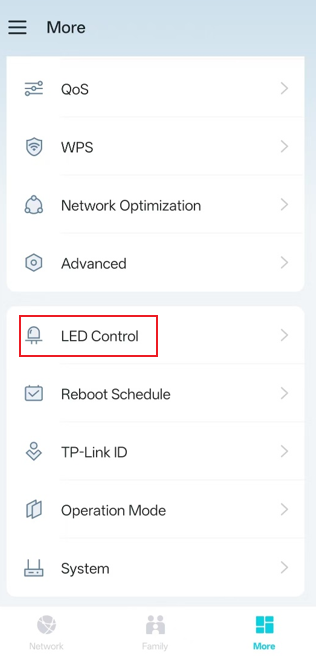
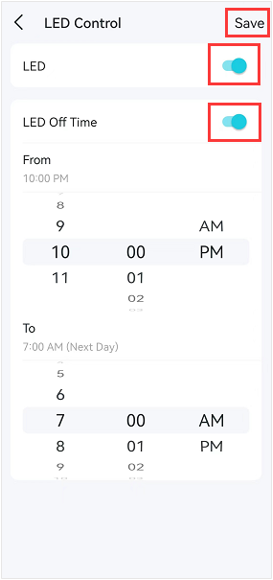
Step 2. Turn off the LED feature, and the device's LED lights will turn off.
If you only want to turn off the LED for a specific period of time, please toggle the LED on, enable LED Off Time, and set the time you want it to stay off.
Tap Save to save the settings.
Method 2: Via the Web Interface Page
Step 1. Ensure your device is connected to the router via Wi-Fi or an Ethernet port. Open a web browser and enter one of these addresses in the browser bar to access the web interface:
- For models starting with E/H: http://tplinkwifi.net
- For models starting with V/N/M: http://tplinkmodem.net
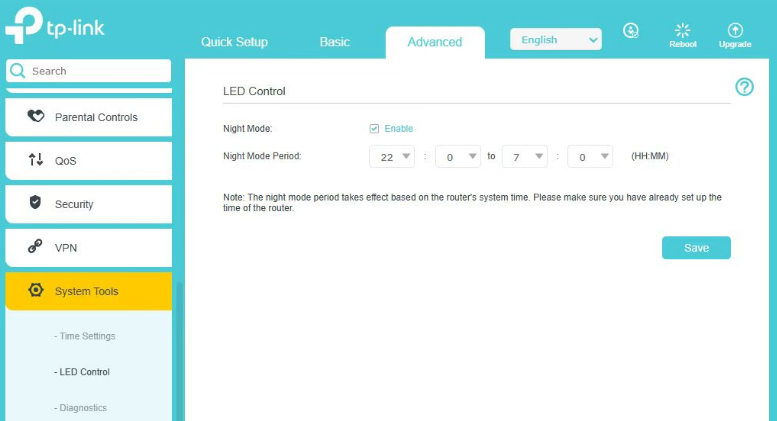
Step 2. Go to Advanced > System Tools > LED Control.
Enable Night Mode. Specify the LED off time, the LED will be off during this period every day, and save it.
Get to know more details of each function and configuration, please go to the Download Center to download the manual of your product.
Is this faq useful?
Your feedback helps improve this site.



TP-Link Community
Still need help? Search for answers, ask questions, and get help from TP-Link experts and other users around the world.