
How to connect Tapo sensors on Kasa app
 21213
21213Introduction
This article provides instructions for adding Tapo sensors via the KH100 in the Kasa App.
Note: If you have already added the KH100 in the Tapo App, please do not add Tapo Sensors through the KH100 in the Tapo App. Instead, add them in the Kasa App; otherwise, the Tapo Sensors will not appear in the Kasa App.
Configuration
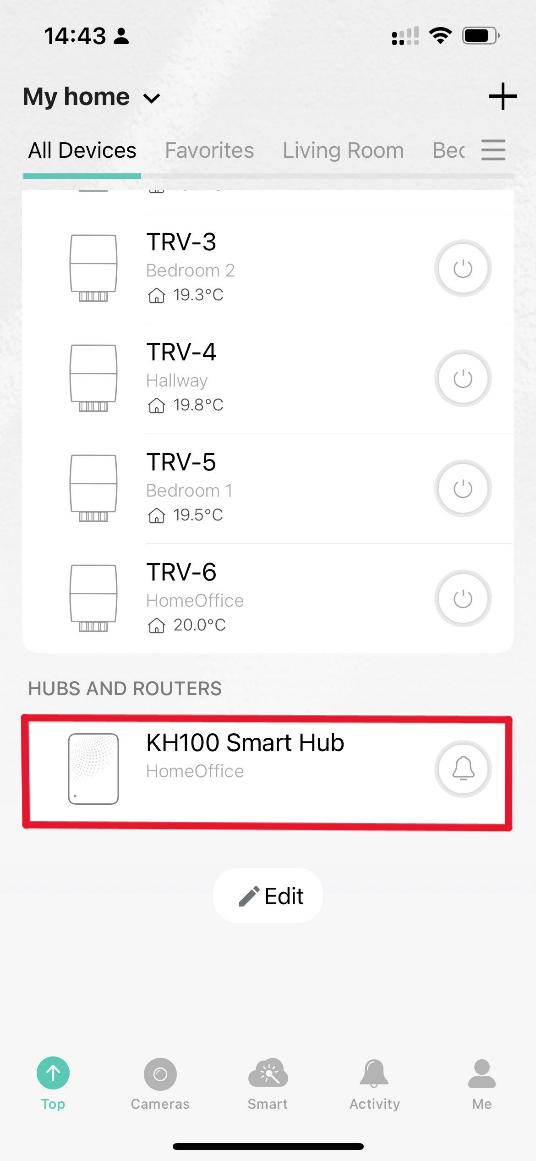
Step 1. Go to the Kasa app and tap the KH100 Smart Hub to open it.
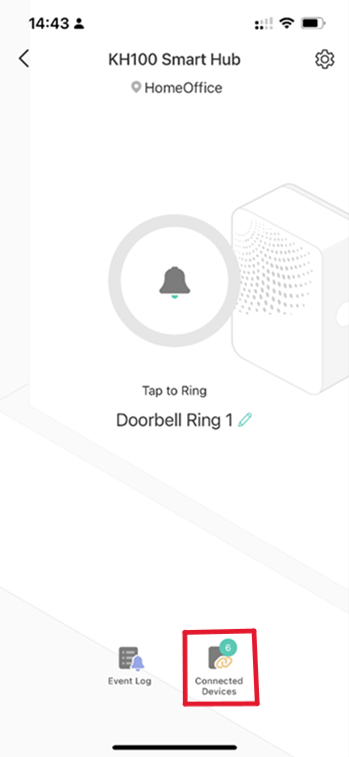
Step 2. Add a new device to your hub by accessing the Connected Devices tab on the Kasa app.
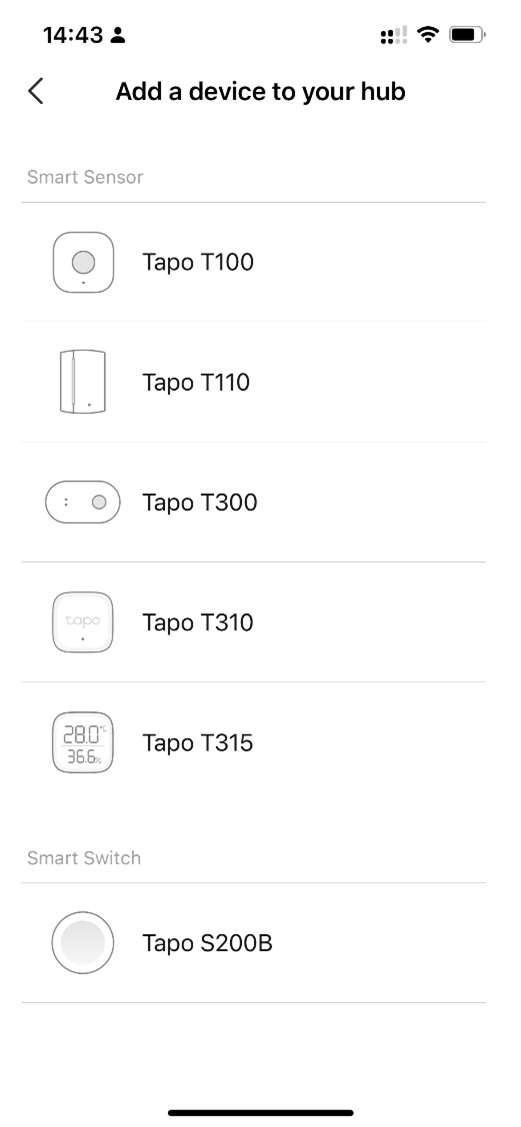
Step 3. Tap the + icon to select the device and wait to pair it successfully.
QA
Q1: Which Tapo devices are compatible with the Kasa app?
A1:
Smart Sensor
- Tapo T100
- Tapo T110
- Tapo T300
- Tapo T310
- Tapo T315
Smart Switch
- Tapo S200B
- Tapo S200D
Is this faq useful?
Your feedback helps improve this site.



TP-Link Community
Still need help? Search for answers, ask questions, and get help from TP-Link experts and other users around the world.