
How to Download/Delete Videos from Your Tapo Camera or Doorbell
Tapo security cameras and video doorbells support three methods for saving and downloading recordings: manually recorded clips, Tapo Care cloud video, and SD Card/Hub Storage footage. Also, now it supports to delete the videos from the storage for your security device.
This guide covers how to download/delete videos from your Tapo camera and doorbell using each method, and explains where Tapo saves recordings so you can find and export them easily.
Key Takeaways
- Tapo cameras support three methods for downloading footage: manually recorded clips, Tapo Care cloud videos, and SD Card/Hub Storage recordings. All are accessible through the Tapo app.
- Manually recorded video clips from live view or playback are saved to Playback and Download in the Tapo app and to your phone's gallery automatically (Storage permission for the Tapo app is required).
- Cloud video storage is time-limited based on your Tapo Care plan. Expired cloud videos cannot be retrieved, so export important clips before they expire.
- SD card recordings can be downloaded in two ways within the Tapo app: by downloading individual detection events, or by using the Clip and Download feature to trim and save a specific segment (one to 10 minutes) from continuous or motion-detection footage.
- Videos downloaded in the Tapo app can be watched offline locally. To export them to your phone's memory or share them, go to Playback and Download, then select Download and save to your phone's album.
- You can delete the video in Playback page in Tapo app.
Manually Record Tapo Camera Footage
In the Tapo app, you can manually record the live view or playback footage of your camera/doorbell.
Step 1. Navigate to the live view or playback page, then click the video recording button to start recording the current footage.
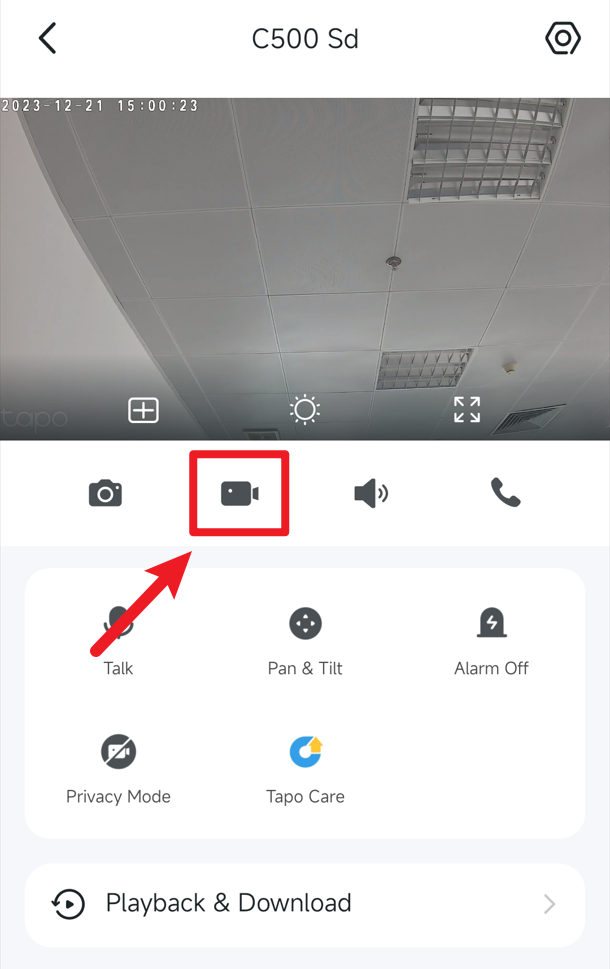
Step 2. The recorded video clips will be saved in Playback & Download and your mobile phone's gallery. You can review them further in the Tapo app.
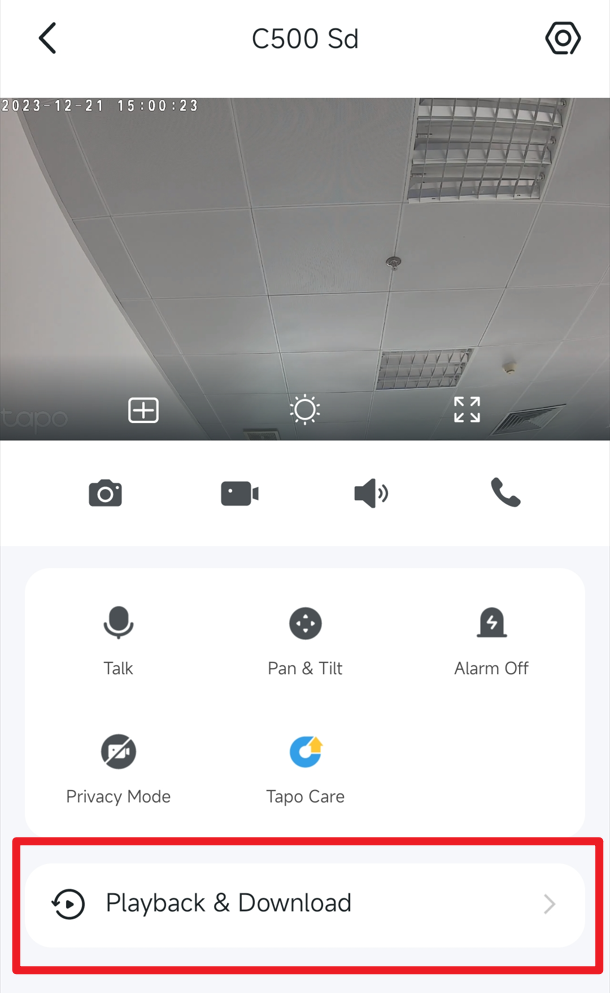
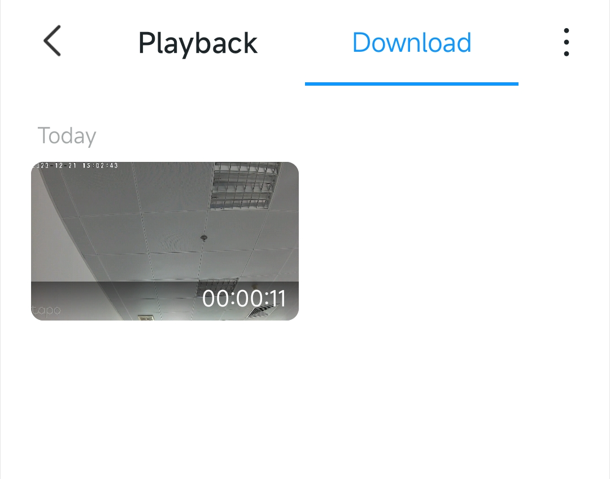
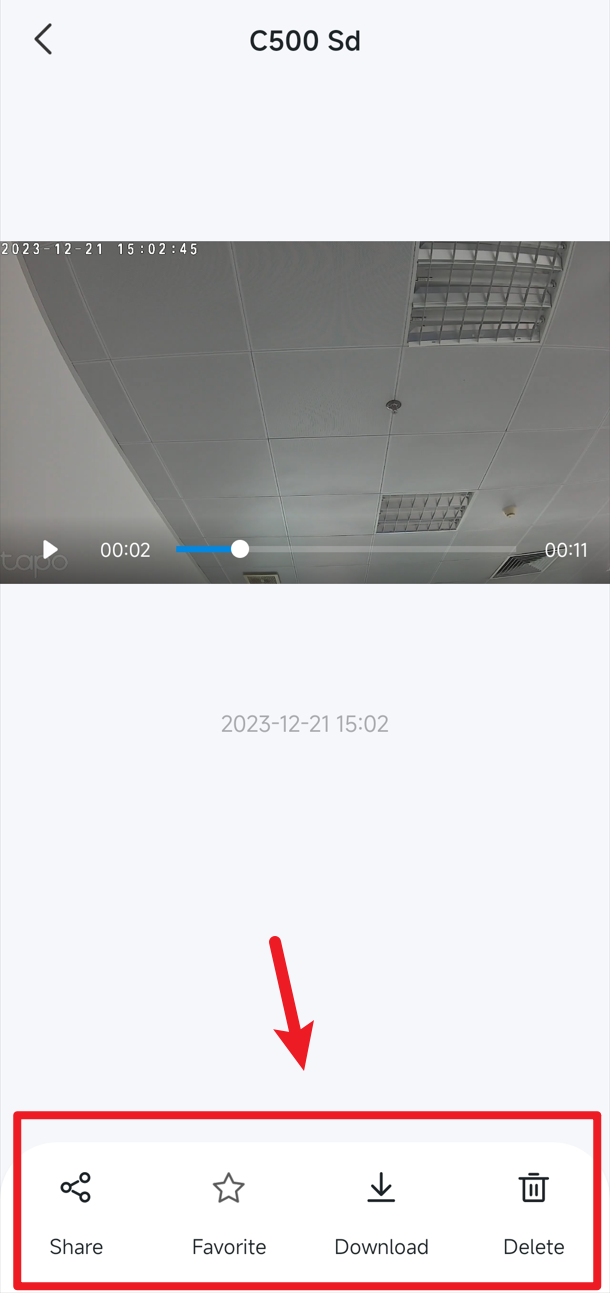
Step 3. On the Tapo app's Playback & Download > Download page, you can view and manage the manually recorded clips. Using the buttons at the bottom, you can quickly share the video or save it to your mobile phone's gallery.
Cloud Video
Cloud video storage time is limited based on your Tapo Care plan; expired cloud videos cannot be retrieved. Please export the videos to local storage in a timely manner if there are any important clips.
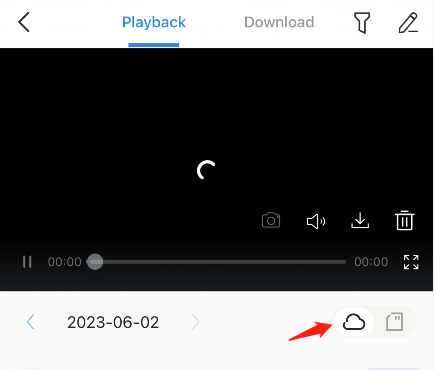
Step 1: Go to the Cloud Video page
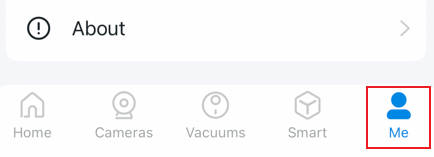
Entry one: Tapo app > Me > Playback & Download > Choose a camera > Select Cloud Video. Note that the location of the Me button may vary by app version. It is located either in the bottom right corner or the top left corner of the app.
Entry two: Tapo app > Click to view the Camera > Playback & Download > Select Cloud Video.
 or
or 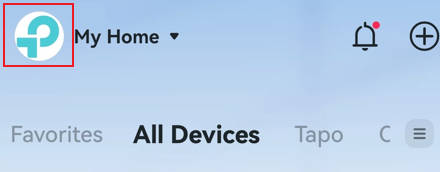
Step 2: Download Video to Tapo App
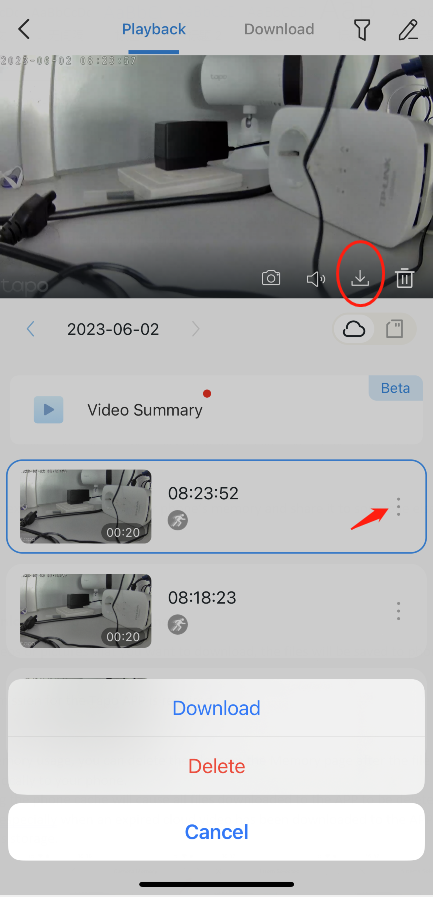
- Choose a cloud video you want to download.
- Click the Download icon under the Liveview screen, or click the More symbol > Download on the video list to start downloading.
SD Card/Hub Storage Recordings
Option 1: Export all the videos
Remove the SD card from the camera, read and download the videos on a computer with an SD card reader. If the SD card recordings cannot be played on the computer, refer to Part 5, Q3 in this FAQ: What can I do if the video recordings from the SD card cannot be played on a computer?
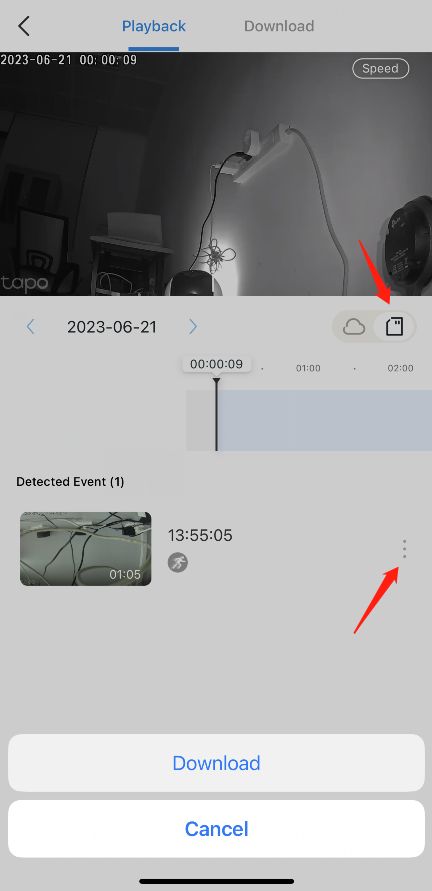
Option 2: Download Detection Events
- For most Wi‑Fi cameras, make sure your phone is connected to the same Wi‑Fi network as the camera. For 4G cameras using a SIM card for internet access, as well as certain Wi‑Fi models like the Tapo C660 KIT, your phone and the camera do not need to be on the same network; just ensure both have a stable internet connection.
- Go to Tapo app Me > Playback & Download > Playback > SD card videos section. Note that the location of the Me button may vary by app version. It is located either in the bottom right corner or the top left corner of the app.
- Locate the detection video you want to download, click the More symbol > Download on the video list to start downloading.
Note: The availability of this feature may vary depending on the specific model, hardware, and firmware version. Refer to your device's details to check if it is supported.
Option 3: Clip and Download Video
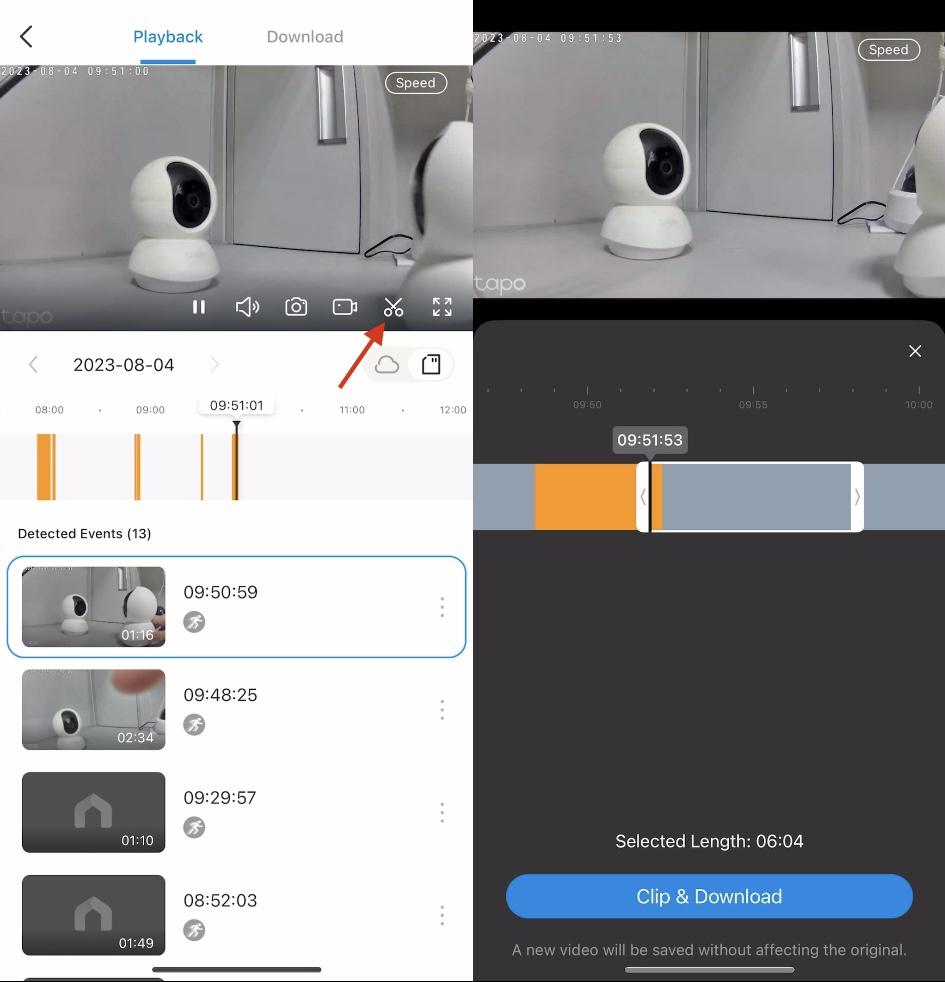
This feature enables users to cut and download desired video segments from continuous recording or motion-detection videos.
- For most Wi‑Fi cameras, make sure your phone is connected to the same Wi‑Fi network as the camera. For 4G cameras using a SIM card for internet access, as well as certain Wi‑Fi models like the Tapo C660 KIT, your phone and the camera do not need to be on the same network; just ensure both have a stable internet connection.
- Go to Tapo app > Me > Playback & Download > Playback > SD card videos section. Note that the location of the Me button may vary depending on the app version. It is located either in the bottom right corner or the top left corner of the app.
- Tap on the screen and click the Scissors icon. Drag the timeline in the blank area horizontally to select the time where the video needs to be trimmed. Move the arrows of the target video section to select the video duration you want to download, then tap Clip & Download. The supported Video Length is 1-10 minutes.
- The downloaded videos will be temporarily saved in the Tapo app, so you can already watch them locally without an internet connection.
- If you want to export the videos to your phone’s memory and share them with someone else, refer to the instructions below. Go to Tapo app > Playback & Download > Download page. Select and download the videos or pictures that you want to download. The files will be saved to your phone’s album.
Note: Clearing the Tapo APP cache will cause all files downloaded to the APP to be deleted. Please be cautious, especially when an expired cloud video has been downloaded to the APP but not to the phone’s storage.
Delete Videos saved in SD Card/Hub
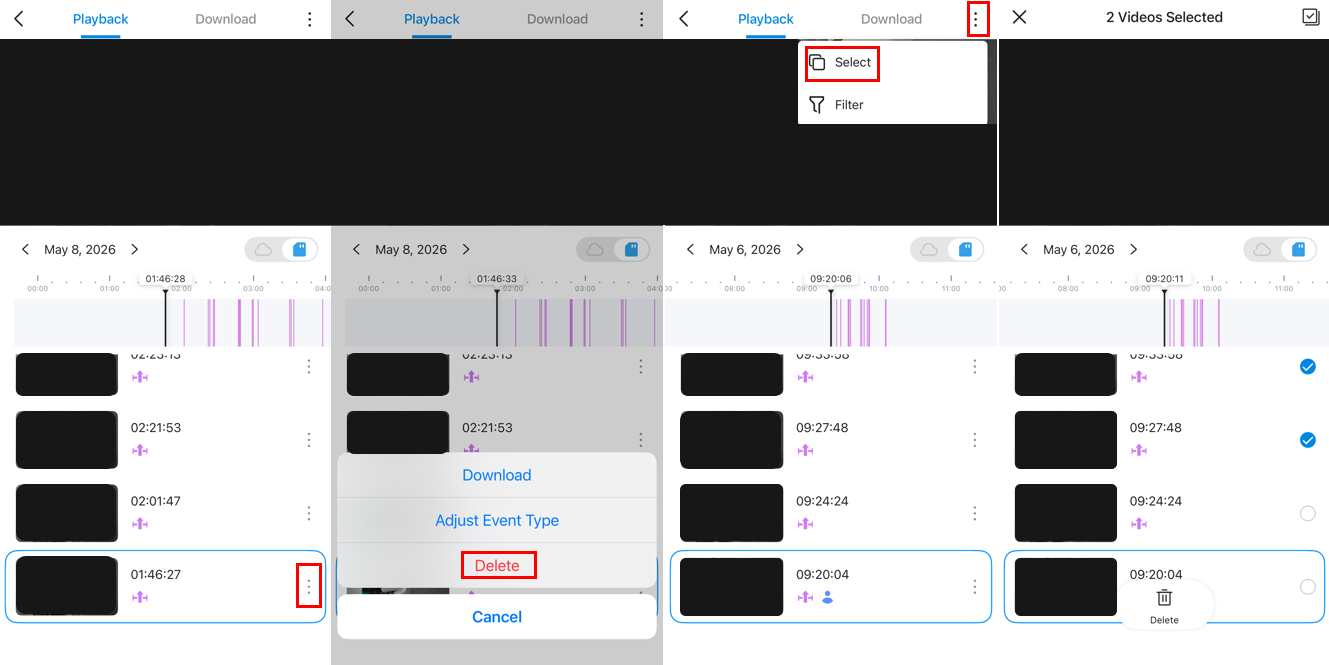
To delete videos stored on an SD card or Tapo Hub, open the Playback & Download page from the device’s Live View screen.
- Delete a single video: Tap the three-dot icon next to the video, then click Delete.
- Delete multiple videos: Tap the three-dot icon in the top-right corner to enter selection mode, choose the videos you want to remove, and confirm deletion.
Note: This feature is currently only supported by select cameras and recordings stored on the Tapo H500. For a full list of supported cameras, see Q2 below.
Q&A
Q1: Why didn't my available storage on the SD card / hard drive change after I deleted videos?
When you delete videos, the space they occupied becomes fragmented free space. To minimize the impact on ongoing recording, the camera doesn't immediately reclaim this fragmented space during operation. Instead, it will be cleared together with other videos when the Loop Recording function reaches the relevant date.
Please don't worry about storage capacity — once Loop Recording is enabled, the camera will automatically delete old videos. If you have any videos you wish to keep, be sure to save them promptly.
Q2: Which cameras support deleting SD card recordings?
The following models support deleting SD card recordings, along with the required hardware and firmware versions:
|
Model |
Hardware Version |
Firmware Version |
|
Tapo C100/TC60/Tapo C101 |
V5/V5.6 |
1.5.4 Build 260528 |
|
Tapo C103/Tapo C104/TCW61 |
V1/V1.6 |
1.2.3 Build 260605 |
|
Tapo C113/TCH62 |
V1/V1.6 |
1.2.4 Build 260605 |
|
Tapo C200/Tapo C201/TC70/Tapo C200C |
V5/V5.6/V5.8 |
1.4.4 Build 260527 |
|
Tapo C202 |
V3 |
1.1.4 Build 260520 |
|
Tapo C212 |
V3 |
1.1.4 Build 260519 |
|
Tapo C220/TC72/TCA72/TCB72 |
V2/V2.6 |
1.3.1 Build 260515 |
|
Tapo C222 |
V2 |
1.5.1 Build 260515 |
|
Tapo C225/TC73 |
V2/V2.2/V2.6 |
1.3.1 Build 260514 |
|
Tapo C230/TC74 |
V1/V1.6 |
1.9.1 Build 260519 |
|
Tapo C232 |
V1 |
1.9.1 Build 260520 |
|
Tapo C320WS |
V2/V2.6 |
1.6.3 Build 260423 |
|
Tapo C325WB |
V2 |
1.3.2 Build 260604 |
| Tapo C615F KIT/TCH50 KIT/TCW50 KIT/TC50 KIT | V1/V1.6 |
1.2.9 Build 260616 |
Get to know more details of each function and configuration please go to Download Center to download the manual of your product.
Looking For More
Is this faq useful?
Your feedback helps improve this site.

TP-Link Community
Still need help? Search for answers, ask questions, and get help from TP-Link experts and other users around the world.