
TP-Link Router Skill for Alexa: Step-by-Step Setup for Voice Control
The TP-Link Router Skill for Alexa lets you control and customize your TP-Link Wi-Fi network using simple voice commands through any Alexa-supported device. This guide covers everything you need to get started, including what you need before setup and how to connect your TP-Link ID to the Alexa app in six straightforward steps.
Key Takeaways
- The TP-Link Router Skill for Alexa lets you control and customize your home network using voice commands through any Alexa-supported device.
- To use the skill, you need an Alexa-supported TP-Link product, a TP-Link ID bound to that product, and the Alexa app installed on a mobile device.
- The TP-Link Router Skill is separate from the TP-Link Kasa Skill — select "TP-Link Router" specifically to control TP-Link Wi-Fi products such as routers and Deco systems.
- Setup requires linking your TP-Link ID to your Alexa account through the Skills and Games section of the Alexa app.
Before You Begin: Prerequisites
To use the TP-Link Router Skill, you must have all three of the following:
- An Alexa-supported TP-Link product. Find out if your device supports Alexa by checking the Alexa Compatibility List for TP-Link Wi-Fi Products.
- A TP-Link ID bound to the Alexa-supported TP-Link product. If you don't have one, please refer to the Wireless Router or Deco.
- A mobile device with the Alexa app installed.
With the TP-Link Router Skill for Alexa, you can now control and customize your home network through simple voice commands.
Note: Currently, this feature is only supported in German (DE),English (US),English (CA),English (IN),English (AU),English (UK/IE),Japanese (JP).
How Do I Enable TP-Link Router Skill?
Step 1. Open the Alexa app.
Step 2. Go to Skills & Games.
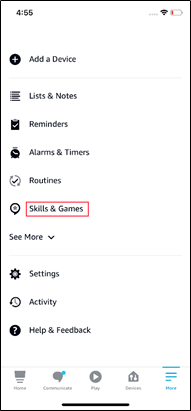
Step 3. Search for and Select the TP-Link Router Skill.
Note: “TP-Link Router” Skill is different from the “TP-Link Kasa” Skill. Please CHOOSE “TP-Link Router” Skill in order to control TP-Link Wi-Fi Products. For more details about these two skills and the differences between them, click What are the Differences between the TP-Link Router Skill and TP-Link Kasa Skill?.
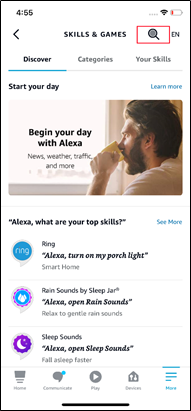
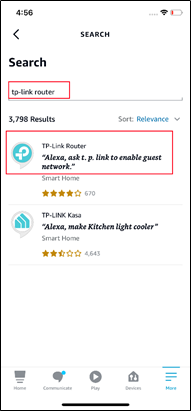
Step 4. Enable the Skill.
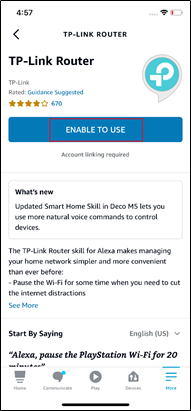
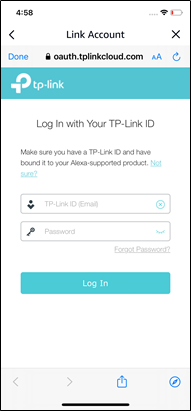
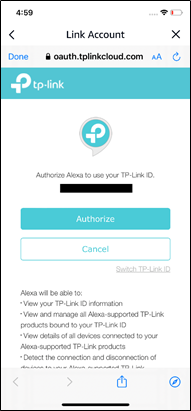
Step 5. Log In with Your TP-Link ID and Authorize.
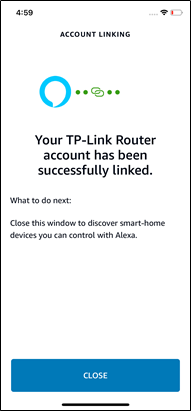
Step 6. Confirm Your Account Is Linked.
Your ID is now linked to Alexa.
You can enjoy using Alexa voice commands to control your TP-Link device directly.
How do I use Amazon Alexa with my TP-Link Alexa-supported products?
If you need to enable the Access Control Skill, please refer to the FAQ How to enable the Access Control Skill in your Alexa App.
Is this faq useful?
Your feedback helps improve this site.


-F_large_1560310831908g_normal_1577328413052u.jpg)

TP-Link Community
Still need help? Search for answers, ask questions, and get help from TP-Link experts and other users around the world.