What Is Latency? Ping, Jitter, and Bandwidth Explained
Published: June 10, 2025 · Last Updated: July 2026
Published: June 10, 2025 · Last Updated: May 2026
Quick Answer:
-
Latency is the time it takes for a data packet to travel from your device to a server and back, measured in milliseconds (ms). The lower the number, the faster your connection responds.
-
Ping measures latency; jitter measures how much latency varies between packets. Both affect how smooth your connection feels, not just how fast it is.
-
Under 50 ms is good for most online activities; under 30 ms is required for competitive gaming; above 150 ms causes noticeable lag on video calls and interactive apps.
Latency is the time it takes for data to travel from your device to a server and back, measured in milliseconds (ms). A lower latency means a faster, more responsive connection. High latency causes the lag, delay, and choppiness you notice during video calls, online gaming, live streaming, and even smart home controls. This guide explains latency clearly and how it compares to ping, jitter, and bandwidth.
Latency in 30 Seconds
Latency = the round-trip travel time of data, measured in milliseconds (ms)
Lower ms = faster response. Under 50 ms is good. Over 150 ms is noticeable.
It is NOT the same as speed. Fast internet can still have high latency.
Table of Contents
Latency vs Ping vs Jitter: What Is the Difference?
Latency vs. Bandwidth: What Is the Difference?
Typical Latency by Connection Type
Latency for Non-Gaming Use Cases
What Is Latency?
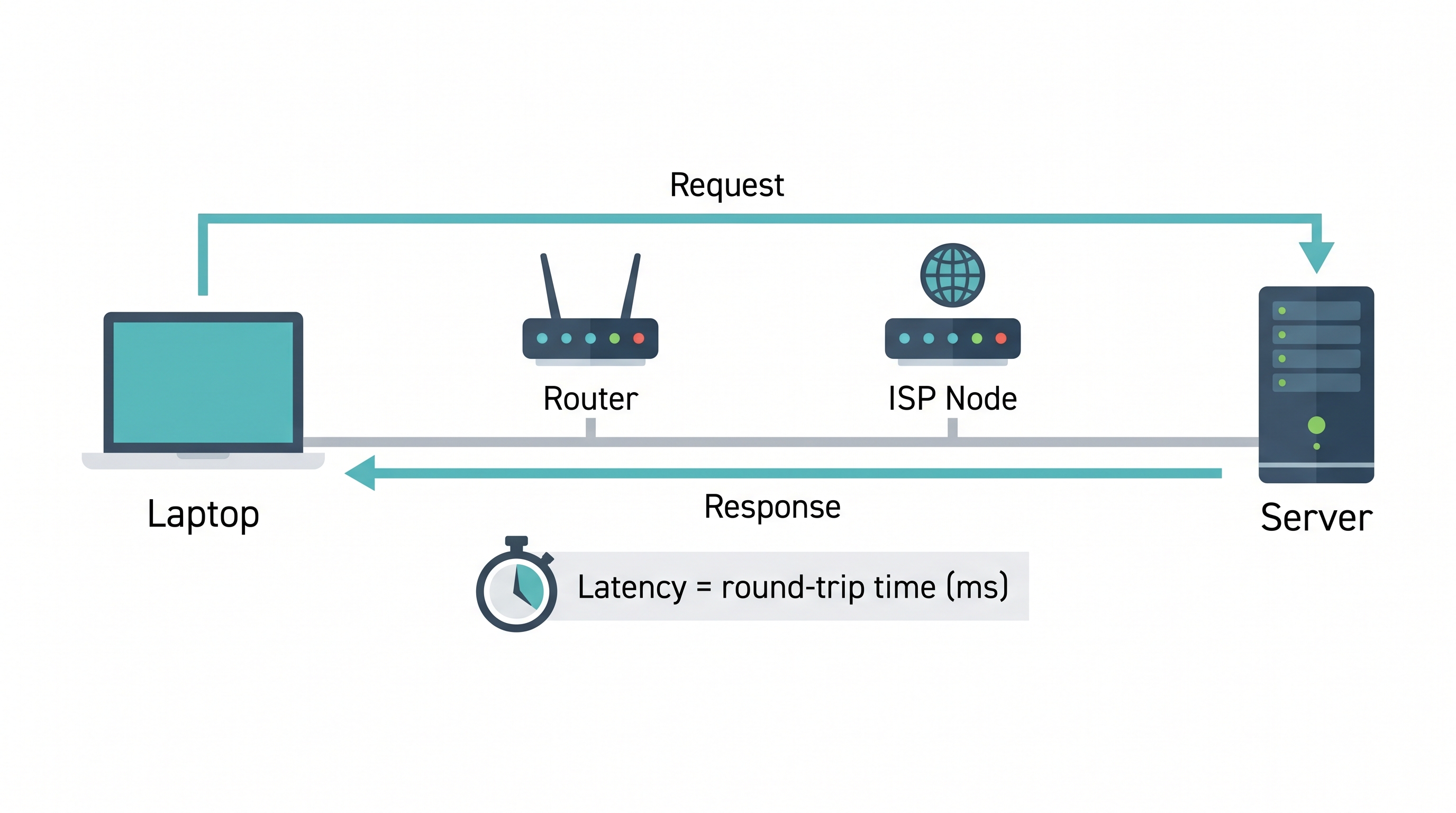
Latency is the delay between an action and its result over a network. When you click a link, send a message, or move your character in a game, your device sends a data packet to a server. That packet travels through your router, your internet service provider (ISP), undersea cables or cell towers, and finally reaches the destination server, and then the response travels all the way back. The total time for that round trip is your latency.
Latency is measured in milliseconds (ms). Every additional hop your data takes from your device to a router, to an ISP node, to a regional exchange, to the destination server adds a few milliseconds. The more hops and the farther they are, the higher the latency.
Key takeaway: Latency measures responsiveness, not volume. It is the reason fast internet can still feel slow.
Latency vs Ping vs Jitter: What Is the Difference?
These three terms are often used interchangeably, but they measure different things.
|
Term |
What It Measures |
Unit |
Good Value |
|---|---|---|---|
|
Latency |
Total round-trip delay for a data packet |
ms |
Under 50 ms |
|
Ping |
A test that measures latency (not a separate thing) |
ms |
Under 50 ms |
|
Jitter |
How much latency varies between packets |
ms |
Under 20 ms |
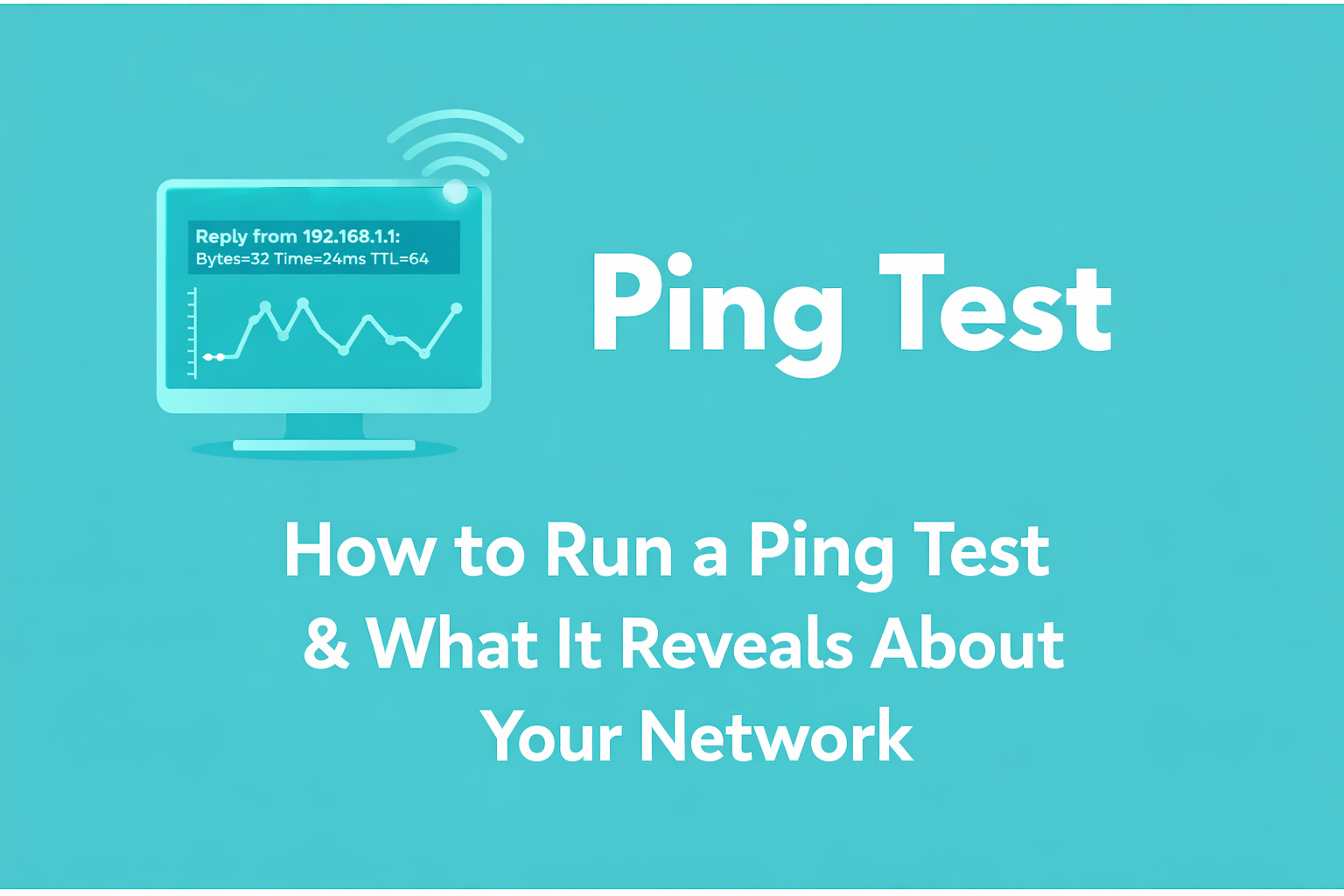
Latency is the actual delay in your connection. "Ping" is a tool and a number; when someone says "my ping is 80 ms," they mean their measured latency is 80 ms. Ping is the diagnostic; latency is what it measures. You can test ping using a speed test site or the command line.
Jitter can cause unstable connections even when your latency seems acceptable. Jitter is the inconsistency in the timing of successive data packets. If your latency is 40 ms on one packet and 120 ms on the next, your jitter is 80 ms. High jitter causes choppy audio on calls, rubberbanding in games, and buffering during streams, even with a technically decent average ping.
Key takeaway: Low latency is good. Low jitter is what makes low latency feel smooth.
Latency vs. Bandwidth: What Is the Difference?
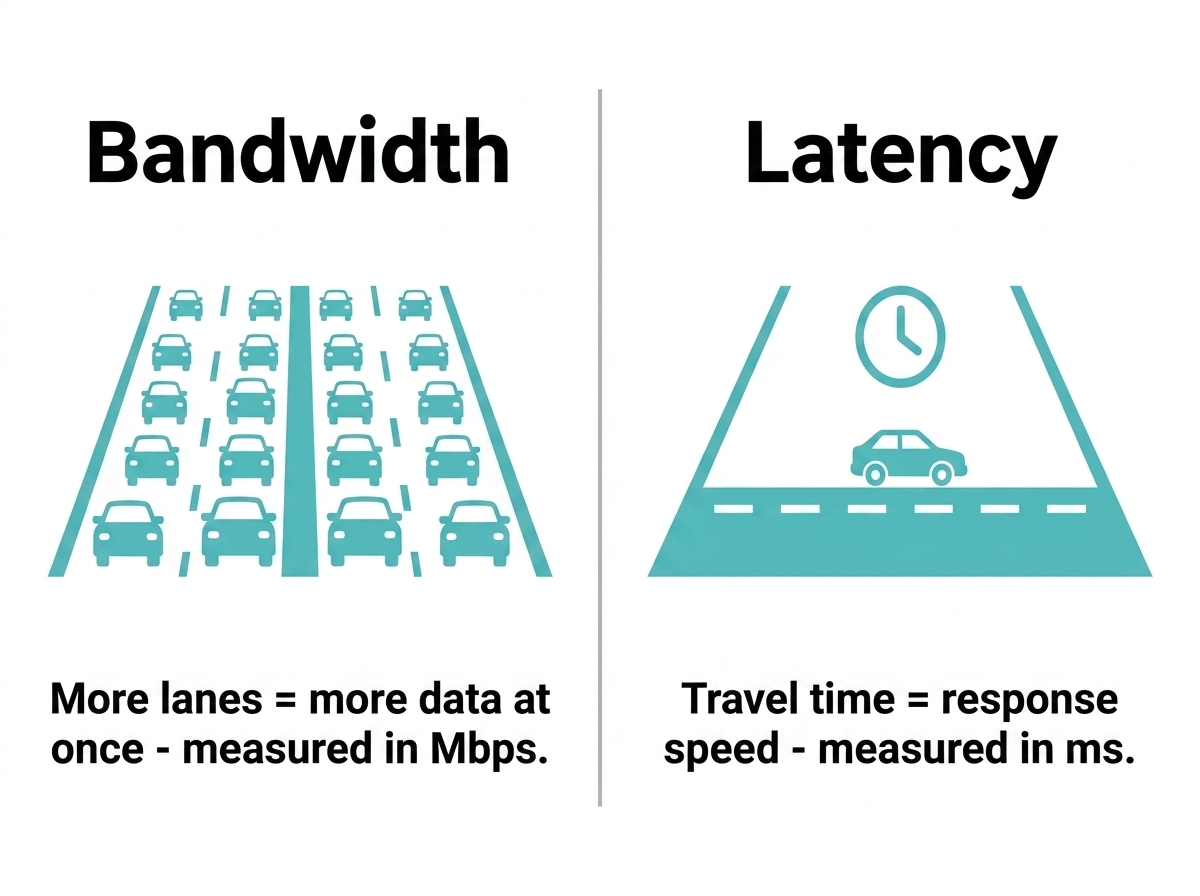
This is one of the most commonly confused distinctions in networking.
|
Latency |
Bandwidth |
|
|---|---|---|
|
What it is |
How fast does a single packet complete a round trip |
How much data can be moved per second |
|
UUnit |
Milliseconds (ms) |
Megabits per second (Mbps) |
|
Analogy |
The speed of one car from A to B |
Number of lanes on the road |
|
Affects |
Responsiveness, reaction time |
Download/upload speed, file transfer |
|
Fast bandwidth + high latency? |
Yes, this is common and frustrating |
- |
A 1 Gbps fiber plan gives you enormous bandwidth; you can download a 4K movie in seconds. But if your connection routes data through congested nodes or distant servers, your latency can still be 150 ms or higher. For video calls and gaming, that high latency matters far more than raw download speed.
A 50 Mbps plan with 10 ms latency will feel snappier for interactive tasks than a 500 Mbps plan with 90 ms latency.
Key takeaway: Bandwidth is about volume. Latency is about the speed of response. For anything interactive, latency wins.
What Is a Good Latency?
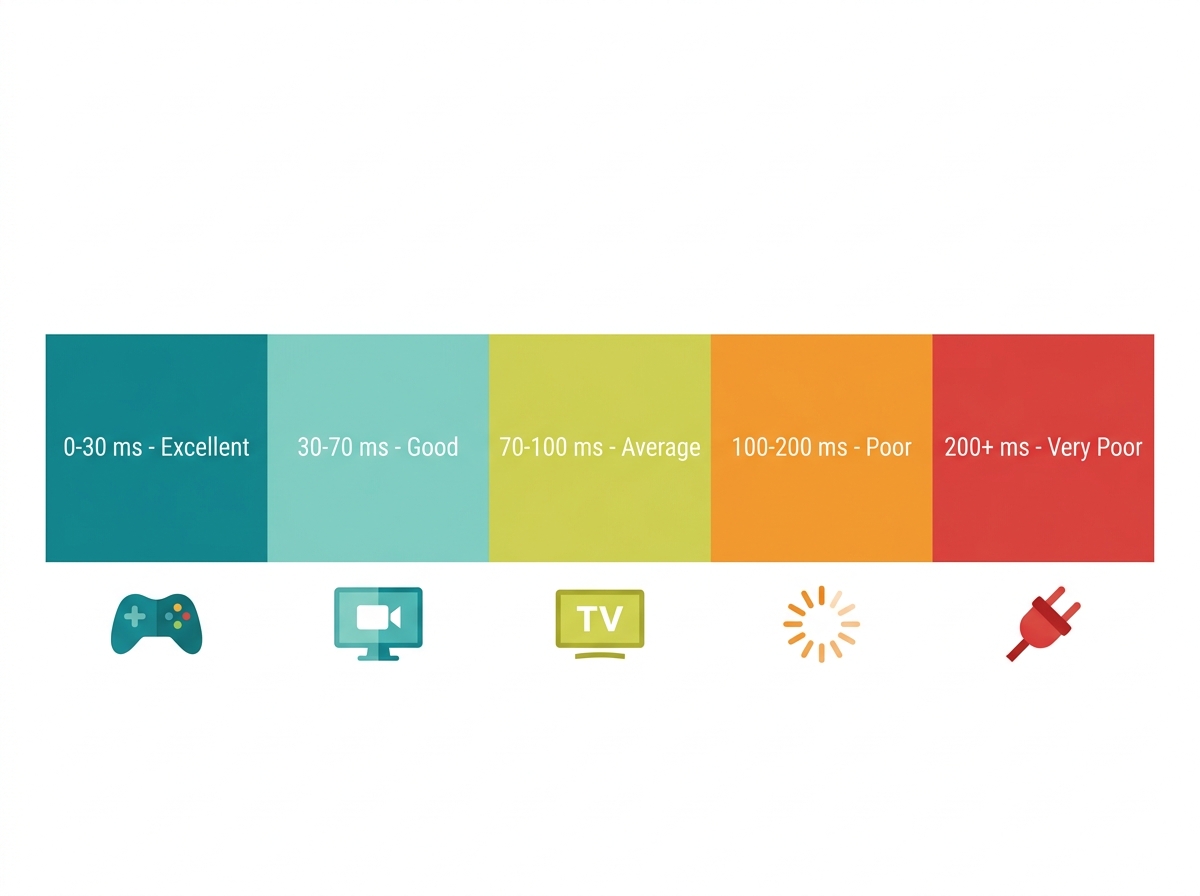
Here are the standard latency ranges and what they mean for specific use cases.
|
Latency Range |
Rating |
Notes |
|---|---|---|
|
0 to 30 ms |
Excellent |
Ideal for competitive gaming and real-time video |
|
30 to 70 ms |
Good |
Comfortable for most online activities |
|
70 to 100 ms |
Average |
Noticeable in fast-paced games; fine for calls |
|
100 to 200 ms |
Poor |
Causes lag in games; choppy on video calls |
|
200+ ms |
Very poor |
Severe lag; satellite-level delay |
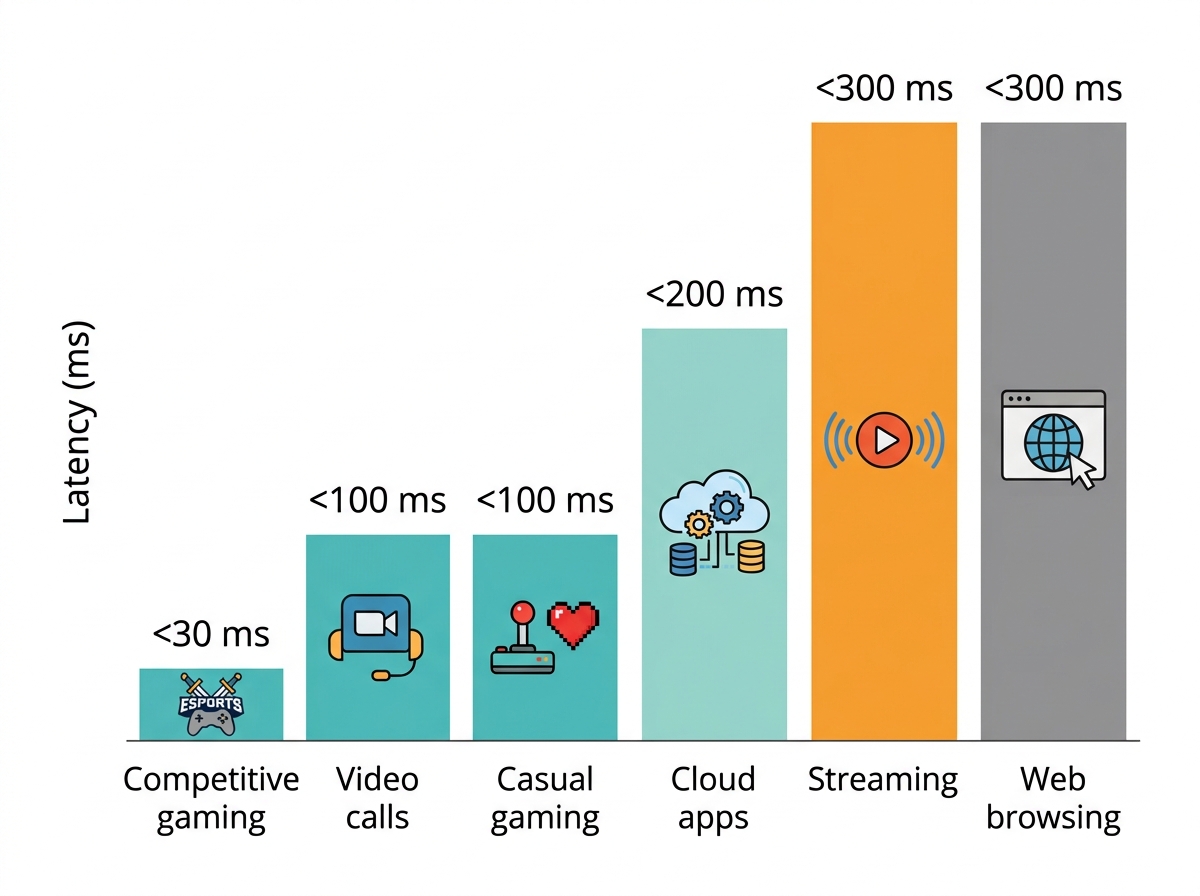
By use case:
-
Online gaming (casual): Under 100 ms is playable. Under 50 ms is comfortable.
-
Competitive gaming: Under 30 ms. In games like Valorant or Mobile Legends, a 100 ms delay is not just inconvenient; it can cost you a match.
-
Video calls (Zoom, Google Meet): Under 100 ms keeps conversations natural. Over 150 ms causes noticeable overlap and awkward silences.
-
Streaming and live broadcasts: Under 150 ms for live content; buffered streaming is more tolerant and can handle up to 300 ms.
-
Remote work and cloud apps: Tools like Google Docs and cloud desktops work well under 200 ms. Above that, typing and real-time syncing can feel delayed.
-
IoT devices (smart home): Under 500 ms is generally acceptable. Smart sensors and cameras need a low-latency connection to respond in real time, but they are less sensitive than gaming or calls.
-
Web browsing: Under 300 ms feels fast. Most casual browsing is barely affected by latency unless pages involve many server requests.
Key takeaway: There is no single "good latency"; it depends on what you are doing. Competitive gaming needs under 30 ms. Web browsing is fine at 150 ms.
Typical Latency by Connection Type
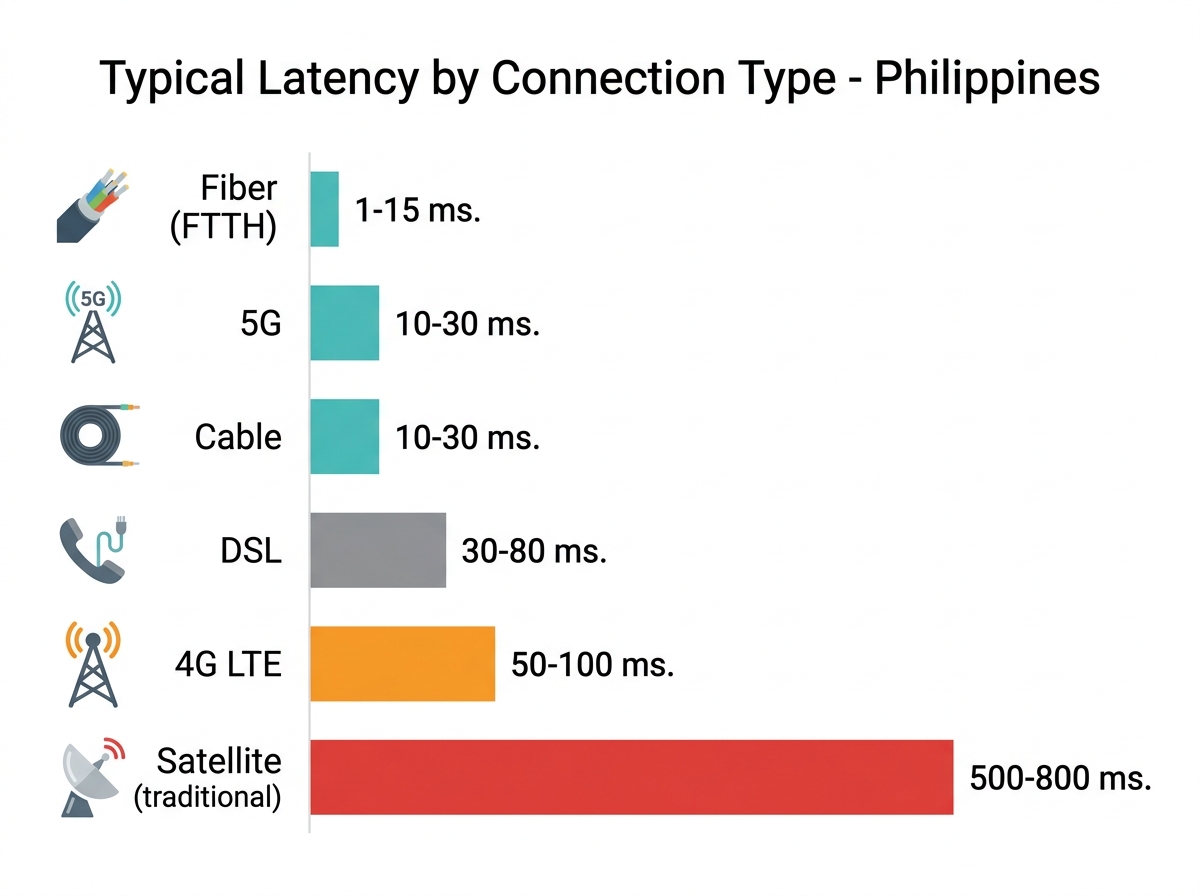
The type of internet connection you have sets the floor for your latency before any other factors come in.
|
Connection Type |
Typical Latency |
Notes |
|---|---|---|
|
Fiber (FTTH) |
1 to 15 ms |
Best-in-class. PLDT Fibr, Globe At Home Fiber, and Converge FiberX subscribers typically see 5 to 20 ms to local servers. |
|
Cable |
10 to 30 ms |
Shared infrastructure can introduce congestion during peak hours. |
|
DSL |
30 to 80 ms |
Common in areas without fiber. Adequate for browsing and calls; limiting for gaming. |
|
5G (fixed/mobile) |
10 to 30 ms |
Now widely available in Metro Manila, Cebu, and Davao. Comparable to cable for latency. |
|
4G LTE |
50 to 100 ms |
Variable. Can spike higher during congestion. Common for mobile gaming in PH. |
|
Satellite - LEO (Starlink) |
25 to 60 ms |
Starlink's low-Earth orbit reduces this significantly vs. older geostationary satellites. |
|
Satellite - traditional |
500 to 800 ms |
Geostationary satellites are not suitable for real-time gaming or video calls. |
Philippine context: Fiber subscribers on PLDT, Globe, or Converge connecting to local Philippine servers typically see 5 to 20 ms. Connecting to servers in Singapore or the US can push latency to 30 to 80 ms or higher, depending on submarine cable routing. The Philippines relies on several undersea cable systems, including the SEA-US and JUPITER cables. When congestion or cable maintenance affects these routes, international latency rises for all ISPs simultaneously.
Key takeaway: If you have fiber, the connection type itself is rarely your latency problem. The culprit is usually your local network setup, server distance, or peak-hour congestion.
What Causes High Latency?
Understanding the causes helps you target the right fix.
-
Distance to the server. The farther away the server is, the longer the data must travel. Connecting to a game server in the US from the Philippines adds 100 to 200 ms before any other variables.
-
Network congestion. Too many users on the same infrastructure slow down data routing. In the Philippines, this is most noticeable between 7 and 10 PM, when home internet use peaks across urban areas. During these hours, even a fast fiber plan can show higher latency.
-
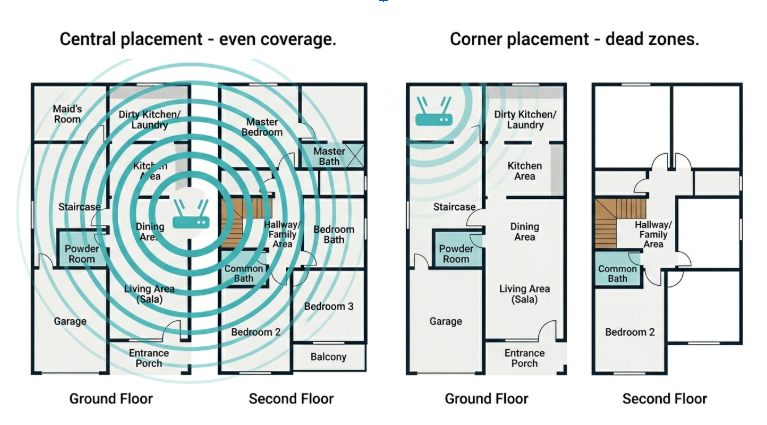
Wi-Fi signals weaken through thick walls, metal appliances, and nearby electronics like microwave ovens and cordless phones. Each retransmission caused by interference adds latency.
-
Old equipment. Routers and modems older than 3 to 5 years may lack the processing power and Wi-Fi standards to handle modern network demands efficiently.
-
Background traffic. Automatic OS updates, cloud backups, and active streaming on other devices consume bandwidth and introduce congestion on your local network, raising latency for everything else.
-
ISP routing problems. Your internet service provider (ISP) sometimes routes data through suboptimal paths. This can happen during network maintenance, traffic rerouting, or undersea cable issues, a real concern in the Philippines, where international traffic depends on a limited number of submarine cable systems.
-
Mobile network handoff lag. For mobile connections, switching between cell towers causes brief but sharp latency spikes. This is a common cause of sudden lag in mobile games in PH.
Key takeaway: Most high-latency problems are due to server distance, congestion (peak hours or local network), or old equipment, and most are fixable.
How to Check Your Latency
There are several free and easy ways to test ping and check your current latency.
Online tools:
-
Speedtest.net - Shows ping, download, and upload speed. Choose a local server for the most accurate latency reading.
-
Fast.com - Owned by Netflix. Simple interface; also shows latency.
-
nPerf - Useful for Philippine users; has local server options.
Command line:
Windows (Command Prompt):
ping google.com
ping 8.8.8.8
Mac / Linux (Terminal):
ping -c 10 google.com
ping -c 10 8.8.8.8
The -c 10 flag sends 10 packets, giving you a jitter reading alongside average latency. Look at the "avg" value and the variance between results. A wide variance means high jitter.
In-game tools: Most online games show live ping in the corner of the screen or in the settings panel. This is your real-world latency to the game's server, often more meaningful than a general speed test.
For a more detailed walkthrough of ping testing tools, see our guide to test your internet speed.
Key takeaway: Use a speed test for general reading. Use the command line with 10 packets if you want to catch jitter, too.
How to Reduce Latency
Most latency fixes come down to three things: shorten the data's travel path, reduce congestion on your network, and upgrade equipment that is creating bottlenecks. The basics- using a wired Ethernet cable for a direct link to your router, moving closer to your Wi-Fi access point, restarting the router regularly to clear temporary issues, and closing background apps- make a significant difference with no hardware cost.
For a full step-by-step guide on reducing ping, including gaming-specific optimizations for Mobile Legends, DOTA 2, and Valorant, PH server selection, and QoS setup, see our dedicated guide: How to Lower Ping Rate for a Smoother Gaming Experience.
For general latency improvement across your entire network, the single most impactful hardware change is upgrading to a modern router with Wi-Fi 6 or Wi-Fi 7.
Latency for Non-Gaming Use Cases
Gaming gets most of the attention around latency, but it affects every part of your connected life.
Video Calls (Zoom, Google Meet, Microsoft Teams)
For WFH setups in the Philippines, video call quality depends more on latency and jitter than on raw download speed. Even on a fast plan, high jitter causes audio that cuts in and out, voices overlapping, and frozen video frames. A 50 Mbps connection with 15 ms latency and low jitter will perform better on Zoom than a 200 Mbps plan with 80 ms latency and unstable jitter.
Smart Home and IoT Devices
Smart homes and IoT devices depend on reliable, low-latency connections more than most users realize. Like security cameras, smart home devices need a stable, low-latency connection to stream footage reliably, especially for remote monitoring. This is best for OFW families monitoring their homes in the Philippines from abroad. Smart sensors and smart hubs also benefit from low latency to ensure automations trigger in real time. Wi-Fi dead zones are a common cause: Sensors at the edge of your signal range will show higher latency than those close to the router.
Cloud Apps and Remote Work
Tools like Google Docs, Notion, and cloud-based design software (Figma and Canva) sync data continuously. High latency means your edits take a visible moment to register or sync, which compounds into significant friction over a full workday. For remote workers on cloud desktops or VDI environments, anything above 150 ms starts to feel like working through a slow tunnel.
Live Streaming and Content Creation
Live streaming to YouTube or TikTok, or participating in interactive live sessions, requires low latency for real-time audience interaction. If your connection latency is high, there is a longer gap between what you do and when viewers see it, which matters for interactive formats. Buffered (pre-recorded) uploads are far more forgiving.
Mobile Internet and 5G
For Filipinos using mobile Wi-Fi devices or phone hotspots, 5G brings latency close to cable levels (10 to 30 ms in good signal areas). 4G LTE, still the primary signal in many provincial areas, typically runs 50 to 100 ms. Switching between towers or from 5G to LTE mid-session can spike latency temporarily.
Key takeaway: Latency is not just a gaming concern. Video calls, smart home reliability, and remote work productivity all depend on it.
When to Upgrade Your Network
If you have tried the basics and latency is still a persistent problem, the equipment may be the bottleneck.
For home networking and WFH setups: A modern router with Wi-Fi 6 (802.11ax) or Wi-Fi 7 (802.11be) reduces per-device latency significantly, especially in homes with many connected devices. Wi-Fi 7 introduces Multi-Link Operation (MLO), which lets devices connect across multiple bands simultaneously, cutting latency further than Wi-Fi 6 alone. TP-Link's Wi-Fi routers include Archer BE series models supporting Wi-Fi 7, a strong upgrade for households dealing with congestion from multiple devices.
For larger homes or condos, mesh systems eliminate the dead zones and signal-to-wall degradation that inflate Wi-Fi latency. The Deco mesh Wi-Fi system, including the Deco BE65 and BE85, which support Wi-Fi 7, extends coverage without the latency penalty of range extenders, which double-hop traffic and can add 20 to 30 ms.
For gaming-specific setups: TP-Link's gaming technology lineup includes routers with built-in QoS, game acceleration, and tri-band support designed to prioritize gaming traffic. These are covered in more detail in our companion guide: How to Lower Ping Rate for a Smoother Gaming Experience.
For extending your network: If you need to cover a garage, second floor, or separate office area, network expansion options like powerline adapters and access points keep latency lower than Wi-Fi extenders by avoiding the double-hop penalty.
Key takeaway: If your router is more than 4 years old or does not support Wi-Fi 6 or Wi-Fi 7, upgrading is likely the highest-impact change you can make.
Frequently Asked Questions
Is ping the same as latency?
Ping and latency refer to the same measurement: the round-trip travel time of a data packet in milliseconds. Technically, ping is the tool and latency is what it measures, but in everyday use, the terms are interchangeable. When your game shows "ping: 45 ms," that is your latency to that game's server.
Can fast internet still have high latency?
Yes, bandwidth and latency are completely independent, and this is one of the most common home networking misunderstandings. A 1 Gbps plan with poor routing, old router hardware, or congested peak-hour traffic can still produce 150+ ms latency. A 50 Mbps plan with a modern router and a nearby server can deliver under 20 ms. If your fast plan still feels laggy on video calls or gaming, latency is the issue to fix, not your plan tier.
What is a good latency for gaming?
Under 50 ms is comfortable for most online games; under 30 ms is required for competitive titles. Above 100 ms, you will notice input lag in fast-paced games. Mobile Legends and DOTA 2 are slightly more forgiving than first-person shooters like Valorant, where a 50 ms difference is meaningful. For gaming-specific fixes and PH server guidance, see our full guide: How to Lower Ping Rate for a Smoother Gaming Experience.
What is jitter, and why does it matter?
Jitter is the variation in latency between consecutive data packets, and it matters more than most people realize. A consistent 40 ms connection feels stable; a connection bouncing between 20 ms and 140 ms feels choppy and unreliable, even though the average looks acceptable. Jitter above 20 ms is noticeable on video calls and causes the cutting-in-and-out audio quality that many WFH professionals in the Philippines experience during peak hours.
Why does my internet lag at night?
Peak congestion hours in the Philippines are 7 and 10 PM, when household internet usage surges across PLDT, Globe, and Converge networks. During this window, shared ISP infrastructure handles dramatically more traffic, and latency rises even on fast fiber plans. If your connection feels sluggish consistently every evening but is fine in the morning, the cause is ISP-side congestion, not your router or equipment.
Why does latency matter for smart homes?
Smart device cameras, Smart sensors, automated locks, and smart plugs rely on a continuous, low-latency connection to respond in real time. A smart security camera that buffers due to high latency may miss moments or fail to alert you promptly. A low-latency fiber plan at home is only half the equation.
Does a VPN affect latency?
A VPN almost always raises latency because it routes your traffic through an additional server, adding one more hop. However, gaming VPNs like ExitLag or Mudfish are specifically optimized to choose routes that bypass congested ISP paths. In some cases, they can lower latency to specific game servers even with the extra hop. For general browsing and work, skip the VPN if latency matters. For gaming on specific servers, a gaming-optimized VPN is worth testing.
Final Thoughts
Latency is the hidden variable in most frustrating internet experiences. It explains why your 200 Mbps plan still lags on video calls, why your game feels sluggish even when your speed test looks fine, and why your smart home devices occasionally miss cues.
Understanding latency and how it differs from ping, jitter, and bandwidth gives you the right framework to diagnose what is wrong instead of just upgrading your plan and hoping for the best.
For improvements, use a wired connection when it matters, keep your router close to the devices that need it most, reduce background traffic during important tasks, and consider upgrading to Wi-Fi 6 or Wi-Fi 7 equipment if your current router is aging. For a full list of fixes, including gaming-specific steps, our guide on how to reduce ping covers it in detail.
If you are ready to upgrade, explore TP-Link's Wi-Fi routers and mesh systems built for homes where latency, not just speed, is what matters.