Fix WiFi Adapter Problems — TP-Link Philippines
Published: August 30, 2024 · Last Updated: May 15, 2026
|
This guide now covers WiFi 6 adapter issues, USB-C compatibility, Windows 11 driver fixes, and the latest TP-Link adapter lineup for the Philippines. |
This troubleshooting guide is maintained by the TP-Link Philippines engineering team, drawing on real-world support data from Filipino users on PLDT, Globe, and Converge networks.
If your phone does not have an internet connection but other devices remain connected, there might be a problem with your WiFi adapter. In 2026, TP-Link's WiFi adapters, including WiFi 6 and USB-C models, support the full-gigabit fiber plans now available from PLDT, Globe, and Converge. When setup or connection issues occur, most are fixable in minutes without hardware replacement. Common WiFi problems like dropping connection, slower internet speeds, or your device not connecting to the network at all can be caused by your WiFi adapter.
A WiFi adapter is used for connecting your computer to wireless networks. The common problem with WiFi adapters is detection failures. Fortunately, most problems are simple to fix. Here's how you can fix WiFi adapter problems so you can get back online quickly.
What Is A WiFi Adapter?
A WiFi adapter allows a computer or other device to connect to a wireless network for internet access. Laptops and smartphones can incorporate WiFi adapters, or you can use external ones like USB adapters or PCIe cards for desktops. Your device can stream content, connect to the internet, and communicate with other wireless network devices using these adapters.
WiFi Adapter Troubleshooting Decision Tree
TP-Link Philippines engineering recommends working through this decision tree in order, each step resolves the most common causes first before moving to more advanced fixes. Match your symptom to the table row and follow the recommended fix.
|
Symptom |
Most Likely Cause |
TP-Link Recommended Fix |
|
Adapter not detected at all |
Missing or corrupt driver |
Go to Device Manager → Network Adapters → Update Driver or reinstall from the TP-Link support page |
|
Yellow exclamation mark in Device Manager |
Driver conflict or hardware fault |
Right-click → Uninstall device → Restart computer → let Windows reinstall automatically |
|
Connects but drops every few minutes |
Power management is disabling the adapter |
Device Manager → Adapter Properties → Power Management → uncheck 'Allow the computer to turn off this device.' |
|
Connected, but the internet is not working |
DNS conflict or IP address issue |
Run: ipconfig /release, then ipconfig /renew in Command Prompt. Check DNS setting matches ISP (PLDT: 203.86.8.126 / Globe: 121.97.254.150) |
|
Slow speeds even on 5 GHz |
Outdated driver or wrong band setting |
Update driver from TP-Link support page, then set Preferred Band to 5 GHz under Adapter Advanced Properties |
|
Adapter disconnects after Windows update |
Driver version mismatch post-update |
Device Manager → Driver tab → Roll Back Driver. If unavailable, download the latest driver from tp-link.com/ph/support |
|
Unknown Device shown in Device Manager |
Driver not installed at all |
Download driver installer from TP-Link support page → run installer manually → restart |
|
Connects to 2.4 GHz but not 5 GHz |
The adapter does not support 5 GHz or is in the wrong mode |
Check adapter model specs — Archer T4U and T3U support 5 GHz; TL-WN722N is 2.4 GHz only |
Problem #1: Wi-Fi Adapter Not Detected
Solution
-
If you're using an external USB Wi-Fi adapter, ensure it's securely connected to the USB port. Try unplugging and replugging the adapter into a different USB hub. If you're using an internal adapter, ensure it's correctly seated in its slot on the motherboard.
-
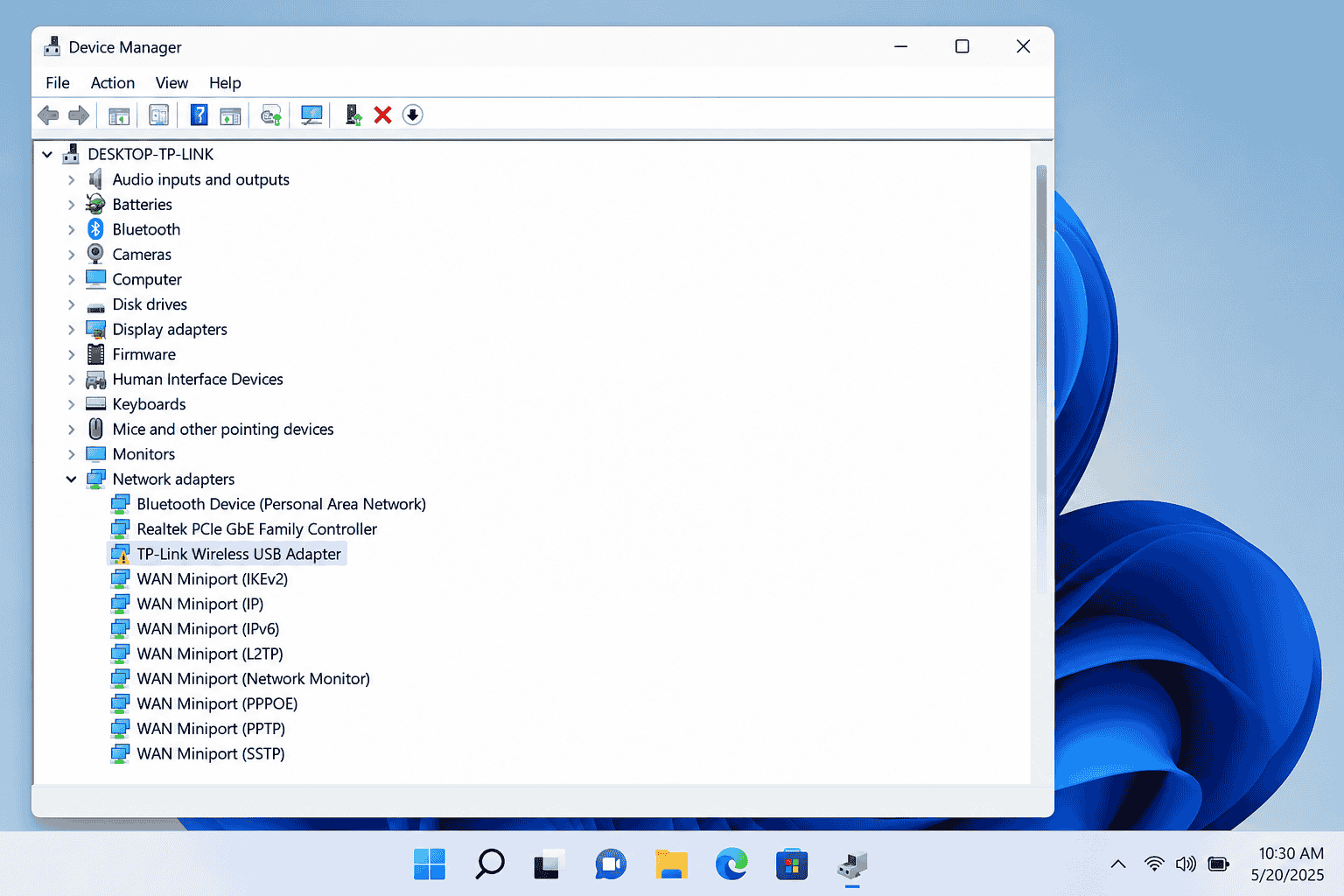
Press Win + X and select Device Manager. Look for your WiFi adapter under Network Adapters. If it's not listed or if it has a yellow exclamation mark, there's likely a driver issue.
-
Right-click the Wi-Fi adapter in Device Manager, then select Update driver. Choose Search automatically for updated driver software. If the search yields no updates, proceed to the adapter manufacturer's website to manually download and install the latest driver. On Windows 11, TP-Link's recommended fix is to download the driver directly from tp-link.com/ph/support rather than relying on Windows Update, which may install a generic driver package.
-
If updating the driver doesn't work, uninstall the adapter by right-clicking on it in Device Manager and selecting Uninstall device. Restart your computer, and Windows should automatically reinstall the adapter.
Problem #2: Intermittent Connection Drops
Your Wi-Fi connection might drop intermittently and cause disruptions, especially when streaming or downloading.
Solution
-
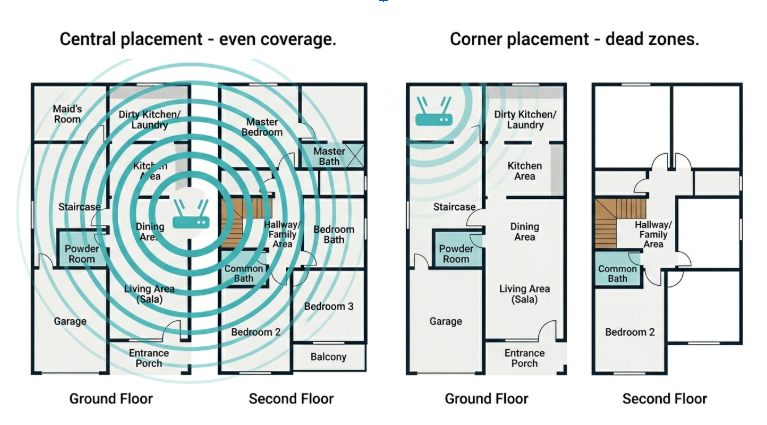
Other electronic devices, such as microwaves, cordless phones, or even neighboring Wi-Fi networks, can disrupt Wi-Fi signals. Try moving your computer or router to reduce interference. Ideally, place the router in a central location, away from potential sources of interference.
-
If multiple Wi-Fi networks are operating on the same channel in your area, it can cause congestion. Log in to your router's settings and change the Wi-Fi channel to one with less interference. Use a Wi-Fi analyzer tool to find the least congested channel.
-
In Windows Device Manager, right-click your Wi-Fi adapter and select Properties. Uncheck Allow the computer to turn off this device to save power under Power Management. This prevents your computer from disabling the WiFi adapter to save energy, which can drop connections. On Windows 11, this setting is under Device Manager → Properties → Power Management tab.
-
Ensure your router's firmware is up-to-date by visiting the manufacturer's website. Firmware updates can improve stability and performance, potentially resolving connection drop issues.
Problem #3: Slow Wi-Fi Speeds
Slow Wi-Fi speeds can result from outdated drivers, poor signal strength, or incorrect settings.
Solution
-
Make sure that your computer is within range of the WiFi router. If possible, move closer to the router to improve signal strength. Avoid placing the router in corners, behind furniture, or near large metal objects, which can block the signal.
-
Outdated drivers can significantly impact your Wi-Fi speed. Follow the steps mentioned earlier to update your drivers.
-
Log in to your router's settings and select 5 GHz if supported. The 5 GHz spectrum is quicker and less crowded than the 2.4 GHz band, but its range is shorter. Video streaming and online gaming require faster bandwidth, thus increasing QoS settings.
-
If your Wi-Fi signal is weak due to distance from the router, consider using a Wi-Fi extender or mesh network system to boost the signal. These devices can help eliminate dead zones in your home or office and provide more consistent speeds throughout the area.
Problem #4: Wi-Fi Adapter Keeps Disconnecting
If your Wi-Fi adapter keeps disconnecting from the network, it could be due to power settings, driver issues, or interference.
Solution
-
Go to Control Panel > Power Options and select High Performance. Click on Change Plan Settings and then Change Advanced Power Settings. Find Wireless Adapter Settings and set it to Maximum Performance. On Windows 11, this setting is under System > Power & Battery > Power Mode set to Best Performance.
-
In Device Manager, right-click your Wi-Fi adapter, choose Properties, and adjust settings like Roaming Aggressiveness or Preferred Band under the Advanced tab.
-
Check for interference from other devices and ensure there's minimal disruption to the Wi-Fi signal.
-
Reset your router to refresh the connection and potentially solve the issue.
Problem #5: Wi-Fi Adapter Not Connecting To Networks
If your WiFi adapter is not connecting to a network due to incorrect settings, driver issues, or network configuration problems, here's how to solve it:
Solution
-
Go to your network settings, find the problematic network, and select Forget. Then reconnect to the network by entering the password again.
-
Ensure the security settings on your router match those on your Wi-Fi adapter. For instance, if your router uses WPA3, but your adapter only supports WPA2, it won't connect.
-
Update your Wi-Fi adapter drivers as mentioned earlier.
-
Log in to your router and check the network settings. Ensure the SSID (network name) is broadcast and that the network mode (e.g., 802.11ac) is compatible with your Wi-Fi adapter.
-
Check if your computer is set to obtain an IP address automatically unless specific network settings are needed.
Problem #6: Wi-Fi Adapter Not Working After a Windows Update
After a Windows update, your WiFi adapter may stop working due to compatibility issues with the adapter's driver. This is the most frequently reported issue across TP-Link Archer T4U and T3U users in the Philippines following major Windows 10 and Windows 11 updates.
Solution
-
Go to Device Manager, right-click your Wi-Fi adapter, and select Properties. Under the Driver tab, click Roll Back Driver to revert to the previous version.
-
Uninstall the adapter as described earlier, restart your computer, and let Windows reinstall the driver.
-
Visit the TP-Link support page (tp-link.com/ph/support) to check if there is a new driver compatible with the latest Windows 11 update. TP-Link's recommended fix is always to use the driver from our support page rather than Windows Update's auto-detected driver, which installs a generic Realtek package without TP-Link-specific optimizations.
-
If all else fails, use System Restore to revert your system to a point before the problematic update.
Philippine ISP-Specific WiFi Adapter Issues
TP-Link's support team in the Philippines has documented the following adapter-related issue patterns specific to PLDT, Globe, and Converge fiber connections. These issues are distinct from standard adapter troubleshooting because they involve the handoff between the ISP's fiber equipment and the home network.
PLDT Fibr PPPoE Handoff Issues
PLDT Fibr connections use PPPoE (Point-to-Point Protocol over Ethernet) authentication. When a TP-Link adapter loses and re-establishes its connection, it may take 15 to 45 seconds to complete a new PPPoE handoff, appearing as a prolonged reconnection delay rather than a true adapter failure.
-
TP-Link's recommended fix: in the router's admin panel, set the Reconnect Mode to Always On and MTU to 1492 (standard for PLDT PPPoE). This eliminates the handoff delay on adapter reconnects.
-
If the adapter connects to the router but internet access does not restore after a drop, run `ipconfig /release`, then `ipconfig /renew` in Command Prompt to force the IP and DNS refresh.
-
PLDT's recommended DNS addresses for stability: 203.86.8.126 (primary) and 203.86.8.127 (secondary). Set these manually in your adapter's IPv4 Properties if automatic DNS is causing slow page loads after reconnects.
Globe At Home Fiber — Channel Congestion in Dense Urban Areas
Globe At Home fiber deployments in Metro Manila, Cebu, and Davao show high channel congestion on the 2.4 GHz band, particularly in dense apartment buildings and condominiums where 15 to 30 neighboring networks share the same channel space.
-
TP-Link Philippines engineering recommends switching the adapter to 5 GHz exclusively in Globe At Home fiber environments. In Device Manager → Adapter Properties → Advanced tab, set Preferred Band to 5 GHz Band and Band Preference to Prefer 5 GHz.
-
If the 5 GHz signal drops frequently, set Roaming Aggressiveness to Lowest — this prevents the adapter from switching to a weaker 2.4 GHz signal during brief 5 GHz fluctuations.
-
Globe At Home DNS for manual configuration: 121.97.254.150 (primary) and 121.97.254.151 (secondary).
Converge FiberX Gigabit Speed Matching
Converge FiberX plans now offer up to 1 Gbps in most service areas. A WiFi 5 (AC) adapter physically cannot exceed 867 Mbps on 5 GHz. Users on Converge 500 Mbps or 1 Gbps plans who are seeing speeds below 400 Mbps through their adapter are experiencing a hardware bottleneck, not an ISP issue.
-
TP-Link's recommended fix for Converge 500 Mbps+ subscribers: upgrade to a WiFi 6 adapter (AX-series) to match the plan tier. The Archer T4U is rated up to AC1300 (867 Mbps on 5 GHz), sufficient for plans up to 300 Mbps, but it will bottleneck on higher tiers.
-
For wired-equivalent speeds over WiFi on Converge: connect the adapter via a USB 3.0 port (not USB 2.0; USB 2.0 caps at 480 Mbps and will bottleneck AC and AX adapters), and ensure the 5 GHz channel width is set to 80 MHz in the router's wireless settings.
How to Choose the Right WiFi Adapter
Choosing the right Wi-Fi adapter depends on your needs and your device. Make sure it's compatible with your computer's operating system, including Windows 11 and macOS Sequoia, and supports the latest Wi-Fi standards like WiFi 5 or WiFi 6 for faster speeds. If you want better signal strength, go for one with external antennas.
USB adapters are excellent for easy plug-and-play use, while PCIe adapters are better for high-performance tasks like gaming. Also, check if the adapter supports both 2.4 GHz and 5 GHz bands for more stable connections. Matching the adapter to your router's speed ensures you get the best performance. For a full comparison, see our guide to USB WiFi adapters.
Benefits of Using WiFi Adapters
Wi-Fi adapters offer a simple way to connect desktop computers, older laptops, or other non-wireless devices to a wireless network. TP-Link's range of WiFi adapters is designed to work seamlessly with all major Philippine ISP equipment.
-
Easy to Set Up - Most are plug-and-play via USB, requiring no internal installation.
-
Improves Internet Speeds - Supports faster Wi-Fi standards like Wi-Fi 5, Wi-Fi 6, and Wi-Fi 6E.
-
Better Signal Reception - Some models have antennas for stronger, more stable connections.
-
Upgrades Older Devices - Adds Wi-Fi capability to desktops or older laptops without built-in wireless.
-
Portable and Flexible - Can be moved between devices easily for temporary or shared use.
-
Cost-Effective Solution - Avoids the need to replace or upgrade entire devices just for Wi-Fi.
Tips to Maximize the Performance of Your WiFi Adapter
Place It Strategically
Position your adapter or antenna where it gets the clearest line of sight to your router, avoiding walls or large objects.
Use Dual-Band Connections
Connect to the 5GHz band for faster speeds and less interference if your adapter supports it. In Philippine concrete homes, the 5 GHz signal degrades faster through walls. Position the adapter within direct line of sight of the router whenever possible.
Update Drivers Regularly
Keep your Wi-Fi adapter's drivers up to date for the best stability and performance. TP-Link Philippines engineering recommends checking tp-link.com/ph/support for driver updates after every major Windows 11 update, as Microsoft's generic drivers do not include TP-Link's chipset-specific stability patches.
Avoid Interference
Keep the adapter away from microwaves, cordless phones, or other wireless devices that may cause signal drops.
Optimize Router Settings
Ensure your router is set to the best channel and band for your area to reduce signal congestion.
Common 2026 WiFi Adapter Setup Mistakes to Avoid
TP-Link Philippines engineering recommends checking for these setup errors before escalating to hardware replacement. They account for the majority of adapter complaints we receive from Filipino users.
-
Connecting the adapter to a USB 2.0 port instead of a USB 3.0. USB 2.0 is rated at 480 Mbps maximum throughput. Connecting a WiFi 6 or AC1300 adapter to a USB 2.0 port physically caps your speed below the adapter's rated maximum. Always plug into a USB 3.0 port (usually marked with a blue insert or SS label).
-
Disabling USB Selective Suspend instead of disabling adapter power management. Many online guides recommend turning off USB Selective Suspend globally, but the correct fix for adapter disconnects is specifically under Device Manager → Adapter Properties → Power Management, not the global USB setting. The global setting affects all USB devices unnecessarily.
-
Using a WiFi 6E adapter on a WiFi 5 router. WiFi 6E adapters are backward-compatible and will work, but the 6 GHz band (the key WiFi 6E feature) is unavailable on WiFi 5 routers. Users buying a WiFi 6E adapter expecting a speed boost on an older router will be disappointed; the adapter runs at WiFi 5 speeds on the 2.4 GHz and 5 GHz bands.
-
Letting Windows Update replace a working TP-Link driver with a generic Realtek driver. After major Windows 11 feature updates, Windows may replace the TP-Link-specific driver with a generic Realtek package. If the adapter worked before the update and not after, check Device Manager; if the driver publisher shows 'Realtek' instead of 'TP-Link' or 'TP-LINK Technologies,' reinstall from tp-link.com/ph/support.
-
Place the adapter behind the desktop tower or monitor. Desktop PCs often put USB ports at the rear, directly behind the PC, where the chassis blocks the antenna. Front-panel USB ports or a USB extension cable placed on top of the desk improves signal reception significantly.
-
Not setting a static IP when the router uses MAC address filtering. If your router's DHCP assigns different IPs on each reconnect, and MAC filtering is enabled, the adapter may reconnect to a blocked IP state. Set a static IP in the adapter's IPv4 Properties that matches the range your router's MAC filter accepts.
TP-Link Adapter vs Other Brands: Common Issue Patterns by Chipset
TP-Link's support team in the Philippines has documented the following chipset-specific issue patterns across Archer T4U, T3U, and TL-WN722N users. Understanding which chipset your adapter uses helps diagnose the issue faster.
|
Chipset |
Most Common Issue |
Frequency (PH Users) |
TP-Link Engineering Notes |
|
Realtek RTL8812AU (Archer T4U, T3U) |
Driver conflicts after Windows Update |
Most reported issues in PH 2025-2026 |
TP-Link recommends always using the driver from tp-link.com/ph/support rather than the Windows auto-update driver, which often installs a generic Realtek package that lacks TP-Link-specific tuning |
|
Realtek RTL8188EUS (TL-WN722N) |
Detection failures on USB 3.0 ports |
Medium |
USB 2.0 port connection resolves detection failures in 90% of cases. The chipset predates USB 3.0 and shows intermittent conflicts with newer USB controllers |
|
MediaTek MT7612U (select Archer models) |
Band steering locks the device to 2.4 GHz |
Low-medium |
TP-Link's recommended fix: set Preferred Band to 5 GHz manually under Device Manager → Adapter Properties → Advanced tab |
|
Intel AX200/AX210 (built-in on newer laptops) |
Cannot see TP-Link 5 GHz SSID |
Low - typically affects users who add an external TP-Link adapter alongside the built-in |
Disable the built-in adapter in Device Manager before connecting the external TP-Link adapter to avoid band conflicts between two active wireless interfaces |
Note: If you are using a non-TP-Link adapter and experiencing the issues above, TP-Link's recommended fix is to switch to a TP-Link adapter whose chipset is tested against Philippine ISP environments. TP-Link Philippines engineering validates adapter performance specifically against PLDT Fibr, Globe At Home, and Converge FiberX infrastructure before release.
Takeaway
Wi-Fi adapter problems can be frustrating, but most issues are simple to fix. These solutions should assist you in resolving issues such as non-detection of your adapter, frequent disconnections, and slow speeds.
TP-Link offers a range of WiFi adapters designed to enhance your internet connectivity and prevent slow speeds. When you upgrade to a TP-Link WiFi adapter, you can improve your connection stability and speed and enjoy a smoother online experience.
FAQs on WiFi Adapter
-
Do I need a WiFi adapter if my device already has built-in WiFi?
If your device has built-in WiFi, you don't need a separate WiFi adapter, but if the built-in WiFi is outdated or not working properly, an external WiFi adapter helps improve your connection.
-
What should I look for when buying a WiFi adapter?
Consider compatibility with your device, support for the latest WiFi standards (WiFi 5, WiFi 6, or WiFi 6E), the speed ratings, and whether you need a USB or PCIe adapter.
-
Can I use a WiFi adapter on a gaming console?
Many gaming consoles support WiFi adapters, especially if their built-in WiFi is weak or outdated. But make sure to check the console's specifications because not all WiFi adapters are compatible.
-
Can a WiFi adapter be used on multiple devices?
A USB WiFi adapter can be used on multiple devices, but only one at a time. PCIe adapters are installed inside a computer and are not easily transferable between devices.
-
Why does my TP-Link adapter keep disconnecting from PLDT Fibr?
The most common cause is Windows power management disabling the adapter to save energy. TP-Link's recommended fix: go to Device Manager → right-click your adapter → Properties → Power Management → uncheck 'Allow the computer to turn off this device to save power.' On PLDT Fibr networks specifically, also set your router's Reconnect Mode to Always On to avoid PPPoE re-authentication delays after reconnects.
-
Is the Archer T4U AC1300 compatible with Windows 11?
Yes. The Archer T4U AC1300 is compatible with Windows 11. However, TP-Link Philippines engineering recommends downloading the driver directly from tp-link.com/ph/support rather than relying on Windows Update. Windows 11 may install a generic Realtek driver that lacks TP-Link's chipset-specific stability patches, which can cause intermittent disconnections on the 5 GHz band.
-
Why is my USB WiFi adapter slower than my phone's WiFi?
Most likely cause: your adapter is connected to a USB 2.0 port (maximum 480 Mbps) or your adapter is a single-band 2.4 GHz model. TP-Link's recommended checks: (1) plug the adapter into a USB 3.0 port (blue insert, usually marked 'SS'); (2) confirm the adapter is connecting to the 5 GHz band in Device Manager → Advanced Properties; and (3) update the driver from tp-link.com/ph/support. Phones with built-in WiFi 6 on 5 GHz will naturally outperform an older USB adapter on 2.4 GHz.
Try these USB WiFi adapters for a reliable internet system and more consistent performance for your home or office:
Archer T4U AC1300: Ultra-fast Wi-Fi with up to 1300Mbps wireless speeds (400Mbps on the 2.4GHz band and 867Mbps on the 5GHz band) with support for the next-generation 802.11ac Wi-Fi standard.
Archer T3U Mini Wireless MU-MIMO: AC1300 (400 Mbps on the 2.4 GHz band and 867 Mbps on the 5 GHz band) wireless speed with the next-generation Wi-Fi 802.11ac. Mini-sized design for convenient portability with reliable high performance.
TL-WN722N High Gain Wireless USB Adapter: Exceptional wireless speed up to 150Mbps brings the best experience for video streaming or internet calls. Easy wireless security encryption at the push of the WPS button.