12 Proven Wi-Fi Speed Hacks for Philippine Homes - Ranked From Free to Upgrade-Required
Published: August 30, 2024 · Last Updated: July 2026
Published: August 30, 2024 · Last Updated: July 2026
Quick Answer: Fastest Free Fixes for Slow Wi-Fi in the Philippines
-
The three fastest free fixes are moving your router to a central location, restarting it weekly, and switching to a less crowded Wi-Fi channel. Most households see an immediate improvement from these three changes alone.
-
Most slow Wi-Fi problems in Philippine homes come down to where the router sits, what channel it is on, or how long it has been since the last restart, not the ISP plan.
-
If all 12 hacks have been tried and speeds are still slow, the bottleneck is either the router hardware or the ISP plan, not the Wi-Fi signal itself.
Most slow Wi-Fi problems have nothing to do with your internet plan. They come down to where your router sits, what channel it is on, or how long it has been since you last restarted it. Whether you are making video calls with your loved ones, streaming movies, or gaming, you need reliable Wi-Fi connections throughout your home.
The median fixed broadband speed in the Philippines is 109.86 Mbps (Ookla 2026), more than enough for most households, but that speed rarely reaches your device in full.
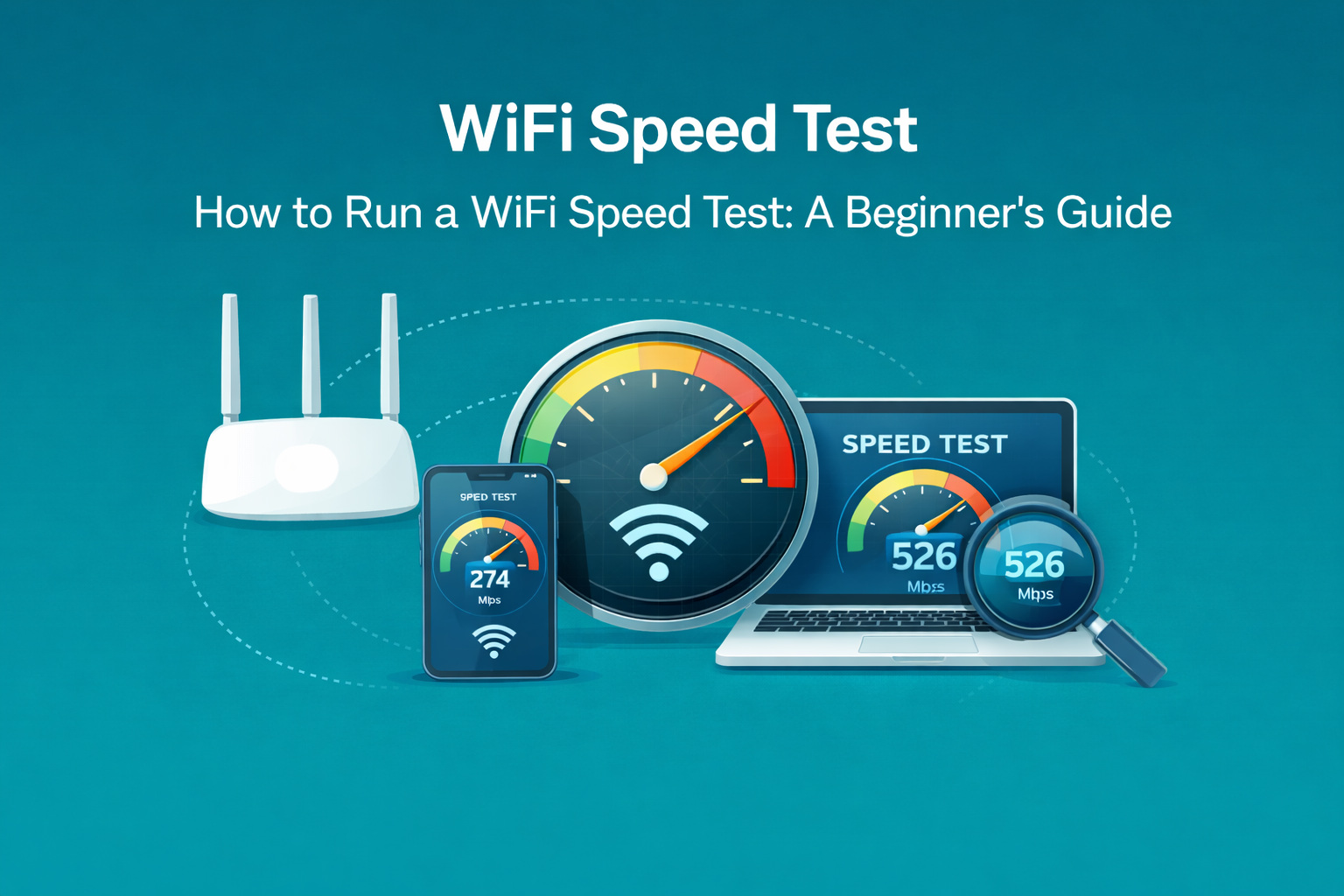
Updated for 2026 with the latest Wi-Fi 7 standards, this guide covers 12 fixes ranked from easiest to most impactful. Most of them are free and fixable in under 10 minutes.
Table of Contents
Which Hack Should You Try First?
12 Proven Hacks to Boost Your Wi-Fi Speed
Top Wi-Fi Extenders to Boost Your Connection
Why Is Your Wi-Fi Slow?
Before jumping into fixes, it helps to know where the problem actually is.
-
Router placement and physical obstacles. Thick concrete walls are very common in Philippine condos and older homes - appliances and even large furniture absorb or deflect Wi-Fi signals.
-
Channel congestion. In a condo building or subdivision where dozens of routers are all broadcasting on the same 2.4 GHz channel, everyone slows down.
-
Outdated firmware or hardware. Check whether your routers support the latest Wi-Fi standard. If not, you may need to replace them to improve your Wi-Fi speed meaningfully.
-
Too many connected devices. Every device on your network, including smart home gadgets sitting idle, draws from the same pool. Thirty devices sharing a 100 Mbps connection leave very little for your laptop.
-
ISP-side congestion. In the Philippines, peak congestion on PLDT, Globe, and Converge networks typically hits between 7 and 10 PM when entire neighborhoods are streaming simultaneously. If your connection is slow only at night, this is likely the cause.
Most slow Wi-Fi problems are fixable at home without upgrading your plan.
Which Hack Should You Try First?
Match your symptom to the table below before trying all 12 hacks in order.
|
Your Symptom |
Most Likely Cause |
Start With |
|---|---|---|
|
Fast in one room, drops off in others |
Placement or physical obstacles |
Hack #1 (placement), then Hack #7 (extender), if needed |
|
Slow everywhere, only at night |
ISP peak-hour congestion or channel crowding |
Hack #3 (channel change) some slowdown during 7-10 PM is unavoidable |
|
Specific devices lag; others work fine |
Bandwidth is split among too many devices |
Hack #5 (QoS) to prioritize devices that matter most |
|
Slow all the time, all devices |
Router age, firmware, or plan limitation |
Hacks #2 and #6, then #9 or #11 if hardware/plan is the issue |
|
Drops frequently |
Interference or power management |
Hack #12 (interference), then check router firmware (Hack #6) |
12 Proven Hacks to Boost Your Wi-Fi Speed
Ordered from highest-impact zero-cost fixes to upgrade-required solutions.
1. Change Your Router Placement
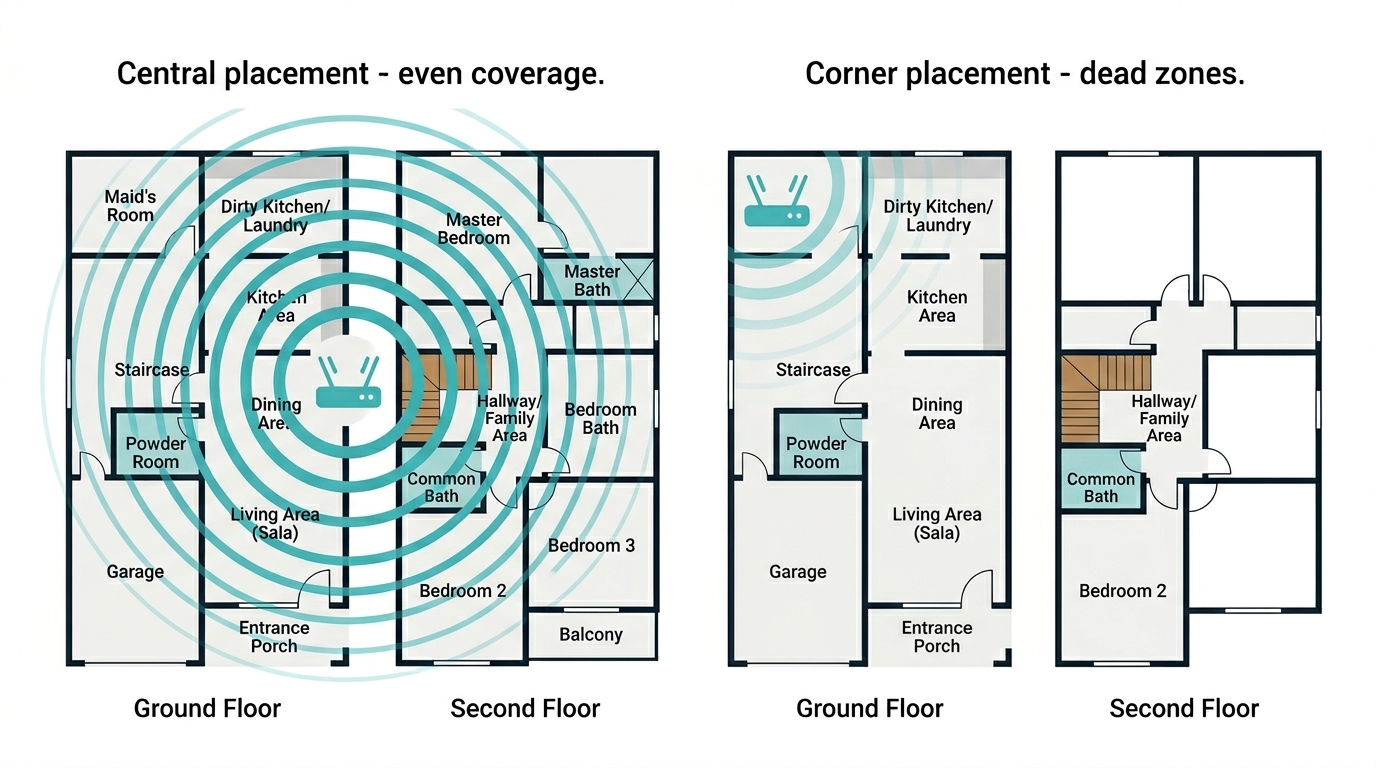
The placement of your router plays the single biggest role in Wi-Fi speed. Routers emit radio signals that spread in all directions, but obstacles like walls, metal objects, and electronics block or weaken those signals before they reach your devices.
-
Place the router in a central location in your home to distribute the signal evenly.
-
Avoid placing it near thick walls, microwaves, cordless phones, and large metal objects.
-
Elevate the router on a shelf or mount it on a wall to prevent interference from floor-level obstructions.
In a typical two-story Philippine home, the router works best on the second floor near the stairwell, not tucked in a corner of the sala. In a condo, aim for the center of the unit rather than near the front door, where most ISP installations end up.
2. Restart Your Router Regularly
This is the most overlooked fix, and it costs nothing. Over time, your router's memory becomes overloaded, which causes it to slow down. Restarting clears that memory, resets connections, and lets the router re-establish the most efficient channels.
The TP-Link Tether app supports scheduled automatic reboots on most models. Set it once and never think about it again.
3. Change Your Wi-Fi Channel
Wi-Fi routers broadcast on channels within the 2.4 GHz and 5 GHz frequency bands. In dense Metro Manila buildings, too many routers sharing the same channel create congestion that slows every device down.
Use a free Wi-Fi analyzer app to identify less crowded channels in your area. On the 2.4 GHz band, channels 1, 6, and 11 are the non-overlapping options. Try all three. Then access your router's admin settings and switch to the least congested channel.
4. Turn Off Unnecessary Devices
Every connected device uses a portion of your network's bandwidth, including devices on standby that maintain persistent background connections. The more devices connected, the less bandwidth is available for high-demand activities like streaming and gaming.
Disconnect devices that are not in active use: smart home gadgets, gaming consoles, smartphones, and tablets. Even idle devices chip away at available bandwidth during the 7-10 PM peak window.
5. Prioritize Bandwidth for Important Devices
Quality of Service (QoS) settings let you allocate bandwidth to specific devices or applications. This is especially useful if you are working from home and sharing the connection with family members who are streaming or gaming - your work laptop gets priority without anyone having to disconnect.
To enable QoS, access your router's admin settings or use the TP-Link Tether app. Assign your work laptop or gaming device to the highest priority tier.
6. Update Your Router's Firmware
Routers run on firmware that manufacturers update regularly to fix bugs, improve performance, and patch security vulnerabilities. Outdated firmware is one of the most overlooked causes of slow Wi-Fi.
Log in to your router's admin panel and navigate to the Firmware Update section. Most TP-Link routers can also update firmware automatically through the Tether app, which is worth enabling if you have not already.
7. Use Wi-Fi Range Extenders or Mesh Networks
In large homes or units with thick concrete walls between rooms, Wi-Fi signals cannot reach every corner. A Wi-Fi range extender such as the RE815XE boosts the signal to hard-to-reach areas and improves overall coverage.
For more comprehensive coverage, a mesh Wi-Fi network uses multiple nodes placed throughout your home to create a seamless network, eliminate dead spots, and ensure fast speeds in every room. For a two-story Philippine home or any unit with thick concrete walls between rooms, mesh is the more reliable long-term solution.
8. Use Dual-Band, Tri-Band, or Quad-Band Routers
Modern Wi-Fi routers operate on two or more frequency bands. The 2.4 GHz band is more crowded, with real-world throughput around 100 Mbps. The 5 GHz band provides fast internet speeds and less interference, with real-world speeds reaching up to 1 Gbps depending on your router and plan.
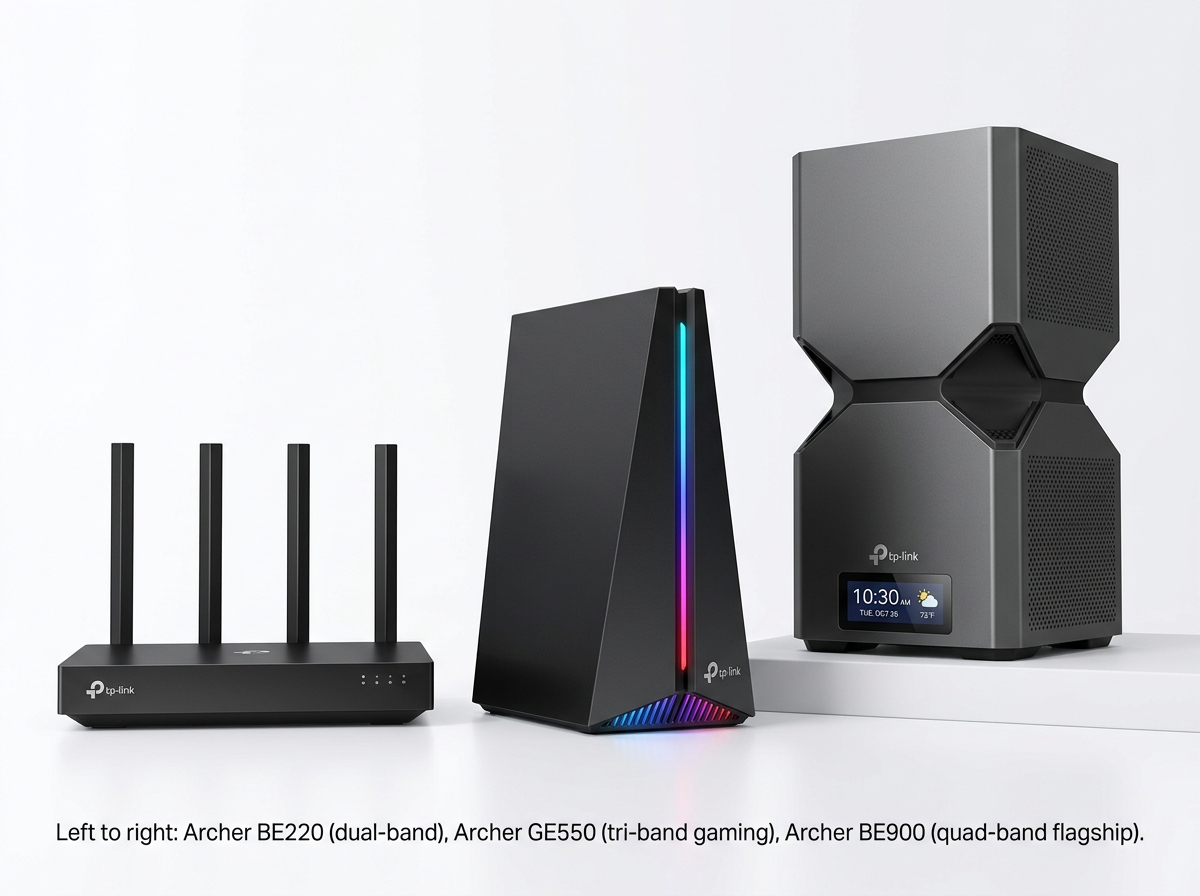
For higher performance, consider a tri-band router like the Archer GE550. The GE550 supports gaming Wi-Fi up to 9,220 Mbps and uses Multi-Link Operation (MLO) technology, which allows simultaneous use of the 6 GHz and 5 GHz bands for stable connections and efficient data transfers.
For the highest-tier performance available in 2026, quad-band Wi-Fi 7 routers like the Archer BE900 add a dedicated backhaul band, meaning even in a congested environment, your devices get a clean, dedicated lane for data. Wi-Fi 7's MLO also reduces latency significantly over Wi-Fi 6.
9. Upgrade to a Modern Router
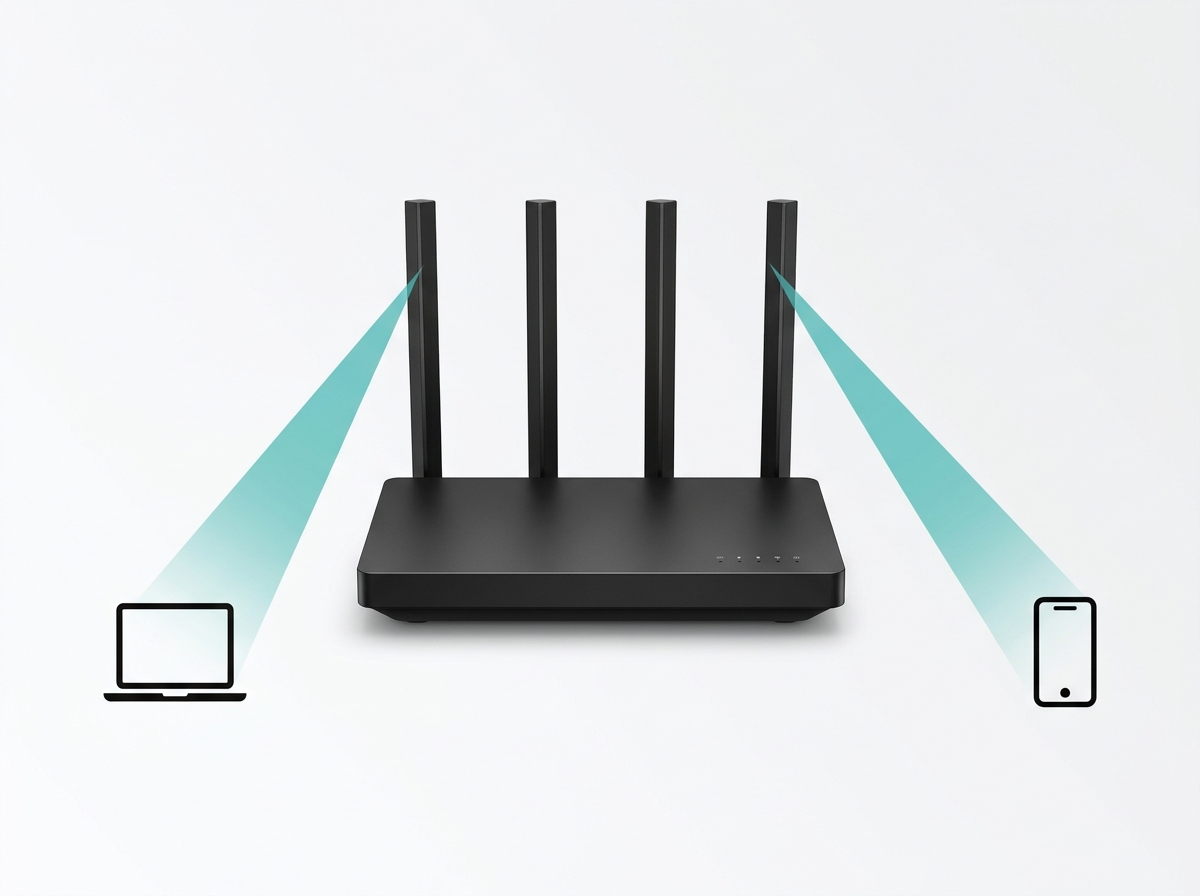
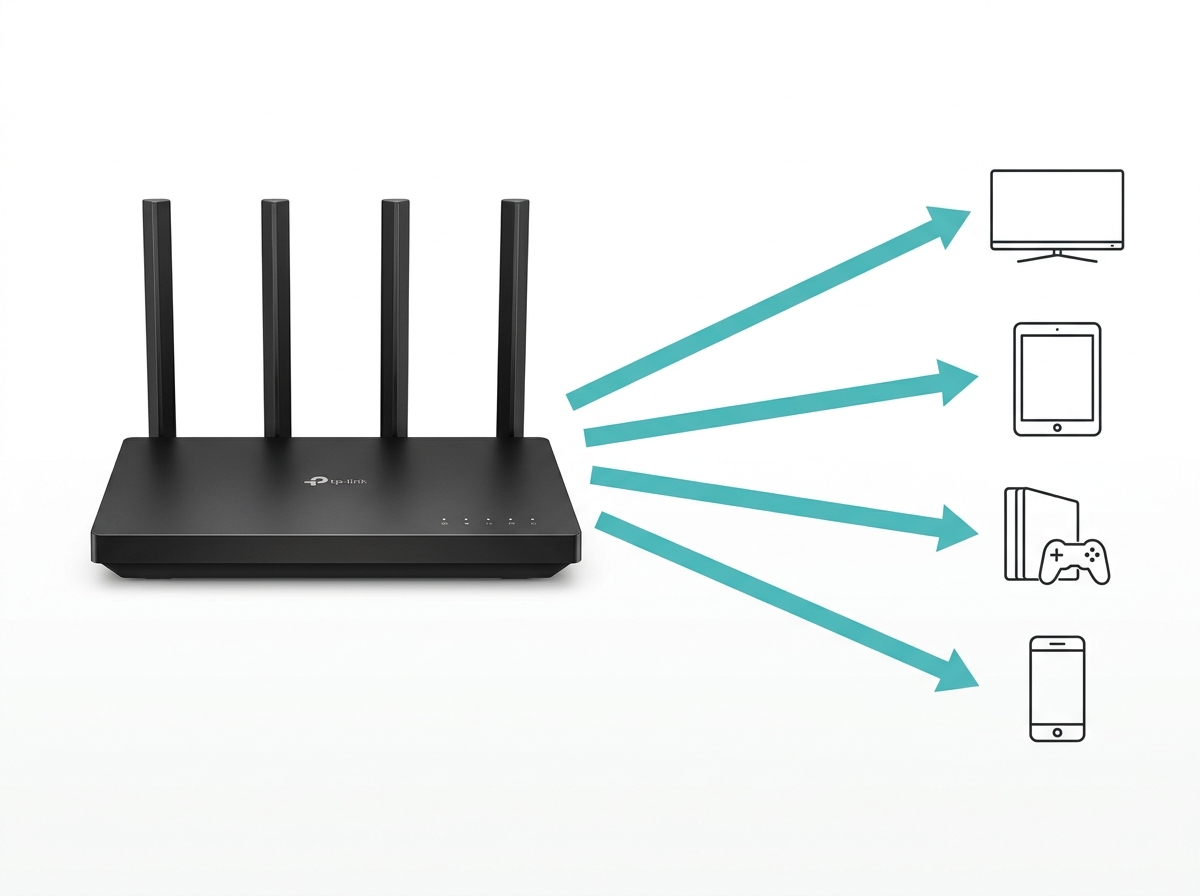
If your router is several years old, it may not support the latest Wi-Fi technologies. Newer routers include beamforming and MU-MIMO (Multi-User, Multiple Input, Multiple Output), which enhance connection speeds and efficiency for multi-device households.
-
Beamforming directs the Wi-Fi signal toward connected devices rather than broadcasting equally in all directions. This results in stronger, faster connections to each device.
-
MU-MIMO allows the router to communicate with multiple devices simultaneously instead of queuing them one at a time.
Wi-Fi 7 routers (the current standard as of 2026) build on beamforming and MU-MIMO while adding higher channel bandwidth and lower latency. If your router predates Wi-Fi 6, an upgrade will make a measurable difference.
10. Switch to Wired Connections for Critical Devices
Wired Ethernet connections offer faster and more stable speeds than Wi-Fi for devices that need them most: gaming consoles, desktop computers, and smart TVs. Ethernet avoids the congestion issues common with Wi-Fi entirely and delivers more stable internet speeds regardless of signal conditions.
11. Upgrade Your Internet Plan
Sometimes, slow Wi-Fi is not a home network problem; the plan itself is undersized. If your household has 4 to 5 people with mixed usage (streaming, WFH video calls, gaming), a 200- to 300 Mbps plan is a reasonable baseline. Contact your internet service provider (ISP) to review your plan tier. PLDT Fibr, Globe At Home, and Converge FiberX all offer same-day or next-day reconfigurations.
12. Reduce Interference from Other Electronics
Household electronics like microwaves and cordless phones interfere with Wi-Fi signals on the 2.4 GHz band. If you experience slow speeds when these devices are in use, move your router away from them or switch to the 5 GHz band.
Some smart home devices, like security cameras and baby monitors, can also cause interference. Keep these on a different frequency or use wired connections where possible to avoid disrupting your Wi-Fi signal.
Key Takeaway: The three highest-impact changes you can make today without spending anything are repositioning your router, restarting it, and switching to a less crowded Wi-Fi channel. These three fixes alone resolve the majority of slow Wi-Fi complaints in Philippine homes.
Top Wi-Fi Extenders to Boost Your Connection
TP-Link offers a range of Wi-Fi boosters to enhance the speed and coverage of your home network. WiFi range extenders and boosters ensure that every corner of your home receives a strong and reliable Wi-Fi signal so you can significantly improve your internet speed and enjoy a more stable online experience.
TP-Link RE650 - Provides faster wired connections to smart TVs, computers, and gaming consoles, and extends the range of any Wi-Fi router or wireless access point.
TP-Link RE705X - Creates a new Wi-Fi access point through the Gigabit Ethernet port to enhance your wired network with Wi-Fi capability. Provides high-speed wired access ideal for smart TVs, PCs, and game consoles.
TP-Link RE505X - Eliminates Wi-Fi dead zones using specially designed high-gain antennas. Supports dual-band Wi-Fi speeds up to 1.5 Gbps for smoother streaming, gaming, and downloading.
TP-Link Archer BE220 (Wi-Fi 7) - A dual-band Wi-Fi 7 router delivering BE3600 speeds. A solid upgrade for households ready to move beyond Wi-Fi 6, with beamforming and MU-MIMO built in.
Frequently Asked Questions
How can I boost my Wi-Fi speed for free?
The three no-cost fixes resolve most slow Wi-Fi problems in Philippine homes: move your router to a more central location, restart it weekly, and switch to a less congested channel using a free Wi-Fi analyzer app. Try all three before spending anything.
Does restarting my router actually make it faster?
Yes, and the effect is real and immediate. Routers accumulate temporary memory overhead over time, and a restart clears that backlog, resets connections, and lets the router re-establish the most efficient channels. A weekly restart is a reasonable maintenance habit for any Philippine household. The TP-Link Tether app supports scheduled automatic reboots. Set it once and forget it.
What is the difference between Wi-Fi 6 and Wi-Fi 7?
Wi-Fi 7 is a meaningful upgrade over Wi-Fi 6 for multi-device households. Wi-Fi 6 (802.11ax) improved speed and device handling over older standards. Wi-Fi 7 (802.11be), widely available from 2024 onward, adds Multi-Link Operation (MLO) for using multiple bands simultaneously, 320 MHz channel bandwidth, and significantly lower latency. If you are buying a new router in 2026, Wi-Fi 7 is worth the investment over Wi-Fi 6.
Why is my Wi-Fi slow at night?
ISP network congestion, not your router, causes evening slowdowns in the Philippines. PLDT, Globe, and Converge all experience peak subscriber traffic between 7 and 10 PM. Your router is not the cause. Switching to a less crowded Wi-Fi channel can help slightly, but if the slowdown is consistent and severe every evening, log your test results and file a formal ticket with your ISP.
Should I use a Wi-Fi extender or a mesh system?
For most condos and small apartments, a Wi-Fi extender is enough. For two-story homes, units larger than 80 to 100 sqm, or any home with thick concrete walls between floors, a mesh system is a better investment. It creates one seamless network, and each node delivers full-speed Wi-Fi rather than repeating a degraded signal. Extenders are cheaper; mesh is more reliable long-term.
Will upgrading my internet plan fix slow Wi-Fi?
Only if the plan itself is the bottleneck. If the issue is router placement, channel congestion, firmware, or too many connected devices, a faster plan will not help if the bottleneck is inside your home network, not the speed coming in from your ISP. Work through the 12 hacks above first. Upgrade your plan only after ruling out in-home causes.
How do I know if my router needs replacing?
Replace your router if it is more than 5 years old, does not support Wi-Fi 6 or newer, or consistently struggles with 10 or more connected devices. Specific signs include frequent disconnections, slow speeds even when you are physically next to the router, and the inability to use the 5 GHz band. A current Wi-Fi 6 or Wi-Fi 7 router handles today's device loads and Philippine fiber plan speeds significantly better than older hardware.
What is a good Wi-Fi speed for a household in the Philippines?
For a household of 3 to 5 people with mixed usage, streaming, video calls, gaming, and WFH, a plan delivering 100 to 200 Mbps is generally sufficient. The key is that this speed reaches your devices, not just your router. According to Ookla 2026 data, the Philippine median fixed broadband speed is 109.86 Mbps.
Final Thoughts
The three highest-impact free fixes are router placement, weekly restart, and channel switch, which resolve the majority of slow Wi-Fi complaints in Philippine homes. If you have worked through all 12 hacks and are still experiencing dead zones or sluggish speeds on specific devices, the next step is a hardware upgrade: a range extender for targeted coverage gaps or a mesh system for whole-home coverage in multi-floor concrete homes.
TP-Link offers a range of Wi-Fi boosters and mesh systems for every home size and plan tier in the Philippine market. WiFi range extenders and boosters ensure every corner of your home receives a strong and reliable signal, so you can significantly improve your internet speed without upgrading your plan.