How to Connect a VIGI Camera to YouTube Live Streaming
Contents
Introduction
Customers can broadcast live streams to YouTube by configuring the RTMP feature on VIGI cameras. Before configuring this feature, please connect the VIGI Camera to the router using an Ethernet cable and ensure that it can access the network properly.
Requirements
- VIGI Camera
- YouTube Account
Configuration
Step 1. Sign up for a YouTube account at https://www.youtube.com/.
Step 2. Enter the account you just registered, then click Next. Enter your account password and click Next to log in to YouTube.
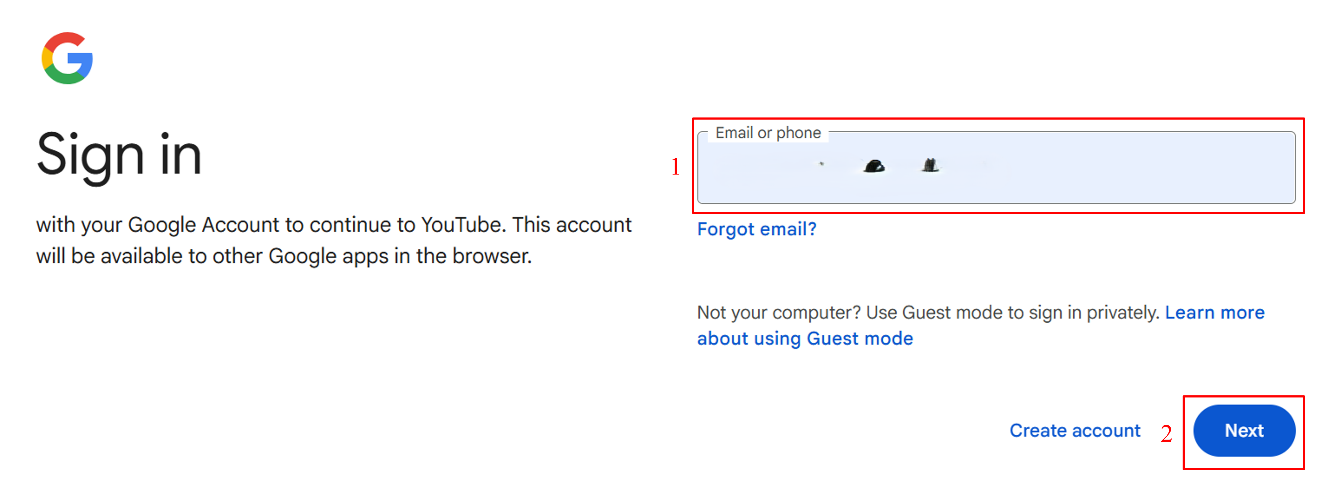
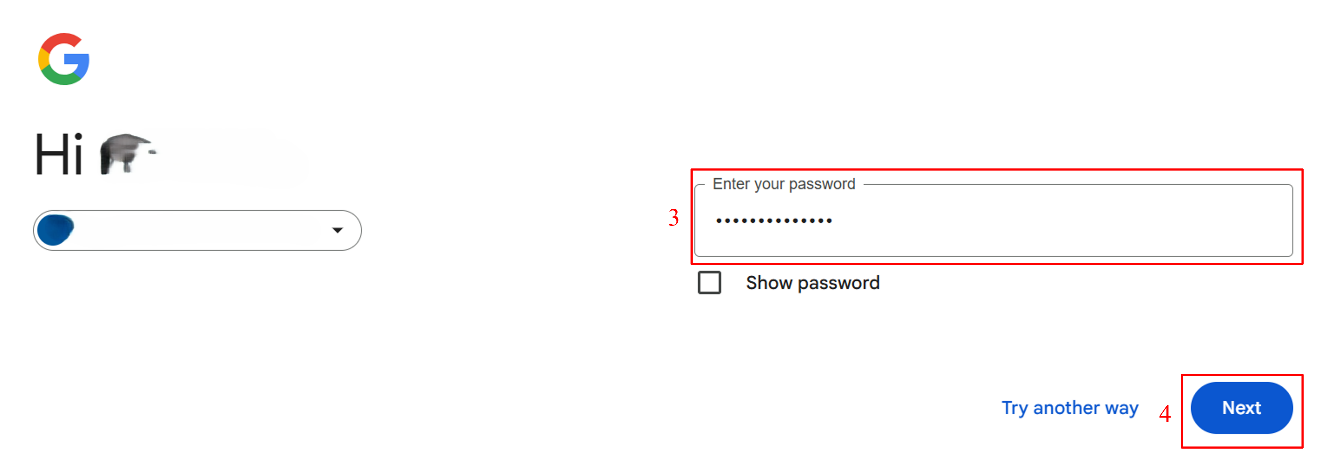
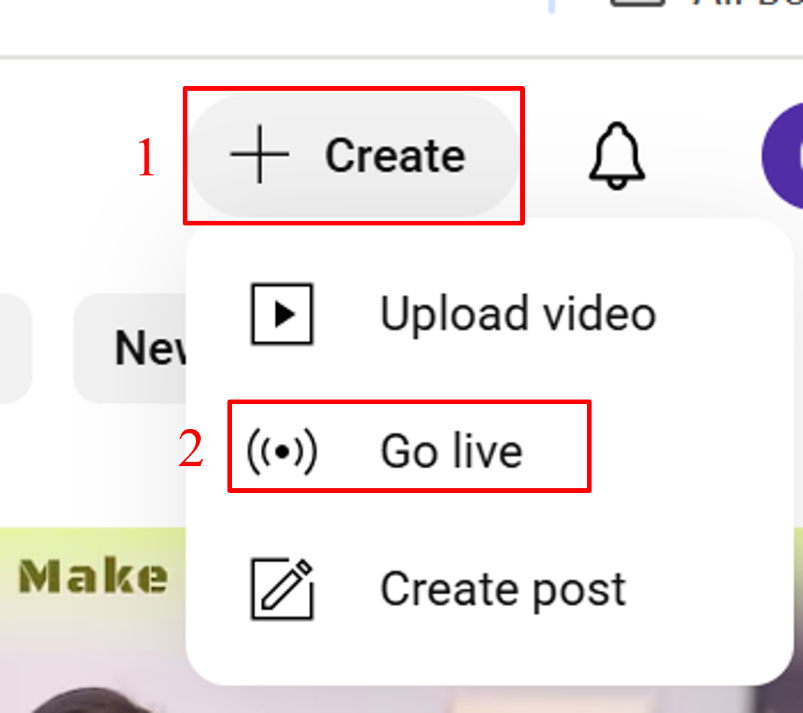
Step 3. Click the “+Create” button in the top-right corner, and then select “Go live”.
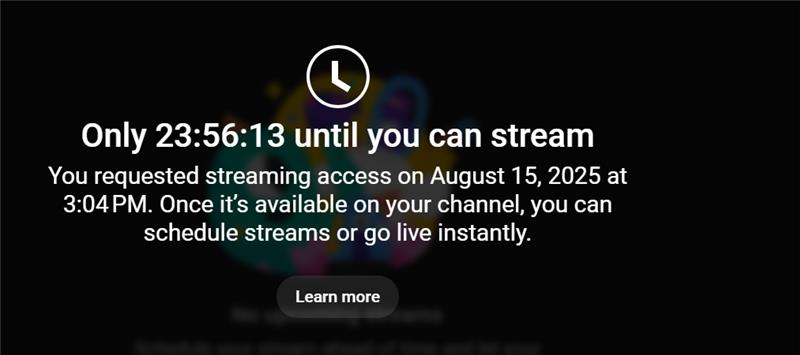
Note: YouTube live streaming requires one day for review. Please ensure that you apply for this feature at least one day in advance.
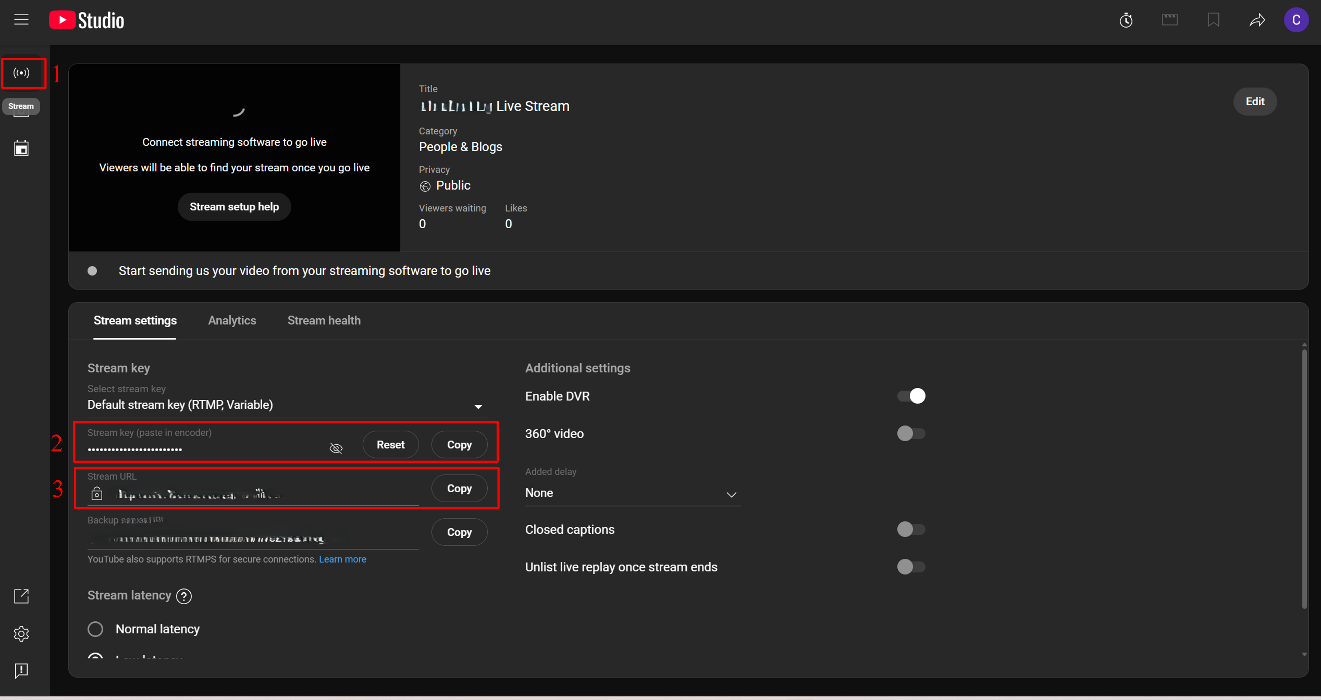
Step 4. Click Stream, copy the Stream Key and Stream URL.
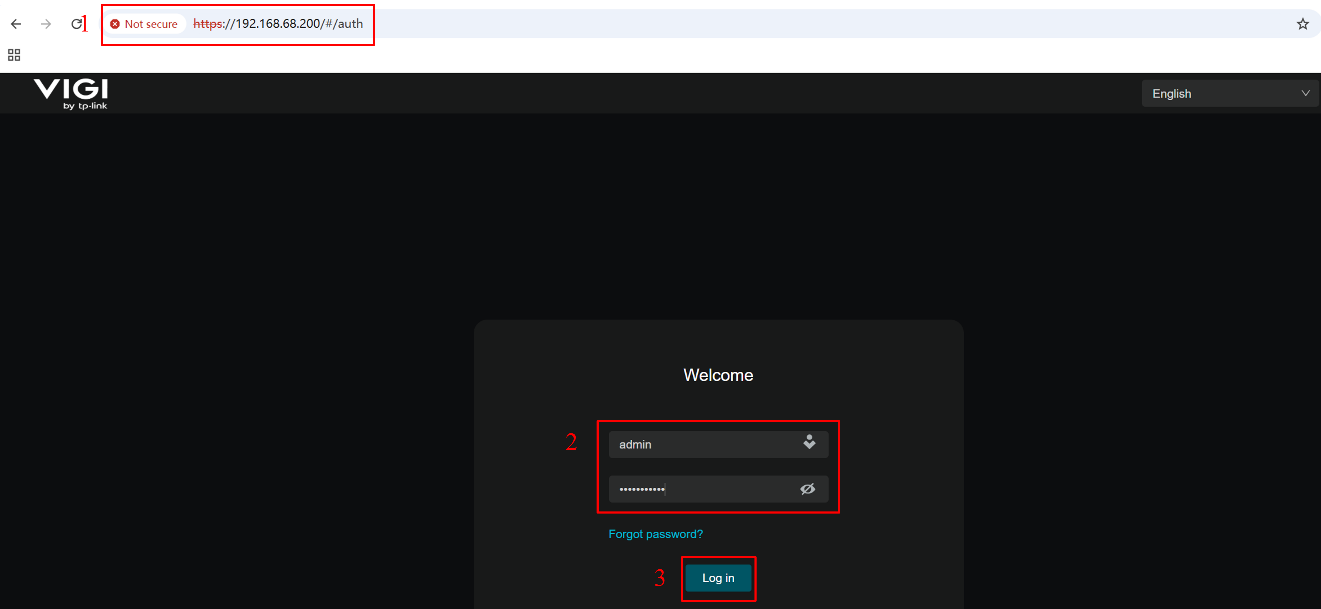
Step 5. Enter the VIGI Camera’s IP address in your browser’s address bar. On the login page that appears, enter the device username and password, then click Log In.
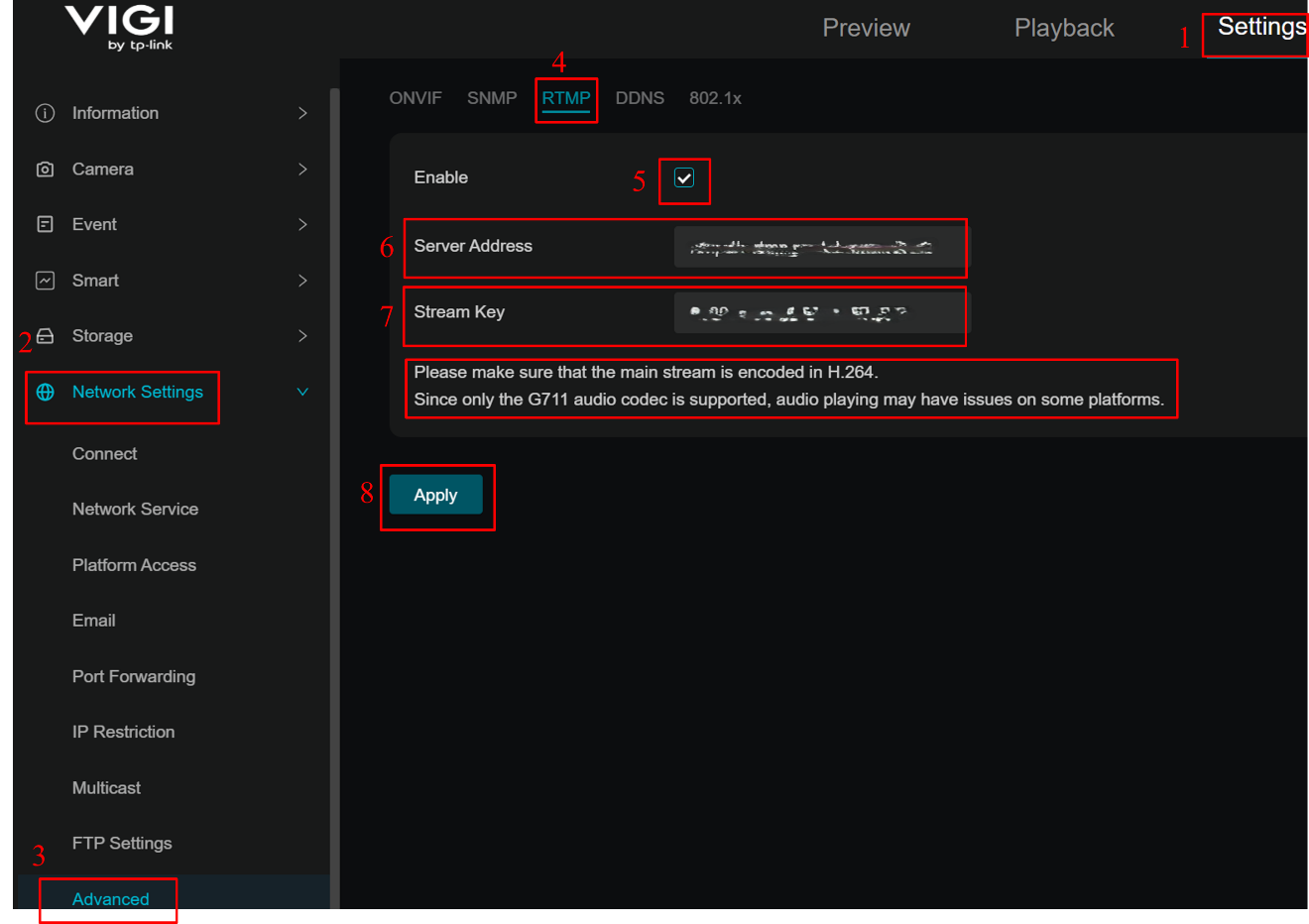
Step 6. Navigate to Settings > Network Settings > Advanced > RTMP. Check the box behind 'Enable' to open the function. Paste the copied Stream URL into the 'Server Address' field and paste the copied Stream Key into the 'Stream Key' field. Click Apply to complete the configuration.
- Please make sure that the main stream is encoded in H.264/H.264+.
- Only G.711 μ-law audio is supported. Audio playback may experience issues on platforms that do not support this audio codec.
- Currently, VIGI cameras only support RTMP Server, whereas platforms like Facebook only support RTMPS Server. Therefore, the RTMP function cannot be used on these platforms.
- The RTMP function requires the latest firmware to operate. If you cannot find this feature after logging in, please update your device to the latest firmware and try again.
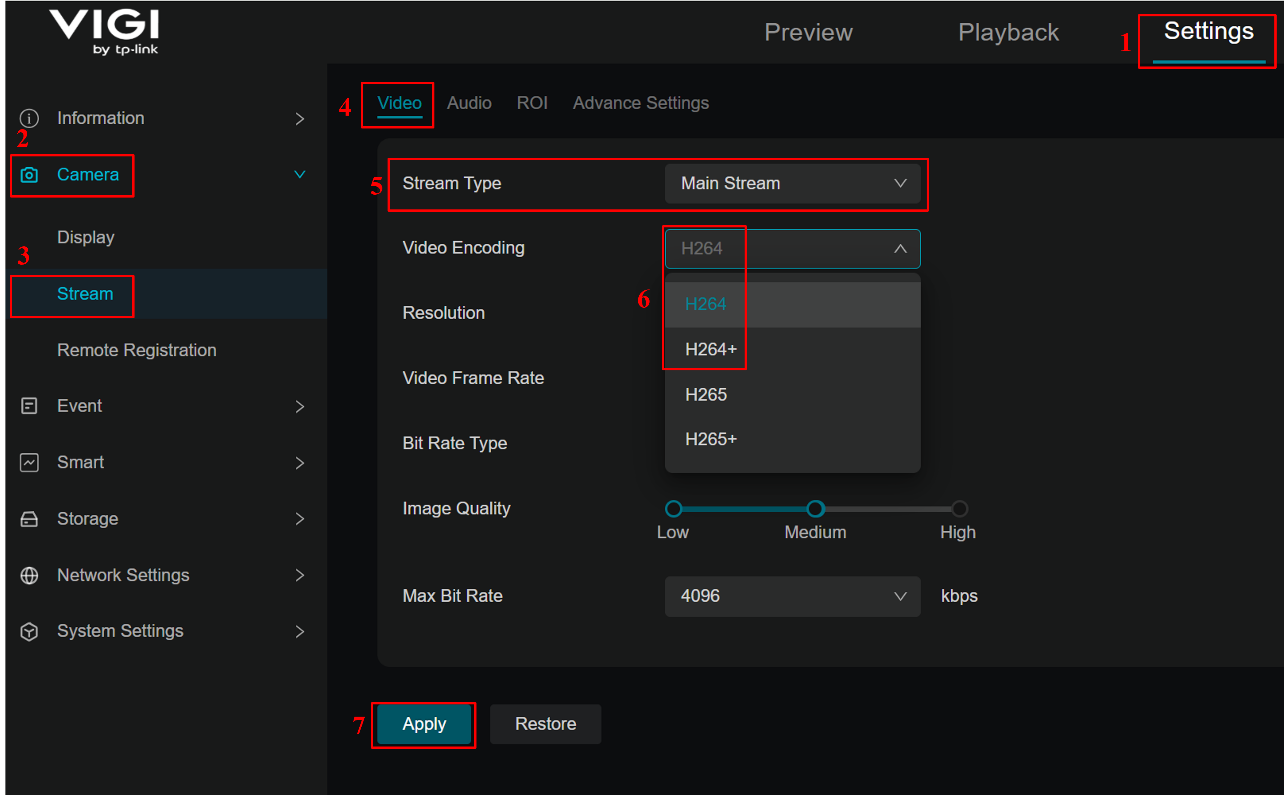
Step 7. Navigate to Settings > Camera > Stream > Video. Change the Main Stream’s encoding format to H.264/H. 264+, and then click Apply to complete the configuration.
Verification
After completing all the above configurations, return to the YouTube Live page to verify that you can see the live preview of your VIGI Camera, indicating that you have successfully streamed your VIGI Camera.
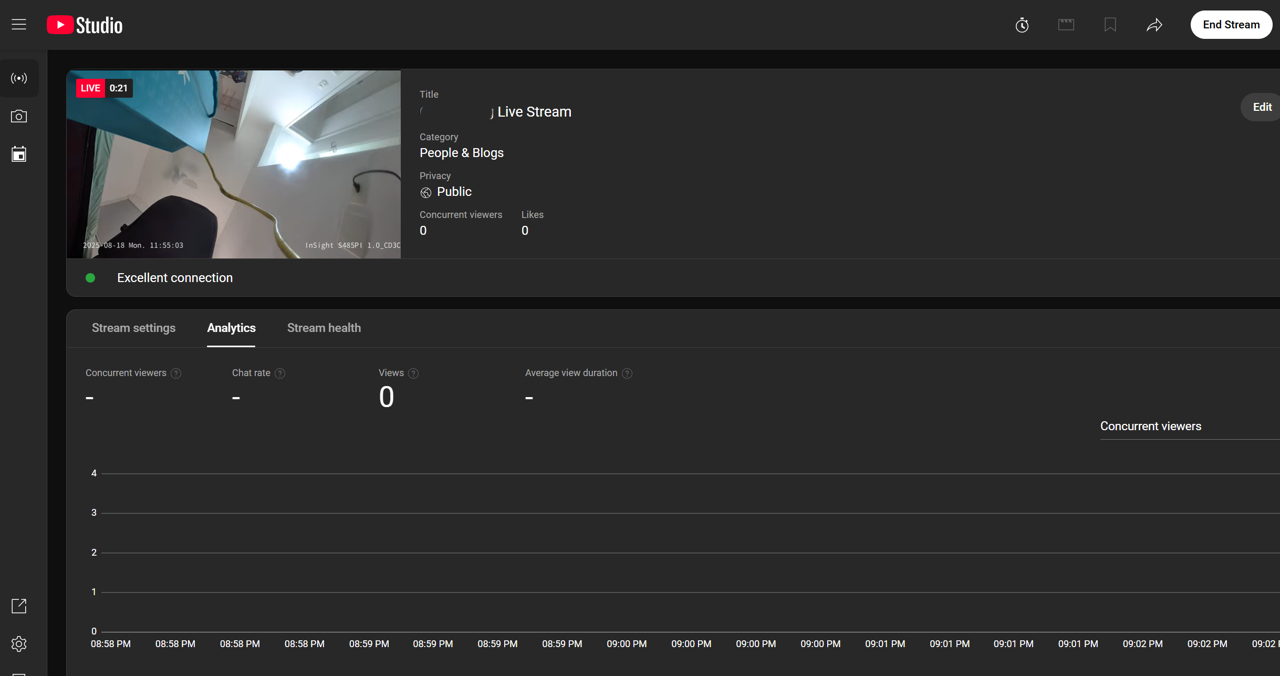
Conclusion
You have successfully streamed your VIGI cameras on YouTube.
To learn more about each function and configuration, please visit Support Home to download or check the manual for your product.
Ищете больше информации?
Полезен ли этот FAQ?
Ваши отзывы помогают улучшить этот сайт.



TP-Link Community
Still need help? Search for answers, ask questions, and get help from TP-Link experts and other users around the world.
From United States?
Получайте информацию о продуктах, событиях и услугах для вашего региона.