
How to Configure Alarm Settings for Tapo Cameras in the Tapo App
The Alarm feature allows your Tapo camera to respond to detected events with sound alarms, light alarms, or hub alarms, depending on the device model. You can also customize alarm schedules, event triggers, alarm duration, and alarm sounds in the Tapo app.
Key Takeaways
- Configure alarm settings from the Alarm page in Device Settings.
- Choose from Sound Alarm, Light Alarm, or Sound & Light Alarm on supported models.
- Customize alarm sounds, volume, duration, trigger events, and schedules.
- Cameras that require a hub can trigger a hub alarm when an event is detected.
- Floodlight cameras support customizing both Auto Alarm and Manual Alarm settings.
Access Alarm Settings
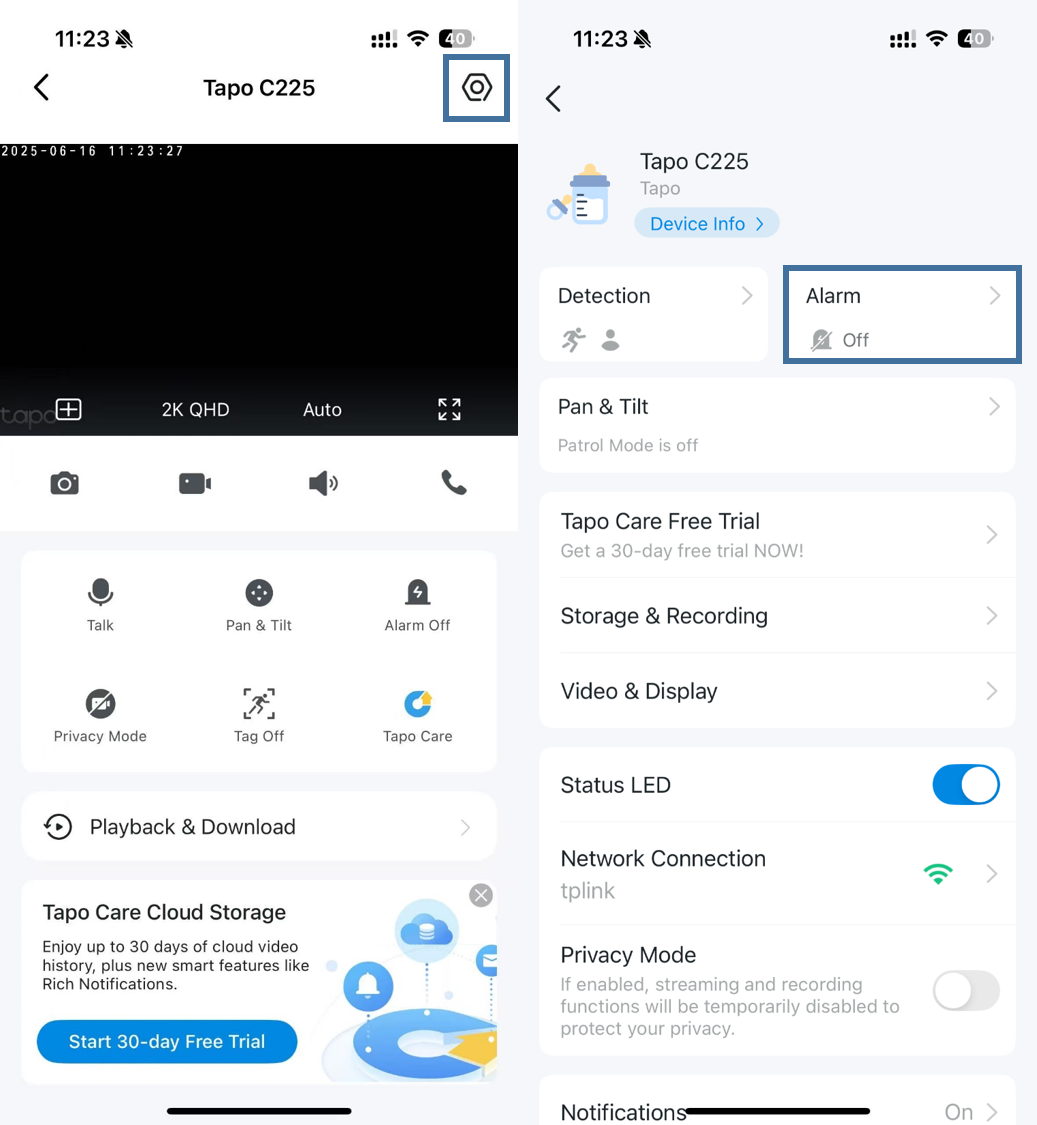
Step 1: On the Tapo app Home page, tap your camera card to enter the Live View page.
Step 2: Tap the Settings icon in the top-right corner to open Device Settings.
Step 3: Select Alarm.
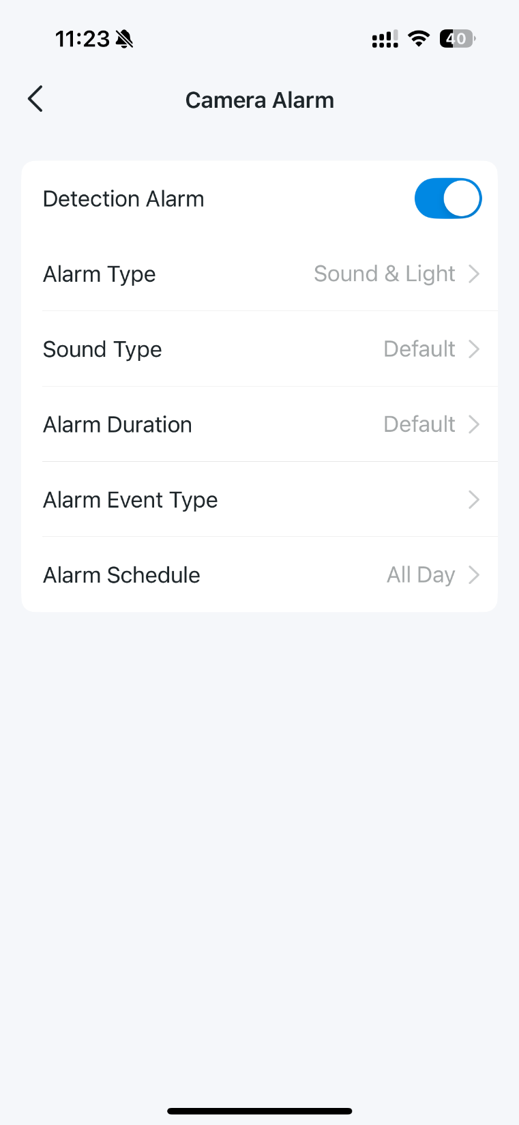
Alarm Settings Available on Most Tapo Cameras
Enable or disable the Detection Alarm, then customize the following settings as needed:
- Alarm Type: Choose Sound, Light, or Sound & Light.
- Sound Type: Adjust alarm volume and select a preset sound. On supported models, you can create a custom alarm sound by going to Sound Type > Sound > Custom > Add Custom Sound, then record a sound of up to 15 seconds.
- Alarm Duration: Set how long the sound alarm remains active after being triggered. This setting applies to sound alarms only.
- Alarm Event Type: Select which detection events trigger the alarm.
- Alarm Schedule: Define when the alarm is active.
Note: For Tapo cameras that require a hub, you can also enable Trigger Hub Alarm and customize the hub alarm sound. When enabled, the hub will sound an alarm whenever the camera detects a selected event.
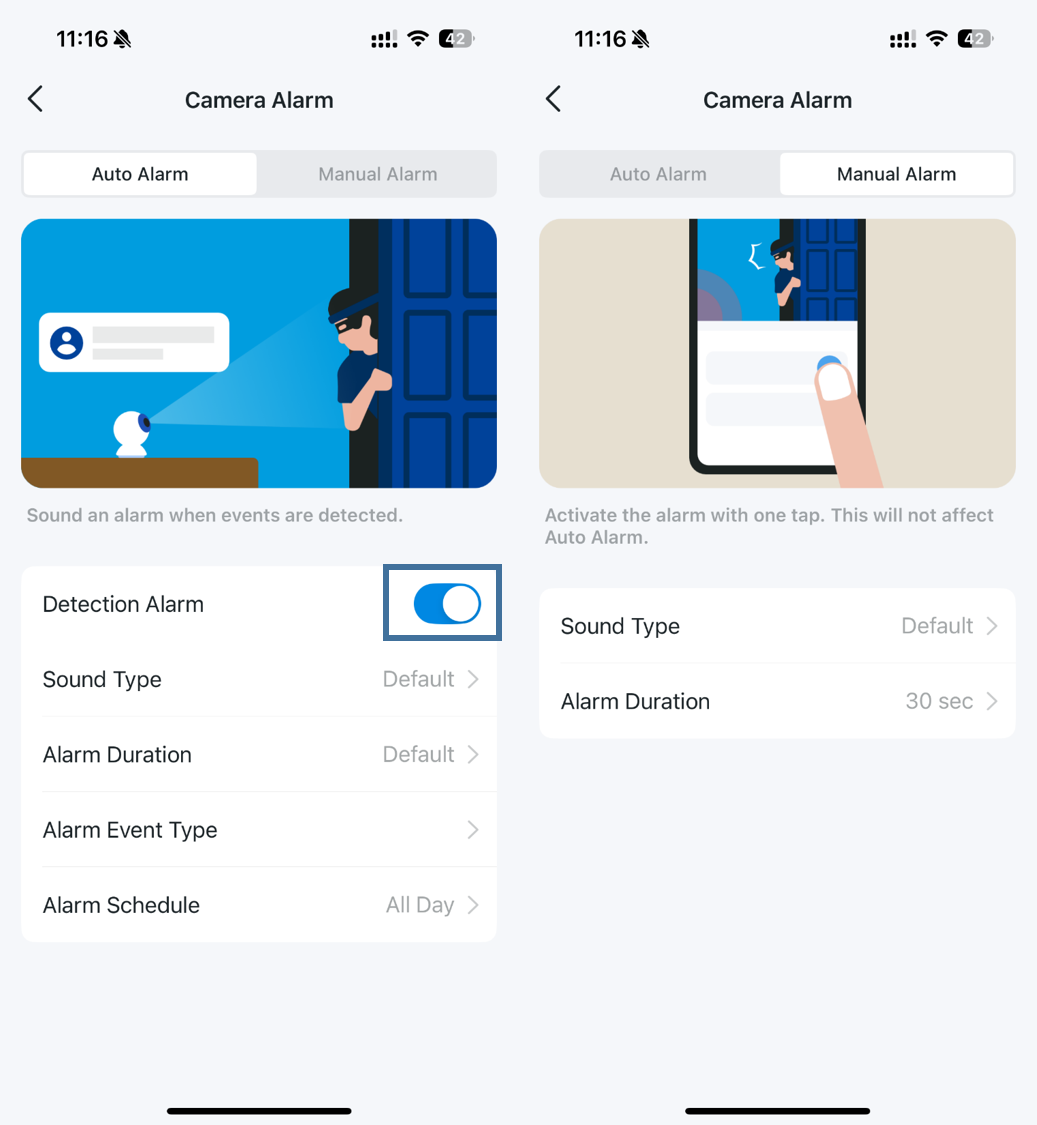
Alarm Settings for Tapo Floodlight Cameras
You can configure both Auto Alarm and Manual Alarm settings.
- Auto Alarm: The camera automatically triggers an alarm when a selected event is detected. You can configure Sound Type, Sound Alarm Duration, Alarm Event Type, and Alarm Schedule here.
- Manual Alarm: Manually activate the alarm from the Live View page with a single tap. You can customize Sound Type and Sound Alarm Duration here.
Looking For More
Is this faq useful?
Your feedback helps improve this site.



TP-Link Community
Still need help? Search for answers, ask questions, and get help from TP-Link experts and other users around the world.