How to Fix Green or Pixelated Images on VIGI Cameras via the VIGI App
Contents
Introduction
Some mobile devices may experience video decoding compatibility issues when displaying camera streams in the VIGI App. As a result, the live view or thumbnail image may appear green, distorted, or heavily pixelated even though the camera is operating normally.
In most cases, the issue is related to how the client device decodes the video stream rather than a problem with the camera itself. This article explains how to resolve the issue using the Soft Decode feature in the VIGI App.
Requirements
- VIGI Camera
- VIGI App
Troubleshooting
The issue may appear as the picture shown below:
- A green screen during Live View
- A pixelated or distorted image
- Corrupted thumbnails or video previews
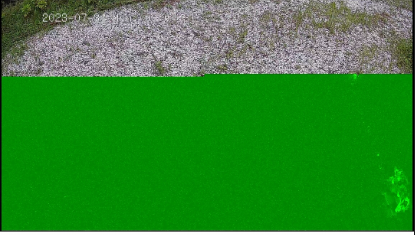
Follow the steps below if the live view or thumbnail image of your VIGI camera appears green, distorted, or heavily pixelated:
Enable Soft Decode
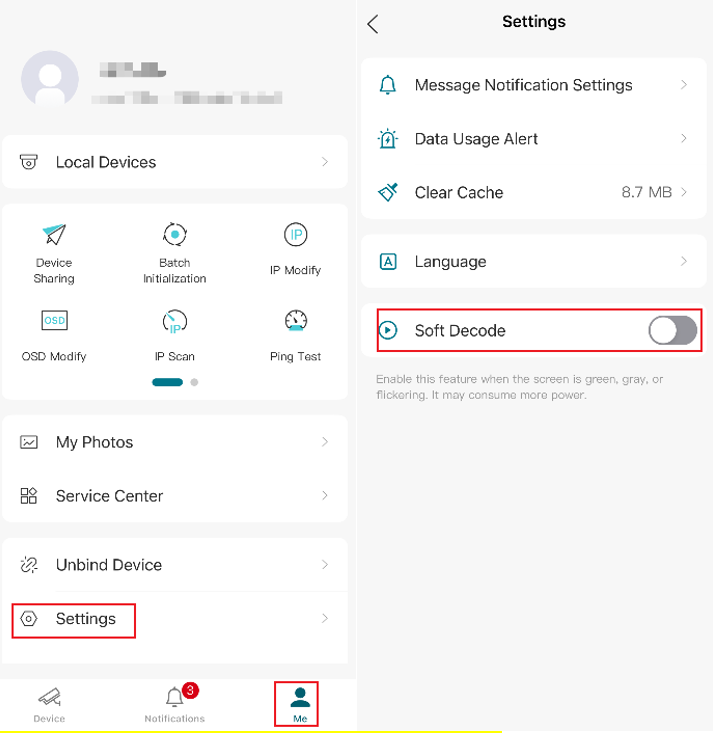
Navigate to VIGI App > Me > Settings and enable Soft Decode, which uses software decoding instead of hardware decoding and may improve image display when the client device cannot properly decode the video stream.
Note: Enabling Soft Decode may increase CPU usage and power consumption on the mobile device.
Verification
After enabling Soft Decode:
1. Refresh the Live View page.
2. Verify that the green screen or pixelated image no longer appears.
3. Confirm that thumbnails and video previews are displayed normally.
Conclusion
You have now completed the recommended troubleshooting procedure for a green or pixelated image issue on a VIGI camera. By enabling Soft Decode, most video decoding issues can be resolved, and normal live view can be restored.
To learn more about each function and configuration, please visit Support Home to download or check the manual for your product.
Looking For More
Is this faq useful?
Your feedback helps improve this site.


TP-Link Community
Still need help? Search for answers, ask questions, and get help from TP-Link experts and other users around the world.