
Why and How to Change the IP Address on a TP-Link Access Point or Extender
TP-Link access points and range extenders have a default IP address of 192.168.1.1, 192.168.1.254, or 192.168.0.254, depending on the model. If your root router uses the same address, an IP conflict can occur, preventing proper network operation. This page explains why the conflict occurs and how to change the TP-Link extender or access point IP address to resolve it.
Key Takeaways
- TP-Link access points and range extenders have a default IP address of 192.168.1.1, 192.168.1.254, or 192.168.0.254, depending on the model — check the label on the bottom of the device.
- An IP conflict occurs when the access point or extender shares the same IP address as the root router. Changing the device's IP resolves the conflict.
- To change the IP address, log in to the web-based interface, go to the Network settings, enter a new IP address that is not already in use on the network, and click Save.
- The new IP address takes effect after the device reboots.
- After changing the IP, reconfigure the computer's TCP/IP settings to Obtain an IP Address Automatically to restore the Internet connection.
Why You May Need to Change the IP Address
The default IP address of the access point or range extender is 192.168.1.1, 192.168.1.254, or 192.168.0.254, depending on the model. When two devices on the same network share the same IP address, one or both may lose connectivity. Changing the TP-Link device's IP address to a unique address on your network resolves the conflict.
How to Change the IP Address of an Access Point or Extender
Step 1 Log in to the web-based interface of the access point or extender.
Step 2 Click Internet/Network and find the LAN settings, enter an IP address that is not currently in use on the network, and click Save.
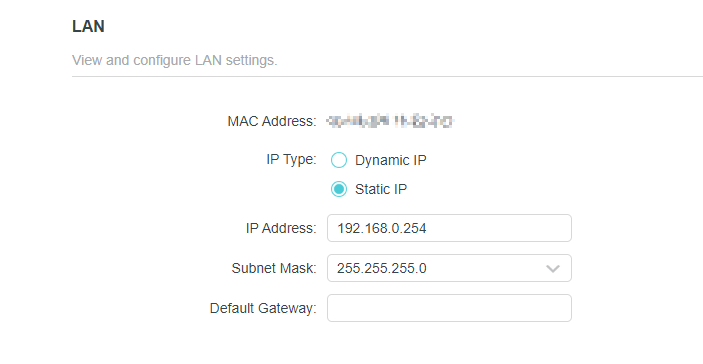
Notes:
1. The settings will take effect once the device is rebooted.
2. If you have a broadband router that provides you with an Internet connection, reconfigure the IP settings of the computer to Obtain an IP Address Automatically to restore the Internet connection.
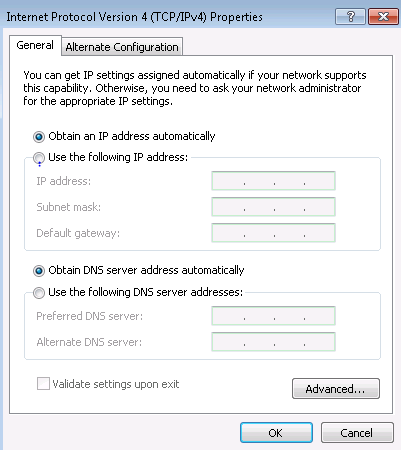
To learn more about each function and configuration, please visit the Download Center to download the manual for your product.
Looking For More
Is this faq useful?
Your feedback helps improve this site.


TP-Link Community
Still need help? Search for answers, ask questions, and get help from TP-Link experts and other users around the world.