
How to Enable, Pause, or Disable the Anti-theft Alarm on Tapo Doorbells
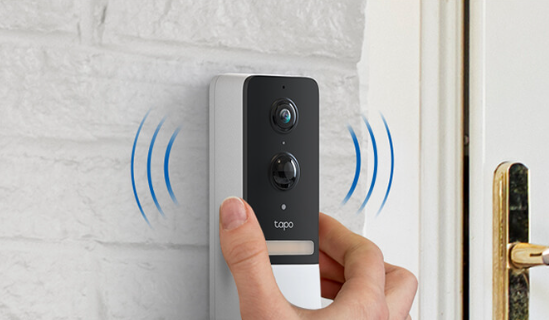
The Anti-theft Alarm helps protect your Tapo doorbell from unauthorized removal. This guide explains how to enable, pause, and disable the feature, what happens when the alarm is triggered, and how to manage it using either the device buttons or the Tapo app.
Key Takeaways
- Enable the Anti-theft Alarm in the Tapo app under Device Settings > Doorbell > Anti-theft Alarm.
- When triggered, the doorbell sounds an alarm, sends notifications, records video, and blocks device reset for up to 15 minutes.
- Press and hold the Anti-theft button for 5 seconds to temporarily pause the alarm.
- Disable the Anti-theft Alarm using either the physical buttons on the doorbell or the Tapo app.
- The location of the Anti-theft button varies by model; refer to your product's Quick Installation Guide or User Guide for details.
Enable the Anti-theft Alarm
Open the Tapo app and go to doorbell Device Settings > Doorbell > Anti-theft Alarm, turn on Anti-theft Alarm.
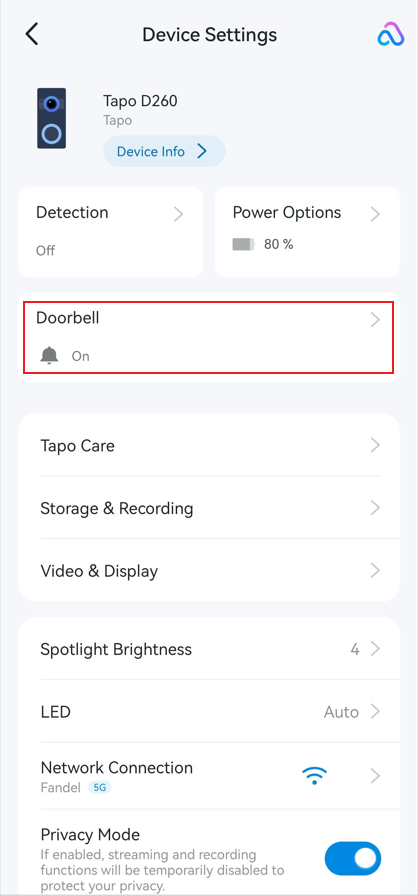
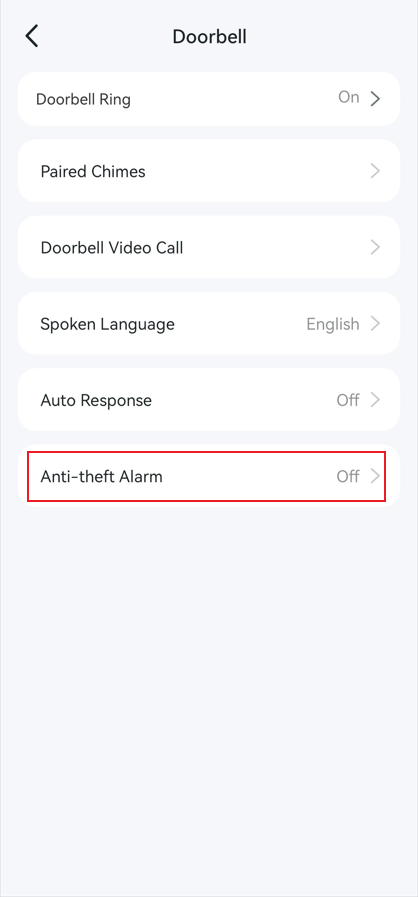
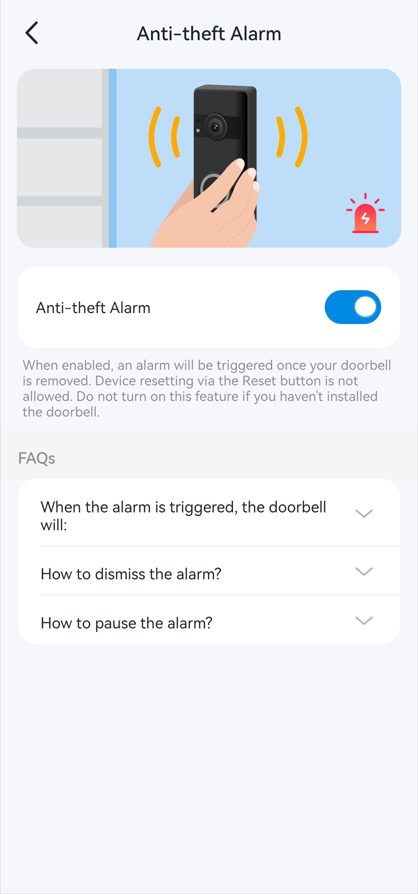
Once enabled, the doorbell will trigger an alarm if it is removed from its mounting bracket. When the alarm is triggered:
- The anti-theft alarm sounds on and off in a repeating cycle for 15 minutes.
- Sends you app notifications when notification is enabled.
- Keep recording for 15 minutes or until the alarm is dismissed.
- Not allow device resetting via the Reset button.
Note: Do not turn on this feature if you haven't installed the doorbell.
Pause the Anti-theft Alarm
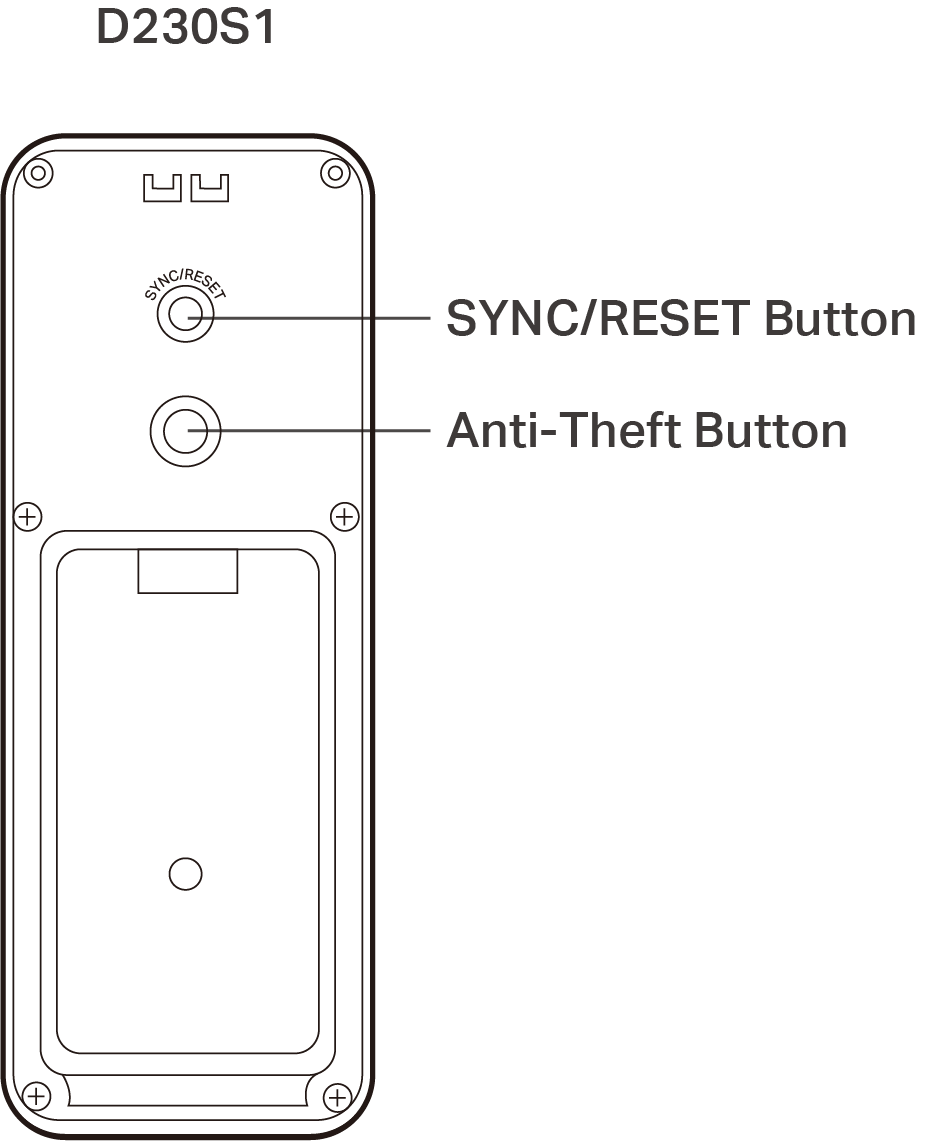
Press and hold the Anti-theft button on the back of the doorbell for 5 seconds to temporarily pause the alarm. The alarm will sound again when you release the button.
Note: The location of the Anti-theft button varies by model. Visit the Download Center and refer to the Quick Installation Guide or User Guide for your specific model. Here, we use the Tapo D230S1 as an example.
Stop the Anti-theft Alarm
Method 1: Using the Physical Button
Press and hold the SYNC/RESET button and the Anti-theft button on the back of the doorbell simultaneously for 10 seconds to disable the Anti-theft Alarm.
Method 2: Using the Tapo App
Open the Tapo app and go to doorbell Device Settings > Doorbell > Anti-theft Alarm, then turn off Anti-theft Alarm.
To learn more about each function and configuration, please visit the Download Center to download the manual for your product.
Looking For More
Is this faq useful?
Your feedback helps improve this site.


TP-Link Community
Still need help? Search for answers, ask questions, and get help from TP-Link experts and other users around the world.