How to discover and manage devices using VIGI Config Tool
 33719
33719Contents
Introduction
You can use the VIGI Config Tool to discover and manage devices in the same local network.
Requirements
- VIGI Config Tool
- VIGI Camera/NVR/Solar Power System
Configuration
Step 1. Double-click the icon to launch the VIGI Config Tool. After connecting the devices to the same broadcast domain, they will automatically appear in the Discovered Device list at the bottom of the VIGI Config Tool page. You can also click the Refresh button to discover them.
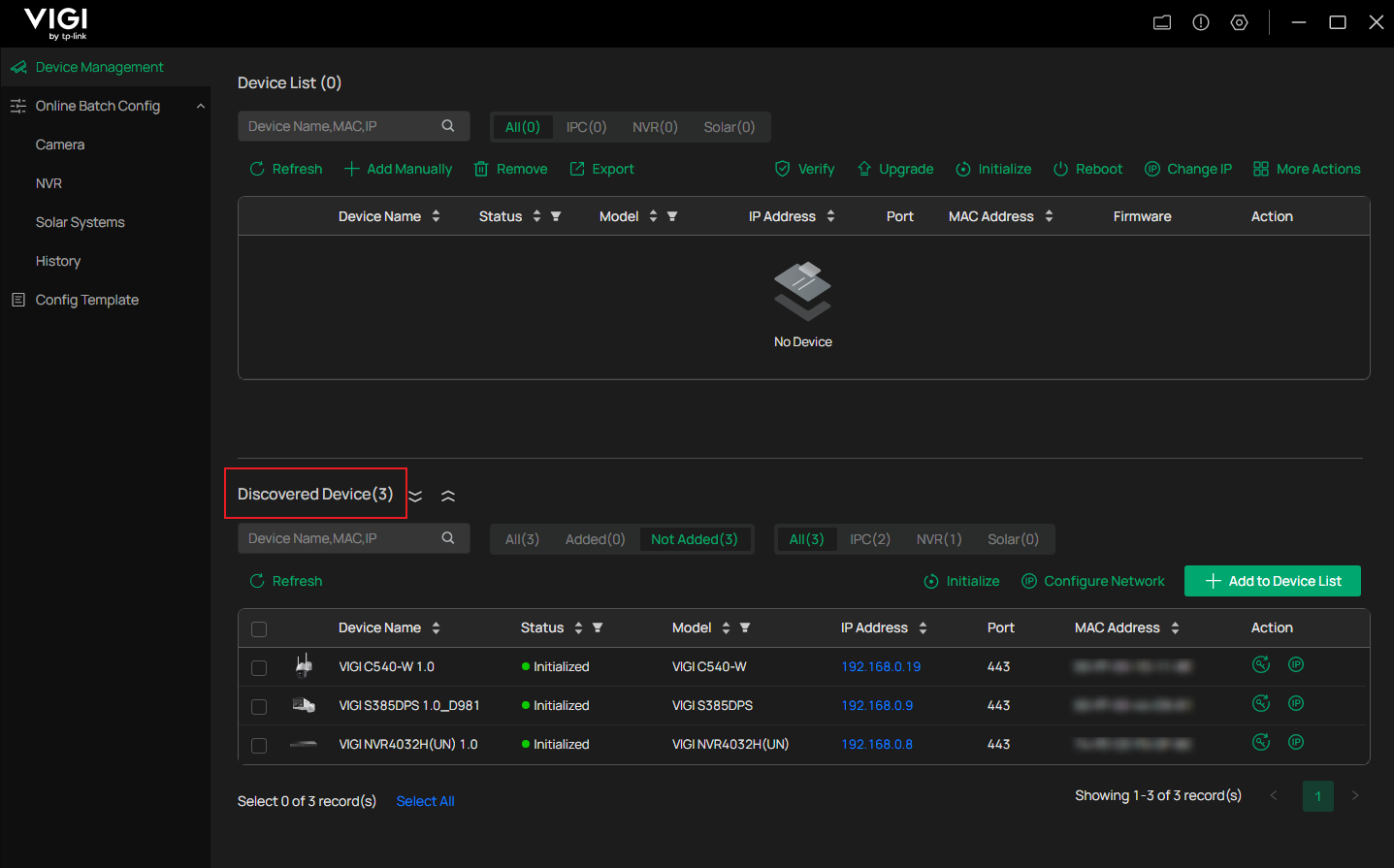
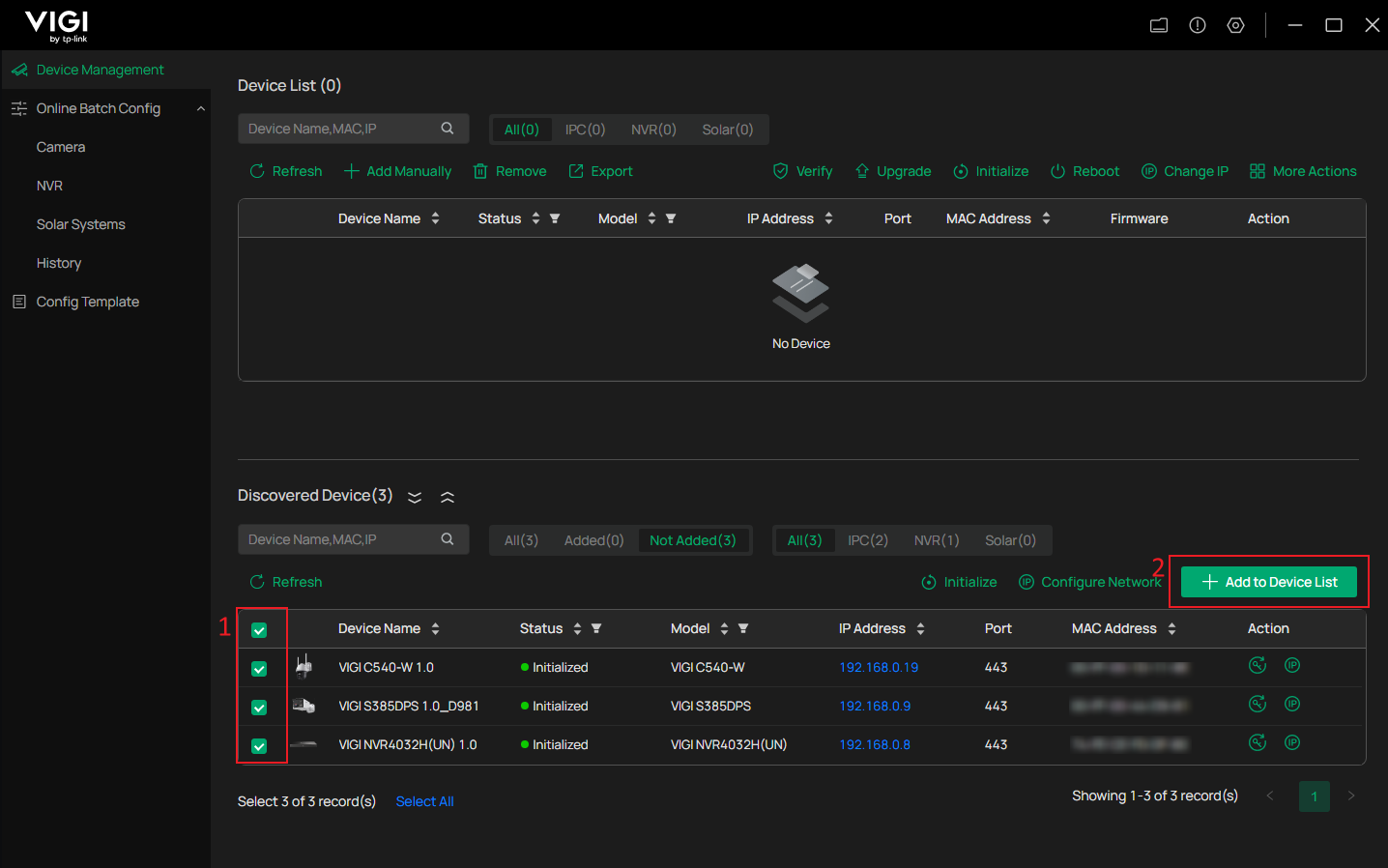
Step 2. You can choose to add one or multiple devices. Click the Add to Device List button and enter the device password.
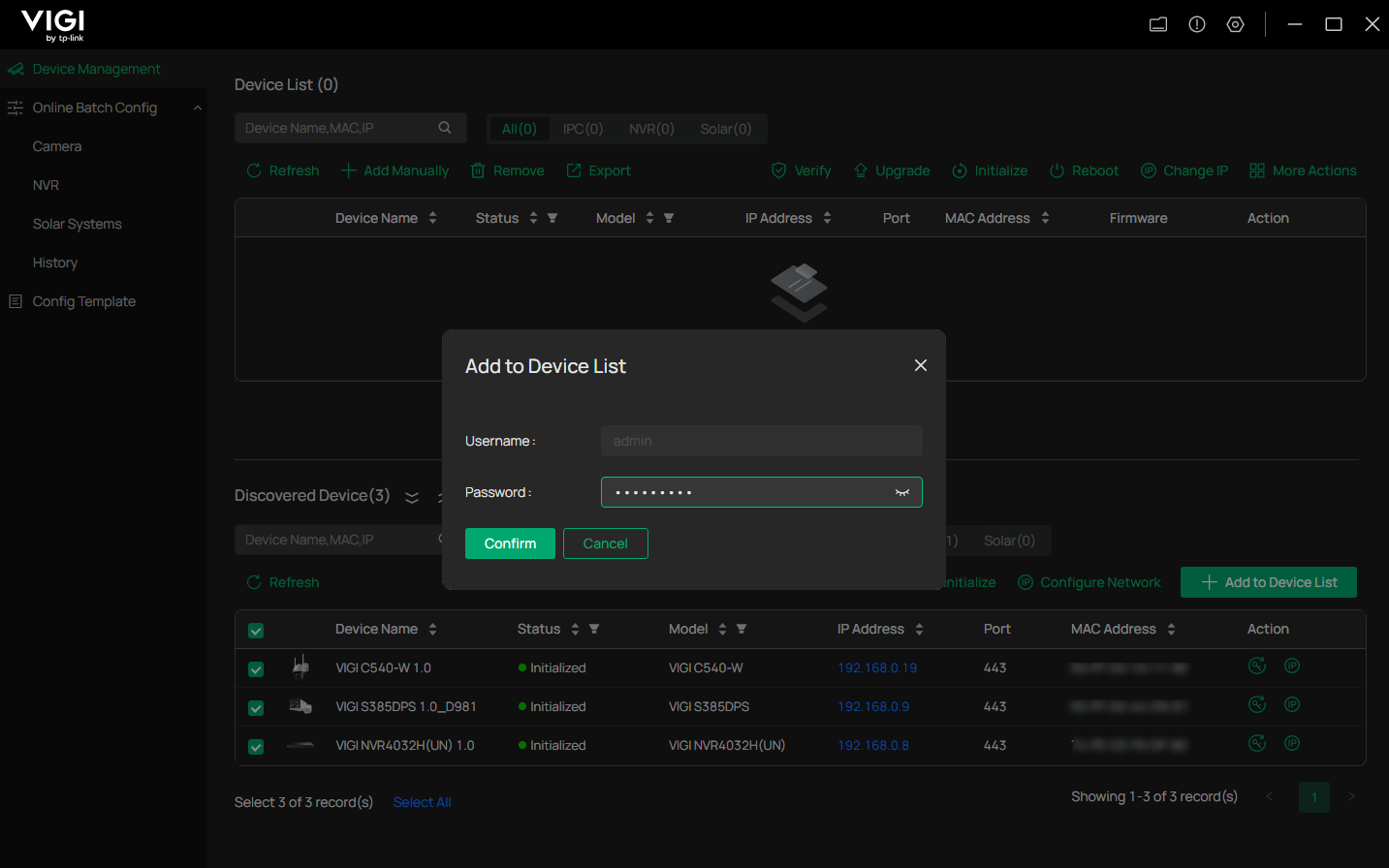
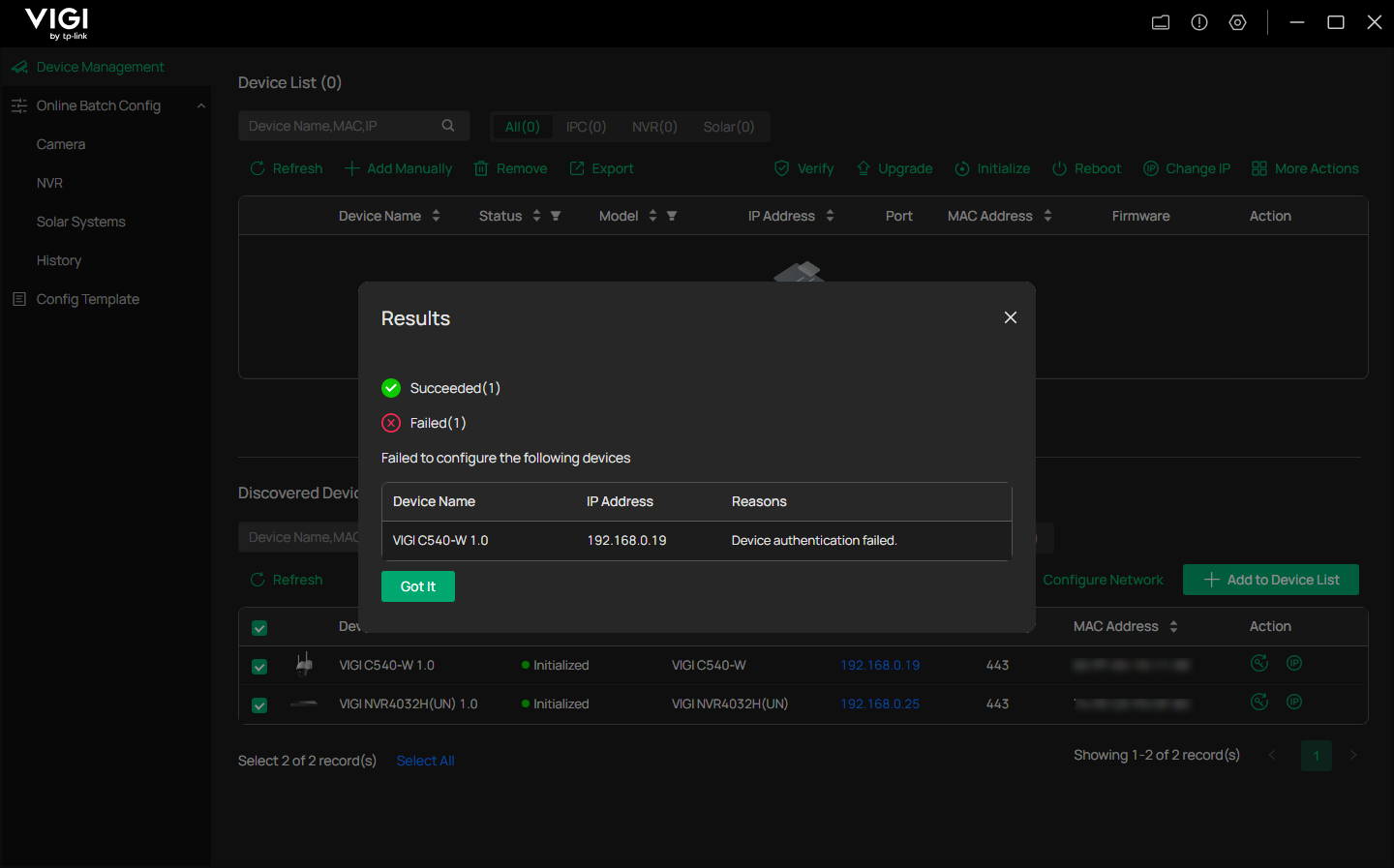
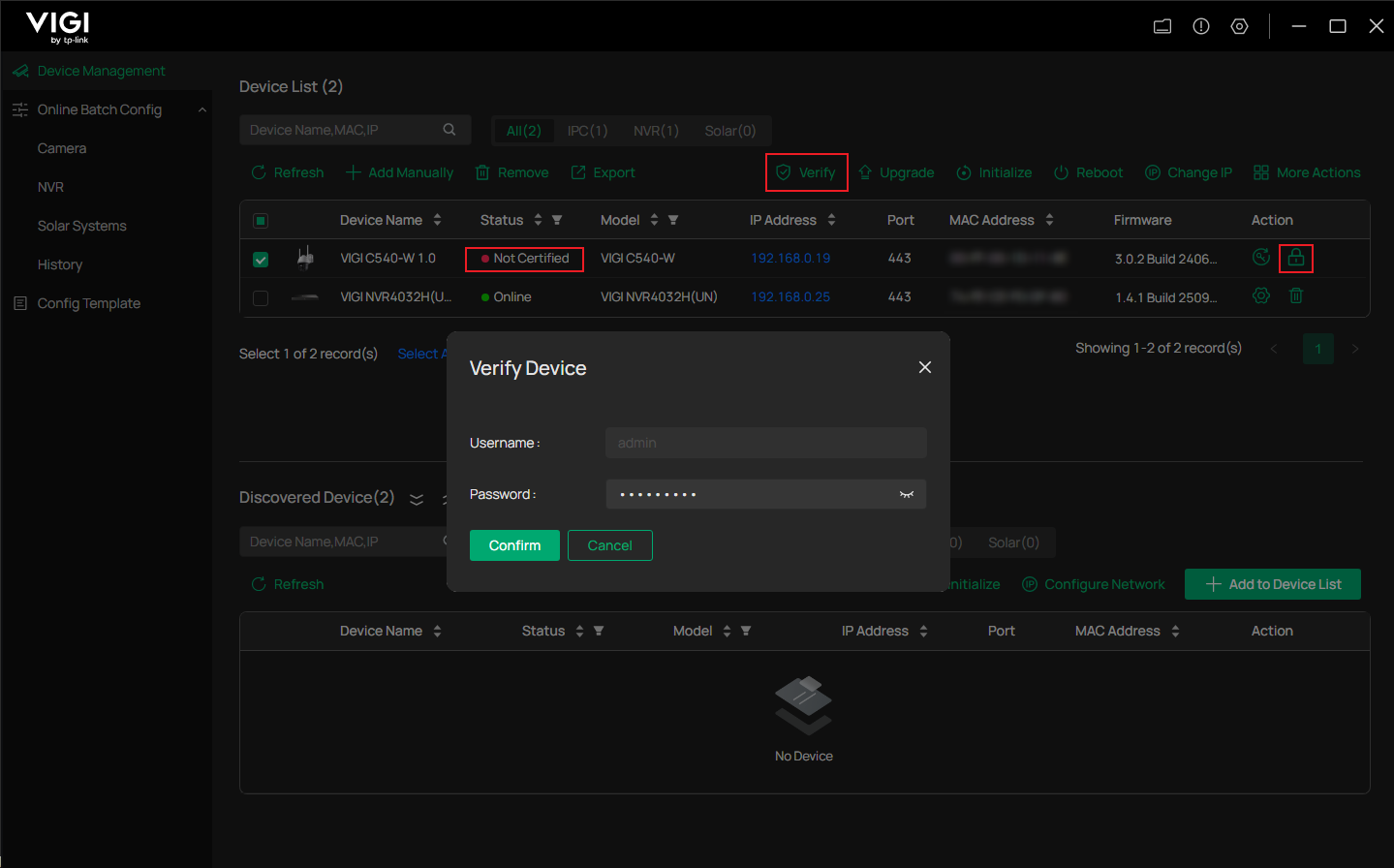
When the device uses a different password or the password is entered incorrectly, an error will occur indicating the addition has failed. The added device will appear as Not Certified. At this time, you can select the device and click the Verify or lock icon button to enter the correct password again.
Verification
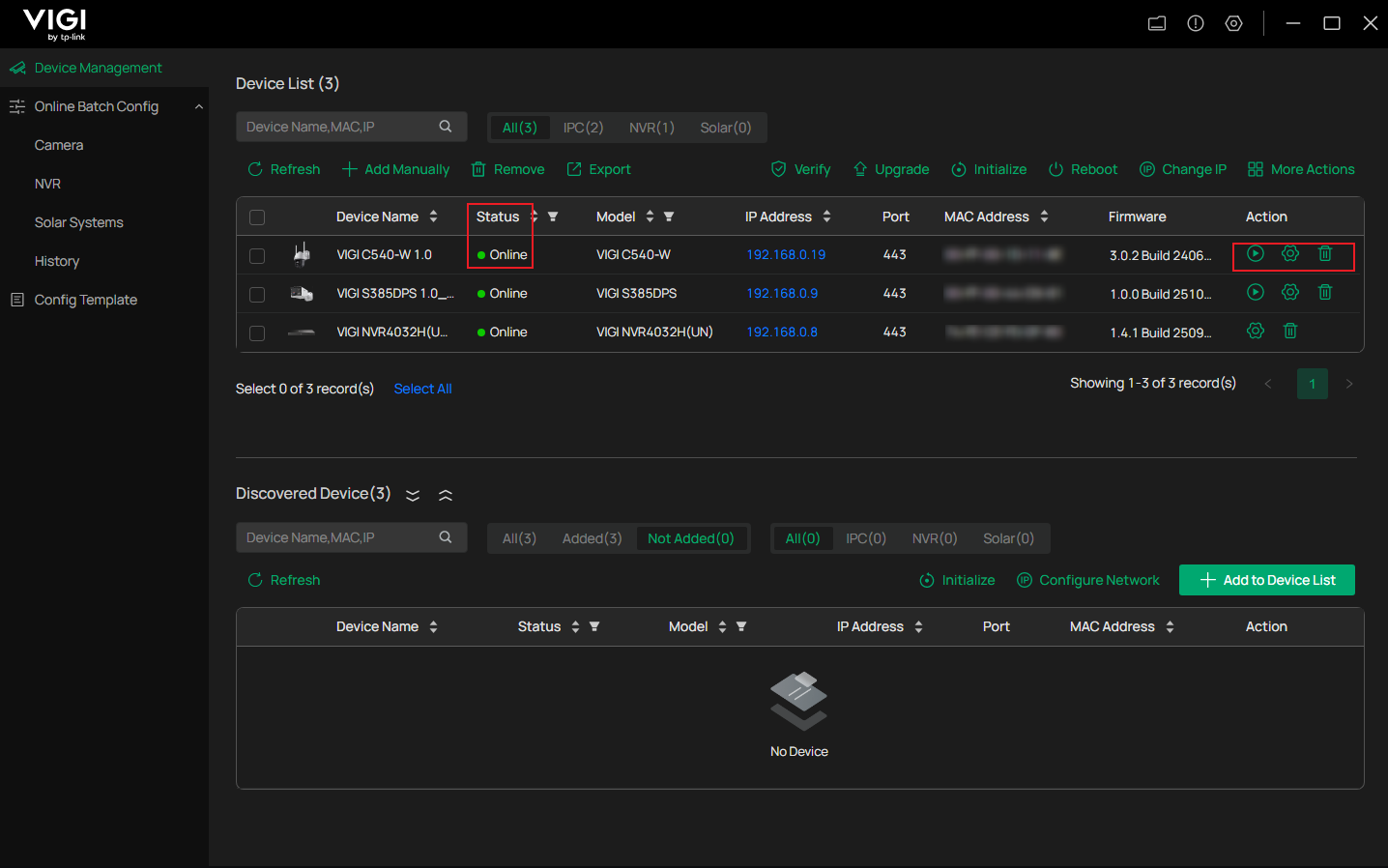
Check the status of the device. When the status changes to Online, the operation is successful.
Conclusion
You can now manage the devices using the VIGI Config Tool.
Get to know more details of each function and configuration please go to Download Center to download the manual of your product.
Câu hỏi thường gặp này có hữu ích không?
Phản hồi của bạn giúp cải thiện trang web này.