
How to Check DSL Sync Status on Deco DSL Model
The DSL sync status shows whether your Deco is successfully connected to your ISP over the phone line. Without a successful sync, you can’t go online. By checking this status, you can quickly tell whether a failed DSL sync is causing your “No Internet” or “Disconnected” issue. This guide shows you two easy ways to view the DSL status on your TP-Link Deco DSL model.
Key Takeaways
- You can check the DSL sync status on your Deco DSL model using either the Deco app or the Web Management page.
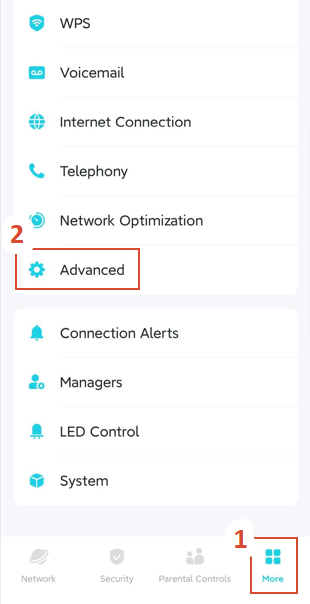
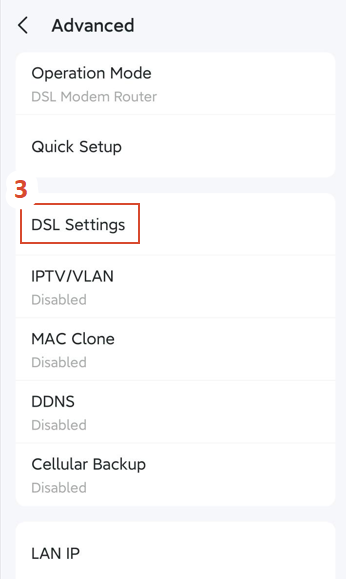
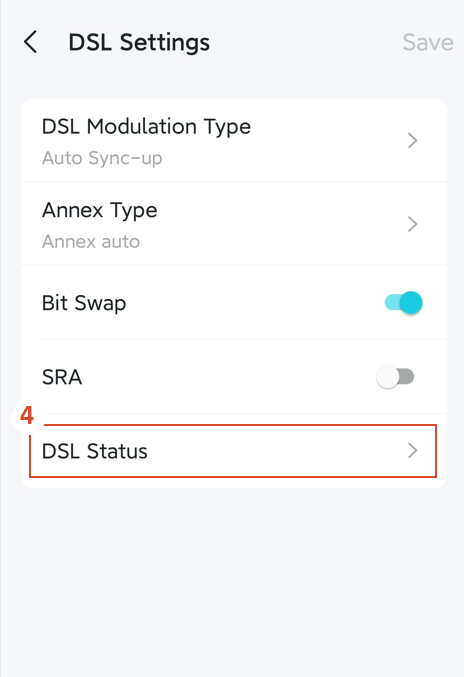
- The Deco app method is quick and mobile-friendly: go to More > Advanced > DSL Settings > DSL Status.
- The Web Management page can be accessed via tplinkdeco.net or 192.168.68.1, then go to Advanced > Status.
- Checking DSL status helps you monitor line quality, sync speed, and troubleshoot connection issues.
- If the DSL status shows “Disconnected”, check your phone line connection and filter/splitter.
Why Check DSL Status?
- Successful DSL synchronization is a must for accessing the Internet over a DSL line. By checking the DSL status, you can determine whether synchronization was successful and assess the overall quality of the DSL connection.
- Troubleshooting connection drops – If the Line Status shows "Disconnected," the issue is most likely with your phone line or Internet Service Provider (ISP).
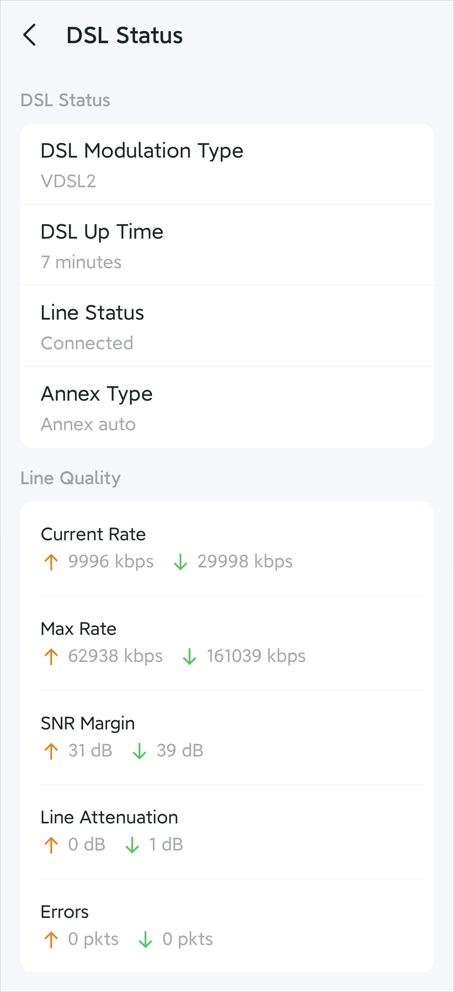
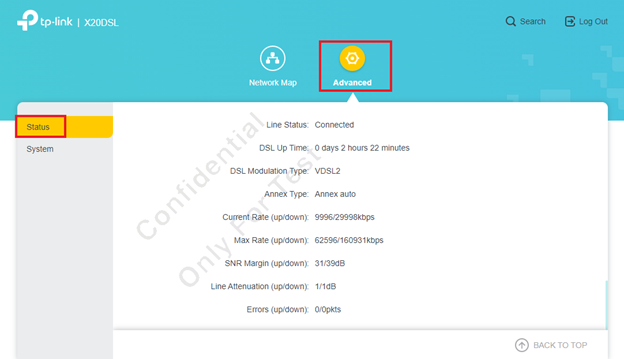
- Monitoring line quality – You can view the Current Rate, SNR Margin, and Line Attenuation, which help diagnose potential line issues.
Step-by-Step Guide to Check the DSL Sync Status
Method 1: Using the Deco App
Open the Deco app on your phone.
Tap More (bottom right corner).
Go to Advanced > DSL Settings > DSL Status.
You’ll now see the current DSL Status and Line Quality.
Method 2: Using the Web Management Page
Step 1: Access the Web Management page
Connect your device to the Deco via Wi-Fi or an Ethernet cable.
Open a web browser and enter one of the following addresses:
Log in with your TP-Link ID and password (the same one you use for the Deco app).
Step 2: View the DSL status
Go to Advanced > Status.
Scroll down to the bottom of the page.
You will find the DSL Status section there.
To get to know more details of each function and configuration please go to Download Center to download the manual of your product.
Looking For More
¿Es útil esta pregunta frecuente?
Sus comentarios nos ayudan a mejorar este sitio.

TP-Link Community
Still need help? Search for answers, ask questions, and get help from TP-Link experts and other users around the world.