
Find Your TP-Link Router Wi-Fi Password
Forgetting your Wi-Fi password happens to everyone. Whether you need your TP-Link default Wi-Fi password or want to recover one you changed, there are three ways to get it back: checking the router label, viewing the password through the web interface, and performing a factory reset as a last resort. This guide walks you through all three.
Key Takeaways
- The default TP-Link password is printed on the label on the bottom of the router, along with the default network name (SSID).
- If you changed the password, you can view or update it by logging in to the web management page at tplinkwifi.net or 192.168.0.1.
- The menu path for wireless settings varies by model and firmware: look for Wireless > Wireless Settings or Basic > Wireless, depending on your router.
- If you have lost both your Wi-Fi password and your router login password, a factory reset is your fallback option.
Check the Router Label for the Default Password
For most TP-Link router models, the default network name (SSID) and password are printed on a label affixed to the bottom of the router. If you have never changed your Wi-Fi password since setting up the router, this label has everything you need to reconnect.
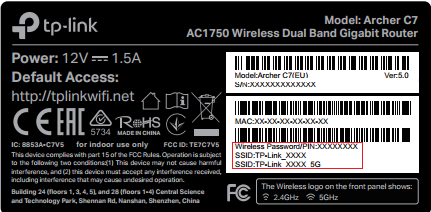
Note: If you changed your Wi-Fi password at some point and no longer remember it, the label will not reflect the updated password. In that case, use one of the methods below.
View or Change Your Password via the Web Interface
If your Wi-Fi password has been changed from the default, you can still find it by logging in to your router's web management page.
- Connect a device to the router, either by Wi-Fi or with an Ethernet cable.
- Open a browser and go to tplinkwifi.net or 192.168.0.1. For full login instructions, see how to log in to your TP-Link router's web management page.
- Once logged in, navigate to your wireless settings. The exact menu path depends on your router model and firmware version:
- Wireless > Wireless Settings: Shows the wireless password directly.
- Basic > Wireless: Lets you view and change both the SSID and the password.
- Basic Settings and Wireless Security (separate pages): On some older models, the SSID appears under Basic Settings and the password under the Wireless Security setting.
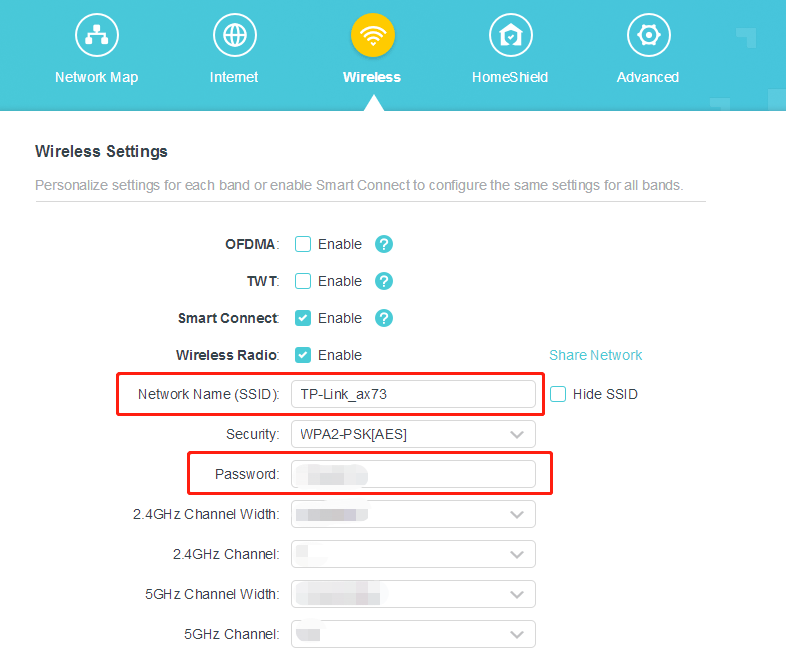
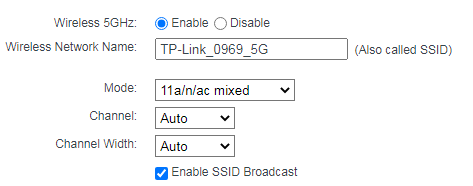
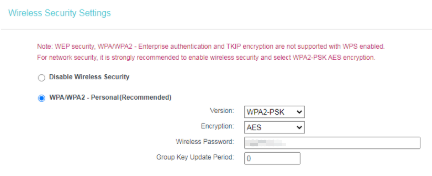
You can update your password directly on any of these pages. After saving, reconnect your devices using the new password.
Note: If you have forgotten your router login password (not the Wi-Fi password), you will not be able to access the web interface without resetting the router. See what to do if you forget your TP-Link router login password.
Reset the Router as a Last Resort
If you have lost both the Wi-Fi password and the router login password, a factory reset will restore all settings to their defaults, including the original password printed on the label.
Important: A factory reset erases all custom settings, including your Internet connection configuration. You will need to set up the router again from scratch after resetting.
For instructions on how to perform a factory reset, see how to reset your TP-Link router to factory defaults.
Tips for Setting a Strong Wi-Fi Password
After recovering access, it is a good time to update your TP-Link router password to something stronger. A strong Wi-Fi password uses a mix of letters, numbers, and symbols, and is at least 12 characters long. Once updated, store the new password somewhere secure, so you won’t need to go through this process again.
Bu SSS faydalı mı?
Your feedback helps improve this site.


3.0-F1_1529482239075s.jpg)