What should I do if I encounter issues while playing back videos from an SD card?
 206849
Introduction
TP-Link cameras support two recording storage options: local storage and cloud storage. Local storage uses a microSD card to save video clips. This article highlights common issues that may occur when viewing playback stored on a microSD card and provides corresponding troubleshooting steps.
Troubleshooting
Scenario 1: No recording
Step 1. Please format the microSD card before using it. Ensure the SD card is in good condition.
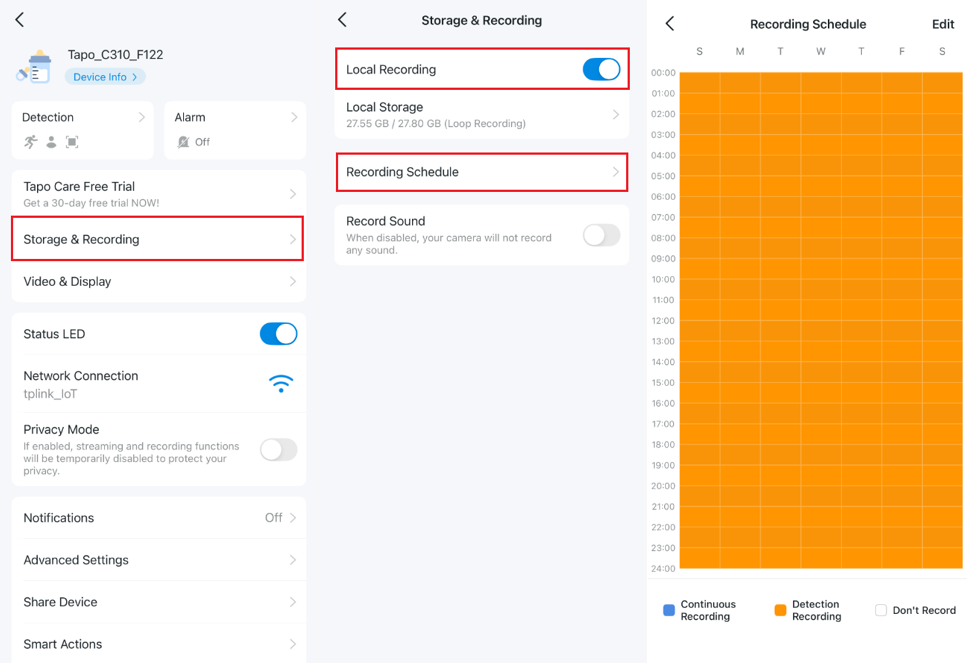
Step 2. Ensure the Local Recording function is enabled via Tapo app > Live view page > tap  in the right top corner > Storage & Recording > Local Recording.
Step 3. Check if you have set the correct Recording Schedule. If you choose Detection Recording, ensure the Detection settings are correct.
Step 4. If you only see today’s recordings on the SD card and not earlier ones, you may not have selected the correct date in the Tapo app. On the camera’s Live View screen, tap Playback & Download, select the SD Card tab, choose the date you want, then drag the timeline to view that day’s recordings.
Scenario 2: Unable to watch playback video/Show network is unstable when viewing
Step 1. Ensure the Tapo app is up to date in the App Store or Google Play.
Step 2. Update the firmware of the camera.
Step 3. Check if you can watch the live stream normally. If not, please check the camera's network connection.
Step 4. Check whether any other users/clients are watching the playback simultaneously, as it can only be viewed on one client at a time.
Step 5. If no other users/clients are simultaneously viewing the playback, it is recommended to save the required video to your computer first, then reformat the SD card to see if the issue persists.
Scenario 3: Playback video is not continuous and has some missing parts
Step 1. Check if the Recording Schedule is continuous via Tapo app > Live view page > tap  in the right top corner > Storage & Recording > Recording Schedule.
Note: Battery-powered cameras (such as Tapo C420, C400, D230, etc.) do not support continuous recording.
Step 2. Check whether any reboot schedule is enabled via Tapo app > Live view page > tap  in the top right corner > Reboot Camera.
Step 3. Check if the camera is associated with any smart action or away mode settings.
Step 4. Check whether a power outage occurred at the time of the issue.
Step 5. If the SD card's read/write speed is not up to standard, it may result in missing recordings. Check whether the SD card is on the recommended list, and if not, consider replacing it with a compatible one.
Scenario 4: Unable to download playback videos
Step 1. Make sure your phone and camera are connected to the same Wi-Fi.
Step 2. Ensure VPN is disabled on the phone and router.
Step 3. Turn off Advanced settings on the router, such as Access Control, AP Isolation, etc.
Step 4. Testing with a different phone.
Step 5. Try separating 2.4G and 5G WiFi on the router, then connect both the mobile phone and the camera to the same 2.4G WiFi and check again.
Scenario 5: Incorrect timestamp on playback video
Step 1. Make sure the camera is connected to the Internet and can be controlled using cellular or other Wi-Fi networks.
Step 2. Set camera on correct time zone via Tapo app > Live view page > tap  in the top right corner > Device Info > Time zone.
Step 3. Turn off the NVR or third-party software, then reboot the camera, as some onvif software may affect the camera's time.
Step 4. If no NVR or third-party software is in use, reboot the camera directly or reinstall the Tapo app.
If the issue is still the same, contact TP-Link technical support and provide the information below for our support to look into further:
- MAC address of the Camera;
- Screenshot of the error message;
- Whether you have tried all the suggestions listed above or not. If yes, what are they?
- Enable Diagnose mode, get the log of the camera, and share the log file.
QA
Q1: Does recording overwrite the oldest footage?
A1: Yes, by enabling the loop feature, the oldest recording will automatically be overwritten when room is needed on the MicroSD card.
Q2: How do I delete recordings from SD cards through the Tapo app?
A2: If you want to delete all recordings, please navigate to the Tapo app > Live view page > tap  in the top right corner > Storage & Recording > Local Storage > Format microSD Card.
You may also need to put the SD card into a computer (with an SD card reader) or phone to delete the corresponding recordings.
Bu SSS faydalı mı?
Your feedback helps improve this site.