
Why my TP-Link Router gets a WAN IP from the modem but no internet access?
 757710
Bu Makalenin Geçerliliği:
Make sure Internet is working by connecting the computer directly to the modem and, bypassing the TP-Link router.
Problem Description:
No internet access after setup, even though the router has been given a valid IP address.
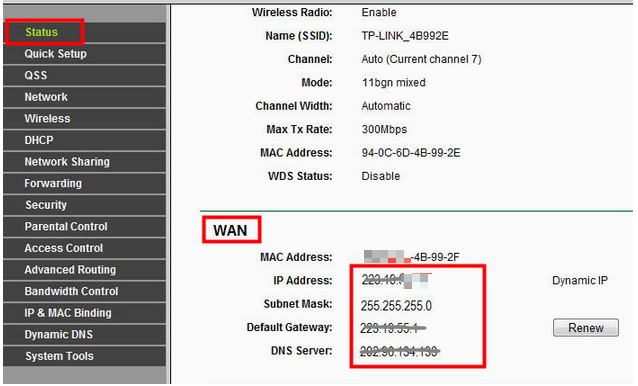
Note: If you are not sure how to log into the router's web interface to check the WAN IP Address, please click here.
Solution 1:Set up manual DNS Servers for the router.
- Click on DHCP -> DHCP settings, then put 8.8.8.8 into the Primary DNS field, click Save.
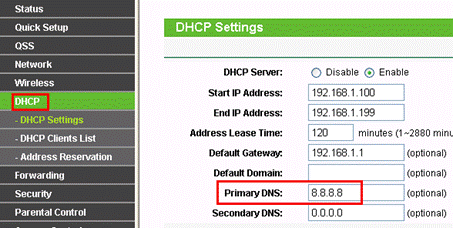
8.8.8.8 is a free and safe public DNS server provided by Google.
- Reboot the router to finish the settings.
Go to System Tools -> Reboot, click on “Reboot” button to finish the settings.
|
|
|


Solution 2: Power Cycle the modem and the TP-Link router.
- Power off your modem and TP-Link router, leave them off for 1 minute.
- Unplug the modem’s power cord and unscrew the coaxial cable.
- Connect the modem to the Router’s WAN port and make sure the Router is powered on.
- Plug the power cord for the modem back in, but leave the coaxial cable disconnected.
- Wait 3-5 minutes and reconnect the coaxial cable.
- Wait for modem to reconnect and then check for IP and service.
Solution 3: Reset the router and reconfigure it manually.
- Hold the Reset button for more than 10 seconds to reset the router.
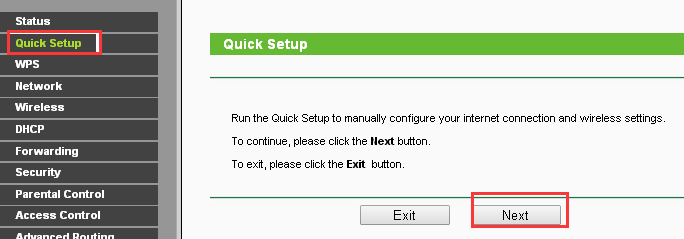
- Reconfigure the router manually through Quick Setup.
Bu SSS faydalı mı?
Your feedback helps improve this site.


