
How to Pair and Connect Tapo Sensor/Button/Switch to Tapo Hub
Introduction
Requirements
- Download the Tapo app by visiting the Google Play Store, App Store, or by scanning the QR code.

- Make sure your Tapo hub has been set up and is online.
Configuration
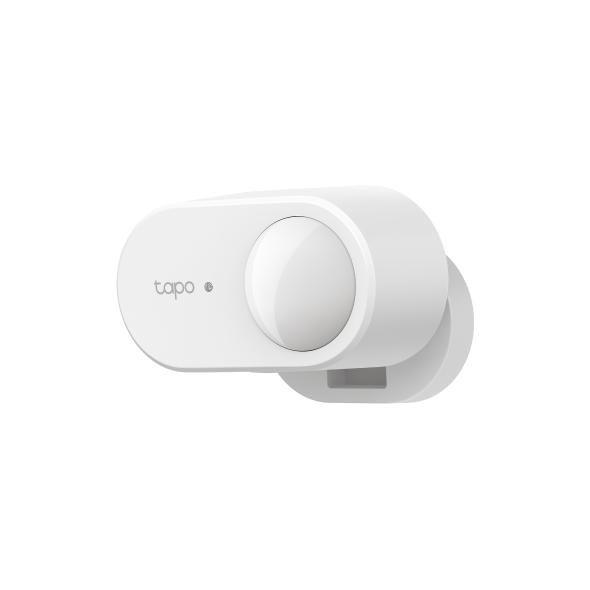
Here, we take the smart motion sensor Tapo T100 as an example.
Method 1: Via Tapo app
Step 1. Open the Tapo app, tap the plus icon in the top right corner, and choose Add Device.
Step 2. Select Sensors and click on Tapo T100.
Step 3. If you have more than 1 hub, you’ll need to select the hub you want the sensor to connect to. If there is only 1 hub, you’ll skip this step automatically.
Step 4. Follow the in-app instructions to power on your sensor and pair it with your Tapo hub.
Method 2: Via SYNC button
Step 1. Put your Tapo motion sensor into pairing mode.
Note: Refer to the user manual for instructions on entering the pairing mode of your other Sub-1G devices.
Step 2. Put your Tapo hub into pairing mode.
- For Tapo H100/H200/H110, single-press the SYNC button on the hub for 1 second to enter pairing mode.
- For Tapo H500, press and hold the Answer/SYNC button on the hub for 3 seconds to enter pairing mode.
Step 3. After pairing is complete, you will find your sensor shown on the home page of the Tapo app.
QA
Q1: What should I do if my Tapo sensors/buttons/switches won’t connect to my Tapo Hub?
A1: You may refer to this FAQ for troubleshooting suggestions: https://www.tapo.com/faq/332/
Get to know more details of each function and configuration, please go to the Download Center to download the manual of your product.
Daha Fazlasını Arıyorum
Bu SSS faydalı mı?
Your feedback helps improve this site.



TP-Link Community
Still need help? Search for answers, ask questions, and get help from TP-Link experts and other users around the world.