How to solve the issue of black screen when InSight S385DPS is playing in NVR GUI
 11278
11278Contents
Introduction
This article describes the troubleshooting procedure for the black screen issue that occurs when previewing or playing back footage on the GUI of an InSight S385DPS device paired with a VIGI NVR.
Requirements
- InSight S385DPS & VIGI NVR (Here we select NVR4032H for example)
- Monitor
Issue Reproduction
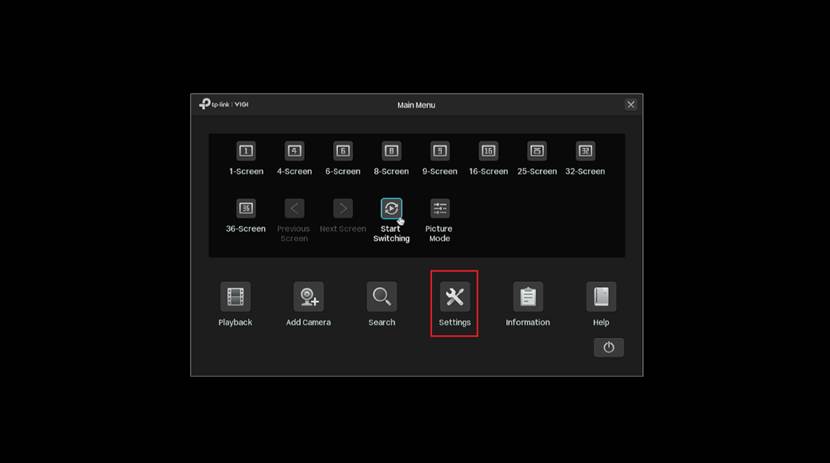
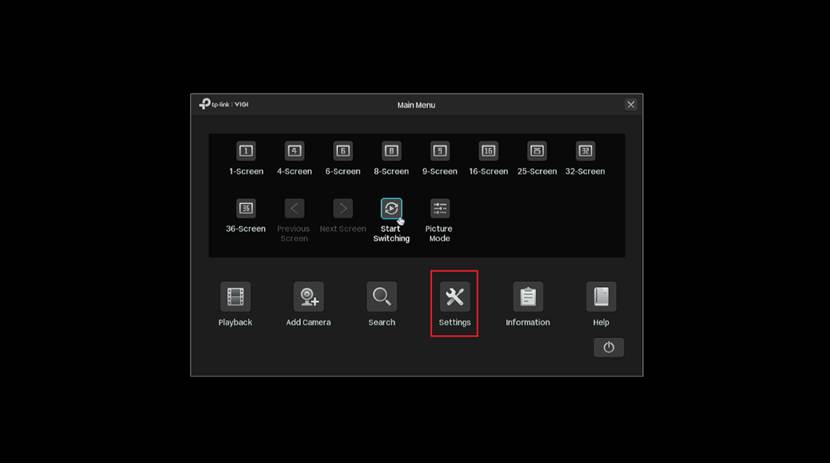
Step 1. Right-click on the preview screen of the NVR GUI, and then click Settings in the pop-up window.
Step 2. Navigate to Camera > Device Access > Add Device, add the InSight S385DPS camera to the NVR4032H for channel management.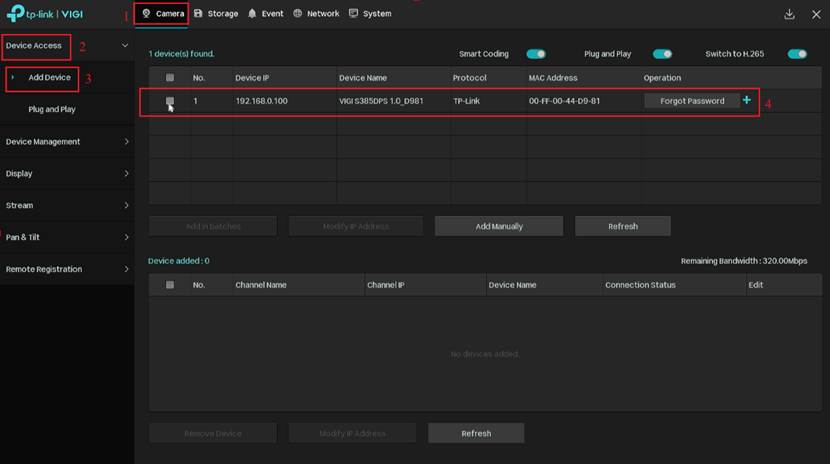
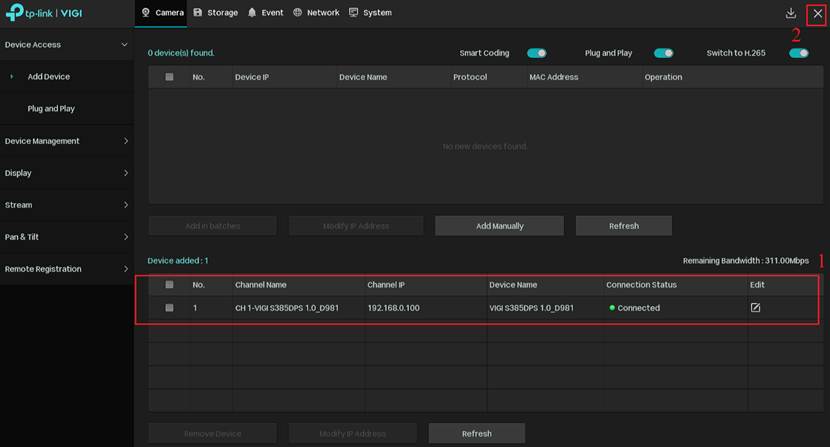
Step 3. Verify that the InSight S385DPS has been successfully added and connected. Then, click the close button in the upper-right corner to return to the NVR GUI's live preview interface.
Step 4. You will observe that the preview screen remains black with no video output.

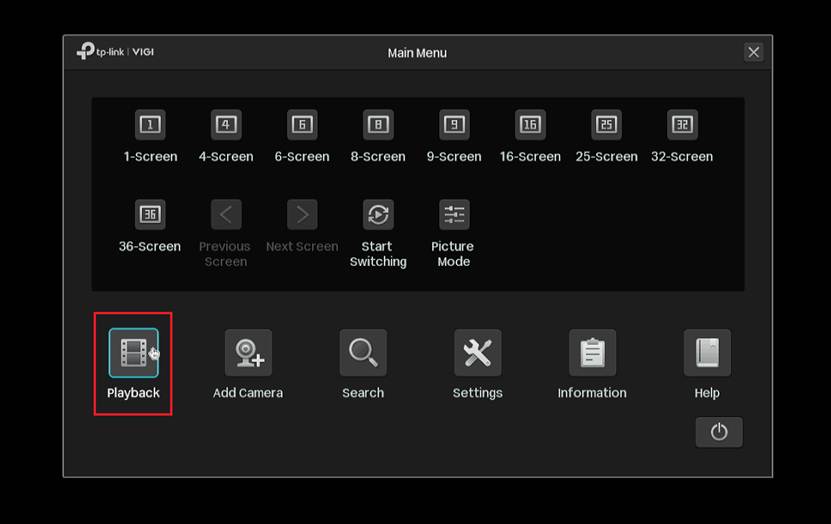
Step 5. Right-click on the preview screen of the NVR GUI, and then click Playback in the pop-up window.
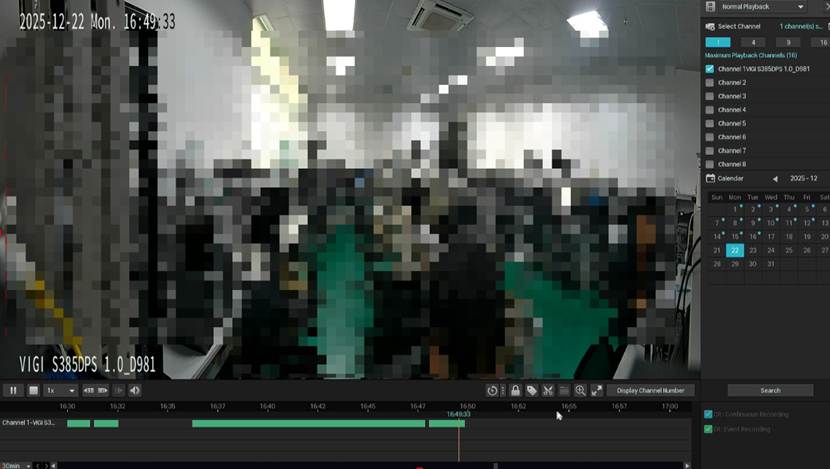
Step 6. Select the channel corresponding to the InSight S385DPS camera for playback. You will observe that the playback screen remains black with no video output.
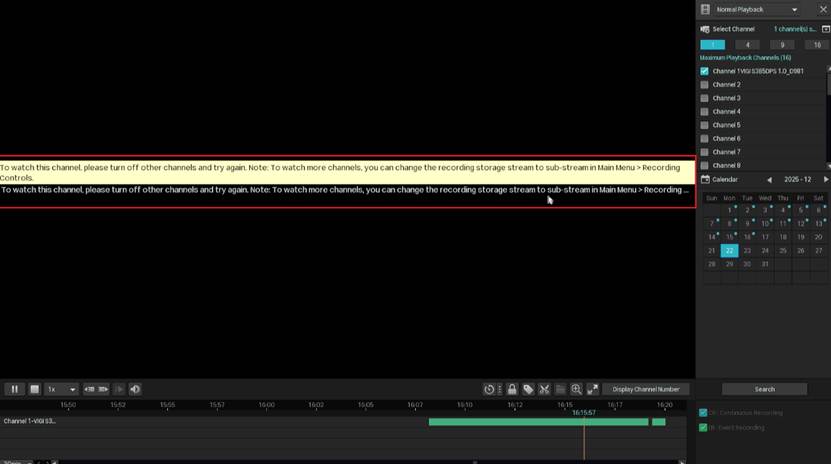
Note: To watch this channel, please turn off other channels and try again.
Note: To watch more channels, you can change the recording storage stream to sub-stream in Main Menu > Recording Controls
Troubleshooting methods
Live View
Method 1. Change the HD to SD
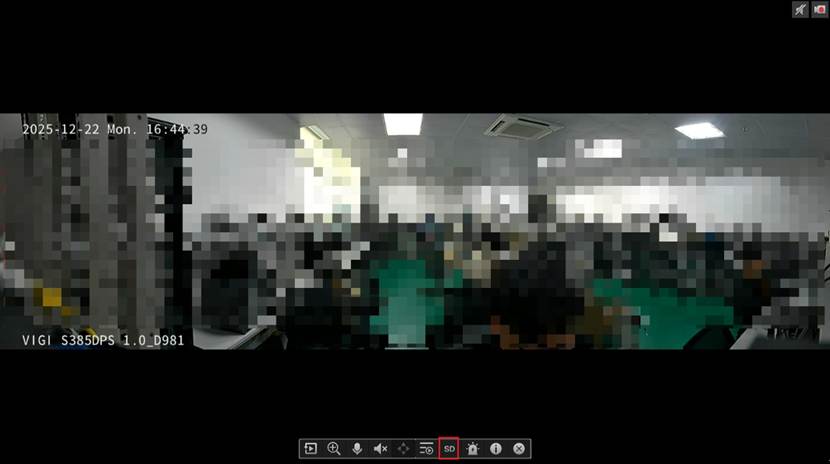
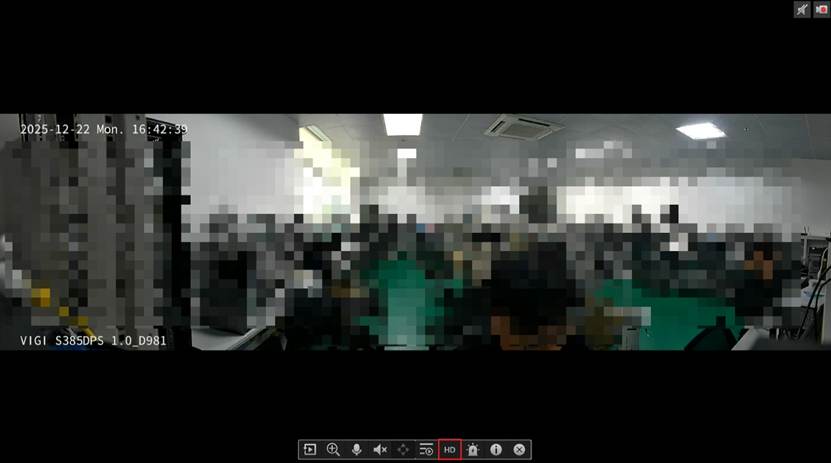
Step 1. Left-click on the preview screen of the NVR GUI, change the preview quality from HD to SD in the pop-up window.

Step 2. After you change the quality from HD to SD, you will find that the preview screen becomes normal and you can play the live view normally.
Method 2. Reduce the resolution of the Main Stream
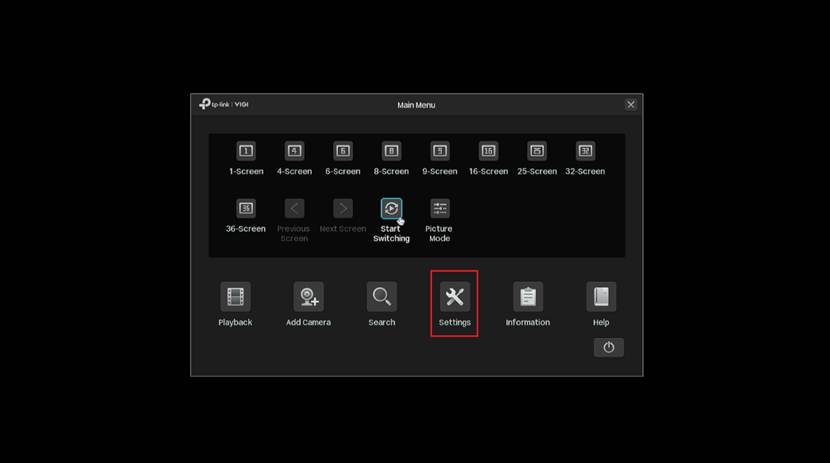
Step 1. Right-click on the preview screen of the NVR GUI, then click Settings in the pop-up window.
Step 2. Navigate to Camera > Stream > Videos, select InSight S385DPS as the channel and change the Main Stream’s resolution from the default 5456*1520. Here, we choose the resolution to 4096*1152. Click Apply to complete the configuration, then click the close button in the upper right corner to return to the NVR GUI preview screen.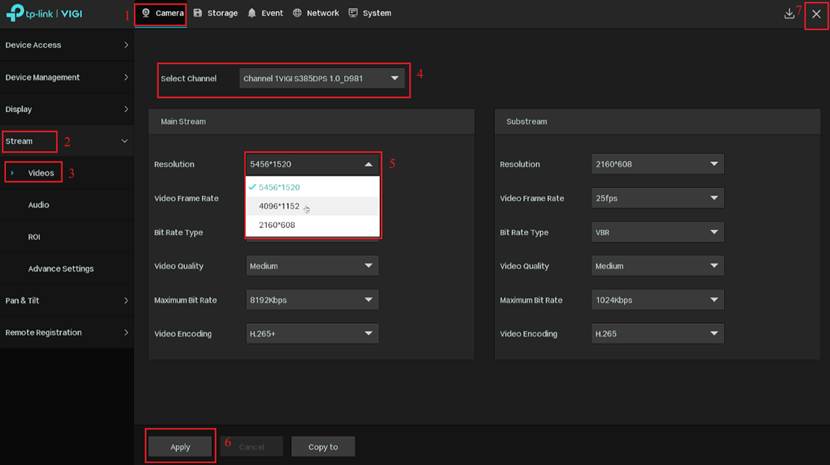
Step 3. After you change the resolution from 5456*1520 to 4096*1152, you will find that the preview screen becomes normal and you can play the live view normally.
Method 3. Upgrade the NVR’s firmware to the latest firmware
Note: In the future, a firmware version of NVR compatible with InSight S85DPS will be released. After the NVR is upgraded to the corresponding firmware, live view can be played normally.
Playback
Method 1. Change the Storage Stream from Main Stream to Substream
Step 1. Right-click on the preview screen of the NVR GUI, then click Settings in the pop-up window.
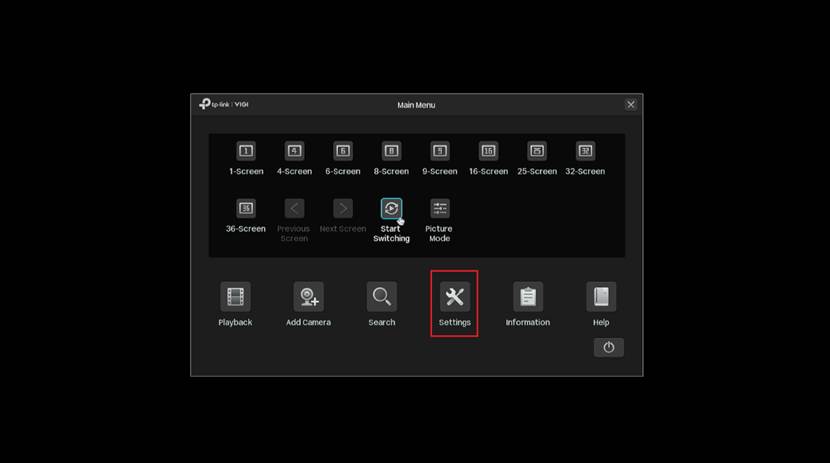
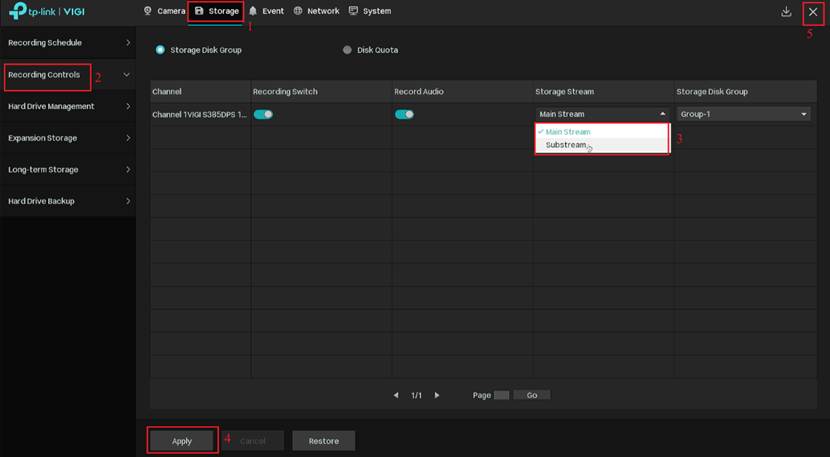
Step 2. Navigate to Storage > Recording Controls, change the Storage Stream from Main Stream to Substream.
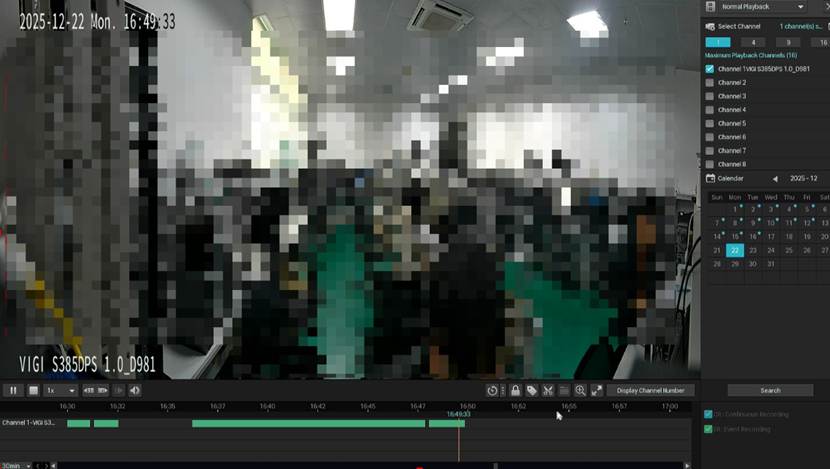
Step 3. After you change the Storage Stream from Main Stream to Substream, you will find that the playback screen becomes normal and you can play the playback normally.
Method 2. Reduce the resolution of Main Stream
Step 1. Right-click on the preview screen of the NVR GUI, then click Settings in the pop-up window.
Step 2. Navigate to Camera > Stream > Videos, select InSight S385DPS as the channel and change the Main Stream’s resolution from the default 5456*1520. Here, we choose the resolution to 4096*1152. Click Apply to complete the configuration, then click the close button in the upper right corner to return to the NVR GUI preview screen.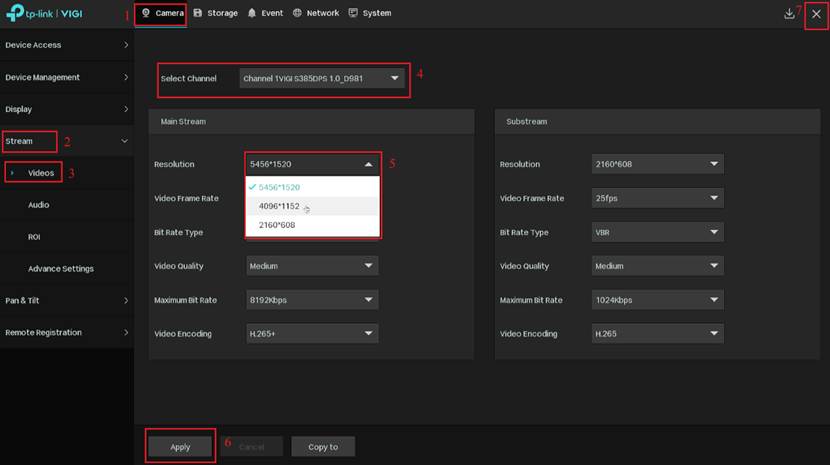
Step 3. After you change the resolution from 5456*1520 to 4096*1152, you will find that the playback screen becomes normal and you can play the playback normally.
Method 3. Upgrade the NVR’s firmware to the latest firmware
Note: In the future, a firmware version of NVR compatible with InSight S85DPS will be released. After the NVR is upgraded to the corresponding firmware, playback can be played normally.
Conclusion
You have successfully resolved the issue where the preview and playback screen of the NVR GUI page went black when the InSight S385DPS was paired with NVR.
Get to know more details of each function and configuration please go to Download Center to download the manual of your product.
QA
Q1: What causes the black screen issue to occur?
A1: The default resolution of Insight 385DPS is 5456*1520, which is relatively high. When Insight 385DPS is connected to an NVR and played on the NVR GUI, due to the outdated firmware issue, black screen occurs when hardware decoding the main stream. This problem is only caused by the low firmware version of the NVR and is not a device fault. After upgrading the NVR to the latest firmware, the black screen problem of the main stream disappears immediately. Other methods introduced in the FAQ can also be used to solve the black screen problem.
Is this faq useful?
Your feedback helps improve this site.


_1.0_normal_1599113143630v.png)

TP-Link Community
Still need help? Search for answers, ask questions, and get help from TP-Link experts and other users around the world.