Why Is My Wi-Fi Slow Even With a Fast Plan? Philippines Troubleshoot Guide
By Laviet Joaquin, Head of Marketing, TP-Link Philippines | Published: June 22, 2026
_20260709090908p.png)
Quick Answer
-
In most Philippine homes, slow Wi-Fi on a fast fiber plan is caused by the ISP-provided modem-router, not the plan itself. The free unit bundled with your PLDT, Globe, or Converge subscription was built for basic connectivity, not for distributing a 100-500 Mbps plan across a multi-device household through concrete walls.
-
Run a wired LAN speed test first: if the speed matches your plan over LAN cable but is significantly lower over Wi-Fi, the modem-router is the bottleneck, and a dedicated TP-Link Wi-Fi 6 router will fix it. If both wired and Wi-Fi are slow, the problem is on the ISP side, and a router upgrade will not help.
-
Try five free fixes before spending anything: reposition the router centrally, update the firmware, switch primary devices to 5 GHz, remove unused connected devices, and restart the modem monthly. Many Filipino households recover significant performance from these alone.
You are paying for a 300 Mbps fiber plan, but your Zoom call keeps freezing. Netflix buffers at 480p. Your child's online class drops every 30 minutes. The answer, for most Filipino households, is not the ISP. The plan is delivering what it promised. The problem is what happens to that speed after it reaches the box the ISP technician left on your wall, and this guide tells you exactly how to find out which problem you have before spending anything.
Table of Contents
Diagnose Your Slow Wi-Fi Before Doing Anything Else
Match Your Symptom to the Cause and the Right Fix
The Free Router Your ISP Gave You Was Not Designed for Your 2026 Household
Three Factors That Make Wi-Fi Worse in Philippine Homes, Specifically
Upgrade to a Dedicated Router When the ISP Modem-Router Is the Confirmed Bottleneck
Try These Free Fixes Before Spending Anything
Diagnose Your Slow Wi-Fi Before Doing Anything Else
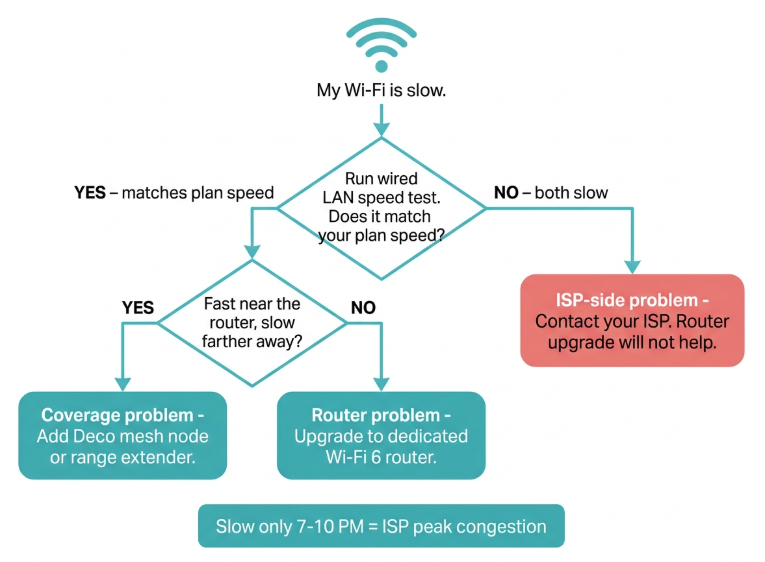
Not every slow Wi-Fi problem has the same solution. Running a speed test before troubleshooting tells you exactly what you are dealing with. Open Speedtest by Ookla (speedtest.net) or Fast.com on a device connected to your Wi-Fi and note the result. Then do the same with a LAN cable plugged directly into the ISP modem.
Speed test decision rules:
-
Full speed on LAN cable, slow on Wi-Fi: router or coverage problem. Fix: upgrade or reposition the router, or add coverage.
-
Slow on both LAN cable and Wi-Fi: ISP-side problem. Fix: contact your ISP, not a router upgrade.
-
Full speed near the router, slow in another room: signal coverage problem. Fix: add a Deco mesh node or range extender.
-
Full speed all day, slow only from 7 to 10 PM: peak-hour ISP network congestion. Fix: contact the ISP or schedule heavy tasks outside peak hours.
Match Your Symptom to the Cause and the Right Fix
Use the table below to identify your specific situation before spending money. Many slow Wi-Fi problems in the Philippines are fixed for free by repositioning the router, updating firmware, or switching to the 5 GHz band. The cases that genuinely require a router upgrade are clearly marked.
|
Symptom |
Most Likely Cause |
Fix |
|---|---|---|
|
Slow on all devices, all the time |
An ISP-provided modem-router cannot distribute the full speed over Wi-Fi efficiently |
Replace or add a dedicated TP-Link Wi-Fi 6 router behind the ISP modem |
|
Slow only in certain rooms or on the second floor |
Concrete walls and distance absorb the 5 GHz signal before it reaches you |
Add a Deco mesh node or range extender in the affected area |
|
Slow only from 6 PM to 10 PM |
Peak-hour ISP network congestion - shared infrastructure in your area is saturated |
Not fixable by router upgrade; contact your ISP or test speeds at off-peak hours to confirm |
|
Slow on phone, fast on laptop near the router |
Phone is on the congested 2.4 GHz band; laptop may be using 5 GHz |
Force the phone onto the 5 GHz band or check if the router broadcasts a single merged SSID without band steering |
|
Drops and reconnects frequently |
Outdated router firmware, or the ISP modem-router is overheating or overloaded |
Update router firmware via Tether or Deco app; restart the ISP unit and place it in a ventilated area |
|
Fast near the router, slow 5 meters away |
The router antenna strength is insufficient for the distance or the wall type |
Upgrade to an Archer with higher-gain antennas, or add a Deco node between the router and the dead zone |
|
Multiple devices connected, but everyone is lagging |
Old router using Wi-Fi 5 with no OFDMA, serving devices one at a time |
Upgrade to any TP-Link Wi-Fi 6 (AX) router; OFDMA serves multiple devices simultaneously |
ISP network congestion from 7 to 10 PM is a known pattern on PLDT, Globe, Converge, and Sky networks in high-density areas. It is not fixable by a router upgrade; this is a shared infrastructure issue outside your home.
The Free Router Your ISP Gave You Was Not Designed for Your 2026 Household
Every major Philippine ISP bundles a modem-router with their subscription plans. These units are chosen for cost, compatibility, and easy ISP-side troubleshooting, not for peak Wi-Fi performance. They do the job of connecting your home to the internet. They were not designed to efficiently distribute a 300 Mbps fiber plan across a Filipino family of five, each with two devices, in a concrete house with three rooms.
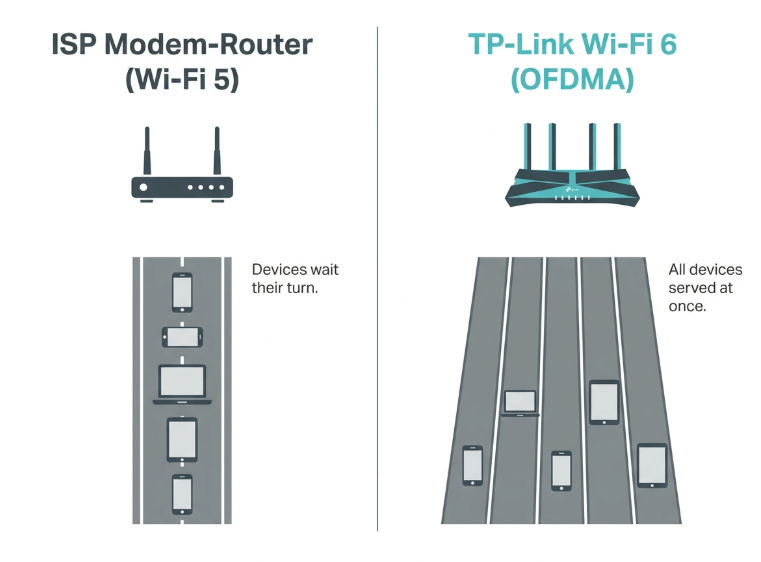
The most common limitation is the Wi-Fi standard. Most ISP-provided units still use Wi-Fi 5 (the 802.11ac standard). Wi-Fi 5 serves devices sequentially, one device at a time, which works fine when the household has two or three devices. With eight to fifteen devices simultaneously connected, which is typical in a modern Filipino home, Wi-Fi 5 creates a queue. During peak household use, kids are in an online class, a parent is on a work call, and someone is streaming—that queue is long.
Wi-Fi 6 (the 802.11ax standard), available on all current TP-Link Archer and Deco routers, uses a technology called OFDMA to serve multiple devices simultaneously rather than sequentially. The difference is felt most acutely precisely when your household is busiest.
|
ISP-Provided Modem-Router |
Dedicated TP-Link Wi-Fi 6 Router |
|
|---|---|---|
|
Wi-Fi standard |
Usually Wi-Fi 5 (802.11ac) or older |
Wi-Fi 6 (802.11ax) is more efficient with multiple simultaneous devices |
|
Device handling |
Serves devices one at a time over Wi-Fi |
OFDMA serves multiple devices simultaneously, resulting in less congestion at home |
|
QoS |
Basic or none; cannot prioritize devices |
QoS in the Tether app prioritizes the laptop for class and deprioritizes background devices |
|
Parental controls |
None or very limited |
HomeShield parental controls, content filters, screen time schedules, Wi-Fi Pause |
|
Placement |
Fixed wherever the technician installed it |
You decide placement can be centralized for better coverage |
|
Firmware updates |
ISP-controlled, often infrequent |
Regular updates via the Tether/Deco app, security patches, and performance improvements |
|
Guest network |
Not available on most ISP units |
Dedicate guest SSID helpers and visitors to a separate network from your main devices |
Three Factors That Make Wi-Fi Worse in Philippine Homes, Specifically
The slow Wi-Fi problem is more pronounced in the Philippines than in many other countries because of three factors specific to how Filipino homes are built and used.
1. Concrete construction absorbs Wi-Fi signal
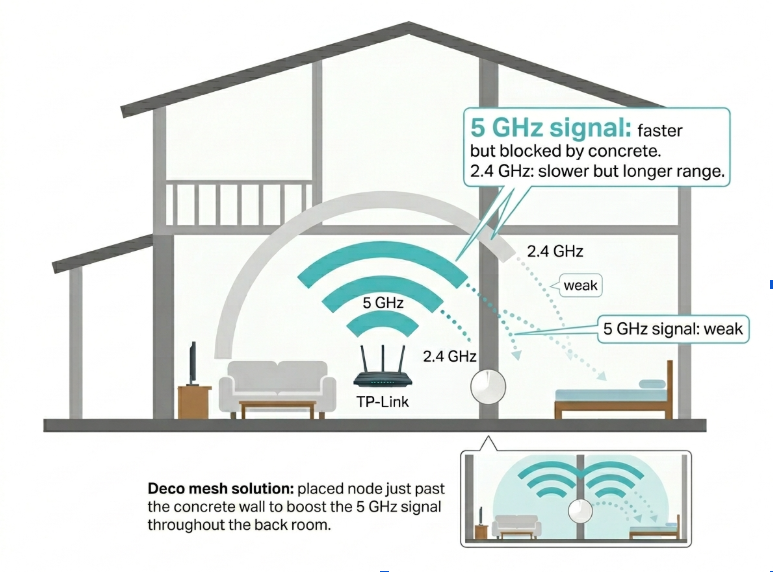
The majority of Filipino homes, houses, condominiums, and apartment buildings use reinforced concrete walls. Concrete contains moisture and, in the case of reinforced concrete, steel, both of which absorb radio frequency signals. The 5 GHz band, which carries the highest Wi-Fi speeds, is significantly more affected by concrete than the 2.4 GHz band. A single concrete wall can reduce 5 GHz signal strength substantially. Two walls between the router and the device, and the signal may be effectively gone.
This is why the distance that matters in a Filipino home is not the same as in a wooden-frame house. A router placed in the living room may deliver full speed to a device in the same room but almost nothing to a device in the bedroom two concrete walls away, even if the physical distance is only 8 meters.
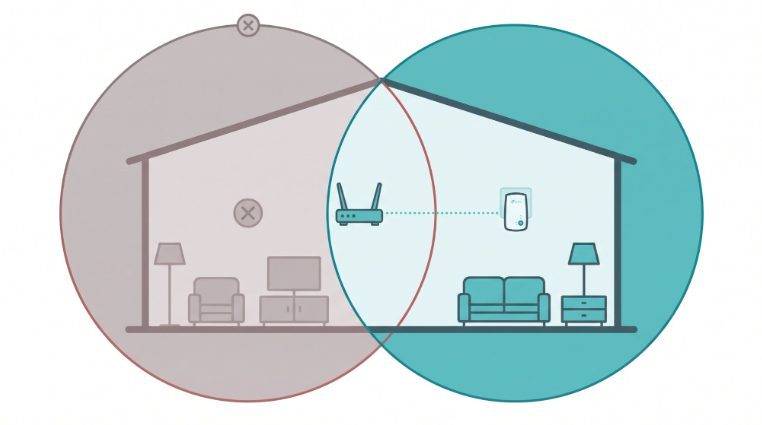
The fix for concrete wall attenuation is not a more powerful router antenna in the same location, but it is placing a second node closer to the device. A Deco mesh system solves this structurally: the second node sits just beyond the first concrete wall, receives a strong backhaul signal from the first node, and rebroadcasts full-strength Wi-Fi on the other side.
2. Multi-device Filipino households exceed Wi-Fi 5 capacity
The average Filipino household in 2026 connects significantly more devices to Wi-Fi than households did when most ISP modem-routers were manufactured. A family of four commonly has four phones, two laptops, one or two tablets, a smart TV, and several Tapo smart devices, easily 12 to 15 connected devices at once. Wi-Fi 5 routers, including most ISP-provided units, begin to show performance degradation when multiple devices are actively transmitting simultaneously.
Wi-Fi 6 routers are specifically designed for this scenario. OFDMA divides each wireless channel into smaller subcarriers and assigns them to different devices simultaneously. The result is that a Wi-Fi 6 router handles 12 simultaneous active connections far more efficiently than a Wi-Fi 5 router handling the same load, which translates directly to fewer buffering events and dropped calls during peak household hours.
3. Peak-hour ISP congestion in Philippine urban areas
In Metro Manila, Cebu, and other high-density Philippine urban areas, ISP network congestion between 7 and 10 PM is a documented recurring pattern. During this window, a large portion of a neighborhood's subscribers all come home and go online simultaneously. The shared network infrastructure becomes saturated, and every subscriber on that segment experiences reduced speeds regardless of their plan tier.
This is the one cause of slow Wi-Fi that a router upgrade does not fix. If your speed test shows slow results only during the 7 to 10 PM window and is normal at other times, your hardware is not the problem. Scheduling heavy downloads for after midnight, using your ISP's own speed test during the slow period to confirm the congestion is on the network side, and contacting your ISP if the congestion is severe enough to affect work or school, are the appropriate responses.
Upgrade to a Dedicated Router When the ISP Modem-Router Is the Confirmed Bottleneck
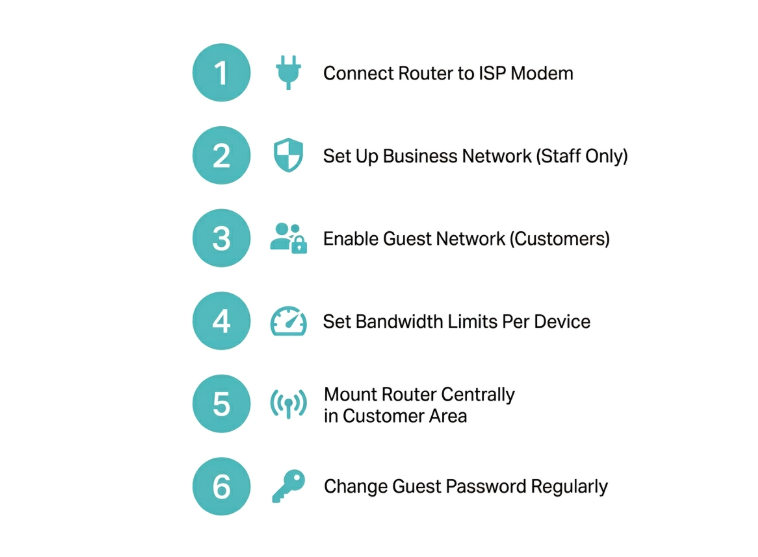
Once you have confirmed through a wired speed test that the ISP plan is delivering its promised speed and your Wi-Fi is consistently delivering less, a dedicated router is the right next step. The upgrade does not replace the ISP modem. It adds a dedicated Wi-Fi router behind it. The ISP modem handles the internet connection to the outside world; the TP-Link router handles distributing that connection to your devices inside the home.
Setup is straightforward: connect an Ethernet cable from any LAN port on the ISP modem to the WAN port of the TP-Link router, then follow the Tether or Deco app setup guide on your phone. Most setups take under 10 minutes. The ISP unit stays in place and continues to manage your fiber line; you do not need to contact your ISP or change your plan.
|
Your Situation |
Best Pick |
Why |
|---|---|---|
|
Studio or 1-bedroom apartment, 1-2 users |
Archer AX1500 or AX1800 |
Wi-Fi 6 in a compact form. More than enough for a condo or apartment on a 100-300 Mbps fiber plan. |
|
2-3 bedroom house, multiple users online at the same time |
Archer AX3000 or Archer AX55 |
Higher throughput for 4-8 simultaneous devices. Handles WFH + online class + streaming running concurrently. |
|
2-story or large house with dead zones in any room |
Deco X20 (2-pack) or Deco X55 (2-pack) |
Mesh eliminates dead zones floor by floor. One network name, seamless roaming between nodes. |
|
Large family compound, 3+ floors, or concrete OFW house |
Deco X20 (3-pack) or Deco BE65 (2-pack) |
Up to 5,800 sq ft with the 3-pack. Additional nodes can be added as the household grows. |
Product availability and coverage estimates confirmed from official TP-Link Philippines listings as of June 2026. Verify current models and pricing at tp-link.com/ph or authorized resellers.
How to set up your TP-Link router using only your phone: tp-link.com/ph/support/faq/2564/
Try These Free Fixes Before Spending Anything
A router upgrade is not always necessary. Run through this checklist first, in order of impact. Many Filipino households recover significant Wi-Fi performance from these zero-cost adjustments.
1. Reposition the router. If the ISP modem-router is tucked in a corner, behind the TV, or inside a cabinet, move it. Routers need clear airflow and should be placed centrally and elevated on a shelf or table, not the floor. Signal spreads in all directions from the antenna; a central placement distributes coverage more evenly.
2. Update the firmware. Open your router's admin interface, tplinkwifi.net, 192.168.0.1, or 192.168.1.1 for TP-Link routers; your ISP modem's own interface for ISP units; and check for firmware updates. Outdated firmware causes performance regressions and security vulnerabilities. This is the single most overlooked maintenance step in Philippine households.
3. Switch your primary devices to 5 GHz. In the Tether or Deco app, check which band your laptop and phone are connected to. The 2.4 GHz band is shared by more devices and is more congested in multi-unit buildings. Connect your primary work and study devices to the 5 GHz band for noticeably better performance when you are within range of the router.
4. Reduce the number of active connected devices. Check the connected device list in your Tether or Deco app. Old tablets, unused smart devices, and appliances left connected but not in use consume a small portion of your router's connection table. Disconnecting unused devices reduces the load on the router's processor.
5. Restart the ISP modem-router monthly. ISP modem-routers accumulate memory leaks and connection table bloat over time. A monthly restart, powering off for 30 seconds, then powering on, clears this and is one of the most consistently effective quick fixes for unexplained slowdowns.
Frequently Asked Questions
Will upgrading my router make my internet faster on the same fiber plan?
Yes, if the router is the confirmed bottleneck. If your fiber plan delivers 200 Mbps over a LAN cable but only 50 Mbps over Wi-Fi from the ISP modem-router, a dedicated Wi-Fi 6 router can close much of that gap by distributing the available speed more efficiently. The ceiling is still the plan speed - a better router cannot make 200 Mbps become 500 Mbps, but it can get you significantly closer to the speed you are already paying for. Run the wired speed test first to confirm the ISP plan is performing before spending money on hardware.
Do I need to call PLDT, Globe, or Converge to add a router behind their modem?
No. Adding a dedicated router behind your ISP modem is a standard configuration that requires no ISP approval or technician visit. Connect an Ethernet cable from a LAN port on the ISP modem to the WAN port of your TP-Link router, then follow the Tether app setup. Your ISP modem continues to manage the fiber line; the TP-Link router takes over Wi-Fi distribution inside your home. If you want to completely replace the ISP unit with the TP-Link router, you can ask your ISP to configure the modem in bridge mode - but this is optional and requires a call to your ISP.
Is Wi-Fi 6 worth it if my fiber plan is only 100 Mbps?
Yes, for reasons beyond raw speed. Wi-Fi 6's primary advantage in a Philippine household is not higher peak speed; it is how efficiently it handles multiple simultaneous connections. OFDMA serves several devices at once instead of sequentially, which reduces congestion when the whole family is online together. At 100 Mbps, the benefit you feel is less buffering and fewer dropped connections during peak household hours, not higher speed test scores. If you have more than five devices regularly connected, Wi-Fi 6 is worth the upgrade even on a 100 Mbps plan.
My speed is fine in the living room but terrible in the bedroom. Do I need a new router or a mesh system?
For concrete-wall dead zones, a mesh system is the more reliable fix. A more powerful router in the same location still has to push its signal through the same concrete walls. Higher power helps at the margins but does not eliminate the attenuation. A Deco node placed on the near side of the concrete wall receives a strong signal and rebroadcasts it on the other side. One Deco node added to your existing setup, or a Deco 2-pack replacing your current router entirely, eliminates concrete-wall dead zones more reliably than any single-router upgrade.
What if my internet is slow only at night? Will a router upgrade help?
Probably not, if the slowdown is consistently from around 7 to 10 PM only. That pattern strongly indicates peak-hour ISP network congestion, a shared infrastructure issue that no home equipment change can fix. Confirm by running a wired speed test during the slow period. If the wired speed is also low, the problem is on the ISP side. Contact your ISP and report the consistent peak-hour degradation, referencing specific speed test results and timestamps. If the wired speed is fine but Wi-Fi is slow during that window, the router is the bottleneck, and an upgrade will help.
How do I know if the problem is my router or my ISP plan?
Run two speed tests in sequence: one over Wi-Fi and one with a LAN cable plugged directly from your laptop into the ISP modem. If the wired test matches your plan speed and the Wi-Fi test is significantly lower, the router is the bottleneck. If both tests are slow, the problem is on the ISP side, and a router upgrade will not help. This test takes under five minutes and definitively answers the question before you spend money on hardware.
Final Thoughts
Paying for a 300 Mbps fiber plan and consistently getting 40 Mbps on Wi-Fi is not an ISP failure; it is a home network problem. The plan is delivering what it promised to the modem on your wall. The bottleneck is the modem-router distributing that speed to your devices through concrete walls, serving 12 devices that all want the network at the same time, on Wi-Fi 5 hardware that was not designed for this.
Run the wired speed test first. If the plan speed is there on the LAN and missing on Wi-Fi, the fix is straightforward:
-
Living in a studio, 1-bedroom condo, or small apartment with one ISP plan and too-slow Wi-Fi on multiple devices? Browse TP-Link Philippines Wi-Fi 6 routers and Deco mesh systems https://www.tp-link.com/ph/home-networking/wifi-router/ to find the right Archer model for your floor plan and device count, and confirm your ISP plan speed is actually reaching your devices before checkout
-
Two-story house, back bedroom with no signal, or a second floor that drops during peak hours? The same page routes to Deco mesh systems built specifically for the concrete-wall signal loss that characterizes Philippine home construction
-
Found the right router and are you ready to set it up in the next 10 minutes? How to set up your TP-Link router using only your phone: https://www.tp-link.com/ph/support/faq/2564/ walks through the full Tether app process, no computer, no ISP call, no technician
Disclosure: Product specifications, router coverage estimates, and ISP behavior described in this article are accurate as of the publication date and may change. ISP network performance and congestion patterns vary by location and provider. Always run your own wired speed test to confirm your specific situation before purchasing hardware.
By Laviet Joaquin, Head of Marketing, TP-Link Philippines Published: June 22, 2026 | Last Updated: June 22, 2026