
Setting Up Wi-Fi for Your Small Business in the Philippines: Cafes, Salons, and Spas
By Laviet Joaquin, Head of Marketing, TP-Link Philippines | Published: June 18, 2026
_20260709091703o.png)
Quick Answer
-
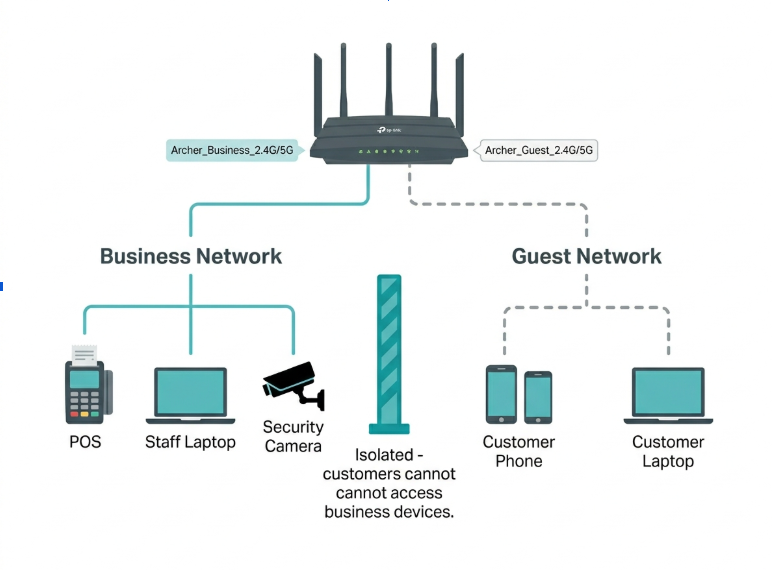
Every Philippine small business offering customer Wi-Fi needs two separate networks: a main business network for your POS, staff devices, and cameras, and a guest network for customers. These run through the same router but are completely isolated. A customer on the guest network cannot see or access your business devices.
-
A per-user bandwidth cap on the guest network (5-10 Mbps per device) prevents one customer on a video call from slowing down your POS during the lunch rush. This is set under Guest Network settings on any Archer router or through the Omada controller for multi-AP setups.
-
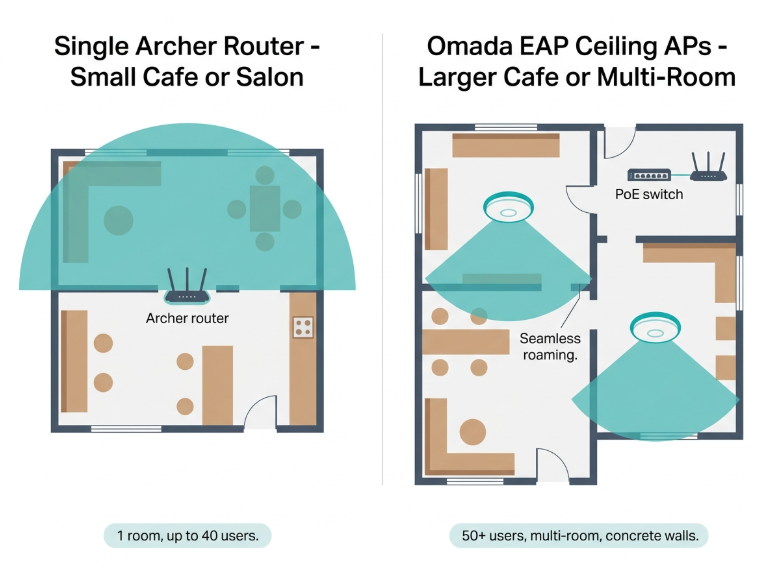
For a cafe or salon with up to 40 customers: one Archer Wi-Fi 6 router handles the setup. For a larger space or multiple rooms: two or three Omada ceiling-mount access points with a PoE switch give you seamless coverage and cloud management from your phone.
The biggest Wi-Fi mistake Filipino small business owners make is using the same home router setup at their shop as they use at home. A home router was designed for one household.
A cafe, salon, or spa has customers connecting and disconnecting all day; a POS terminal that needs a stable connection, staff devices that should not share a network with strangers; and concrete walls or glass partitions that fight the signal from corner to corner.
Getting this right does not require an IT team or an expensive installation, just an understanding of three things: which devices belong on which network, how much bandwidth each customer should be allowed to use, and which TP-Link hardware fits your space.
Table of Contents
Every Philippine Small Business Offering Customer Wi-Fi Needs Two Separate Networks
Bandwidth Limits Per Customer Prevent One Video Call From Slowing Down Your Whole Cafe
Which Setup Fits Your Business: Archer Router vs Omada Access Points
How to Set Up Wi-Fi for a Small Philippine Cafe or Salon: Step by Step
Which Internet Plan to Subscribe To: Residential Fiber vs SME Business Plan
Every Philippine Small Business Offering Customer Wi-Fi Needs Two Separate Networks
A guest network is a second Wi-Fi name (SSID) that runs through the same router or access point but is completely isolated from your main business network. Customers connect to the guest SSID and get internet access. They cannot see your POS terminal, your inventory system, your staff phones, or your security cameras because those devices are on the main network.
In the Philippines, where most small businesses use a single fiber line from PLDT, Globe, or Converge, the default ISP-bundled router puts every connected device on the same network. A customer who connects to that single network can, in theory, see other devices on it. A customer downloading a large file or streaming at full speed pulls from the same bandwidth pool your POS is using to process a payment. When the network slows down at peak hours, a customer device is almost always the cause.
All TP-Link Archer routers support guest network setup through the web admin panel at tplinkwifi.net. Go to Advanced, then Guest Network; create a separate SSID and password, and the router handles the isolation automatically. Customers see the guest network name, connect with the guest password, and cannot reach your main business devices. This single configuration change is the most important Wi-Fi improvement any Philippine small business can make.
If your router is already set up and you want to walk through the process now, tp-link.com/ph/support/faq/1082/ covers every screen from the admin panel login to saving the final settings.
Bandwidth Limits Per Customer Prevent One Video Call From Slowing Down Your Whole Cafe
Free Wi-Fi draws Filipino customers to cafes and co-working spaces, but it creates a specific problem: one customer on a video call or downloading a large file can consume 20 to 50 Mbps, leaving everyone else on a 100 Mbps plan fighting over the remainder. During peak hours, lunch and early evening in most Philippine business strips, this is why customers complain the Wi-Fi is slow even when the plan speed is adequate.
The solution is a per-user bandwidth cap on the guest network. On Archer routers, this is set under Advanced, then Guest Network, where you enable Bandwidth Control and set a maximum download and upload speed per connected device. A cap of 5 to 10 Mbps per guest device is reasonable for a cafe, enough for a video call or standard streaming, and not enough for one person to monopolize a 100 Mbps connection.
For businesses running the Omada system, QoS settings in the Omada controller give more granular control: prioritize POS traffic regardless of how many customers are connected, guarantee a minimum bandwidth for security cameras, and rate-limit guest devices by group rather than individually. This is the key advantage of Omada over a standalone Archer router for larger spaces.
|
Device / User Type |
Recommended Bandwidth |
Network to Put It On |
|---|---|---|
|
POS/cashier terminal |
5-10 Mbps reserved (static IP recommended) |
Main/business network |
|
Staff laptops/tablets |
10-25 Mbps per device |
Main/business network |
|
Security camera (1 stream) |
2-5 Mbps per camera |
Main/business network |
|
Customer guest Wi-Fi (per user cap) |
5-10 Mbps per connected device |
Guest network (separate SSID) |
|
Music/audio streaming (business) |
3-5 Mbps |
Main/business network |
Bandwidth figures are recommendations based on typical Philippine business use cases. Adjust based on your actual ISP plan speed and number of simultaneous users.
Which Setup Fits Your Business: Archer Router vs Omada Access Points
The right hardware depends on the size of your space, the number of simultaneous users, and whether you need to manage more than one location.
|
Business Type |
Recommended Setup |
Key Features to Enable |
Typical ISP Plan Needed |
|---|---|---|---|
|
Small cafe (20-40 seats) |
1x Archer Wi-Fi 6 router OR 1x Omada EAP610 ceiling AP |
Guest network, bandwidth limit per user, daily password rotation |
100-300 Mbps fiber (PLDT/Globe/Converge residential or SME) |
|
Salon/spa (10-20 stations) |
1x Archer Wi-Fi 6 router with guest network |
Separate SSID for clients, POS on main network, bandwidth control |
100 Mbps fiber sufficient for most setups |
|
Larger cafe or co-working (50+ seats) |
2-3x Omada EAP ceiling APs + Omada Router + PoE switch |
Seamless roaming, captive portal, QoS, and central cloud management |
300-500 Mbps fiber SME plan |
|
Multi-branch (2+ locations) |
Omada SDN cloud-managed APs at each branch |
Central dashboard, per-branch monitoring, consistent guest portal |
Business fiber per location; consider static IP add-on |
ISP plan recommendations based on publicly available Philippine residential and SME fiber plans as of 2026. Prices and availability vary by area and provider. Always confirm current pricing and coverage directly with your ISP before subscribing.
If your business has grown past what a single Archer handles, more rooms, more users, or a second branch, omadanetworks.com/ph/ covers the full range of access points, switches, and gateways sized for every deployment from a single salon to a multi-branch operation.
How to Set Up Wi-Fi for a Small Philippine Cafe or Salon: Step by Step
This walkthrough covers the most common setup for a Philippine small business with up to 40 customers and one or two staff devices, using a single TP-Link Archer Wi-Fi 6 router connected to an existing ISP fiber line.
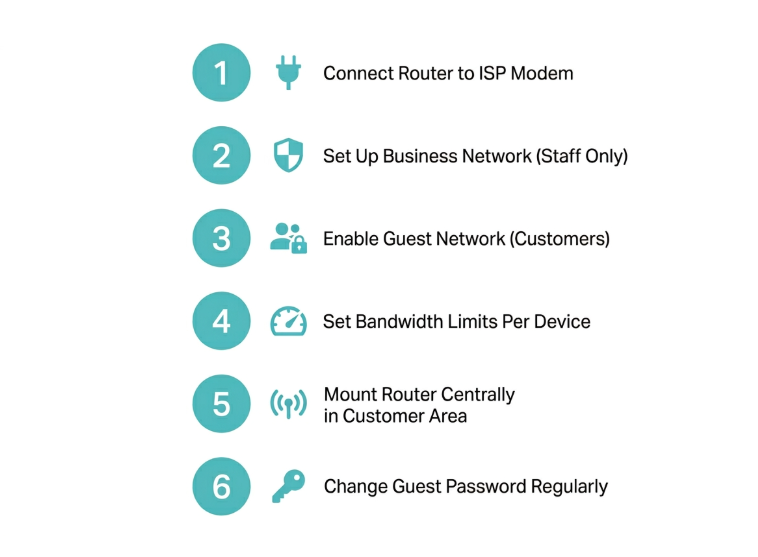
Step 1: Connect the router to your ISP fiber modem
Plug an Ethernet cable from the LAN port of your ISP modem into the WAN port of the Archer router. Power on the router and wait for the LED indicators to stabilize. If your ISP provides a combined modem-router unit, you will need to enable bridge mode on the ISP device or configure the Archer as a second router. Contact your ISP to confirm whether bridge mode is available on your specific modem model.
Step 2: Set up the main business network
Open a browser and go to tplinkwifi.net. Log in with your admin credentials. Under Basic, then Wireless, set your business network name to something your staff recognizes, but customers will not immediately guess. Use a strong WPA3 or WPA2 password. This is the network your POS terminal, staff devices, and any IP cameras connect to. Do not share this SSID or password with customers.
Step 3: Enable the guest network
Go to Advanced, then Guest Network. Enable the 2.4 GHz guest network and give it a name customers will recognize; your business name, followed by "Free Wi-Fi," works well. Set a password you can change regularly. Under the guest network options, ensure Allow Guests to Access My Local Network is set to OFF. This keeps customers isolated from your business devices. Save the settings.
Step 4: Set bandwidth limits on the guest network
Still under Guest Network settings, enable Bandwidth Control. Set the downstream and upstream limits per device. For a 100 Mbps plan with up to 20 concurrent guest users, 5 Mbps down and 2 Mbps up per device is a reasonable starting point. Adjust based on how the network performs during peak hours in your first week.
Step 5: Place the router correctly
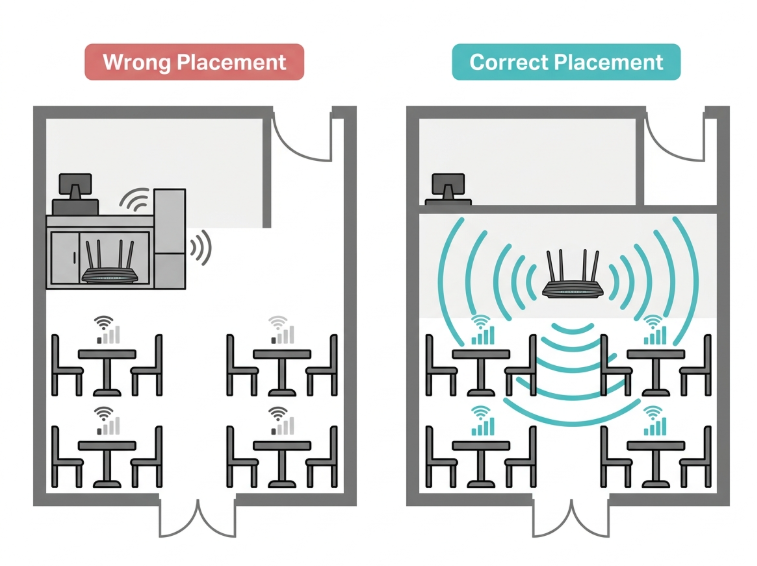
Router placement is where most Philippine small business setups fail. Do not put the router behind the counter, inside a cabinet, or in a back office. Mount it centrally on a high shelf or wall at the midpoint of your main customer area, elevated above head height. In a concrete-walled Philippine shophouse or mall unit, a router at one end of the space may not reach the other end with a usable signal. If the signal is weak beyond 10 to 15 meters, a Deco mesh node or a second access point resolves the dead zone without requiring another ISP line.
Step 6: Change the guest Wi-Fi password regularly
Change the guest network password weekly or monthly and display the current password on a small chalkboard or printed card at the counter. This prevents former customers or neighbors from permanently using your connection. On Archer routers, password changes take under one minute through the Tether app; you do not need to touch the router or a computer.
Which Internet Plan to Subscribe To: Residential Fiber vs SME Business Plan
Most small business owners in the Philippines subscribe to a residential fiber plan because it is cheaper and easier to install. Globe GFiber residential plans currently start at around ₱1,499 per month for 300 Mbps, with PLDT and Converge residential plans available at comparable entry-level pricing - though rates and availability vary by area, so always confirm directly with your ISP. For a cafe or salon with 10 to 30 simultaneous users, a 100 Mbps residential plan is sufficient if bandwidth limits are properly configured per guest device.
The case for upgrading to a business plan becomes clear at three points: when your concurrent user count regularly exceeds 30 devices, when your business depends on stable uptime rather than best-effort consumer service, or when you need a static IP address for remote access to your POS system or cameras.
PLDT Enterprise offers MSME-targeted fiber products under its Beyond Fiber and Sulong SME programs, with a published commitment of 90% minimum speed at 90% reliability, a guarantee that residential plans do not provide. Globe's GFiber Biz starts at 500 Mbps on the Plan 1999 tier with a static IP included and scales to 800 Mbps on the Plan 2499 tier.
Both ISPs offer dedicated business support lines that residential plan holders do not have access to. Check directly with PLDT Enterprise and Globe Business for current pricing, speed tiers, and static IP availability in your area.
The practical distinction that matters most for a Philippine small business: residential plans are shared bandwidth, meaning your speed fluctuates based on how many people in your barangay are online at the same time. Business plans include an SLA with a guaranteed minimum speed. During peak evening hours in a busy Philippine commercial strip, that guarantee is the difference between a working POS and a connection that times out during payment processing.
Frequently Asked Questions
Can I use the free router my ISP gave me for my cafe or salon?
You can use it as a starting point. Still, ISP-bundled routers in the Philippines handle 15 to 20 simultaneous connections and typically do not allow per-user bandwidth caps on the guest network, which means one customer can slow everyone else down. Replacing or supplementing the ISP modem with a TP-Link Archer router gives you guest network isolation, bandwidth control, and Tether app management that ISP-bundled units do not provide. The Archer also lets you change the guest password in under a minute from your phone without touching the hardware.
How many access points does my cafe need?
One well-placed Archer router or Omada access point covers approximately 100 to 150 square meters in a Philippine concrete-construction space, accounting for signal loss through walls. A standard 50-seat Philippine cafe in a mall or shophouse unit of 80 to 120 sqm typically needs one central access point. A larger space, an L-shaped or multi-room layout, or a unit with multiple concrete partitions needs two access points. The Omada EAP610 or EAP620 HD ceiling-mount access points support seamless roaming. A customer walking from one end of the cafe to the other stays connected without reconnecting.
What is the difference between Omada and a regular Archer router for a small business?
An Archer router is a self-contained unit that handles routing and Wi-Fi in one device, managed through the Tether app. It is the right solution for small spaces with one access point. Omada is a business networking system where the router, switch, and access points are separate devices managed through a central Omada controller. Omada adds features Archer routers do not have: seamless roaming between multiple access points, captive portal login for guests, per-SSID QoS, and a central dashboard for managing multiple locations from one login.
Should my POS terminal be on the guest network or the main network?
Always on the main business network, never the guest network. Your POS processes financial transactions and may connect to your supplier inventory system or payment gateway. Placing it on the guest network exposes it to every customer device on that SSID. The guest network is for customers only. Your POS, staff phones, security cameras, and any networked printer or tablet running business software belong on the main network with a separate password that only staff know.
How do I stop neighbors from using my cafe Wi-Fi after hours?
Schedule the guest network to turn off automatically at closing time. On Archer routers, go to the Tether app and set a Wireless Schedule for the guest SSID to deactivate at closing time and reactivate when you open. Alternatively, change the guest network password at the end of each business day. The Tether app makes this a 30-second task. On Omada systems, Wi-Fi schedules are set centrally in the controller and apply across all access points automatically.
Does my business need a static IP address?
Most Philippine cafes and salons do not need a static IP. It becomes useful when you need to access your POS system, security cameras, or office computer remotely from outside the business. A static IP gives your business location a fixed, addressable point on the internet. If you only use your POS locally and do not need remote access, a standard dynamic IP from a residential or SME plan is sufficient. Static IP is available as an add-on or included feature on most Philippine SME business fiber plans from PLDT Enterprise and Globe Business.
Final Thoughts
The two-network setup, the main business network for your POS and staff and the guest network for your customers, is the foundation on which everything else builds. A cafe or salon that gets this right protects its POS data, gives customers reliable access without throttling operations, and avoids the situation every Filipino small business owner has experienced: the Wi-Fi slowing to a crawl at the exact moment the queue is longest.
Your business size and layout determine the hardware:
-
One room, up to 40 customers, one POS: start with a single Archer Wi-Fi 6 router; follow the tp-link.com/ph/support/faq/1082/ to get the two-network setup configured in under 30 minutes
-
Multiple rooms, 50+ customers, concrete walls between sections, or more than one branch: your setup needs ceiling-mount access points, seamless roaming, and centralized management - omadanetworks.com/ph/ and compare access points, switches, and gateways sized for Philippine SMEs
-
Already running the right hardware, but your plan cannot keep up during peak hours? Upgrade from residential to an SME fiber plan; the minimum speed guarantee from PLDT Enterprise or Globe GFiber Biz is what separates a payment that goes through from one that times out at the register
Disclosure: Product specifications and ISP plan details mentioned in this article are accurate as of the publication date and may change. ISP plan pricing, speed tiers, and static IP availability vary by area and provider; always confirm directly with your ISP before subscribing. Always refer to the official TP-Link Philippines product page for current product specifications and availability.
By Laviet Joaquin, Head of Marketing, TP-Link Philippines | Published: June 18, 2026
_20260709092244p.png)