How to Change Your WiFi Password: A Complete Step-by-Step Guide
Published: January 21, 2026 | Last updated: July 2026
Published: January 21, 2026 · Last Updated: July 2026
Quick Answer: How to Change Your WiFi Password
-
Log in to your router's admin panel using its IP address, usually 192.168.0.1 or 192.168.1.1.
-
Go to Wireless or WiFi Settings and enter a new password of at least 12 characters.
-
Save the changes and reconnect all your devices using the new password.
-
Use WPA3 encryption if your router supports it. TP-Link routers like the Archer BE220 and Deco BE25 support WPA3 by default.
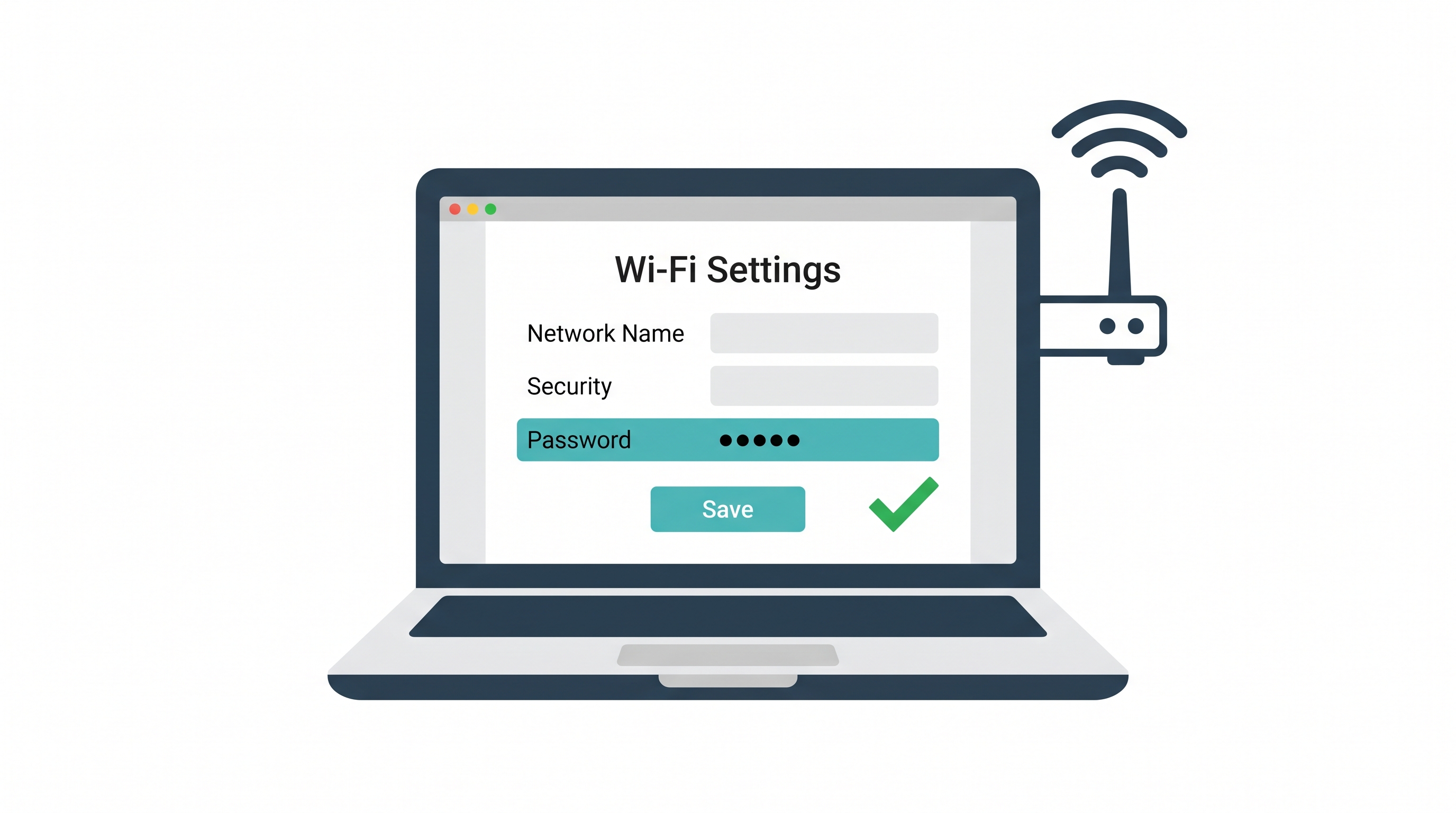
Changing your WiFi password is one of the fastest and most effective things you can do to protect your home network. The whole process takes under three minutes on most TP-Link routers and mesh systems. Log in to the admin panel, update the password under Wireless Settings, save, and reconnect your devices.
This guide walks you through every step, covers which security protocol to use, and explains what to do when something goes wrong.
Table of Contents
Why Should You Change Your WiFi Password?
What WiFi Security Protocol Should You Use?
How Do You Log In to Your Router to Change the WiFi Password?
When Should You Change Your WiFi Password?
What Makes a Strong WiFi Password?
How Do You Fix Common Problems When Changing Your WiFi Password?
Advanced Settings Worth Reviewing After a Password Change
Which TP-Link Router Is Best for Secure Home Networking?
Why Should You Change Your WiFi Password?
A weak or default WiFi password is one of the most common entry points for unauthorized access on a home network. According to the 2025 Verizon Data Breach Investigations Report, which analyzed over 22,000 security incidents, only 3% of compromised passwords met basic complexity requirements, and credential abuse was the leading initial attack vector in confirmed data breaches worldwide. Using a weak or default password, or keeping the same one for years, puts your network in the same risk category.
WiFi security matters for more than just protecting your connection. A compromised password can let unknown users steal your bandwidth, attack your network, and access the devices connected to it, including phones, laptops, and IoT devices like cameras and smart locks.
Changing your WiFi password regularly:
-
Protects sensitive data such as emails, banking, and personal files
-
Prevents neighbors or unauthorized users from consuming your bandwidth
-
Reduces the risk of network malware or ransomware attacks
-
Helps ensure optimal network performance by limiting connected devices to authorized users only
For Filipino households running fiber or LTE connections with multiple devices, TVs, phones, laptops, and smart appliances, keeping your password current is one of the simplest ways to avoid slowdowns caused by unauthorized connections.
What WiFi Security Protocol Should You Use?
Before changing your password, check which security protocol your router supports. This setting is found in the same Wireless Security section where you update your password.
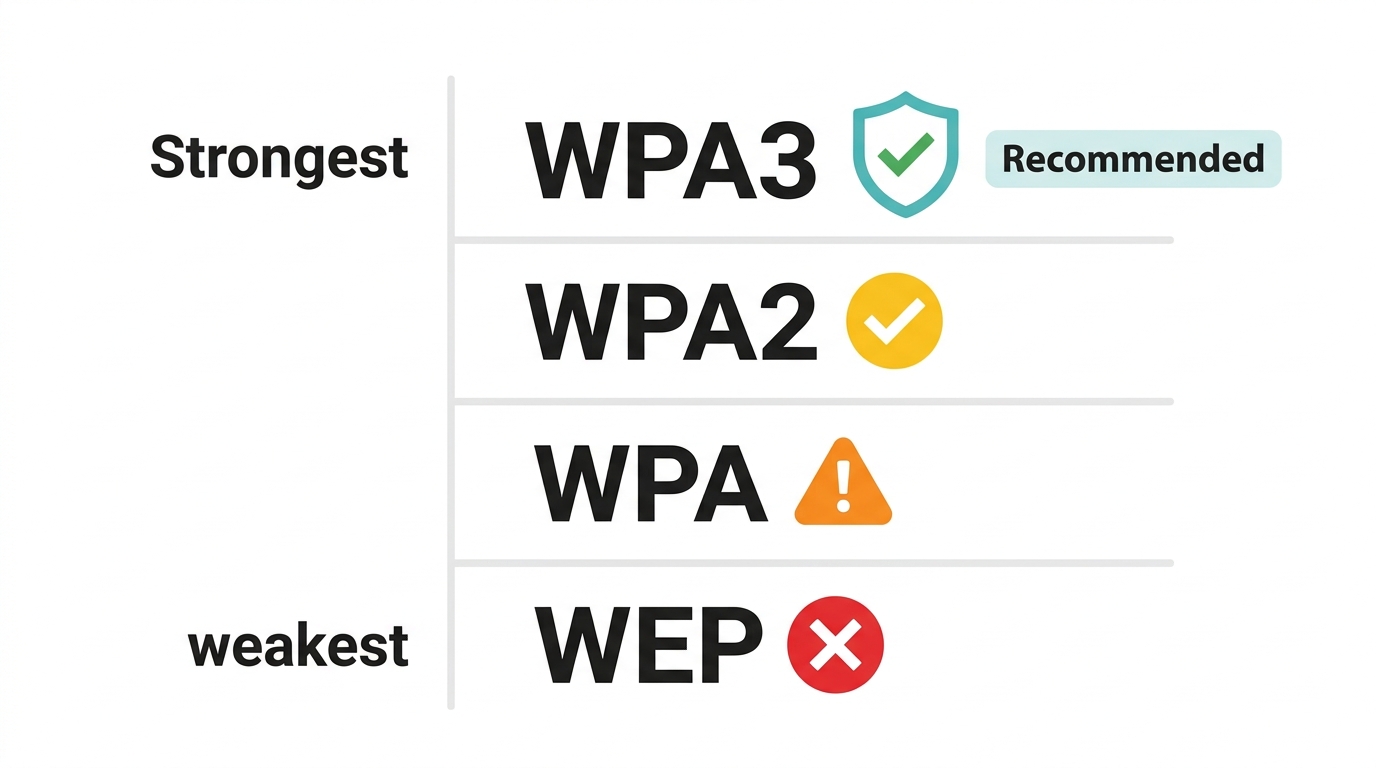
1. WEP (Wired Equivalent Privacy)
An outdated standard with serious known vulnerabilities. Do not use WEP. If your router only supports WEP, it is time to consider an upgrade.
2. WPA (WiFi Protected Access)
Stronger encryption than WEP, but now considered outdated. Avoid if a better option is available.
3. WPA2
The most widely used standard and the minimum recommended option for home networks. Provides strong security for most everyday setups.
4. WPA3
The latest and most secure standard. WPA3 offers stronger encryption, protects against brute-force attacks, and keeps IoT devices safer through improved isolation. TP-Link routers, including the Archer BE220 and the Deco BE25 mesh system, support WPA3.
For users on a local broadband or fiber connection in the Philippines with a newer TP-Link router, WPA3 encryption is strongly recommended. Enable it when updating your password to maximize protection.
How Do You Log In to Your Router to Change the WiFi Password?
This is the step most people get stuck on. You access your router's settings through a web browser; no additional app is needed, though TP-Link also offers the Tether app as a simpler alternative.
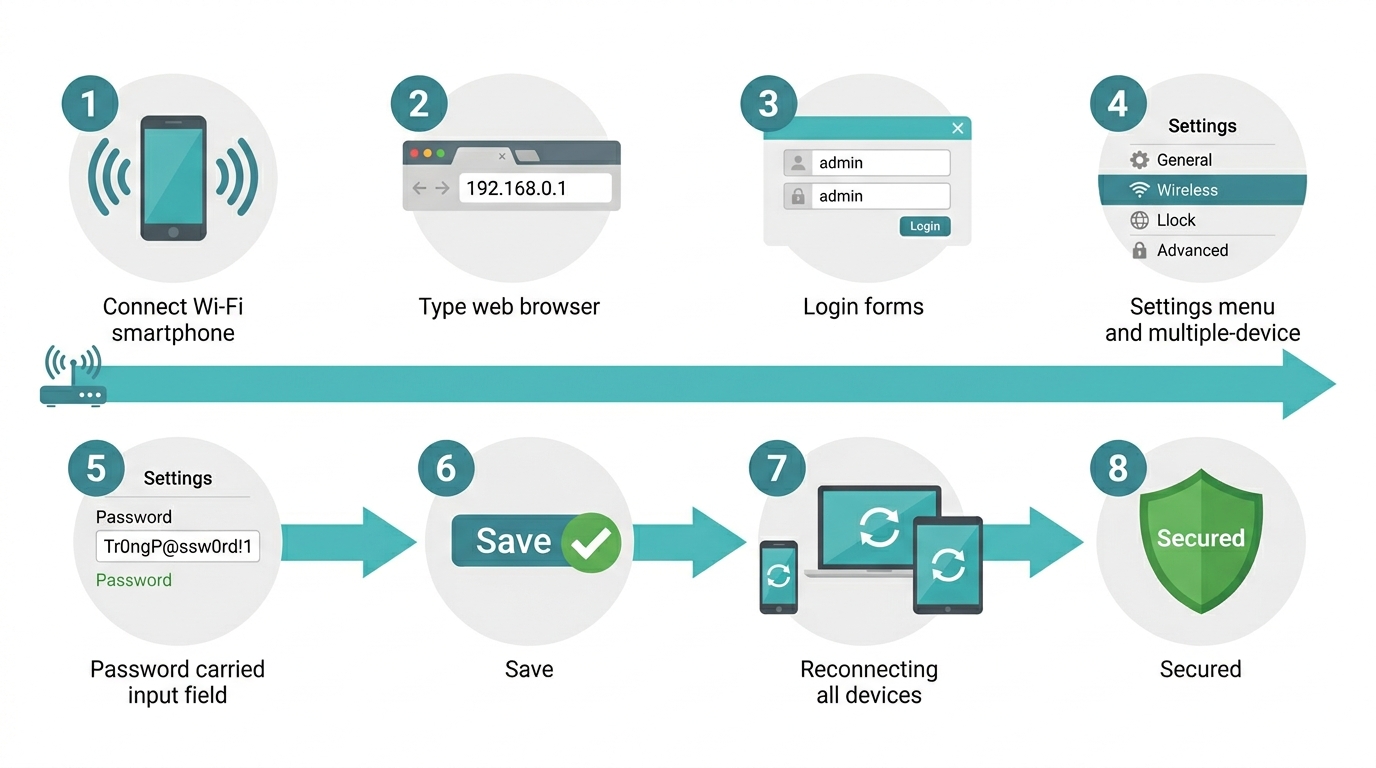
Step 1. Connect to your network
Make sure your computer or smartphone is connected to the WiFi network you want to update.
Step 2. Open your router's admin panel
Open any web browser and type your router's IP address into the address bar. Common TP-Link default addresses are 192.168.0.1 or 192.168.1.1. If neither works, check the label on the back of your router. Users changing a Piso WiFi or LTE router may need to use 10.0.0.1 to access the admin panel instead.
For users with a newer TP-Link router, like the Archer BE220, you can also access your router settings at tplinkwifi.net.
Step 3. Log in with your admin credentials
Enter the admin username and password. If you have not changed these from the defaults, check the label on the bottom of your router. The default is usually admin/admin or a unique code printed on the device.
Step 4. Go to Wireless Settings
Look for a menu item labeled "Wireless," "WiFi," or "Wireless Security." This section contains your current network name (SSID) and password.
Step 5. Enter your new password
Type a new, strong password in the password field. A secure WiFi password should:
-
Be at least 12 to 16 characters long
-
Mix uppercase and lowercase letters, numbers, and special characters
-
Avoid obvious terms like your name, address, or the word "password."
Step 6. Save your changes
Click Save or Apply. The router will apply the new settings, which may cause a brief connection drop.
Step 7. Reconnect your devices
All devices on the network will be disconnected after the password changes. Reconnect each device using the new password.
Step 8. Optional: Update your SSID
If you want an extra layer of privacy, update your network name (SSID) at the same time. A non-default SSID makes your network harder to identify and target.
When Should You Change Your WiFi Password?
You do not need to wait for something to go wrong. There are specific situations where changing your password is the right call:
-
You shared your password with guests who no longer need access
-
You see an unfamiliar device on your connected devices list
-
You recently moved into a new home or set up a new router
-
Your network has been slower than usual without explanation
-
You have been using a weak or default password for more than six months
-
You experienced a security issue on a device connected to the network
A good habit for home networks is to change your WiFi password every three to six months. For home offices or small businesses in the Philippines handling client data or sensitive files, more frequent changes are worth the small effort. Want to boost security beyond your password? Our home security guide covers the full picture.
What Makes a Strong WiFi Password?
Strong passwords are the core of WiFi security. Avoid anything that can be guessed from publicly available information about you or your household.
-
Use long passphrases instead of short words; for example, BlueMangoes!2026$Home is stronger than mango123
-
Combine uppercase letters, lowercase letters, numbers, and symbols
-
Avoid birthdays, names, phone numbers, or addresses
-
Use a password manager to store complex passwords securely
-
Change your WiFi password at least every three to six months
For networks with many routers or IoT devices, such as security cameras, smart TVs, and door locks, consider setting up a separate guest network with its own password to isolate those devices from your main connection.
How Do You Fix Common Problems When Changing Your WiFi Password?
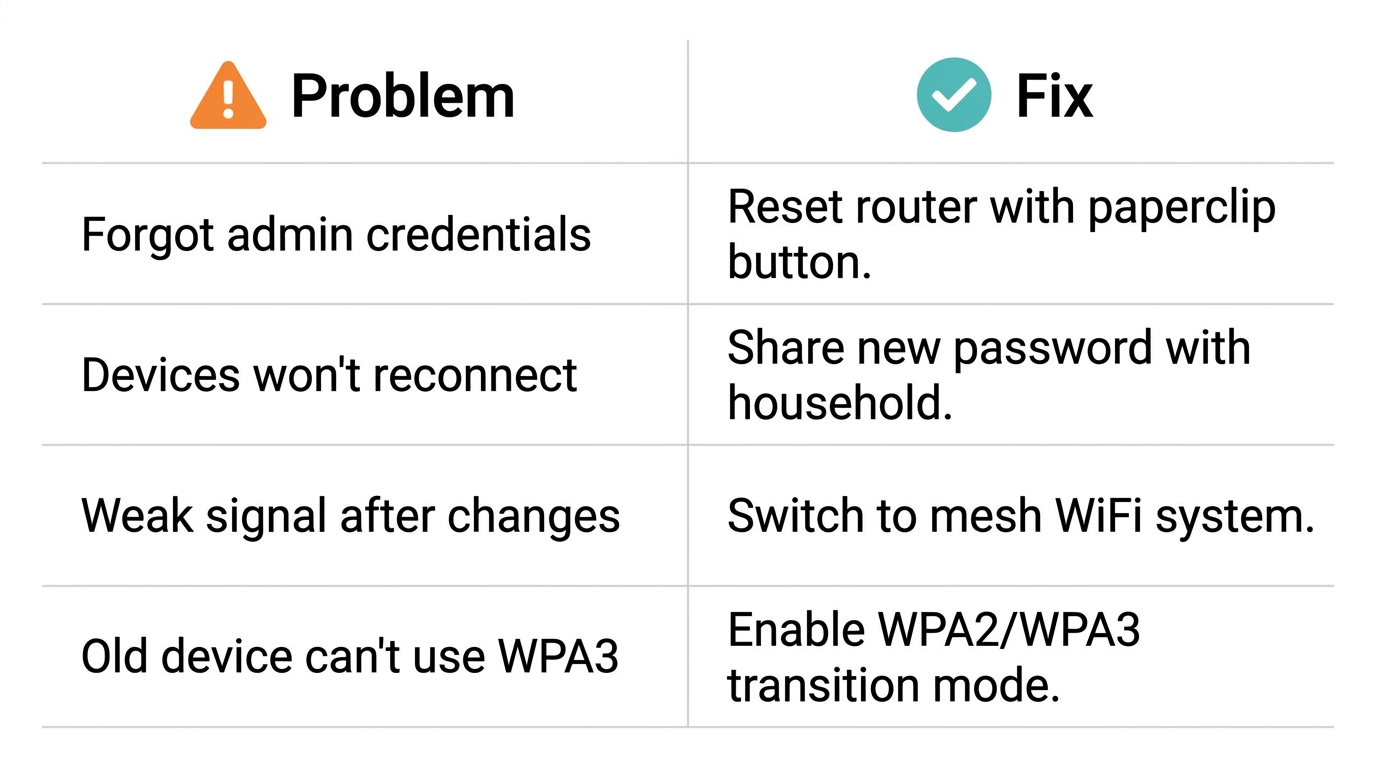
Problem 1: Forgotten Admin Credentials
If you cannot remember your Router admin username or password, you will need to reset the router to factory settings. Use the reset button on the back of the device, usually a small, recessed button you hold for 10 seconds. After resetting, log in with the default credentials printed on the router label.
Problem 2: Devices Not Reconnecting
All previously connected devices lose access after a password change. Make sure everyone in the household has the new password before saving changes. Smart home devices like cameras and smart plugs may need to be reconfigured manually through their own apps.
Problem 3: Weak or Inconsistent Signal After Changes
In larger Philippine homes, multi-floor houses or open-plan spaces, changing router settings can sometimes temporarily affect signal strength. If you are experiencing dead zones, mesh WiFi systems like the Deco BE25 provide whole-home coverage that remains consistent regardless of settings changes.
Problem 4: Older Devices Not Connecting After Switching to WPA3
Some older smartphones, laptops, or smart devices do not support WPA3 yet. If a device cannot reconnect after enabling security protocols like WPA3, check its network settings or temporarily switch back to WPA2/WPA3 transition mode, which most newer TP-Link routers support. This allows both WPA2 and WPA3 devices to connect at the same time.
For help with Wi-Fi networks and specific device compatibility, TP-Link's support FAQ is a useful reference.
Advanced Settings Worth Reviewing After a Password Change
Secure Your Admin Panel
Change the default admin login credentials for the router itself, not just the WiFi password. If someone accesses your admin panel, they can change any setting on your network. Use a unique admin username and password separate from your WiFi password.
Enable Stronger Encryption
Confirm that WPA2 or WPA3 encryption is selected under your wireless security settings. Avoid WEP and WPA.
Review Connected Devices
Check the connected devices list in your admin panel or in the TP-Link Tether app. Remove any device you do not recognize. If unfamiliar devices appear regularly, changing your password more frequently may be necessary.
Set Up a Separate Network for IoT Devices
TP-Link routers support guest network functionality, which lets you place smart home network devices, such as cameras, speakers, and thermostats, on a separate SSID. This limits what they can access on your main network.
Which TP-Link Router Is Best for Secure Home Networking?
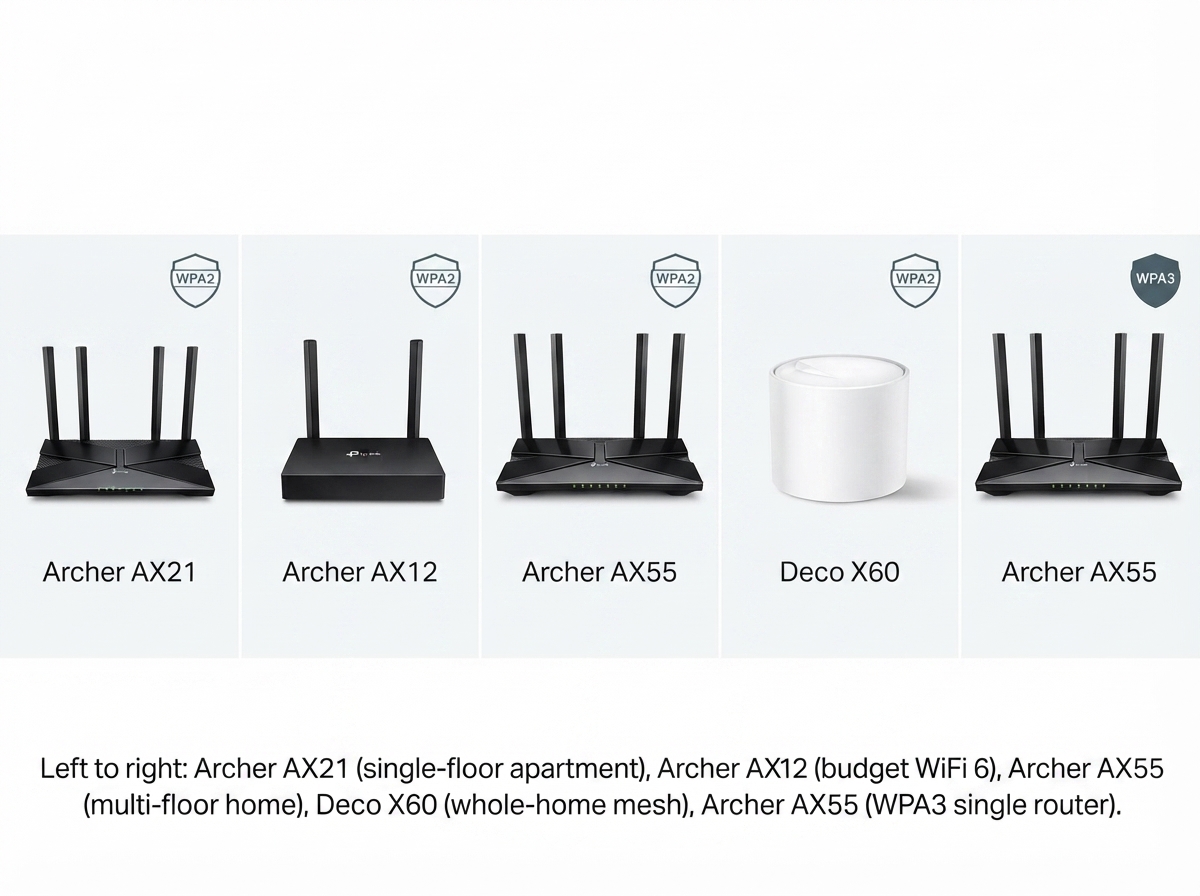
Whether you are upgrading from an older device or replacing a router after a security incident, here are recommended TP-Link options suited to different setups in the Philippines:
|
Use Case |
Recommended TP-Link Product |
Where to Find It |
|---|---|---|
|
Everyday home use - single-floor apartment |
||
|
Budget-friendly WiFi 6 upgrade |
||
|
Multi-floor home or flexible mesh setup |
||
|
Whole-home mesh coverage |
||
|
Fast single-router setup with WPA3 |
All TP-Link routers listed above support WPA2. Models in the BE and AX55 Pro lines support WPA3. The Deco BE25 supports WPA3 and is designed for large homes or multi-device setups common in Philippine family homes.
Frequently Asked Questions
How often should I change my WiFi password in the Philippines?
Change your WiFi password every three to six months for a standard home network. If you frequently share your password with visitors, run a home office, or manage a small business network handling client data, once a month is the safer interval. After any guest access or security incident, change it immediately, regardless of when you last updated it.
Will changing my WiFi password make my internet faster?
Changing your password does not directly increase your plan speed, but it removes unauthorized users from your network, so your full bandwidth goes only to your own devices. In Philippine households where speeds have been inconsistent without explanation, removing unknown connections often resolves the issue, especially during peak hours between 7 and 10 PM when ISP congestion is already high.
What do I do if I forget the new password I just set?
Reconnect using a device that is still connected to the network, then log in to the admin panel to view or change the password again. If no devices are connected and you cannot access the admin panel, use the recessed reset button on the back of the router to restore factory settings, then set a new password from scratch.
Should I also change my router's network name (SSID)?
Yes, especially if you are still using the default SSID that came with the router. A custom SSID does not add encryption, but it makes your network harder to identify by name and signals that the network is actively managed. Change both the SSID and the password together for the most visible security improvement.
Can I change my WiFi password from my phone?
Yes. TP-Link routers can be managed through the Tether app on Android and iOS. The app lets you update your WiFi password, view connected devices, and manage guest networks without needing to open a browser on a laptop. It is the fastest option for most Philippine households managing their network from a smartphone.
Is it safe to change my WiFi password using the router admin panel on a public device?
No, never access your router admin panel from a shared or public computer. Log in only from a device you own and trust on the network you are managing. Someone with access to that shared device could capture your admin credentials and take control of your router settings remotely.
What is the difference between changing my WiFi password and resetting my router?
Changing your WiFi password updates only the password devices use to connect to your network; all your other router settings stay intact. Resetting your router wipes all settings back to factory defaults, including the admin credentials, SSID, and any custom configurations. A factory reset is only necessary when you are locked out of the admin panel entirely.
Final Thoughts
Changing your WiFi password is one of the fastest and most effective things you can do to secure your home network. It takes under three minutes, requires no technical background, and immediately limits who can access your connection. Using a strong password and enabling WPA3 encryption on a supported router gives your network a meaningful security upgrade over default settings.
If you are managing a busy household in the Philippines with multiple phones, a laptop or two, smart home devices, and a streaming setup, the router you are on matters as much as the password you set. For a single-floor apartment, the Archer AX55 Pro Router covers everyday use with WPA3 and WiFi 6 out of the box. For multi-floor homes or large family setups, Deco Mesh WiFi Systems eliminate dead zones while letting you manage passwords and guest networks from one app.
Browse TP-Link's range of routers and mesh systems to find the right fit for your setup and budget.