How to Change WiFi Password: Ultimate Guide
Your WiFi network is the gateway to your online life—from work and education to entertainment and smart home devices. Changing your WiFi password is one of the simplest yet most effective ways to protect your home network from unauthorized access and ensure optimal network performance.
Want to boost security, kick out unknown users, or update a weak password? Changing your WiFi password is key. But, with so many routers, devices, and settings out there, it can be tricky for newbies.
Below, you’ll learn how to update your WiFi password safely and easily to keep your internet connection secure and under your control.
Why Changing Your WiFi Password Matters
WiFi security is very important for networks. A weak or default password can let attackers in. They can steal your bandwidth and attack your network.
Did you know over 60% of data breaches come from weak passwords? Using the same password everywhere is a big no-no. It puts your privacy at risk.
It's crucial to keep your WiFi password strong and unique. This helps protect your network from harm.
Changing your WiFi password regularly:
-
Protects sensitive data such as emails, banking, and personal files.
-
Prevents neighbors or unauthorized users from consuming your bandwidth.
-
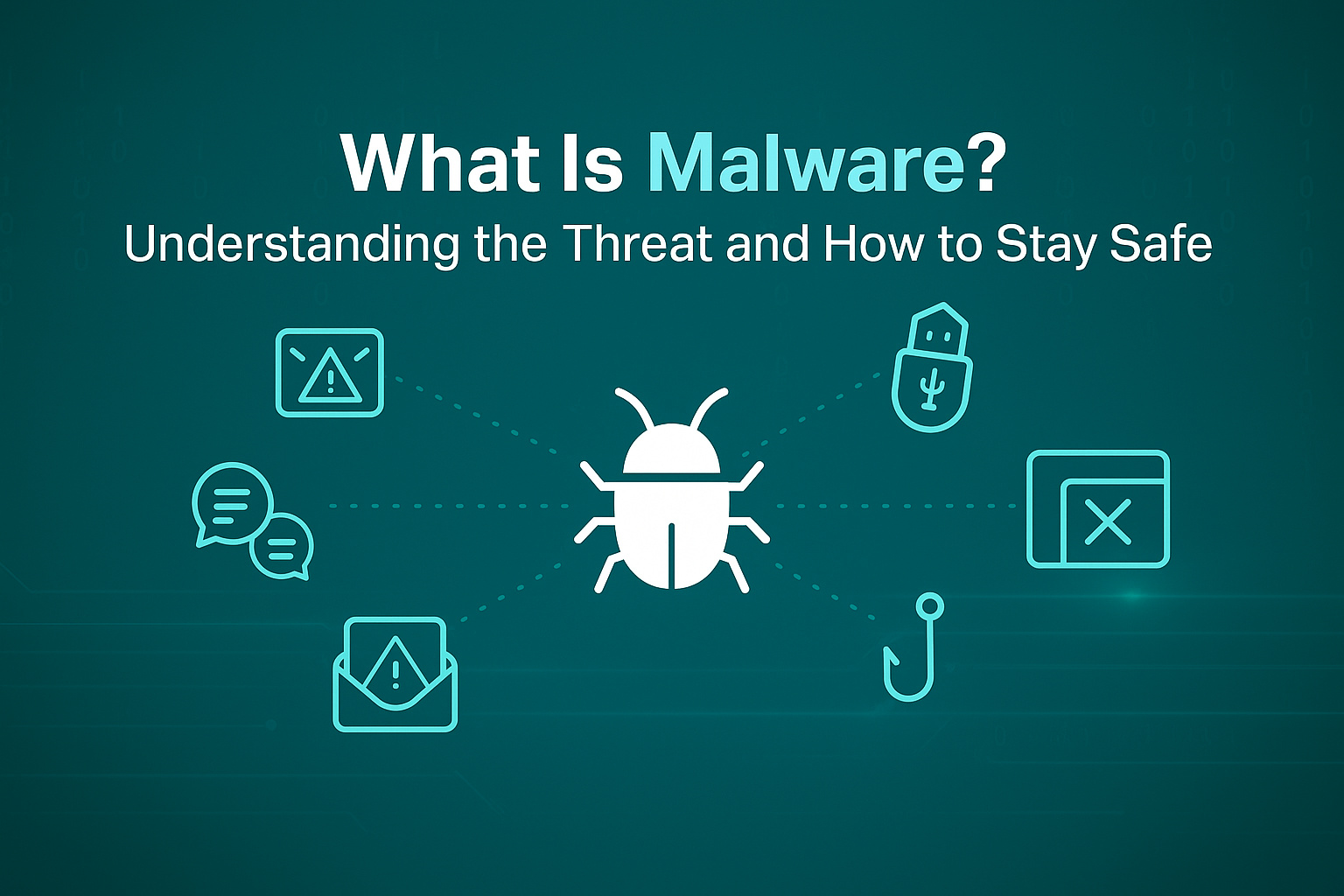
Reduces the risk of network malware or ransomware attacks.
-
Ensures better network performance by limiting connected devices to authorized users.
Types of WiFi Security Protocols
Before changing your password, it’s important to understand WiFi security types:
1. WEP (Wired Equivalent Privacy)
WEP, an older standard that is largely unsecured due to vulnerabilities, should not be used.
2. WPA (WiFi Protected Access)
This provides stronger encryption than WEP but is less secure compared to current standards.
3. WPA2
It is currently the most widely used standard, providing robust security for most home networks.
4. WPA3
The latest and most secure standard. It gives better encryption and protects against strong attacks. It also keeps IoT devices safe.
Tip: If your router supports WPA3, enable it when updating your password for maximum security.
How to Change Your WiFi Password
Changing your WiFi password is straightforward, but steps may vary depending on your router. Here’s a step-by-step guide for most home networks:
1. Log in to Your Router
-
Connect your computer or smartphone to the network.
-
Open a web browser and enter your router’s IP address (e.g., 192.168.0.1 or 192.168.1.1).
-
Login with the admin username and password. If you have not changed this, check the label on the router or the user manual.
2. Locate WiFi Settings
-
Look for Wireless, WiFi, or Wireless Security in your router’s admin panel.
-
This section contains your current network name (SSID) and password.
3. Update Your Password
-
Enter a new, strong password. A secure password should:
-
Be at least 12–16 characters long
-
Include a mix of letters, numbers, and special characters
-
Avoid obvious terms like “password” or your name
-
-
Save changes.
4. Reconnect Devices
-
Once the password changes, all connected devices will be cut off. Reconnect them using the new password.
5. Optional: Change SSID
-
Changing your network name (SSID) helps keep your network private. It makes it harder for neighbors or hackers to find it.
When is the Perfect Time for a Password Change?
You can change your password anytime if you think it's not safe anymore. Or if you're worried about your privacy.
You might need to change it if you've shared your WiFi password with guests. Or if you've seen strange devices on your network. Also, if you've had a security problem or used a weak password for too long.
Changing your password is a good way to keep your network safe, especially for systems that handle sensitive data or are connected to devices.
If you move to a new house, get a new router, or make big changes to your network, change your password. This helps keep your network safe from people who shouldn't be there.
Tips for Creating a Strong WiFi Password
-
Use long passphrases instead of short words.
-
Combine letters, numbers, and symbols.
-
Avoid personal information, like birthdays or names.
-
Use a password manager to keep track of complex passwords.
-
Change your WiFi password at least every 3–6 months.
Common Challenges When Changing Your WiFi Password
Even simple tasks like updating your WiFi password can encounter obstacles:
1. Forgotten Admin Credentials
If you can't remember your admin username or password for the router, then you may have to reset the router to its default factory settings.
2. Device Reconnection
All devices already connected will need the new password. Make sure everyone at home knows about it.
3. Signal Issues
In large homes, changing settings may temporarily affect signal strength. Using mesh WiFi systems ensures consistent coverage after password updates.
4. Compatibility
Older devices might not work with the latest security settings because they don't support new security protocols like WPA3. It's important to check if your device can handle these updates before changing your security settings.
Best Practices for Managing WiFi Security
1. Use the Latest Security Protocol
Always choose WPA2 or WPA3 for strong encryption and protection.
2. Regularly Update Passwords
Regular updates of passwords can prevent unauthorized access and enhance network reliability.
3. Secure Your Admin Panel
Change the default login credentials for the router to something new. This way, no outsider will access your router.
4. Monitor Connected Devices
Check your router’s device list for unknown users and remove unauthorized devices.
5. Use Reliable Networking Equipment
Routers and Wi-Fi systems from reputable brands guarantee security, fast speed, and robust network stability.
Future Trends in WiFi Security
Future trends in Wi-Fi security are changing fast. This is because wireless standards are getting better and threats are growing. So, Wi-Fi networks will have to get smarter, stronger, and more flexible.
Next-generation protocols like WPA3 are now the new standard. They offer better security and encryption. This helps protect against strong attacks and fake network tricks. But network security will keep getting better. New ideas like dynamic key management and post-quantum cryptography are coming. These will help us stay safe as computers get smarter.
Proactive defense is the central role AI and machine learning will identify for themselves. These include real-time sensing of anomalies, automated threat neutrality, self-healing network behavior, and counterattack within a timeframe much shorter than a human-aided system could afford.
The Zero Trust model is becoming more popular in wireless networks. It aims to lower risks from insiders and compromised devices. No device or user gets special treatment by default. Wi-Fi is moving into new places, like areas with lots of IoT devices. This means we need better control over devices and networks. We also need to catch attacks quickly to keep everything running smoothly.
Conclusion
Changing your WiFi password is easy and very important. It helps keep your network safe. Use strong passwords and the latest security to protect your home network. Also, watch who is connected to your network. This helps keep your WiFi safe from hackers.
Having trustworthy devices connected to your network will make sure that your WiFi is always fast, stable, and secure. Take a look at TP-Link's range of routers and mesh systems that will help you manage your network easily, protect your devices, and feel secure in your connected home!
Here are our recommended routers to help you manage your network effortlessly, protect devices, and enjoy reliable Wi-Fi at home—from everyday use to high-performance needs:
Archer AX55 Pro Router: A powerful Wi-Fi 6 router that delivers fast speeds and efficient connectivity for busy households. Its advanced features make it great for streaming 4K content, video calls, and handling many connected devices at once.
Archer AX10 WiFi 6 Router: An affordable Wi-Fi 6 option that still offers modern performance and security. A good pick if you want reliable internet with improved efficiency and future-ready tech without spending too much.
Archer AX23 AX1800 OneMesh Router: Great for flexible setups and extending your network with mesh-like performance. Easy to manage and works well with other OneMesh products if you plan to expand your coverage later.
FAQs About Changing WiFi Passwords
1. How often should I change my WiFi password?
For home networks, it’s recommended every 3–6 months or after a security concern.
2. Can changing my password improve WiFi speed?
Indirectly. Removing unauthorized users from your network ensures bandwidth is used efficiently.
3. What happens if I forget my new password?
You’ll need to reconnect devices using the router’s admin panel. In the worst cases, reset the router to factory settings.
4. Should I update the network name (SSID) too?
Yes, it adds an extra layer of privacy and makes your network less identifiable.
5. Are TP-Link routers easy to manage for password changes?
Yes, TP-Link routers and mesh systems include user-friendly apps and web interfaces for quick and secure password management.