
How to Factory Reset a TP-Link Router: When To Do It and How
Published: January 10, 2025 | Last Updated: July 28, 2026
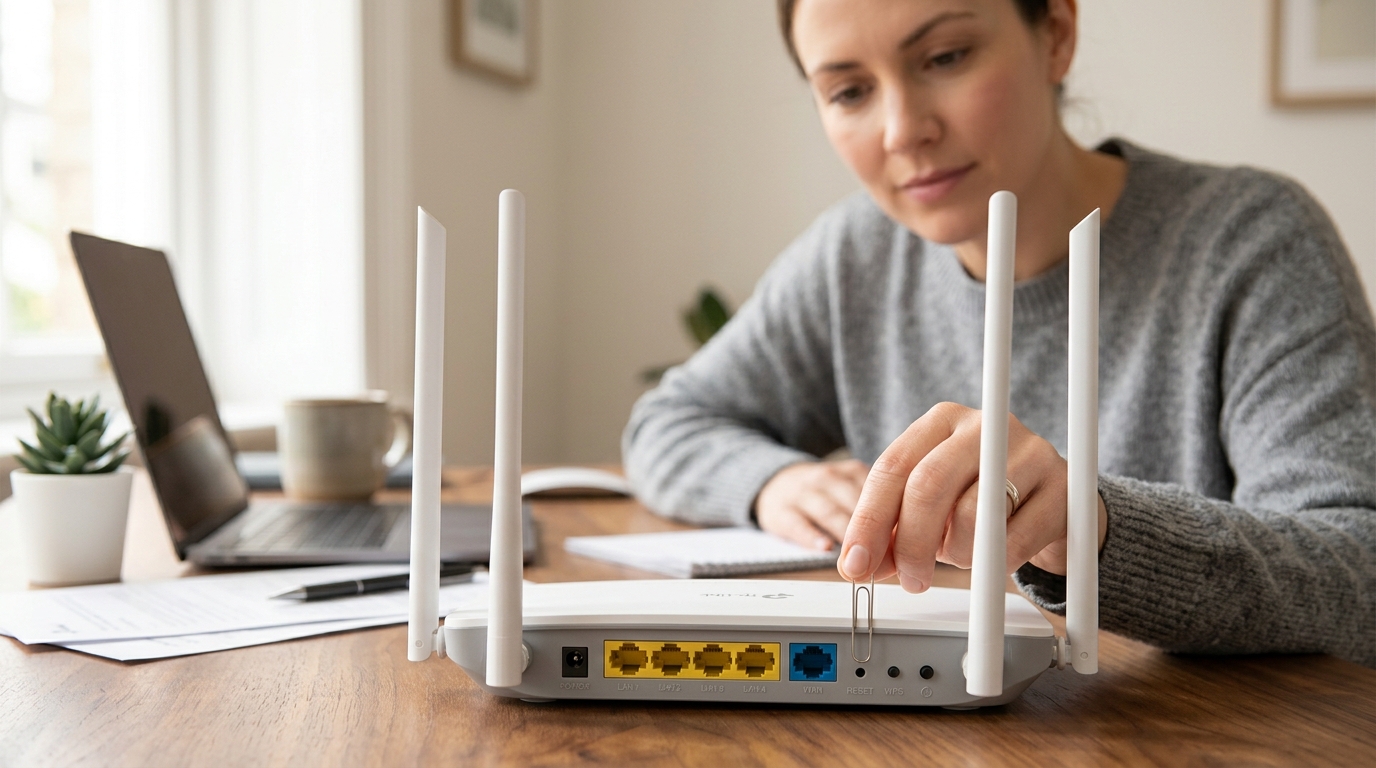
A factory reset wipes your router back to its original settings, erasing your WiFi password, network name, and admin login, and it should only happen after a reboot has already failed to fix the problem. This guide covers exactly when a reset is the right move, how to do it on every TP-Link router type, and what to do before and after.
Quick Answer
- A factory reset is a last resort for forgotten admin passwords, persistent connectivity issues a reboot didn't fix, or preparing to sell or hand off your router.
- Rebooting (unplugging for 30 seconds) fixes most connectivity problems without erasing any settings, and should always be tried first.
- Back up your configuration and note your WiFi details before resetting, since every custom setting, including port forwarding and guest networks, is erased permanently.
Table of Contents
What's the Difference Between Resetting and Rebooting a Router
Reasons to Factory Reset Your Router
How to Factory Reset Your TP-Link Router
What's the Difference Between Resetting and Rebooting a Router
This is the most important distinction to understand before doing anything to your router.
Rebooting means restarting your router: unplugging it for 30 seconds and plugging it back in. Your settings stay intact. This is your first move for failing to connect to the WiFi or slow speeds in most cases.
Factory resetting wipes the router back to default. Every custom setting, your SSID, WiFi password, admin credentials, port forwarding rules, and DNS settings is gone. You start from scratch.
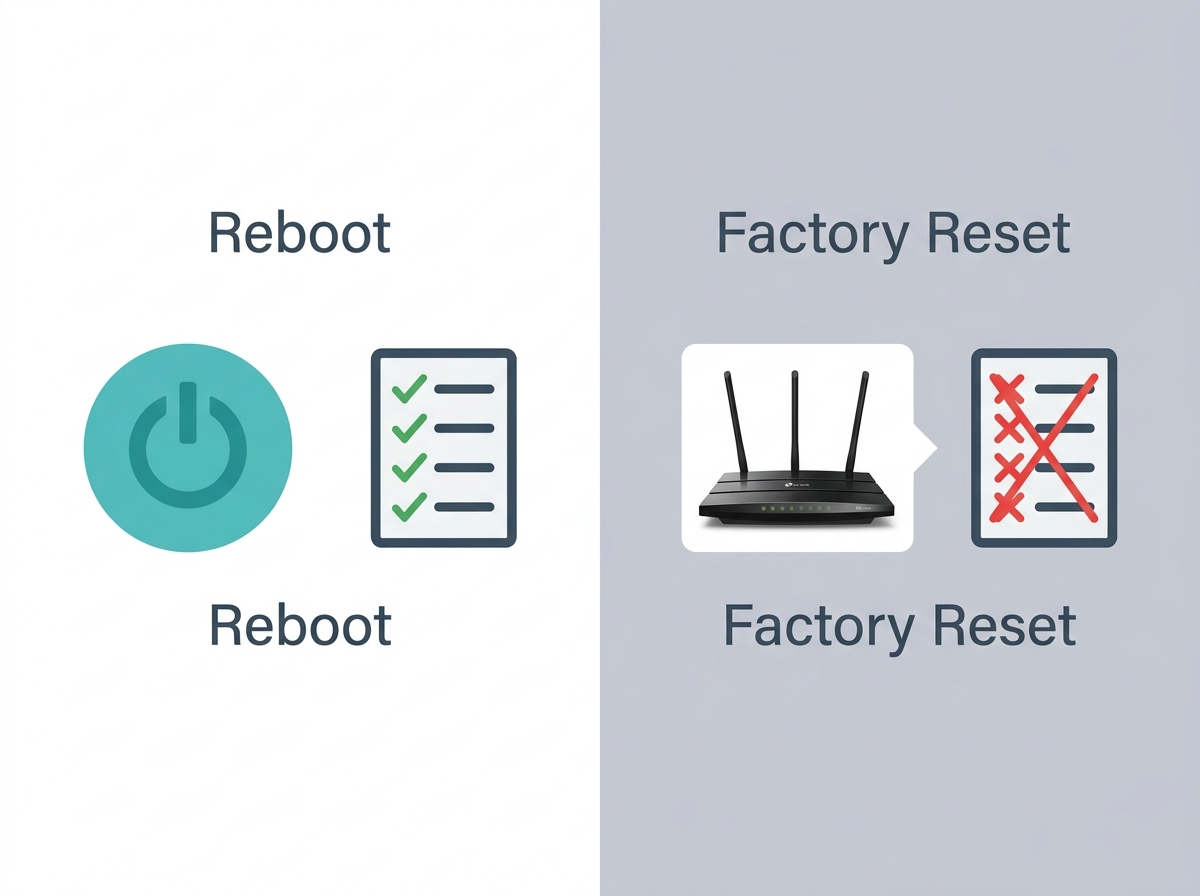
A factory reset is a last resort for troubleshooting, not routine maintenance. If a reboot doesn't fix the problem, check the firmware and cables next. If those don't help either, then reset.
Reasons to Factory Reset Your Router
1. You've Forgotten Your Admin Login
If you can't remember the admin username and password for your router's settings page, a factory reset restores the default credentials. This comes up often when you inherit a router from a family member or a previous flatmate, especially common in shared Philippine households where routers get passed around. After the reset, log in using the default credentials printed on the label on the back of the device.
2. Persistent Connectivity Problems
Issues like failing to connect to WiFi or slow speeds that won't go away after a reboot may point to corrupted or conflicting settings. Over time, accumulated configurations can interfere with performance. A reset clears all of that.
3. Erratic Router Behavior
If your router keeps rebooting randomly, drops the signal every few hours, or stops broadcasting a WiFi signal without explanation, there's likely a software-level issue underneath. A factory reset eliminates those accumulated glitches when other troubleshooting steps haven't worked.
4. Security Concerns
If you suspect your network has been compromised by unauthorized devices, unusual activity, or possible malware, a factory reset clears out any harmful configurations and restores clean defaults. Changing the default username and password immediately after resetting is the single most important step to lock down your network; our full WiFi security checklist covers the other nine steps.
5. Switching to a New ISP
Switching internet service providers (ISPs) from Globe to Converge or Sky to PLDT, or upgrading within the same provider, often leaves old settings in your router that conflict with your new connection. Resetting ensures your router starts fresh and is configured specifically for your new provider. This is also the move when switching from an ISP-provided router to your own TP-Link unit for the first time.
6. Preparing to Sell or Pass On the Router
Before selling your router or giving it to someone else, a factory reset wipes your personal data, network name, passwords, and connected device history. It's the responsible step that protects your privacy and sets the next owner up cleanly.
7. Network Configuration Errors
Duplicate IP addresses, misaligned DNS settings, or a misconfigured firewall can cause stubborn network issues that impact performance or usability. If you've tried adjusting settings and the conflicts keep coming back, a reset gives you a clean slate to reconfigure properly.
8. A Firmware Update Went Wrong
Firmware updates are essential steps for security and performance, but an interrupted or failed update can leave a router in a broken state. A factory reset clears the bad configuration so the new firmware can run on a clean base. Ensure the router is plugged in and stable before any future update attempts.
How to Factory Reset Your TP-Link Router
There are four ways to reset a TP-Link router. Use whichever applies to your setup.
Method 1: Physical Reset Button (All Models)
This works on all TP-Link routers, including the Archer series and Deco mesh units.
- Make sure the router is powered on.
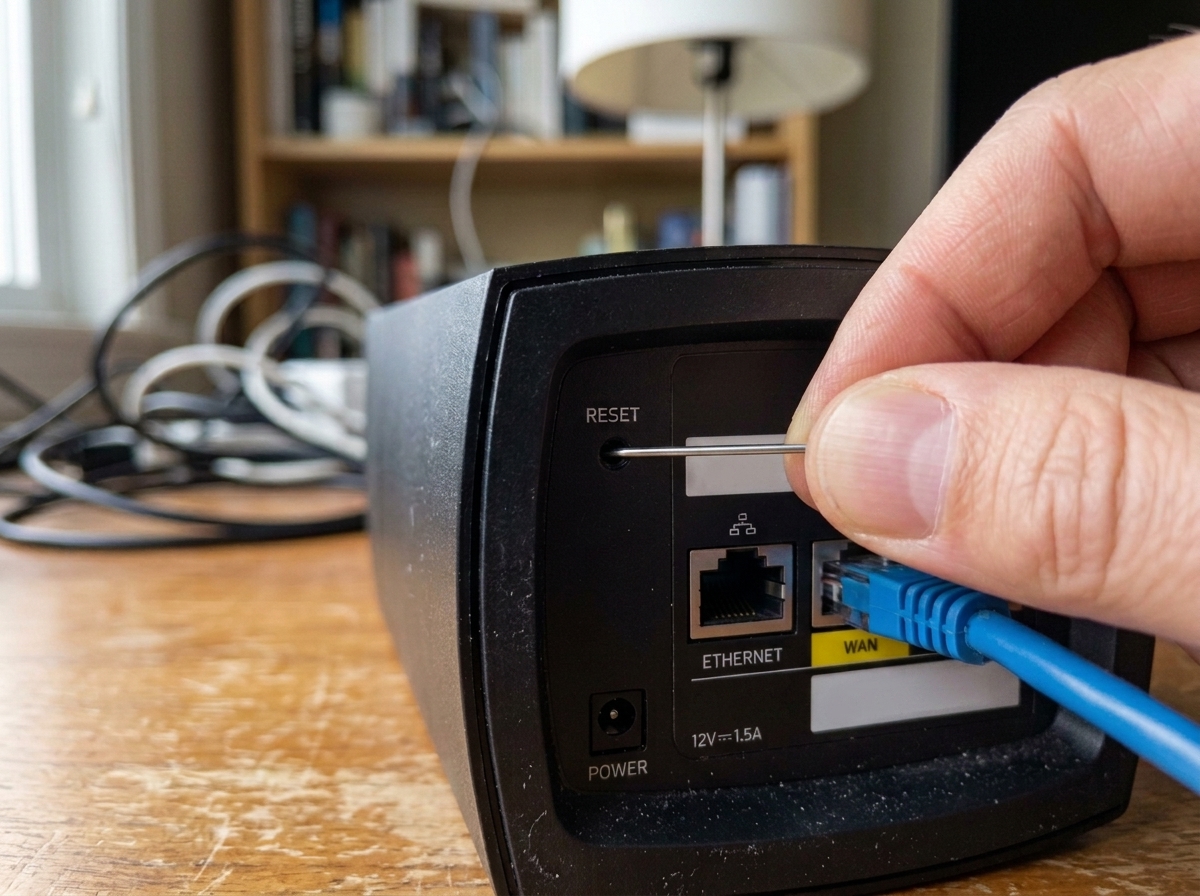
- Find the reset button; it's a small, recessed button on the back or bottom of the device. You'll need a paperclip or a pin to reach it.
- Press and hold the button for 10 seconds. Hold until the LED lights blink or the router restarts.
- Release. The router will reboot and return to factory defaults.
- Use the default credentials on the device label to log back in.
Method 2: Web Admin Panel (Archer Routers)
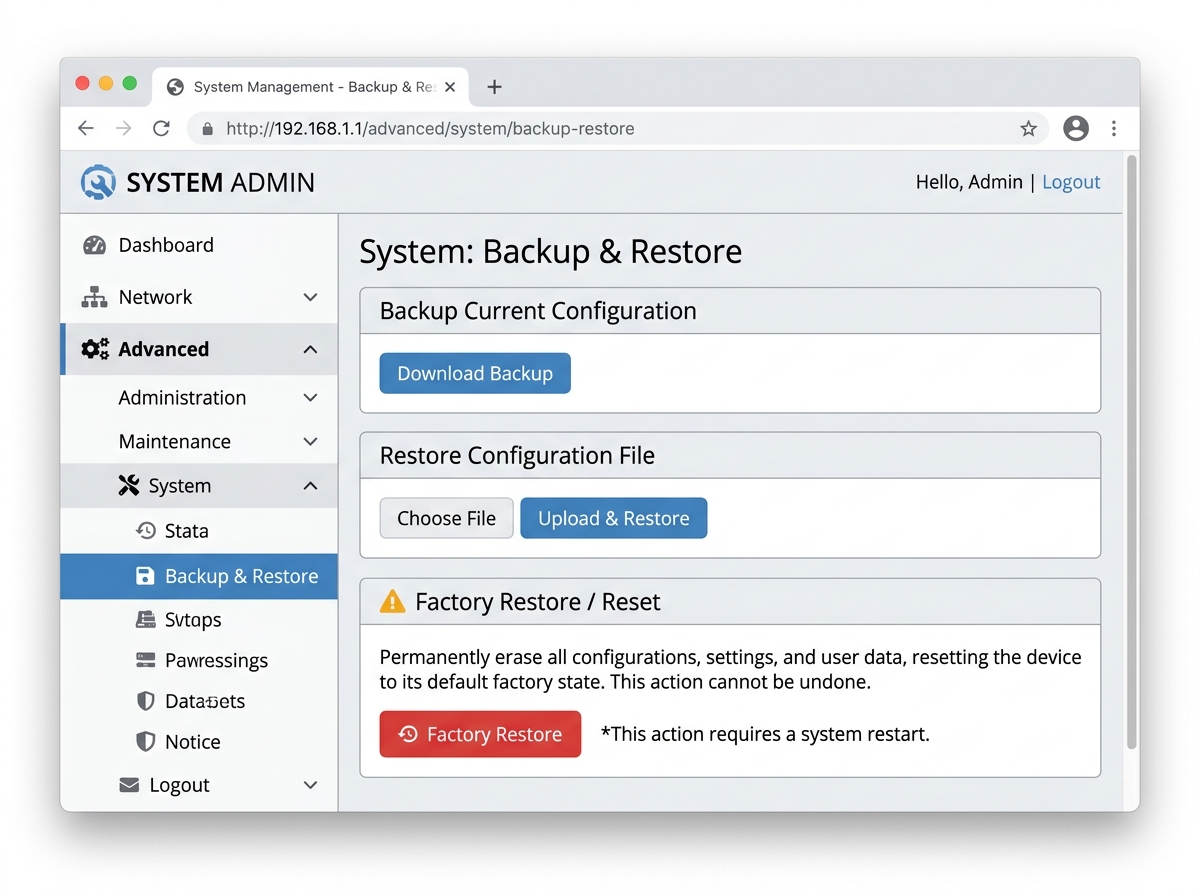
- Open a browser and go to tplinkwifi.net or 192.168.0.1.
- Log in with your admin credentials.
- Go to Advanced, then System, then Backup & Restore.
- Click Factory Restore and confirm.
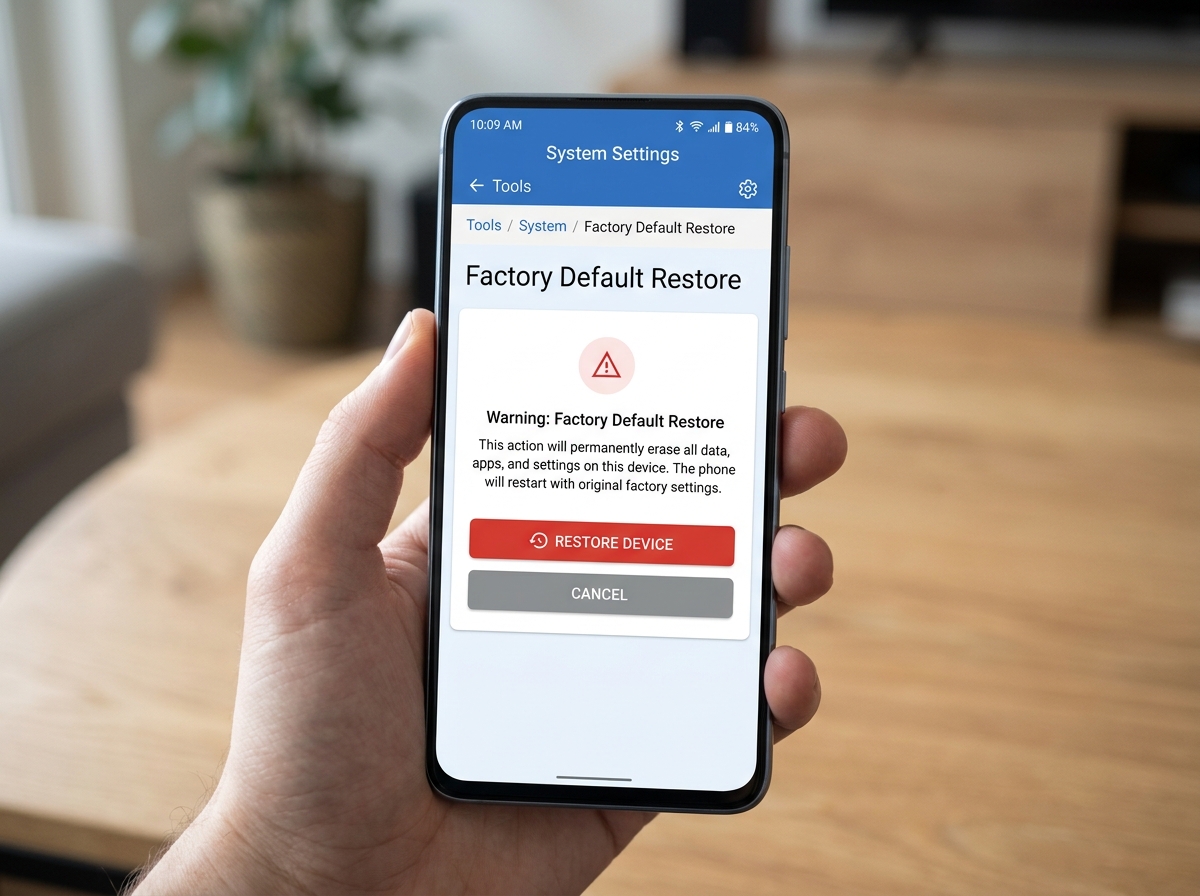
Method 3: TP-Link Tether App (Archer Routers)
Some routers offer software-based reset options through their management interface, including compact travel routers like the TP-Link Roam 6, which is worth knowing if you carry a portable router for hotel or OFW travel stays. Here's how in Tether:
- Open the Tether app on your phone and connect to your TP-Link router.
- Tap your router in the device list.
- Go to Tools, then System, then Factory Default Restore.
- Confirm. The router will restart and reset.
Method 4: Deco App (Deco Mesh Systems)
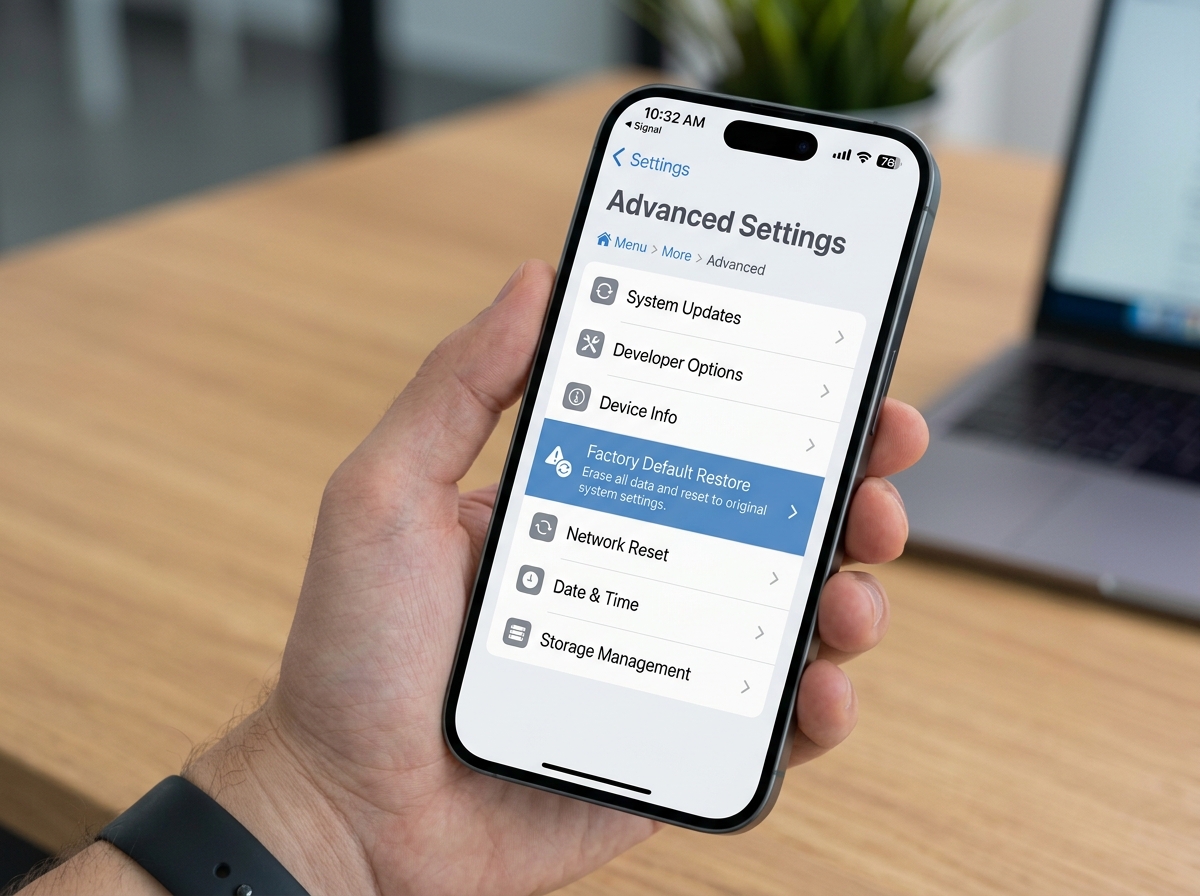
- Open the Deco app.
- Tap the menu icon (top-left), then More, then Advanced.
- Select Factory Default Restore and confirm.
What to Do Before You Reset
Don't skip this; a reset is irreversible. Take two minutes to do the following:
- Back up your settings. Most TP-Link routers let you export a configuration file under System, then Backup & Restore. Do this before you reset so you can restore custom settings later.
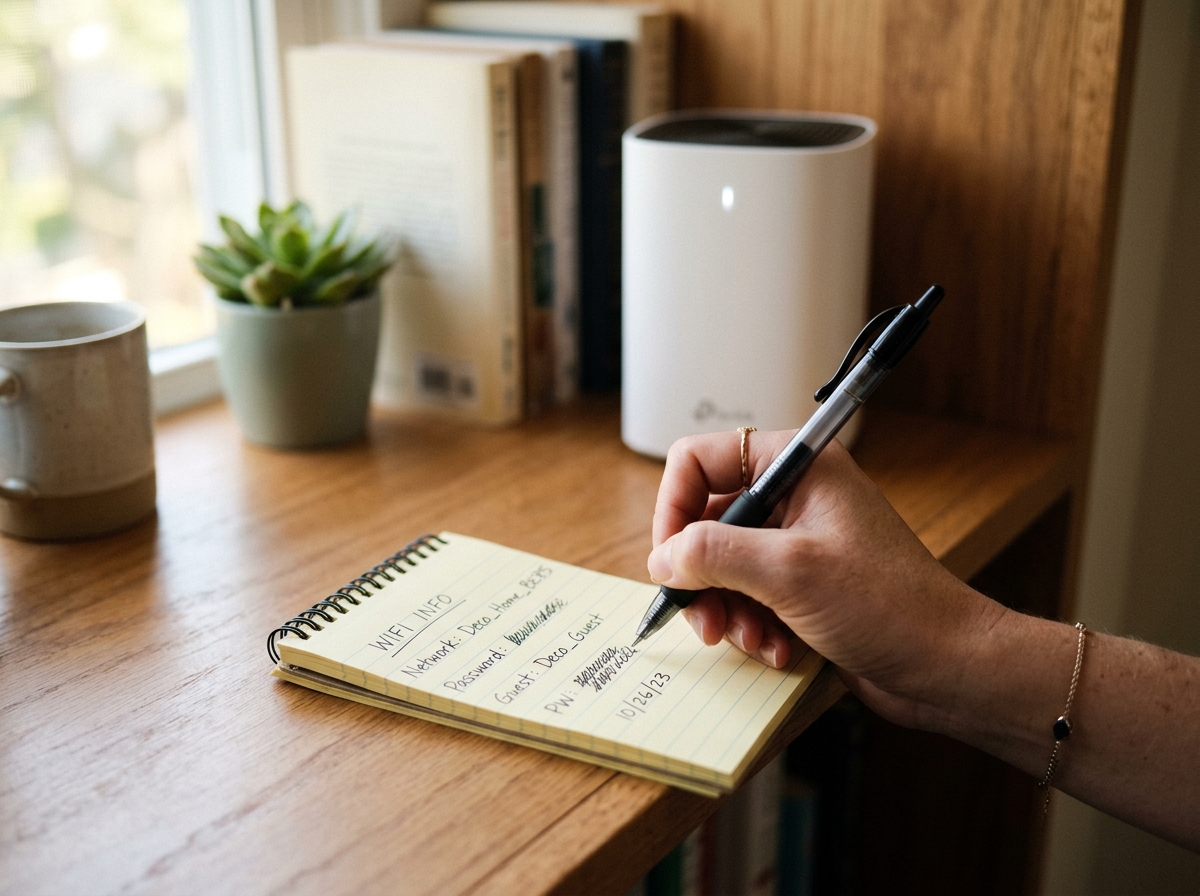
- Note your WiFi details. Write down your current SSID and password somewhere offline. You'll need these to reconnect all your devices after the reset.
- Make sure a reboot didn't already fix it. Ensure that other troubleshooting methods have been tried first. A reset is permanent; a reboot is not.
- Understand what you're losing. All custom configurations will be erased: port forwarding, parental controls, VPN settings, and guest networks. You're starting from zero.
What to Do After You Reset
Once the router restarts, here's how to get back online quickly:
- Connect to the default network. Look at the label on the back of your router for the default WiFi name and password. Connect your phone or laptop to it.
- Open the setup wizard. If you're using a Tether or Deco app, it will prompt you to set up your network again automatically. Follow the on-screen steps.
- Create a new, strong password. Don't reuse your old password. Set a unique, strong password for both your WiFi network and the router admin panel.
- Restore your backed-up settings, if applicable. If you exported a configuration file before the reset, go to System, then Backup & Restore, and import it, but only if the reason you reset wasn't a misconfiguration.
- Reconnect your devices. Update the saved WiFi credentials on each device: phones, laptops, smart TVs, smart home devices, and printers. For Philippine households with many connected devices, set aside 15 to 20 minutes for this.
- Run a speed test. Once you're reconnected, check your speeds against your subscribed plan to confirm everything is working correctly.
When NOT to Factory Reset
Before resetting, work through this checklist. Most connectivity problems get resolved before you ever reach the reset step.
- Reboot first. Unplug your router for 30 seconds, plug it back in, and wait 2 minutes. This fixes the majority of random slowdowns and drops.
- Check your cables. A loose or damaged Ethernet cable between your modem or internet provider gateway and router causes exactly the kind of instability that can look like a router problem. Reseat or replace the cable.
- Check for a firmware update. Log in to your router admin panel or open the Tether or Deco app and check if a firmware update is available. Outdated firmware is a common source of performance issues.
- Check for an ISP outage. If you're on PLDT, Globe, Converge, or Sky, check their app or social media pages before blaming your router. Widespread outages happen, and no reset will fix your ISP's infrastructure.
- Adjust specific settings. DNS conflicts, interference on a congested WiFi network channel, or a misconfigured firewall rule can all be fixed without a full reset.
If you've worked through all of the above and the problem persists, then reset.
When to Seek Professional Help
A factory reset resolves most software-level issues, but not everything. Consider reaching out to a technician or your ISP if:
- The router doesn't respond to a reset at all, or shows physical damage like a burnt smell, flickering lights, or a cracked case; it likely needs repair or replacement.
- For business setups or advanced home networks, professional configuration after a reset can prevent misconfigurations that affect multiple users or services.
- The same problem keeps coming back after a reset. If you're resetting regularly to fix recurring issues, the underlying cause hasn't been found. Your ISP or a network technician can run a proper diagnosis.
Frequently Asked Questions
How do I tell if it's a modem issue or a router issue?
Check whether the problem affects all devices or just some. If no device in the house can connect, even when plugged directly into the modem or ISP gateway, the modem or your ISP line is the likely culprit. Unplug both devices for 30 seconds, then reconnect, starting with the modem. The indicator lights on the modem confirm an ISP connection before you even look at the router.
How often should you factory reset your router?
You should not factory reset on any regular schedule. A factory reset is a last-resort troubleshooting step, not maintenance. For routine upkeep, reboot your router (unplug for 30 seconds) every one to two months. That clears temporary memory, flushes minor bugs, and refreshes the connection without erasing any of your settings. Reserve the factory reset for the specific situations listed in this article.
What causes routers to crash?
Overheating is the most common cause, especially in Philippine households where routers sit in enclosed cabinets or near walls with poor airflow. Make sure your router has ventilation on all sides. Other causes include firmware issues, too many simultaneously connected devices overwhelming the router's processing capacity, interference from nearby WiFi networks or appliances like microwaves, and, in some cases, post-surge damage after a typhoon or brownout.
How do you reset a TP-Link router?
Locate the small recessed reset button on the back or bottom of the router. Use a paperclip or pin to press and hold the button for 10 seconds until the router's lights blink or it restarts. Release, and the router resets to factory defaults. You'll need to reconfigure your WiFi name, password, and admin credentials using the default information on the label.
Will a factory reset fix slow internet speeds?
It depends on the cause. If slow speeds are due to a corrupted configuration or firmware glitch, a reset may help. But if the slowness is on your ISP's end, or because you're subscribed to a lower-tier plan, a reset won't change anything. Run a speed test first and compare it against your subscribed speed. If there's a significant gap, check your ISP's status page or call their support line before resetting your router.
Do I need to reset my router when switching from a Globe-provided modem-router to my own TP-Link?
Yes. When you switch from an ISP-bundled device to your own TP-Link router, factory reset the TP-Link first (if it was previously used) to make sure no old configurations interfere with your new setup. Then configure it fresh using the TP-Link Tether app or web admin panel with your new ISP credentials. Your ISP technician or their support line can give you the PPPoE username and password if needed.
Is it safe to factory reset a router?
Yes, as long as you've noted your current settings beforehand. A factory reset doesn't damage the router hardware; it only wipes software configurations. The process is reversible in the sense that you can reconfigure everything from scratch, though you can't restore settings unless you backed them up before resetting.
Can a factory reset fix a router that keeps disconnecting devices randomly?
Often, yes, if the cause is a corrupted configuration rather than a hardware fault. Random disconnections after months of use frequently trace back to accumulated software glitches that a reset clears out completely. Try a reboot first, since it fixes many of the same symptoms without erasing your settings. If disconnections persist after a reboot and firmware check, a reset is the appropriate next step.
Final Thoughts
Factory resetting a router is a permanent, last-resort step, not a routine one. Reserve it for forgotten passwords, persistent unresolved issues, security concerns, or a clean handoff, and always reboot, check cables, and check firmware first. Once you understand the difference between resetting and rebooting, this becomes a straightforward tool rather than something to fear.
Still running into router issues even after a reset? It may be time for a more capable device. Explore TP-Link's range of routers from everyday Archer models to whole-home Deco mesh systems built for reliable performance, strong security, and easy setup. For larger homes or office setups, the Deco BE85 delivers a stable and secure internet connection even across multiple floors and dozens of connected devices.