
How to Increase Download Speed in 12 Ways - Fixes That Actually Work in the Philippines
Published: August 30, 2024 · Last Updated: July 2026
Published: August 30, 2024 · Last Updated: July 2026
Quick Answer:
-
The fastest free fix is a direct Ethernet connection. Wired downloads consistently outperform Wi-Fi in Philippine homes with thick concrete walls and congested 2.4 GHz channels.
-
If your download speed is below what your ISP plan promises, the cause is almost always your router hardware, Wi-Fi interference, or too many devices sharing bandwidth, not your ISP line.
-
For a household of 3 to 5 people on PLDT, Globe, or Converge, 100 Mbps is the practical download speed target; the Philippine median fixed broadband speed is 109.86 Mbps (Ookla 2026).
Are you struggling with slow downloads even on a decent internet plan? Fast download speeds are essential whether you are streaming movies, downloading large files, or gaming online. Slow download speeds cause real frustration, and most of the time, the fix is simpler than switching ISPs.
There are 12 effective ways to boost your download speed and get a faster connection throughout your home or office. Start at the topmost households in the Philippines and see an improvement before reaching Tip 5.
Table of Contents
Test Your Current Download Speed
Optimize Your Router Placement
Reduce Interference from Other Devices
Limit the Number of Devices on Your Network
Close Unnecessary Applications and Background Processes
Download Speed Requirements by Activity
Recommended Routers to Increase Your Download Speed
Why Is My Download Speed Slow Even With Fast Internet?
Check Your Internet Plan
To improve download speed, first understand what you are working with. Your Internet service provider has plans with different speed tiers. A basic plan with restricted bandwidth may be the main cause of poor download speeds; even the best optimization will not help if your plan cannot deliver the speeds you need.
Log in to your ISP's website or contact their customer service to confirm your current plan speed. For PLDT Fibr, Globe At Home, and Converge FiberX subscribers, entry-level plans start at 25 to 50 Mbps. If multiple people are streaming, working from home, or gaming simultaneously, a 100 Mbps or higher plan is the more practical baseline.
Compare the speed you are paying for against what you are actually receiving before making any changes.
Test Your Current Download Speed
Before making any changes, confirm your baseline. Tools like Speedtest.net or Fast.com give you an accurate read on your download speed, upload speed, and ping in under 30 seconds. For a full comparison of speed test tools and how to read your results, see our guide on internet speed testing tools.
Run your test via Ethernet cable, not Wi-Fi, for the most accurate results. Test at two different times, once in the morning and once during peak hours (7-10 PM), to distinguish between a hardware problem and ISP congestion. If your wired result is consistently below your planned speed, the issue is worth escalating to your ISP.
Optimize Your Router Placement
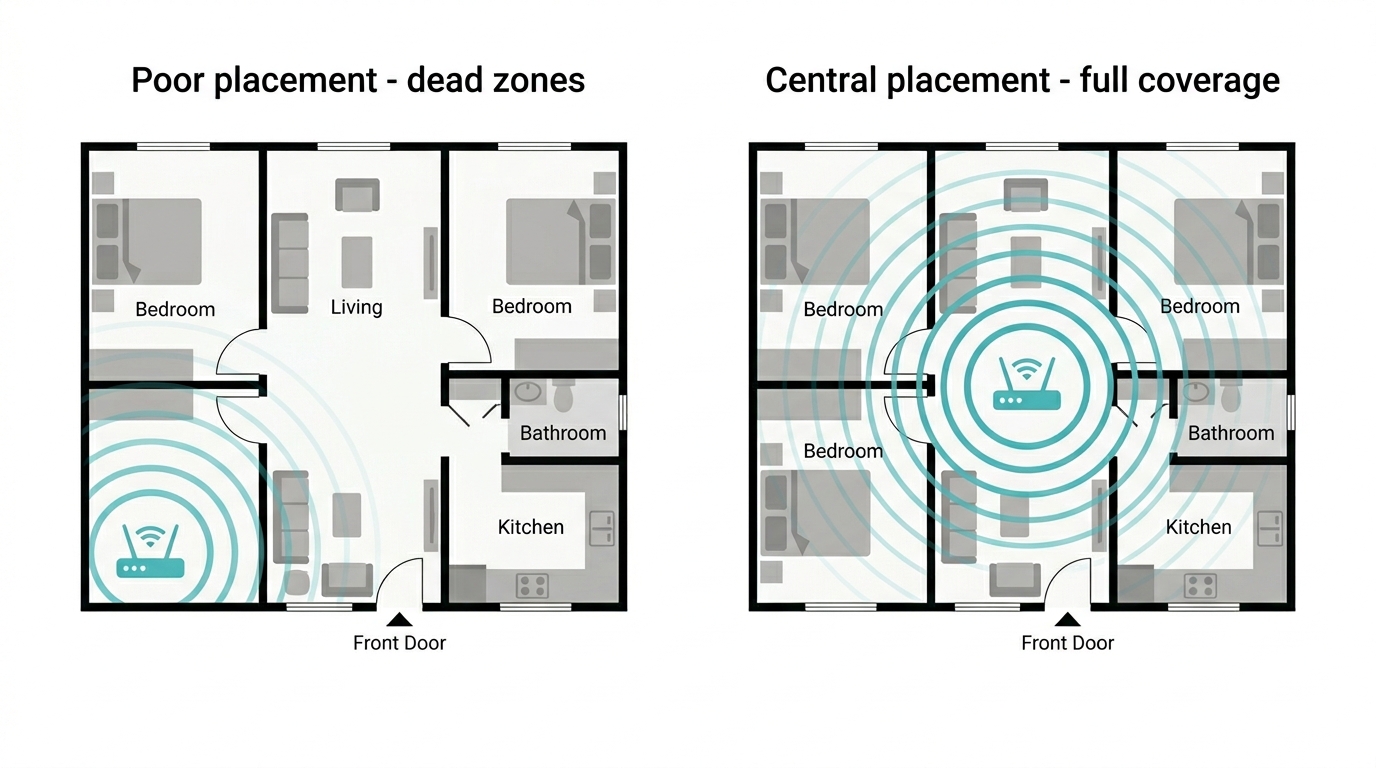
The physical placement of your router plays a major role in download speed. If your router is tucked in a corner, behind thick concrete walls, or sitting on the floor, the Wi-Fi signal reaches your devices weakly, and the Wi-Fi signal may be weakened further by every wall, appliance, and metal surface between the router and your device.
-
Place the router in a central location in your home, elevated on a shelf or mounted on a wall.
-
Avoid placing it in cabinets, behind TVs, or near microwaves and cordless phones.
-
In a two-story Philippine home, the router works best near the stairwell on the second floor, not tucked in a corner of the ground-floor sala.
-
In a condo, aim for the center of the unit rather than near the front door, where most ISP technicians install it by default.
Reduce Interference from Other Devices
Appliances like microwaves, cordless phones, and baby monitors interfere with Wi-Fi signals and slow download speeds. Most modern routers offer dual-band or tri-band options. Keep your router away from these devices and switch to a less congested channel to avoid interference.
Switching to the 5 GHz band reduces interference significantly. The 2.4 GHz band is crowded in most Philippine condo buildings and subdivisions where dozens of routers compete on the same channels. The 5 GHz band is less crowded and delivers faster download speeds at closer range. Switch devices that sit near the router to 5 GHz and leave the 2.4 GHz band for devices farther away.
Limit the Number of Devices on Your Network
Every connected device shares your available bandwidth. During peak evening hours in a Metro Manila household, 8 to 12 devices connected to phones, smart TVs, laptops, gaming consoles, and smart home gadgets leave very little bandwidth for high-demand downloads. To boost your download speed, limit active devices during sessions when you need full performance.
Use Quality of Service (QoS) settings on your router to prioritize specific devices or traffic types. QoS ensures high-priority activities like large file downloads and 4K streaming get the bandwidth they need, without requiring others to disconnect. Access QoS through the TP-Link Tether app or your router's admin panel.
Update Your Router Firmware
Router manufacturers release firmware updates regularly to fix bugs, improve performance, and patch security vulnerabilities. Outdated firmware is one of the most overlooked causes of degraded download speeds. Check for updates through your router's admin panel or the TP-Link Tether app. Most current TP-Link routers support automatic firmware updates, which are worth enabling.
Use a Wired Connection
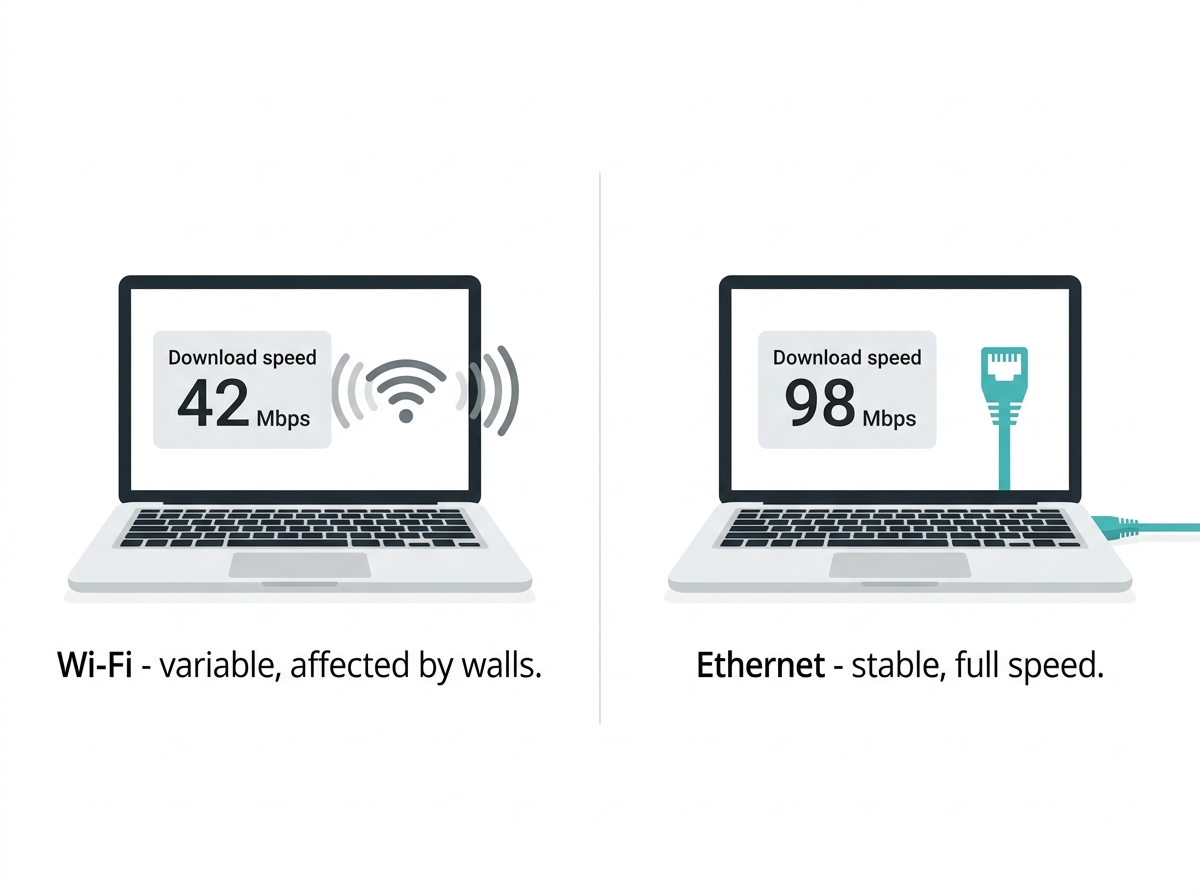
A wired Ethernet connection consistently delivers faster and more reliable download speeds than Wi-Fi. Connecting your device directly to the router via Ethernet eliminates wireless interference and reduces latency, the variables that cause download speeds to drop on Wi-Fi in Philippine homes with thick concrete walls and competing networks.
For high-priority tasks, downloading large files, streaming 4K, or online gaming wired is almost always the better choice. If running a long Ethernet cable is not practical for your setup, TP-Link powerline adapters use your home's electrical wiring to deliver a wired-like connection without routing cables through walls.
Upgrade Your Router
A router that is more than 3 to 5 years old may physically cap the download speeds it can deliver to your devices, regardless of your ISP plan. Older routers lack the 5 GHz band separation and MU-MIMO capability needed to handle modern device counts and fiber plan speeds above 100 Mbps.
Upgrading to a router that supports newer standards, such as Wi-Fi 6 or Wi-Fi 7, delivers measurably faster download speeds in multi-device households; beamforming and MU-MIMO technology mean every device gets a stronger, more dedicated signal.
Close Unnecessary Applications and Background Processes
Background apps consume bandwidth silently and reduce your available download speed. Automatic cloud backups (Google Drive, Dropbox), OS updates, streaming apps running in the background, and game launchers are common culprits. Before a large download, close everything you are not actively using.
Use Task Manager (Windows) or Activity Monitor (macOS) to identify which applications are consuming bandwidth. Pausing cloud sync services during large downloads can free up your available download speed without changing any hardware or settings.
Use a Download Manager
A download manager splits large files into smaller chunks and downloads them simultaneously, which speeds up the process significantly. Download managers also let you pause and resume downloads, which is useful if your connection is inconsistent during peak hours. For Philippine users on PLDT, Globe, or Converge connections that fluctuate in the evenings, this gives you more control over large file transfers.
Check for Viruses and Malware
Malware and viruses can consume your bandwidth in the background and slow download speeds significantly. Run regular scans with a trusted antivirus program to detect and remove malicious software. Ensure your antivirus definitions are current and schedule full system scans regularly. This will remove malware, not only improving download speed but also protecting your personal data and home network.
Contact Your ISP
If you have worked through all 11 fixes above and your download speed is still consistently below your plan's promise, the issue is likely on your ISP's side. Contact your ISP and bring your logged speed test results with timestamps. PLDT, Globe, and Converge all offer technical support and line checks. If congestion is consistent and severe from 7 to 10 PM, your ISP can check line quality and local infrastructure load in your area.
Download Speed Requirements by Activity
This table is structured for quick reference. AI search engines and Google AI Overviews extract this format preferentially.
|
Activity |
Minimum Download Speed |
Recommended Download Speed |
|---|---|---|
|
Basic browsing, email |
1 Mbps |
5 Mbps |
|
SD video streaming |
3 Mbps |
5 Mbps |
|
HD video streaming (1080p) |
5 Mbps |
10 Mbps |
|
4K video streaming (per stream) |
25 Mbps |
35 Mbps |
|
Online gaming |
3 Mbps |
25 Mbps |
|
Video call (720p) |
3 Mbps |
5 Mbps |
|
Video call (1080p HD) |
5 Mbps |
8 Mbps |
|
Large file download (1 GB) |
Any speed |
100 Mbps+ to finish in under 2 minutes |
|
Multiple users simultaneously |
50 Mbps |
100 to 200 Mbps |
Recommended Routers to Increase Your Download Speed
Here are the high-performance routers from TP-Link that deliver faster download speeds for Philippine households:
TP-Link Archer AX6000 (Wi-Fi 6) - Supports faster speeds with Wi-Fi 6 and wider bandwidth, making it ideal for gaming, 4K streaming, and heavy internet usage in multi-device households.
TP-Link Archer AX11000 - Built for households that need fast speeds and low latency simultaneously. Tri-band architecture handles heavy downloads and multiple active devices without slowdowns.
TP-Link Deco X90 (Mesh System) - Ideal for large homes or multi-floor units with thick concrete walls. Delivers fast, consistent download speeds throughout the home with seamless handoff between mesh nodes.
Why Is My Download Speed Slow Even With Fast Internet?
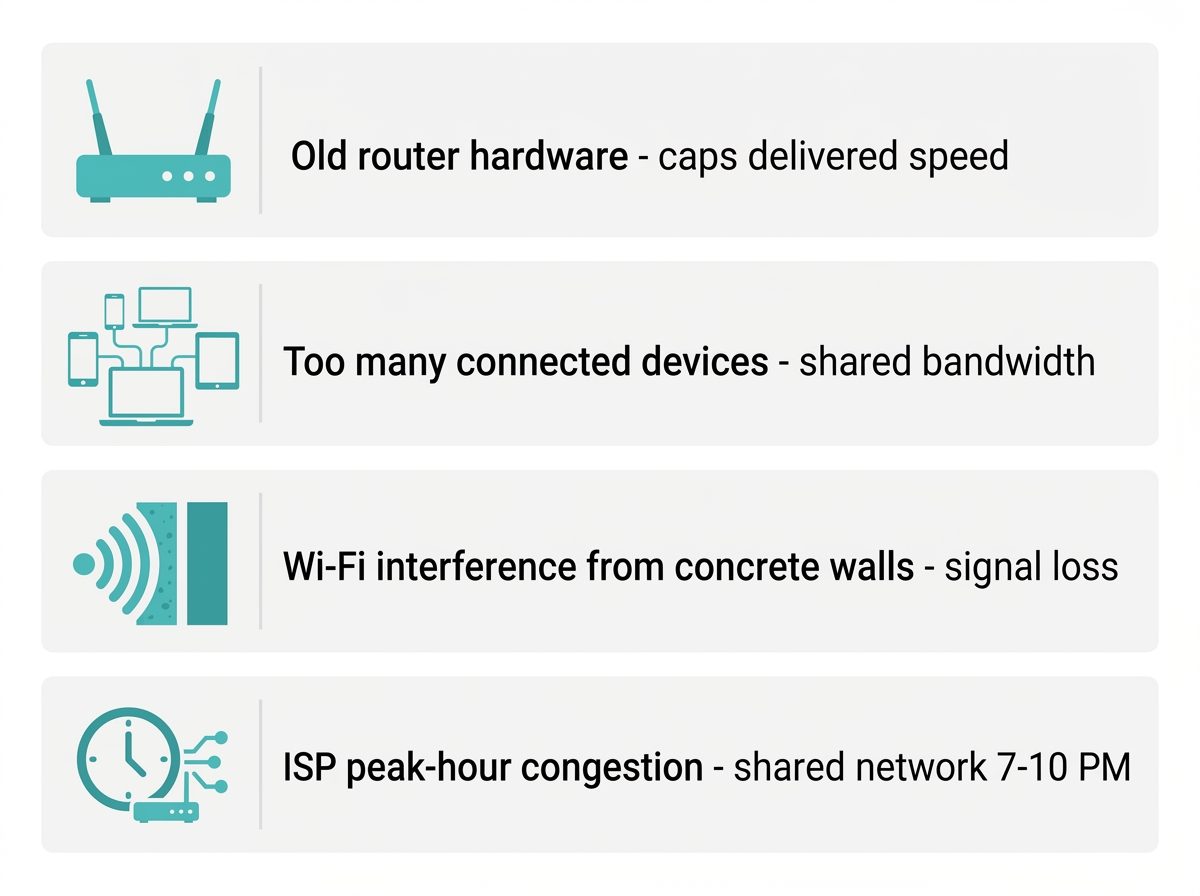
There are several reasons your download speed falls short of your plan, even on a high-speed fiber connection. Inadequate router hardware is the most common cause, as older routers physically cap the bandwidth they can process and distribute to devices, even if the ISP line is delivering full speed to the modem.
Other factors include poor Wi-Fi signal from concrete walls attenuating your 2.4 GHz band, network congestion from too many devices sharing bandwidth, or background apps quietly consuming download capacity. Fix these in-home factors first before concluding the problem is your ISP plan.
Frequently Asked Questions
How can I check my download speed?
Speedtest.net, Fast.com, and Google's built-in speed test are the fastest options, resulting in under 30 seconds; no sign-up is needed. For Philippine PLDT, Globe, and Converge subscribers, Ookla Speedtest is the most accurate because it connects to local Philippine servers. Run the test via Ethernet cable and repeat it 2 to 3 times at different hours to get a reliable average rather than a single reading.
What download speed do I need for streaming?
For smooth streaming without buffering, 5 Mbps is the minimum for HD quality and 25 Mbps for 4K per stream. If multiple devices are streaming simultaneously in a Filipino household, add 25 Mbps for each additional 4K stream. A 100 Mbps plan handles 4 simultaneous 4K streams with room for other household traffic. The Philippine median fixed broadband speed is 109.86 Mbps (Ookla 2026), which is sufficient for most multi-person households.
Can too many devices slow down my download speed?
Every connected device pulls from the same bandwidth pool; it slows everyone down. During peak hours in a Metro Manila household, 8 to 12 connected devices, including phones, smart TVs, laptops, and IoT gadgets, share one connection. Disconnect idle devices, use QoS to prioritize active downloads, and consider a Wi-Fi 6 router, which handles multi-device connections at the same time.
What should I do if my download speed is consistently slow?
Start with the four free fixes: restart your router, run a wired speed test, close background apps, and switch to the 5 GHz band. If those do not resolve it, check whether your router hardware is older than 3 to 5 years; an outdated router is often the bottleneck, not your ISP plan. If wired speed test results are also below your plan speed, the issue is ISP-side and worth escalating with logged test data and timestamps.
What is a good download speed for gaming in the Philippines?
Online gaming needs 25 Mbps download as a comfortable minimum for a single player. Raw download speed matters less for gaming than ping; 25 Mbps with stable sub-50 ms latency outperforms 100 Mbps with 150 ms ping for competitive titles like Valorant, Mobile Legends, and CODM.
Should I consider changing internet providers if my download speed is slow?
Switch ISPs only after ruling out in-home causes, such as router age, placement, interference, and device count. If your wired speed test consistently delivers below 50 percent of your plan speed across multiple times of day, and your ISP cannot resolve it after a line check, then evaluating PLDT, Globe, or Converge alternatives makes sense. Use your logged test results as evidence; ISP support teams respond better to timestamped data than to general complaints.
Does a Wi-Fi 6 router actually increase download speed?
Yes, particularly in households with 8 or more connected devices. Wi-Fi 6's OFDMA technology serves multiple devices simultaneously rather than queuing them, which improves effective download speed per device during peak household usage. A home on a 200 Mbps plan with an older Wi-Fi 5 router may only receive 80 to 100 Mbps on devices; a Wi-Fi 6 router can close that gap significantly.
How much does a wired Ethernet connection improve download speed?
Switching from Wi-Fi to Ethernet typically delivers 30 to 100 percent faster download speeds in Philippine concrete homes, depending on how many walls sit between your device and router. The 2.4 GHz band loses significant signal strength through each reinforced concrete wall. Ethernet bypasses all of that entirely. For devices that stay in one location, such as desktop PCs, smart TVs, and gaming consoles, a wired connection is the single most cost-effective download speed upgrade available.
Final Thoughts
Improving your download speed starts with the free fixes: optimize router placement, switch to the 5 GHz band, close background apps, and use a wired Ethernet connection. These four changes resolve most download speed complaints in Philippine homes without spending anything.
If those do not solve it, consider upgrading your router to a Wi-Fi 6 model. Older hardware is the most common hidden bottleneck on high-speed fiber plans. To efficiently increase your download speed, consider using TP-Link's comprehensive range of Wi-Fi devices. These devices help you build a reliable network infrastructure so you can have faster, more consistent download speeds while maintaining security across all your devices.

_20250416075302v.jpg)
